

Introduction to Windows Image Acquisition on Windows 11
In our increasingly digital world, the ability to effortlessly transfer images and documents from physical devices to our computers is paramount. Whether you’re scanning an old photograph, digitizing an important document, or importing pictures from a digital camera, a fundamental technology works silently behind the scenes to make it all possible. This technology is known as Windows Image Acquisition (WIA), and it plays a vital role in the seamless operation of your imaging devices on Windows 11. Learn more at the WIA Start Page.
For many users, WIA is an unseen hero, a core component that ensures your scanner, camera, or multifunction printer communicates effectively with your operating system and imaging software. Without it, the simple act of clicking “Scan” or “Import” would become a complex, often frustrating endeavor. Understanding WIA is not just for IT professionals; it empowers every Windows 11 user to troubleshoot common issues and optimize their digital imaging workflow.
This comprehensive guide will delve deep into the intricacies of Windows Image Acquisition on Windows 11. We’ll explore its historical context, its critical role in modern computing, and how it differs from older standards. Furthermore, we’ll provide practical, step-by-step instructions on managing the WIA service, diagnosing common problems, and enhancing its performance to ensure a smooth and efficient imaging experience.
Table of contents
Key Takeaways
- WIA is Essential: Windows Image Acquisition (WIA) is a core Microsoft API and driver model that enables communication between imaging hardware (scanners, cameras) and software on Windows 11.
- Modern Standard: It superseded older technologies like TWAIN by offering a more robust, standardized, and secure framework for device interaction.
- Service Management: Users can manage the WIA service (start, stop, restart, configure startup type) via the Services Manager (services.msc) to resolve common issues.
- Troubleshooting Focus: Common problems like devices not being detected or the service failing to run often stem from driver issues, service dependencies, or software conflicts.
- Driver Importance: Keeping device drivers updated is crucial for optimal WIA performance and stability on Windows 11.
- Security Best Practices: Understanding WIA’s role in device security and applying best practices helps protect your system from potential vulnerabilities.
What is Windows Image Acquisition (WIA)?
Windows Image Acquisition (WIA) is a comprehensive imaging architecture and application programming interface (API) developed by Microsoft. Its primary purpose is to facilitate communication between digital imaging devices, such as scanners, digital cameras, and webcams, and the applications that wish to acquire images from them. Essentially, WIA acts as a translator, allowing your software to “speak” to your hardware.
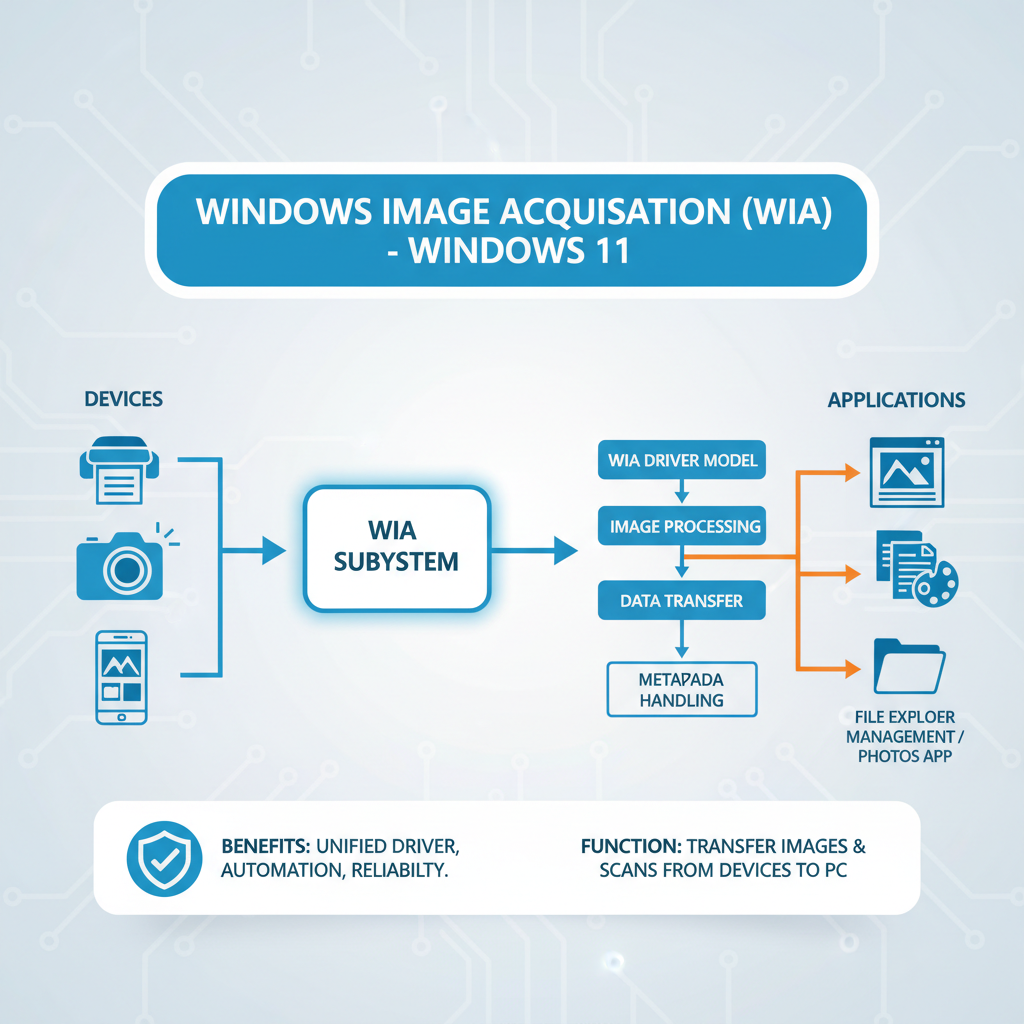
Introduced with Windows Me and Windows XP, WIA was designed to standardize the process of image acquisition. Before WIA, developers often had to write device-specific code for every piece of hardware, leading to compatibility headaches and a fragmented user experience. WIA provided a unified model, simplifying development and improving device compatibility across the Windows ecosystem.
On Windows 11, WIA continues to be a cornerstone of the operating system’s imaging capabilities. It ensures that when you connect a new scanner or camera, Windows can recognize it, install the appropriate drivers, and make it available to various imaging applications, from built-in tools like Paint to professional photo editing software. This seamless integration is a testament to WIA’s robust design and continued relevance.
The Role of WIA in Modern Imaging
In today’s digital landscape, the role of WIA extends beyond mere image transfer. It underpins a wide array of functionalities that we often take for granted. When you use the “Scan” function on your multifunction printer, WIA is working to capture the image, process it, and deliver it to your chosen destination on your computer.
For digital cameras, WIA enables applications to browse the camera’s contents, preview images, and import selected photos directly to your hard drive. This includes handling metadata associated with images, ensuring that details like capture date and camera settings are preserved during the transfer process. It’s a critical component for anyone regularly working with digital media.
Furthermore, WIA supports various acquisition modes, including single-page scanning, multi-page document feeder scanning, and even video stream acquisition from webcams. This versatility makes it an indispensable part of the Windows 11 operating system, supporting both basic and advanced imaging tasks for both home users and professionals alike. Its consistent performance is key to a productive workflow.
WIA vs. TWAIN: Understanding the Differences
Before WIA, the dominant standard for image acquisition was TWAIN (Technology Without An Interesting Name, or Tool Without An Important Name, depending on who you ask). TWAIN is an older, more hardware-centric standard that requires devices to provide their own user interface for scanning or image acquisition. This often meant a different interface for each scanner model, leading to inconsistency.
WIA, on the other hand, is a more modern, software-centric approach. It provides a standardized user interface that applications can leverage, meaning the scanning experience can be consistent regardless of the device. WIA also offers a more robust error handling mechanism and better support for network-attached devices, which was a significant limitation for TWAIN.
While WIA largely superseded TWAIN for consumer-grade devices and general imaging tasks, TWAIN still exists and is used in some specialized professional environments, particularly where legacy hardware or specific industrial scanning requirements are present. However, for the vast majority of users on Windows 11, WIA is the primary and preferred imaging standard due to its enhanced stability, security, and ease of use.
Why WIA is Crucial for Your Windows 11 System
The importance of Windows Image Acquisition on Windows 11 cannot be overstated. It’s not merely a background process; it’s the very foundation upon which your digital imaging capabilities rest. A properly functioning WIA service ensures that your interactions with scanners, cameras, and other imaging peripherals are smooth, reliable, and efficient. Without it, even the most advanced hardware would struggle to integrate with your operating system.
WIA provides a standardized framework that abstracts away the complexities of device-specific communication. This means that software developers don’t need to write custom code for every single scanner or camera model. Instead, they can write to the WIA API, and WIA handles the translation to the specific device. This standardization benefits everyone, from hardware manufacturers to end-users, by promoting broader compatibility and reducing development costs.
Furthermore, WIA is designed to be resilient and recoverable. It includes mechanisms for reporting errors and, in many cases, can recover from minor glitches without requiring a full system restart. This contributes significantly to the overall stability of your Windows 11 system, preventing crashes or freezes that might occur if imaging devices were less reliably integrated. Its robust nature makes it a silent workhorse.
Seamless Device Integration
One of the most significant advantages of WIA is its ability to facilitate seamless device integration. When you plug in a new scanner or connect a digital camera to your Windows 11 PC, WIA springs into action. It works with the Plug and Play system to detect the device, locate and install the necessary drivers, and make the device accessible to your applications.
This “plug-and-play” experience is crucial for user satisfaction. Imagine a world where every new peripheral required manual driver installation, complex configuration, and compatibility checks. WIA simplifies this process dramatically, allowing users to focus on their tasks rather than wrestling with hardware setup. It’s a key enabler of modern computing convenience.
Moreover, WIA supports a wide range of device types, from simple flatbed scanners to sophisticated multifunction printers and high-resolution digital cameras. This broad compatibility ensures that most imaging devices you purchase will work out of the box with your Windows 11 system, thanks to the underlying WIA architecture. This flexibility is a cornerstone of its design.
Enhanced Application Compatibility
Beyond device integration, WIA also plays a critical role in enhancing application compatibility. Because WIA provides a standardized API, any application written to use the WIA API can communicate with any WIA-compatible device. This means that your favorite photo editing software, document management system, or even a simple utility like Paint can all access your scanner or camera without needing device-specific plugins.
This level of compatibility fosters a rich ecosystem of imaging software. Developers can focus on creating innovative features for their applications, confident that they can rely on WIA to handle the underlying hardware communication. This reduces development time and costs, ultimately leading to a wider variety of higher-quality applications available to Windows 11 users.
Consider, for example, the built-in Windows Fax and Scan application. It leverages WIA to interact with your scanner, providing a consistent interface for acquiring documents. This consistency across different applications and devices is a direct benefit of WIA’s standardized approach, making your imaging workflow more predictable and less prone to errors.
How to Access and Manage the WIA Service on Windows 11
While WIA usually operates silently in the background, there might be times when you need to manually check its status or intervene to resolve an issue. The primary tool for managing system services, including Windows Image Acquisition on Windows 11, is the Services Manager. Understanding how to navigate this tool is a valuable skill for any Windows user.
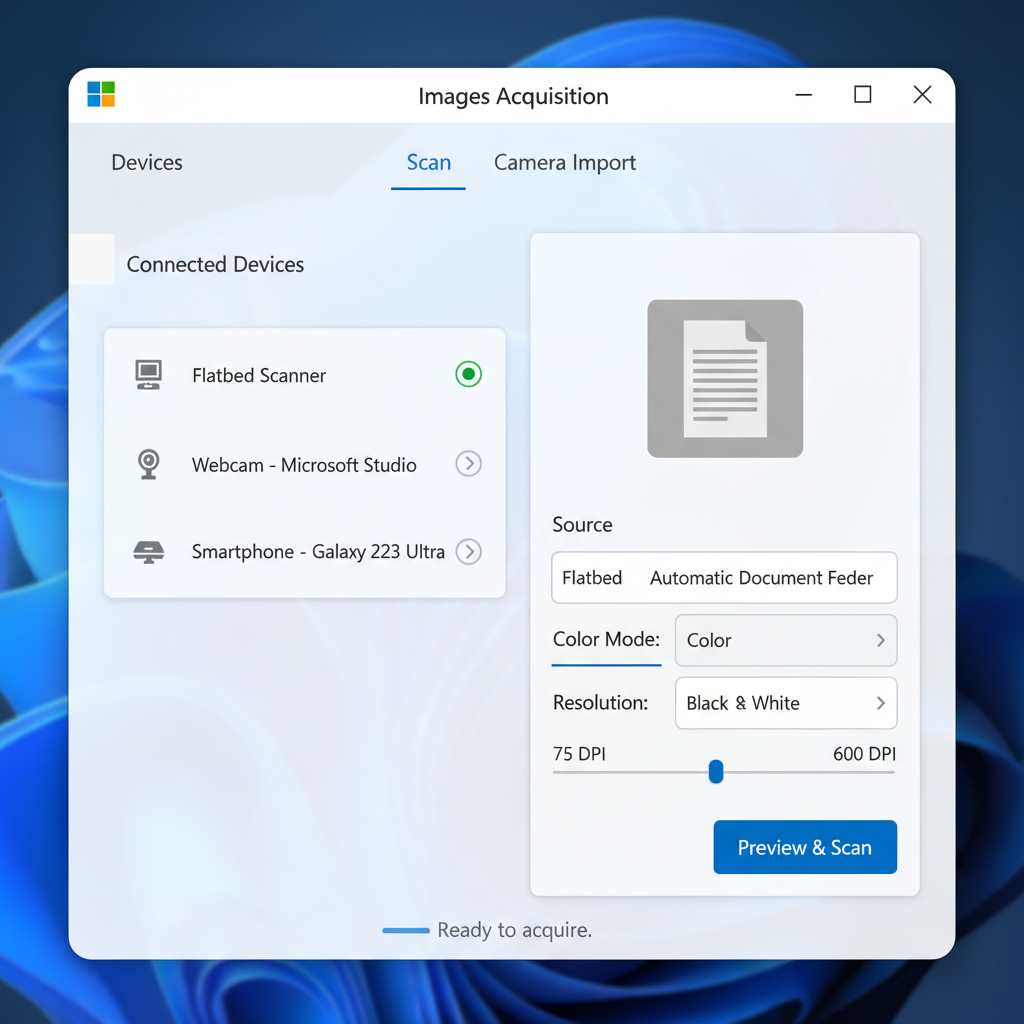
The Services Manager allows you to view a list of all services installed on your system, along with their current status (running, stopped, paused) and their startup type (automatic, manual, disabled). For WIA, ensuring it’s running and configured correctly is crucial for your imaging devices to function properly. This section will guide you through the necessary steps.
Regularly checking the status of essential services like WIA can help preemptively identify potential problems before they escalate into significant disruptions. It’s a proactive approach to maintaining the health and stability of your Windows 11 system, ensuring that your digital imaging tasks remain uninterrupted.
Checking WIA Service Status via Services Manager
To begin, you’ll need to open the Services Manager. There are several ways to do this on Windows 11, but one of the most straightforward methods is through the Run dialog or by searching. Once open, you can easily locate the WIA service and inspect its current state.
Step-by-Step Guide to Services.msc
- Press the Windows key + R to open the Run dialog box.
- Type
services.mscinto the dialog box and press Enter. This will launch the Services Manager window. You can also search for “Services” in the Start Menu and click the relevant result. For more ways to open it, see How to Run Services.msc as Administrator on Windows 11? - In the Services window, scroll down the list until you find “Windows Image Acquisition (WIA)”. Services are typically listed alphabetically.
- Examine the “Status” column next to “Windows Image Acquisition (WIA)”. It should ideally show “Running”. The “Startup type” column should typically be set to “Automatic” or “Automatic (Delayed Start)”.
Important Tip: If the WIA service is not running and your imaging devices are not working, this is often the first place to check. A stopped service will prevent any WIA-dependent functionality from operating correctly.
Starting, Stopping, and Restarting the WIA Service
If you find that the WIA service is not running, or if you’re experiencing issues with your imaging devices, a simple restart of the service can often resolve the problem. This action effectively refreshes the service, clearing any temporary glitches or hung processes that might be preventing it from functioning correctly.
To perform these actions:
- Open the Services Manager as described in the previous section.
- Locate and double-click on “Windows Image Acquisition (WIA)” to open its Properties window.
- In the “Service status” section, you will see buttons for “Start”, “Stop”, and “Restart”.
- If the service is stopped, click “Start”. If it’s running but you’re having issues, click “Restart”. This will momentarily stop and then start the service again.
- Click “Apply” and then “OK” to close the Properties window.
After restarting the service, try using your imaging device again to see if the issue has been resolved. This simple troubleshooting step is surprisingly effective for a wide range of WIA-related problems.
Configuring WIA Service Startup Type
The startup type determines how and when a service begins running. For Windows Image Acquisition on Windows 11, the recommended startup type is usually “Automatic” or “Automatic (Delayed Start)” to ensure it’s always ready when you need your imaging devices. If it’s set to “Manual” or “Disabled,” it might not start automatically, causing device detection issues.
To configure the startup type:
- Open the Services Manager and double-click on “Windows Image Acquisition (WIA)”.
- In the Properties window, locate the “Startup type” dropdown menu.
- Select “Automatic” or “Automatic (Delayed Start)” from the options. “Automatic (Delayed Start)” is often preferred as it allows other critical system services to load first, improving overall boot performance.
- Click “Apply” and then “OK”.
- If you changed the startup type from “Manual” or “Disabled” to “Automatic”, you may need to click “Start” if the service is not currently running.
Ensuring the correct startup type helps guarantee that WIA is always available when your system boots up, preventing potential headaches when you next try to scan a document or import photos.
Common WIA-Related Issues and Troubleshooting Steps
Even with its robust design, Windows Image Acquisition on Windows 11 can occasionally encounter issues. These problems can manifest in various ways, from your scanner not being detected to imaging applications crashing. Understanding the common culprits and how to address them is key to maintaining a smooth imaging workflow. Most WIA problems can be resolved with a systematic approach to troubleshooting.
Often, the root cause isn’t WIA itself, but rather an underlying dependency or a conflict with other software or drivers. This section will walk you through the most frequent WIA-related complaints and provide actionable steps to diagnose and fix them. Patience and methodical testing are your best allies when dealing with these types of technical challenges.
Remember that troubleshooting is a process of elimination. Start with the simplest solutions and gradually move to more complex ones. Keeping your system updated and drivers current can prevent many of these issues from arising in the first place, saving you time and frustration.
WIA Service Not Running or Starting
This is perhaps the most common WIA-related problem. If the WIA service isn’t running, none of your WIA-dependent devices or applications will function. You might see error messages indicating that a scanner is not found or that an imaging device is unavailable. The first step is always to check the service status as outlined in the previous section.
If you try to start the service and it immediately stops again, or if you receive an error message, it indicates a deeper problem. This could be due to corrupted system files, conflicts with other services, or issues with its dependencies. A systematic investigation is required to pinpoint the exact cause.
Checking Dependencies and Event Viewer Logs
The WIA service relies on other system services to function correctly. If one of its dependencies isn’t running, WIA won’t be able to start either. To check dependencies:
- Open the Services Manager and double-click on “Windows Image Acquisition (WIA)”.
- Go to the “Dependencies” tab.
- Note down the services listed under “This service depends on the following system components.”
- Go back to the main Services window and ensure each of these dependent services is running and set to “Automatic” startup type. Start them if they are stopped.
If the service still won’t start, the Event Viewer is your next best tool. It logs system events, including errors related to services. To use Event Viewer:
- Press Windows key + X and select “Event Viewer” from the power user menu.
- Navigate to “Windows Logs” > “System”.
- Look for error or warning entries around the time you tried to start the WIA service. These logs often provide specific error codes or messages that can point to the root cause, such as a missing file or a corrupted driver.
Actionable Advice: Search online for any specific error codes or messages you find in the Event Viewer. Microsoft’s support documentation or community forums often have solutions for these common errors.
Scanner or Camera Not Detected by WIA
When your imaging device isn’t detected, it can be incredibly frustrating. This issue often points to driver problems, physical connection issues, or conflicts. Even if the WIA service is running, incorrect drivers can prevent proper communication.
- Check Physical Connections: Ensure USB cables are securely plugged into both the device and the computer. Try a different USB port or even a different cable if possible. For network scanners, confirm network connectivity.
- Update/Reinstall Drivers: Outdated or corrupted drivers are a frequent cause. Visit the manufacturer’s website for your specific scanner or camera model and download the latest Windows 11 drivers. Uninstall existing drivers from Device Manager before installing new ones.
- Device Manager Check: Open Device Manager (search for it in the Start Menu). Look under “Imaging devices” or “Other devices.” If your device has a yellow exclamation mark, it indicates a driver issue. Right-click and choose “Update driver” or “Uninstall device” and then restart your PC.
- Run Hardware Troubleshooter: Windows 11 has built-in troubleshooters. Go to Settings > System > Troubleshoot > Other troubleshooters and run the “Hardware and Devices” troubleshooter if available, or “Printer” for scanners.
Imaging Application Errors with WIA
Sometimes, the WIA service might be running, and your device might be detected, but specific imaging applications fail to acquire images or crash when attempting to do so. This often indicates a conflict between the application and WIA, or an issue with the application itself.
- Test with Another Application: Try using a different WIA-compatible application, such as Windows Fax and Scan or the Photos app, to see if the issue is specific to one program. If other apps work, the problem lies with the problematic application.
- Update Application: Ensure your imaging software is updated to its latest version. Developers frequently release patches to fix compatibility issues with new Windows versions or WIA updates.
- Reinstall Application: If updating doesn’t help, try completely uninstalling and then reinstalling the problematic imaging software. This can resolve corrupted installation files.
- Check Application Settings: Some imaging applications have specific settings for WIA or TWAIN. Ensure WIA is selected as the preferred acquisition method if applicable.
- System File Checker: Corrupted system files can impact WIA’s interaction with applications. Run the System File Checker (SFC) by opening Command Prompt as administrator and typing
sfc /scannow.
Optimizing WIA Performance and Stability
Ensuring that Windows Image Acquisition on Windows 11 runs optimally is crucial for a smooth and efficient digital imaging workflow. Performance and stability are not just about avoiding errors; they’re about ensuring quick response times, reliable transfers, and consistent operation every time you use your scanner or camera. A well-optimized WIA setup means less waiting and more productivity.
Optimization often involves proactive maintenance rather than reactive troubleshooting. By taking a few preventative steps, you can significantly reduce the likelihood of encountering issues and enhance your overall experience. This includes paying close attention to driver management and understanding how WIA interacts with other software on your system.
Think of it like tuning a car; regular checks and proper maintenance keep it running smoothly and prevent breakdowns. The same principle applies to system services like WIA. A little attention goes a long way in ensuring your imaging tasks are always a breeze.
Ensuring Up-to-Date Device Drivers
The single most critical factor for WIA performance and stability is having up-to-date device drivers. Drivers are the software that allows your operating system to communicate with your hardware. Outdated, corrupted, or incompatible drivers are a leading cause of WIA problems, including devices not being detected, slow performance, or application crashes.
- Manufacturer’s Website: Always prioritize downloading drivers directly from the scanner or camera manufacturer’s official website. These drivers are specifically designed for your hardware and are often more comprehensive than generic drivers provided by Windows Update.
- Windows Update: While manufacturer drivers are preferred, Windows Update can also provide driver updates. Ensure your Windows 11 system is fully updated by going to Settings > Windows Update and checking for updates regularly.
- Device Manager: You can manually check for driver updates through Device Manager. Right-click on your imaging device, select “Update driver,” and then “Search automatically for drivers.” However, this often points to Windows Update or generic drivers.
- Clean Driver Installation: If you suspect driver issues, consider performing a clean installation. Uninstall the existing driver from Device Manager (check the box to delete driver software if prompted), restart your PC, and then install the latest driver from the manufacturer.
Keeping drivers current ensures that WIA has the most efficient and stable communication pathway to your hardware, leading to better performance and fewer errors. This proactive step can save you hours of troubleshooting down the line.
Resolving Software Conflicts
Software conflicts can sometimes interfere with WIA’s operation, even if the service itself is running perfectly. This can happen when multiple applications try to access the same imaging device simultaneously, or when security software inadvertently blocks WIA’s processes. Identifying and resolving these conflicts is essential for stability.
- One Application at a Time: Avoid running multiple imaging applications simultaneously that might try to access your scanner or camera. Close any unnecessary programs before starting an imaging task.
- Antivirus/Firewall Interference: Occasionally, overzealous antivirus or firewall software might mistakenly flag WIA components or imaging applications as threats. Temporarily disable your security software (with caution) to see if it resolves the issue. If it does, add exceptions for WIA services and your imaging applications in your security software settings.
- Background Processes: Check your Task Manager (Ctrl+Shift+Esc) for any background processes that might be consuming resources or conflicting with WIA. End any suspicious or unnecessary processes.
- System Clean-up: Regular disk clean-up and temporary file removal can prevent system clutter that might indirectly affect performance. Use Windows’ built-in Disk Cleanup tool or third-party utilities.
By managing your software environment and ensuring there are no hidden conflicts, you can significantly improve the reliability and speed of Windows Image Acquisition on Windows 11.
Advanced WIA Configuration and Usage Tips
Beyond basic troubleshooting and service management, several advanced tips and configurations can help you get the most out of Windows Image Acquisition on Windows 11. Understanding how WIA interacts with both built-in Windows tools and third-party software can unlock greater efficiency and customization in your imaging tasks. These insights empower you to tailor your workflow to your specific needs.
WIA is designed to be flexible, supporting a wide array of scenarios from simple document scanning to more complex photo management. Leveraging its full potential means exploring these advanced options and integrating them into your daily routine. This section will guide you through some practical applications and considerations for power users.
Whether you’re looking to streamline your document digitization or enhance your photo import process, these tips will provide valuable guidance. Mastering these aspects of WIA can significantly elevate your overall digital imaging experience on Windows 11.
Using WIA with Windows Fax and Scan
Windows Fax and Scan is a versatile, built-in application in Windows 11 that leverages WIA for both scanning documents and sending faxes (if you have a fax modem). It provides a straightforward interface for acquiring images from your scanner and is an excellent tool for testing WIA functionality.
- Accessing the Tool: You can find Windows Fax and Scan by searching for it in the Start Menu. Once open, click “New Scan” to initiate a scanning session.
- Scan Profiles: The application allows you to create and customize scan profiles (e.g., “Documents,” “Photos,” “Grayscale”). These profiles save settings like resolution, color format, and file type, making repetitive scanning tasks much faster.
- Preview and Adjust: Before the final scan, you can often preview the image and make adjustments to the cropping, brightness, and contrast directly within the WIA-powered interface provided by Windows Fax and Scan.
- Saving Options: After scanning, you can save the image in various formats (JPEG, BMP, PNG, TIFF) and choose the destination folder. For multi-page documents, TIFF is often preferred as it can store multiple pages in a single file.
This application is a prime example of WIA’s seamless integration, offering a reliable and user-friendly way to digitize your physical documents and images. For a deeper dive, check out our guide on Windows Fax and Scan on Windows 11.
Integrating WIA with Third-Party Imaging Software
Most popular third-party imaging applications, such as Adobe Photoshop, GIMP, or specialized document management software, are designed to work with WIA. This compatibility ensures that you can use your preferred software to acquire images directly from your scanner or camera.
- “Import from Scanner/Camera” Option: Look for an “Import,” “Acquire,” or “Scan” option within your imaging software’s File menu. This will typically open a WIA-powered dialog box, allowing you to select your device and configure scan settings.
- Driver vs. WIA Mode: Some advanced software might offer a choice between using the manufacturer’s specific TWAIN driver (if available) or the generic WIA interface. For most users, WIA offers greater stability and consistency, while TWAIN might provide access to very specific hardware features.
- Custom Workflows: Many professional applications allow you to create custom workflows that automatically process images acquired via WIA. For instance, you might set up a workflow to automatically crop, color-correct, and save scanned documents to a specific folder.
- Batch Scanning: For high-volume scanning, ensure your software supports WIA’s batch scanning capabilities, especially if your scanner has an automatic document feeder (ADF). This allows you to scan multiple pages without manual intervention.
The beauty of WIA lies in its ability to provide a common ground for diverse software and hardware, ensuring that your chosen tools can always communicate effectively with your imaging devices.
Security Considerations for Windows Image Acquisition
While Windows Image Acquisition on Windows 11 is designed for convenience and functionality, it’s also important to consider the security implications of any system service that interacts with external hardware and potentially sensitive data. Like any component of your operating system, WIA can be a vector for vulnerabilities if not properly managed or if best practices are ignored.
Understanding these security aspects is not about fear-mongering, but rather about empowering you to make informed decisions and protect your digital environment. Imaging devices, especially those connected to a network, can sometimes be entry points for malicious actors if left unsecured. This section will highlight key areas of concern and provide guidance on how to mitigate risks.
Maintaining a secure system involves a holistic approach, and WIA plays its small but significant part in that ecosystem. By following these recommendations, you can ensure that your imaging workflow remains both efficient and secure, safeguarding your data and your privacy.
Protecting Your Imaging Devices
The physical security and configuration of your imaging devices are the first line of defense. A compromised device can potentially expose your network or sensitive information.
- Secure Network Scanners: If you use a network-attached scanner or multifunction printer, ensure it’s protected with a strong, unique password. Change default administrative credentials immediately.
- Firmware Updates: Regularly check for and install firmware updates for your imaging devices. Manufacturers often release updates to patch security vulnerabilities.
- Physical Access Control: Limit physical access to your scanners and cameras, especially in shared environments. Unauthorized access could lead to data theft or device tampering.
- Device Isolation: For high-security environments, consider placing network scanners on a separate VLAN or subnet to isolate them from critical network resources.
These steps help prevent unauthorized access to your devices, which in turn protects the data they process and the network they connect to. A secure device contributes to a secure WIA environment.
Best Practices for WIA Security
Beyond device protection, there are specific practices related to WIA and its interaction with your Windows 11 system that can enhance security.
- Keep Windows 11 Updated: Regular Windows updates often include security patches for system components, including WIA. Ensure your system is always up-to-date via Settings > Windows Update.
- Use Reputable Drivers: Only install device drivers from the manufacturer’s official website or through Windows Update. Avoid drivers from unofficial or suspicious sources, as they could contain malware or introduce vulnerabilities.
- Limit User Permissions: When possible, run imaging applications with standard user privileges rather than administrator privileges. This limits the potential damage if an application or WIA component were to be exploited.
- Monitor Event Viewer: Periodically check the Event Viewer (specifically “Windows Logs” > “System” and “Application”) for any unusual errors or warnings related to WIA or imaging devices. Unexpected errors could indicate a problem.
- Disable Unused Services: If you never use imaging devices and have no need for WIA, you could theoretically disable the service (set its startup type to “Disabled” in Services Manager). However, for most users, WIA is a necessary and generally low-risk service.
Security Reminder: Always be cautious about what you scan or photograph, especially if it contains sensitive personal or confidential information. Ensure your storage locations are secure and encrypted if necessary.
Conclusion: Mastering WIA for Flawless Imaging on Windows 11
Windows Image Acquisition (WIA) is far more than just another background service on your Windows 11 system; it is the unsung hero that orchestrates the seamless interaction between your digital imaging devices and your computer. From the moment you connect a new scanner or camera to the final click of “Save,” WIA works tirelessly to ensure your digital imaging experience is smooth, reliable, and efficient.
Throughout this comprehensive guide, we’ve explored the foundational aspects of WIA, delved into its historical context, and clarified its superiority over older standards like TWAIN. We’ve seen how crucial it is for both seamless device integration and enhanced application compatibility, making your Windows 11 system a powerful hub for all your imaging needs.
By understanding how to access and manage the WIA service through the Services Manager, you gain the power to diagnose and resolve common issues, ensuring that your imaging workflow remains uninterrupted. Furthermore, our detailed troubleshooting steps, coupled with advice on optimizing performance through driver management and conflict resolution, equip you with the knowledge to maintain a robust and stable WIA environment.
Finally, we touched upon advanced usage tips and critical security considerations, empowering you to not only leverage WIA’s full potential with tools like Windows Fax and Scan and third-party software but also to protect your devices and data. Mastering Windows Image Acquisition on Windows 11 means taking control of your digital imaging, transforming potential frustrations into effortless productivity.









Community
Comments (0)