

In the intricate ecosystem of Windows 11, numerous background services tirelessly work to ensure a smooth and responsive user experience. Among these, one often misunderstood yet crucial component is Sysmain. Formerly recognized as Superfetch, this service plays a pivotal role in optimizing your system’s performance by intelligently managing how applications load and run.
For many users, the name Sysmain might evoke a sense of mystery, or perhaps even concern, especially when troubleshooting performance issues. However, understanding its function is key to unlocking your Windows 11 device’s full potential.
This comprehensive guide will demystify Sysmain on Windows 11, exploring its origins, operational mechanics, benefits, and potential drawbacks. We’ll provide practical, actionable advice on how to manage this service, ensuring your system runs efficiently, whether you’re a casual user or a power enthusiast.
By the end of this article, you’ll be equipped to make informed decisions about Sysmain, tailoring its behavior to your specific hardware configuration and usage patterns for an optimized Windows 11 experience.
Table of contents
Key Takeaways: Sysmain on Windows 11
Before diving deep into the technicalities, here’s a quick overview of the most important points regarding Sysmain on Windows 11: Learn more at Microsoft’s official documentation on the ‘sc’ command.
- Predictive Pre-loading: Sysmain (formerly Superfetch) is a Windows service designed to improve application launch times and overall system responsiveness by intelligently pre-loading frequently used application data into RAM.
- Dynamic Optimization: It constantly monitors your usage patterns, adapting its pre-loading strategy to ensure the most relevant data is readily available, reducing reliance on slower disk I/O.
- Benefits for Most Users: For systems with ample RAM and modern storage (especially SSDs), Sysmain generally enhances performance without noticeable drawbacks, making applications feel snappier.
- Potential Drawbacks: On systems with limited RAM or older Hard Disk Drives (HDDs), Sysmain can sometimes lead to increased disk activity, potentially causing slowdowns or perceived resource hogging.
- SSD Wear Concerns: While often cited, the impact of Sysmain on modern SSD wear is generally negligible due to advanced wear-leveling algorithms. However, excessive disk activity can still be a concern for some.
- Management is Key: Windows 11 users can easily check, enable, or disable Sysmain through various methods, including the Services Management Console, Registry Editor, and Command Prompt, allowing for tailored system optimization.
- Informed Decision: The decision to keep Sysmain enabled or disabled should be based on your specific hardware, usage patterns, and observed system performance. There’s no one-size-fits-all answer.
What is Sysmain (Superfetch) and How Does It Work?
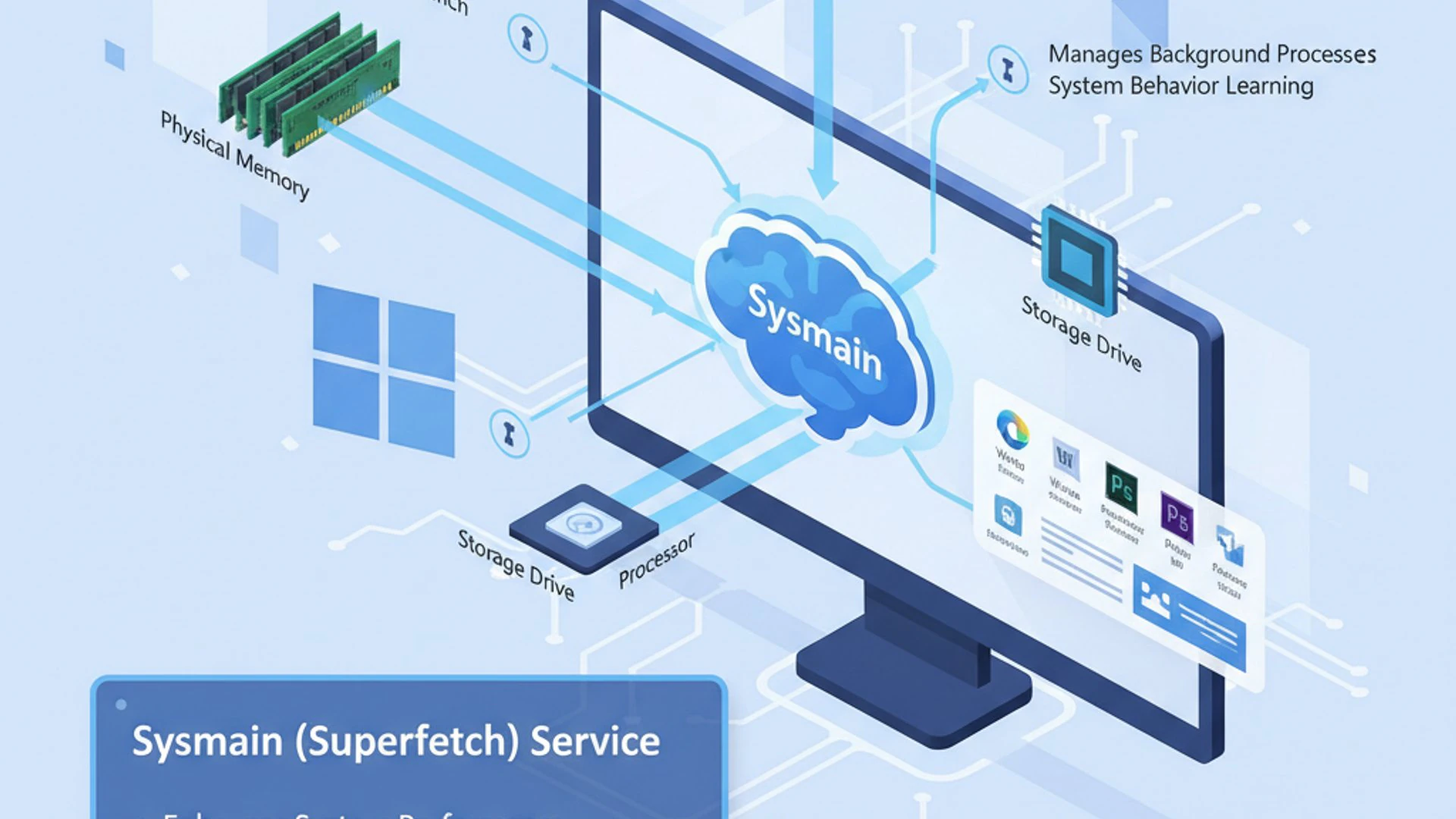
At its core, Sysmain on Windows 11 is a memory management service designed to proactively improve system performance. It operates by predicting which applications you are most likely to use next and pre-loading their necessary data into your system’s Random Access Memory (RAM). This intelligent anticipation significantly reduces the time it takes for those applications to launch, making your computing experience feel much faster and more fluid.
The service continuously learns from your behavior, adapting its pre-loading strategy over time. If you frequently open a specific web browser or a photo editing suite, Sysmain will ensure that the essential components of these programs are already waiting in RAM, ready for instant access.
This mechanism is particularly beneficial in scenarios where disk I/O (input/output) is the bottleneck, as retrieving data from RAM is exponentially faster than fetching it from a traditional hard drive or even an SSD. By minimizing the need to access the slower storage device, Sysmain directly contributes to a more responsive system.
However, it’s crucial to understand that Sysmain doesn’t simply fill your RAM indiscriminately. It employs sophisticated algorithms to prioritize data, ensuring that critical system processes and currently active applications always have the memory they need. The pre-loaded data occupies what would otherwise be unused RAM, effectively turning idle memory into an active performance booster.
The Evolution from Superfetch to Sysmain
The service we now know as Sysmain has a history rooted in earlier Windows versions. It was first introduced in Windows Vista under the name Superfetch. Its primary goal then, as it is now, was to accelerate application launch times and enhance overall system responsiveness by leveraging predictive memory management.
The name change from Superfetch to Sysmain occurred with the release of Windows 10. This was largely a rebranding effort, reflecting a broader consolidation of system maintenance tasks under a single, more generic service name. Despite the new moniker, the fundamental principles and operational mechanisms remained largely identical.
On Windows 11, Sysmain continues this legacy. It represents a mature and refined version of the original Superfetch technology, benefiting from years of development and optimization. The core idea of intelligently pre-loading data into RAM to minimize disk access remains central to its function, making it a cornerstone of modern Windows performance.
Understanding this evolution helps clarify that while the name has changed, the underlying purpose and benefits of Sysmain have been consistently applied across multiple generations of the Windows operating system, adapting to new hardware and user expectations along the way.
Core Functionality: Predictive Loading
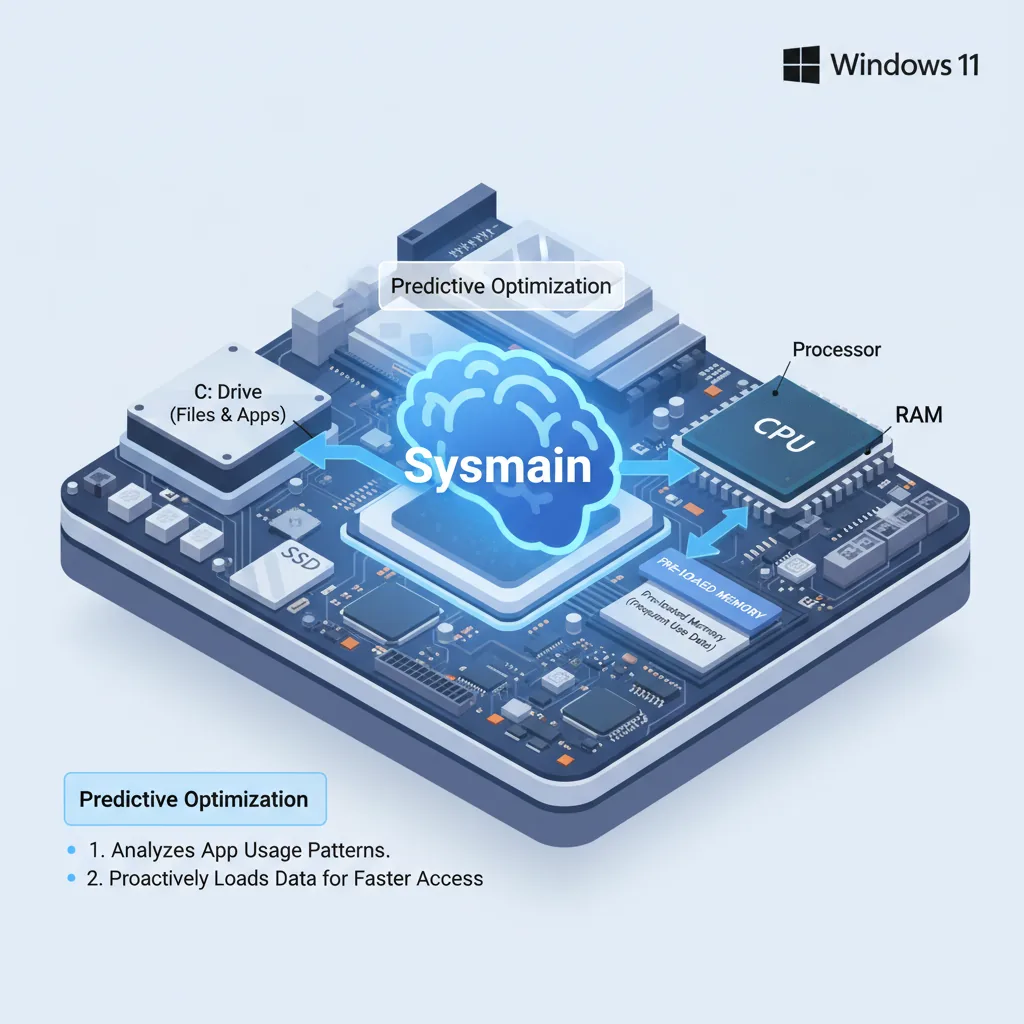
The magic behind Sysmain’s performance enhancements lies in its predictive loading mechanism. This isn’t a random process; it’s a highly sophisticated algorithm that continuously analyzes your computing habits. Sysmain builds a profile of your application usage, noting which programs you open, when you open them, and what files they typically access.
Based on this learned behavior, Sysmain anticipates your next moves. For instance, if you always launch your email client first thing in the morning, Sysmain will likely have its core components loaded into RAM even before you click its icon. This foresight is what makes applications appear to launch almost instantaneously.
It intelligently distinguishes between frequently used applications and those that are rarely accessed. The service prioritizes the former, ensuring that the most valuable data is always ready. This dynamic prioritization means that Sysmain’s effectiveness improves over time as it gathers more data about your unique usage patterns.
The predictive model also considers system resources. It won’t pre-load data if your RAM is already heavily utilized by active applications, preventing performance degradation. Instead, it intelligently uses available idle memory, ensuring that its operations don’t interfere with your current tasks.
How Sysmain Identifies Frequently Used Applications
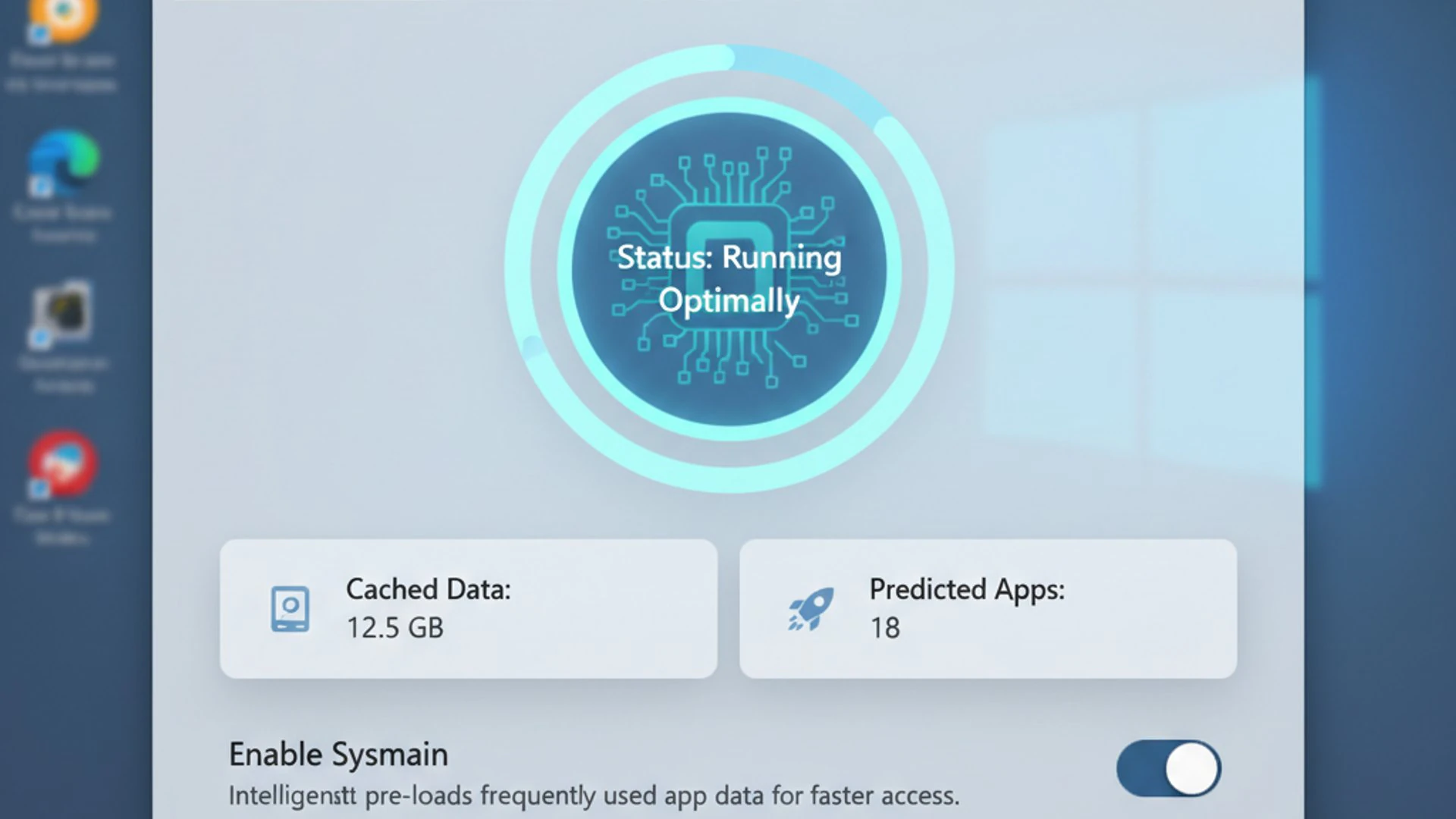
Sysmain’s ability to identify frequently used applications is a testament to its sophisticated design. It doesn’t just count how many times you open a program; it delves deeper into your interaction patterns. The service monitors various metrics to build a comprehensive usage profile for each application.
This includes tracking the frequency of application launches, the time of day they are typically used, and even the specific files or documents they access. For example, if you consistently open a particular spreadsheet application and then immediately load a specific project file, Sysmain learns this sequence.
It also considers the context. If you always launch a specific game after a certain time, Sysmain will begin to pre-load game assets during that window. This contextual awareness allows it to make highly accurate predictions, ensuring that the right data is available at the right moment.
The service maintains a database of these usage patterns, constantly updating it as your habits evolve. This adaptive learning ensures that Sysmain remains relevant and effective, even as your software preferences or daily workflows change over time.
The Role of RAM and Disk I/O in Sysmain’s Operation
Understanding Sysmain’s operation requires a grasp of how RAM and disk I/O interact. RAM (Random Access Memory) is incredibly fast but volatile; data stored there is lost when the power is off. Disk I/O refers to the process of reading and writing data to your storage drive (HDD or SSD), which is persistent but significantly slower than RAM.
Sysmain acts as a bridge between these two components. When you launch an application, its necessary files are typically stored on your disk. Without Sysmain, the system would have to fetch all these files from the disk and load them into RAM, a process that takes time.
Sysmain preempts this by identifying those frequently accessed files and copying them into unused portions of RAM before they are explicitly requested. When you then launch the application, the data is already in the much faster RAM, bypassing the slower disk access entirely. This is where the term “pre-loading” comes from.
This mechanism effectively reduces the number of times your system needs to perform disk I/O for common tasks, leading to faster application starts and a more responsive overall feel. It intelligently utilizes available RAM, ensuring that this valuable resource is put to work, even when not actively used by foreground applications.
Benefits of Running Sysmain on Windows 11
For the vast majority of Windows 11 users, Sysmain is a beneficial service that quietly works in the background to enhance their computing experience. Its primary goal is to make your system feel faster and more responsive without requiring any direct intervention from you.
The advantages stem directly from its predictive loading capabilities. By anticipating your needs, Sysmain minimizes the delays associated with retrieving data from storage, which can often be the slowest component in a modern computer system. This optimization is particularly noticeable during daily usage, where frequent application switching and launching are common.
Even with the prevalence of fast Solid State Drives (SSDs), Sysmain still offers an edge. While SSDs are significantly quicker than traditional HDDs, RAM access is still orders of magnitude faster. By reducing the number of times the system has to hit the SSD, Sysmain can extend its effective lifespan by reducing read/write cycles, albeit to a minor degree on modern drives.
Ultimately, the service contributes to a smoother, more fluid user experience, making your Windows 11 machine feel more powerful and efficient. It’s one of those “set it and forget it” features that silently improves performance without demanding your attention.
Enhanced Application Launch Speed
One of the most immediately noticeable benefits of Sysmain on Windows 11 is the significant improvement in application launch speeds. When you click on an icon for a program you use frequently, you’ll find that it often springs to life almost instantly, rather than making you wait for several seconds.
This speed boost is a direct result of Sysmain’s predictive pre-loading. Imagine your computer preparing all the ingredients for your favorite meal before you even decide to cook it. When you finally want to make that meal, everything is already laid out, saving you precious time.
For applications that have many components or large initial loading files, this pre-loading can shave off considerable time from their startup sequence. This is particularly true for resource-intensive software like video editors, large games, or complex development environments.
Even for everyday applications like web browsers or office suites, the cumulative effect of faster launches throughout your day adds up to a more productive and less frustrating computing experience. Sysmain ensures that the applications you rely on most are always at your fingertips.
Improved System Responsiveness
Beyond just launching applications faster, Sysmain also contributes to an overall improvement in system responsiveness. This means that your Windows 11 machine feels snappier and more fluid in general, not just when opening programs.
When Sysmain has pre-loaded data into RAM, it reduces the likelihood of your system needing to pause and fetch data from the disk during active use. This can prevent micro-stutters or momentary freezes that sometimes occur when the operating system or an application needs to access data that isn’t readily available in memory.
For example, switching between multiple open applications or navigating through large file directories can feel much smoother. The operating system itself benefits, as frequently accessed system files and components are also kept in RAM, ensuring that core Windows functions respond quickly.
This enhanced responsiveness creates a more seamless user experience, making multitasking more efficient and reducing the perceived lag that can sometimes plague even powerful systems. Sysmain ensures that your computer is always one step ahead, anticipating your needs and keeping vital data within easy reach.
Potential Drawbacks and When to Consider Disabling Sysmain
While Sysmain offers significant performance benefits for many, it’s not without its potential downsides. In certain scenarios or with specific hardware configurations, Sysmain on Windows 11 can sometimes lead to perceived performance issues rather than improvements. It’s crucial to understand these potential drawbacks to make an informed decision about managing the service.
The main concerns typically revolve around its interaction with storage devices and its memory footprint. While designed to be intelligent, its pre-loading activities can sometimes manifest as undesirable behavior, especially on older or less powerful systems.
Identifying when Sysmain might be hindering performance rather than helping is key. This often involves observing system behavior, such as unusually high disk activity during idle periods or noticeable slowdowns when launching applications, despite having ample RAM.
For a small subset of users, disabling Sysmain might actually lead to a more stable and responsive system. This section will help you understand when and why you might consider turning off this usually helpful background service.
Increased Disk Activity and SSD Wear Concerns
One of the most frequently cited concerns about Sysmain is its potential to cause increased disk activity. Because it constantly monitors and pre-loads data, it inherently involves reading files from your storage drive. On older systems with traditional Hard Disk Drives (HDDs), this constant background activity can sometimes lead to noticeable slowdowns.
An HDD’s mechanical nature means that frequent, small read operations can be inefficient, causing the drive head to move back and forth, generating noise, and consuming resources. This can make the system feel sluggish, especially if other applications are also trying to access the disk.
For users with Solid State Drives (SSDs), the concern often shifts to SSD wear. SSDs have a finite number of write cycles, and constant writing can theoretically shorten their lifespan. While Sysmain primarily performs read operations, it does involve some writing as it updates its usage profiles and cache.
However, it’s important to note that modern SSDs are incredibly robust, featuring advanced wear-leveling algorithms that distribute writes evenly across the drive. For most users, the additional wear caused by Sysmain is negligible and unlikely to impact the drive’s lifespan within its typical usage period. The benefits of faster application launches generally outweigh these minor concerns on modern SSDs.
Performance Impact on Systems with Limited RAM or Older HDDs
While Sysmain is generally beneficial, its performance impact can turn negative on systems with specific hardware limitations, particularly those with limited RAM or older HDDs.
On systems with insufficient RAM (e.g., 4GB or less), Sysmain’s attempt to pre-load data might compete with currently running applications for precious memory. This can lead to excessive paging, where the system constantly swaps data between RAM and the slower page file on the disk. This “thrashing” can severely degrade performance, making the system feel incredibly slow and unresponsive.
Similarly, on systems still relying on older, slower HDDs, Sysmain’s continuous background disk activity can become a bottleneck. The constant reading of files for pre-loading can monopolize the disk’s resources, causing delays for foreground applications that need to access the drive. This results in longer application load times, not shorter, and an overall sluggish experience.
In these specific scenarios, the intelligent pre-loading mechanism, which is designed to help, can inadvertently become a hindrance. Users with such configurations might find that disabling Sysmain leads to a more stable and predictable performance, even if it means slightly longer initial application launch times.
Identifying Sysmain as a Resource Hog
If you suspect that Sysmain might be consuming too many resources on your Windows 11 system, there are specific signs and tools you can use to confirm your suspicions. The key is to observe your system’s behavior, especially during periods of perceived slowdowns or high disk activity.
One common indicator is persistent high disk usage, even when your computer is idle or performing light tasks. If your disk activity light is constantly blinking or Task Manager shows your disk usage consistently near 100%, Sysmain could be a contributing factor.
Another sign is noticeable lag or stuttering when launching applications, particularly after a fresh boot or when switching between programs. If applications that should launch quickly are taking an unusually long time, and you have limited RAM or an HDD, Sysmain might be overworking your storage.
Tip: Pay close attention to the ‘Disk’ column in Task Manager’s ‘Processes’ tab. If ‘Service Host: SysMain’ frequently appears at the top with high disk usage, especially when other applications are struggling, it’s a strong signal.
Monitoring your system’s performance with tools like Task Manager can provide valuable insights. Look for the “Service Host: SysMain” process and observe its resource consumption, particularly disk and memory usage, to determine if it’s disproportionately high for your system’s capabilities.
How to Check Sysmain Service Status on Windows 11
Before deciding whether to enable or disable Sysmain, it’s essential to know its current status on your Windows 11 system. Fortunately, Windows provides straightforward ways to check if the service is running, paused, or disabled. These methods allow you to quickly assess the situation without delving into complex configurations.
Understanding the current state of Sysmain is the first step in any troubleshooting or optimization process. It helps you confirm whether the service is even active when you’re observing performance issues or if it’s already disabled and therefore not the cause of your concerns.
We’ll explore two primary methods: using the graphical Services Management Console for a detailed view and the more immediate Task Manager for a quick glance at running processes. Both tools offer valuable information about Sysmain’s operational status.
Using the Services Management Console
The Services Management Console (services.msc) provides a comprehensive overview and control panel for all services running on your Windows 11 system, including Sysmain. It’s the go-to tool for detailed service management.
- Press
Win + Rto open the Run dialog box. - Type
services.mscand pressEnter. This will launch the Services window. - In the Services window, scroll down the list alphabetically until you find a service named SysMain.
- Look at the Status column. If it says “Running,” the service is active. If it’s blank, the service is not running.
- Check the Startup type column. It typically displays “Automatic” if it’s set to start with Windows.
Double-clicking on the SysMain service will open its properties window, giving you even more details about its configuration and allowing you to manually start, stop, pause, or resume the service. This console offers granular control and is ideal for making permanent changes to the service’s behavior.
Via Task Manager
For a quick check of whether Sysmain is actively running and consuming resources, the Task Manager is an excellent tool. It provides a real-time snapshot of your system’s processes, performance, and resource usage.
- Press
Ctrl + Shift + EscTo open Task Manager directly, or right-click on the Taskbar and select “Task Manager.” - If Task Manager opens in a simplified view, click “More details” at the bottom left.
- Navigate to the Services tab.
- In the Services tab, you’ll see a list of all services. Look for SysMain in the “Name” column.
- Observe the Status column. If it shows “Running,” the service is currently active. If it’s “Stopped,” it’s not running.
The Task Manager also allows you to quickly see the PID (Process ID) and a brief description of the service. While it doesn’t offer the same level of control as the Services Management Console, it’s perfect for a rapid assessment of Sysmain’s operational status and its immediate resource impact.
Enabling Sysmain on Windows 11
If you’ve determined that Sysmain is currently disabled on your Windows 11 system and you wish to re-enable it to potentially improve application launch times and overall responsiveness, there are a couple of reliable methods to do so. Re-enabling Sysmain can be particularly beneficial for systems with sufficient RAM and modern SSDs.
Before proceeding, ensure you understand the potential impact, especially if your system has limited resources. For most contemporary setups, however, keeping Sysmain enabled with its default “Automatic” startup type is recommended by Microsoft.
We’ll walk through two primary approaches: using the intuitive Services Management Console and, for those comfortable with deeper system configurations, modifying the Registry Editor. Both methods achieve the same outcome, allowing you to choose the one you’re most comfortable with.
Enabling Sysmain Through Services.msc
The most straightforward and recommended way to enable Sysmain on Windows 11 is through the Services Management Console. This graphical interface makes the process intuitive and reduces the risk of errors.
- Open the Run dialog by pressing
Win + R. - Type
services.mscand pressEnterto launch the Services window. (For more ways to open this, check How to Run Services.msc as Administrator on Windows 11?) - Scroll down the list of services until you locate SysMain.
- Right-click on SysMain and select Properties from the context menu.
- In the SysMain Properties window, find the Startup type dropdown menu.
- Change the Startup type to Automatic. This ensures the service starts automatically with Windows.
- Click the Apply button.
- If the “Service status” currently shows “Stopped,” click the Start button to immediately activate the service.
- Click OK to close the properties window.
After these steps, Sysmain will be enabled and running. You might need to restart your computer for the changes to fully take effect and for Sysmain to begin building its usage profile.
Activating Sysmain Using the Registry Editor
For users who prefer or require a more direct approach, Sysmain can also be enabled by modifying the Windows Registry. This method should be used with caution, as incorrect changes to the Registry can cause system instability. Always back up your Registry before making significant changes.
- Press
Win + Rto open the Run dialog. - Type
regeditand pressEnter. Click Yes if prompted by User Account Control. - Navigate to the following path in the Registry Editor:
HKEY_LOCAL_MACHINE\SYSTEM\CurrentControlSet\Services\SysMain - In the right-hand pane, locate the DWORD value named Start.
- Double-click on Start to modify its value data.
- To enable Sysmain, set the Value data to
2. This corresponds to an “Automatic” startup type. - Click OK to save the change.
- Close the Registry Editor.
For the changes to take effect, you will need to restart your computer. Sysmain should then start automatically with Windows. If you wish to manually start it immediately without a reboot, you can still use the Services Management Console after making this Registry change.
Disabling Sysmain on Windows 11
While Sysmain is generally beneficial, there are specific scenarios where disabling it might be preferable. As discussed earlier, systems with limited RAM, older HDDs, or those experiencing unusual disk activity might see performance improvements by turning off this service. If you’ve identified Sysmain as a potential resource hog on your Windows 11 machine, here’s how to disable it.
It’s important to understand that disabling Sysmain means your system will no longer pre-load application data into RAM. This might result in slightly longer application launch times, especially for frequently used programs. However, if it alleviates other performance bottlenecks, the trade-off can be worthwhile.
We’ll cover three distinct methods for disabling Sysmain: through the graphical Services Management Console, by modifying the Registry Editor, and using the Command Prompt (CMD) for a quick, command-line approach. Choose the method that best suits your comfort level.
Disabling Sysmain Through Services.msc
The Services Management Console offers the most user-friendly way to disable Sysmain. This method is recommended for most users due to its clear interface and direct control.
- Open the Run dialog by pressing
Win + R. - Type
services.mscand pressEnter. - In the Services window, scroll down and find SysMain.
- Right-click on SysMain and select Properties.
- In the SysMain Properties window, locate the Startup type dropdown menu.
- Change the Startup type to Disabled. This prevents the service from starting with Windows.
- Click the Apply button.
- If the “Service status” currently shows “Running,” click the Stop button to immediately halt the service.
- Click OK to close the properties window.
After completing these steps, Sysmain will be stopped and will not start automatically with future Windows boots. You do not typically need to restart your computer for this change to take effect, though a reboot ensures all associated processes are cleared.
Disabling Sysmain Using the Registry Editor
Disabling Sysmain via the Registry Editor provides an alternative method for those who prefer direct registry modifications. Remember to exercise caution when editing the Registry, as incorrect changes can lead to system issues.
- Press
Win + Rto open the Run dialog. - Type
regeditand pressEnter. Click Yes if prompted by User Account Control. - Navigate to the following path:
HKEY_LOCAL_MACHINE\SYSTEM\CurrentControlSet\Services\SysMain - In the right-hand pane, locate the DWORD value named Start.
- Double-click on Start to modify its value data.
- To disable Sysmain, set the Value data to
4. This corresponds to a “Disabled” startup type. - Click OK to save the change.
- Close the Registry Editor.
For the change to fully take effect and for Sysmain to stop running, you will need to restart your computer. Alternatively, you can stop the service immediately through the Services Management Console after making this Registry modification.
Utilizing Command Prompt (CMD) to Disable Sysmain
For users who are comfortable with command-line interfaces, the Command Prompt offers a quick and efficient way to disable Sysmain. This method is particularly useful for scripting or for quick changes without navigating through graphical interfaces.
- Open Command Prompt as an administrator. You can do this by searching for “cmd” in the Start menu, right-clicking on “Command Prompt,” and selecting “Run as administrator.”
- To stop the Sysmain service immediately, type the following command and press
Enter:net stop "SysMain" - To disable the Sysmain service from starting automatically with Windows, type the following command and press
Enter:sc config "SysMain" start= disabled
The first command halts the service in the current session, while the second command permanently sets its startup type to disabled. You should receive a “SUCCESS” message for both commands if they execute correctly.
Reverting Changes Made via CMD
If you’ve disabled Sysmain using the Command Prompt and later decide you want to re-enable it, reverting the changes is just as straightforward. You’ll use similar commands, but with different parameters.
- Open Command Prompt as an administrator.
- To set the Sysmain service to start automatically with Windows again, type the following command and press
Enter:sc config "SysMain" start= auto - To start the Sysmain service immediately, type the following command and press
Enter:net start "SysMain"
The first command changes the startup type back to “Automatic,” ensuring it launches with your system. The second command starts the service right away. You should see “SUCCESS” messages for both operations. A system reboot will also ensure the changes are fully applied.
Troubleshooting Common Sysmain Issues
While Sysmain on Windows 11 is designed to be a helpful background service, like any complex software component, it can sometimes encounter issues. The most common problems users report involve high disk usage or the service failing to start or run correctly. Understanding how to troubleshoot these problems is essential for maintaining optimal Windows 11 performance.
When Sysmain misbehaves, it can lead to a frustrating user experience, manifesting as a sluggish system, unresponsive applications, or constant disk activity. Identifying the root cause requires a systematic approach and an understanding of how the service interacts with your hardware.
This section will provide practical solutions and diagnostic steps to address these common Sysmain-related concerns. By following these guidelines, you can effectively resolve issues and ensure that Sysmain, whether enabled or disabled, contributes positively to your system’s health.
Sysmain Causing High Disk Usage
If you’ve noticed your disk usage constantly hovering near 100% in Task Manager, and “Service Host: SysMain” is frequently listed as a top consumer, it’s a strong indication that SysMain on Windows 11 might be causing high disk activity. This is particularly problematic on systems with older HDDs or limited RAM.
Diagnostic Steps:
- Monitor Task Manager: Keep the Task Manager open to the “Processes” tab and sort by “Disk” usage. Observe if SysMain consistently tops the list, especially during idle times or when you’re not actively using disk-intensive applications.
- Check RAM Usage: Simultaneously, check your RAM usage in the “Performance” tab. If RAM is consistently high and your system is frequently writing to the page file, Sysmain might be contributing to excessive paging.
Solutions:
- Disable Sysmain: For systems with 4GB RAM or less, or older HDDs, the most effective solution is often to disable Sysmain entirely using one of the methods described earlier in this article. This prevents it from pre-loading data and causing disk contention.
- Upgrade Hardware: If feasible, upgrading to an SSD and/or increasing your RAM to 8GB or more will significantly mitigate any negative impact from Sysmain, allowing it to function as intended without causing bottlenecks.
- Check for Malware: Occasionally, malware can mimic legitimate processes or cause system instability that leads to high resource usage. Run a full system scan with your antivirus software.
Disabling Sysmain should be considered a primary troubleshooting step if high disk usage persists and is attributed to the service, especially on resource-constrained machines.
Sysmain Not Starting or Running Correctly
In some cases, Sysmain might fail to start or run as expected, even if its startup type is set to “Automatic.” This can prevent your system from benefiting from its predictive pre-loading features and might indicate underlying system issues.
Diagnostic Steps:
- Check Services Status: Open
services.mscand locate SysMain. Verify its “Status” and “Startup type.” If it’s “Stopped” but set to “Automatic,” there’s a problem. - Event Viewer: Open the Event Viewer (search for it in the Start menu). Navigate to Windows Logs > System. Look for any error or warning messages related to “SysMain” or “Service Control Manager” around the time of system startup or when you try to manually start the service.
Solutions:
- Manual Start: In
services.msc, right-click on SysMain and select “Start.” If it starts successfully, the issue might be an intermittent startup problem. - Dependency Check: In SysMain’s properties (
services.msc), go to the “Dependencies” tab. Ensure that all dependent services are also running. Usually, SysMain relies on core system components that are almost always active. - System File Checker: Corrupted system files can sometimes prevent services from running. Open an elevated Command Prompt and run
sfc /scannowto check and repair system files. - Reset Service Configuration: If the Registry value for SysMain’s “Start” parameter is corrupted, it might not start. Ensure it’s set to
2for “Automatic” as described in the enabling section. - Windows Update: Ensure your Windows 11 system is fully updated. Microsoft often releases patches that fix service-related bugs. (Windows Update Troubleshooter on Windows 11: Ultimate Guide)
If Sysmain on Windows 11 consistently fails to start, reviewing the Event Viewer logs is crucial, as it often provides specific error codes or messages that can guide further troubleshooting.
Sysmain vs. ReadyBoost: Understanding the Differences
When discussing technologies aimed at improving system performance, Sysmain on Windows 11 is often mentioned alongside ReadyBoost. While both services aim to accelerate your computer, they achieve this through fundamentally different mechanisms and target different types of hardware.
Understanding these distinctions is key to knowing which technology is more appropriate for your specific system configuration and performance goals. They are not mutually exclusive, but rather complementary, though ReadyBoost has become less relevant with modern hardware.
Sysmain focuses on intelligent software-based pre-loading using your existing RAM and primary storage. ReadyBoost, on the other hand, leverages external flash memory to create an additional cache layer.
This section will clarify how each technology operates, highlighting its respective strengths and ideal use cases, helping you choose the best approach for optimizing your Windows 11 experience.
How Both Technologies Aim to Improve Performance
Both Sysmain and ReadyBoost share the common goal of improving system performance by reducing the reliance on slower storage devices. However, their approaches to achieving this are quite distinct.
Sysmain (Superfetch):
- Mechanism: Sysmain is a software-based service that intelligently predicts which applications and data you’ll use next. It then pre-loads this data from your primary storage (HDD or SSD) into your system’s RAM.
- Target: It primarily optimizes application launch times and overall system responsiveness by utilizing unused portions of your existing RAM as a smart cache.
- Benefit: Reduces disk I/O by having frequently accessed data already in the fastest memory available (RAM).
- Ideal Use: Most beneficial for systems with sufficient internal RAM (8GB or more) and fast primary storage (SSDs).
ReadyBoost:
- Mechanism: ReadyBoost utilizes external flash memory devices, such as USB flash drives or SD cards, as an additional cache for disk data. When enabled, Windows writes frequently accessed small, random read data to this flash drive.
- Target: It aims to improve performance, particularly for systems with limited RAM (e.g., 2GB-4GB) and slow traditional Hard Disk Drives (HDDs). Flash memory is faster than an HDD for random reads.
- Benefit: Accelerates random read operations from the disk, especially for small files, by caching them on a faster flash drive.
- Ideal Use: Primarily designed for older systems with HDDs and limited RAM, where flash memory can offer a noticeable speed improvement over the mechanical drive. Its effectiveness is minimal on systems with SSDs or ample RAM.
In essence, Sysmain optimizes the use of your internal RAM, while ReadyBoost uses external flash memory to supplement slow hard drives. For modern Windows 11 systems with SSDs and 8GB+ RAM, Sysmain is the primary performance enhancer, while ReadyBoost offers little to no benefit.
Best Practices for Managing Sysmain on Windows 11
Deciding whether to keep Sysmain on Windows 11 enabled or disabled isn’t a one-size-fits-all answer. The optimal configuration largely depends on your specific hardware, how you use your computer, and your personal preferences regarding system responsiveness versus potential resource consumption.
Adopting best practices for managing Sysmain involves understanding your system’s capabilities and observing its performance under different scenarios. This informed approach ensures that you’re leveraging Windows 11’s features to their fullest potential without inadvertently creating bottlenecks.
This section will provide clear guidelines on when Sysmain is most beneficial and when it might be more advantageous to disable it. By following these recommendations, you can tailor Sysmain’s behavior to create the most efficient and enjoyable computing experience for your unique setup.
When to Keep Sysmain Enabled
For the vast majority of Windows 11 users, keeping Sysmain enabled is the recommended best practice. It’s designed to be a beneficial service that enhances performance without requiring user intervention.
- Systems with SSDs: If your Windows 11 machine uses a Solid State Drive (SSD) as its primary boot drive, Sysmain will generally improve performance. While SSDs are fast, RAM is still significantly quicker, and Sysmain reduces the number of times your system has to access the SSD, leading to faster application launches.
- Ample RAM (8GB or more): Systems equipped with 8GB or more of RAM can comfortably accommodate Sysmain’s pre-loading activities without experiencing memory contention or excessive paging. The service intelligently utilizes idle memory, ensuring it doesn’t interfere with active applications.
- Frequent Application Use: If you regularly use a set of core applications (e.g., web browser, office suite, specific games), Sysmain will learn your patterns and ensure these programs launch much faster, providing a smoother daily computing experience.
- General User Experience: For most users who prioritize quick application startups and overall system snappiness, Sysmain contributes positively to the perceived performance of Windows 11.
In these scenarios, the benefits of Sysmain in terms of faster application launches and improved responsiveness far outweigh any negligible concerns about resource usage or SSD wear. It’s a “set it and forget it” feature that works silently in the background to make your system feel faster.
When to Disable Sysmain
While generally beneficial, there are specific situations where disabling Sysmain might lead to a more stable or responsive Windows 11 experience. Consider turning off the service if your system matches one of these profiles:
- Limited RAM (4GB or less): On systems with very little RAM, Sysmain’s pre-loading can lead to excessive paging to the disk, causing significant slowdowns and making your computer feel sluggish. In such cases, disabling it can free up critical memory.
- Older Hard Disk Drives (HDDs): If your primary drive is an older, slower HDD, Sysmain’s constant background disk activity can monopolize disk I/O, leading to high disk usage and overall system unresponsiveness. Disabling it can reduce disk contention.
- Observed Performance Issues: If you’ve actively monitored your system (e.g., with Task Manager) and consistently found “Service Host: SysMain” to be a major contributor to high disk usage or memory pressure, especially when your system is struggling, disabling it is a valid troubleshooting step.
- Specific Niche Use Cases: Some niche applications or system configurations (e.g., certain virtual machine setups, specific gaming scenarios with very limited resources) might perform better with Sysmain disabled, though these are rare.
It’s crucial to disable Sysmain, test your system’s performance for a few days, and then decide if the change has improved your experience. If you don’t notice a significant improvement, or if application launches become noticeably slower, you can always re-enable it.
Conclusion: Making an Informed Decision About Sysmain
Navigating the intricacies of Windows 11 services like Sysmain can seem daunting, but armed with the right knowledge, you can make informed decisions that genuinely optimize your system’s performance. We’ve explored Sysmain’s origins as Superfetch, delved into its intelligent predictive loading mechanisms, and weighed its significant benefits against potential drawbacks.
For most modern Windows 11 users, particularly those with Solid State Drives and 8GB or more of RAM, Sysmain is a silent workhorse that significantly enhances application launch speeds and overall system responsiveness. It intelligently utilizes idle memory to keep your most-used applications ready for instant access, contributing to a fluid and efficient computing experience.
However, we’ve also highlighted specific scenarios where Sysmain might become a hindrance rather than a help. Systems with limited RAM or older, slower Hard Disk Drives can sometimes experience increased disk activity and performance bottlenecks due to Sysmain’s background operations. In such cases, disabling the service can lead to a more stable and predictable system.
The key takeaway is that there is no universal “right” answer. The best approach involves understanding your own system’s specifications, observing its behavior, and then making a conscious choice to either keep Sysmain enabled or disable it. Windows 11 provides all the necessary tools—from the Services Management Console to the Registry Editor and Command Prompt—to manage this service effectively.
By applying the practical guidance and troubleshooting tips provided in this article, you are now empowered to take control of Sysmain on your Windows 11 device, ensuring it aligns perfectly with your hardware and usage patterns for an optimized and enjoyable computing journey.









Community
Comments (0)