

Introduction to Microsoft Passport on Windows 11
In an increasingly interconnected digital world, the security of our personal and professional data has become paramount. Traditional password-based authentication, once a cornerstone of digital security, now faces unprecedented challenges from sophisticated cyber threats such as phishing and credential stuffing. Recognizing this evolving landscape, Microsoft has championed a more robust and user-friendly approach to identity verification, particularly within its flagship operating system. Learn more at Windows Hello for Business and the passwordless future.
Microsoft Passport on Windows 11 represents a significant leap forward in this endeavor. It’s not just another security feature; it’s a fundamental shift in how users prove their identity to devices, applications, and online services. This advanced technology moves beyond simple memorized secrets, leveraging device-bound credentials and multi-factor authentication to create a far more resilient security perimeter.
This comprehensive guide will delve into Microsoft Passport on Windows 11, exploring its core mechanics, profound security implications, and seamless integration into the modern computing experience. We’ll uncover how it safeguards against common cyberattacks and streamlines access, making digital interactions both safer and more efficient. Whether you’re an individual user seeking enhanced protection or an organization aiming to bolster your enterprise security posture, understanding Microsoft Passport is crucial in today’s digital age.
By the end of this article, you’ll have a clear understanding of what Microsoft Passport is, how to set it up, and why it’s an indispensable component of a secure Windows 11 environment. We will also distinguish it from Windows Hello, clarifying their symbiotic relationship, and peek into the future of authentication where passwordless experiences are becoming the norm.
Table of contents
Key Takeaways: Understanding Microsoft Passport
For those seeking a quick overview of this crucial security technology, here are the essential points regarding Microsoft Passport on Windows 11:
- Enhanced Security: Microsoft Passport provides a strong, phishing-resistant authentication method, moving beyond traditional passwords to protect against credential theft and replay attacks.
- Device-Bound Credentials: It utilizes cryptographic keys tied directly to your specific device, meaning your identity cannot be easily stolen or used from another machine.
- Multi-Factor Authentication (MFA) Integration: Passport inherently supports and often requires MFA, combining something you know (PIN) with something you have (your device) or something you are (biometrics).
- Seamless User Experience: While offering superior security, it simplifies the login process through Windows Hello, allowing quick access via PIN, fingerprint, or facial recognition.
- Foundation for Passwordless: Microsoft Passport is a core component of Microsoft’s broader vision for a passwordless future, integrating with standards like FIDO2 for universal authentication.
- Organizational Benefits: For businesses, it significantly improves enterprise security by reducing the attack surface for credential-based attacks and simplifying identity management.
- Distinct from Windows Hello: Passport is the underlying security framework, while Windows Hello is the user-facing biometric or PIN-based authentication method that leverages Passport’s capabilities.
What is Microsoft Passport? A Deep Dive
At its core, Microsoft Passport on Windows 11 is a robust, enterprise-grade authentication solution designed to replace traditional passwords with stronger, hardware-bound credentials. It’s not merely a feature; it’s an architectural shift in how identity is verified within the Microsoft ecosystem. This technology aims to provide a more secure, convenient, and phishing-resistant way for users to access their devices, applications, and online services.
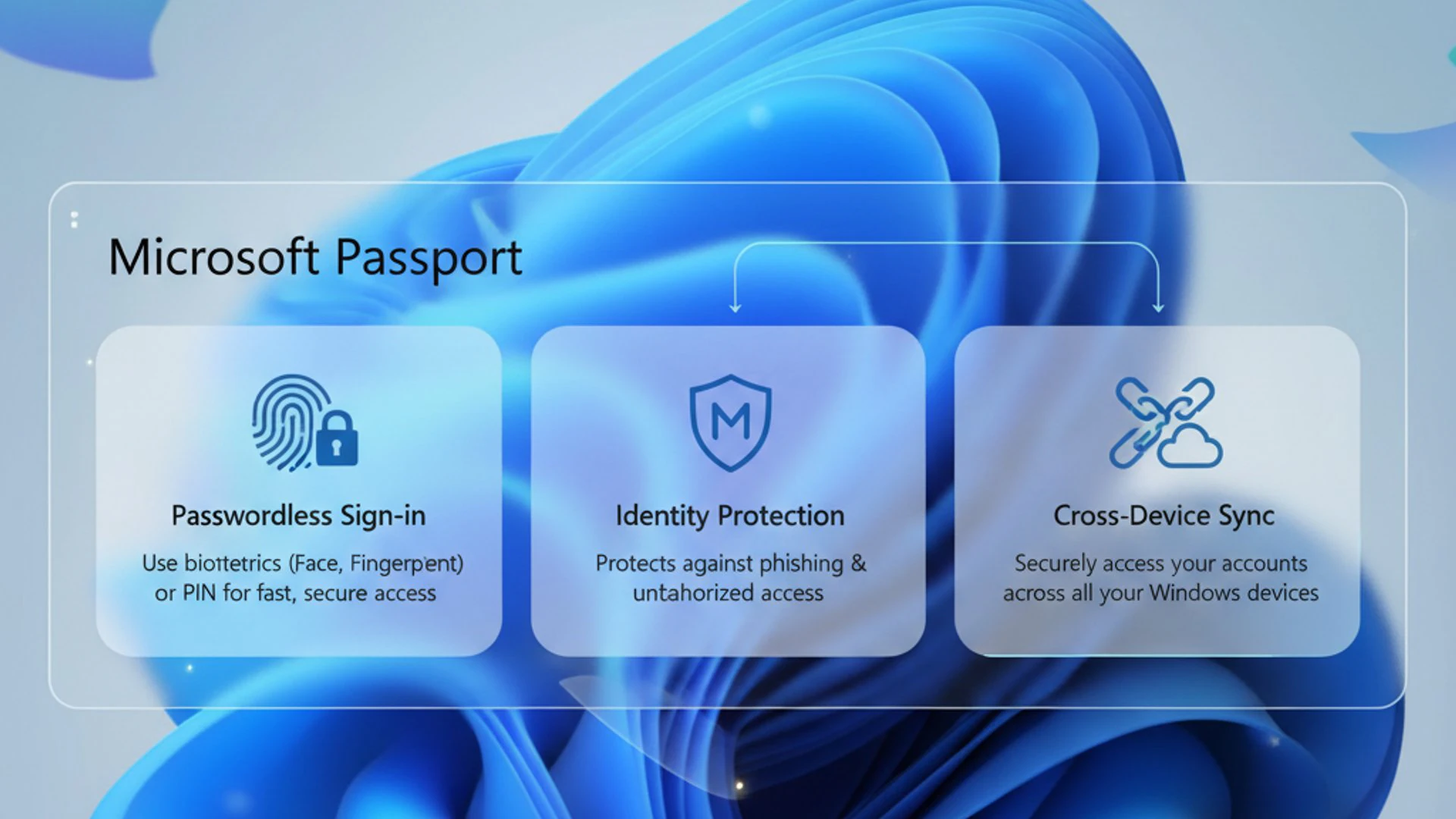
Unlike conventional passwords that are susceptible to a myriad of attacks, Passport leverages cryptographic principles to create a unique identity for the user on a specific device. This identity is then used to securely authenticate without ever transmitting a password over a network. It forms the backbone of Microsoft’s vision for a passwordless future, offering a significant upgrade in security and usability.
The implementation of Microsoft Passport on Windows 11 signifies Microsoft’s commitment to protecting users in an era where cyber threats are constantly evolving. It represents a proactive measure to safeguard digital identities against sophisticated attacks that target weak authentication mechanisms. Understanding its underlying mechanics is key to appreciating its value.
This system is deeply integrated into the Windows operating system, working harmoniously with other security features to create a layered defense. It ensures that even if a malicious actor gains access to a user’s password, they cannot easily authenticate without the physical device or biometric verification associated with Passport.
Evolution from Traditional Passwords
For decades, passwords have been the primary gatekeepers of our digital lives. However, their inherent weaknesses have become increasingly apparent. Passwords are often weak, reused across multiple services, and highly susceptible to various attack vectors. These include brute-force attacks, dictionary attacks, keyloggers, and, most notably, phishing scams.
The human element is often the weakest link in password security. Users struggle to remember complex, unique passwords for every service, leading to compromises. Organizations face immense challenges in enforcing strong password policies and managing the fallout from breaches.
Microsoft Passport on Windows 11 emerged as a direct response to these vulnerabilities. It moves away from the concept of a shared secret (the password) that can be intercepted or guessed, towards a system where authentication is tied to something unique to the user and their device. This paradigm shift fundamentally alters the attack surface.
Instead of relying on a string of characters that can be stolen and replayed, Passport uses cryptographic keys. These keys are generated and stored securely on the device, making them virtually impossible to extract and use elsewhere. This evolution represents a critical step towards a more secure and sustainable authentication model, reducing reliance on easily compromised credentials.
Core Principles of Microsoft Passport
Microsoft Passport operates on several fundamental principles that distinguish it from traditional authentication methods. These principles are designed to maximize security, enhance user convenience, and provide a resilient defense against modern cyber threats. Understanding these tenets is crucial to grasping the power of this technology.
At its heart, Passport aims to create a strong, cryptographically bound identity for each user on their specific device. This identity is then leveraged for authentication, eliminating the need to transmit sensitive password data across networks. This approach significantly reduces the risk of credential theft and replay attacks, which plague password-based systems.
Another key principle is the concept of user intent. When you use Passport, you’re not just entering a password; you’re actively confirming your intention to authenticate through a secure gesture, such as entering a PIN or performing a biometric scan. This active confirmation helps prevent unauthorized access even if your device is physically compromised.
Furthermore, Passport is built with interoperability in mind, aligning with industry standards to ensure broad applicability. This forward-thinking design positions it as a cornerstone for future authentication technologies, making it a truly robust and adaptable solution for the evolving digital landscape.
Device-Bound Credentials
One of the most critical elements of Microsoft Passport on Windows 11 is its reliance on device-bound credentials. This means that the authentication keys used to verify your identity are uniquely generated and securely stored on the specific device you are using. They are inextricably linked to that hardware.
When you set up Microsoft Passport, a unique cryptographic key pair is created on your device. The private key remains on the device, protected by hardware security modules like a Trusted Platform Module (TPM) if available. The public key is then registered with Microsoft’s identity services.
During authentication, your device uses its private key to cryptographically sign a challenge from the service you’re trying to access. This signature is then verified by the service using your public key. Because the private key never leaves your device and is protected by a PIN or biometric gesture, it’s incredibly difficult for attackers to steal or replicate.
This mechanism makes credential theft significantly harder than with traditional passwords. Even if an attacker compromises your account on one device, they cannot use those stolen credentials to access your account from a different device without the unique private key bound to that specific machine. This is a fundamental shift in security.
Multi-Factor Authentication (MFA) Integration
Microsoft Passport inherently incorporates Multi-Factor Authentication (MFA) as a core component of its design. MFA significantly enhances security by requiring users to provide two or more verification factors to gain access to a resource. These factors typically fall into three categories: something you know (like a PIN), something you have (like your device), and something you are (like a fingerprint or facial scan).
With Microsoft Passport on Windows 11, when you use Windows Hello to sign in with a PIN, fingerprint, or facial recognition, you are effectively performing MFA. The “something you have” is your specific device, which holds the unique cryptographic keys. The “something you know” is your PIN, or the “something you are” is your biometric data.
This combination makes it exponentially more difficult for unauthorized users to gain access. Even if an attacker somehow obtains your PIN, they would still need physical access to your specific device to complete the authentication. Similarly, if your device is stolen, the thief would still need your PIN or biometrics to unlock it and access your Passport credentials.
The seamless integration of MFA within Passport provides a robust layer of defense against a wide range of cyberattacks, particularly those involving credential compromise. It transforms a single point of failure (the password) into a multi-layered security challenge for potential attackers.
How Microsoft Passport Enhances Security on Windows 11
The introduction of Microsoft Passport on Windows 11 marks a pivotal moment in the evolution of operating system security. It fundamentally changes how users authenticate, shifting from vulnerable shared secrets to robust, hardware-backed credentials. This paradigm shift delivers significant security enhancements that address some of the most pervasive threats in the digital landscape.
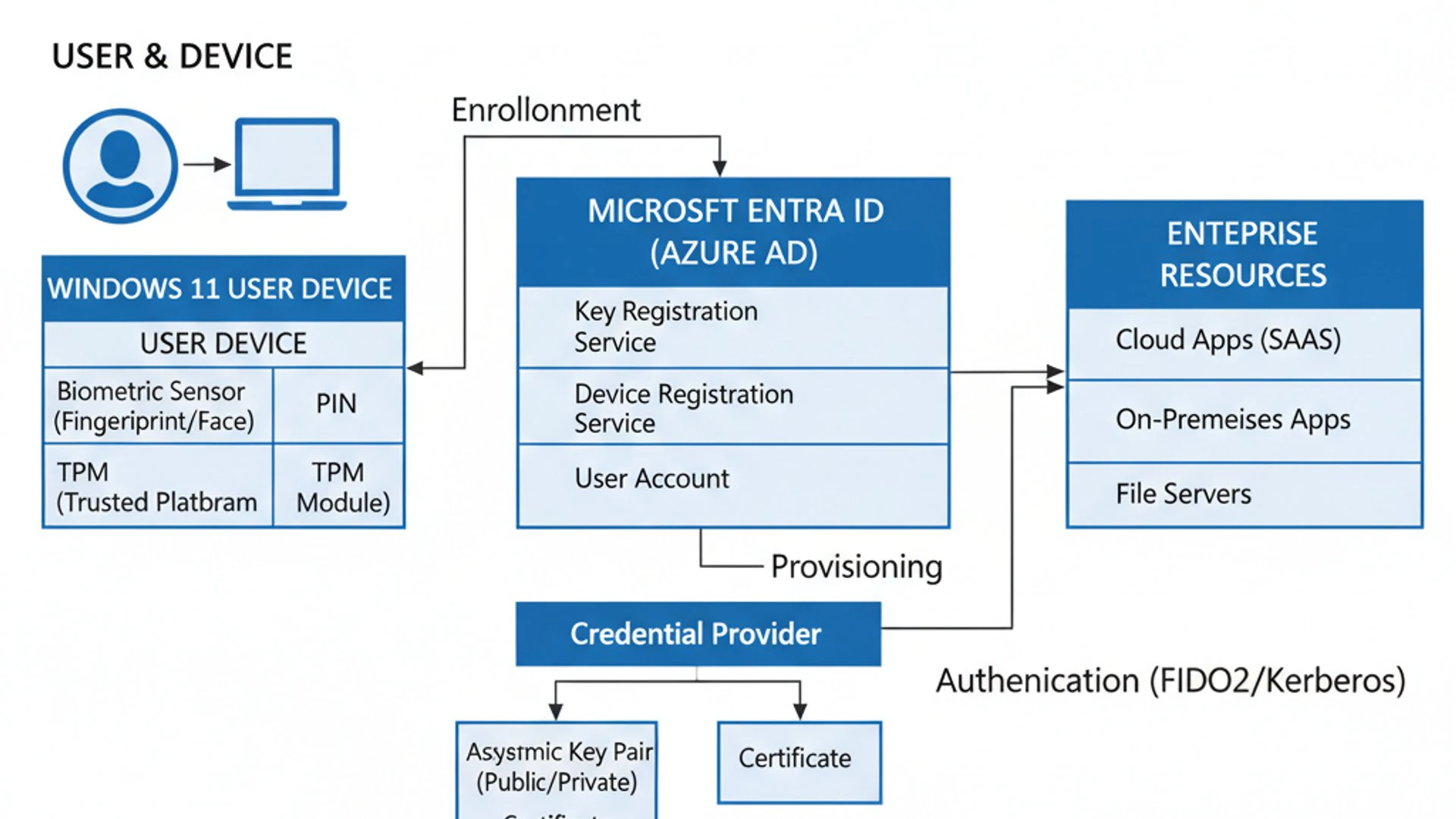
One of the primary ways Passport bolsters security is by making it incredibly difficult for attackers to steal or reuse credentials. Traditional passwords, once compromised, can be used indefinitely until changed. Passport’s device-bound keys, however, are useless if detached from their original device, rendering many common attack techniques ineffective.
Furthermore, the inherent multi-factor nature of Passport means that even if one factor is compromised, the others remain to protect the user’s identity. This layered defense significantly raises the bar for attackers, making successful breaches far less likely and far more complex to execute.
By integrating deeply with the Windows 11 operating system, Passport provides a secure foundation for accessing not just the device itself, but also cloud services, applications, and network resources. This creates a consistent and strong authentication experience across the entire digital ecosystem, reducing security gaps.
Ultimately, Microsoft Passport on Windows 11 isn’t just about adding another security feature; it’s about redefining the very concept of digital identity verification, making it more resilient, user-friendly, and future-proof. It empowers users and organizations to navigate the digital world with greater confidence and protection against sophisticated threats.
Protection Against Phishing and Credential Theft
Phishing and credential theft remain among the most prevalent and damaging cyberattacks. Attackers trick users into revealing their passwords on fake websites or through deceptive emails. Once stolen, these credentials can be used to gain unauthorized access to accounts, leading to data breaches, financial fraud, and identity theft.
Microsoft Passport on Windows 11 offers robust protection against these types of attacks. Because Passport relies on device-bound cryptographic keys rather than a memorized password, there’s no password to phish. When you authenticate with Passport, your device cryptographically proves your identity to the service. This process does not involve sending a password that can be intercepted or stolen.
Even if an attacker manages to create a convincing phishing site, your Passport credentials cannot be entered or transmitted to it. The authentication process requires a cryptographic challenge-response between your specific device and the legitimate service. A fake site cannot initiate or complete this cryptographic exchange.
This makes Passport inherently phishing-resistant. It also protects against “pass-the-hash” or “replay” attacks, where stolen password hashes or session tokens are used to impersonate a user. Since Passport keys are device-bound and require a user gesture, they cannot simply be replayed from another machine. This significantly reduces the attack surface for credential-based attacks, making your digital identity far more secure.
Secure Access to Resources and Services
Beyond protecting against phishing, Microsoft Passport on Windows 11 provides a secure and streamlined mechanism for accessing a wide array of resources and services. This includes not only your local Windows device but also Microsoft cloud services like Microsoft 365, Azure Active Directory (now Microsoft Entra ID), and various third-party applications that integrate with Microsoft’s identity platform.
Once you’ve authenticated to your Windows 11 device using Passport (via Windows Hello), you gain seamless and secure access to these connected services without needing to re-enter passwords. This is achieved through single sign-on (SSO) capabilities, where your device-bound credential acts as a universal key.
For enterprise environments, this capability is transformative. Employees can securely access corporate networks, applications, and data with a simple PIN or biometric scan, eliminating the need to remember and type complex domain passwords repeatedly. This not only improves productivity but also drastically reduces help desk calls related to forgotten passwords.
The underlying cryptographic strength of Passport ensures that these connections are secure, protecting sensitive corporate data from unauthorized access. It establishes a strong chain of trust from the device to the cloud service, making it an indispensable tool for modern security architectures.
Setting Up Microsoft Passport on Windows 11
Enabling Microsoft Passport on Windows 11 is a straightforward process that significantly enhances your device’s security and streamlines your login experience. While the core technology operates in the background, the user-facing setup is primarily managed through Windows Hello. This section will guide you through the necessary prerequisites and provide a clear, step-by-step configuration process.
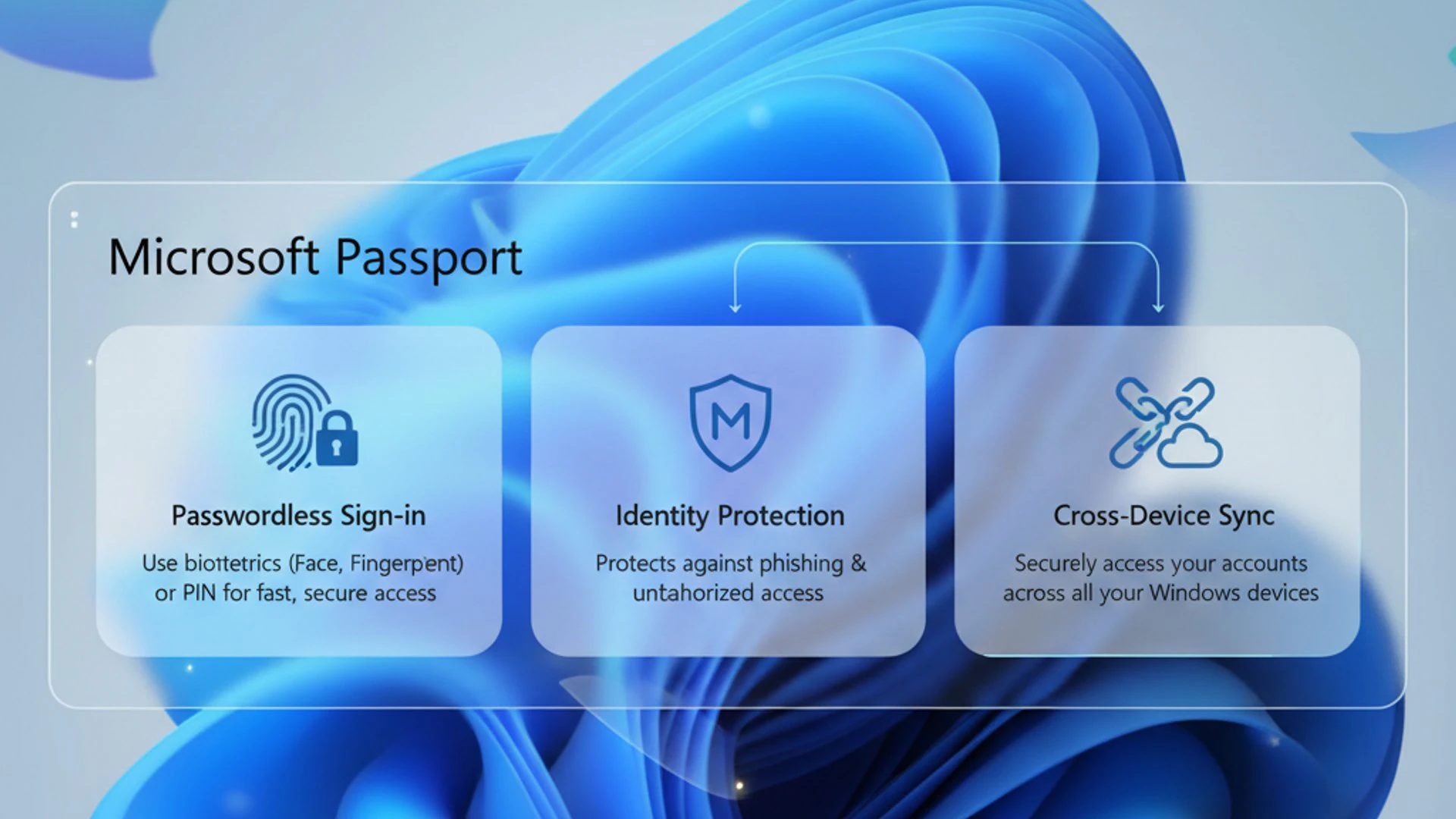
Before you begin, it’s important to understand that Passport is deeply integrated into the Windows 11 operating system. It leverages existing security features and hardware capabilities to provide its robust authentication. Therefore, ensuring your system meets certain criteria is the first step towards a successful setup.
The benefits of setting up Passport are immediate and tangible. You’ll experience faster, more secure logins, and a reduced reliance on traditional passwords for accessing various services. This not only improves your personal security posture but also contributes to a more efficient workflow.
Don’t be intimidated by the technical nature of “Passport.” Microsoft has designed the user experience to be intuitive, guiding you through each stage of the setup. By following these instructions, you’ll be able to leverage this powerful security feature in no time, moving closer to a truly passwordless future.
This process is a fundamental step in modernizing your digital security. Once configured, your Windows 11 device will use these advanced credentials for a wide range of authentication scenarios, providing peace of mind and convenience.
Prerequisites for Enabling Passport
Before you can fully utilize Microsoft Passport on Windows 11, your system needs to meet certain fundamental requirements. These prerequisites ensure that the underlying security mechanisms and hardware capabilities are in place to support this advanced authentication technology. Meeting these conditions is crucial for a smooth and secure setup.
Firstly, your Windows 11 installation must be up-to-date. Microsoft regularly releases updates that include security patches and feature enhancements, ensuring optimal performance and compatibility for Passport. Always ensure your system is running the latest version of Windows 11. You can check for updates via Settings > Windows Update.
Secondly, you must be signed in with a Microsoft Account. While local accounts offer some security, Microsoft Passport is designed to work seamlessly with your Microsoft Account, extending its benefits to cloud services and providing a unified identity experience. If you’re using a local account, you’ll need to switch to a Microsoft Account first.
Finally, a crucial prerequisite for robust Passport security is the presence of a Trusted Platform Module (TPM) chip. While not strictly mandatory for a basic PIN setup, a TPM 2.0 chip is highly recommended as it provides hardware-level protection for your cryptographic keys, making them virtually impossible to extract. Most modern Windows 11 devices come with TPM 2.0 enabled by default.
Hardware and Software Requirements
To fully leverage Microsoft Passport on Windows 11, specific hardware and software conditions must be met. These requirements ensure the integrity and security of the cryptographic keys and the overall authentication process.
- Windows 11 Operating System: Naturally, you need to be running Windows 11. Ensure your operating system is fully updated to the latest version for optimal performance and security features.
- Microsoft Account: A Microsoft account is essential for enabling and managing Passport credentials, especially for cloud service integration.
- Trusted Platform Module (TPM) 2.0: While not strictly mandatory for PIN-based authentication, a TPM 2.0 chip is highly recommended. It provides a secure hardware environment for storing cryptographic keys, making them resistant to software attacks. Most modern Windows 11 PCs ship with TPM 2.0 enabled. You can check your TPM status by typing
tpm.mscin the Run dialog. - Biometric Hardware (Optional but Recommended): For Windows Hello’s biometric features (facial recognition or fingerprint scanning), your device needs compatible hardware:
- Infrared Camera: Required for facial recognition (e.g., Windows Hello compatible cameras).
- Fingerprint Reader: Required for fingerprint authentication.
- Internet Connectivity: Initial setup and synchronization with your Microsoft Account may require an active internet connection.
These requirements ensure that the device-bound credentials are created and protected with the highest possible security standards, making your authentication process robust against various threats.
Step-by-Step Configuration Guide
Setting up Microsoft Passport on Windows 11 primarily involves configuring Windows Hello. Here’s a clear, step-by-step guide to get you started:
- Open Settings: Click the Start button, then select Settings (the gear icon). Alternatively, press
Windows key + I. - Navigate to Accounts: In the Settings window, click on Accounts in the left-hand navigation pane.
- Access Sign-in Options: On the Accounts page, select Sign-in options. This section contains all the methods for authenticating to your Windows 11 device.
- Set up Windows Hello PIN:
- Under “Ways to sign in,” locate PIN (Windows Hello) and click on it.
- Click the Set up button. If you already have a PIN, you might see “Change” or “Remove.”
- Enter your Microsoft account password when prompted to verify your identity.
- In the “Set up a PIN” window, enter your desired PIN twice (once for “New PIN” and once for “Confirm PIN”). Ensure it meets any complexity requirements displayed.
- Click OK. Your PIN is now set up, and this effectively enables the underlying Microsoft Passport for PIN authentication.
- Set up Windows Hello Facial Recognition (if available):
- Back in “Sign-in options,” locate Facial recognition (Windows Hello) and click on it.
- Click the Set up button.
- Follow the on-screen instructions, which will involve looking directly into your device’s camera for a few seconds to register your face.
- Click Close when the setup is complete.
- Set up Windows Hello Fingerprint Recognition (if available):
- Under “Sign-in options,” find Fingerprint recognition (Windows Hello) and click on it.
- Click the Set up button.
- Follow the prompts to swipe or tap your finger on the fingerprint reader multiple times from different angles to ensure accurate recognition.
- Click Close when finished.
Tip: Always choose a strong, unique PIN that is different from any passwords you use. While biometrics offer convenience, a PIN provides a reliable backup and is a critical component of your Passport security.
Once these steps are completed, your Windows 11 device is now configured to use Microsoft Passport for authentication, leveraging Windows Hello for a seamless and secure sign-in experience. You can now choose your preferred method (PIN, face, or fingerprint) at the login screen.
Managing Your Microsoft Passport Settings
Once you’ve set up Microsoft Passport on Windows 11, you’ll likely want to manage your authentication methods, add new ones, or troubleshoot any issues that might arise. Windows 11 provides a centralized and user-friendly interface within the Settings app to handle all aspects of your sign-in options, which directly relate to your Passport configuration.
Effective management of these settings is crucial for maintaining both security and convenience. For instance, you might want to add a fingerprint after initially setting up a PIN, or perhaps remove a facial recognition profile if you’re experiencing issues. Understanding where these controls are located and how to use them empowers you to tailor your authentication experience to your specific needs.
Regularly reviewing your Passport settings is also a good security practice. This ensures that only authorized methods are active and that any old or unused credentials are removed, minimizing potential vulnerabilities. The flexibility offered by Windows 11 allows for dynamic adjustments to your authentication preferences.
This section will guide you through the process of adding and removing various authentication methods associated with Microsoft Passport, as well as provide practical advice for resolving common problems. By mastering these management techniques, you can ensure your Windows 11 device remains both secure and accessible.
Adding and Removing Authentication Methods
Managing your authentication methods for Microsoft Passport on Windows 11 is straightforward and done through the same “Sign-in options” section in Settings. This flexibility allows you to customize how you access your device.
To add a new method:
- Go to Settings > Accounts > Sign-in options.
- Under “Ways to sign in,” you’ll see various options like “Facial recognition (Windows Hello),” “Fingerprint recognition (Windows Hello),” “PIN (Windows Hello),” and “Security Key.”
- Click on the method you wish to add (e.g., Fingerprint recognition).
- Click the Set up button and follow the on-screen prompts to register your biometric data or configure a security key. You may need to verify your Microsoft account password or current PIN.
To remove an existing method:
- Navigate to Settings > Accounts > Sign-in options.
- Click on the method you wish to remove (e.g., PIN (Windows Hello)).
- Click the Remove button.
- Confirm your decision when prompted. For sensitive methods like PIN, you might need to enter your Microsoft account password to authorize the removal.
Important: Always ensure you have at least one reliable sign-in method configured, preferably a PIN, even if you primarily use biometrics. This acts as a fallback if your biometric hardware fails or cannot recognize you.
You can also manage settings for your Picture Password or Dynamic Lock from this section, though these are separate from the core Microsoft Passport functionality. The ability to easily add or remove methods gives you complete control over your device’s access protocols.
Troubleshooting Common Passport Issues
While Microsoft Passport on Windows 11 is designed for reliability, users might occasionally encounter issues. Here are some common problems and their solutions:
- Windows Hello Facial/Fingerprint Recognition Not Working:
- Check Hardware: Ensure your camera lens or fingerprint reader is clean and unobstructed.
- Re-enroll Biometrics: Go to Settings > Accounts > Sign-in options, select the problematic method, click Remove, then Set up again to re-enroll your face or fingerprints.
- Update Drivers: Ensure your biometric device drivers are up to date. Go to Device Manager, find your camera or biometric device, right-click, and select “Update driver.”
- Lighting Conditions: For facial recognition, ensure adequate and consistent lighting.
- PIN Not Working or Forgotten:
- Reset PIN: On the login screen, if your PIN isn’t working, click “I forgot my PIN” below the PIN entry box. You’ll be guided through verifying your Microsoft account and setting a new PIN.
- Check Keyboard Layout: Ensure your keyboard layout hasn’t accidentally changed, affecting number input.
- “This option is currently unavailable” for Windows Hello:
- This often indicates a missing or disabled TPM. Check if your TPM 2.0 is enabled in your UEFI/BIOS settings.
- Ensure your device drivers are up-to-date, especially for system devices.
- Passport/Windows Hello Setup Fails:
- Restart Device: A simple restart can often resolve temporary glitches.
- Check for Windows Updates: Ensure your Windows 11 is fully updated.
- Verify Microsoft Account: Make sure your Microsoft account is properly linked and verified.
- Run System File Checker: Open Command Prompt as administrator and type
sfc /scannowto check for corrupted system files.
If issues persist, consider checking Microsoft’s official support documentation or community forums. Sometimes, specific hardware configurations might require unique troubleshooting steps. For general system health, you might also find resources like Windows Update Troubleshooter on Windows 11: Ultimate Guide helpful for resolving underlying OS issues.
Microsoft Passport vs. Windows Hello: Understanding the Relationship
It’s common for users to conflate Microsoft Passport on Windows 11 with Windows Hello, and while they are intimately related, they are not the same thing. Understanding their distinct roles is crucial for appreciating the full scope of Microsoft’s advanced authentication strategy. Think of it as a car: Windows Hello is the steering wheel and pedals — the parts you directly interact with — while Microsoft Passport is the engine and chassis — the underlying power and structure that makes it all work.
This distinction is important because it clarifies how Microsoft has engineered a robust, secure authentication framework that is also incredibly user-friendly. The user experience is designed to be seamless and intuitive, masking the complex cryptographic operations happening behind the scenes. This separation of concerns allows for both strong security and excellent usability.
Microsoft Passport provides the secure, device-bound credential infrastructure, while Windows Hello offers the convenient and familiar interface through which users interact with that infrastructure. One cannot truly exist in its intended form without the other in the context of Windows 11. They are two sides of the same security coin, each playing a vital, complementary role.
By clarifying this relationship, we can better understand how Microsoft Passport on Windows 11 delivers its promise of enhanced security without compromising on user experience. It’s a testament to thoughtful design that prioritizes both protection and accessibility in the modern computing environment.
Windows Hello as the User Interface
Windows Hello is the user-facing component of Microsoft’s advanced authentication system. It’s what most users directly interact with when they sign in to their Windows 11 device. Windows Hello provides convenient and secure methods for authentication, such as facial recognition, fingerprint scanning, and PIN entry.
When you use Windows Hello to unlock your device with your face, finger, or a PIN, you are essentially providing a “gesture” that unlocks the underlying Microsoft Passport credentials. This gesture confirms your presence and intent, allowing the system to use the secure, device-bound cryptographic keys for authentication.
The beauty of Windows Hello lies in its simplicity and speed. Instead of typing a long, complex password, a quick glance at your camera or a touch of your finger grants you immediate access. The PIN serves as a robust fallback and is often the first step in setting up biometrics.
Windows Hello is designed to be highly secure, as the biometric data or PIN never leaves your device and is not transmitted over networks. It’s merely a local unlock mechanism for your Passport credentials. This makes it incredibly resistant to remote attacks, providing a strong first line of defense for your Windows 11 machine.
The Underlying Passport Framework
While Windows Hello is the friendly face of authentication, Microsoft Passport on Windows 11 is the robust, cryptographic framework operating beneath the surface. It is the engine that generates, stores, and manages the secure, device-bound credentials that Windows Hello then leverages.
Passport utilizes asymmetric cryptography to create unique key pairs for each user on each device. The private key is securely stored on the device, often within a hardware security module like a Trusted Platform Module (TPM). This private key never leaves the device and is protected by the user’s Windows Hello gesture (PIN, face, or fingerprint).
When you authenticate using Windows Hello, the Passport framework uses this private key to cryptographically sign a challenge from the service you’re trying to access. The corresponding public key, which is registered with Microsoft’s identity services, then verifies this signature. This entire process occurs without ever exposing a traditional password.
This underlying framework is what makes authentication phishing-resistant and robust against credential theft. It ensures that your identity is tied to your specific device and requires your explicit presence (via the Windows Hello gesture) to unlock and use those credentials. Microsoft Passport is the true innovation that powers the secure and convenient experience of Windows Hello.
Benefits of Adopting Microsoft Passport for Users and Organizations
The widespread adoption of Microsoft Passport on Windows 11 offers a multitude of advantages, extending far beyond individual convenience to encompass significant improvements in organizational security and operational efficiency. This technology is designed to address the challenges of modern digital security head-on, providing tangible benefits for all stakeholders.
For individual users, the immediate impact is a dramatically improved daily computing experience. Gone are the days of struggling to remember complex passwords or constantly resetting forgotten ones. Passport streamlines access, making interactions with devices and services faster and more intuitive, all while bolstering personal security.
Organizations, ranging from small businesses to large enterprises, stand to gain even more. The shift to Passport-based authentication reduces their attack surface, mitigates the risk of costly data breaches, and simplifies identity management. This translates into a stronger security posture, reduced operational overhead, and greater compliance with regulatory requirements.
By moving away from vulnerable password-centric authentication, both users and organizations can navigate the digital world with greater confidence. Microsoft Passport on Windows 11 is not just a feature; it’s a strategic investment in a more secure, efficient, and user-friendly future for digital identity.
Streamlined User Experience
For individual users, one of the most immediate and appreciated benefits of Microsoft Passport on Windows 11 is the significantly streamlined user experience. The days of typing long, complex passwords multiple times a day are rapidly becoming a thing of the past.
With Windows Hello acting as the interface to Passport, users can sign in with a quick glance at their camera, a touch of their finger, or a simple four-digit PIN. This dramatically reduces the time and effort spent on authentication, allowing users to get to their work or entertainment faster.
This convenience doesn’t come at the expense of security; in fact, it enhances it. Because the authentication process is so easy, users are less likely to resort to weak, reused, or easily guessable passwords. The strong, device-bound credentials of Passport provide superior protection while making the user’s life easier.
Furthermore, Passport extends this seamless experience beyond the local device. Once authenticated to Windows 11, users gain single sign-on (SSO) access to various Microsoft services and integrated third-party applications without needing to re-enter credentials. This unified and effortless access across the digital ecosystem greatly improves productivity and reduces user frustration.
Enhanced Enterprise Security Posture
For organizations, adopting Microsoft Passport on Windows 11 translates into a substantially enhanced enterprise security posture. The benefits are multifaceted, addressing critical vulnerabilities that plague traditional IT environments.
Firstly, Passport significantly reduces the risk of credential theft, which is a leading cause of data breaches. By replacing passwords with phishing-resistant, device-bound cryptographic keys, organizations drastically shrink their attack surface. This makes it much harder for attackers to compromise employee accounts through phishing, malware, or brute-force attacks.
Secondly, it simplifies and strengthens Multi-Factor Authentication (MFA) deployment. Passport inherently incorporates MFA, making it easier for IT departments to enforce strong authentication policies without burdening users with complex external MFA solutions. This is critical for compliance and risk management.
Thirdly, Passport facilitates a move towards a passwordless environment, which reduces operational costs associated with password resets and help desk calls. It also improves employee productivity by eliminating the friction of password entry.
Finally, integration with Microsoft Entra ID (formerly Azure Active Directory) allows for centralized management and policy enforcement, providing IT administrators with robust control over identity and access. This comprehensive approach strengthens an organization’s overall defense against sophisticated cyber threats, making Microsoft Passport an indispensable tool for modern enterprise security.
Future of Authentication: Microsoft Passport and Beyond
The journey towards a more secure and user-friendly digital world is continuous, and Microsoft Passport on Windows 11 stands at the forefront of this evolution. It represents not just a current solution but a foundational technology paving the way for the future of authentication. As cyber threats become more sophisticated and the demand for seamless digital experiences grows, the principles embedded in Passport will only become more critical.
Microsoft’s long-term vision is clear: to move beyond passwords entirely. Passport is a key enabler of this passwordless future, demonstrating that strong security and effortless access are not mutually exclusive. Its design emphasizes open standards and interoperability, ensuring that it can adapt and integrate with emerging authentication technologies.
The ongoing development in areas like FIDO2 and other industry initiatives aligns perfectly with Passport’s core tenets. This commitment to innovation means that users and organizations can expect even more robust, convenient, and universal authentication options in the years to come. The goal is to make digital identity verification so seamless and secure that users rarely, if ever, have to think about it.
This section will explore how Passport integrates with these forward-looking standards and how Microsoft continues to innovate in the realm of identity protection, ensuring that Windows 11 remains a secure and cutting-edge platform for all its users. The future of authentication is not just about eliminating passwords; it’s about creating a fundamentally more secure and intuitive digital experience.
Integration with FIDO2 and Passwordless Future
Microsoft Passport on Windows 11 is a pivotal component in the broader industry movement towards a passwordless future, particularly through its strong integration with FIDO2. FIDO2 is an open authentication standard that enables users to leverage common devices to easily authenticate to online services in a secure, phishing-resistant manner.
The core principles of FIDO2 — device-bound credentials, strong cryptography, and user presence verification — are perfectly aligned with how Microsoft Passport operates. In essence, Windows Hello, powered by Passport, can function as a FIDO2 authenticator. This means that your Windows 11 device, with Passport enabled, can be used to securely sign in to any website or service that supports the FIDO2 standard, without needing a password.
This integration is a game-changer for universal authentication. It allows users to use their familiar Windows Hello experience to access not just Microsoft services, but a growing ecosystem of FIDO2-compliant applications and websites. This significantly reduces reliance on passwords across the internet, mitigating the risks associated with data breaches and credential theft on a much wider scale.
Microsoft is a strong proponent of FIDO2, actively working with the FIDO Alliance to push for its adoption. By embedding FIDO2 capabilities directly into Windows 11 via Passport, Microsoft is making it easier for both users and developers to embrace a truly passwordless and more secure online experience.
Continuous Innovation in Identity Protection
Microsoft’s commitment to identity protection extends far beyond the current capabilities of Microsoft Passport on Windows 11. The company is engaged in continuous innovation, constantly researching and developing new technologies to stay ahead of evolving cyber threats. This proactive approach ensures that Windows remains a secure and trusted platform.
Future advancements in identity protection will likely focus on several key areas. These include enhancing the capabilities of hardware-backed security, such as further integrating with TPMs and exploring new secure enclave technologies. The goal is to make cryptographic keys even more tamper-resistant and isolated from software attacks.
Furthermore, expect to see improvements in biometric authentication, with more sophisticated algorithms for facial and fingerprint recognition that offer even greater accuracy and spoofing resistance. Research into behavioral biometrics and adaptive authentication — where the level of authentication required adjusts based on contextual factors like location, device, and typical user behavior — is also ongoing.
Microsoft is also heavily invested in cloud-based identity solutions, with services like Microsoft Entra ID playing a crucial role in extending Passport’s benefits to hybrid and multi-cloud environments. The synergy between on-device Passport and cloud identity services will continue to evolve, offering a seamless and highly secure identity fabric across all digital touchpoints. This relentless pursuit of better security ensures that Microsoft Passport on Windows 11 remains a cutting-edge solution.
Conclusion: Embracing Advanced Security with Microsoft Passport
In an era where digital threats are constantly evolving, the need for robust and user-friendly authentication has never been more critical. Microsoft Passport on Windows 11 emerges as a powerful and indispensable solution, fundamentally transforming how we secure our digital identities. It moves us decisively beyond the vulnerabilities of traditional passwords, offering a sophisticated yet seamless approach to access control.
Throughout this comprehensive guide, we’ve explored Passport’s core principles, from its reliance on device-bound credentials and inherent Multi-Factor Authentication (MFA) to its crucial role in protecting against phishing and credential theft. We’ve seen how it enhances security for both individual users and large organizations, streamlining experiences while bolstering defenses. The clear distinction between Passport as the underlying framework and Windows Hello as its user-friendly interface highlights Microsoft’s thoughtful design in balancing security with convenience.
By following the straightforward setup and management steps, Windows 11 users can easily embrace this advanced security technology, paving the way for a more secure and passwordless future. The integration with FIDO2 standards and Microsoft’s continuous innovation in identity protection further solidify Passport’s position as a cornerstone of modern digital security.
Ultimately, adopting Microsoft Passport on Windows 11 is not merely an upgrade; it’s a strategic move towards a safer, more efficient, and more resilient digital experience. It empowers you to navigate the complexities of the online world with greater confidence, knowing that your identity is protected by cutting-edge technology. Embrace Microsoft Passport, and take a significant step forward in securing your digital life.









Community
Comments (0)