Download & Install Google App for Windows 11

Google App for Windows 11: With the Google App on Windows 11, you can now enjoy Google’s Search Experience and many added features directly on your Windows 11 Desktop. In this article, let’s check out how to download and install the Google App on Windows 11. Let’s get started.
Table of Contents
Features of the Google Application for Windows 11
- It provides a floating interface on your Windows 11 that lets you quickly search the web.
- The Search results include newer Google AI Enhancements in search results, providing rich answers, summaries, and suggestions right in the app.
- The Google Lens feature can be handy. You can select any content on your desktop, and Google will search and provide the results you are looking for.
- Additionally, if you are selecting texts on your screen using Google Lens in the Google App, you can Google Translate the texts right away, copy text, and even copy text as an image. This feature is useful and convenient.
- You can drag and drop any images in the search bar, and you can do a Google Image Search and get results instantly.
Download and Install the Google App for Windows 11
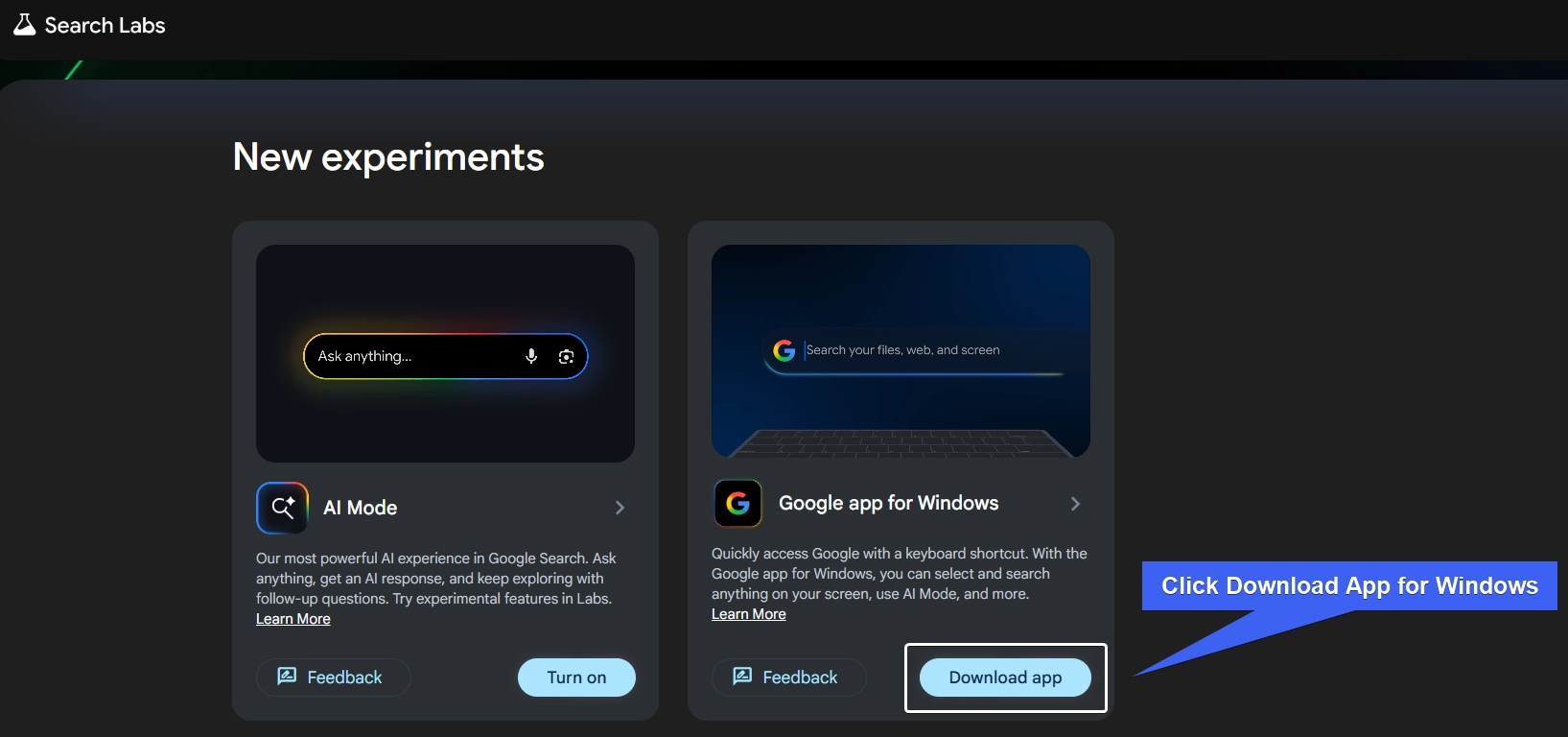
As of February 2026, the Google App for Windows is a New Experiment. You can download the Installer from Google’s Search Labs.
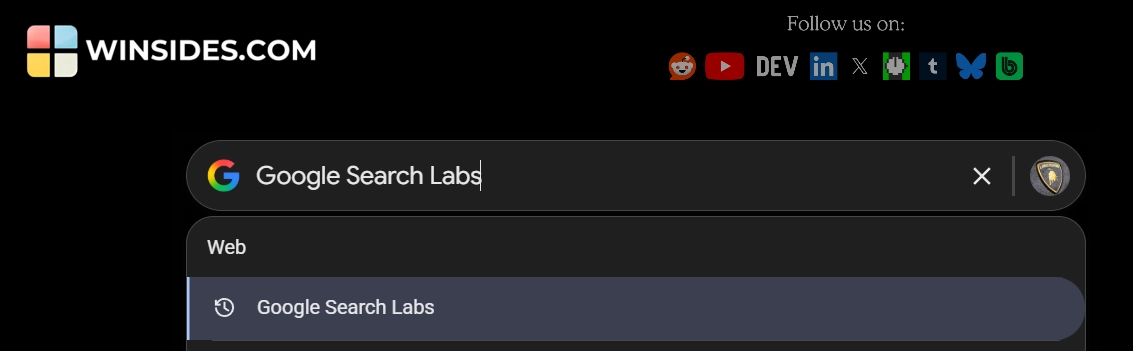
- Go to Google Search Labs.
- In the Search Lab, look for Google App for Windows.
- Click Download App.
- Google App Installer will be downloaded to your Windows 11 Desktop.
- Once the download is complete, you can then install it on your Windows 11.
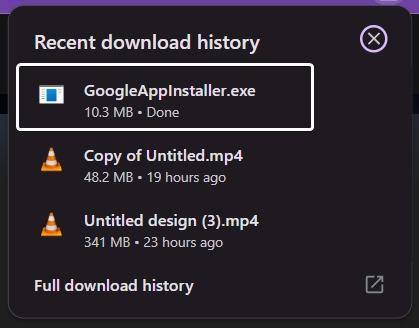
- Once the installer is downloaded, you run the installer file.
How to Use the Google App for Windows 11?
- Ask Anything Google Search bar floating window will appear on your Desktop.
- You can right away search for anything using the Google Search bar.
- Click on the Camera icon to search a text or image and search for it.
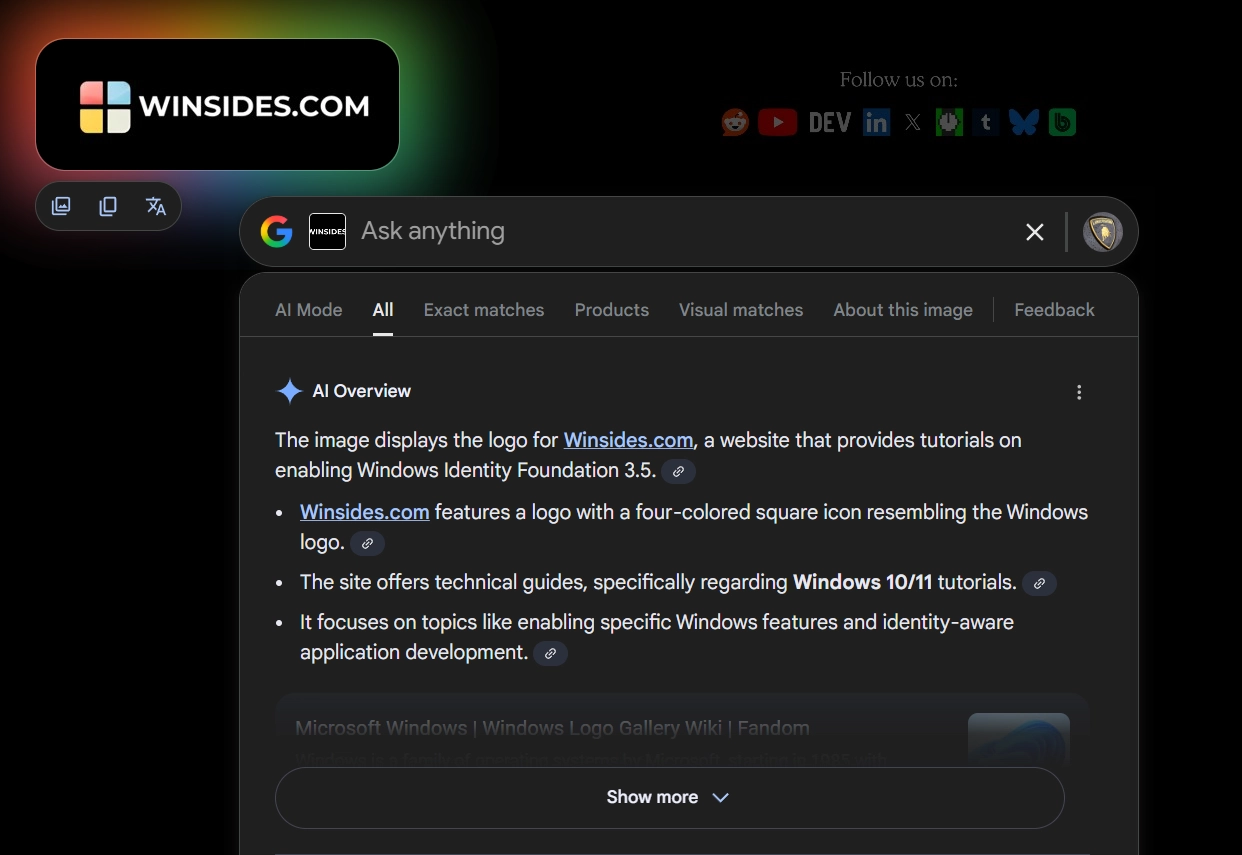
- Additional Features include Google Translate, Copy Text, Copy Text as Image, and more.
Note: To Enable Google Search bar, you can use the default keyboard shortcut Alt + Space. You can use the same shortcut to close the Google Search bar.
Configure Google Search App for Windows 11
Google offers several customization options, like Themes, and the keyboard shortcut to access the search bar on Windows 11. To do so, kindly follow the steps below.
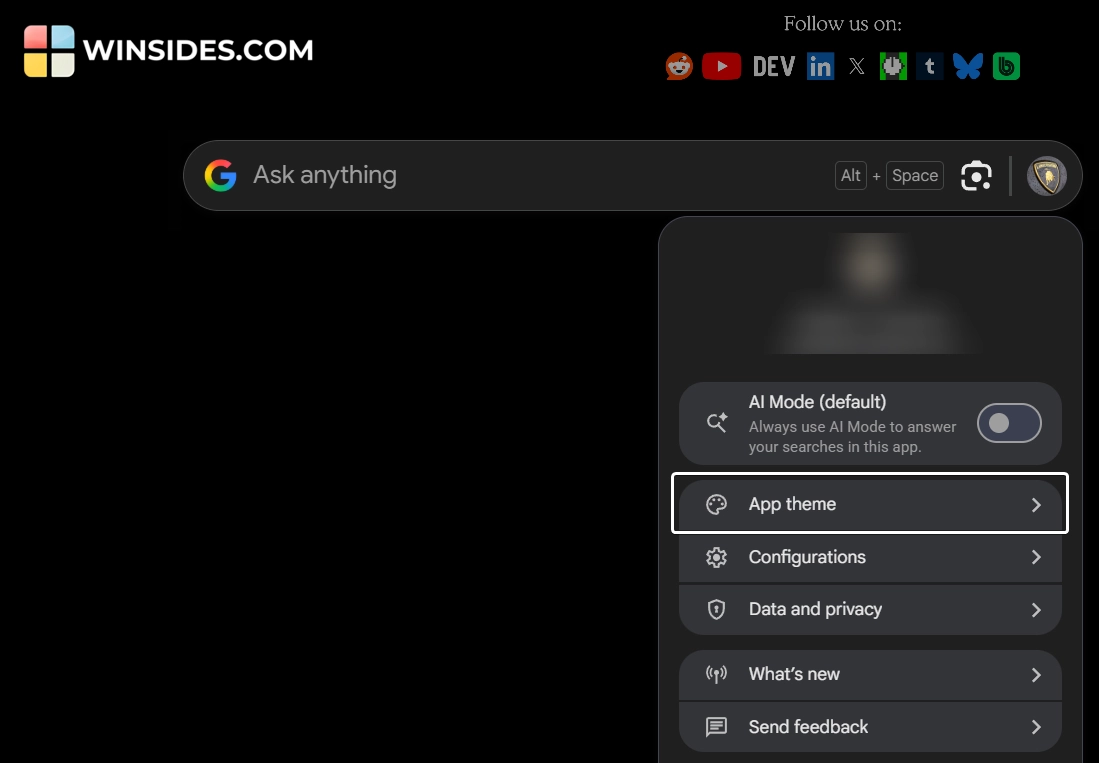
- Click on the Profile icon.
- Under the App theme, you can choose between Light and Dark themes.
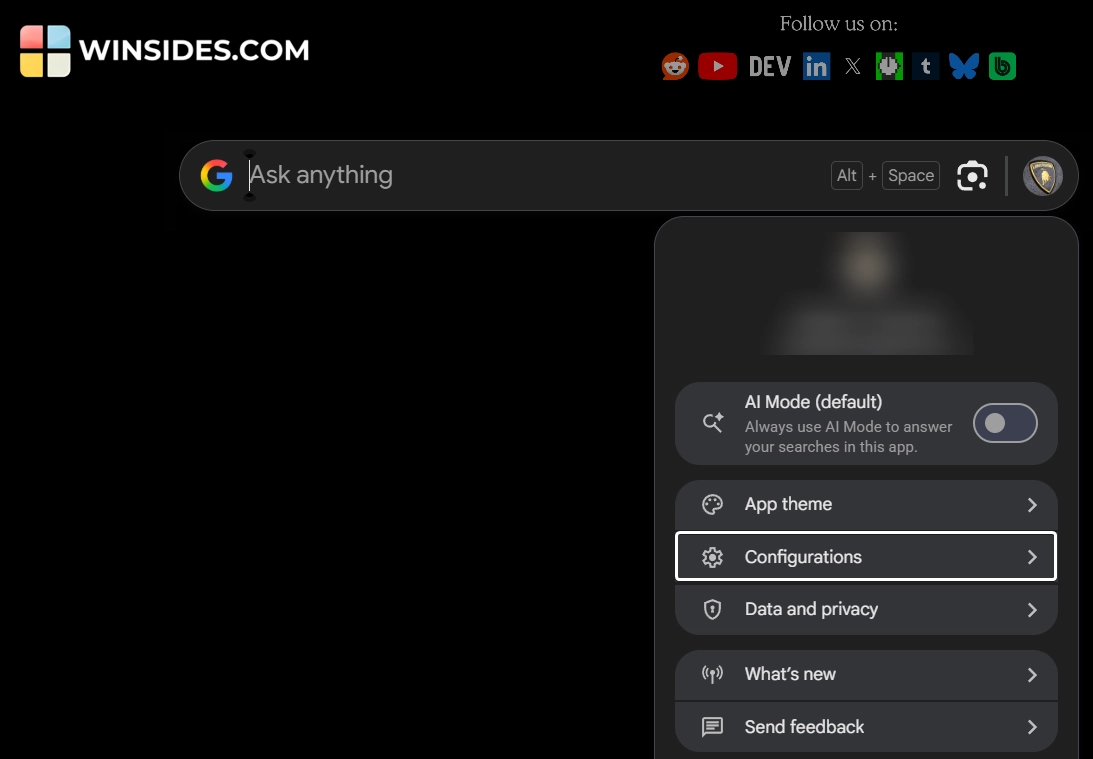
- The Configurations option allows you to customize the keyboard shortcut to open and close the Google Search bar.
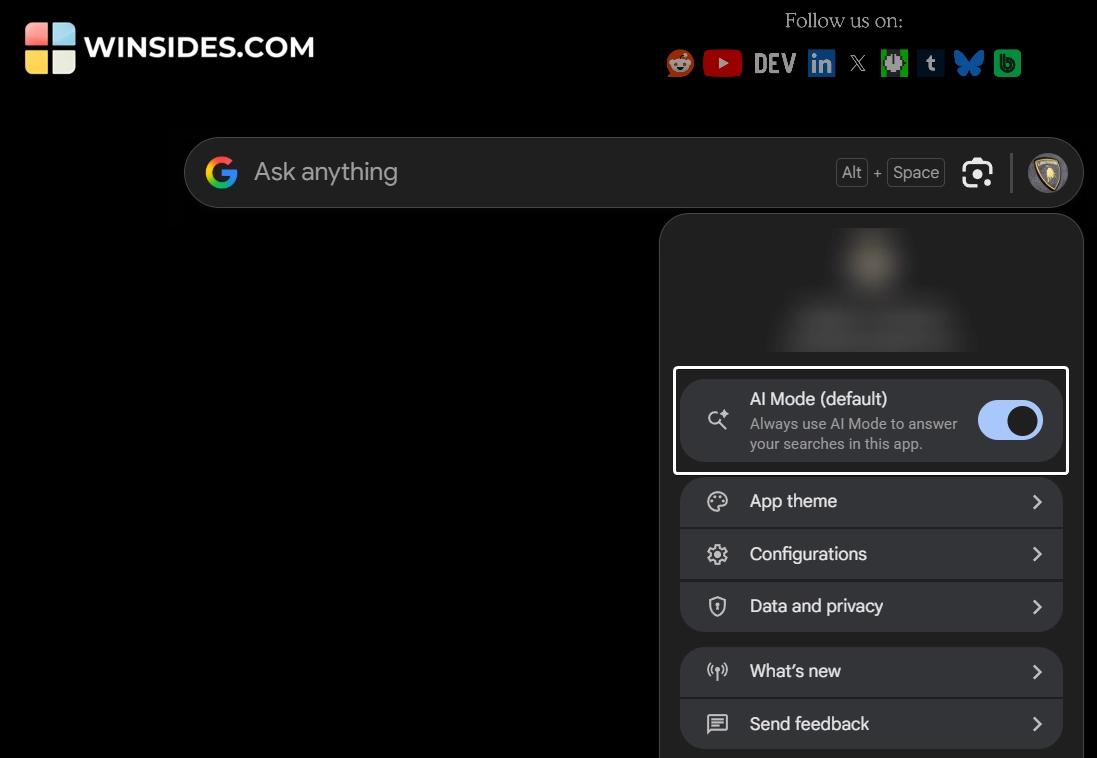
- You can enable AI Mode to always use AI Mode to answer your searches in this app.
Frequently Asked Questions
Why does my Google app installation fail when I use standalone offline installers?
If you download an standalone offline installer for a Google service (like Chrome) and it fails to run, it usually means your machine lacks the required background certificate authorities or is running on an ARM-based processor without the correct binary.
How does a custom floating search bar actually map keyboard inputs globally?
When a background application registers a hotkey like Alt + Space, it uses a function in the Windows API called a Global Hotkey. Instead of waiting for you to click on the app window, the software tells the Windows operating system: “Listen for this exact combination of keys no matter what software the user is currently interacting with.” The moment Windows detects that specific key combination, it interrupts the current active program and instantly shifts the operating focus to the search application’s text field.
Take Away
Google App for Windows 11 is an Experimental Desktop Launcher from Google released through Google Search Labs, and is designed to offer a spotlight-like search experience on Windows 11. For more interesting articles, stay tuned to Winsides.com. Happy Computing! Peace out!