

Run X Server in Windows 11: In our previous articles, we have covered a lot about virtualization, hypervisor platforms, containers, and more. If you have a piece of code or testing an application without affecting the stability of the central system, then you can opt for Containers. If you want to run an entire system(same or different operating systems) inside a central system, then you can opt for Virtual machines and Native Hypervisor Platforms like Hyper-V in Windows 11. Then, why do we need X Server? And what is it?
Key Steps:
- The most important step is to install WSL and set WSL 2 as the default version.
- Once the WSL is installed, choose your Distro and install it.
- Alongside, Install VcXsrv from the setup file and confgure it.
- Setup the Environment variable in the WSL.
- Finally, run a Linux Based GUI Application, you can find it running in the Graphical Interface in the Windows 11.
Table of contents
Why do we need X Server in Windows 11?
Well, there is a popular and interesting feature available in the Windows operating system, the Windows Subsystem for Linux (WSL), which allows users to run a Linux distribution directly on their Windows machine without needing a virtual machine or dual-boot setup. Here is where the purpose of X Server pops in. An X Server allows Windows to display graphical applications that run on Unix-like operating systems such as Linux on your Windows desktop. This article will navigate through the detailed steps of How to install and effectively use X Server in Windows 11 OS. Let’s get started!
- The first step of the process is to enable the Windows Subsystem for Linux. To do so, we have a detailed article on How to Enable Windows Subsystem for Linux in Windows 11. Please refer to it.
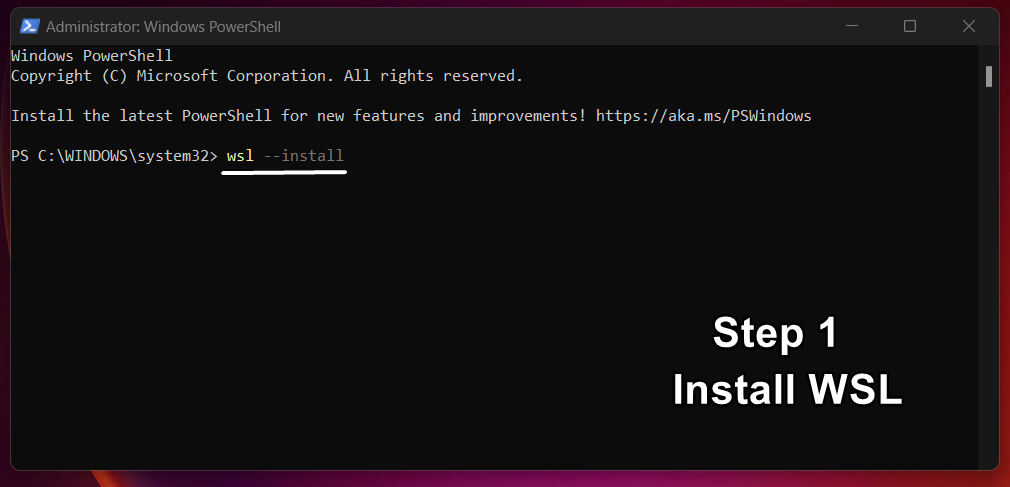
- We have enabled Windows Subsystem for Linux. You can either enable WSL in Windows 11 using the Windows Features or directly using a command in PowerShell. The choice is yours. To install WSL via PowerShell, open PowerShell, run as Administrator, and then execute the following command.
wsl --install
- The next step is to ensure that we are running the WSL 2, the latest version. This version uses a real Linux kernel in a lightweight virtual machine, providing better performance and full compatibility with Linux system calls. Run the following command in PowerShell.
wsl --update - It’s time to restart the PC.
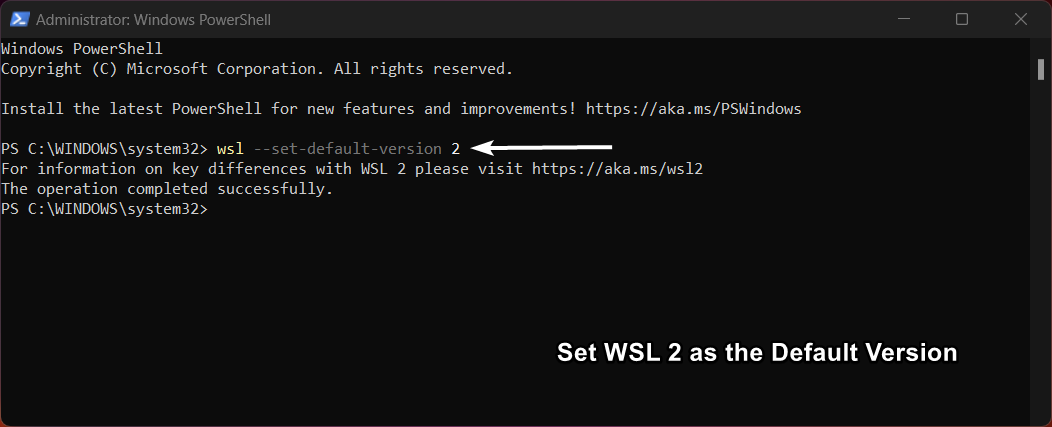
- After the restart, let’s set the default WSL version as WSL 2 using the following command in PowerShell.
wsl --set-default-version 2
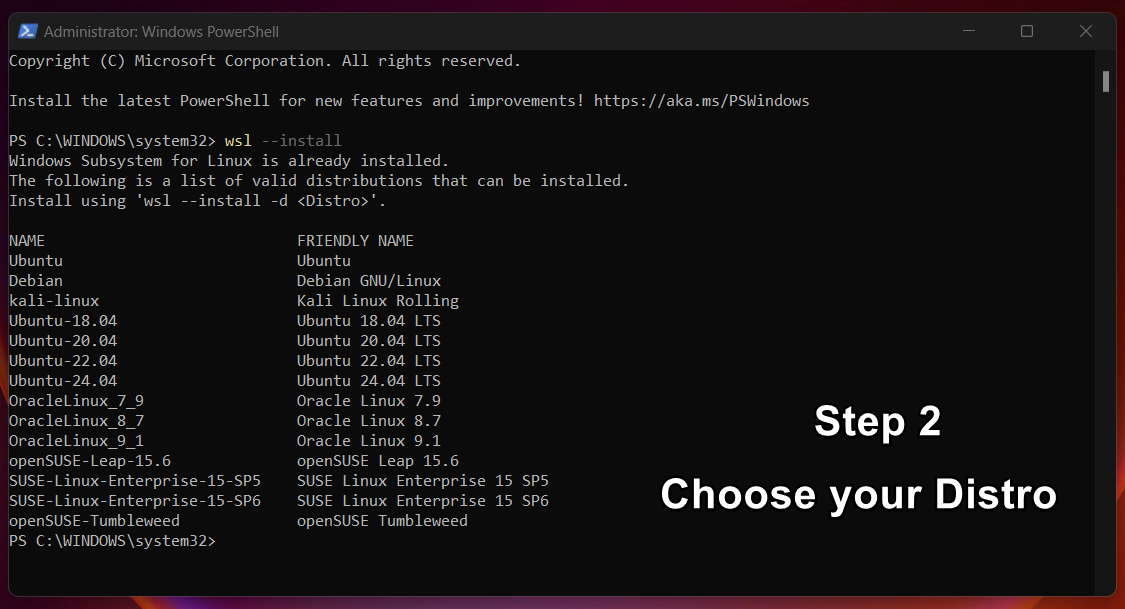
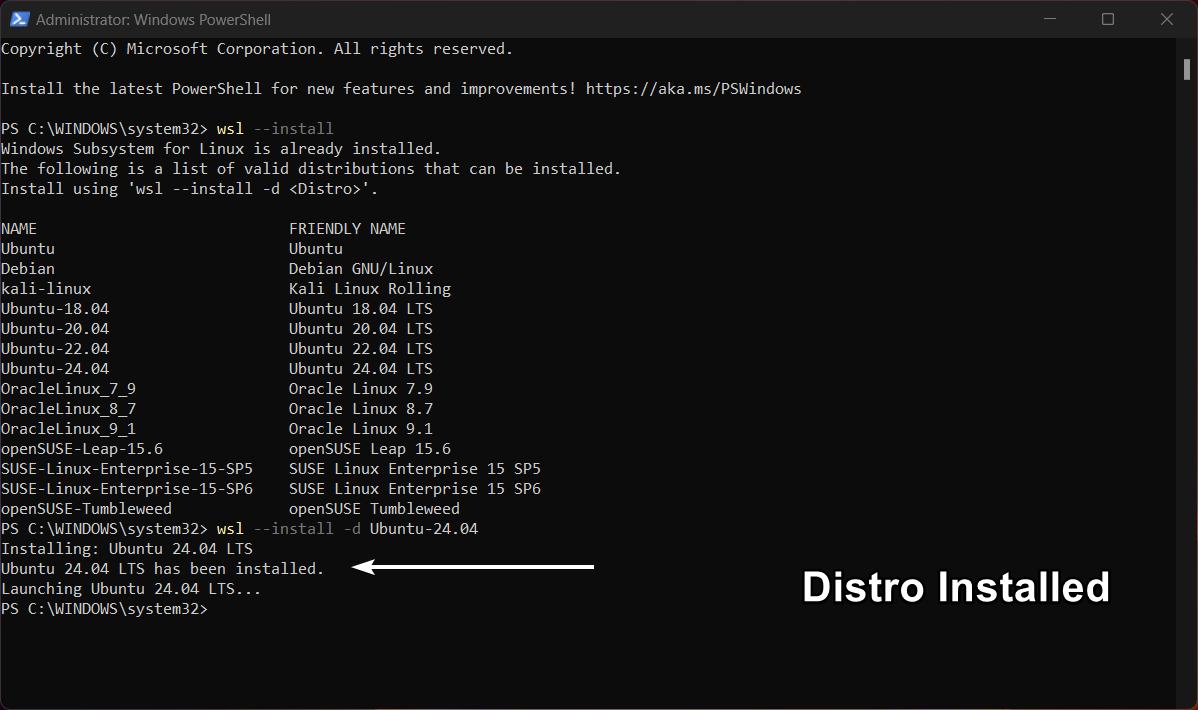
- Once the Windows Subsystem for Linux is installed, you will be presented with a list of Distros.
You can always run Windows Subsystem for Linux using the following command in the Windows Terminal.
wsl
- Choose your Distro accordingly. I am going with Ubuntu 24.04 LTS, as long-term support versions are more stable. Run the following command in PowerShell.
wsl --install -d Ubuntu-24.04
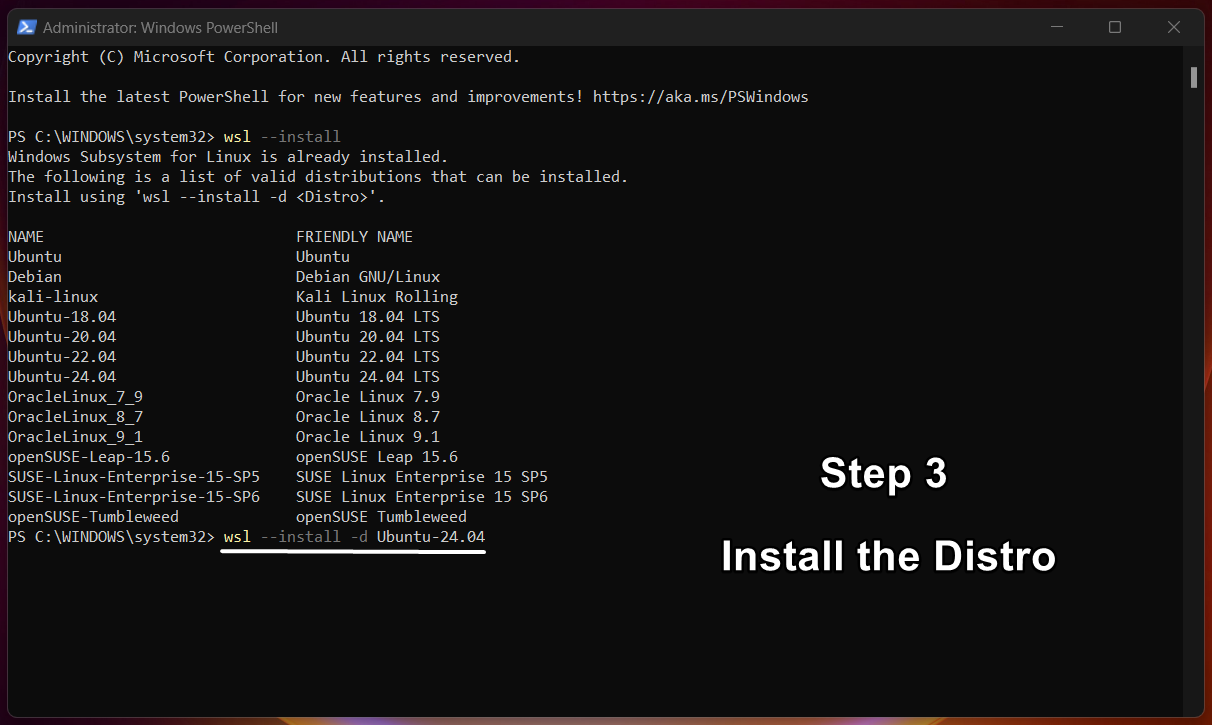
- Ubuntu 24.04 LTS will now be installed.
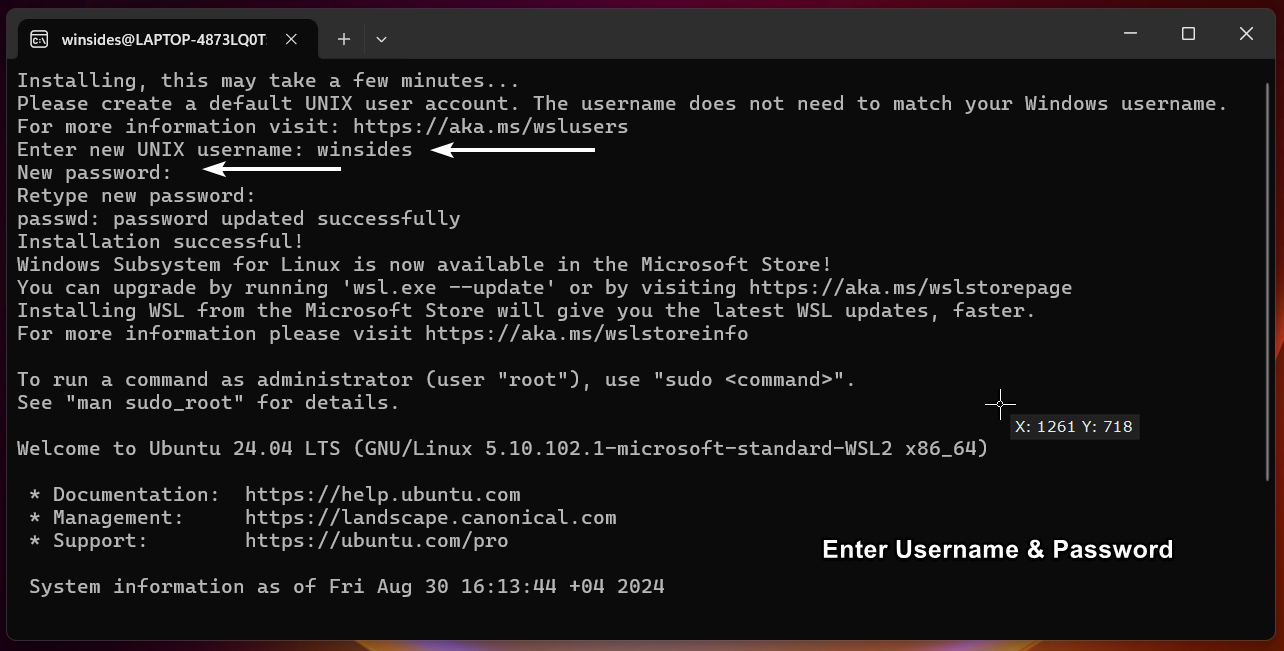
- The OS will open in the Windows Terminal. You have to set up your Unix username and root password. Please make sure to remember this information.
- Let’s keep this aside. Now, we will install a third-party X Server Application. The X Server runs on your computer and manages the display, handling input from the mouse, keyboard, and other peripherals. When you run Linux applications with a graphical interface (like a text editor or a file manager) on a Linux environment within Windows, the X Server on Windows handles the display of these applications. Without an X Server, you can only run command-line (CLI) applications in WSL. You can find X Server software for Windows from several sources, including the official websites of popular X Server tools. Some of the most commonly used are
- Xming
- VcXsrv
- MobaXterm
- Cygwin/X
Each of these software has its strengths, so you can choose the one that best suits your needs based on factors like ease of use, additional features, and your specific use case.
VcXsrv:
If you’re looking for a balance between ease of use, configuration, and performance, I would recommend VcXsrv. It is an open-source X Server that seamlessly connects with WSL, making it a popular choice among the Developer communities. It is actively maintained and offers a good level of customization for advanced users. Let’s download VcXsrv via its SourceForge page.
- It’s time to install VcXsrv. Install the downloaded setup file.
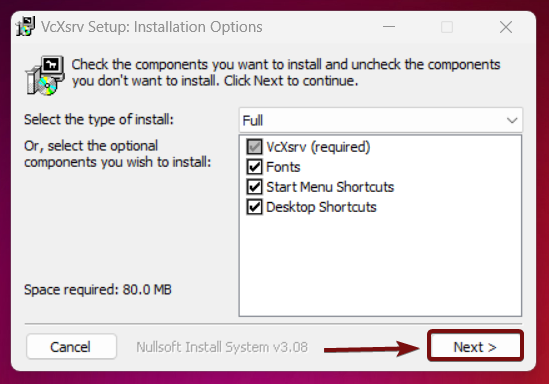
- Once installed, you can find the application shortcut on the Desktop. Open the Application.
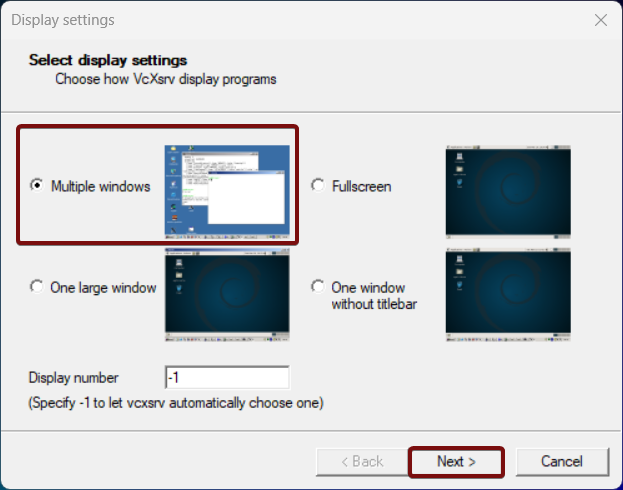
- Choose Multiple Windows as Default Settings and then click Next.
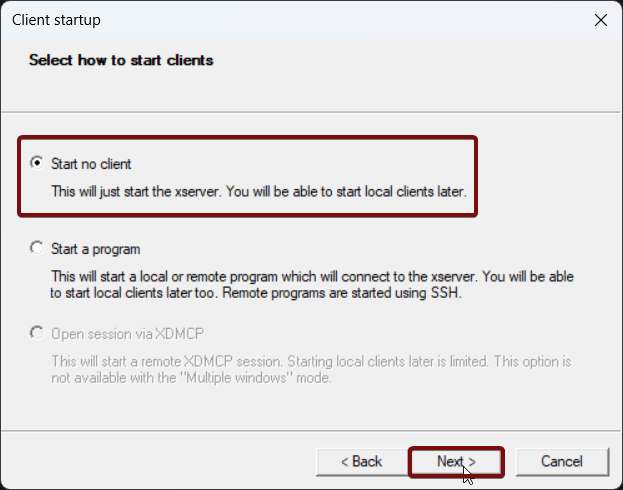
- In the Client Startup, by default, “Start no Client” would be selected. This option will just start the X Server. You will be able to start local clients later. Click Next.
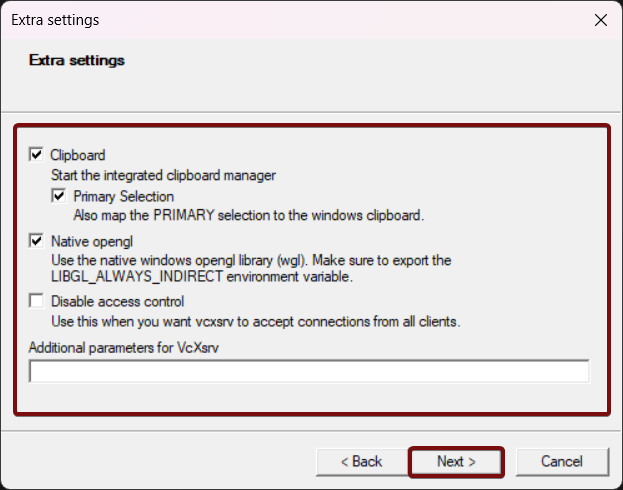
- In the Extra Settings, leave the default options and proceed with Next.
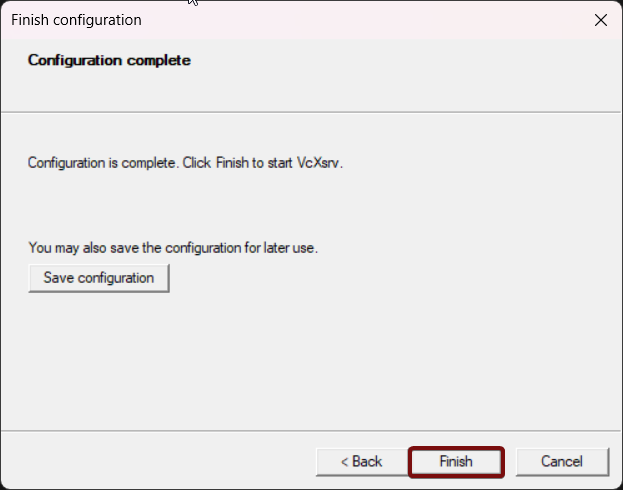
- Finally, click Finish to complete the VcXsrv setup.
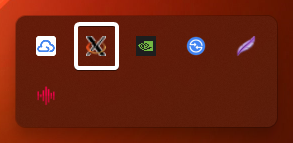
- You can find the application running in the background in the system tray.
- Let’s get back to the PowerShell where the WSL is installed. We now have WSL and X Server configured.
- To set up the Display Environment Variable, run the following command. This command will ensure that WSL displays GUI Applications. You can add this line to your .bashrc or .zshrc to run it automatically when you open a terminal.
export DISPLAY=$(grep -oP "(?<=nameserver ).+" /etc/resolv.conf):0.0
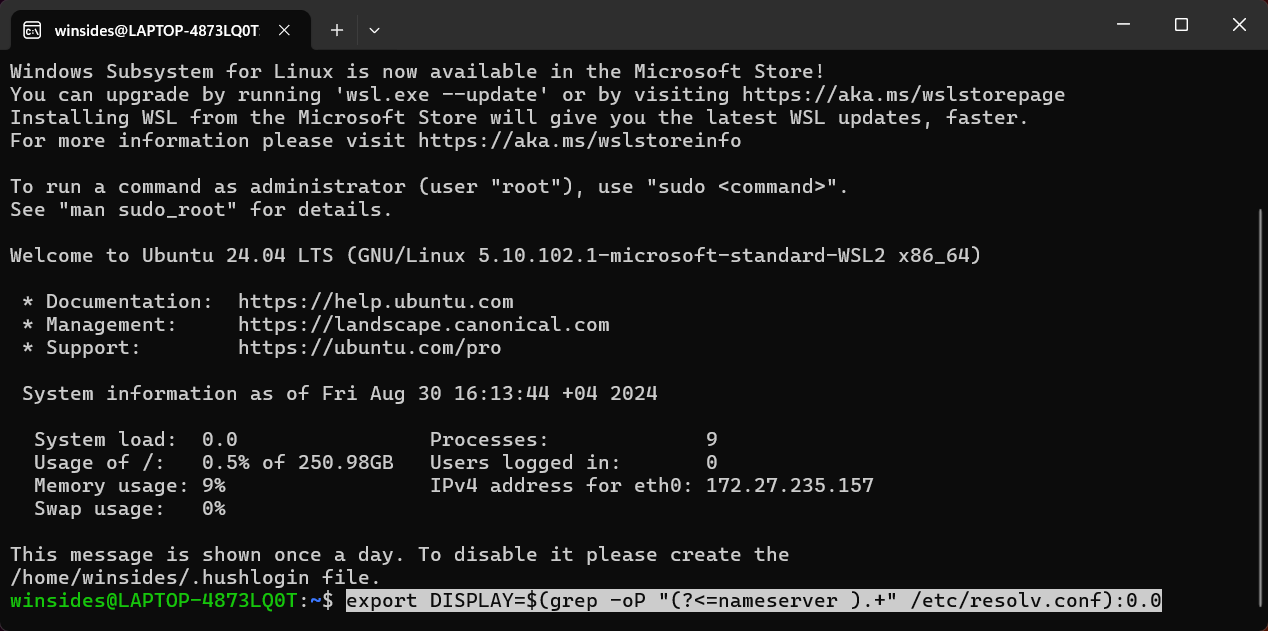
- Finally, it is time to test our setup. Let’s install a Linux GUI Application, say, Gedit, and run it. The following command will install Gedit on your WSL environment in the Windows Terminal
sudo apt updatesudo apt install gedit
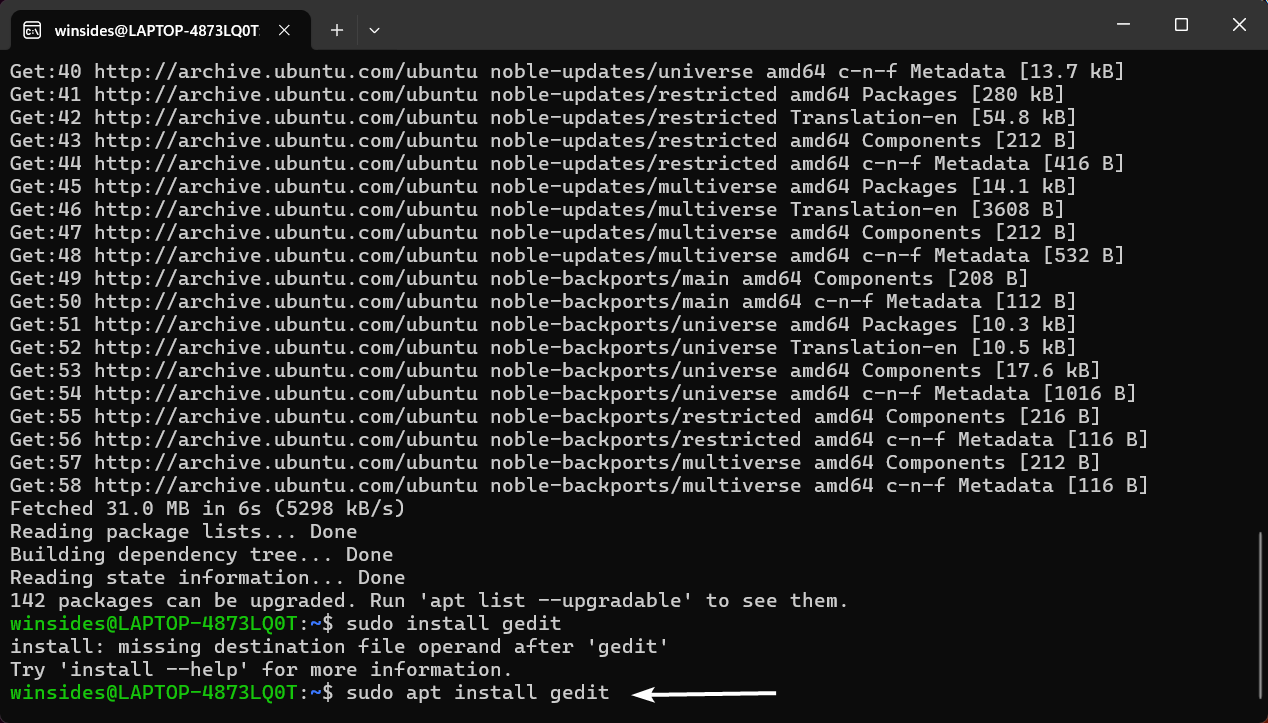
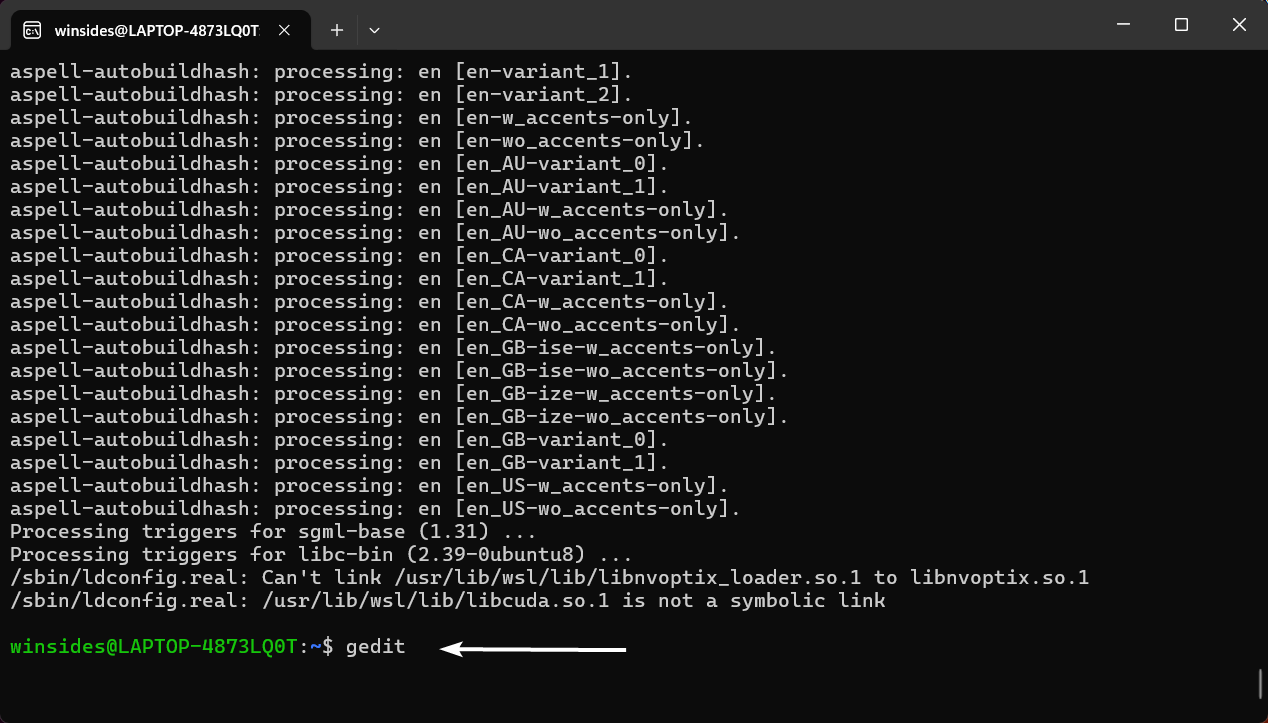
- Simply execute the command
geditto run the application.
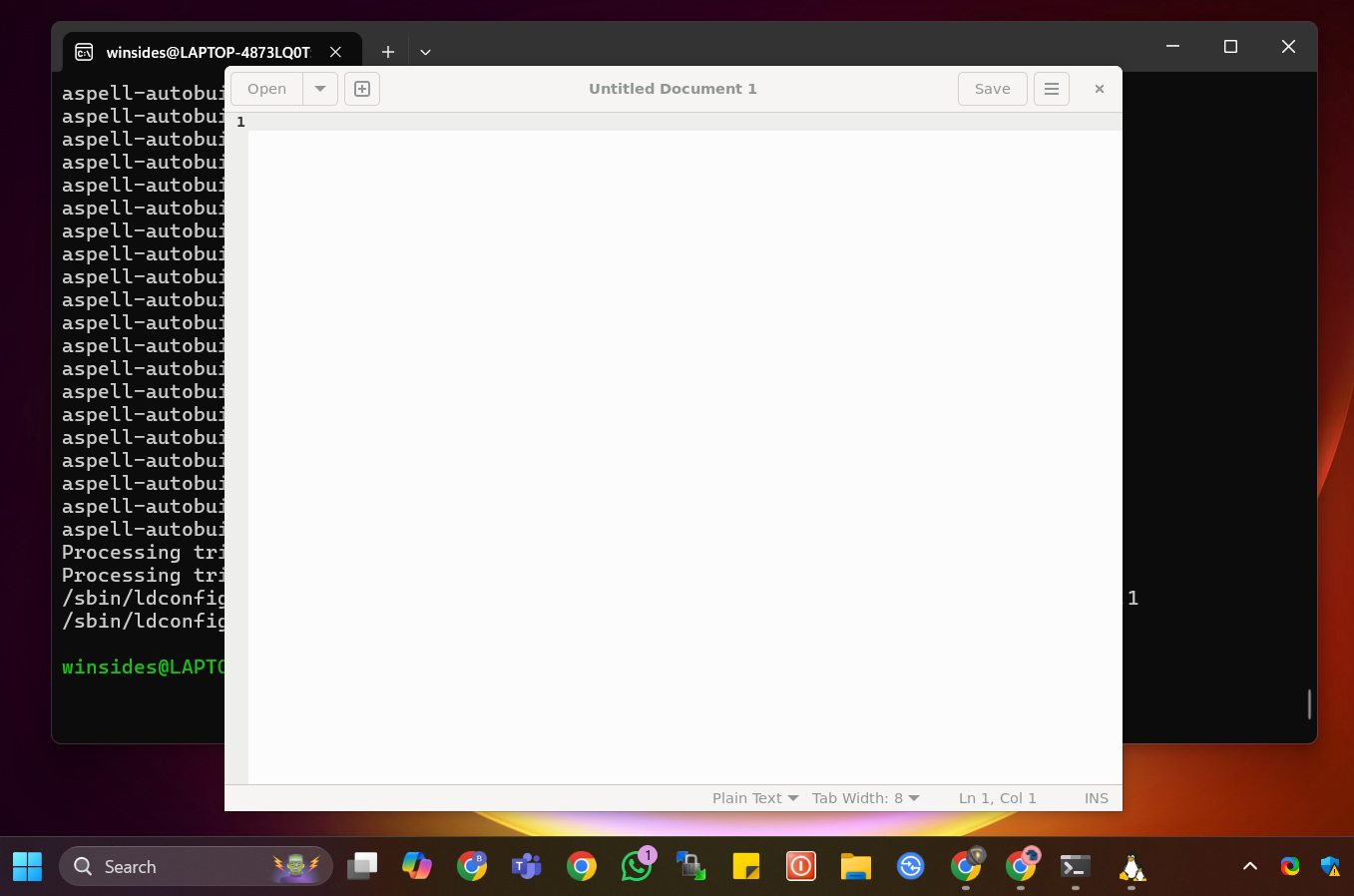
- You can find the gedit application opening in the GUI inside your WSL Environment on Windows 11 OS. That’s all, Folks! We did it!
Information on the Go! WSLg (Windows Subsystem for Linux GUI) is an extension of WSL 2 that allows you to run Linux GUI (Graphical User Interface) applications directly on Windows 10 and 11, without the need for a third-party X Server like VcXsrv and any additional configurations.
Frequently Asked Questions
Why is my X Server refusing connections from WSL?
When you launch an X Server like VcXsrv (via “XLaunch”), you must check the box that says “Disable access control.” If this isn’t checked, the X Server will only accept connections from “localhost.” Because WSL2 technically lives on a different virtual network than your Windows host, the X Server sees the connection as “external” and blocks it for security reasons.
What should I do if the windows look tiny on my 4K monitor?
High-DPI scaling is the bane of X Servers. If your Linux apps look like they are for ants, please follow the steps below. Go to Compatibility Settings, and change high DPI Settings, override the scaling behaviour, and set it to System Enhanced or Application.
Can I get sound to work through the X Server?
Standard X11 protocol only handles graphics, not audio. If you need sound (for example, running a Linux media player or a browser), you’ll need a separate PulseAudio or PipeWire server for Windows.
When should I stick with “WSLg” instead of a manual X Server?
Microsoft’s WSLg (built into Windows 11) is generally better for “native-feeling” apps because it handles audio, high-DPI scaling, and GPU acceleration out of the box without any configuration.
Take away:
While Windows Subsystem for Linux GUI (WSLg) is sufficient and preferred for running Linux GUI apps on Windows due to its tight integration, ease of use, and performance benefits, these third-party X Servers offer customization, compatibility, or advanced configurations. Setting up and running an X Server on Windows 11 opens possibilities for users looking to run Linux GUI applications natively within the Windows environment. By enabling WSL (Windows Subsystem for Linux) and using tools like VcXsrv, you can seamlessly integrate Linux graphical applications into your workflow without the need for a full virtual machine or dual boot.
Have Queries?
This setup not only enhances productivity but also bridges the gap between Windows and Linux, giving you the best of both operating systems. If you have any questions, kindly let us know in the comments. Stay tuned to Winsides.com. Happy Dual Computing! Peace out!









Community
Comments (0)