

Microsoft Print to PDF is a built-in Feature on Windows 11 that allows users to save documents to PDF files without using any 3rd-party applications. Though you can enable Microsoft Print to PDF via GUI, some users prefer to enable or disable this feature on Windows 11 using the Command Prompt or Windows PowerShell. Using CMD or PowerShell for enabling this feature is ideal for users who want to enable it on multiple PCs using Scripts, Automation, Remote Management, etc. Let’s get started.
Table of contents
Microsoft Print to PDF Availability on various Windows Editions
| Windows Editions | Availability |
| Windows Servers | Yes |
| Windows 11 Home | Yes |
| Windows 11 Professional | Yes |
| Windows 11 Education | Yes |
| Windows 11 Enterprise | Yes |
| Windows 11 Pro Education | Yes |
| Windows 11 SE | Varies based on Configuration |
| Windows 11 IoT Enterprise | Yes |
Easy Way to Turn on Microsoft Print to PDF on Windows 11 Editions using the Command Prompt
We will use the DISM Tool via the Command Prompt to enable this feature on Windows 11. However, DISM requires Elevated Permissions.
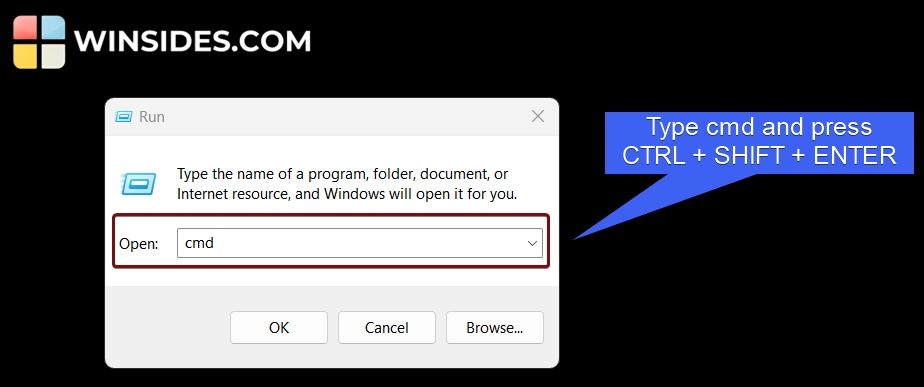
- Go to the Run Command using the keyboard shortcut WinKey + R.
- In the Run Command, type the command
cmd, and press CTRL + SHIFT + ENTER.
- The User Account Control will confirm and open the Command Prompt with Administrative Privileges.
- Once the Command Prompt opens, execute the following command in the terminal.
dism /Online /Enable-Feature /FeatureName:"Printing-PrintToPDFServices-Features" /NoRestart
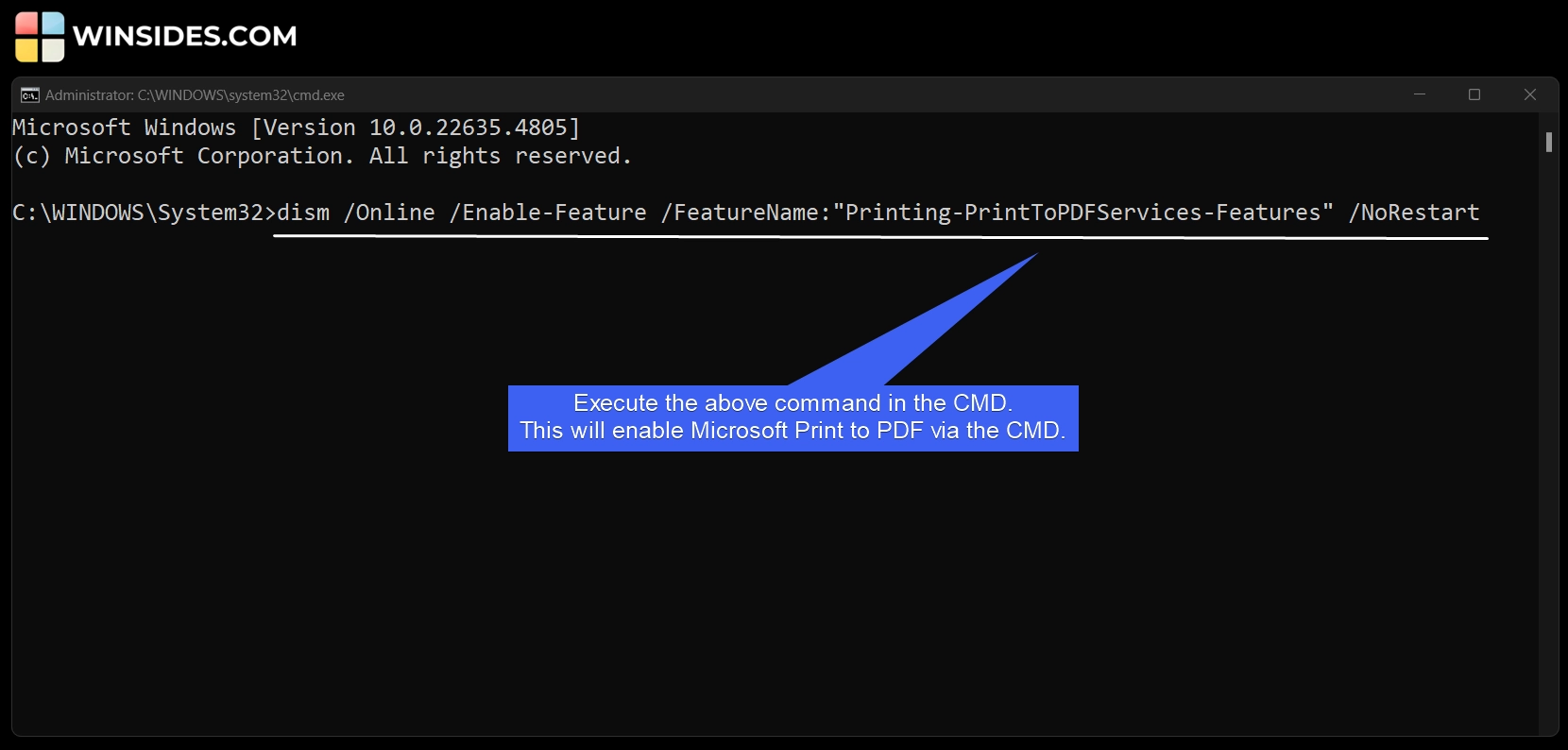
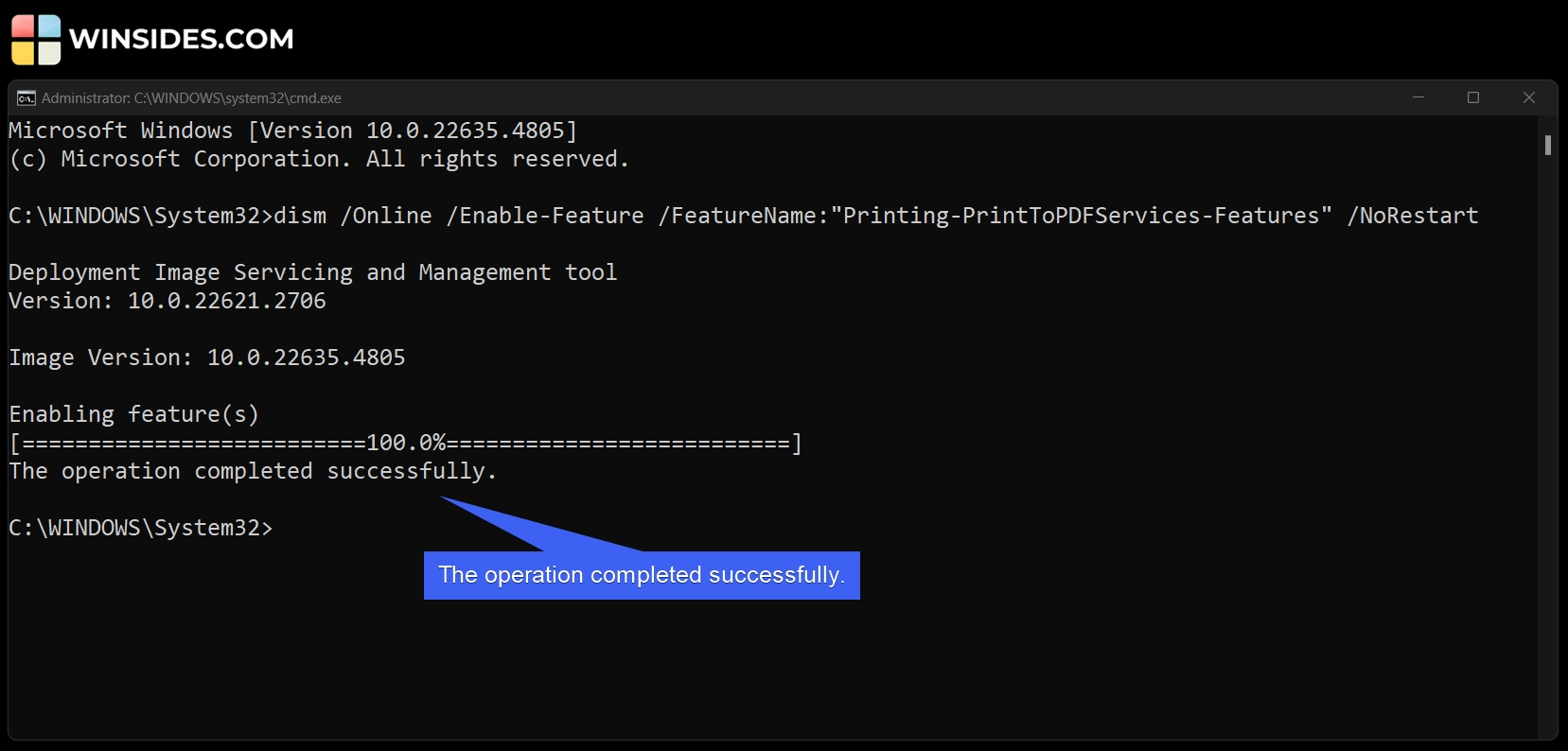
- The DISM will enable Microsoft Print to PDF on Windows 11 via the Command Prompt. Once you get the message “The operation completed successfully“. That’s it. This feature is now enabled on your Windows 11.
Note: If you want to disable Microsoft Print to PDF on Windows 11, kindly execute the following command in the Command Prompt.
dism /Online /Disable-Feature /FeatureName:"Printing-PrintToPDFServices-Features" /NoRestart
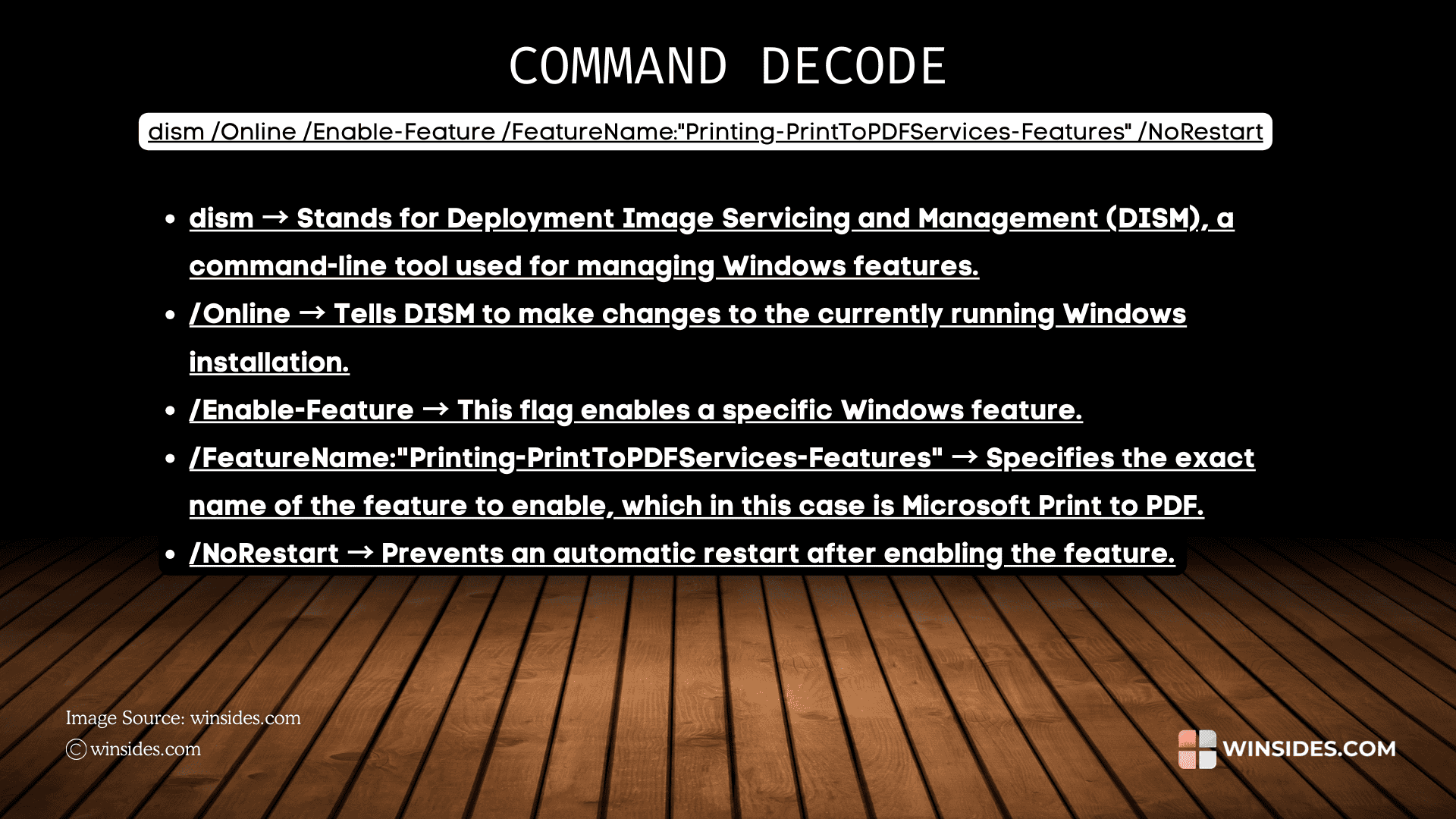
Decoding Microsoft Print to PDF Enable CMD Command
Quick Way to Enable Microsoft Print to PDF using Windows PowerShell
Here, we will check out how to enable this feature using Windows PowerShell.
- Open the Run Command using the shortcut WinKey + R.
- Type the following command
powershellIn the Run Command, press CTRL + SHIFT + ENTER.
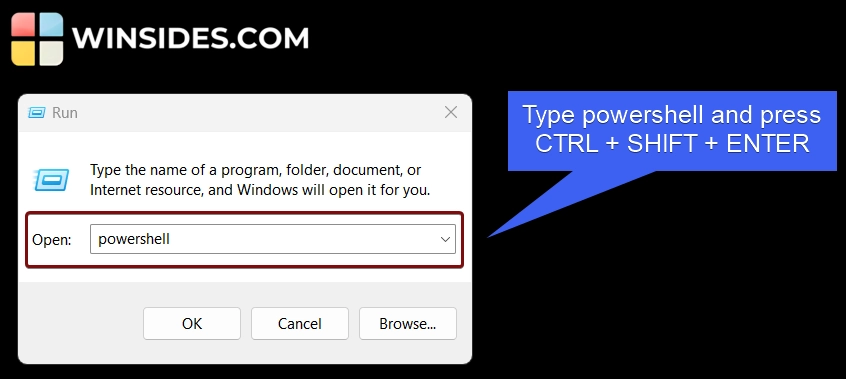
- PowerShell will open as Administrator.
- In PowerShell, execute the following command. This command will enable Microsoft Print to PDF via Windows PowerShell.
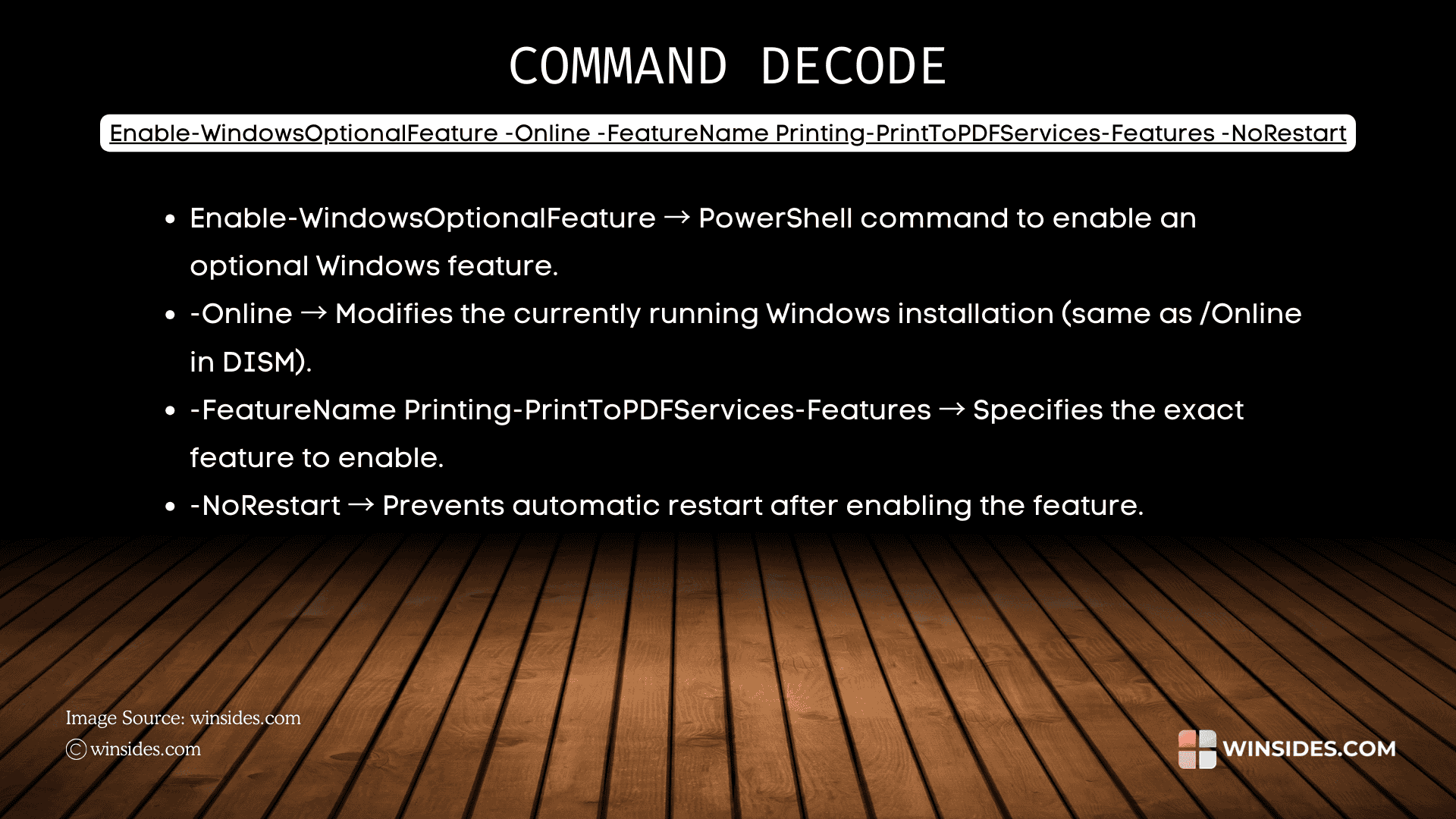
Enable-WindowsOptionalFeature -Online -FeatureName Printing-PrintToPDFServices-Features -NoRestart
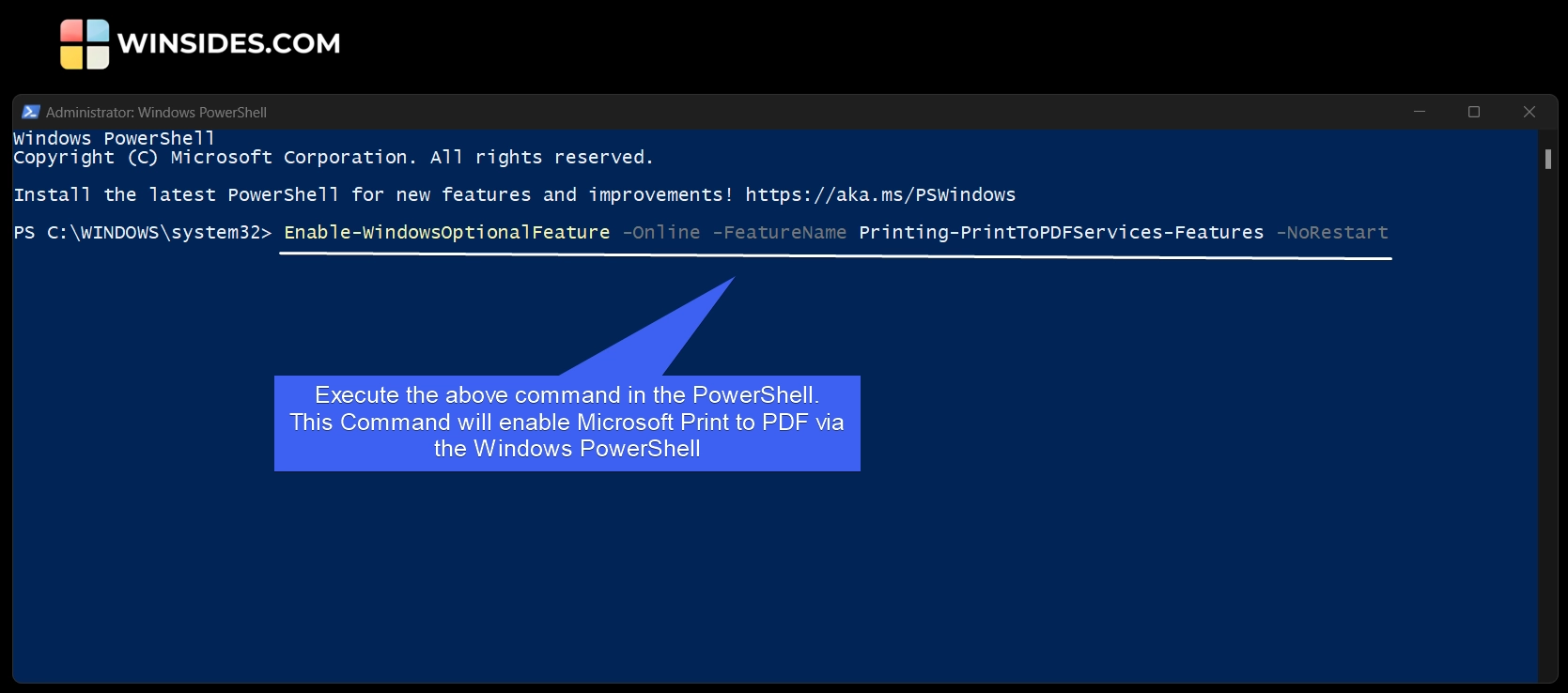
- PowerShell will enable Microsoft Print to PDF on Windows 11. Under Restart Needed, the value is true, which indicates that a Restart is essential.
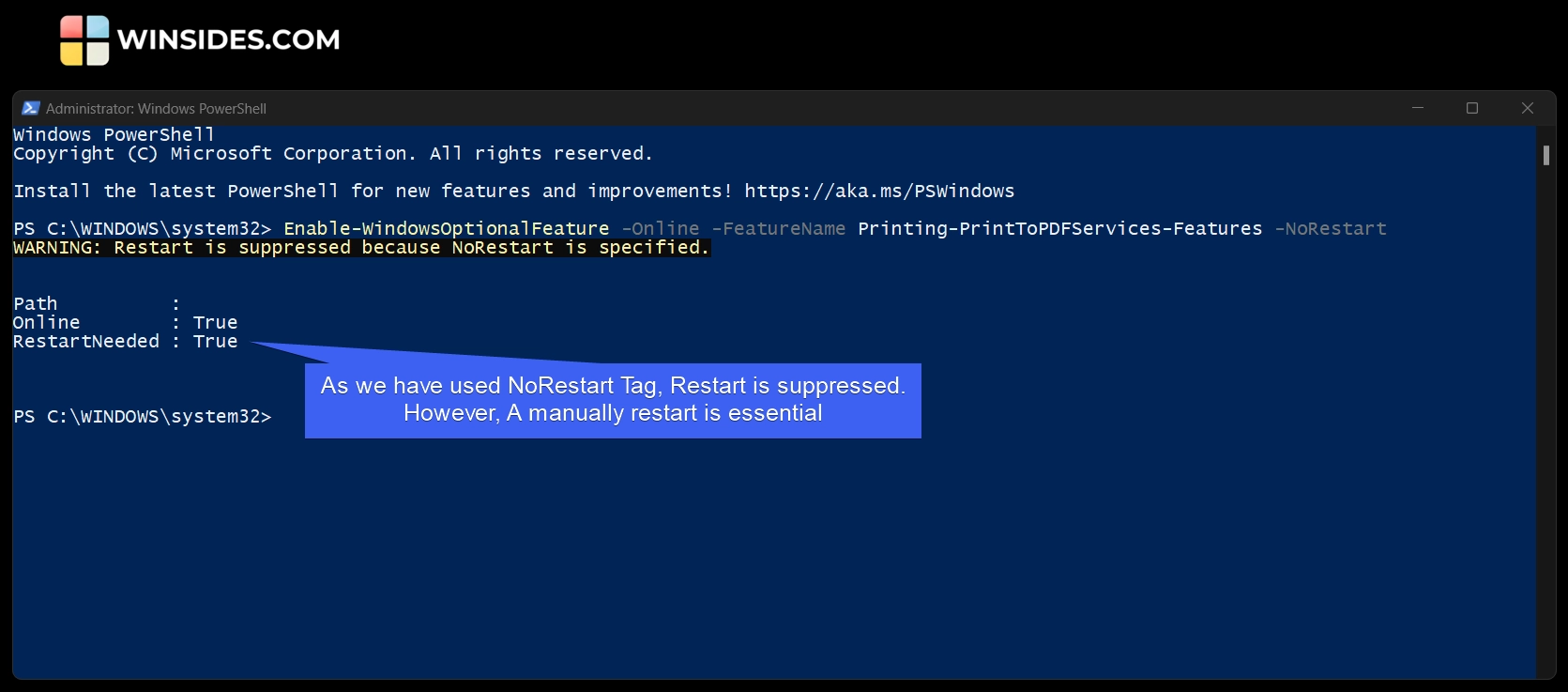
Note: If you want to disable Microsoft Print to PDF on Windows 11 via Windows Powershell, kindly execute the following command in the PowerShell.
Disable-WindowsOptionalFeature -Online -FeatureName Printing-PrintToPDFServices-Features -NoRestart
Decoding Print to PDF Enable Command via Windows PowerShell
Frequently Asked Questions
Why does it keep saving my file as a “.prn” instead of a “.pdf”?
This usually happens if the “Print to File” checkbox is accidentally ticked in the print dialog of certain older apps. Make sure you are selecting “Microsoft Print to PDF” as the printer name and that the file extension in the “Save As” window is manually set to .pdf if it doesn’t appear automatically.
Can I password-protect my PDF through the print menu?
The built-in Microsoft driver is very basic. It focuses purely on the conversion. If you need to add passwords, encryption, or digital signatures, you’ll need to use a more advanced tool or a web-based PDF protector after the file is created.
Why are the files sometimes so large?
Since this is a basic driver, it doesn’t always have the “smart” compression that high-end PDF software has. If you print a high-resolution photo, it might embed the full image data, resulting in a chunky file.
Can I edit the PDF after I “print” it?
Think of “Printing to PDF” as taking a digital snapshot. Once the file is created, it is a static document. You can’t easily change the text or move images around without using a dedicated PDF editor (like Acrobat or an online tool). It’s designed for sharing and archiving, not for active drafting.
Take Away
Microsoft Print to PDF on Windows 11 is an essential utility feature that eliminates the need for third-party applications to save files as PDF on Windows 11 OS.
Have Queries?
If you have any queries, kindly let us know in the comments section. For more interesting articles, stay tuned to Winsides.com. Happy Computing! Peace out!

Community
Comments (0)