

Windows Defender is the well-known built-in antivirus and security tool in Windows 11 that provides robust protection against malware, viruses, and other threats. It ensures that your system stays secure without requiring third-party antivirus software. However, to perform certain advanced tasks, such as running a full system scan, configuring security settings, or resolving issues, you may need to run Windows Defender with administrative privileges. So in this tutorial, I have shared 6+ methods to run Windows Defender as administrator with elevated rights on your windows pc.
Table of contents
Various Methods to Run Windows Defender Firewall as Admin on Windows 11
Microsoft Defender is an integrated security solution in Windows 11 that provides real-time protection against malware, viruses, and other threats. Here are several ways to open this feature with Administrative Privileges.
- Open Windows Defender as Administrator using the Start menu.
- Use the Run Command and open Windows Defender as Admin on Windows 11.
- Create a New Task to run Windows Defender with Administrative Privileges using the Task Manager.
- Run Command Prompt with Administrative Privileges and Launch Windows Defender.
- Always open Windows Defender as Administrator by creating a Desktop Shortcut.
- Use Microsoft Management Console (MMC) and Manage Windows Defender Firewall with Administrative Privileges.
- Open the Control Panel with Elevated Privileges and Launch Windows Defender.
IMPORTANT: Running applications as an administrator grants elevated privileges that can significantly affect your system. Please use caution when doing so, as it can lead to Unintended System Modifications, Security Vulnerabilities, Accidental Data Loss, Unauthorized Access, Irreversible Changes, etc.
#1. How to Open Windows Defender Firewall with Advanced Security as Administrator on Windows 11 using the Start menu?
This is the Quickest way to run Windows Defender as Administrator.
- Go to the Start menu and search for Windows Defender Firewall with Advanced Security. Once you find the app, right-click on it and click “Run as Administrator“.
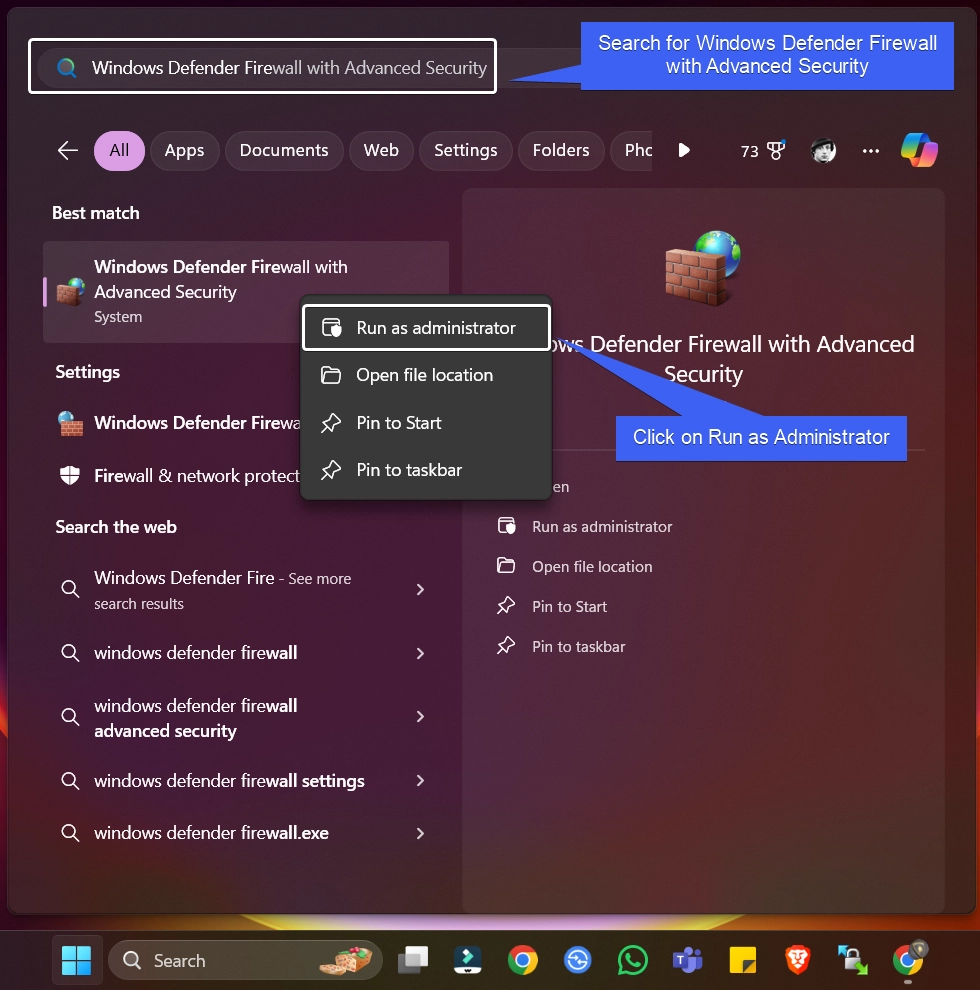
- The User Account Control will prompt for your confirmation and open Windows Defender with Administrative Privileges.
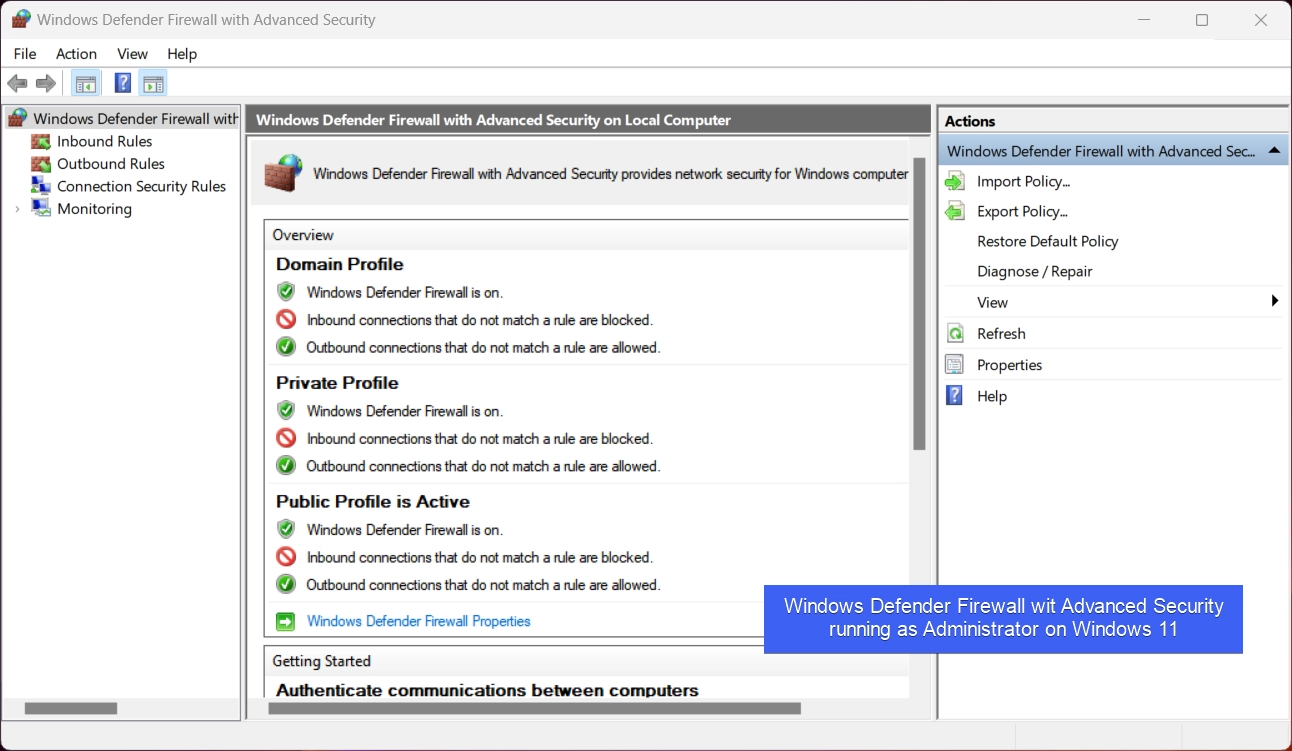
Note: If you are looking to open Windows Security as Administrator, then it is not possible via the Start menu, you can use the next method (via the Run Command) to open Windows Security with Administrative Privileges.
#2. Use the Run Command and open Windows Defender as Admin on Windows 11
This section provides steps to open Windows Security, which includes Windows Defender and other Security Features.
- Go to The Run Command. You can either use the Start menu, or you can just use the key combination WinKey + R.
- In the Run Command, type the following command
cmd /c start "" "windowsdefender://"and press CTRL + SHIFT + ENTER.
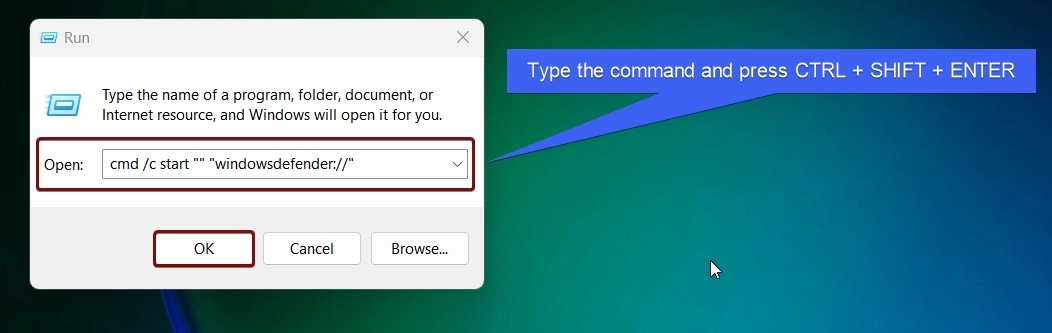
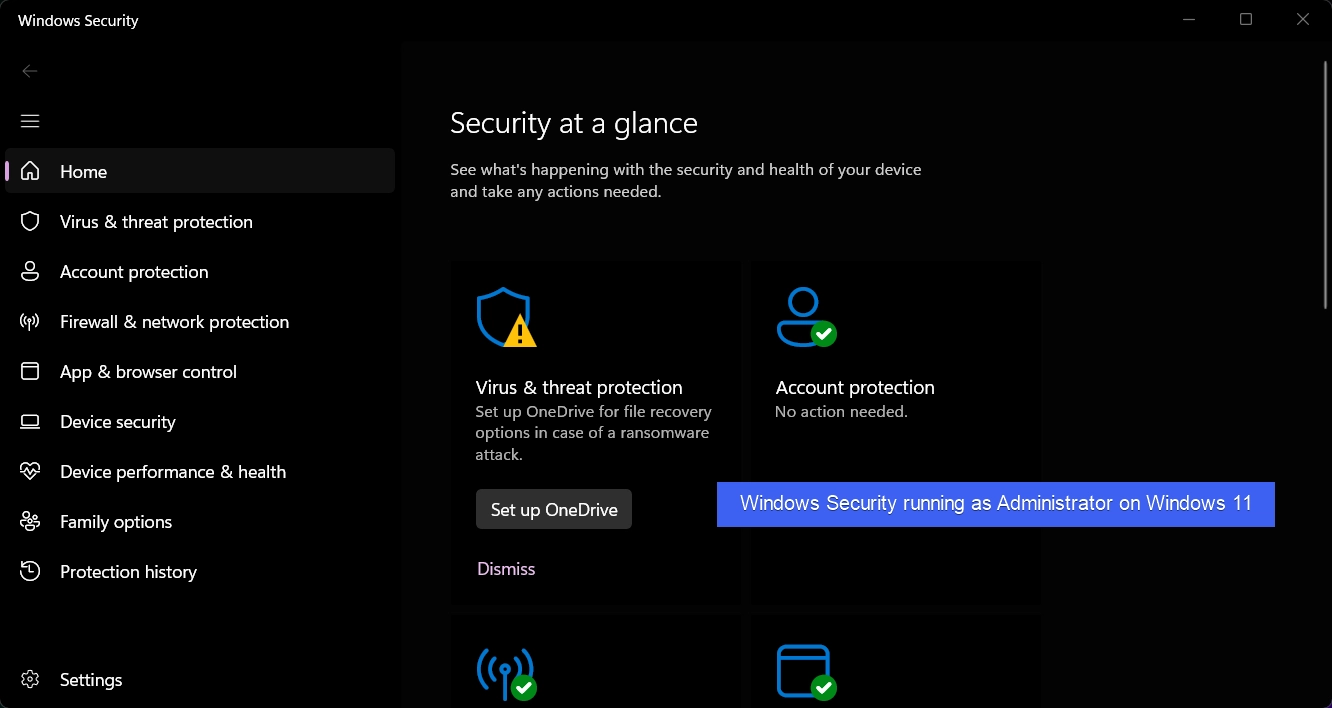
- This command will use Command Prompt and run Windows Security with Elevated Privileges. You can then open and run Windows Defender as Administrator.
#3. Run New Task to open Windows Defender as Administrator using the Task Manager
In this section, we will create a task to run this app with administrative privileges using the Task Manager.
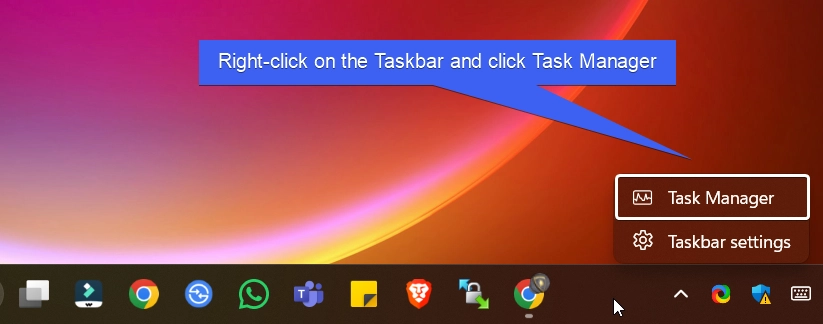
- Right-click on the Taskbar and click Task Manager. You can also use the shortcut CTRL + SHIFT + ESC. This combination will open Task Manager directly.
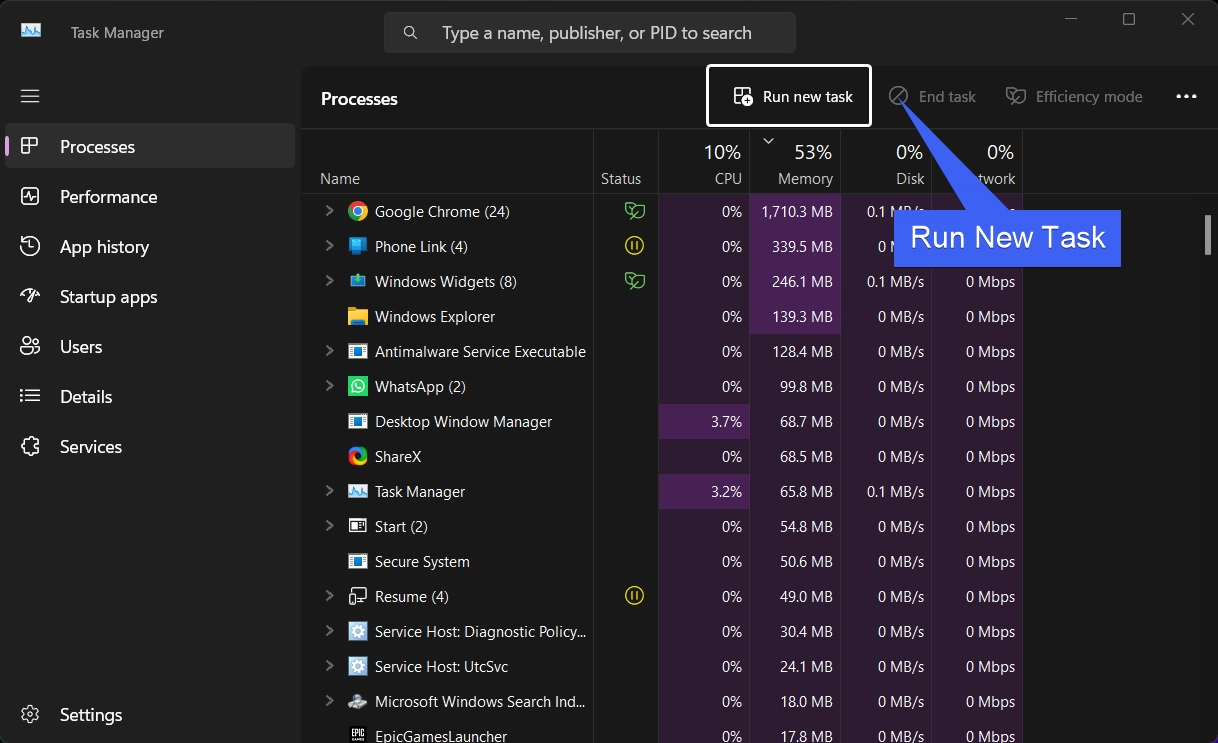
- In the Task Manager, under Processes, click on Run New Task. The Create New Task dialog will pop up now.
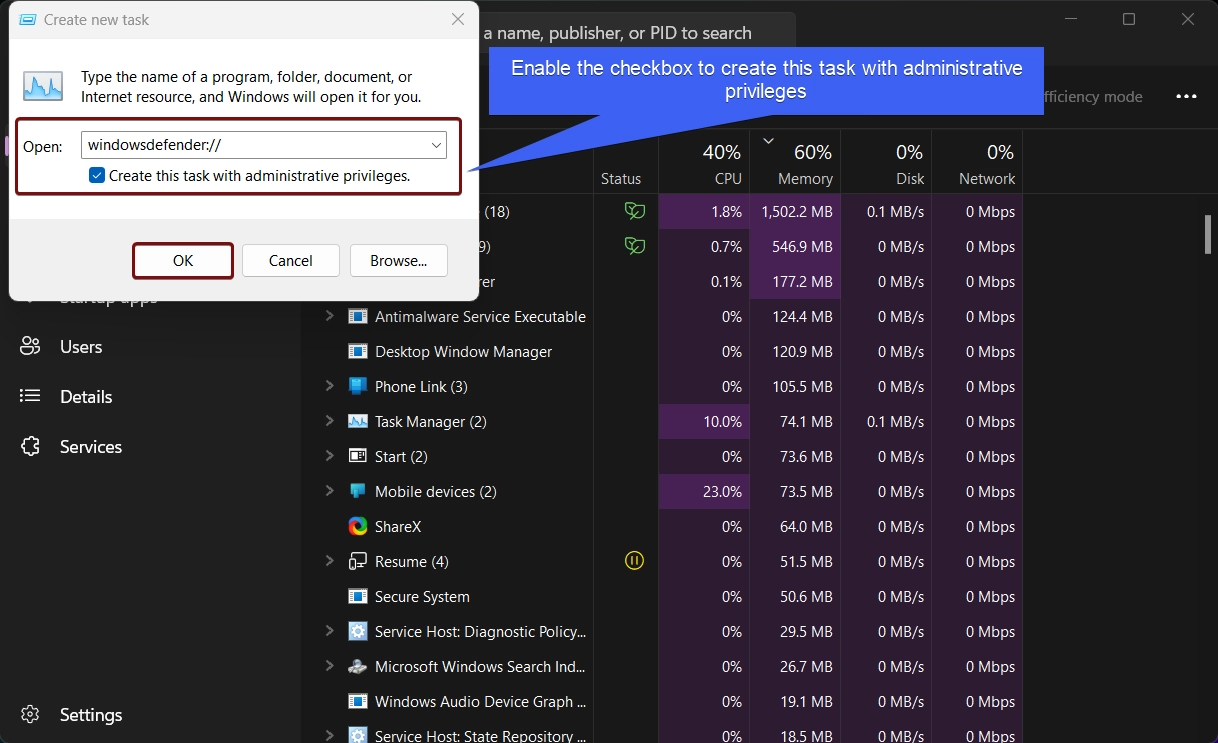
- Type the command
windowsdefender://and enable the checkbox “Create this Task with Administrative Privileges“. Finally, click OK.
#4. Run Command Prompt with Administrative Privileges and Launch Windows Defender
- Go to the Start menu and search for Command Prompt. Right-click on that and click on “Run as Administrator”.
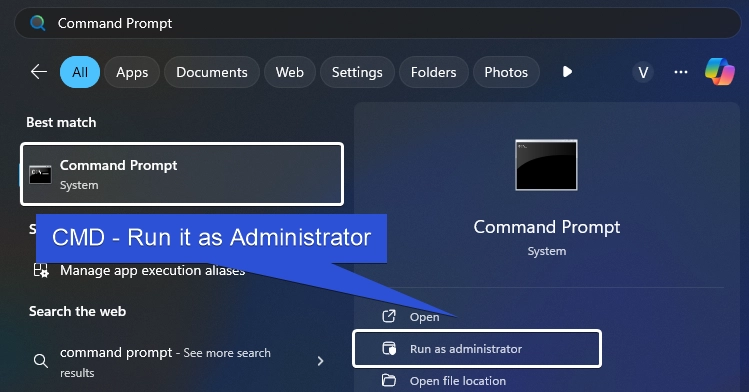
- The system will confirm and then open CMD with Administrative Privileges.
- In the CMD, execute the following command.
start windowsdefender://
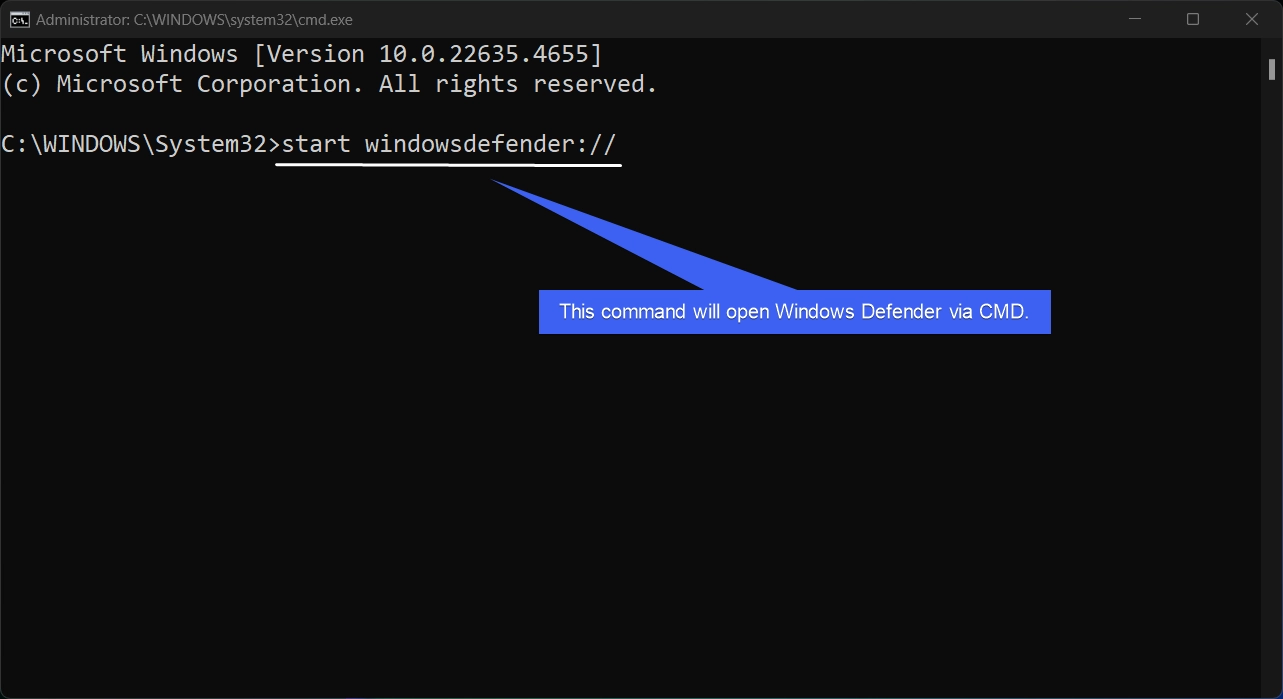
- This command will open Windows Security with Elevated Permissions, as Command Prompt is running as Administrator.
#5. Always open Windows Defender as Administrator by creating a Desktop Shortcut
We will create a dedicated Desktop Shortcut for Windows Defender and set it to run with Administrative Privileges.
- Right-click on the Empty space of the Desktop, and click New > Shortcut.
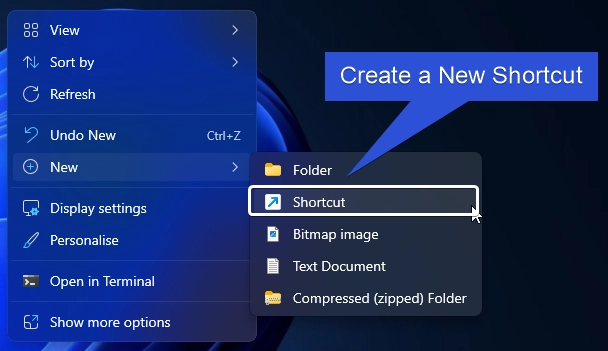
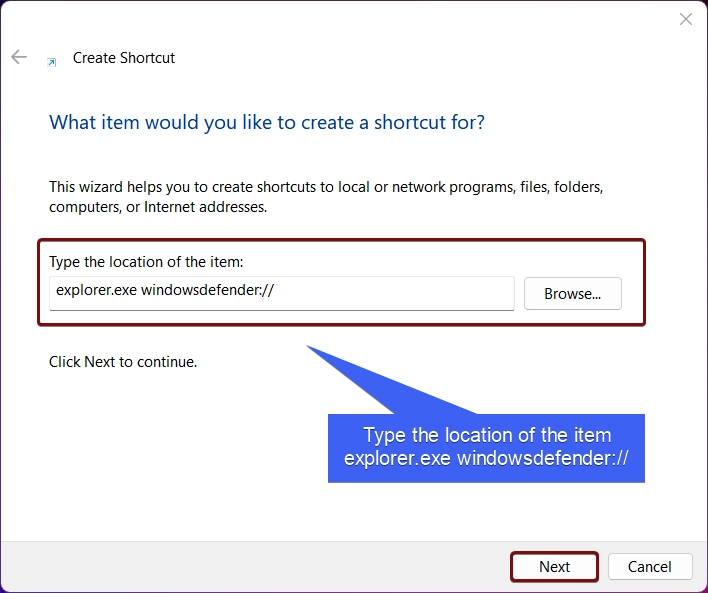
- The Create Shortcut dialog box will open now. In “Type the Location of the Item“, enter the command
explorer.exe windowsdefender://and click Next.
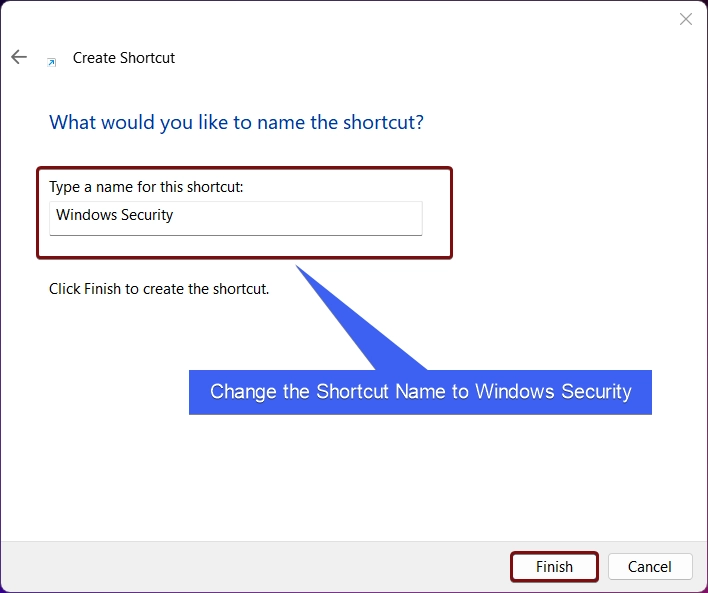
- The system will assign the shortcut name Explorer. Kindly change it to Windows Security. Finally, click Finish.
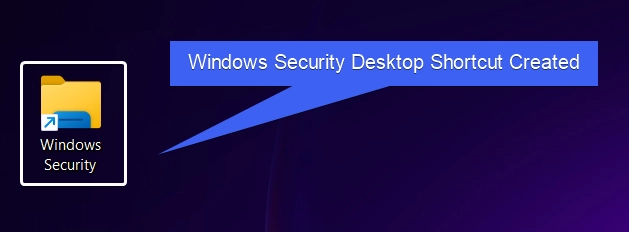
- Windows Security Desktop Shortcut will be created.
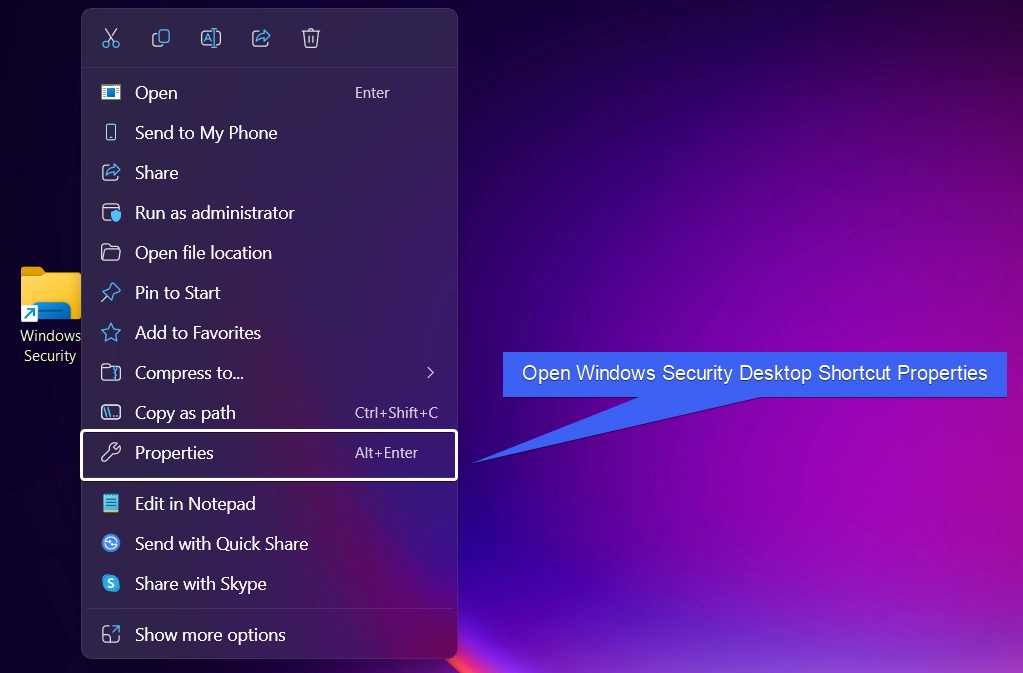
- Right-click on the Shortcut and click on Properties.
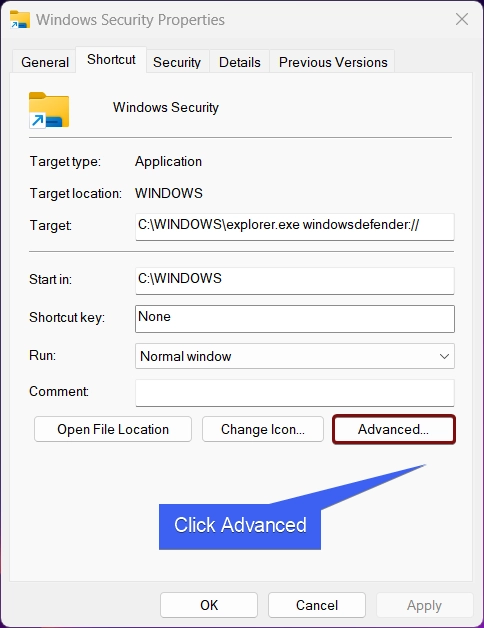
- Windows Security Properties will open now. Click Advanced.
- In Advanced Properties, make sure to enable the checkbox “Run as Administrator“. Finally, click OK, and then Apply.
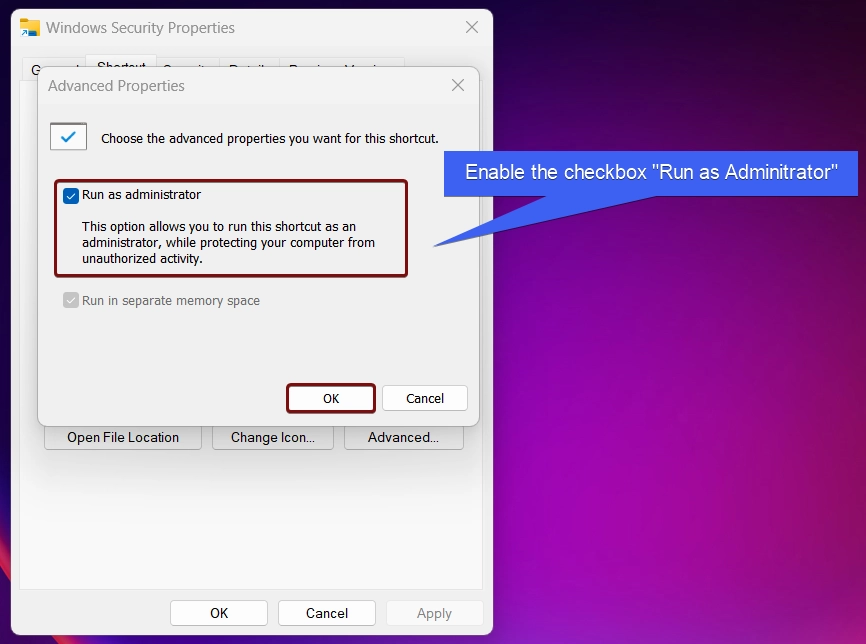
- This option allows you to run this shortcut as an administrator while protecting your computer from unauthorized activity.
#6. Use Microsoft Management Console (MMC) and Manage Windows Defender Firewall with Administrative Privileges
In this method, we will open Microsoft Management Console with Administrative Privileges and then Windows Defender Firewall with Advanced Security Settings. The following are the steps.
- Go to the Run Command using the shortcut WinKey + R.
- In the Run Command, type the following command
mmcand press CTRL + SHIFT + ENTER.
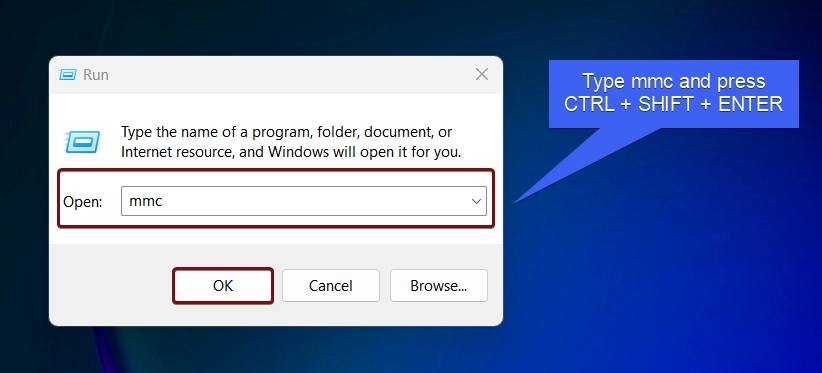
- This command will open the Microsoft Management Console with Elevated Permissions.
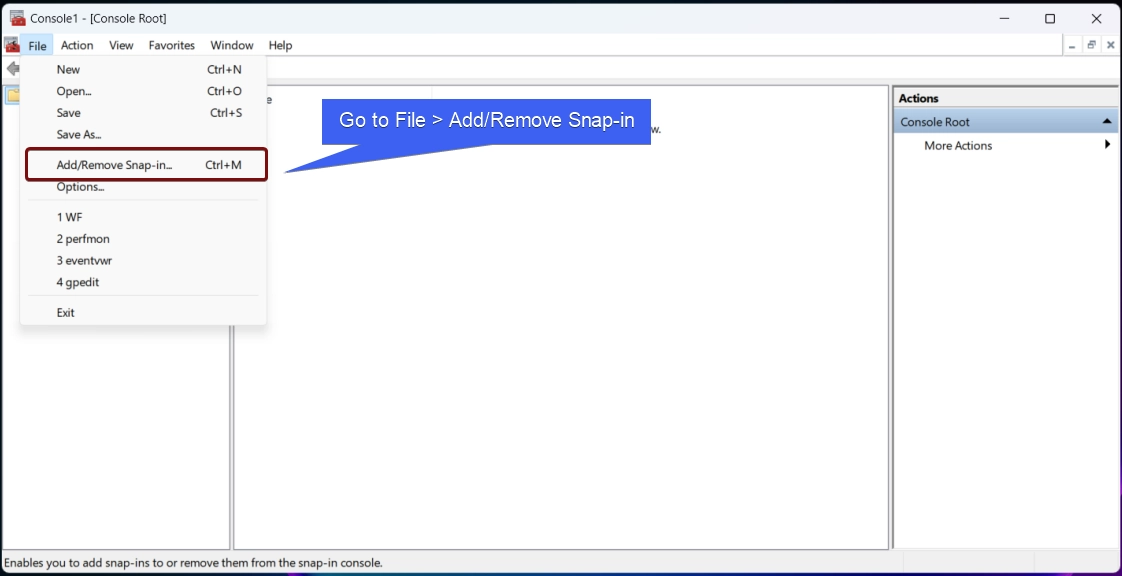
- In the Microsoft Management Console, click on File > Add/Remove Snap-in.
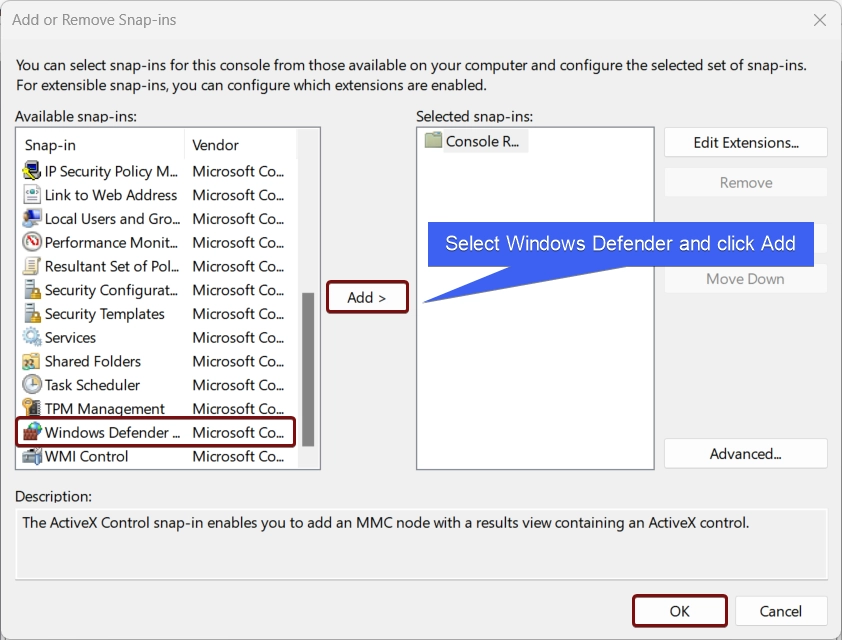
- From the list of services available, locate Windows Defender Security Center and click Add.
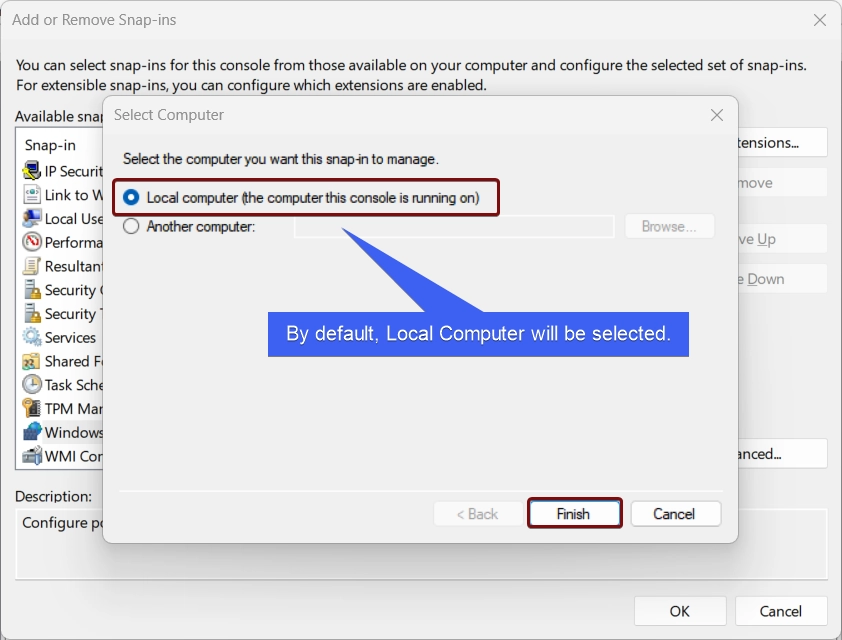
- The Select Computer dialog will pop up. Here, by default, the Local Computer (The Computer this console is running on) will be selected. Click Finish.
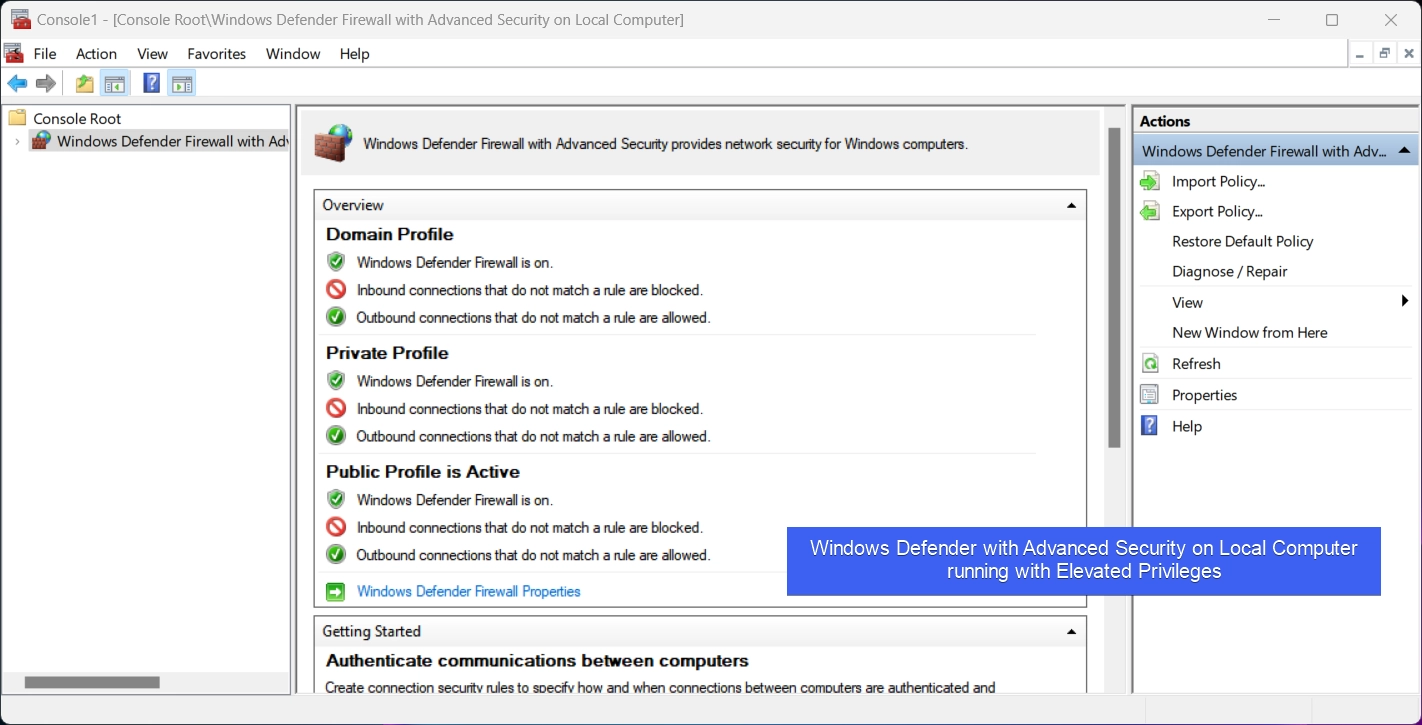
- Windows Defender with Advanced Security Settings will be added to the Console.
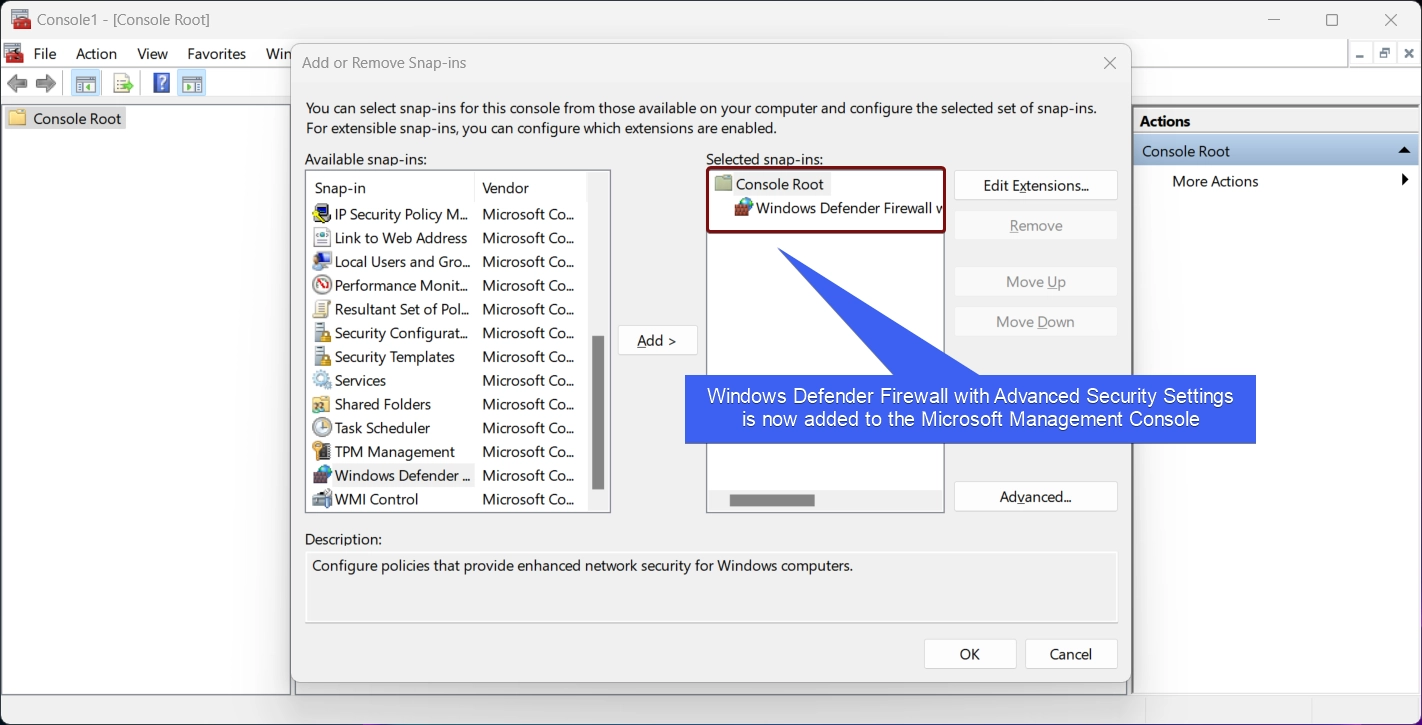
- Finally, click OK. You can now manage Windows Defender with Advanced Security Settings with Elevated Permissions via the MMC.
Open Control Panel with Elevated Permissions and Access Windows Defender
Here, we will open the Control Panel with Administrative Privileges and then launch Windows Defender. In this way, Windows Defender will function with Elevated Permissions.
- Go to the Run Command and type
controland press CTRL + SHIFT + ENTER.
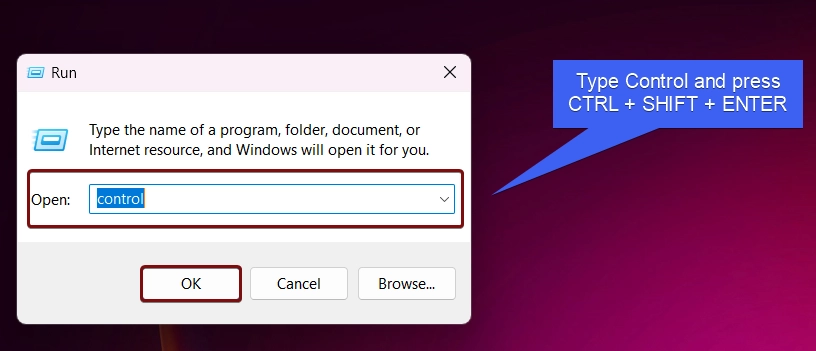
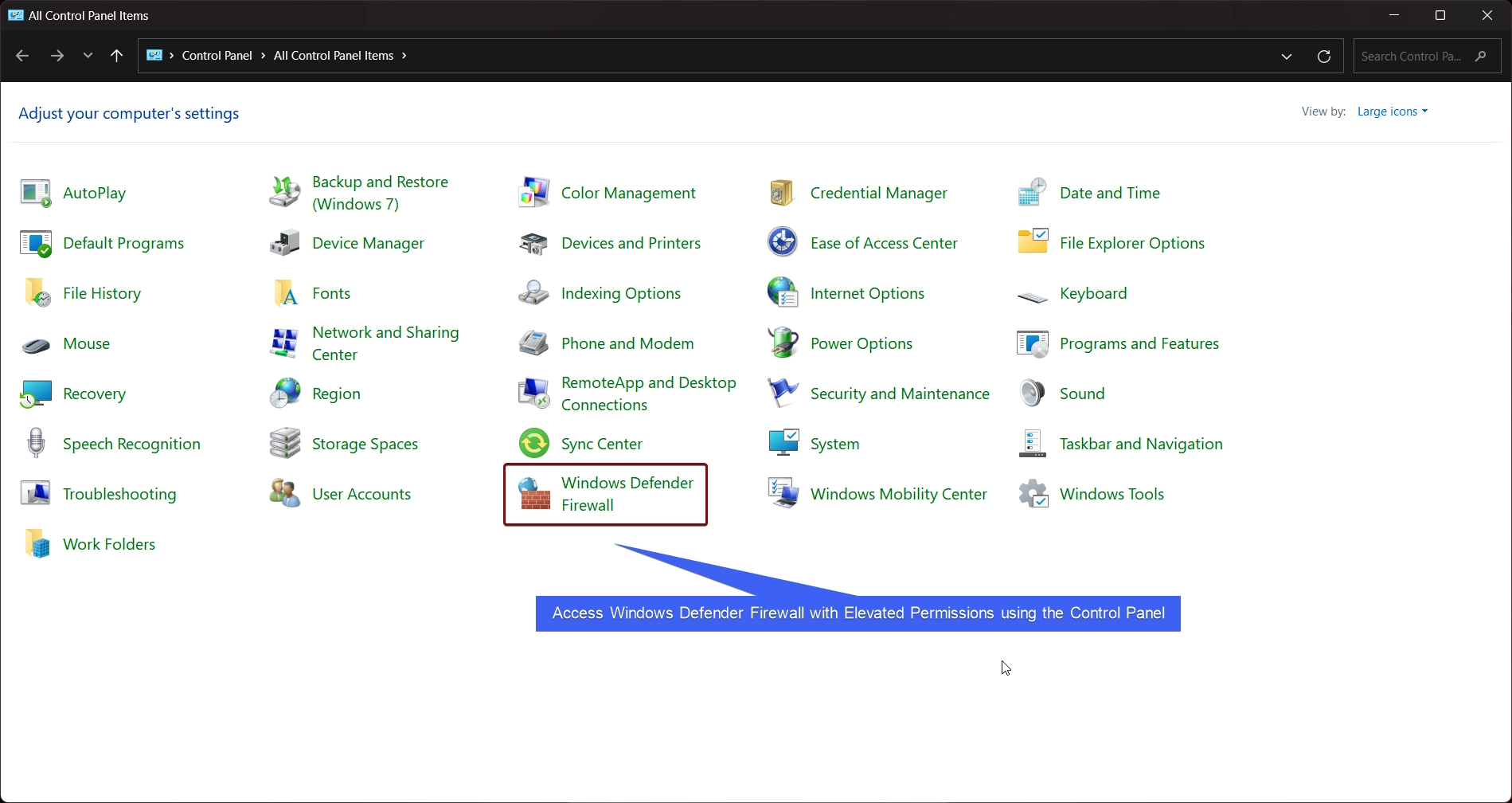
- This will open the Control Panel with Elevated Permissions.
- Now, you can navigate to the Windows Security and then access Windows Defender Firewall.
Kindly be Cautious while running an App as Administrator
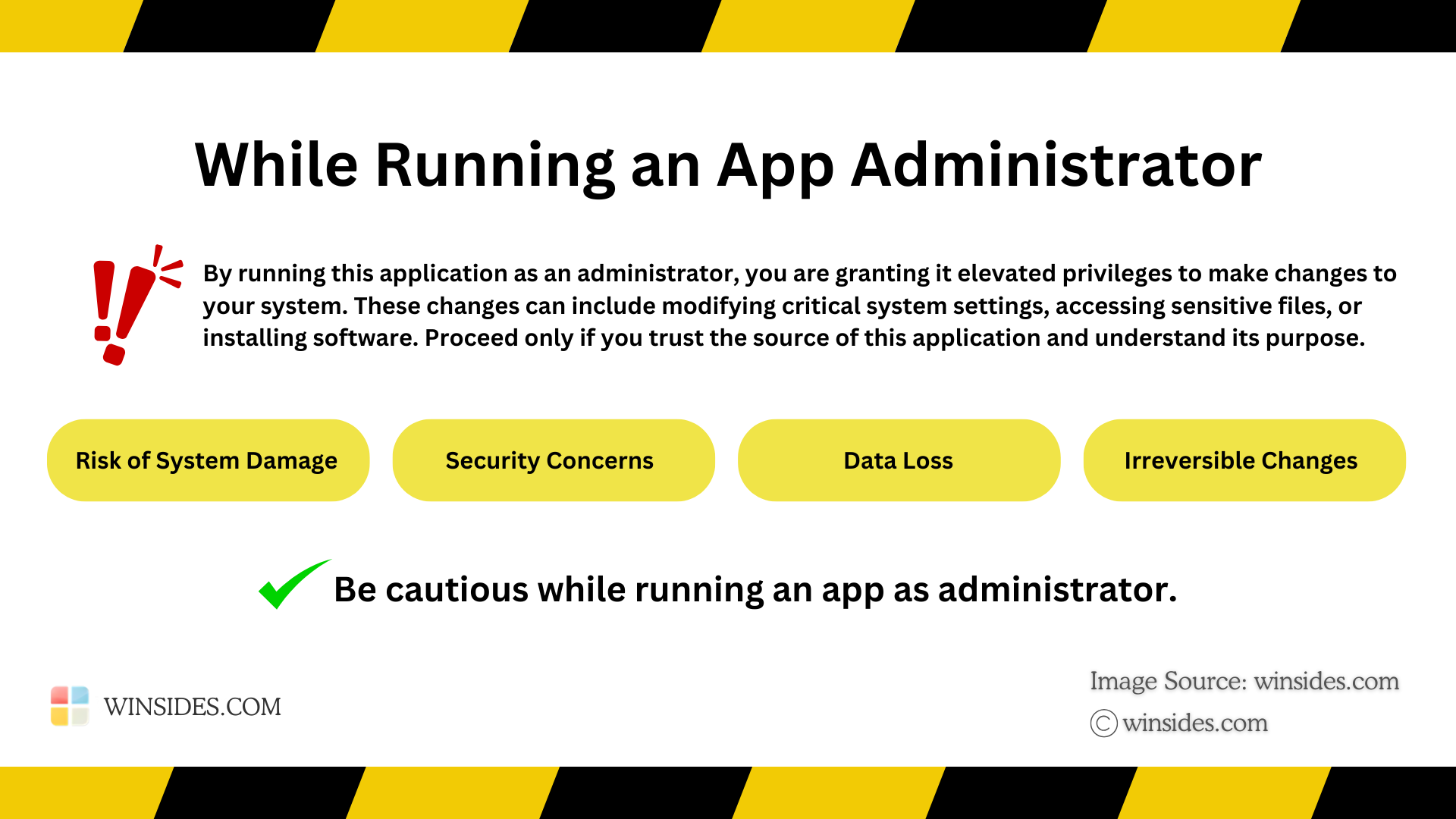
Running Windows Defender as Administrator on Windows 11 grants it elevated privileges, which can potentially bypass system security restrictions. Please proceed with care and only run trusted applications in this mode. At Winsides.com, we advise our users to use Administrator privileges only when absolutely necessary to perform tasks requiring elevated rights. Misuse of administrative privileges may lead to System Vulnerabilities, Data Loss, System Instability, Security Concerns, Irreversible Changes, etc.
Frequently Asked Questions
How can I use PowerShell to update Defender signatures as an Admin?
If you want to force a definition update via the command line, open PowerShell (Admin) and run: Update-MpSignature This command requires administrative rights to write the new signature files to the protected ProgramData directory.
If I am logged in as an Administrator, can a malicious script or virus simply “kill” the Windows Defender process to bypass security?
Even with Administrative privileges, Microsoft Defender utilizes a Protected Process Light (PPL) model. This security framework ensures that only trusted, Microsoft-signed code can interact with or terminate the Defender service. This means that even if a malicious script manages to gain Admin rights, it cannot easily stop the antivirus engine or delete its core files without direct, physical user interaction (such as manually disabling Tamper Protection through the Windows Security interface).
Why can’t I stop the “Antimalware Service Executable” (MsMpEng.exe) in Task Manager?
Even if you click “End Task” as an administrator, the system will deny access. This is due to the Protected Process model mentioned earlier. Because the service is vital for system integrity, the kernel prevents even an administrator from killing the process. To stop it temporarily, you must use the toggle for Real-time protection in the Windows Security app.
What is the “Security Center” service, and can I restart it?
The Security Center (wscsvc) is the service that monitors Defender’s health. If the Windows Security app isn’t opening, you might try to restart this service via services.msc. However, Windows 11 marks this as a Delayed Start system service. Even an administrator is often restricted from manually stopping or starting this service via the GUI to prevent malware from “silencing” security alerts.
How do I use PowerShell to see a list of all active Defender exclusions?
If you are auditing a machine for security, open PowerShell (Admin) and type: Get-MpPreference | Select-Object -Property ExclusionPath, ExclusionExtension This command requires administrative elevation to pull data from the secure registry hives where Defender stores its configuration.
How is “Tamper Protection” different from being a “Protected Process”?
Think of the Protected Process model as a physical shield around the running program—it stops others from “killing” it. Tamper Protection is more like a lock on the settings menu. It prevents scripts, registry hacks, or group policies from changing the configuration (like turning off real-time scanning) in the background. Without Tamper Protection, a malicious script with admin rights could simply “tell” Defender to turn itself off, even if it couldn’t “kill” the process.
Take away
Running Windows Defender as an administrator on Windows 11 provides access to its advanced features and ensures that your system remains secure without permission-related interruptions. You can try 1 to 3 methods for easy access, and if you are a geek & wanted to explore it differently, I suggest you try 4 to 6 methods.
Have Queries?
If you have any queries, then comment below, and we will reply with our best. Find more interesting tutorials on Winsides.com.



Community
Comments (0)