Skip to content
Winsides.com

Windows Insides

Winsides.com

Windows Insides

  • Windows 11
  • Windows Features
  • Windows Security
  • Microsoft
    • Microsoft Copilot
    • Microsoft Powertoys
  • Shortcuts
    • Windows Shortcuts
    • Desktop Shortcuts
  • Video Tutorials
  • About
    • What’s New?!
    • About us
    • Contact us
    • Privacy Policy
    • Terms of Use
  • Follow us
    • Reddit
    • Dev.to
    • YouTube
    • Linked In
    • X
    • Tumblr
    • Facebook
    • Instagram
    • Buy Me A Coffee
  • Windows 11
  • Windows Features
  • Windows Security
  • Microsoft
    • Microsoft Copilot
    • Microsoft Powertoys
  • Shortcuts
    • Windows Shortcuts
    • Desktop Shortcuts
  • Video Tutorials
  • About
    • What’s New?!
    • About us
    • Contact us
    • Privacy Policy
    • Terms of Use
  • Follow us
    • Reddit
    • Dev.to
    • YouTube
    • Linked In
    • X
    • Tumblr
    • Facebook
    • Instagram
    • Buy Me A Coffee
Close

Search

Winsides.com

Windows Insides

Winsides.com

Windows Insides

  • Windows 11
  • Windows Features
  • Windows Security
  • Microsoft
    • Microsoft Copilot
    • Microsoft Powertoys
  • Shortcuts
    • Windows Shortcuts
    • Desktop Shortcuts
  • Video Tutorials
  • About
    • What’s New?!
    • About us
    • Contact us
    • Privacy Policy
    • Terms of Use
  • Follow us
    • Reddit
    • Dev.to
    • YouTube
    • Linked In
    • X
    • Tumblr
    • Facebook
    • Instagram
    • Buy Me A Coffee
  • Windows 11
  • Windows Features
  • Windows Security
  • Microsoft
    • Microsoft Copilot
    • Microsoft Powertoys
  • Shortcuts
    • Windows Shortcuts
    • Desktop Shortcuts
  • Video Tutorials
  • About
    • What’s New?!
    • About us
    • Contact us
    • Privacy Policy
    • Terms of Use
  • Follow us
    • Reddit
    • Dev.to
    • YouTube
    • Linked In
    • X
    • Tumblr
    • Facebook
    • Instagram
    • Buy Me A Coffee
Close

Search

Home/Windows 11/CMD & PowerShell/Enable Windows Subsystem for Linux (WSL 2) using Command Prompt & PowerShell

Enable Windows Subsystem for Linux (WSL 2) using Command Prompt & PowerShell

Vigneshwaran Vijayakumar
By Vigneshwaran Vijayakumar
April 12, 2026 6 Min Read
0

Enable WSL 2 using CMD & PowerShell: If you are running Windows 11, to run a different environment like a Linux Distro, one usually has to depend on third-party applications like VirtualBox, etc. However, Windows offers Native applications, such as the Hypervisor Platform, which support virtual environments. Additionally, Windows provides Windows Subsystem for Linux, a feature that allows users to download and install Linux Distributions like Ubuntu hassle-free on the Windows OS itself. This latest article will guide you through the steps on How to Enable WSL 2 (Windows Subsystem for Linux) on Windows 11 using the Command Prompt and Windows PowerShell (CLI Method). We have also covered an article that explains How to enable WSL 2 using Windows Features (GUI Method). Let’s get started.

Table of Contents

  • Windows Subsystem for Linux (WSL 2) availability on various Windows Editions
  • Easy way to Enable WSL 2 via the Command Prompt (CMD)
    • Decoding WSL 2 CMD Command
  • Quick Way to Enable WSL 2 (Windows Subsystem for Linux 2) using Windows PowerShell
    • Let’s Decode WSL2 Enable PowerShell Command
  • Video Walkthrough to Enable WSL 2 on Windows 11 using Command Prompt and Windows PowerShell
  • Take away
  • Frequently Asked Questions
    • Why do I need to enable “Microsoft Windows Subsystem for Linux”?
    • How can I verify if I am using WSL 1 or WSL 2?
    • How do I set WSL 2 as the default for all future installations?
    • How do I convert an existing WSL 1 distribution to WSL 2?
    • What should I do if I get an “Error: 0x80370102” during setup?
  • Have Queries?

Windows Subsystem for Linux (WSL 2) availability on various Windows Editions

Windows EditionsAvailability
Windows ServersYes
Windows 11 HomeYes
Windows 11 ProfessionalYes
Windows 11 EducationYes
Windows 11 EnterpriseYes
Windows 11 Pro EducationYes
Windows 11 SENo
Windows 11 IoT EnterpriseNo

Easy way to Enable WSL 2 via the Command Prompt (CMD)

This section will provide a step-by-step explanation on how to enable this feature using the CMD.

  • Go to the Start menu, or use the shortcut Win Key + S, then search for Command Prompt. Make sure to run the Command Prompt as Administrator. User Account Control will prompt for your confirmation. Click Yes to continue.
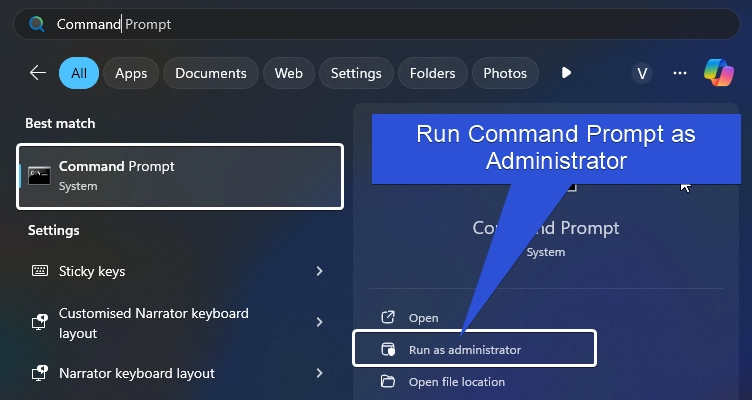
Run Command Prompt as Administrator
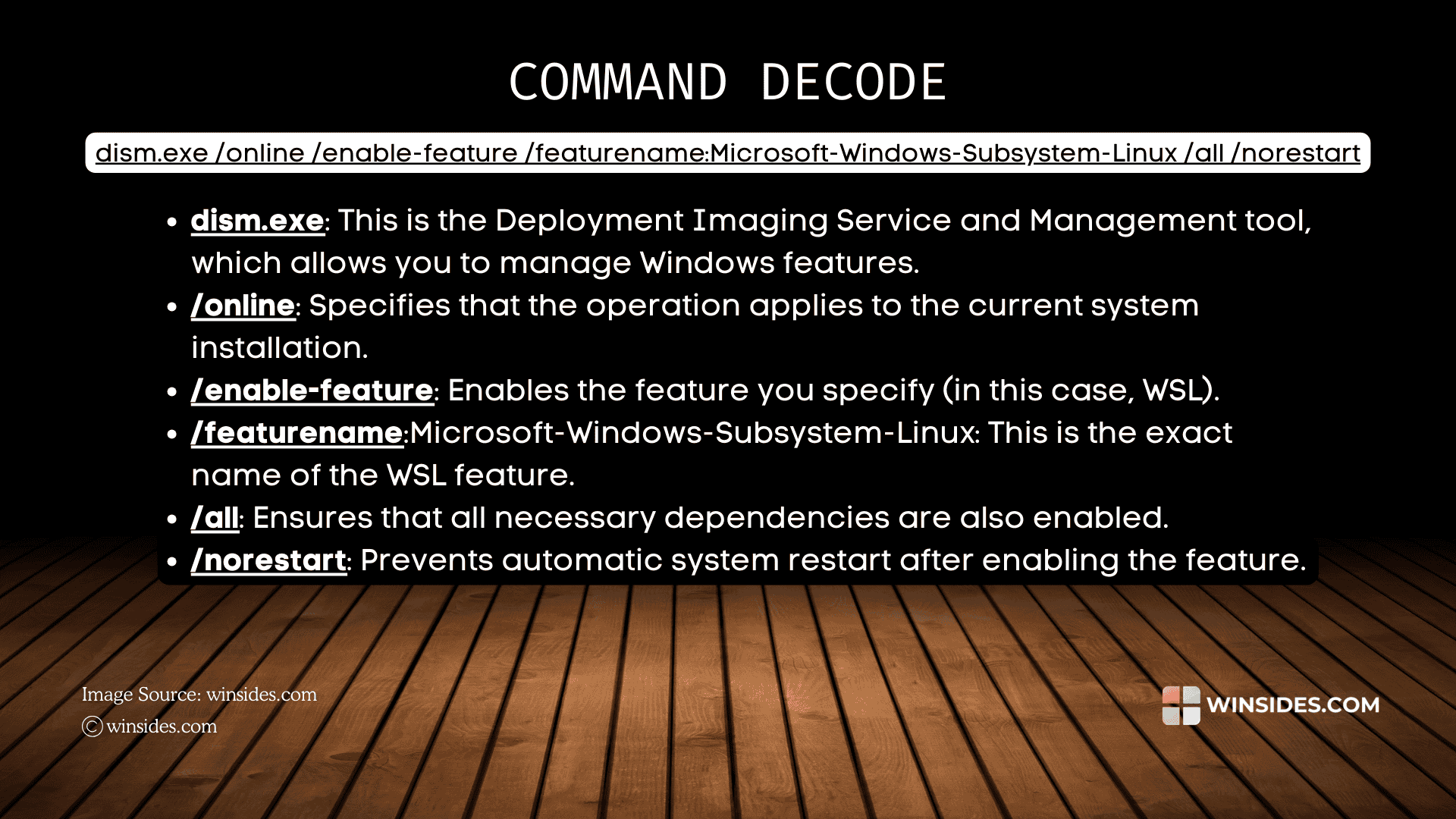
  • You can now paste the following command in the CMD and then click Enter. dism.exe /online /enable-feature /featurename:Microsoft-Windows-Subsystem-Linux /all /norestart
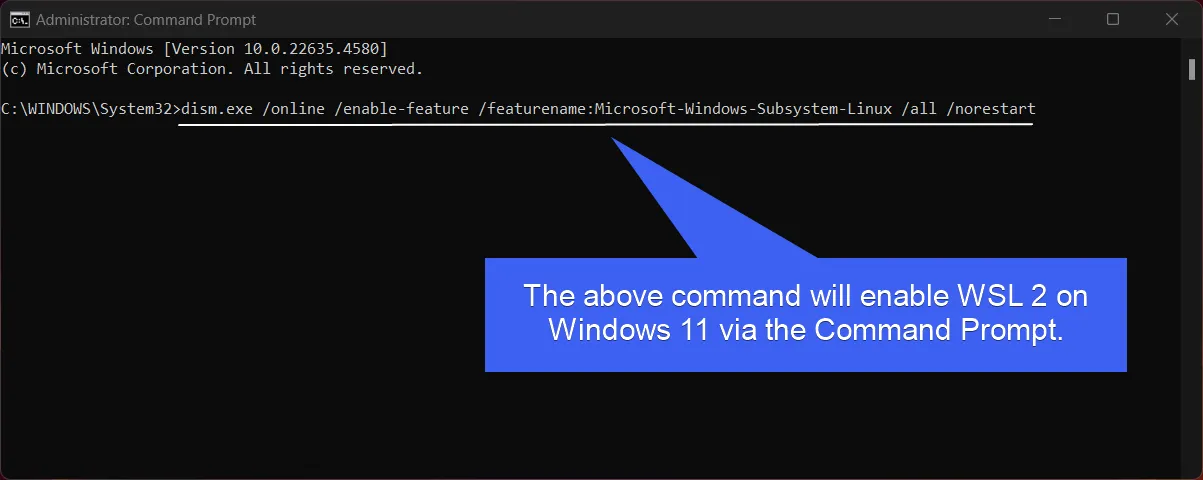
WSL 2 Enable Command via CMD
  • The above command will enable Windows Subsystem for Linux 2 and also ensure that the System does not restart on its own during the process.
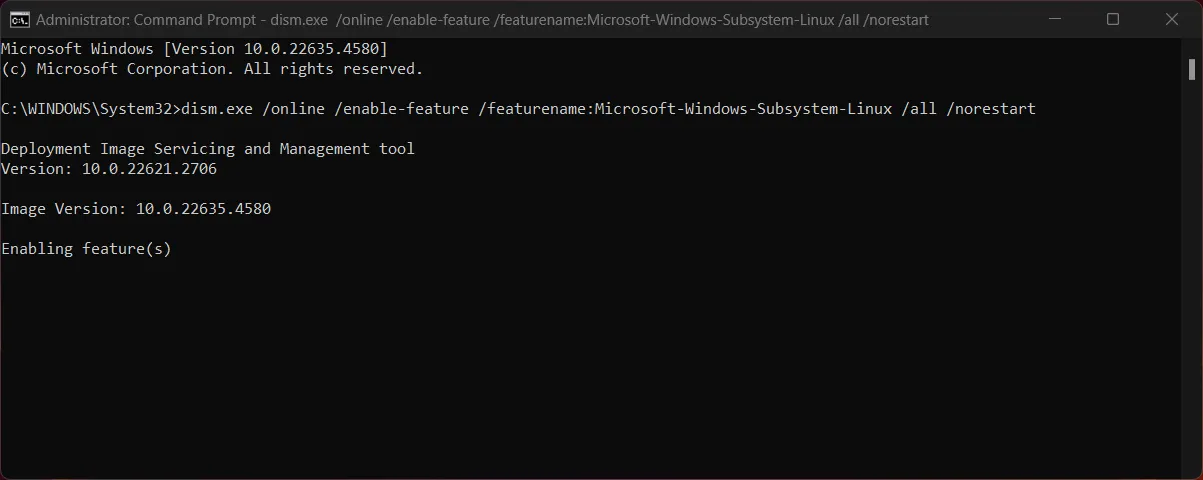
The System is enabling WSL 2
  • When you get the message “The Operation Completed Successfully“, then WSL 2 is now enabled.
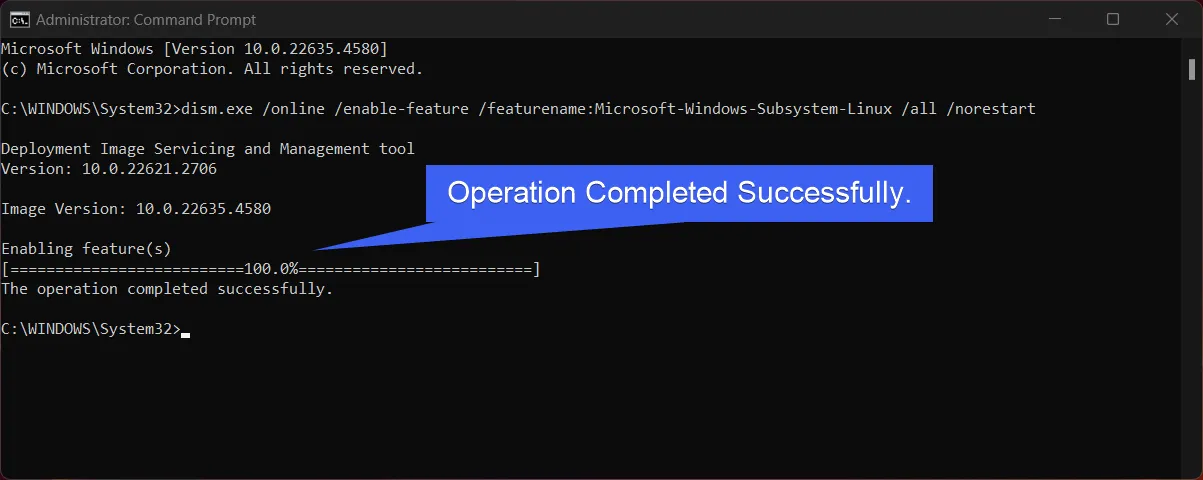
Operation Completed Successfully
  • The Virtual Machine Platform is a crucial component required for running WSL 2 on Windows 11. It provides the underlying virtualization layer needed to run Linux distributions in a more efficient and isolated environment.
  • To enable the Virtual Machine Platform via the Command Prompt, kindly execute the following command in the CMD. dism.exe /online /enable-feature /featurename:VirtualMachinePlatform /all /norestart
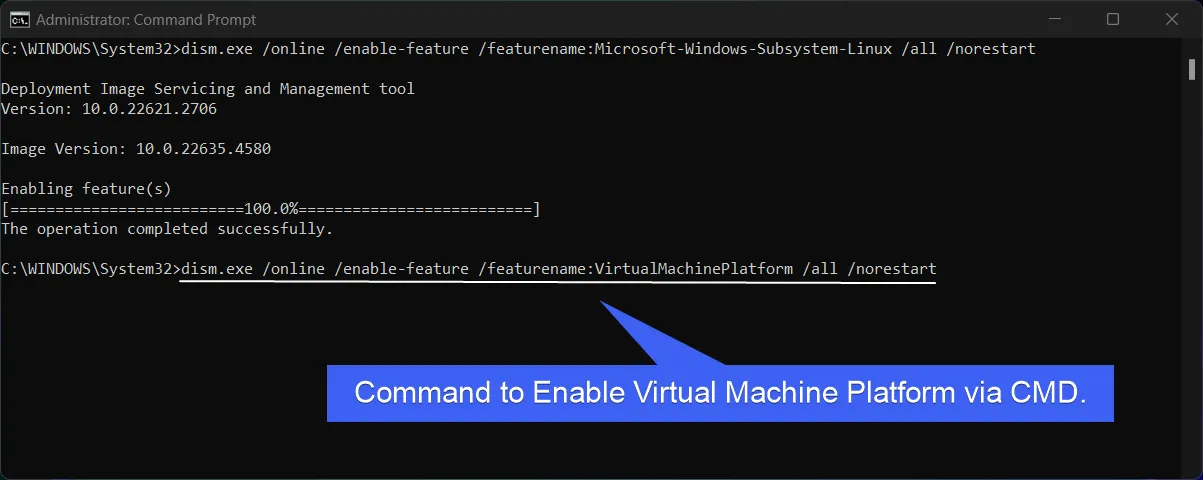
Command to Enable Virtual Machine Platform using Command Prompt
  • The system will now enable this feature on Windows 11. Kindly wait for the “The operation completed successfully” message.
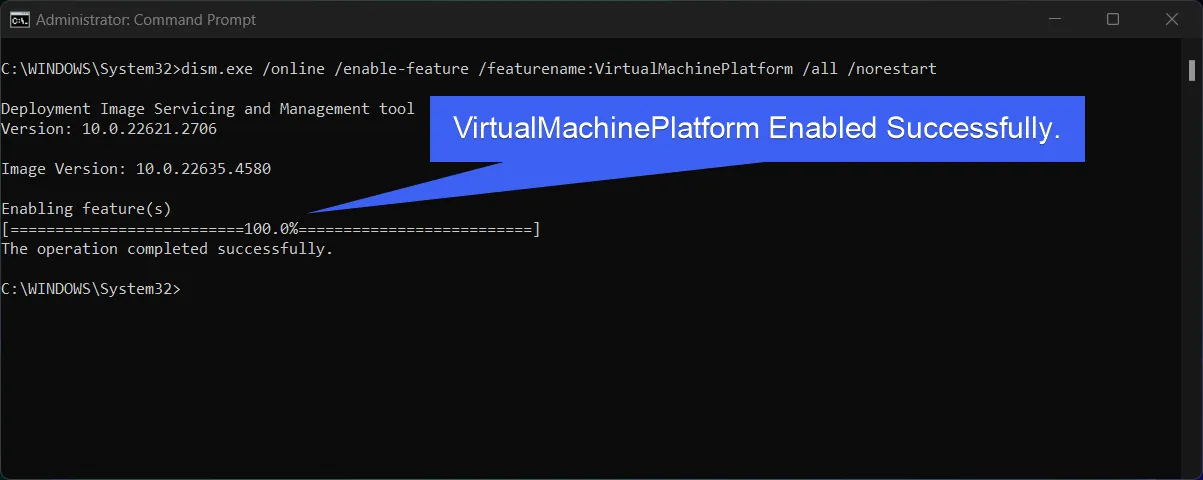
Virtual Machine Platform Enabled Successfully
  • It is highly recommended to do a restart after this process. You can then install your desired Linux Distribution from the Microsoft Store as a WSL App.
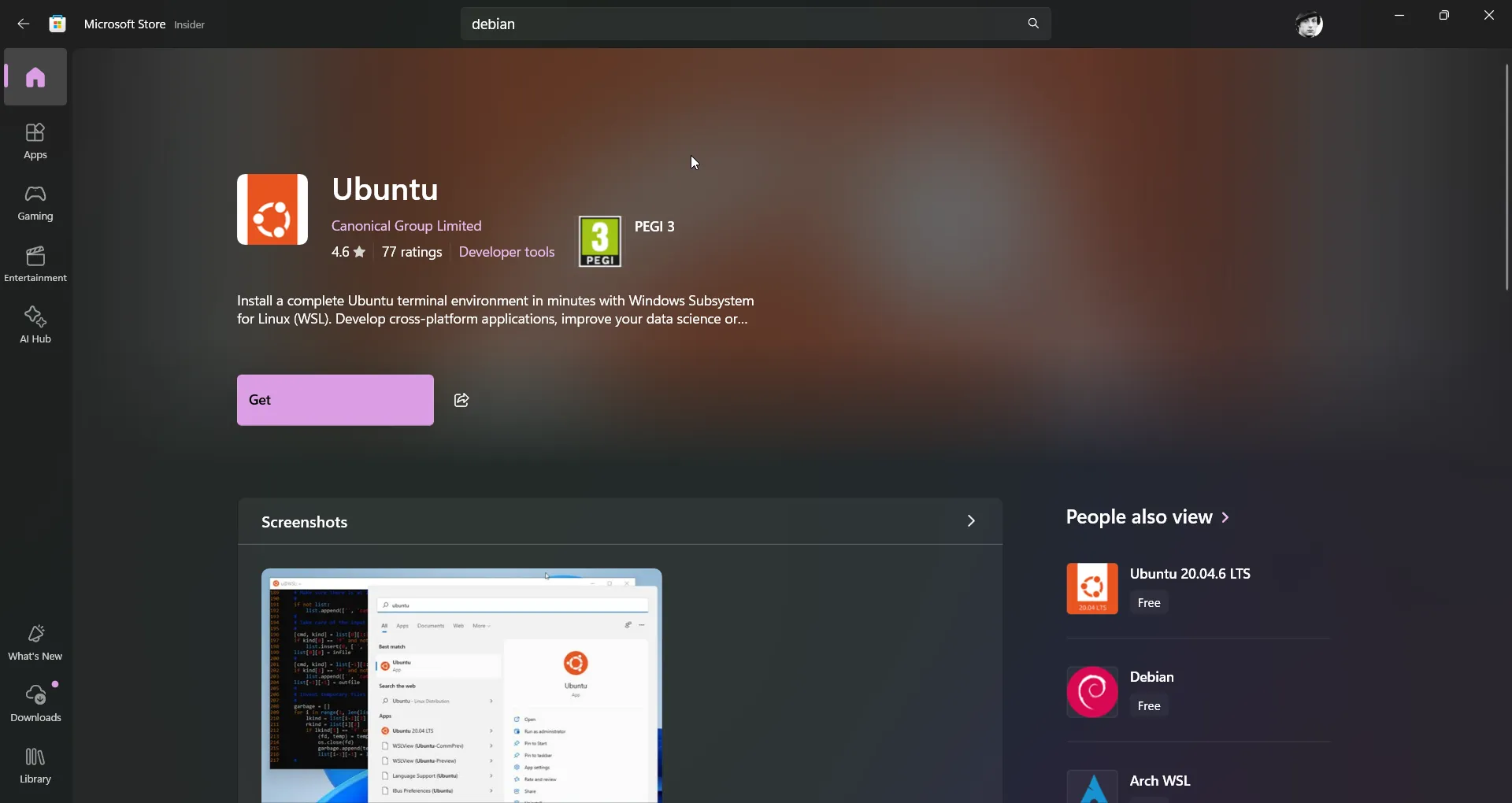
Install your desired Linux Distribution as a WSL App

Decoding WSL 2 CMD Command

Decoding WSL 2 Enable CMD Command

Quick Way to Enable WSL 2 (Windows Subsystem for Linux 2) using Windows PowerShell

In this section, we will check out How to Enable Windows Subsystem for Linux 2 via Windows PowerShell.

  • Open Windows PowerShell using the Start menu, and Run Windows PowerShell as Administrator.
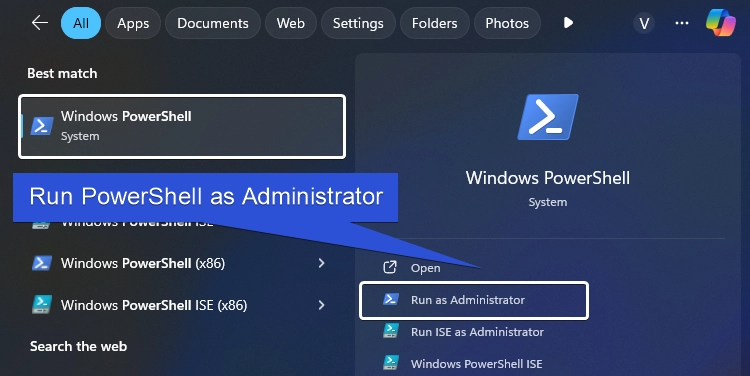
Run PowerShell as Administrator
  • In PowerShell, enter the following command. Enable-WindowsOptionalFeature -Online -FeatureName Microsoft-Windows-Subsystem-Linux -All -NoRestart
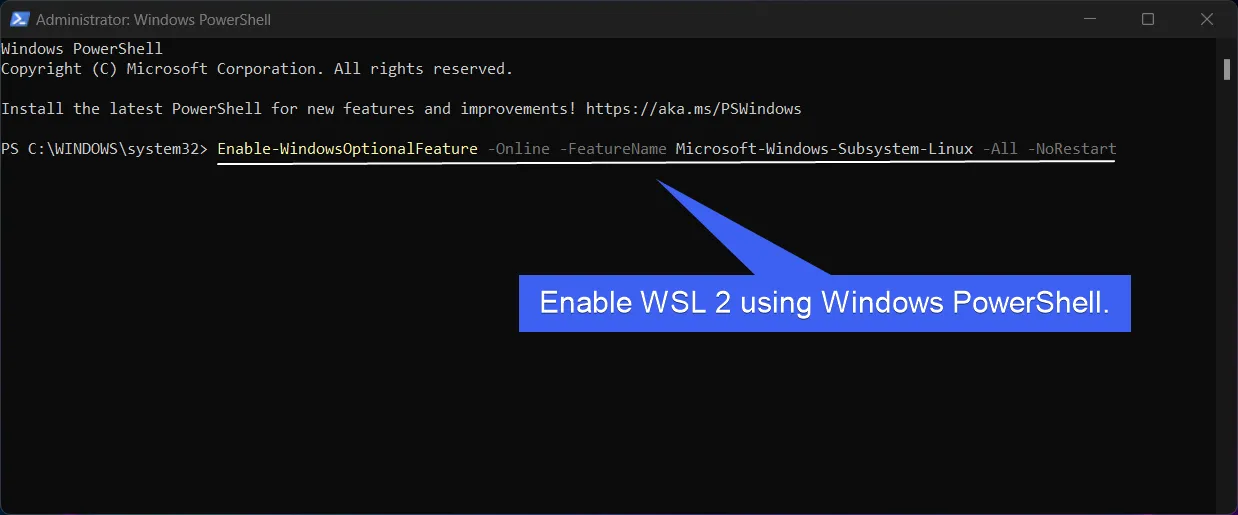
Command to enable WSL 2 using Windows PowerShell
  • The system will now enable Windows Subsystem for Linux. The Online status “True” indicates that WSL 2 is now enabled. As we are using the NoRestart tag, the system will not restart automatically.
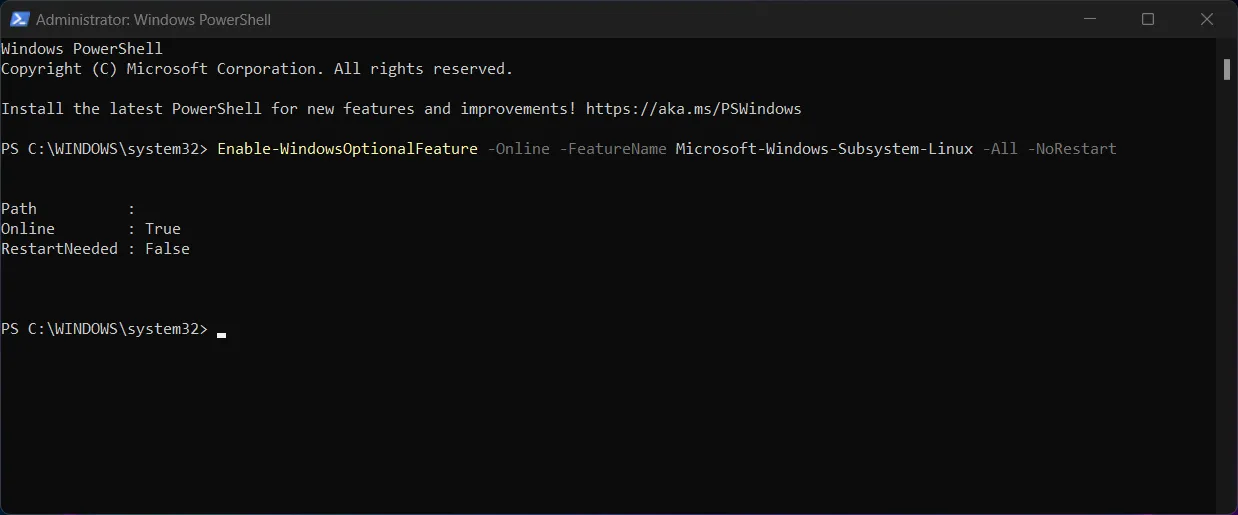
WSL 2 Enabled via PowerShell
  • Next, enter the command to enable Virtual Machine Platform. Enable-WindowsOptionalFeature -Online -FeatureName VirtualMachinePlatform -All -NoRestart
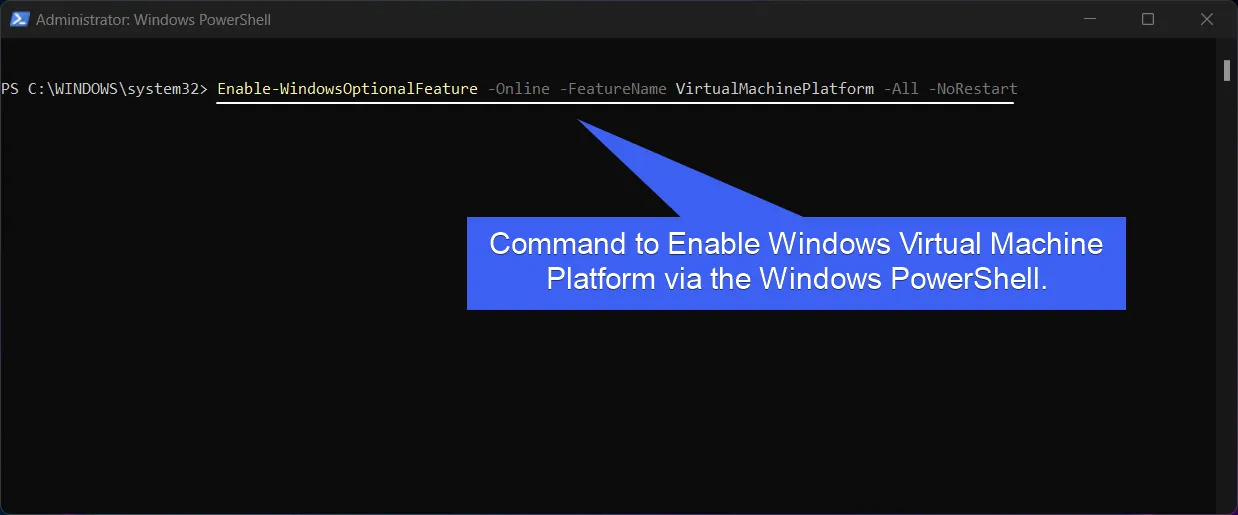
PowerShell command to enable Windows Virtual Machine Platform
  • The system will enable Virtual Machine Platform now.
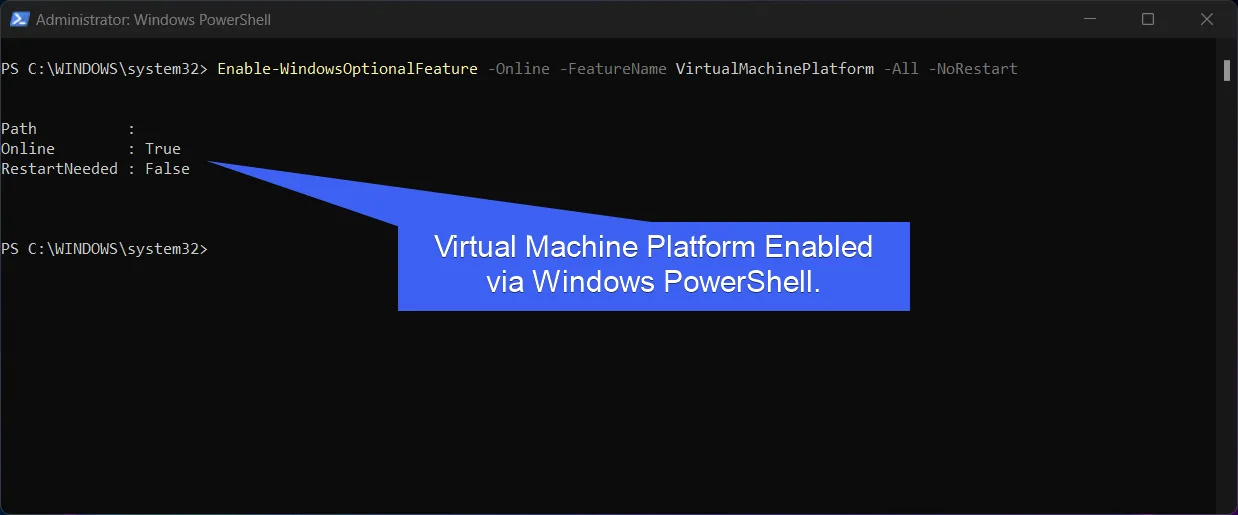
Virtual Machine Platform Enabled via Windows PowerShell
  • Kindly Restart your System. You can now install your favorite Linux Distro using the WSL App.
Information on the Go! If you want to use WSL 2, which offers a full Linux kernel and better performance, you can use the following command in PowerShell. wsl --set-default-version 2

Let’s Decode WSL2 Enable PowerShell Command
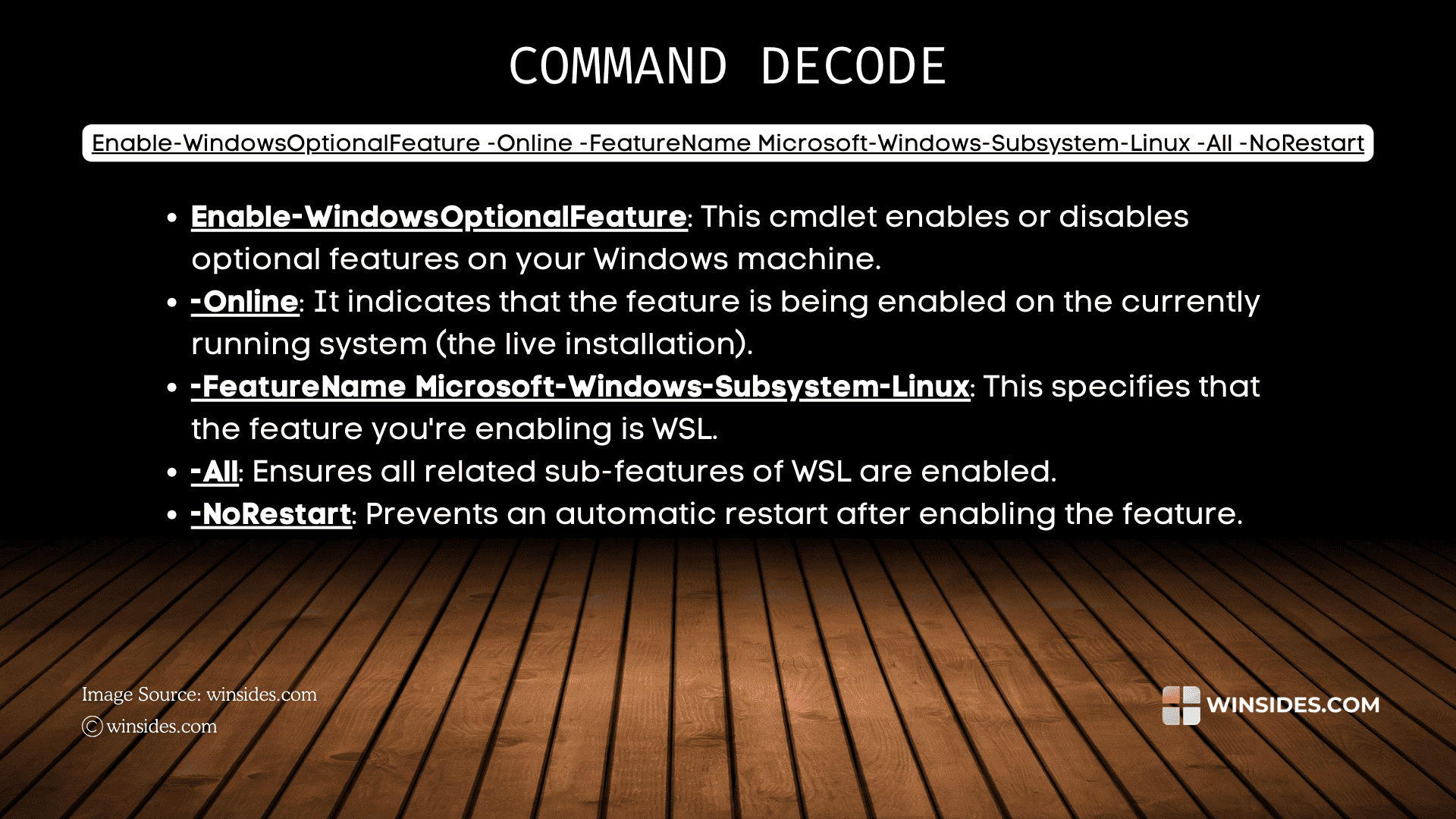
Decoding WSL 2 Enable Windows PowerShell Command

Video Walkthrough to Enable WSL 2 on Windows 11 using Command Prompt and Windows PowerShell

Take away

With WSL 2 enabled on Windows 11, you can execute Linux commands, use the package managers like APT and YUM, and even run Linux applications directly in Windows without the need for virtualization software like VirtualBox or VMware. Additionally, setting WSL 2 as the default version ensures that you get the most optimized performance from your Linux distributions in a Windows environment.

Frequently Asked Questions

Why do I need to enable “Microsoft Windows Subsystem for Linux”?

This is the core optional feature that allows Windows to recognize Linux binary formats.

How can I verify if I am using WSL 1 or WSL 2?

It is common for older installations to stay on version 1. To check the version of your installed distributions, run: wsl --list --verbose (or wsl -l -v) Look at the “Version” column. If it shows “1,” you should upgrade it to take advantage of full system call compatibility and increased file I/O performance.

How do I set WSL 2 as the default for all future installations?

If you plan on installing multiple distributions (like Kali, Debian, or Alpine), you should ensure they always default to version 2. Execute: wsl --set-default-version 2 This ensures that any new distro downloaded from the Microsoft Store will automatically use the WSL 2 architecture.

How do I convert an existing WSL 1 distribution to WSL 2?

If you already have a Linux environment set up and don’t want to lose your files, you can convert it in-place. Use the following syntax: wsl --set-version <distro name> 2

What should I do if I get an “Error: 0x80370102” during setup?

This error typically means that Hardware Virtualization is disabled in your computer’s BIOS/UEFI settings. Even if you enable the features in Windows, the CPU must have “Intel VT-x” or “AMD-V” turned on at the firmware level. You can check this in the Performance tab of Task Manager under “Virtualization: Enabled.”

Have Queries?

If you have any queries, kindly let us know in the comments. For more interesting articles, stay tuned to Winsides.com. Happy Computing! Peace out!

Tags:

Command PromptEnable WSL 2How to Enable in Windows 11windows 11Windows FeaturesWSL 2
Vigneshwaran Vijayakumar
Author

Vigneshwaran Vijayakumar

Hello, I'm Vigneshwaran, the founder, owner, and author of WinSides.Com. With nearly a decade of experience in blogging across various domains and specializing in Windows-related tutorials for over five years, I bring a wealth of knowledge and expertise to WinSides.Com

Follow Me
Other Articles
HOW TO CHECK SYSTEM INFORMATION ON WINDOWS 11
Previous

How to check System Information in Windows 11?

No Comment! Be the first one.

Leave a Reply Cancel reply

Your email address will not be published. Required fields are marked *

  • Enable Windows Subsystem for Linux (WSL 2) using Command Prompt & PowerShell
  • How to check System Information in Windows 11?
  • How to Install and Run X Server in Windows 11?
  • How to Enable Client for NFS in Windows 11?
  • 5+ Easy Methods to Find/Search Video Files Only in Windows 11!
  1. Vigneshwaran Vijayakumar
    Vigneshwaran Vijayakumar on How to Enable Windows PowerShell 2.0 in Windows 11?October 5, 2025

    Hello Mr. Mohamad El-Kheir, Thank you for contacting us. Microsoft has removed PowerShell version 2.0 completely from Windows 11 24H2…

  2. Avatar of Mohamad El-Kheir
    Mohamad El-Kheir on How to Enable Windows PowerShell 2.0 in Windows 11?October 5, 2025

    i have a MSI laptop with windows 11 Home Installed on it. how to install powershell v2.0 on it

  3. Vigneshwaran Vijayakumar
    Vigneshwaran Vijayakumar on DxDiag Windows 11 – What is it & How to use it for Troubleshooting?August 14, 2025

    Hey Myla Shannon Thank you for your valuable feedback. We are delighted to hear your compliment and excited to know…

  4. Avatar of Myla Shannon
    Myla Shannon on DxDiag Windows 11 – What is it & How to use it for Troubleshooting?August 14, 2025

    This content is incredibly informative.

  5. Avatar of seven
    seven on How to Enable IIS [Internet Information Services] in Windows 11?July 29, 2025

    I found this post very helpful.

  • About us
  • What’s New?!
  • Guest Posts on Winsides.com – Terms and Conditions
  • Publication Sitemap
  • Careers
  • Authors
  • Why Trust Winsides.com?
  • Content Removal Request
  • Terms of Use
  • Disclaimer
  • Contact us
Copyright 2024-2026 - Winsides.com. All rights reserved.