

The Group Policy Editor, also known as gpedit.msc, is a powerful tool in Windows 11 that allows users to manage and configure system settings, policies, and permissions. This tool is widely used by IT administrators and advanced users to control various aspects of the operating system, such as security configurations, user account settings, and software policies. However, configuring some essential settings may require elevated administrative privileges to ensure changes are applied correctly across the system. To do this, you can Run Group Policy Editor as administrator, which allows you to overcome restrictions and make system-wide modifications without any limitations.
In this article, we will guide you through the steps to run the Group Policy Editor with administrative privileges on Windows 11.
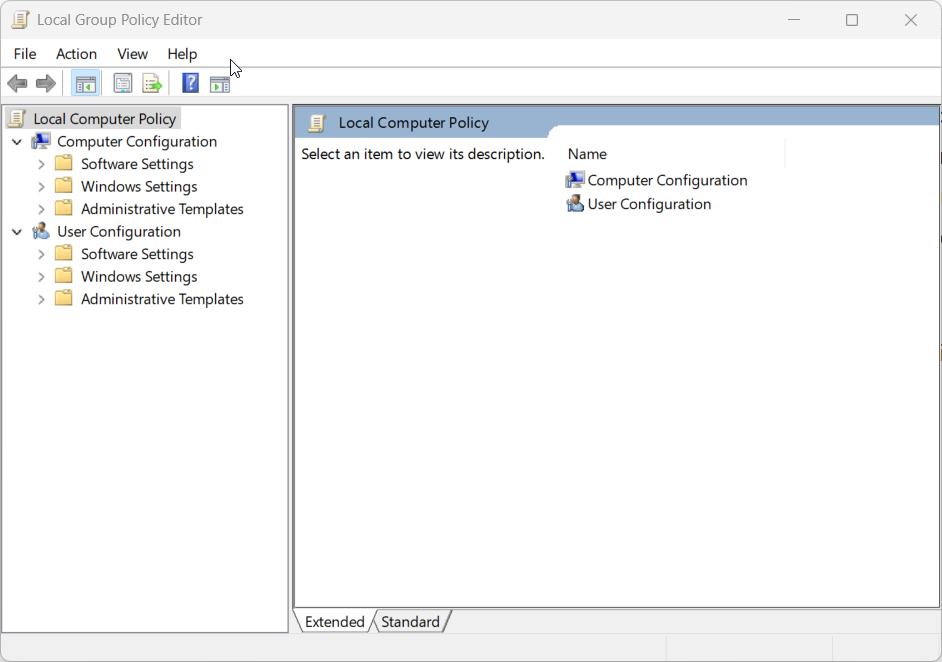
Multiple ways to open the Group Policy Editor with Elevated Privileges on Windows 11
Before getting into the ways, I would like to inform you that this service is available only on Windows 11 Pro, Enterprise, and Education Systems. By default, the Group Policy Editor is not enabled on Windows 11 Home Edition. If you are a Windows 11 User, we have a detailed article explaining how to enable Group Policy Editor on Windows 11 Home Edition, and if you cannot find gpedit.msc on your Windows and then read the following tutorial to fix this issue. Fix: Windows cannot find GPEDIT.MSC in Windows 11.
- Open the Group Policy Editor as Administrator on Windows 11 using the Start menu.
- Access the Group Policy Editor with Administrative Privileges using the Run Command.
- Use Task Manager and Create New Task to open gpedit.msc with Elevated Privileges.
- Always run the Group Policy Editor as Administrator by creating a Dedicated Shortcut.
IMPORTANT: Running applications as an administrator grants elevated privileges that can significantly affect your system. Please use caution when doing so, as it can lead to Unintended System Modifications, Security Vulnerabilities, Accidental Data Loss, Unauthorized Access, Irreversible Changes, etc.
Table of contents
1. How to Open Group Policy Editor as Administrator using the Start menu?
This is the simplest method.
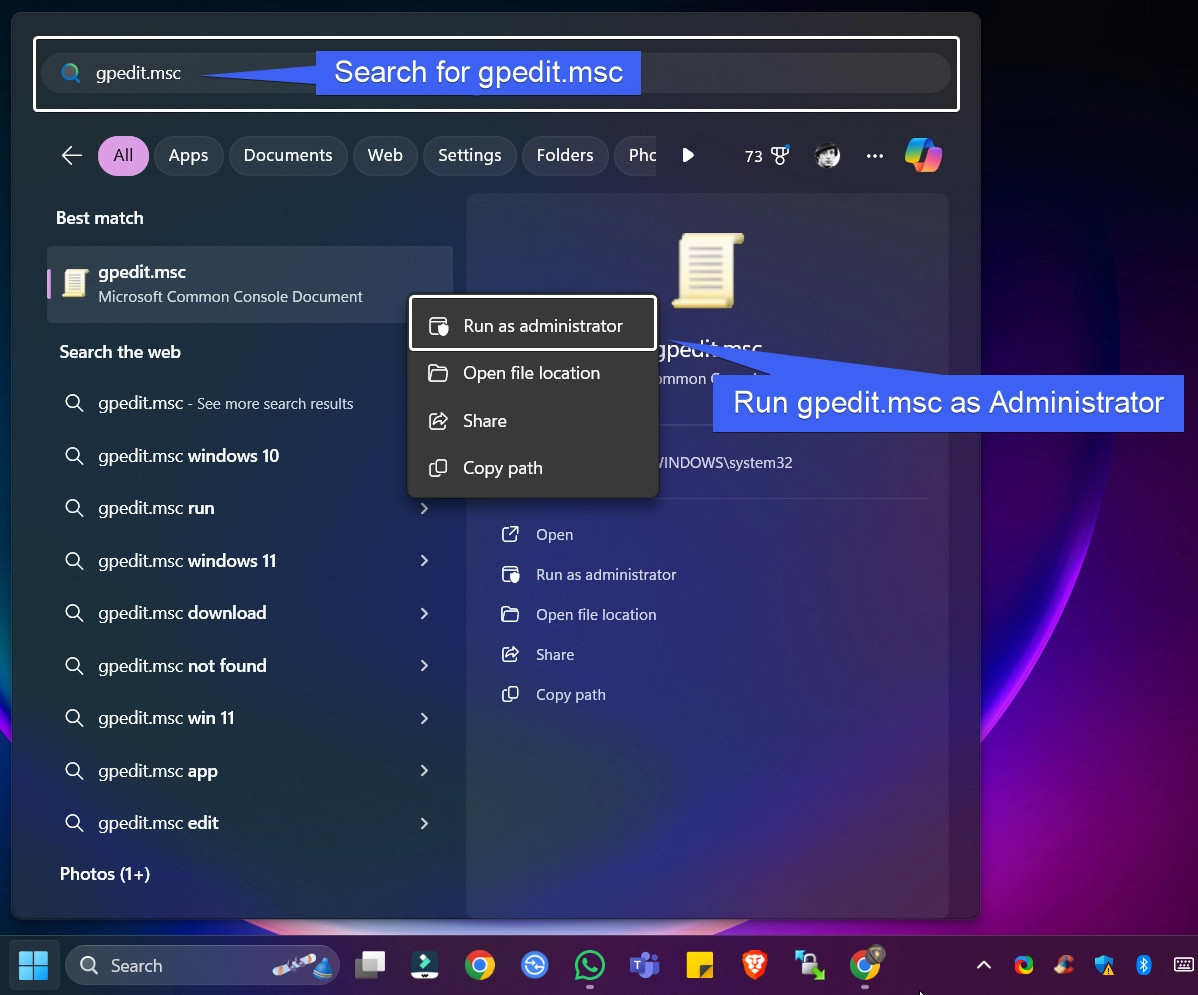
- Go to the Start menu. You can also use the key combination WinKey + S to access the Start menu.
- In the Start menu, search for
gpedit.msc. When the system shows the app under Microsoft Common Console Document, right-click on that and click “Run as Administrator“.
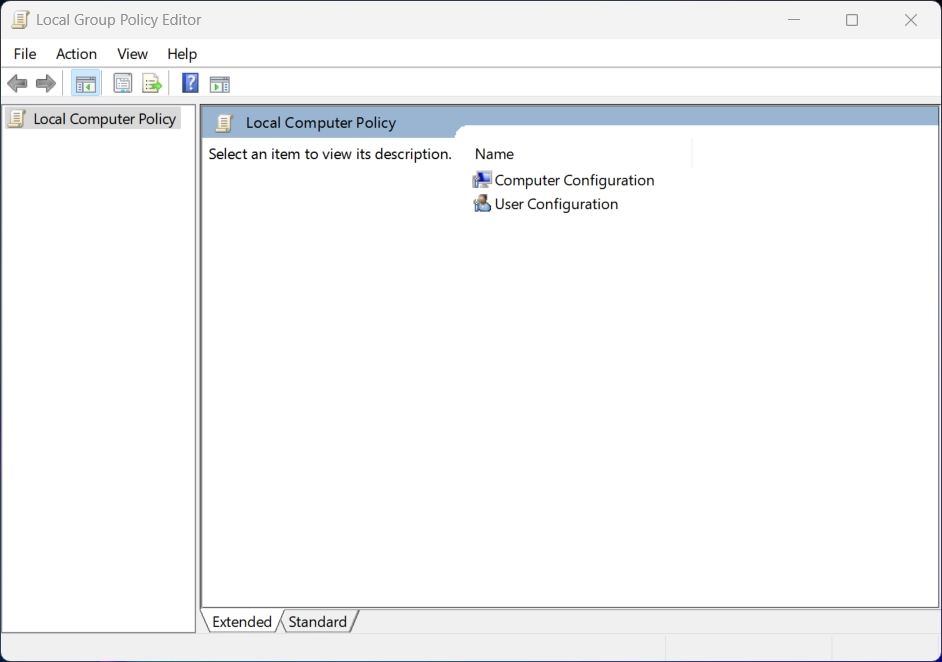
- The system will open the Local Group Policy Editor on your Windows 11 Professional Edition.
2. Launch Group Policy Editor as Administrator using the Run Command
- Go to the Run Command. You can use the shortcut WinKey + R.
- In the Run Command, type the command
gpedit.mscand press CTRL + SHIFT + ENTER.
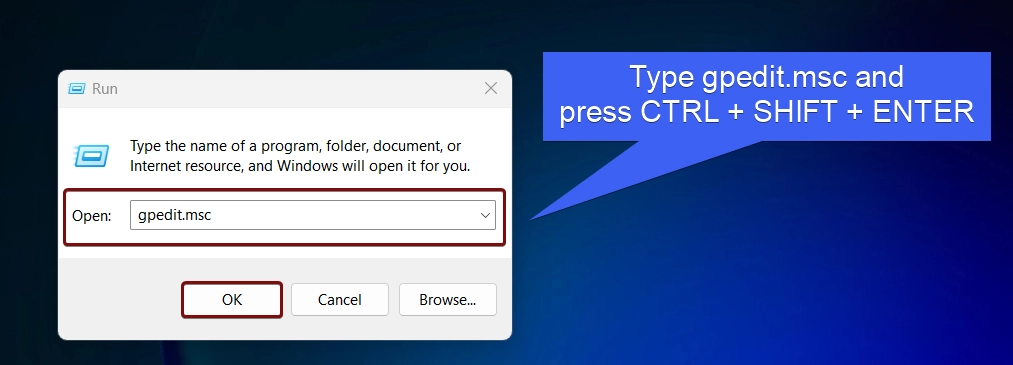
- UAC will prompt your confirmation and then open Local Group Policy Editor with Administrative Privileges.
3. Create a new task to open gpedit.msc with Administrative Privileges using the Task Manager
- Go to the Task Manager. You can either use the key combo CTRL+ ALT + Delete, or you can just right-click on the taskbar and click Task Manager.
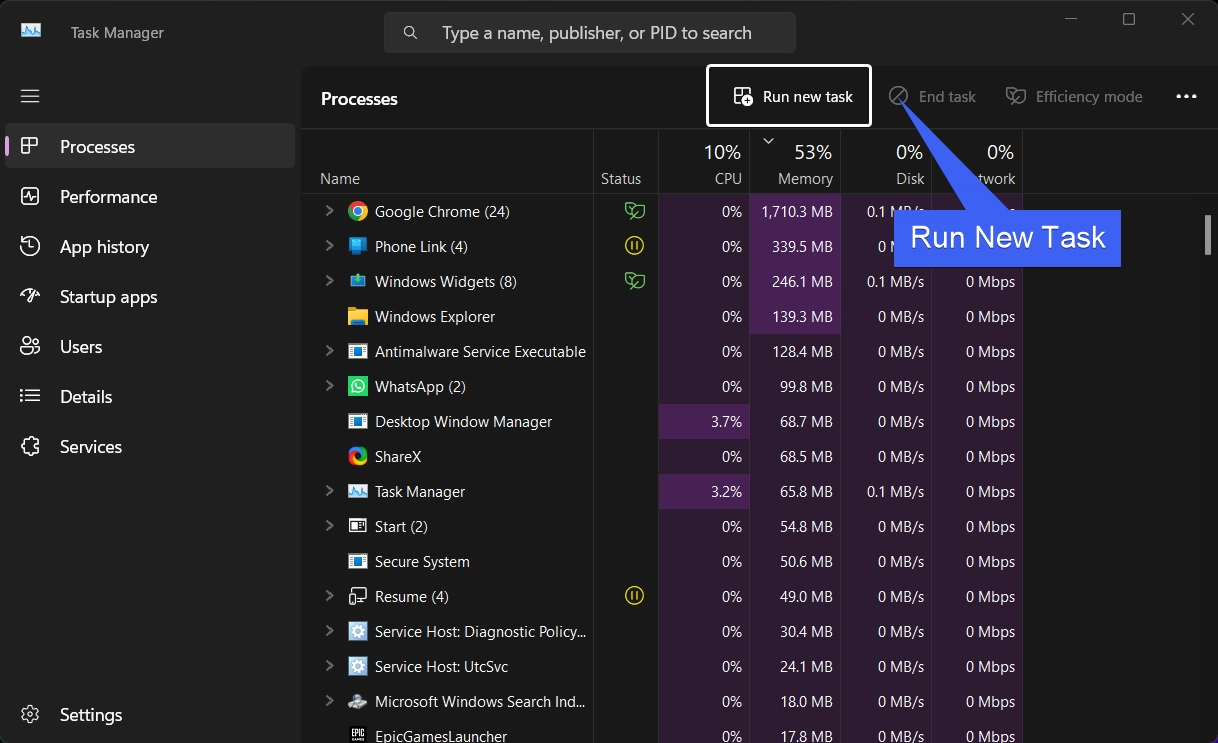
- Under Processes, click on Run new task. The Create New Task dialog will open now.
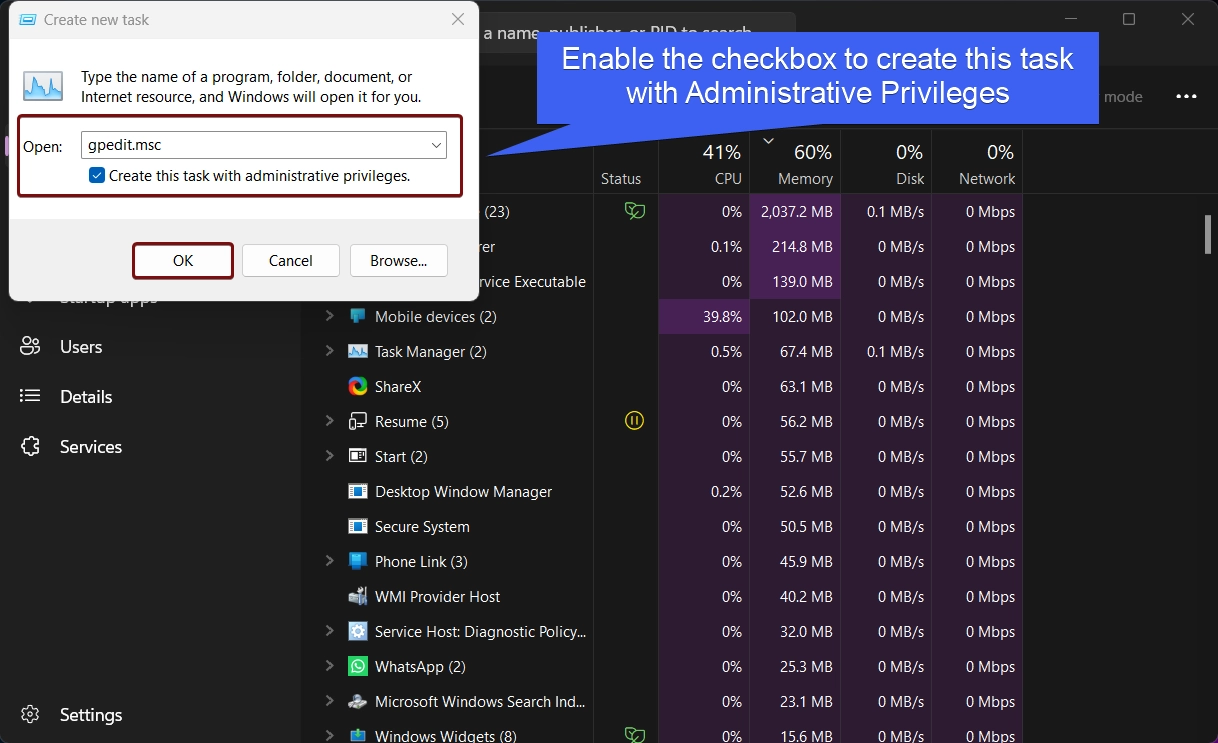
- Enter the command
gpedit.mscand click on the checkbox “Create this task with administrative privileges“. Click OK.
- Now, User Account Control (UAC) will prompt for your confirmation and then open gpedit.msc.
4. Always open the Group Policy Editor with Administrative Privileges on Windows 11 Professional Editions
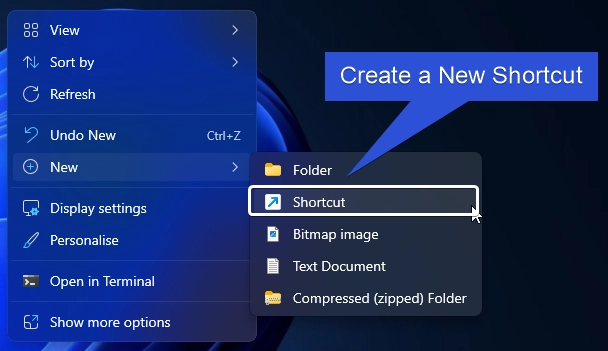
- Right-click on the empty space of the Desktop and go to New > Shortcut.
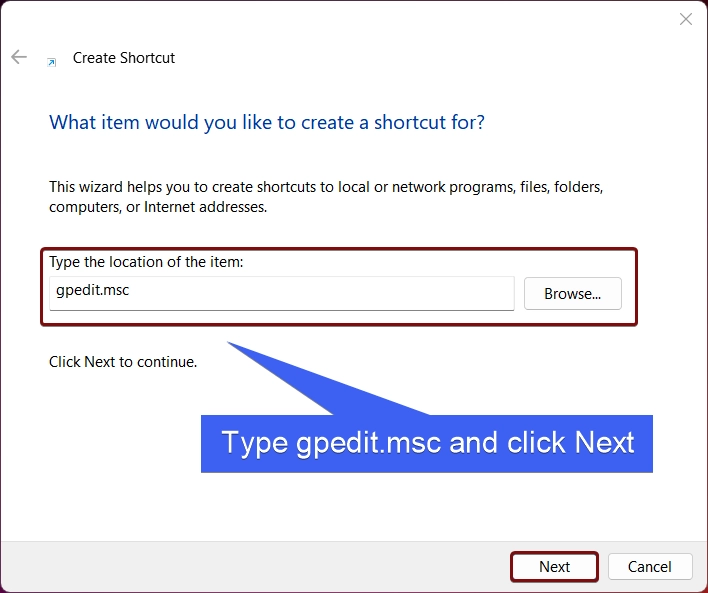
- The Create Shortcut dialog box will open now. In Type the location of the item, enter the command
gpedit.mscand then click Next.
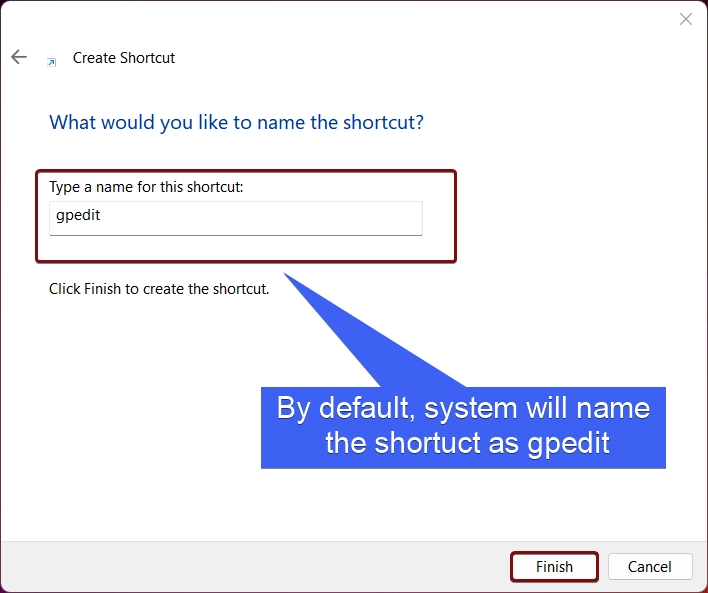
- The system will name the shortcut as gpedit. Finally, click Finish.
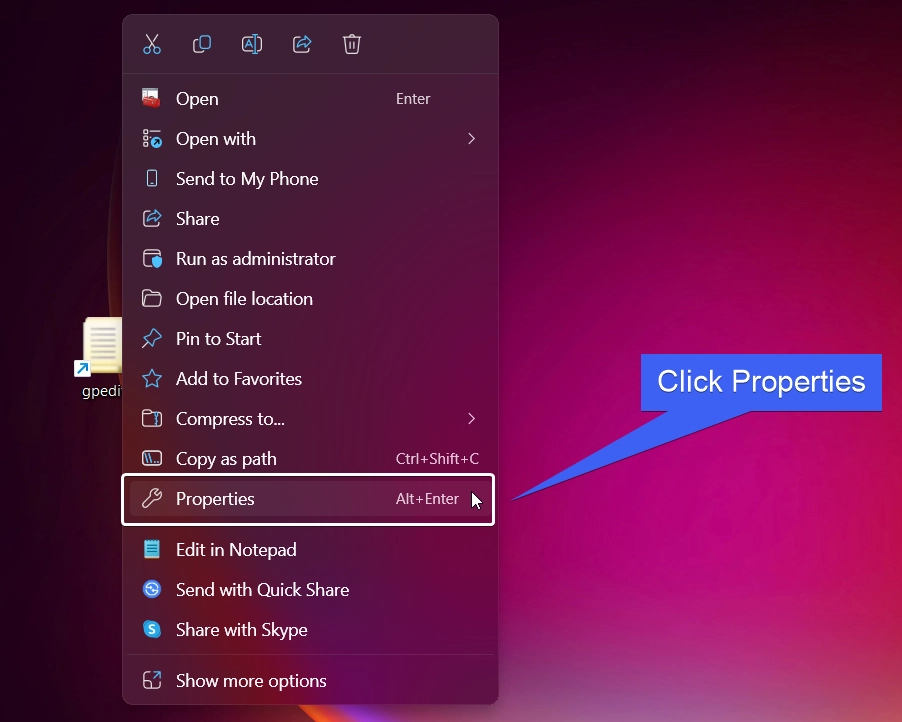
- Right-click on the gpedit.msc shortcut and click Properties.
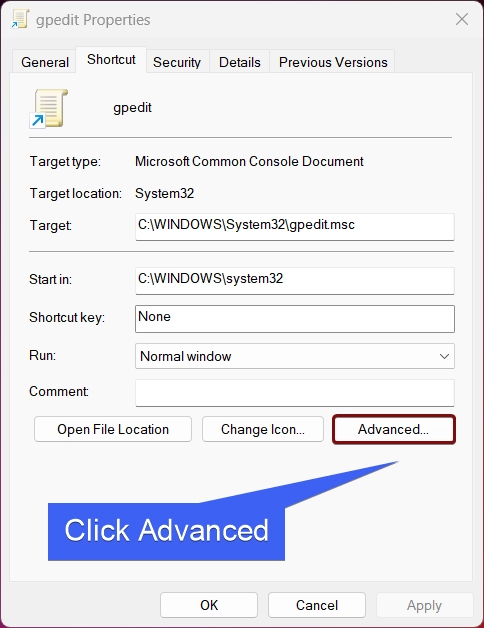
- gpedit Properties will open now. Click Advanced.
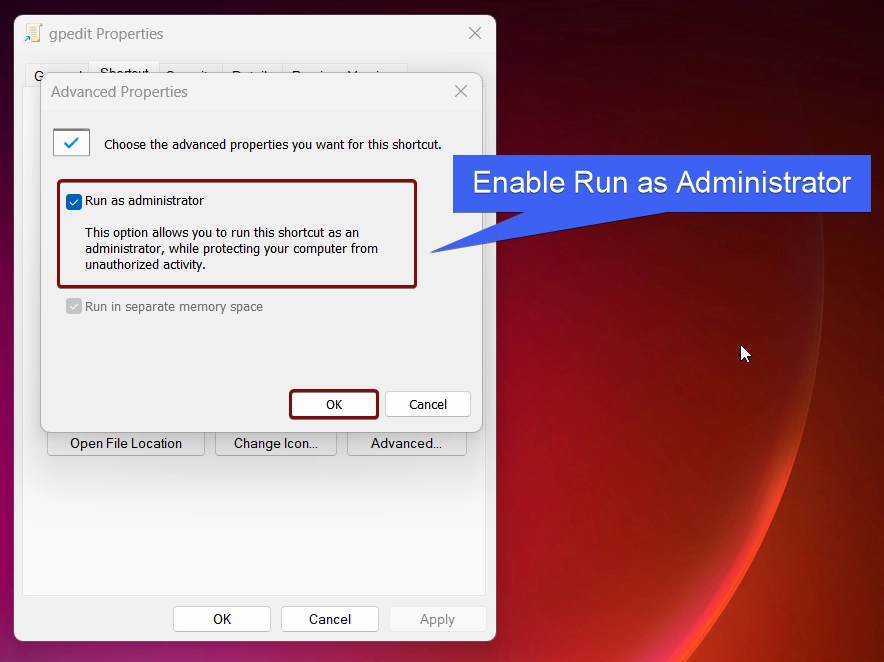
- In Advanced Properties, enable the checkbox to Run as Administrator.
- UAC will confirm and open Group Policy Editor as Administrator on your Windows 11 Professional Editions.
Kindly be Cautious while Running an App as Administrator
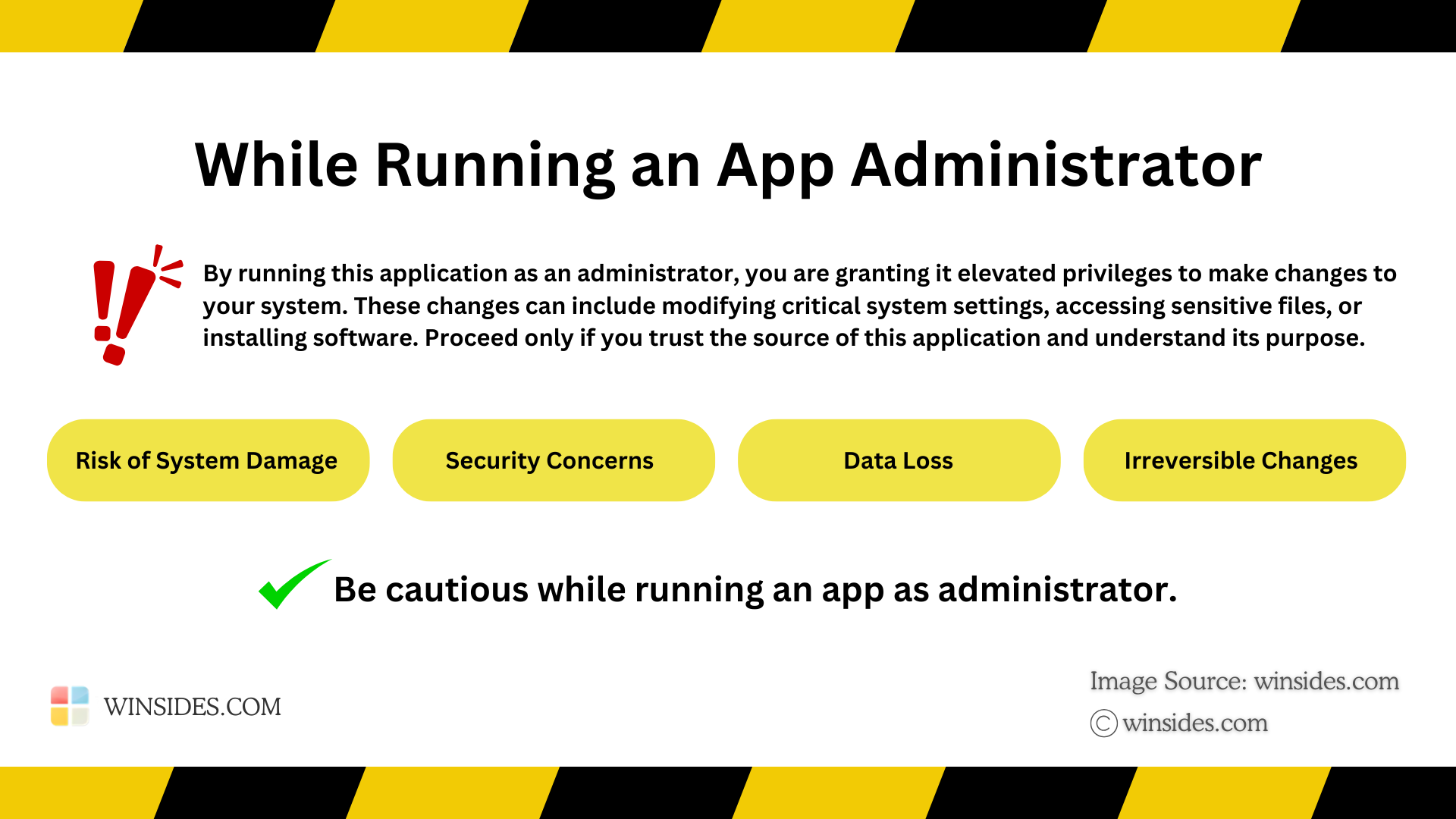
Running Device Manager as Administrator on Windows 11 grants it elevated privileges, which can potentially bypass system security restrictions. Please proceed with care and only run trusted applications in this mode. At Winsides.com, we advise our users to use Administrator privileges only when absolutely necessary to perform tasks requiring elevated rights. Misuse of administrative privileges may lead to System Vulnerabilities, Data Loss, System Instability, Security Concerns, Irreversible Changes, etc.
Why Run Group Policy Editor as Administrator?
Running the Group Policy Editor with elevated rights will ensure that you have full control over all policy settings and configurations. By default, even if you open gpedit.msc as a standard user, certain permissions or settings may be restricted. For example:
- You may be unable to modify computer configuration policies.
- Some administrative templates and settings might appear grayed out or inaccessible.
- Changes made without elevated permissions might not apply to all user accounts or the entire system.
Therefore, running Group Policy Editor as an administrator ensures that all settings are fully accessible, and the changes made are successfully applied system-wide.
Frequently Asked Questions
Why do I need to run Group Policy Editor as an Administrator?
Group Policy settings often affect the entire operating system, including security protocols, user permissions, and hardware restrictions. To prevent unauthorized changes, Windows requires Administrative Privileges to access the Editor. If you open it without these rights, you may be able to view settings, but any changes you attempt to save will be blocked.
Why is gpedit.msc missing when I try to run it?
The Group Policy Editor is officially available only in Windows 11 Pro, Enterprise, and Education editions. If you are using Windows 11 Home, typing the command will result in a “Windows cannot find…” error. Home users must either upgrade their edition or use a batch script to enable the feature manually.
What should I do if the “Run as administrator” option is greyed out?
This typically happens if your current user account is a “Standard User” and not an “Administrator.” To fix this, you will need to provide the credentials (password or PIN) of an administrative account when the UAC prompt appears, or have the system owner change your account type in Settings > Accounts > Other users.
What is the difference between gpedit.msc and rsop.msc?
While gpedit.msc is for editing policies, rsop.msc (Resultant Set of Policy) is a read-only tool used to verify which policies are currently active. If you run rsop.msc as an Administrator, it will scan your system and show you the final effect of all applied policies, which is incredibly helpful for troubleshooting why a certain setting isn’t sticking.
How do I refresh policies immediately after making a change?
Windows doesn’t always apply Group Policy changes instantly. To force the update without restarting, follow the steps below. In the Command Prompt running as Administrator, type gpupdate /force and press Enter.
Take away
Running the Group Policy Editor as an administrator in Windows 11 is essential for making system-wide policy changes and gaining unrestricted access to all settings. Whether you are troubleshooting issues, configuring security policies, or optimizing user access, elevated admin permissions ensure that changes are applied effectively.
Have Queries?
The above methods are tested and working perfectly, and so I will recommend using any one of the above methods as per your convenience. If you have any issues related to the above topic, and then comment below, and we will reply soon. Find more tutorials on Winsides.com.
Community
Comments (0)