Skip to content
Winsides.com

Windows Insides

Winsides.com

Windows Insides

  • Windows 11
  • Windows Features
  • Windows Security
  • Microsoft
    • Microsoft Copilot
    • Microsoft Powertoys
  • Shortcuts
    • Windows Shortcuts
    • Desktop Shortcuts
  • Video Tutorials
  • About
    • What’s New?!
    • About us
    • Contact us
    • Privacy Policy
    • Terms of Use
  • Follow us
    • Reddit
    • Dev.to
    • YouTube
    • Linked In
    • X
    • Tumblr
    • Facebook
    • Instagram
    • Buy Me A Coffee
  • Windows 11
  • Windows Features
  • Windows Security
  • Microsoft
    • Microsoft Copilot
    • Microsoft Powertoys
  • Shortcuts
    • Windows Shortcuts
    • Desktop Shortcuts
  • Video Tutorials
  • About
    • What’s New?!
    • About us
    • Contact us
    • Privacy Policy
    • Terms of Use
  • Follow us
    • Reddit
    • Dev.to
    • YouTube
    • Linked In
    • X
    • Tumblr
    • Facebook
    • Instagram
    • Buy Me A Coffee
Close

Search

Winsides.com

Windows Insides

Winsides.com

Windows Insides

  • Windows 11
  • Windows Features
  • Windows Security
  • Microsoft
    • Microsoft Copilot
    • Microsoft Powertoys
  • Shortcuts
    • Windows Shortcuts
    • Desktop Shortcuts
  • Video Tutorials
  • About
    • What’s New?!
    • About us
    • Contact us
    • Privacy Policy
    • Terms of Use
  • Follow us
    • Reddit
    • Dev.to
    • YouTube
    • Linked In
    • X
    • Tumblr
    • Facebook
    • Instagram
    • Buy Me A Coffee
  • Windows 11
  • Windows Features
  • Windows Security
  • Microsoft
    • Microsoft Copilot
    • Microsoft Powertoys
  • Shortcuts
    • Windows Shortcuts
    • Desktop Shortcuts
  • Video Tutorials
  • About
    • What’s New?!
    • About us
    • Contact us
    • Privacy Policy
    • Terms of Use
  • Follow us
    • Reddit
    • Dev.to
    • YouTube
    • Linked In
    • X
    • Tumblr
    • Facebook
    • Instagram
    • Buy Me A Coffee
Close

Search

Home/Windows Features/Enable IIS Management Console in Windows 11 [GUI]

Enable IIS Management Console in Windows 11 [GUI]

Vigneshwaran Vijayakumar
By Vigneshwaran Vijayakumar
April 12, 2026 4 Min Read
0

Enable IIS Management Console in Windows 11: The IIS (Internet Information Services) Management Console in Windows 11 is a graphical user interface (GUI) tool used to manage and configure IIS, which is a flexible, secure, and manageable Web server for hosting anything on the Web. It enables administrators to configure the Web Server, Websites, Web Applications, Security Protocols, SSL Certificates, and Virtual Directories. The console also supports the management of various IIS modules and extensions, such as URL Rewrite and Application Request Routing, enhancing the server’s functionality and flexibility. This article will take you through the steps of how to Enable IIS Management Console in Windows 11. Check out: How to Enable IIS in Windows 11?

Table of Contents

  • Easy Way to Enable IIS Management in Windows 11
  • How to Access IIS Management Console in Windows 11:
  • Frequently Asked Questions
    • Does enabling the Management Console also start a web server?
    • Why don’t I see the “Web Management Tools” folder in Windows Features?
    • What is the difference between the “Management Console” and “Management Scripts and Tools”?
  • Take away:
  • Have Queries?

Easy Way to Enable IIS Management in Windows 11

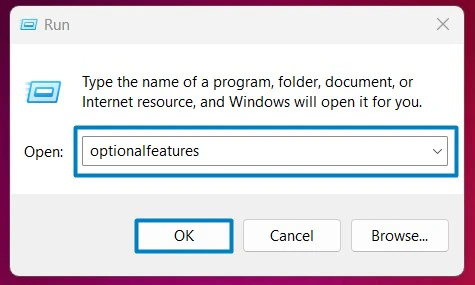
  • Open the Run command box using the shortcut Win Key + R.
  • Enter optionalfeatures In the run command box.
Optional Features
Optional Features
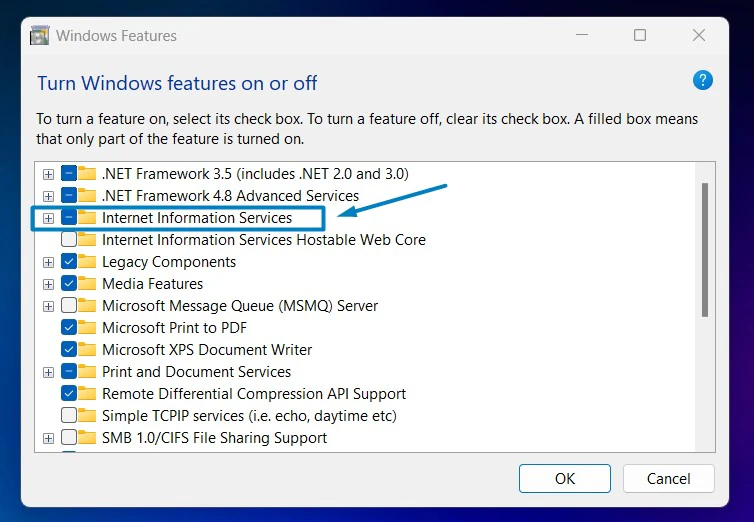
  • Windows Features dialog box will open now.
  • Locate Internet Information Services and expand it.
    Expand Internet Information Services
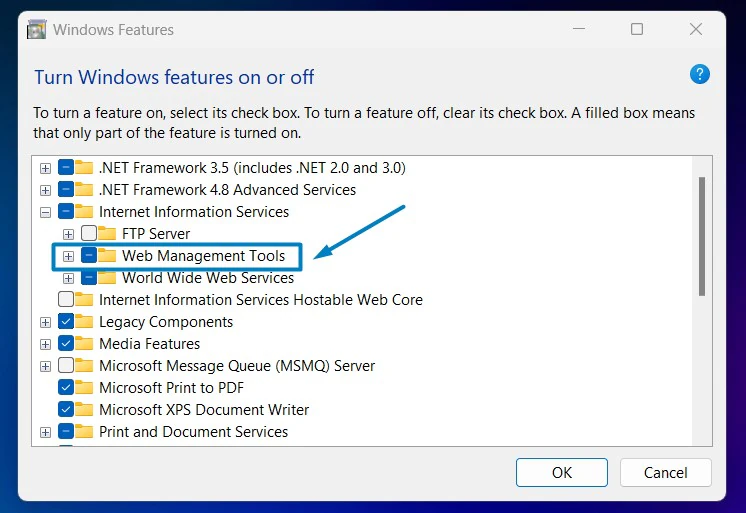
  • Now, you can find the Web Management Tools. Click on the plus sign next to it to expand Web Management Tools.
  • Expand Web Management Tools
    Expand Web Management Tools
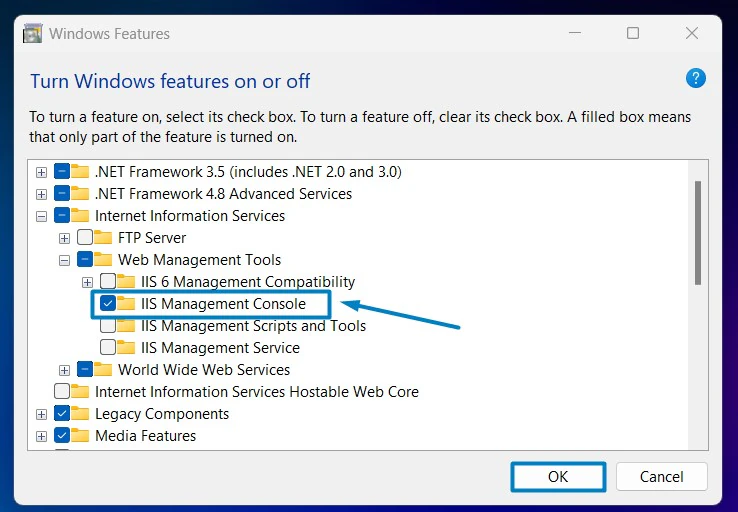
  • Click on the checkbox next to the IIS Management Console and then click OK.
  • Enable IIS Management Console in Windows 11
    Enable IIS Management Console in Windows 11
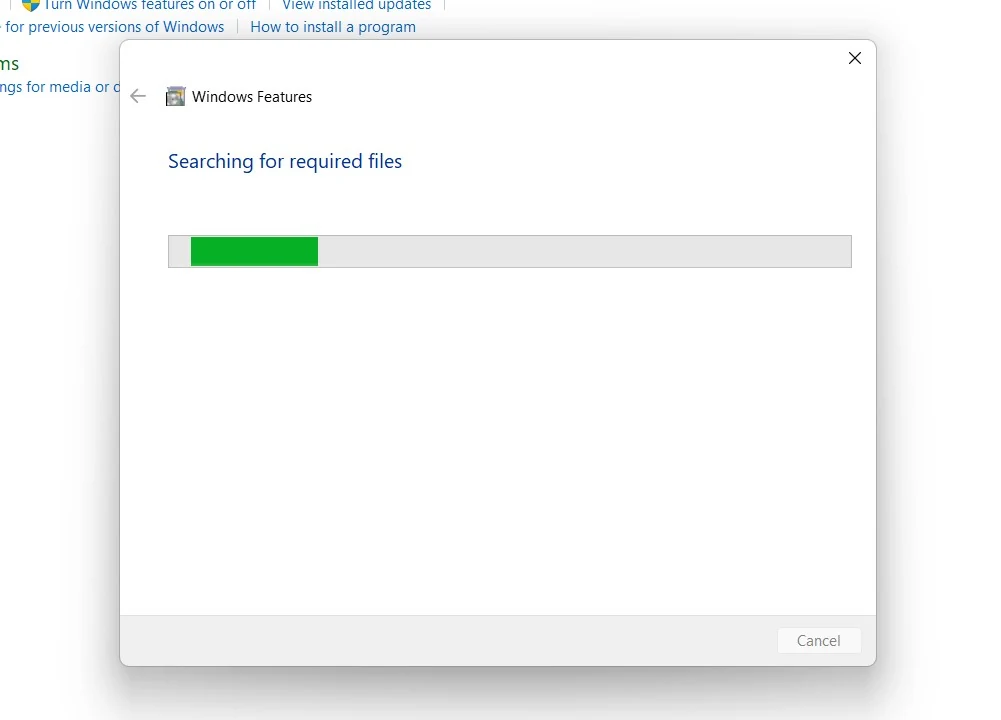
  • That is it, Windows 11 will now search for the required files.
  • Searching for the required files
    Searching for the required files
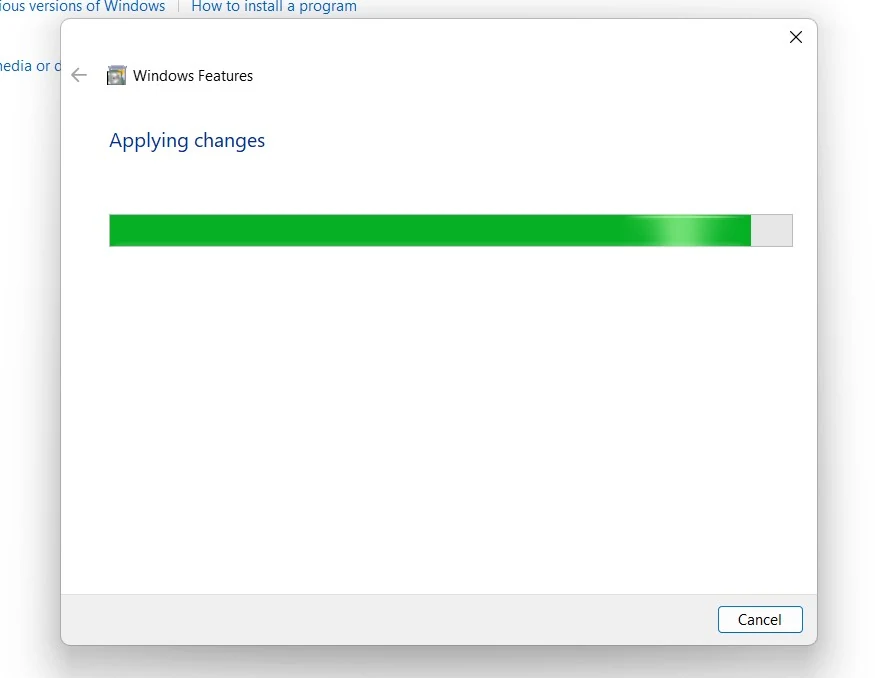
  • Then, it will apply the necessary changes.
  • Applying Changes
    Applying Changes
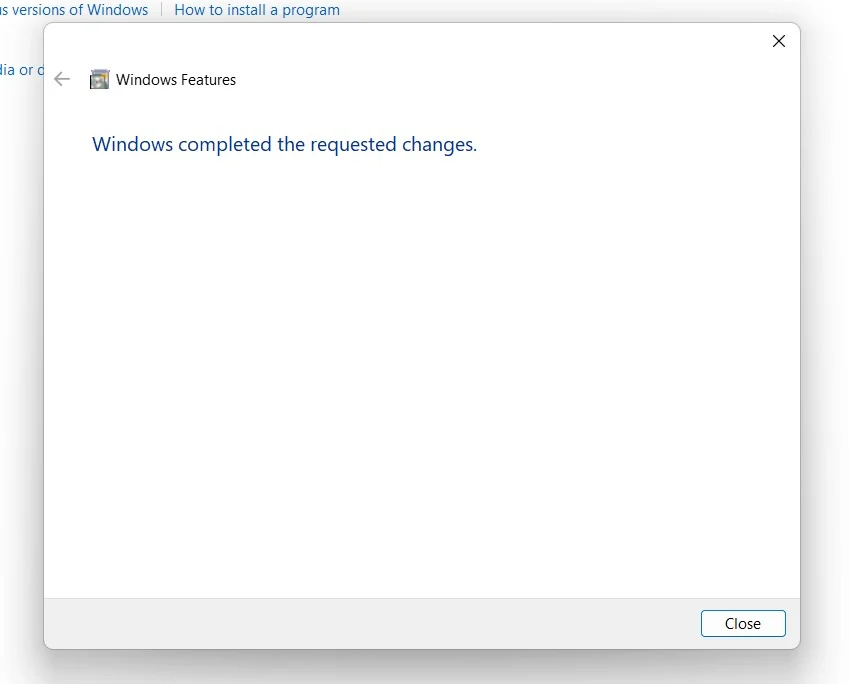
  • Click Restart if you are prompted to restart or click Close accordingly. However, it is suggested to restart right away so that the changes made will reflect.
  • Close
    Close
  • Internet Information Services IIS Management Console is now enabled on your Windows 11 PC.
  • How to Access IIS Management Console in Windows 11:

    inetmgr
    inetmgr
    • Open the Run Command box using the shortcut Win Key + R.
    • Execute the following command in the Run Command Box. inetmgr.
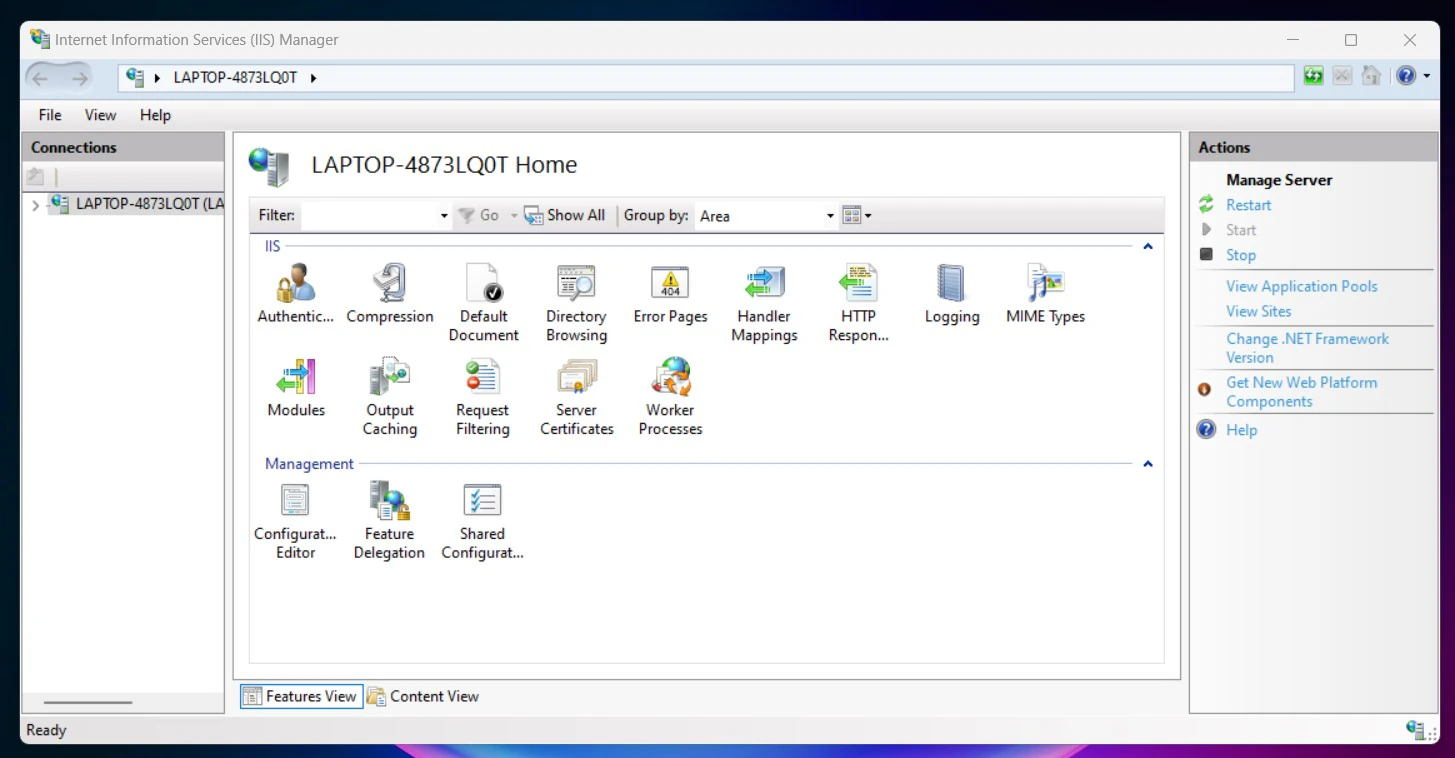
    • Once opened, the IIS Management Console will display the connections pane, listing your local server and any sites configured on it. From here, you can manage your web server settings, configure websites, and access various administrative tools.

    Frequently Asked Questions

    Does enabling the Management Console also start a web server?

    By default, checking just the “Management Console” box only installs the tool to manage a server. To actually host a website, you must also check the World Wide Web Services box within the same IIS category in Windows Features. This installs the actual web server engine that listens for HTTP requests. If you are using the IIS Management Console to manage remote servers, you may also need to install the IIS Management Service, which allows for remote connections over port 8172.

    Why don’t I see the “Web Management Tools” folder in Windows Features?

    If you cannot see the IIS-related folders, ensure you are using a version of Windows 11 that supports it (Home, Pro, or Enterprise). While the Management Console is available in the Home edition, some advanced IIS features are restricted. If the folder is missing entirely, your system files may be corrupted, and you should run sfc /scannow in the command prompt.

    What is the difference between the “Management Console” and “Management Scripts and Tools”?

    IIS Management Console: The visual tool (inetmgr) you use to click through settings. IIS Management Scripts and Tools: This installs the infrastructure for AppCmd.exe and PowerShell modules. If you plan on automating your server setup via scripts, you should enable both.

    Take away:

    Whether setting up a simple website or managing complex web applications, the IIS Management Console in Windows 11 provides the tools needed to ensure your web server runs smoothly and securely. Additionally, it offers robust logging and monitoring capabilities, allowing administrators to track website performance and analyze traffic patterns.

    Have Queries?

    We hope you are satisfied with our article, and if you have any queries, kindly let us know in the comments. For more intuitive articles, stay tuned to Winsides.com. Happy Computing! Peace out!


    Tags:

    Enable IIS Management Console in Windows 11How to Enable in Windows 11windows 11
    Vigneshwaran Vijayakumar
    Author

    Vigneshwaran Vijayakumar

    Hello, I'm Vigneshwaran, the founder, owner, and author of WinSides.Com. With nearly a decade of experience in blogging across various domains and specializing in Windows-related tutorials for over five years, I bring a wealth of knowledge and expertise to WinSides.Com

    Follow Me
    Other Articles
    HOW TO CHECK SYSTEM INFORMATION ON WINDOWS 11
    Previous

    How to check System Information in Windows 11?

    [WINDOWS SUBSYSTEM FOR LINUX 2] ON WINDOWS 11 USING CMD & POWERSHELL
    Next

    Enable Windows Subsystem for Linux (WSL 2) using Command Prompt & PowerShell

    No Comment! Be the first one.

    Leave a Reply Cancel reply

    Your email address will not be published. Required fields are marked *

    • Easy Way to Enable Windows Subsystem for Linux in Windows 11
    • Enable Windows Subsystem for Linux (WSL 2) using Command Prompt & PowerShell
    • Enable IIS Management Console in Windows 11 [GUI]
    • How to check System Information in Windows 11?
    • 4+ Easy Ways to Lock Your Screen in Windows 11!
    1. Vigneshwaran Vijayakumar
      Vigneshwaran Vijayakumar on How to Enable Windows PowerShell 2.0 in Windows 11?October 5, 2025

      Hello Mr. Mohamad El-Kheir, Thank you for contacting us. Microsoft has removed PowerShell version 2.0 completely from Windows 11 24H2…

    2. Avatar of Mohamad El-Kheir
      Mohamad El-Kheir on How to Enable Windows PowerShell 2.0 in Windows 11?October 5, 2025

      i have a MSI laptop with windows 11 Home Installed on it. how to install powershell v2.0 on it

    3. Vigneshwaran Vijayakumar
      Vigneshwaran Vijayakumar on DxDiag Windows 11 – What is it & How to use it for Troubleshooting?August 14, 2025

      Hey Myla Shannon Thank you for your valuable feedback. We are delighted to hear your compliment and excited to know…

    4. Avatar of Myla Shannon
      Myla Shannon on DxDiag Windows 11 – What is it & How to use it for Troubleshooting?August 14, 2025

      This content is incredibly informative.

    5. Avatar of seven
      seven on How to Enable IIS [Internet Information Services] in Windows 11?July 29, 2025

      I found this post very helpful.

    • About us
    • What’s New?!
    • Guest Posts on Winsides.com – Terms and Conditions
    • Publication Sitemap
    • Careers
    • Authors
    • Why Trust Winsides.com?
    • Content Removal Request
    • Terms of Use
    • Disclaimer
    • Contact us
    Copyright 2024-2026 - Winsides.com. All rights reserved.