Skip to content
Winsides.com

Windows Insides

Winsides.com

Windows Insides

  • Windows 11
  • Windows Features
  • Windows Security
  • Microsoft
    • Microsoft Copilot
    • Microsoft Powertoys
  • Shortcuts
    • Windows Shortcuts
    • Desktop Shortcuts
  • Video Tutorials
  • About
    • What’s New?!
    • About us
    • Contact us
    • Privacy Policy
    • Terms of Use
  • Follow us
    • Reddit
    • Dev.to
    • YouTube
    • Linked In
    • X
    • Tumblr
    • Facebook
    • Instagram
    • Buy Me A Coffee
  • Windows 11
  • Windows Features
  • Windows Security
  • Microsoft
    • Microsoft Copilot
    • Microsoft Powertoys
  • Shortcuts
    • Windows Shortcuts
    • Desktop Shortcuts
  • Video Tutorials
  • About
    • What’s New?!
    • About us
    • Contact us
    • Privacy Policy
    • Terms of Use
  • Follow us
    • Reddit
    • Dev.to
    • YouTube
    • Linked In
    • X
    • Tumblr
    • Facebook
    • Instagram
    • Buy Me A Coffee
Close

Search

Winsides.com

Windows Insides

Winsides.com

Windows Insides

  • Windows 11
  • Windows Features
  • Windows Security
  • Microsoft
    • Microsoft Copilot
    • Microsoft Powertoys
  • Shortcuts
    • Windows Shortcuts
    • Desktop Shortcuts
  • Video Tutorials
  • About
    • What’s New?!
    • About us
    • Contact us
    • Privacy Policy
    • Terms of Use
  • Follow us
    • Reddit
    • Dev.to
    • YouTube
    • Linked In
    • X
    • Tumblr
    • Facebook
    • Instagram
    • Buy Me A Coffee
  • Windows 11
  • Windows Features
  • Windows Security
  • Microsoft
    • Microsoft Copilot
    • Microsoft Powertoys
  • Shortcuts
    • Windows Shortcuts
    • Desktop Shortcuts
  • Video Tutorials
  • About
    • What’s New?!
    • About us
    • Contact us
    • Privacy Policy
    • Terms of Use
  • Follow us
    • Reddit
    • Dev.to
    • YouTube
    • Linked In
    • X
    • Tumblr
    • Facebook
    • Instagram
    • Buy Me A Coffee
Close

Search

Home/Windows 11/CMD & PowerShell/Enable Virtual Machine Platform using CMD & PowerShell

Enable Virtual Machine Platform using CMD & PowerShell

Vigneshwaran Vijayakumar
By Vigneshwaran Vijayakumar
April 11, 2026 5 Min Read
0

Enable Virtual Machine Platform using CMD & PowerShell: This feature on Windows 11 provides the virtualization capabilities required to run Virtual Machines and Windows Subsystem Environments, such as Windows Subsystem for Linux. On Windows Pro and Enterprise Editions, enabling VMP on Windows 11 also enables Windows Sandbox, which lets you run untrusted applications in isolation from your main system. You can enable Virtual Machine Platform using the Windows Features (GUI); however, you can also use Command Line Interface (CMD & PowerShell). The choice is yours!

Table of Contents

  • Virtual Machine Platform Availability on Various Windows Editions
  • Quick Way to Turn on Virtual Machine Platform on Windows 11 using the Command Prompt
    • Decoding Virtual Machine Platform Command
  • How to Enable Virtual Machine Platform (VMP) using Windows PowerShell?
    • Decoding VMP via PowerShell Command
  • Video Walkthrough – How to Enable Virtual Machine Platform using the Command Prompt & Windows PowerShell?
  • Frequently Asked Questions
    • Why did VMP suddenly show up in my “Turn Windows Features On or Off” list?
    • Do I need to change anything in my BIOS for the Virtual Machine Platform to work?
    • Why is VMP required for “Memory Integrity” in Windows Security?
    • I’m getting a “WSL 2 requires the Virtual Machine Platform” error. How do I fix it?
  • Take Away
  • Have Queries?

Virtual Machine Platform Availability on Various Windows Editions

Windows EditionsAvailability
Windows ServersYes
Windows 11 HomeYes
Windows 11 ProfessionalYes
Windows 11 EducationYes
Windows 11 EnterpriseYes
Windows 11 Pro EducationYes
Windows 11 SENo
Windows 11 IoT EnterpriseNo

Quick Way to Turn on Virtual Machine Platform on Windows 11 using the Command Prompt

For a clear understanding, we have provided a step-by-step explanation with clear images. Let’s get started.

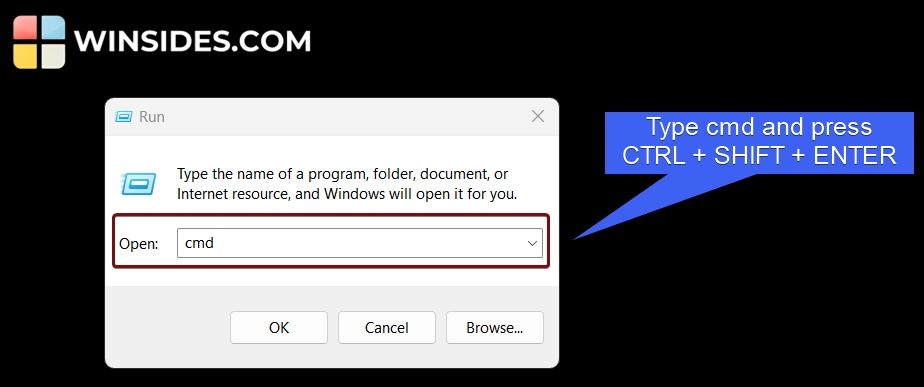
  • Let’s open the Command Prompt with Administrative Privileges. There are different ways to open CMD with Elevated Permissions. We will use the Run Command. Use the Keyboard Shortcut WinKey + R to open the Run Command.
  • In the Run, type the command cmd and press CTRL + SHIFT + ENTER.
Type cmd and press ctrl + shift + enter
Type cmd and press Ctrl + Shift + Enter
  • The User Account Control will confirm and open the Command Prompt with Administrative Privileges.
  • Once the Command Prompt opens, execute the following command in the CMD. dism /online /enable-feature /featurename:VirtualMachinePlatform /all /norestart
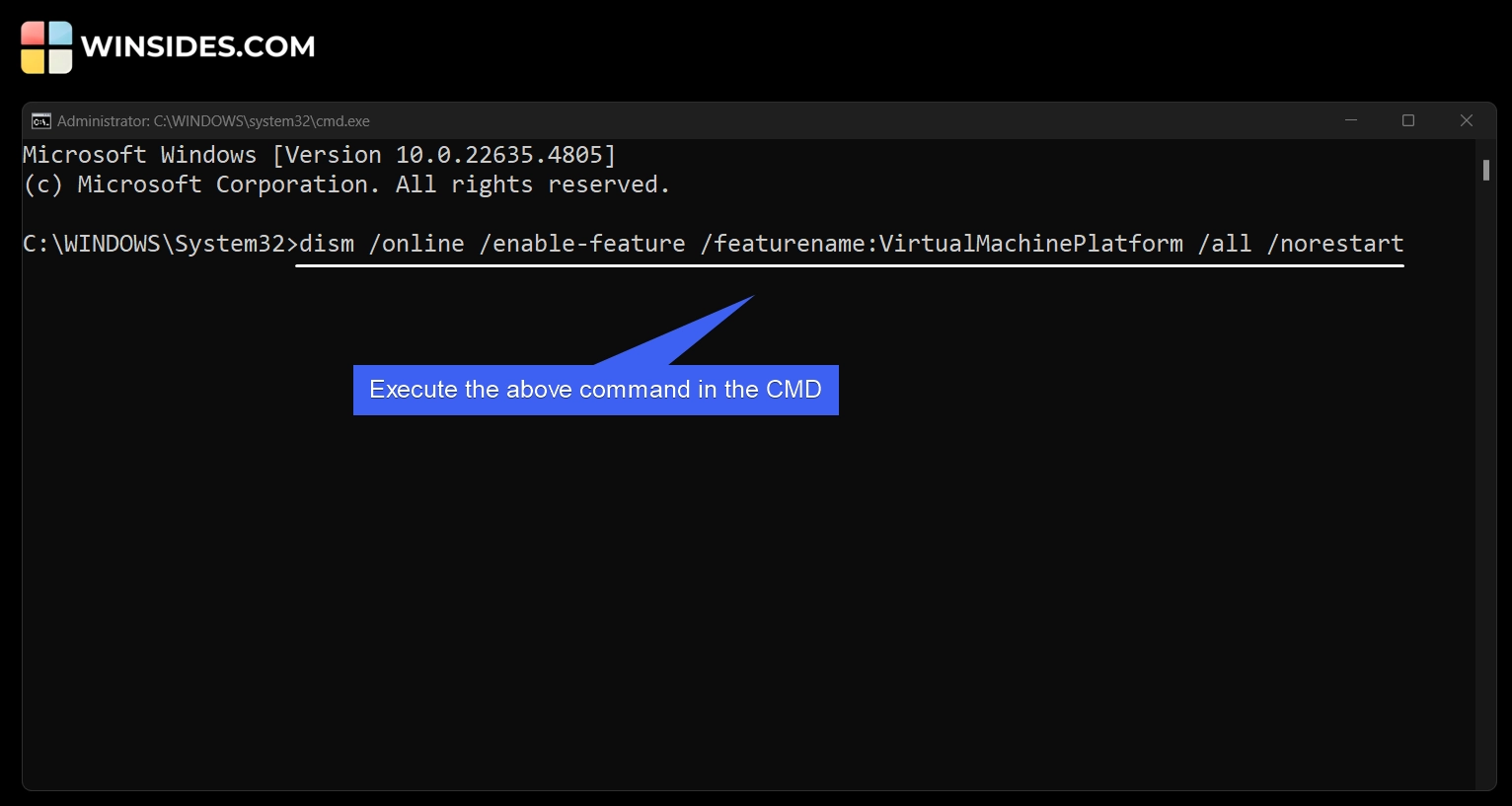
Execute the Virtual Machine Platform Command in the CMD
  • The above command will use the Deployment Image Servicing and Management Tool and enable VMP via the CMD. DISM requires Elevated permissions, and that is why we are running CMD with Administrator Rights.
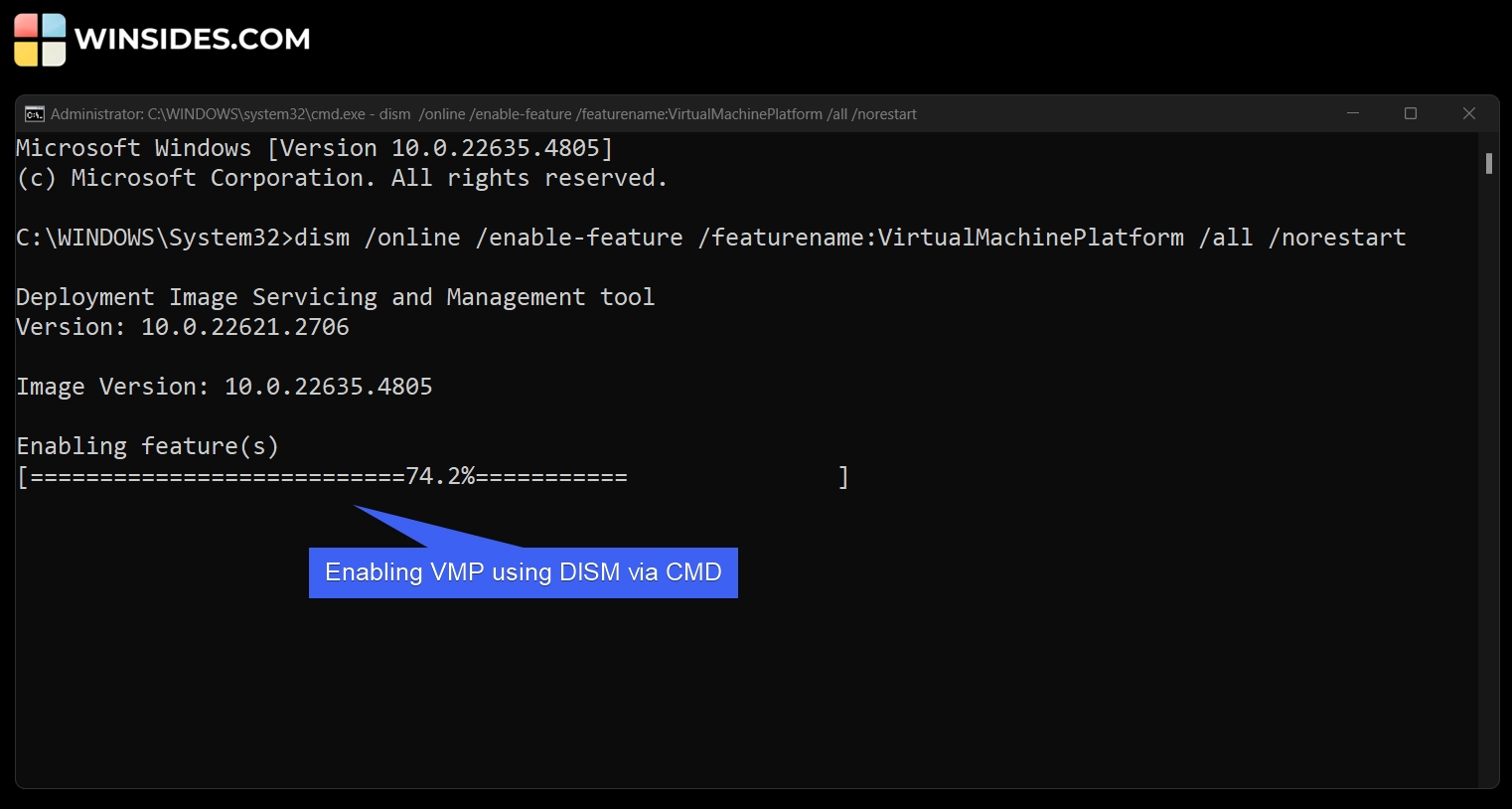
Enabling VMP using DISM via CMD
  • Once the process is completed, we will get the message “The Operation Completed Successfully“. Virtual Machine Platform is now enabled on your Windows 11. We highly recommend you to save your works and restart your system.
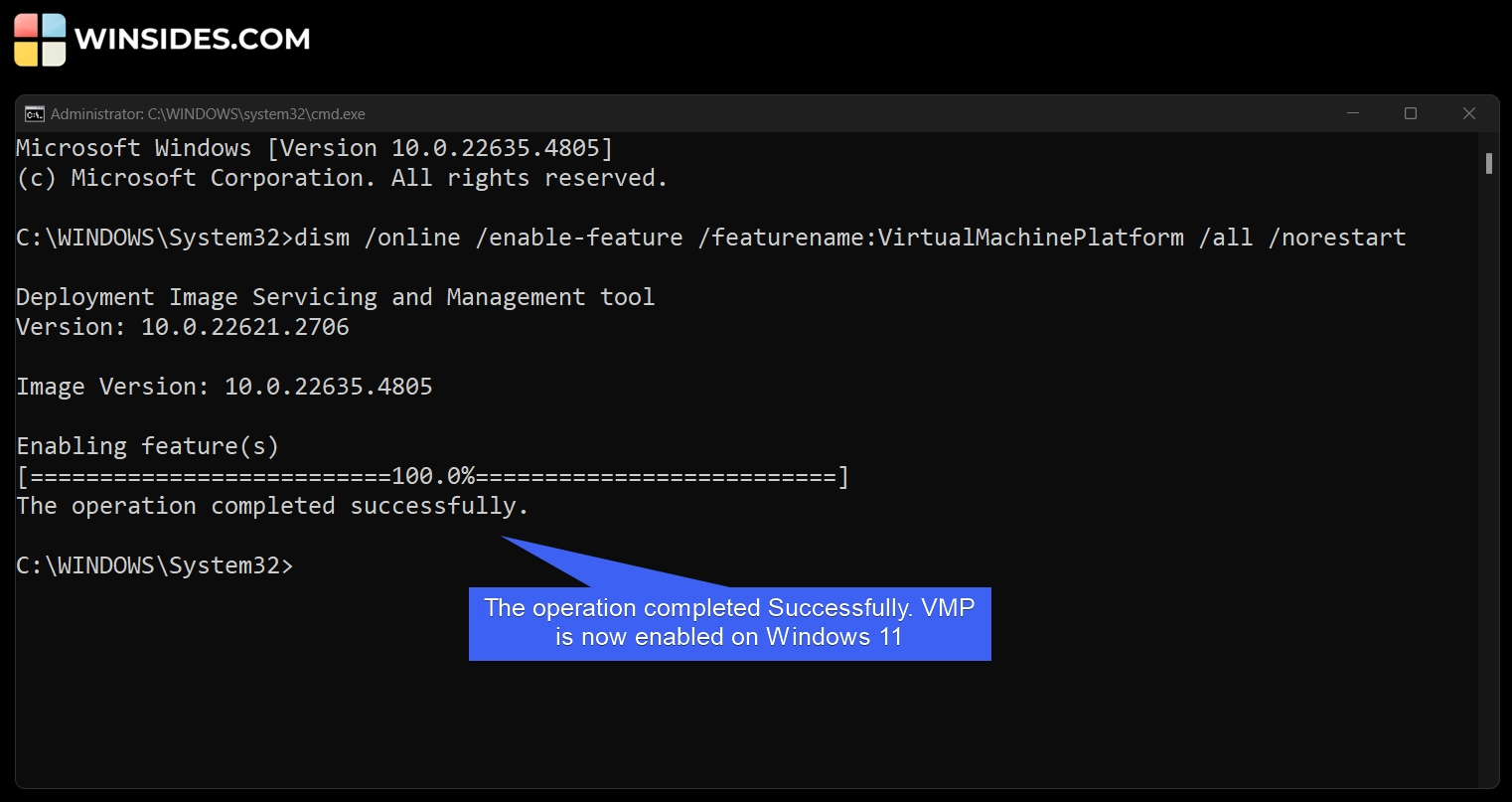
The operation completed successfully

Decoding Virtual Machine Platform Command
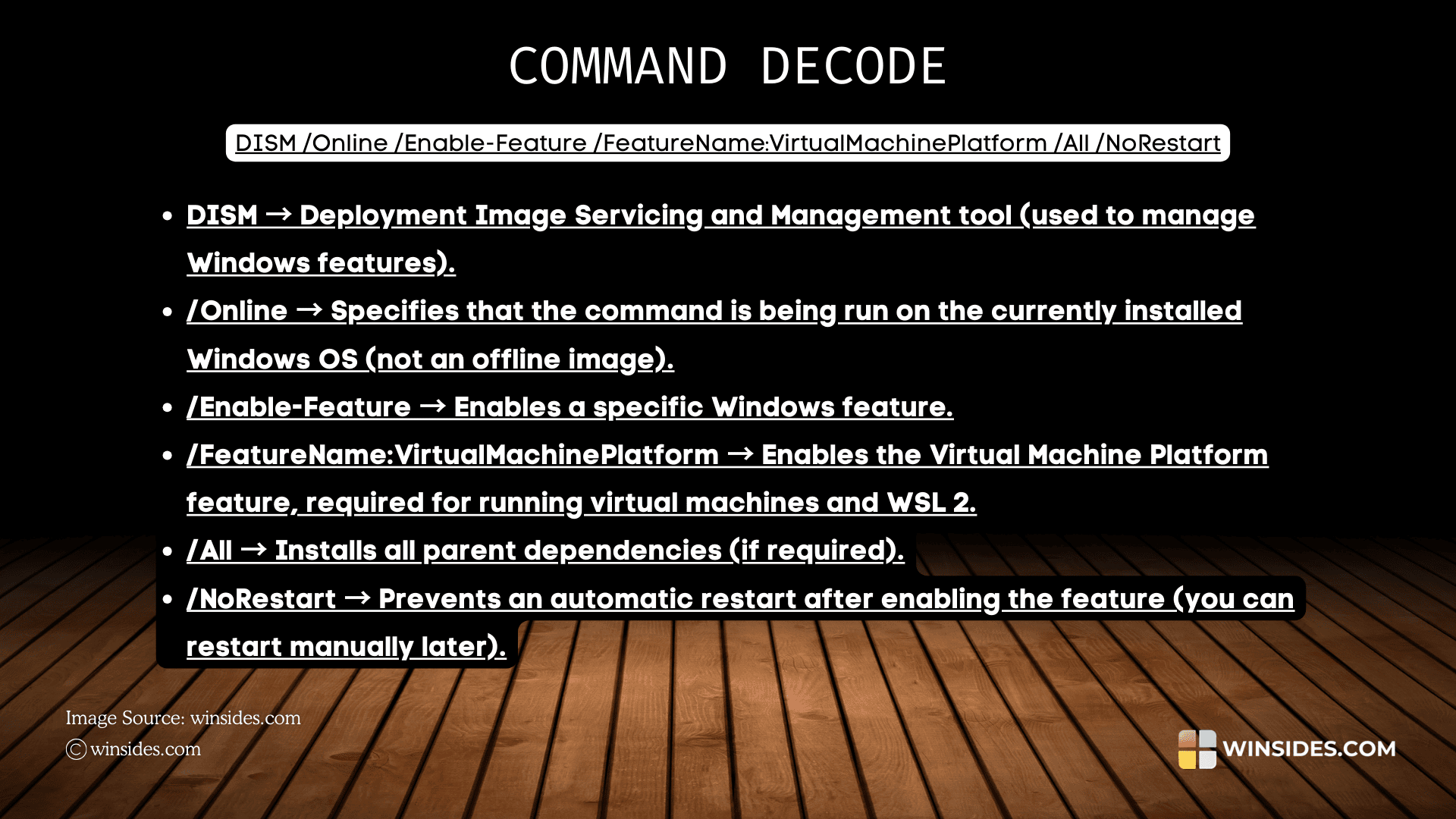
Decoding Virtual Machine Platform CMD Command

How to Enable Virtual Machine Platform (VMP) using Windows PowerShell?

This is an alternate method to enable VMP on Windows 11.

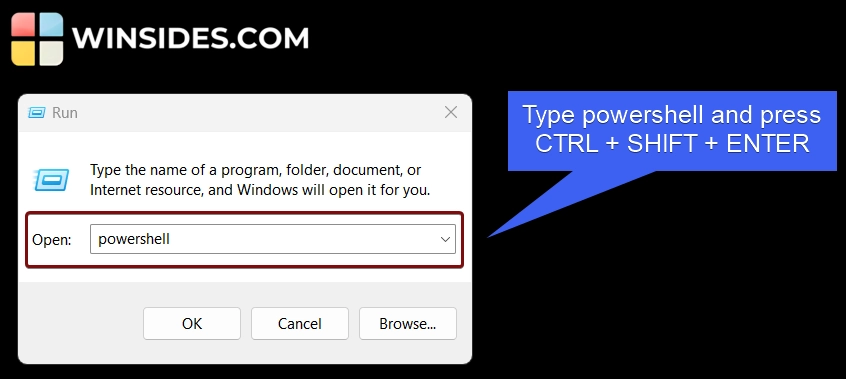
  • Go to the Run Command using WinKey + R.
  • In the Run, type the command powershell and press CTRL + SHIFT + ENTER.
Type powershell and press ctrl + shift + enter
Type powershell and press Ctrl + Shift + Enter
  • The system will confirm and open Windows PowerShell with Elevated Permissions.
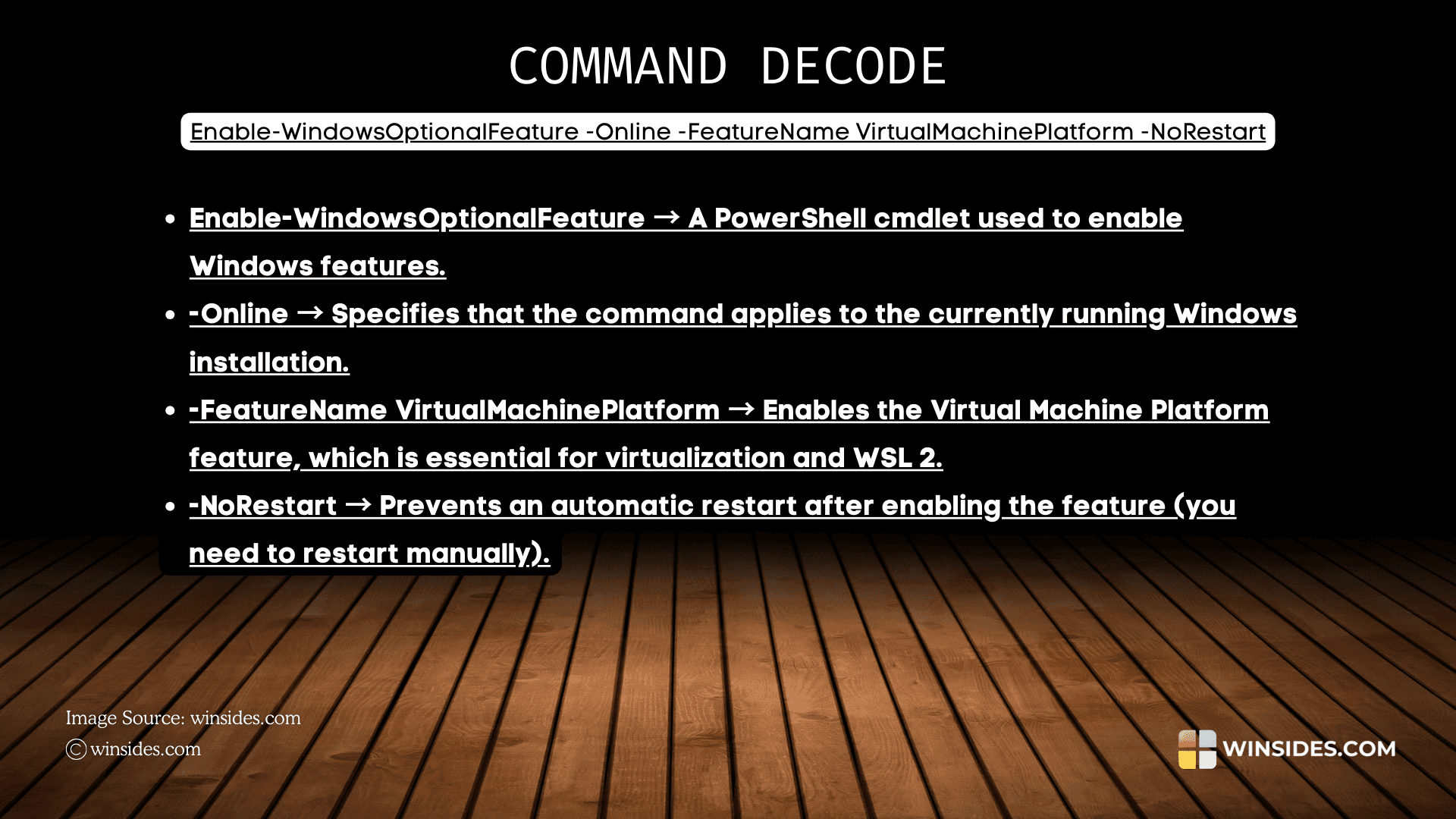
  • In PowerShell, execute the following command. Enable-WindowsOptionalFeature -Online -FeatureName VirtualMachinePlatform -All -NoRestart
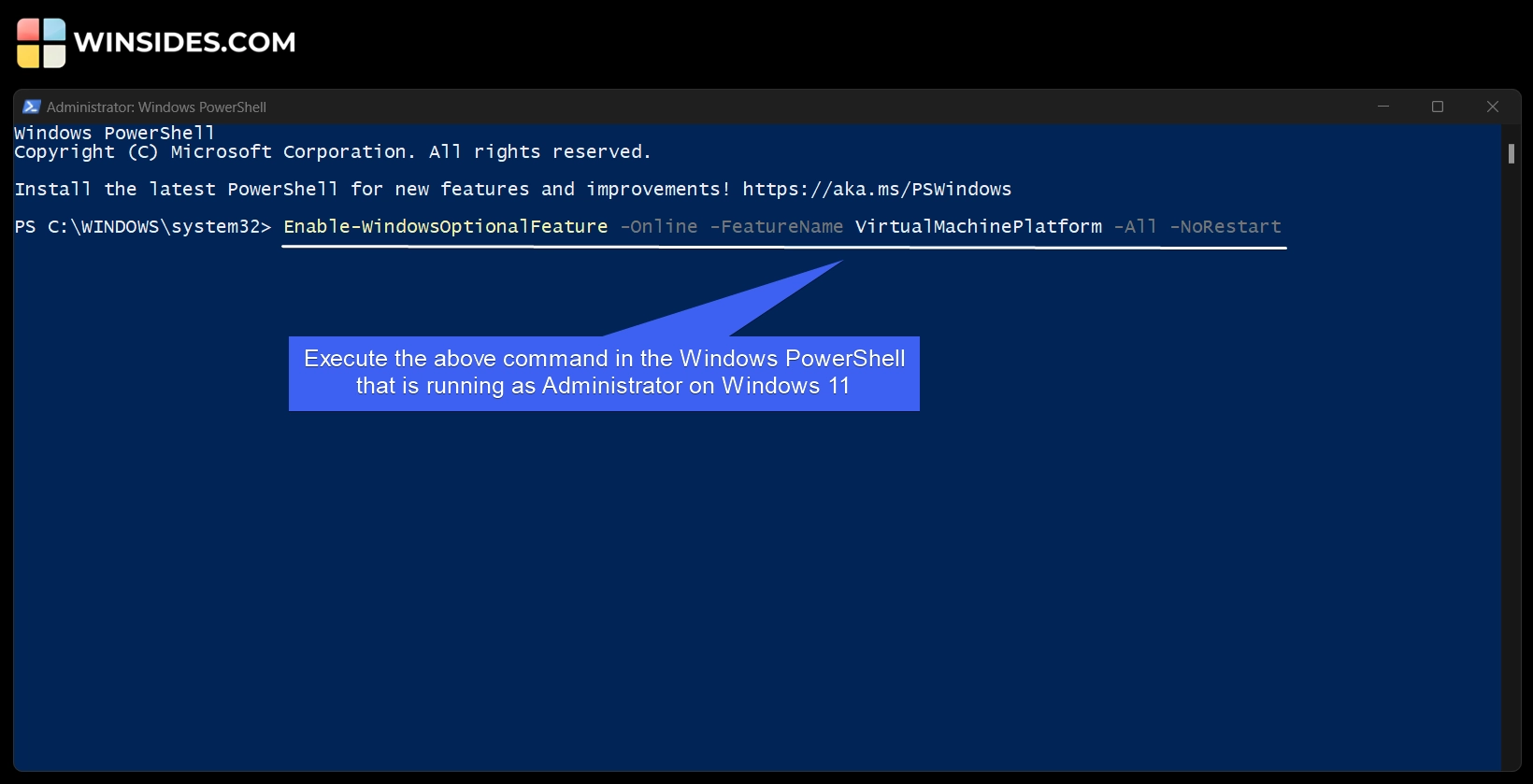
Execute the VMP PowerShell Command
  • The system will enable VMP on Windows 11.
  • Restart Needed value is true, and it suggests doing a Restart right away so that the changes made will reflect.
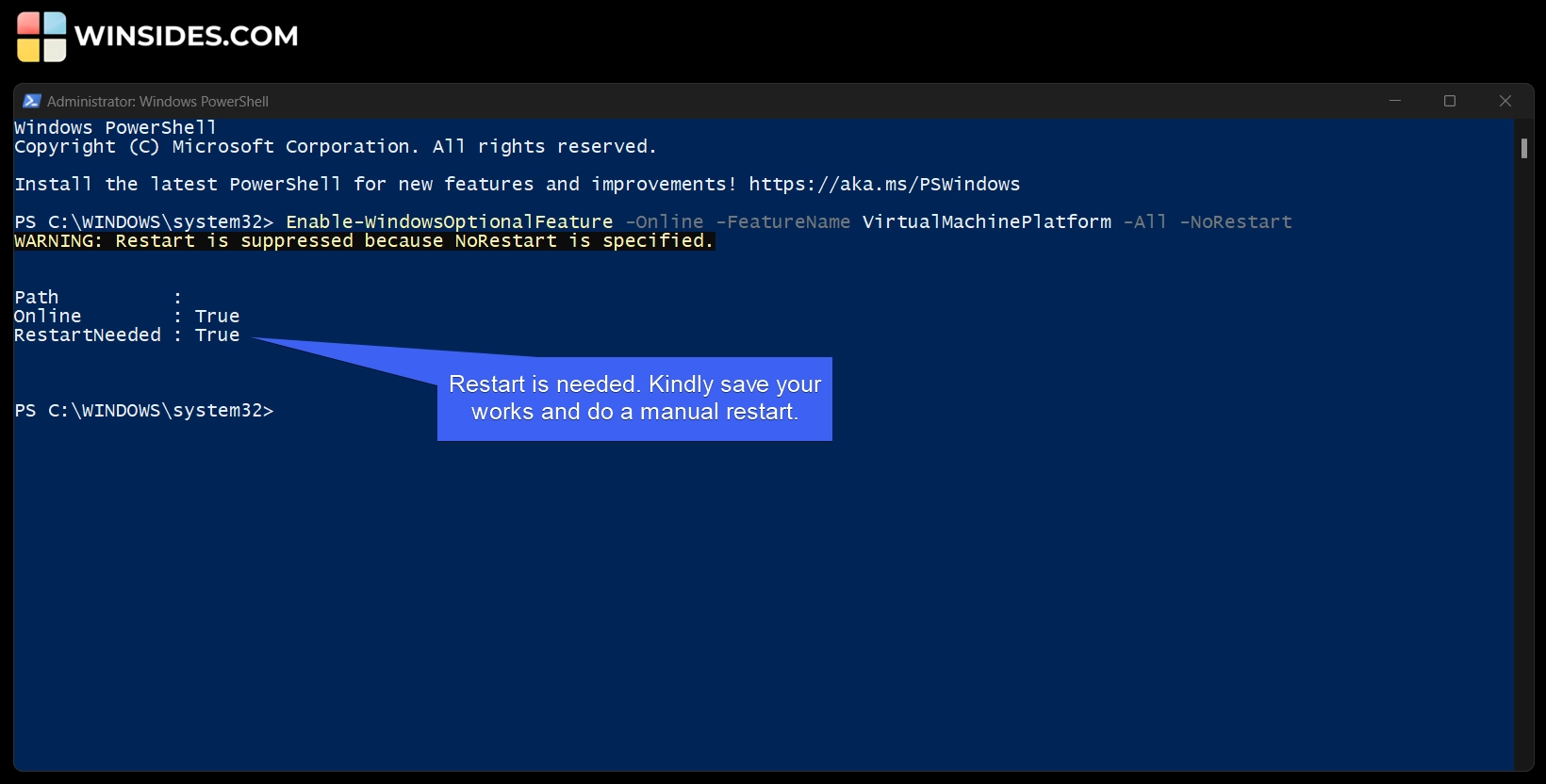
VMP Enabled on Windows 11 via the PowerShell
VMP Enabled on Windows 11 via PowerShell

Decoding VMP via PowerShell Command

Decoding Virtual Machine Platform POWERSHELL Command

Video Walkthrough – How to Enable Virtual Machine Platform using the Command Prompt & Windows PowerShell?

Video Tutor – Enable Virtual Machine Platform on Windows 11 using CMD & PowerShell
Video Tutorial – Enable VMP on Windows 11 using CMD & PowerShell

Frequently Asked Questions

Why did VMP suddenly show up in my “Turn Windows Features On or Off” list?

Microsoft has leaned heavily into virtualization for security and app compatibility. If you’ve ever used WSL2 or used a security feature like “Memory Integrity,” Windows likely toggled this on in the background to make those features work.

Do I need to change anything in my BIOS for the Virtual Machine Platform to work?

For the Virtual Machine Platform to function, you must enable Intel VT-x or AMD-V (Virtualization Technology) in your BIOS/UEFI settings. If this is disabled at the hardware level, Windows can’t use the feature, even if it’s “turned on” in the settings.

Why is VMP required for “Memory Integrity” in Windows Security?

Windows 11 uses virtualization-based security (VBS) to isolate core system processes in a secure “bubble.” The Virtual Machine Platform provides the infrastructure for that bubble, making it much harder for malware to reach the most sensitive parts of the operating system.

I’m getting a “WSL 2 requires the Virtual Machine Platform” error. How do I fix it?

This usually happens if the feature was accidentally turned off or if your BIOS virtualization is disabled. Enable Virtual Machine Platform using the methods of this article.

Take Away

If you are comfortable with the Command Line Interface, then you can follow the above methods to enable Virtual Machine Platform on Windows 11. These methods can be ideal for IT admins for Automations, or Mass Deployment, and for Headless Servers and Remote Sessions.

Have Queries?

If you have any queries, kindly let us know in the comments section. For more interesting articles, visit Winsides.com. Happy Computing! Peace out!
Tags:

Virtual Machine Platformwindows 11Windows Features
Vigneshwaran Vijayakumar
Author

Vigneshwaran Vijayakumar

Hello, I'm Vigneshwaran, the founder, owner, and author of WinSides.Com. With nearly a decade of experience in blogging across various domains and specializing in Windows-related tutorials for over five years, I bring a wealth of knowledge and expertise to WinSides.Com

Follow Me
Other Articles
HOW TO Enable Core Isolation in Windows 11?
Previous

Quick Steps to Enable Core Isolation in Windows 11

ENABLE IIS MANAGEMENT CONSOLE IN WINDOWS 11
Next

Enable IIS Management Console in Windows 11 [GUI]

No Comment! Be the first one.

Leave a Reply Cancel reply

Your email address will not be published. Required fields are marked *

  • Enable Unified Write Filter on Windows 11
  • How to Add XPS Viewer in Windows 11?
  • How to Auto Shutdown in Windows 11?
  • 6+ Ways to Run Windows Defender as Administrator on Windows 11?
  • 4+ Best Ways- Open Computer Management as Administrator on Windows 11!
  1. Vigneshwaran Vijayakumar
    Vigneshwaran Vijayakumar on How to Enable Windows PowerShell 2.0 in Windows 11?October 5, 2025

    Hello Mr. Mohamad El-Kheir, Thank you for contacting us. Microsoft has removed PowerShell version 2.0 completely from Windows 11 24H2…

  2. Avatar of Mohamad El-Kheir
    Mohamad El-Kheir on How to Enable Windows PowerShell 2.0 in Windows 11?October 5, 2025

    i have a MSI laptop with windows 11 Home Installed on it. how to install powershell v2.0 on it

  3. Vigneshwaran Vijayakumar
    Vigneshwaran Vijayakumar on DxDiag Windows 11 – What is it & How to use it for Troubleshooting?August 14, 2025

    Hey Myla Shannon Thank you for your valuable feedback. We are delighted to hear your compliment and excited to know…

  4. Avatar of Myla Shannon
    Myla Shannon on DxDiag Windows 11 – What is it & How to use it for Troubleshooting?August 14, 2025

    This content is incredibly informative.

  5. Avatar of seven
    seven on How to Enable IIS [Internet Information Services] in Windows 11?July 29, 2025

    I found this post very helpful.

  • About us
  • What’s New?!
  • Guest Posts on Winsides.com – Terms and Conditions
  • Publication Sitemap
  • Careers
  • Authors
  • Why Trust Winsides.com?
  • Content Removal Request
  • Terms of Use
  • Disclaimer
  • Contact us
Copyright 2024-2026 - Winsides.com. All rights reserved.