

Windows 11 can report free, used, and total space for every mounted drive without deleting or changing anything. The built-in Get-Volume cmdlet exposes the read-only SizeRemaining and Size properties; subtracting the first from the second gives used space.
I reproduced the check on Windows 11 Home Single Language version 25H2, build 26220.7872, from a regular non-administrator PowerShell window. Three mounted drive-letter volumes were returned. The command changed or deleted no file, volume, partition, disk, Registry value, service, or storage setting.
What do free, used, and total drive space mean?
- FreeGiB is the volume's SizeRemaining value converted from bytes to gibibytes and rounded to one decimal place.
- UsedGiB is Size minus SizeRemaining, converted and rounded.
- TotalGiB is the volume's Size value converted and rounded.
These are volume-capacity values, not a count of files or a hardware-health test. The displayed numbers are snapshots and can change immediately as Windows and apps create, remove, download, cache, or synchronize data.
Table of contents
How can you check free and used space for every drive?
- Open Windows Terminal or Windows PowerShell. The reproduced check did not require administrator rights.
- Run the following read-only command.
- Read across each DriveLetter row to compare FreeGiB, UsedGiB, and TotalGiB.
Get-Volume |
  Where-Object { $_.DriveLetter -and $_.Size -gt 0 } |
  Sort-Object DriveLetter |
  Select-Object DriveLetter, FileSystem, DriveType,
    @{Name='FreeGiB'; Expression={ [math]::Round($_.SizeRemaining / 1GB, 1) }},
    @{Name='UsedGiB'; Expression={ [math]::Round(($_.Size - $_.SizeRemaining) / 1GB, 1) }},
    @{Name='TotalGiB'; Expression={ [math]::Round($_.Size / 1GB, 1) }} |
  Format-Table -AutoSize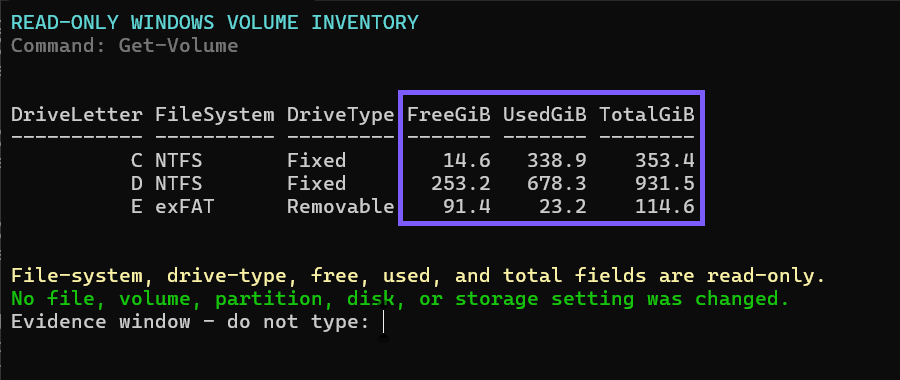
Close the terminal when you finish. No rollback is required because the command only retrieves volume properties and performs arithmetic for display.
How should you interpret the captured results?
At capture time, drive C showed 14.6 GiB free out of 353.4 GiB, drive D showed 253.2 GiB free out of 931.5 GiB, and removable drive E showed 91.4 GiB free out of 114.6 GiB. Those values describe only the tested laptop at that moment.
Compare each drive against its own total rather than treating one fixed number as a universal threshold. A small system volume and a large data volume can have very different practical needs.
Why can the numbers change between checks?
Windows Update, temporary files, browser caches, app installations, cloud-file synchronization, downloads, Recycle Bin contents, restore data, and ordinary document changes can all affect SizeRemaining. A running app can change the value between two commands.
Re-run the read-only query when you need a current value. Do not expect the screenshot's example numbers to match another PC or even the same PC later.
Why might free plus used not exactly equal total?
The command rounds each calculated value independently to one decimal place. Small differences can therefore appear when you add the displayed FreeGiB and UsedGiB numbers. The underlying byte values still come from Size and SizeRemaining.
Some user interfaces also label units differently or reserve space for file-system and operating-system features. Compare values from the same tool and same moment when precision matters.
Can the command check removable drives too?
Yes, when Windows mounts the volume with a drive letter and the Storage provider reports it. The captured E volume was removable and appeared in the same table as fixed drives C and D.
An empty card-reader slot, disconnected device, unmounted volume, inaccessible provider, or volume without a drive letter will not appear under this command's filter.
Does this command free space or delete files?
No. Microsoft's Get-Volume documentation describes a retrieval cmdlet. The reproduced workflow did not run Storage Sense, Cleanup recommendations, Disk Cleanup, a removal command, or a formatting operation.
If the system drive is genuinely low, review Microsoft's current drive-space guidance and decide what is safe to remove. Cleanup is a separate action because deleted files and old Windows installations may be difficult or impossible to recover.
Frequently Asked Questions
Do you need administrator rights to check drive space?
No administrator prompt was required for the reproduced read-only query on the tested Windows 11 laptop. A managed device or particular storage provider can impose different access limits.
Are the displayed values gigabytes or gibibytes?
The command divides bytes by PowerShell's 1GB constant, which represents 1,073,741,824 bytes, and labels the result GiB to avoid confusing it with decimal gigabytes.
Why is a drive missing from the table?
The filter includes only volumes with a drive letter and a positive reported Size. Disconnected, unmounted, inaccessible, empty, or letterless volumes may be absent.
Will checking space wear out an SSD?
The reproduced command reads volume metadata and performs no file or storage write. Normal provider access is not a cleanup, format, or stress test.
Measure drive space before deciding what to clean
Use Get-Volume to compare rounded free, used, and total capacity across mounted drive letters. Treat the values as a time-specific snapshot, and keep this read-only measurement separate from any cleanup or deletion decision.
For more interesting articles, stay tuned to WinSides.com!





Community
Comments (0)