

To turn Recent Files history on or off in Notepad on Windows 11, open Notepad > Settings, scroll to Opening Notepad, and change the Recent Files switch. Read the switch again after the change; on the current app build, the top-level Recent command can remain visible in the File menu even while the switch is Off.
This guide was reproduced in Notepad 11.2606.15.0 with an isolated blank window. The test changed Recent Files from On to Off, confirmed the Off read-back, restored On, and captured a fresh final frame. The Recent submenu was never expanded, no filename was read or recorded, and no recent document was opened.
What does the Recent Files setting control?
Recent Files is Notepad's app-level history feature for returning to files you used recently. Microsoft introduced the File menu experience with options to open recent items, clear the list, or turn the feature off in Settings. The official Notepad update announcement is useful background for those intended controls.
The switch is narrower than Windows activity history and broader than one document. Turning it Off does not delete, rename, move, or encrypt any file. It also does not remove the original file from File Explorer, another editor, cloud storage, backups, or a Windows jump list managed elsewhere. Treat it as a Notepad preference, not as secure deletion.
Turning the feature Off is also different from clearing an existing recent list. One disables the app feature; the other removes entries from a list. This guide changes only the Settings switch because that is the requested reversible preference and can be proved without revealing private filenames.
Table of contents
What should you check before changing Recent Files?
First, decide whether you want to disable the feature or merely remove old entries. If you still want Notepad to build a useful history after cleanup, clearing a list and leaving the switch On may better match your goal. If you do not want the feature active, use the switch described below.
Record the current value so you can undo the test exactly. The reproduced computer began with Recent Files set to On. Your starting value may be different, so do not assume that On is the correct rollback for every PC.
Use a new blank Notepad window before taking screenshots or sharing your screen. Avoid opening File > Recent during documentation because the submenu can expose filenames. A safe verification does not require seeing that list at all.
No administrator rights are needed for this app preference. If you are actually trying to edit a protected system file, that is a separate task; run Notepad as administrator only when a protected file itself requires elevated access. Elevation does not make the Recent Files switch more effective.
How do you open the Recent Files setting in Notepad?
Open Notepad. If the app restores a private session, leave it untouched and create a separate blank window for this change.
Select the Settings gear in the upper-right corner. You should see Notepad's own Settings page with an Appearance section near the top.
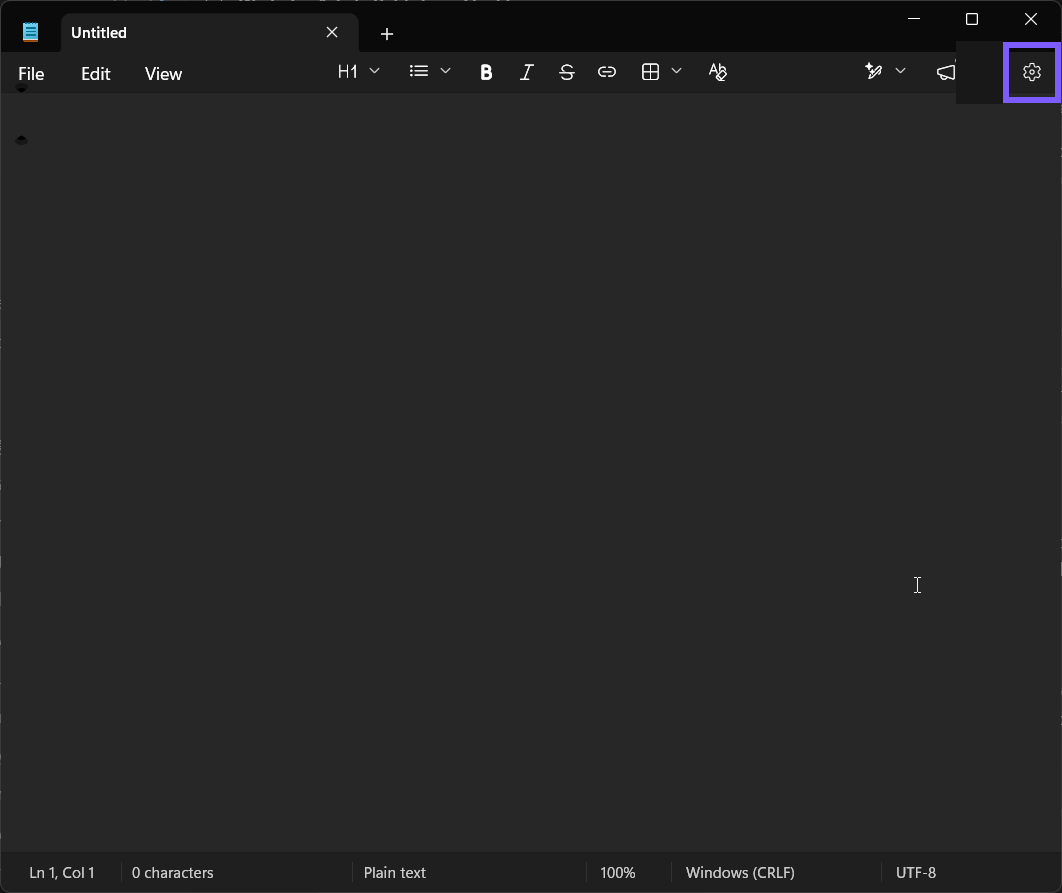
Scroll down to the Opening Notepad section. This area also contains controls for opening files and startup behavior, so make sure you choose the row labeled Recent Files.
Read the word beside the switch. If it says On, the feature is currently enabled; if it says Off, it is disabled.
Write down that original value. There is no Reset button that remembers it for you.
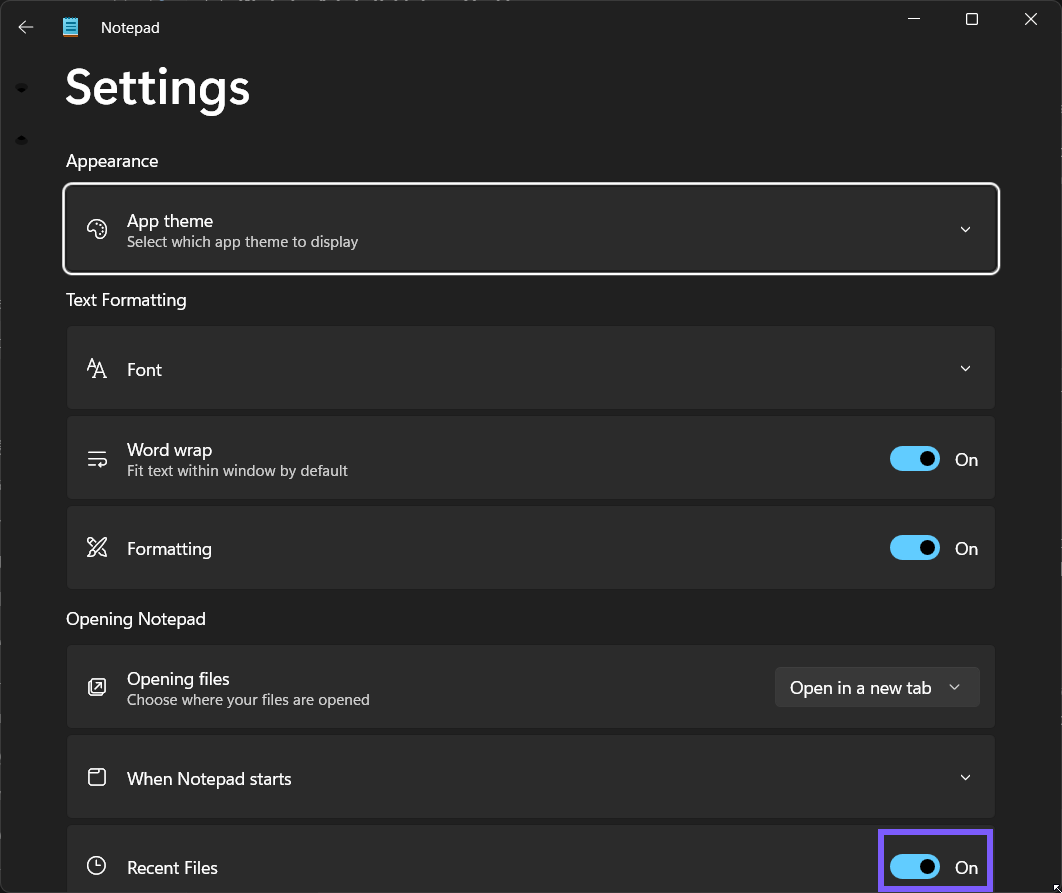
The screenshot shows the exact On baseline used for the reproduced test. Word wrap and Formatting are nearby on this build, but they are unrelated. Do not toggle another control while testing Recent Files.
How do you turn Notepad Recent Files off or on?
Select the Recent Files switch once. Notepad changes the state immediately; there is no Apply or Save button.
Read the label next to the switch. To disable the feature, it must say Off. To enable it, it must say On.
Wait a moment and read the same label again. This second look prevents an accidental click on the nearby When Notepad starts row from being mistaken for success.
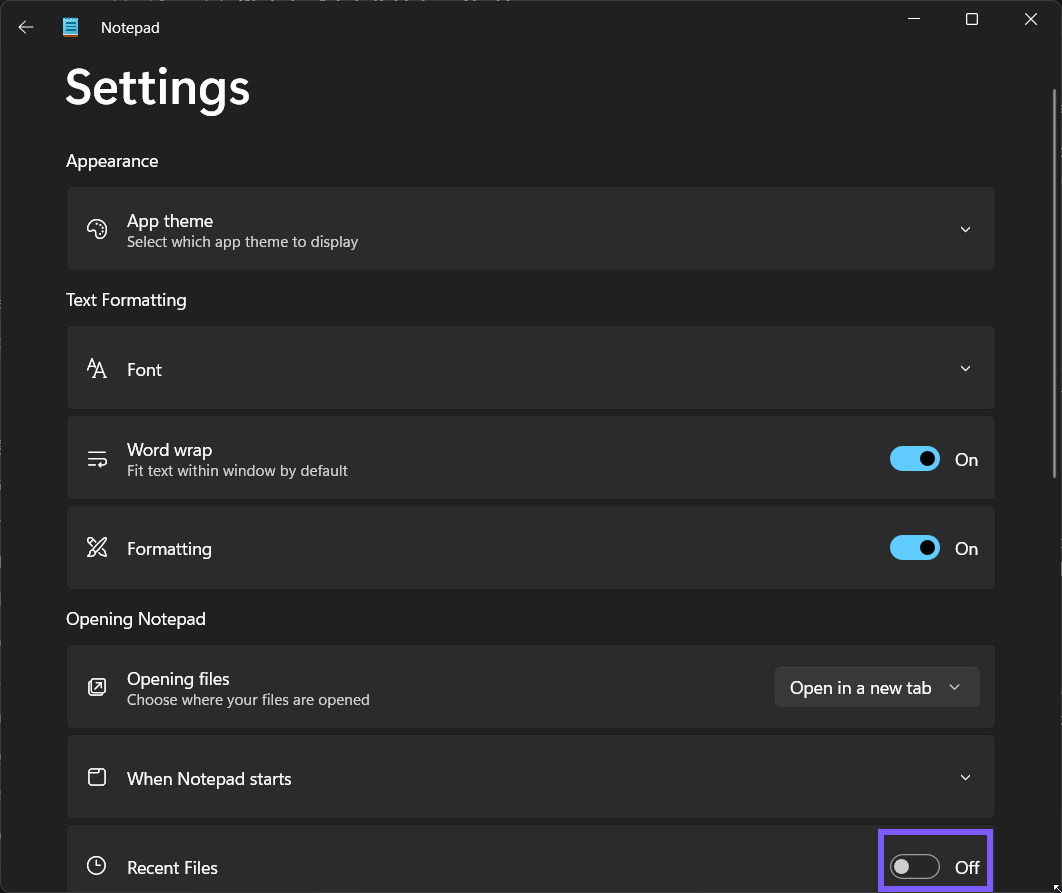
The reproduced change reads Off. That direct control state is the reliable success signal. In Notepad 11.2606.15.0, the top-level File > Recent command remained present and enabled after the switch was turned Off. Therefore, menu-command presence alone does not prove that the setting failed.
Do not open the Recent submenu merely to test the switch, especially during a screen share. The list can reveal personal or work filenames, and it adds no stronger evidence than the exact Settings read-back. The screenshots in this guide deliberately keep that list closed.
How do you verify the change without exposing private files?
Stay on Notepad's Settings page and verify three things: the row is labeled Recent Files, the switch label shows the requested state, and no unrelated control changed. This verifies the preference at its source without depending on a list of documents.
If you turned the feature Off for privacy, remember its boundary. It prevents the Notepad feature from being active, but it is not proof that copies, backups, File Explorer history, or application-specific lists elsewhere have disappeared. Review those locations separately only when your privacy goal requires it.
If the switch seems to move back by itself, close Notepad normally, reopen it, and read the setting again. Confirm that Microsoft Store has finished any pending Notepad update. Avoid Registry edits or third-party cleanup tools for a preference the current app exposes directly.
How do you restore the original Recent Files value?
Return to Notepad > Settings > Opening Notepad.
Select the Recent Files switch until it matches the value you recorded before the test.
Read the final label rather than relying on the switch color. The reproduced rollback returned from Off to On.
Close the isolated blank test window. There is no document to save.
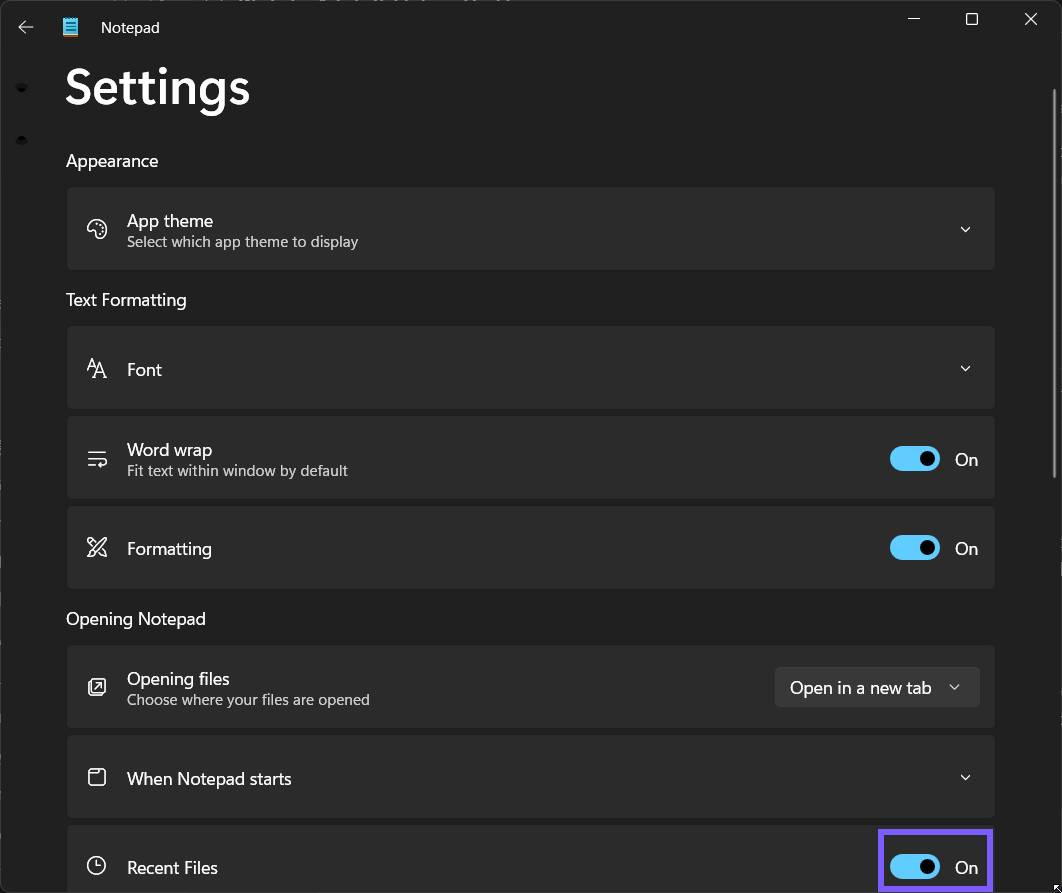
This is a fresh post-rollback screenshot, not a reused copy of the baseline. It proves the preference returned to On before Notepad was closed. If your original value was Off, restore Off instead.
Why might the Recent Files setting seem confusing?
The File menu still shows Recent. That is expected on the tested current build. Use the Settings switch label, not top-level menu presence, as the state read-back.
You want to erase the files themselves. The switch does not delete documents. Remove files only from their known storage location when deletion is genuinely intended, and verify backups or synced copies separately.
You want to clear old entries but keep future history. That is a different operation from disabling the feature. Use Notepad's supported clear-list control after reviewing the menu privately; do not expose the list in a screenshot or screen share.
You cannot find the switch. Update Notepad through Microsoft Store, reopen the app, and look under Opening Notepad. The legacy desktop Notepad interface does not have the same Settings layout.
A protected file will not save. Recent Files does not control file permissions. Use elevation only for a file that truly requires it, and keep the privacy preference as a separate change.
Frequently Asked Questions
Does turning off Recent Files delete my Notepad documents?
No. It changes a Notepad history preference. Your documents remain in their original folders unless you delete them separately.
Why does File > Recent still appear when Recent Files is off?
On the tested current build, the top-level command remains visible and enabled. Verify the setting by reading the Recent Files switch itself.
Do I need administrator rights to change Recent Files?
No. It is a current-user Notepad setting. Administrator rights matter only for separate tasks such as saving a protected file.
How do I undo the change?
Open Notepad Settings, scroll to Opening Notepad, and set Recent Files back to the value you recorded before the test.
Conclusion
Use Notepad's Recent Files switch when you want to enable or disable the app's own history feature. Verify the exact label in Settings, keep the private submenu closed, remember that the control does not delete documents, and restore the value you recorded if the change was only a test.
For more interesting articles, stay tuned to WinSides.com!



Community
Comments (0)