
To change the theme in Notepad on Windows 11, open Notepad, select the Settings gear, expand App theme, and choose Light, Dark, or Use system setting. The change applies immediately, so you can return to the editor and check the result without restarting the app.
This guide was reproduced in Notepad 11.2606.15.0 with a separate blank Untitled window. Light and Dark were each selected and verified, then the recorded Use system setting baseline was restored. No document was opened or saved, no private session was read, no administrator access was used, and no content was sent to an online service.
What does the App theme setting change?
App theme changes Notepad's own visual surface: its title bar, menus, toolbar, editor background, text contrast, Settings page, and status bar. It does not rewrite the document, add formatting to saved text, or change the theme of other apps.
Microsoft's official redesigned Notepad announcement explains that Notepad can follow the Windows system theme or use a manually selected theme. The three choices reproduced below match that behavior in the current installed app.
Light keeps Notepad light even when Windows apps are dark. Dark keeps Notepad dark even when the system preference is light. Use system setting lets Notepad follow the current Windows app mode, which is useful when you want it to change along with the rest of the desktop.
Table of contents
What should you check before changing the theme?
Record the current selection first. A radio dot beside one choice identifies the saved value; noting it gives you an exact rollback target rather than relying on memory.
If Notepad restores earlier tabs, do not inspect or capture them. Open File > New window and use only a blank Untitled window while learning the control. A theme change is app-wide, so the choice still applies even though the test window contains no text.
This setting requires no administrator rights and should not be changed through Registry workarounds. If App theme is absent, update Notepad from Microsoft Store before trying to force an unsupported configuration.
How do you open the App theme choices in Notepad?
Open Notepad. If you see restored content, choose File > New window and confirm that the new window says Untitled and contains no text.
Select the Settings gear in the upper-right area of the Notepad window. The editor is replaced by the Settings page.
Find App theme near the top of Settings. Its description says that it controls which app theme Notepad displays.
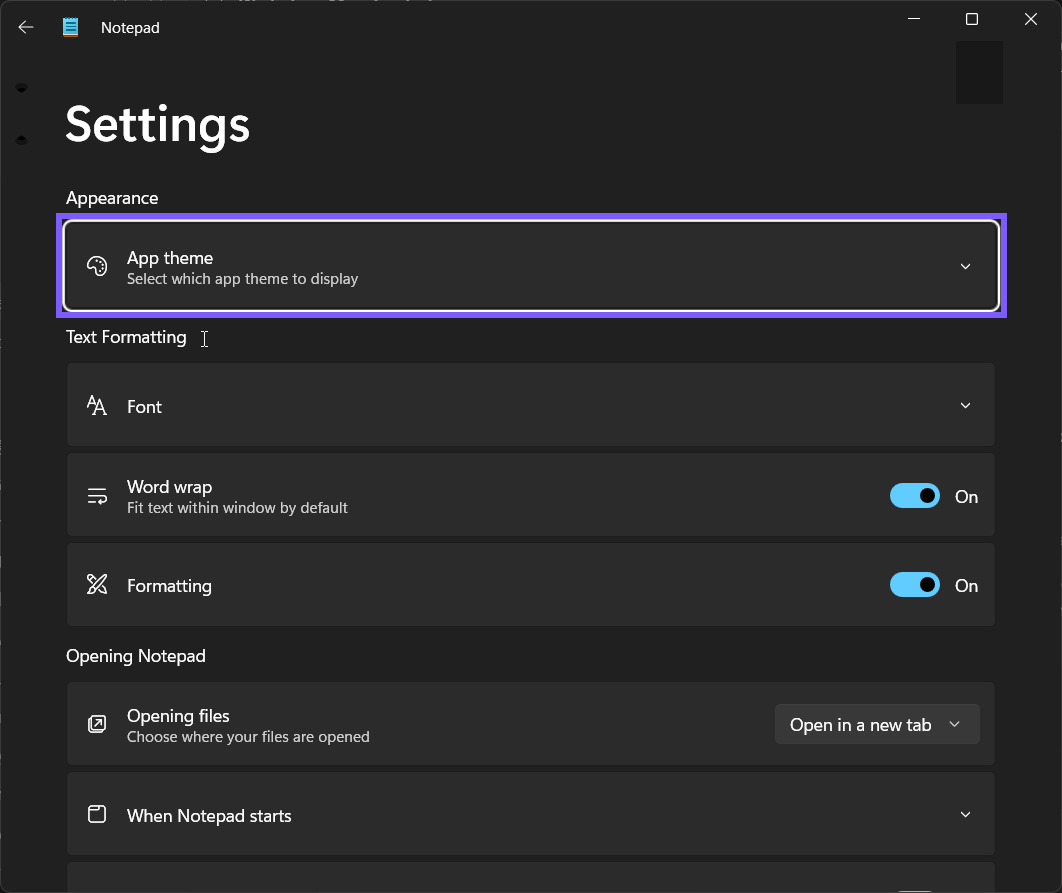
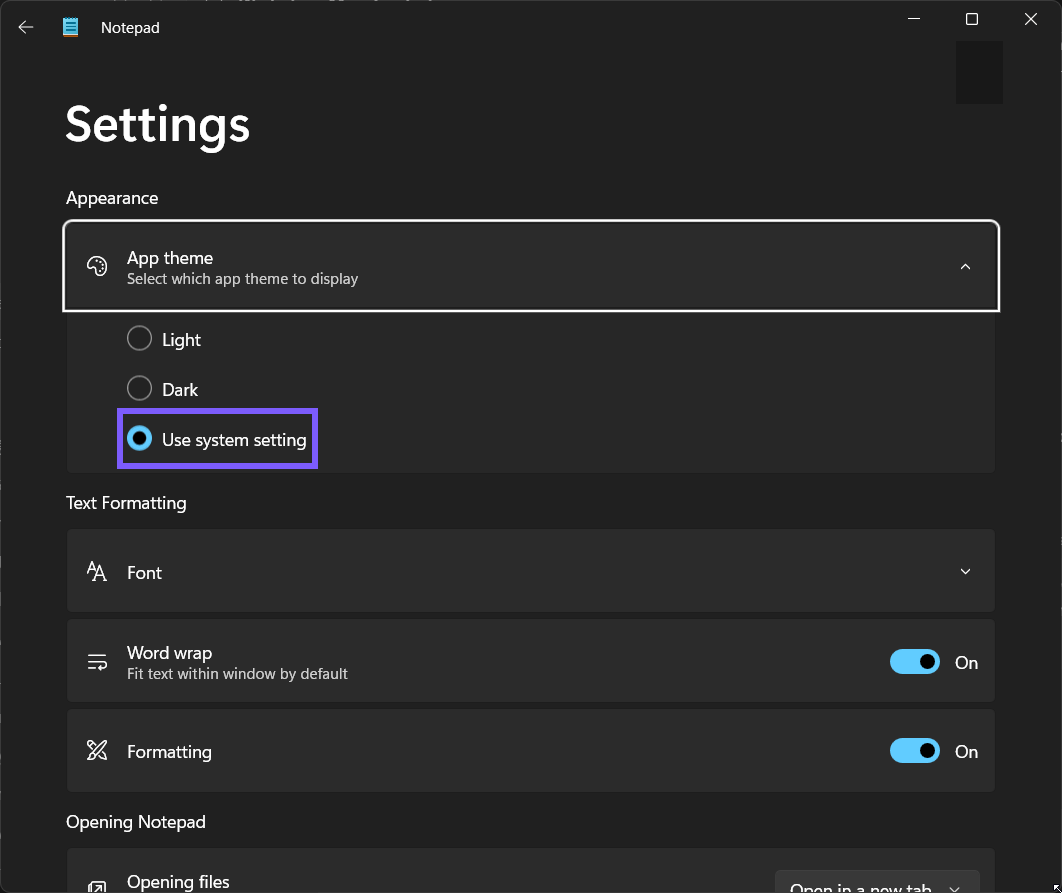
Select App theme to expand it. You should see exactly three radio choices: Light, Dark, and Use system setting.
Before choosing another value, note which radio button is selected. The reproduced baseline was Use system setting, but your computer may already use Light or Dark.
How do you make Notepad use the Light theme?
Under App theme, select Light. The radio dot should move to Light and the Settings surface should become light immediately.
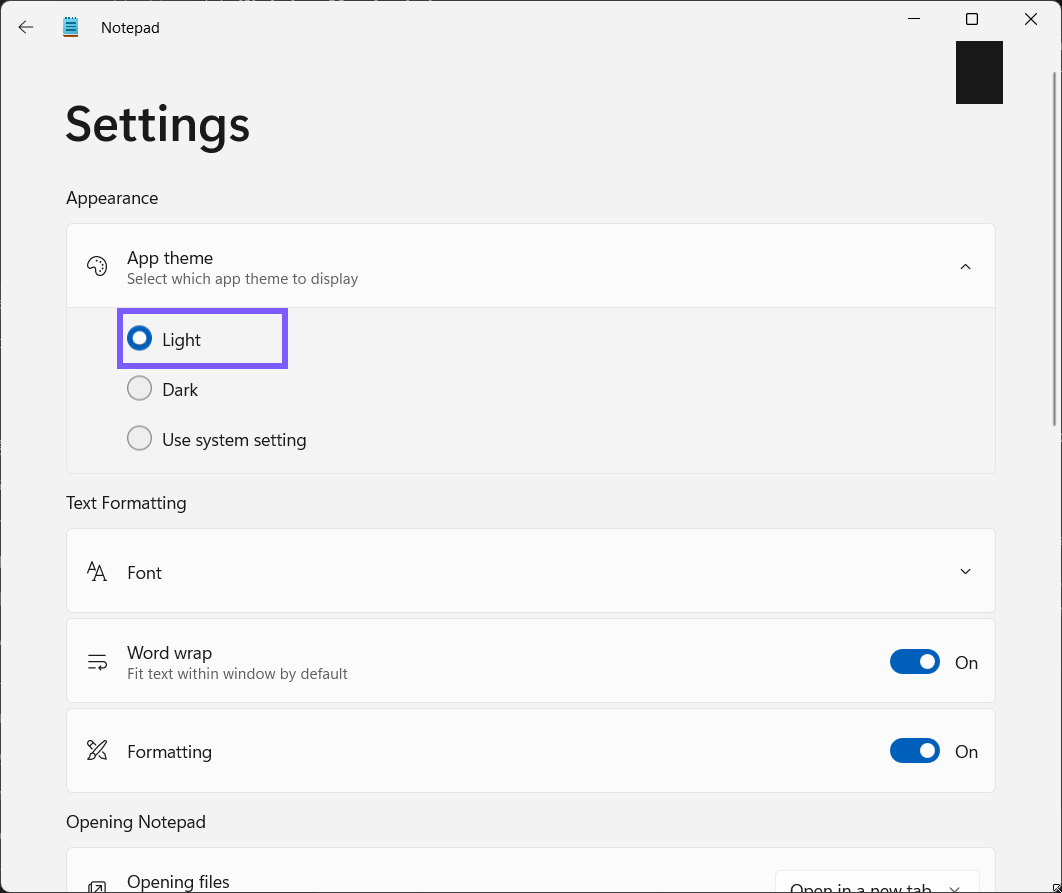
Select Back to return to the editor. Check that the title bar, toolbar, editing surface, and status bar now use the light appearance.
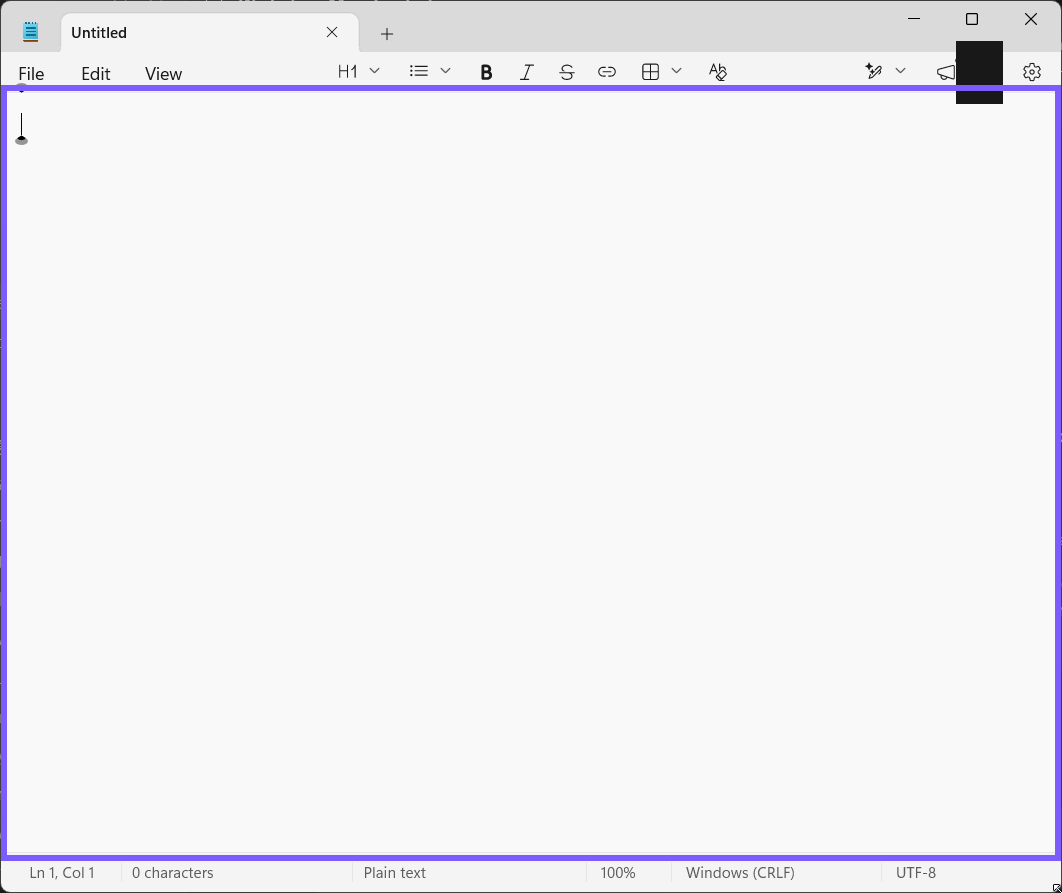
If only the document text looks different while the surrounding app stays unchanged, you probably changed the Font setting rather than App theme. Return to Settings and use the dedicated App theme section.
How do you make Notepad use the Dark theme?
Select Settings again, expand App theme, and choose Dark.
Confirm that Dark has the radio dot and that the Settings surface switches to a dark background. The change should be immediate and does not require closing Notepad.
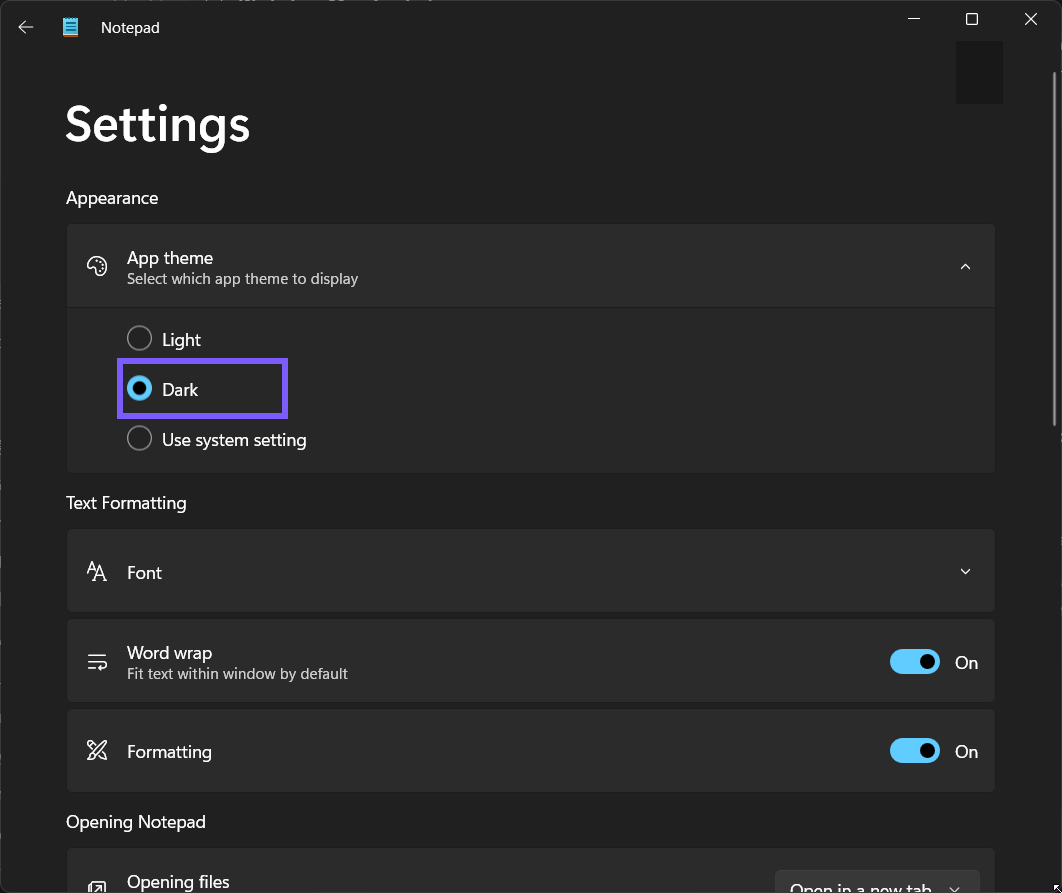
Return to the editor if you want to judge the result where you actually type. Dark theme can reduce the brightness of the app surface in a dim room, but it does not change the contents or color data of a plain-text file.
How do you make Notepad follow the Windows theme?
Open Settings > App theme and select Use system setting. The radio dot should move to that choice, and Notepad should immediately adopt the current Windows app mode.
In the reproduced test, Use system setting was also the original value, so selecting it completed the exact rollback after Light and Dark were verified.
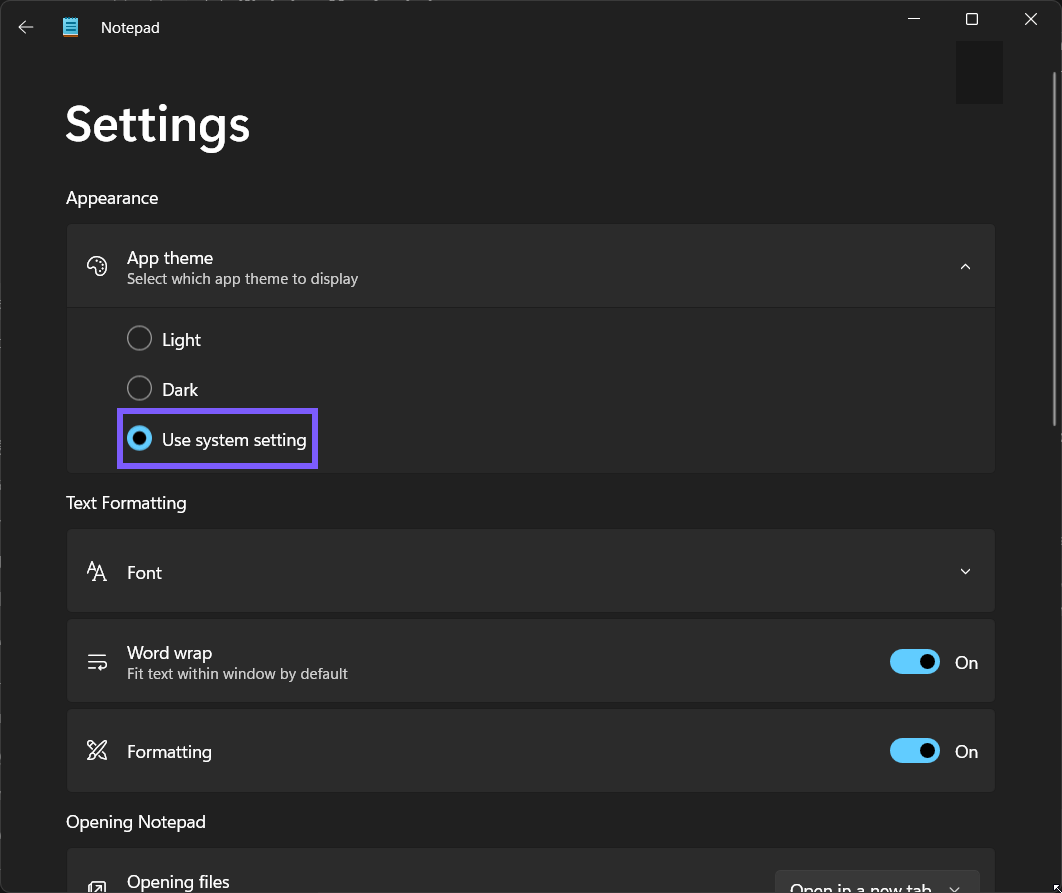
Select Back and confirm that the blank editor matches the appearance you expect from Windows. If Windows is currently dark, the restored app can look similar to the manual Dark choice; the selected radio button is the authoritative difference.
How do you restore your original Notepad theme?
Return to Settings > App theme and select the choice you recorded before the test. Verify that it is the only selected radio option, then return to the editor and close the disposable blank window.
There is no separate Save or Apply button. The selected radio state is the verification, and the restored editor appearance confirms that the preference took effect.
Why does Use system setting look the same as Dark or Light?
Use system setting follows the current Windows app mode. If Windows already uses dark mode, it can look almost identical to manual Dark; if Windows uses light mode, it can look almost identical to manual Light.
The difference appears when the Windows preference changes later. A manually selected Light or Dark theme remains fixed, while Use system setting lets Notepad follow the new system preference.
Is Notepad's dark theme the same as a contrast theme?
No. Notepad's App theme changes the app between ordinary light and dark appearances. If you need stronger system-wide color separation or accessibility-oriented colors, use a Windows contrast theme for stronger accessibility changes instead.
Why might the Notepad theme not change?
App theme is missing. Update Notepad through Microsoft Store, close it, and reopen it. The steps here apply to the current Microsoft Store version, not the legacy Windows Notepad interface.
The radio dot does not move. Give the choice keyboard focus and press Space, or click directly on the Light, Dark, or Use system setting row. Wait for the radio state and background to update before leaving Settings.
Use system setting has an unexpected appearance. Check the Windows app-mode preference, because Notepad is following that value. Choose manual Light or Dark if you want Notepad to stay independent.
The editor changes but another app does not. That is expected. This is a Notepad preference, not a system-wide theme switch.
Frequently Asked Questions
Does changing the Notepad theme alter a text file?
No. App theme changes Notepad's interface only. It does not insert formatting, rewrite text, or add color information to a plain-text file.
Do I need to restart Notepad after selecting Light or Dark?
No. The selected radio state and the Notepad surface change immediately. Return to the editor to verify the result.
Why does Use system setting sometimes look dark?
It follows the current Windows app mode. When Windows uses dark mode, Notepad also appears dark until the system preference changes.
Can Notepad stay light while Windows apps are dark?
Yes. Select Light manually under App theme. Notepad will stay light instead of following the Windows app-mode preference.
Conclusion
Use App theme when you want Notepad to stay Light, stay Dark, or follow Windows. Record the current radio choice, verify the editor after changing it, and restore the original selection when a change was only for testing.
For more interesting articles, stay tuned to WinSides.com!
Community
Comments (0)