

To insert and edit a table in Notepad on Windows 11, place the caret in a blank document, select Table on the formatting toolbar, choose Insert table, enter the number of columns and rows, and select Insert. You can then move through the cells with Tab and use Table > Edit table to add, select, or delete rows and columns.
This guide was reproduced in Notepad 11.2606.15.0 with a separate blank Untitled window. The test created a three-column, two-row table, populated six fixed sample cells, inserted and filled a third row, and then deleted the entire disposable table. No private document was opened, no file was saved, no administrator access was used, and no text was sent to an online service.
What are tables in the current Notepad app?
Tables are part of Notepad's lightweight formatted-text experience. They give related values clear rows and columns inside the editor, which is useful for a compact comparison, a short checklist, or structured notes that are easier to scan than aligned spaces.
The current interface has a dedicated Table button. Microsoft's official Notepad tables announcement documents table insertion from the formatting toolbar and row or column edits from the toolbar menu or right-click menu. The controls reproduced below match that design on the installed stable app.
A Notepad table is not a spreadsheet. It does not provide formulas, sorting, filters, or calculations. Use it when the goal is readable text structure; use a spreadsheet when the data must be computed or analyzed.
Table of contents
What should you check before inserting a table?
First, make sure the formatting toolbar is visible. On the tested build, the Table button appears as a small grid between Link and Clear formatting. If the button is missing, update Notepad through Microsoft Store and confirm that the app's Formatting feature is enabled.
Second, decide the initial shape before opening the dialog. Count the labels that belong across the top, then count the entries that belong below them. Starting with the smallest complete table reduces empty cells and makes later edits easier to understand.
For practice, use a new unsaved window and public sample text. Do not open a work note just to learn the controls. The example here starts with three columns and two rows, then adds one row so both insertion and editing can be verified without touching a real file.
How do you insert a table in Notepad?
Open Notepad. If the app restores another session, use File > New window and work only in the blank Untitled window.
Place the caret where the table should begin. In a blank document, the caret should be at line 1, column 1.
Select the Table grid button on the formatting toolbar. You should see a Table menu with an insertion grid plus an explicit Insert table command.
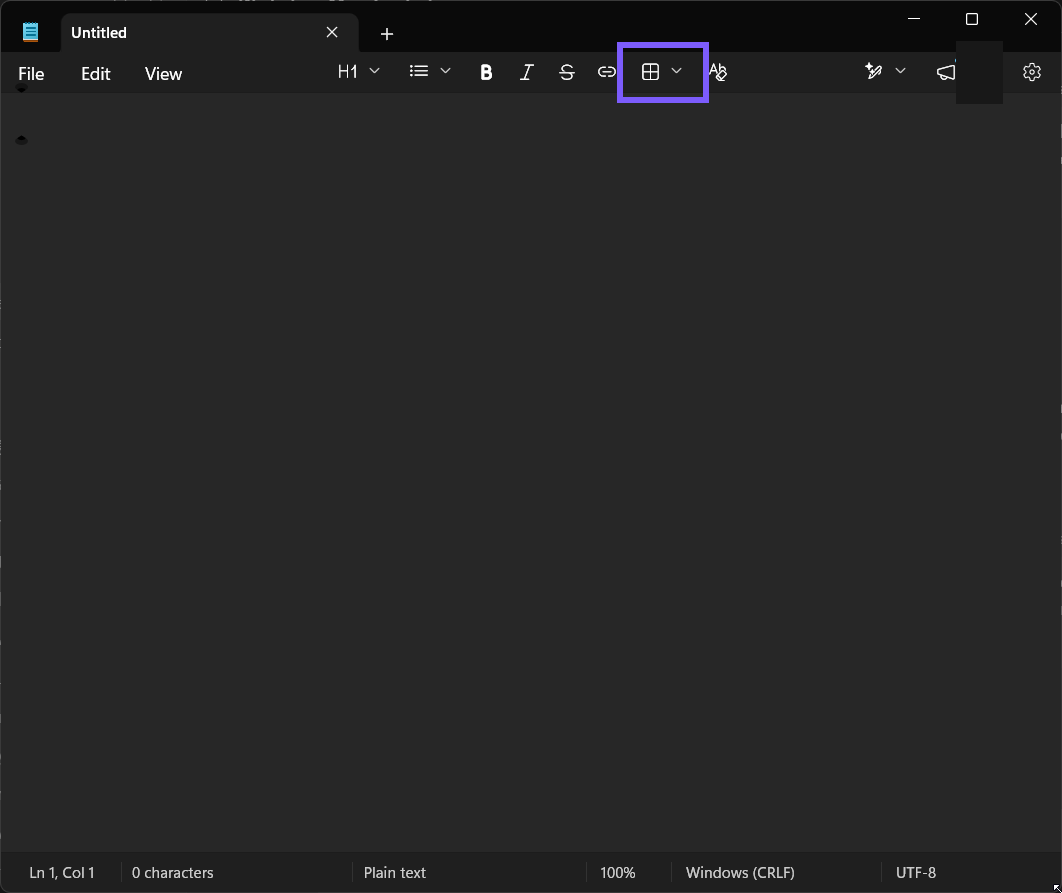
Select Insert table from the lower part of that menu. A centered dialog should open with fields named Number of columns and Number of rows.
Enter 3 for columns and 2 for rows. Read both fields again before continuing so an accidental extra digit does not create an oversized table.
Select Insert. You should see two horizontal rows divided into three cells each, and the caret should be ready in the first cell.
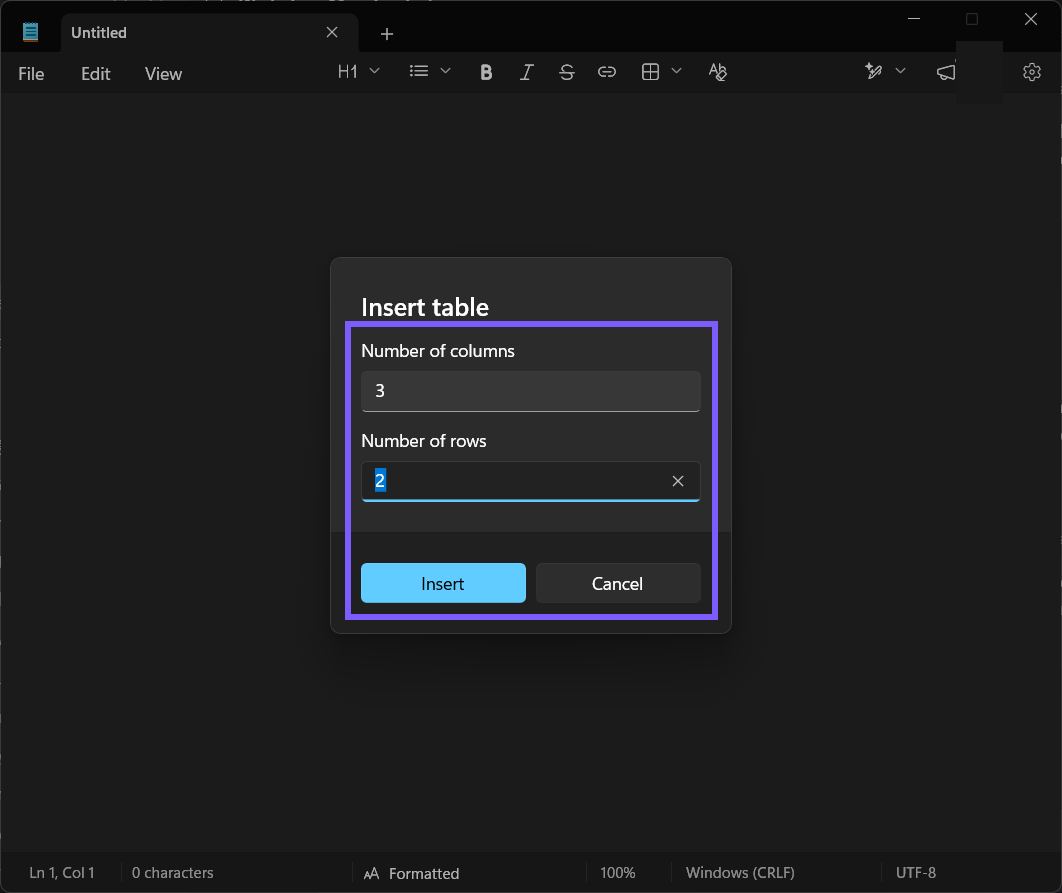
The dimensions describe the whole starting table. Three columns provide three cells across every row; two rows provide six cells in total. There is no separate Apply step after Insert.
How do you fill and move through table cells?
Type the first value in the first cell. The reproduced sample uses Setting.
Press Tab once to move to the next cell, then type State. Press Tab again and type Note.
Press Tab to move to the first cell of the next row. Enter Formatting, On, and Restored, pressing Tab only between cells.
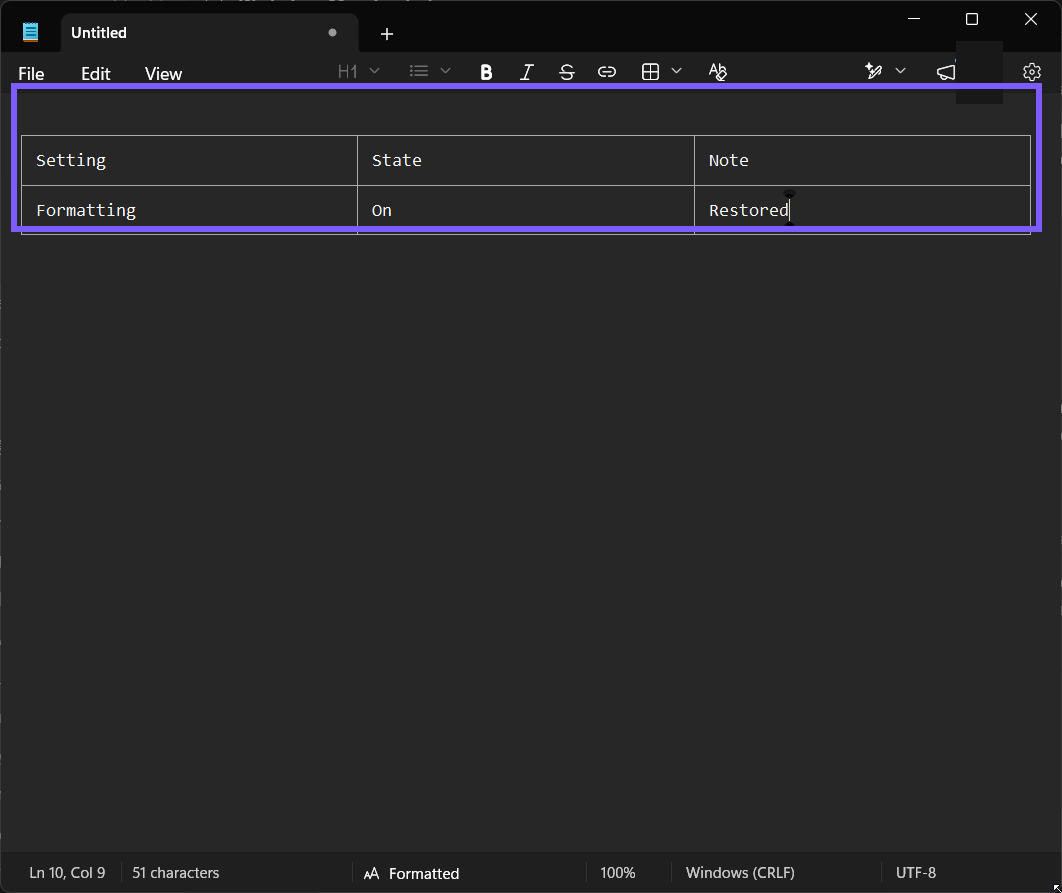
After the sixth value, stop before pressing Tab again. In the current app, tabbing beyond the last cell can extend the structure, so pause and verify the table before adding anything else.
You can click directly in a cell when you need to correct its text. Keep each entry concise: very long paragraphs can make a small table harder to scan and reduce the advantage of using columns.
How do you add a row to an existing Notepad table?
Click in the cell next to the position you want to change. For this example, leave the caret in the last cell of the second row so Row below has an unambiguous result.
Select Table on the toolbar. Because the caret is inside a table, Insert table is unavailable and Edit table becomes available.
Expand Edit table, expand Insert, and select Row below. You should see one empty row appear beneath the current row.
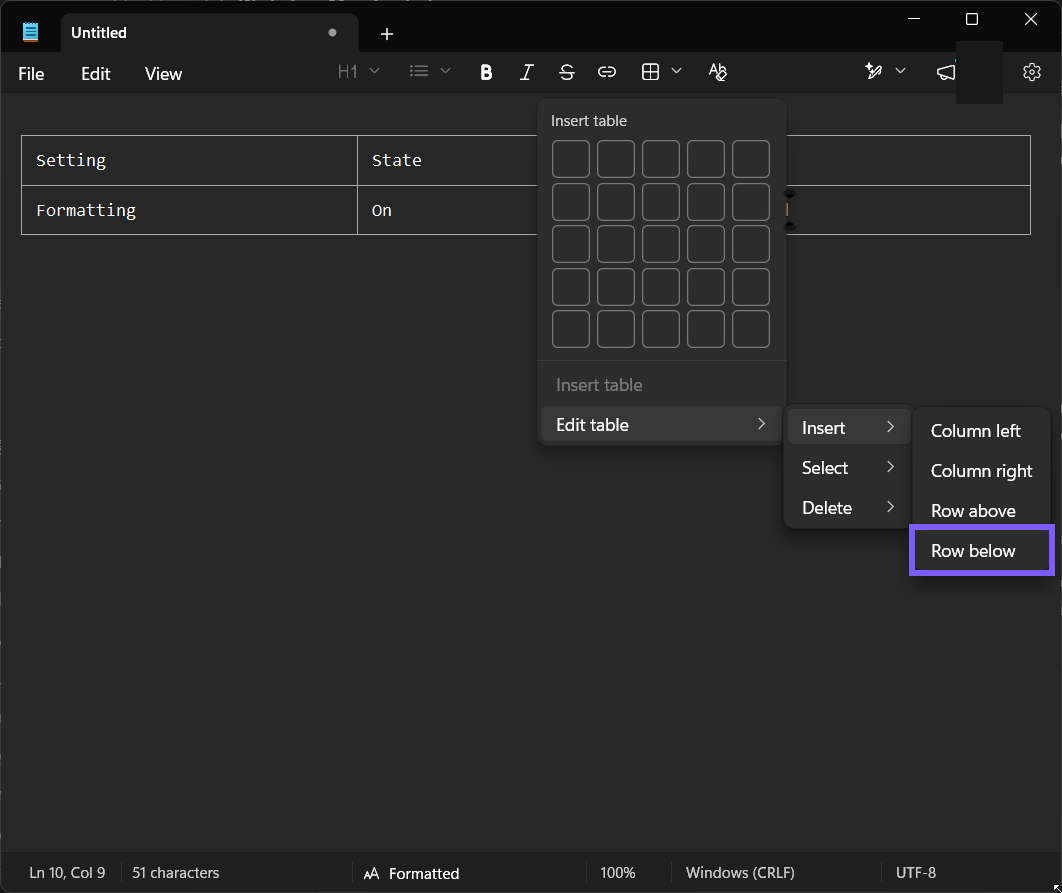
Type Theme in the first new cell, press Tab, type System setting, press Tab, and type Default.
Count the result: the table should now have three columns and three rows. The new content belongs entirely in the third row.
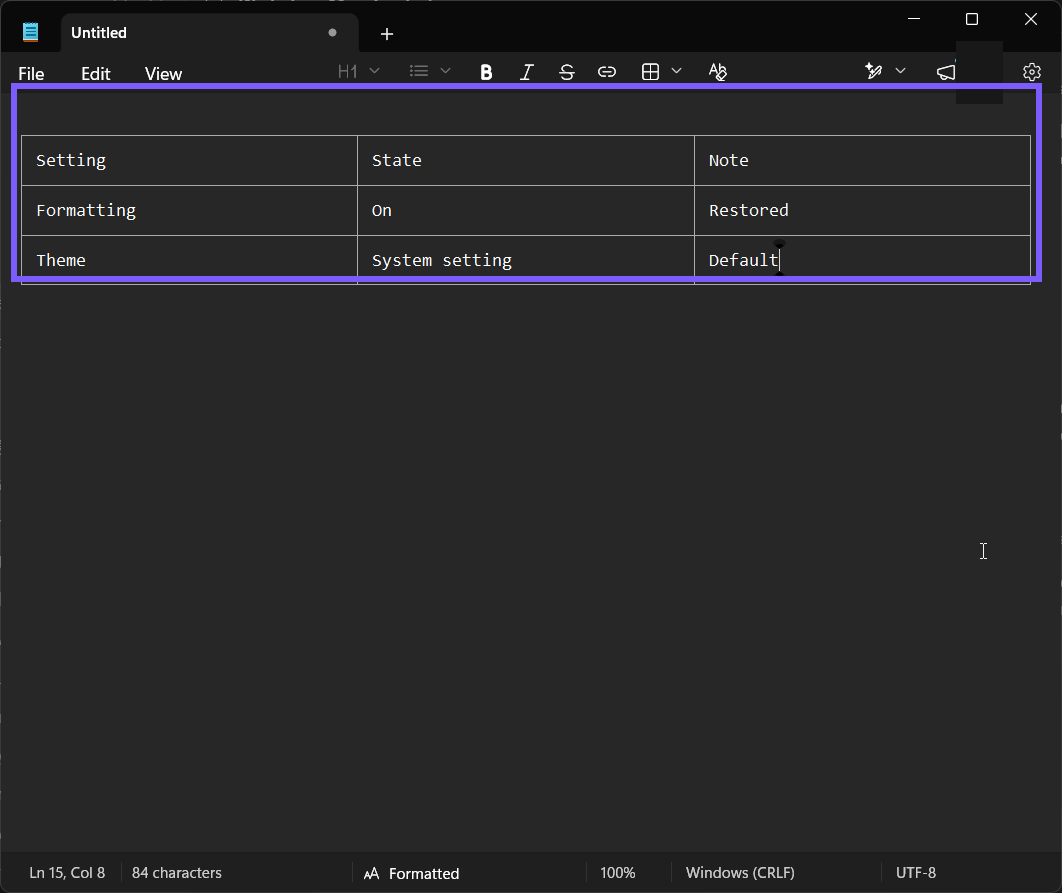
The visible third row is the success signal. If a fourth row appears, you probably pressed Tab once after the last cell; undo that extra action before continuing.
What other table edits can you make?
Open Table > Edit table > Insert while the caret is in the relevant cell. The current menu provides Column left, Column right, Row above, and Row below. Each command positions the new structure relative to the active cell, so place the caret deliberately first.
The same Edit table menu also contains Select and Delete submenus. Use Select when an operation should target a whole cell, row, column, or table. Use Delete only after confirming that the highlighted structure is the intended target.
Work one structural change at a time. Add or remove a row, verify the surrounding labels, and only then make the next edit. That habit is especially useful when several adjacent cells contain similar short values.
How do you undo the practice table and verify cleanup?
If this was only a test, select the complete disposable table and press Delete or Backspace. In the reproduced blank-window test, Ctrl+A followed by Backspace removed the table and all nine sample values at once.
Read the status bar after cleanup. It should return to 0 characters, with the caret at line 1, column 1. That verifies that no hidden sample text remains in the Untitled document.
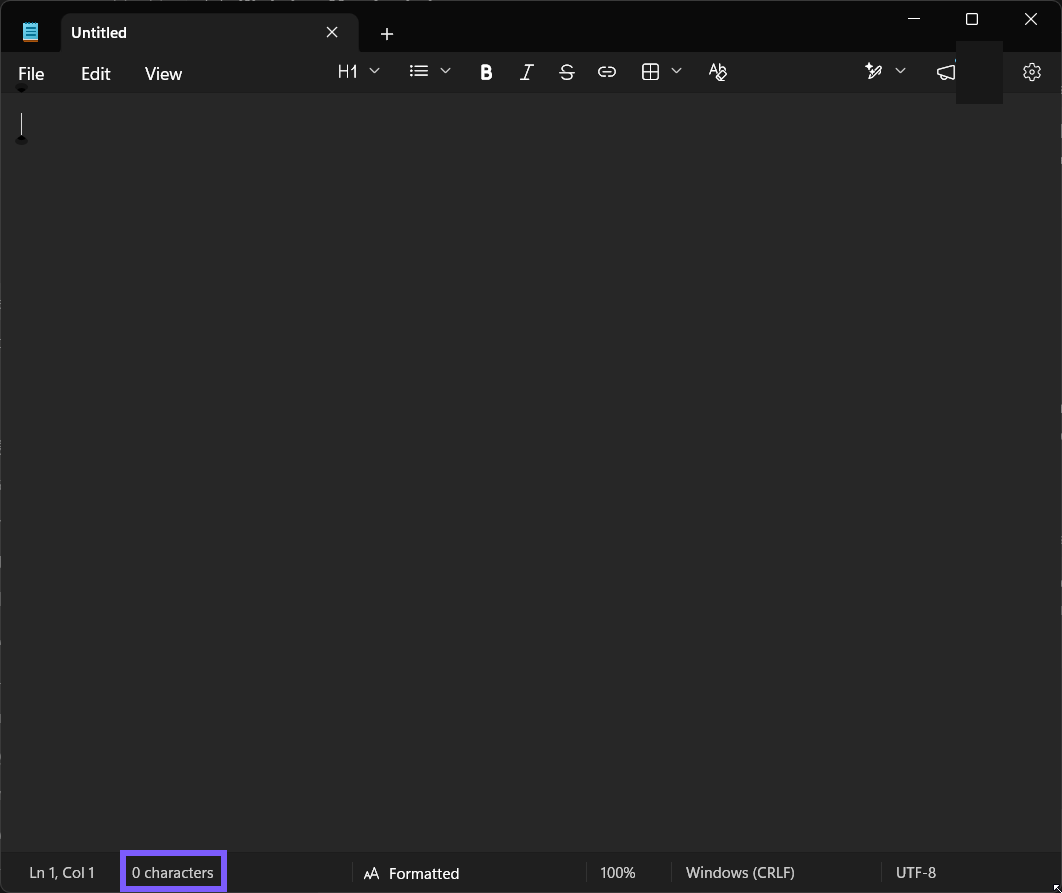
Close the blank window without saving. This is the exact rollback for the reproduced procedure: the table is gone, the editor is blank, no file was created, and the original restored Notepad sessions were not read or modified.
Why might the Table command be missing or unavailable?
The Table button is not on the toolbar. Update Notepad through Microsoft Store, reopen it, and confirm the Formatting feature is enabled. Avoid unsupported Registry changes for a control that the current app should expose directly.
Insert table is dimmed. The caret is probably already inside a table. Use Edit table for the current structure, or move the caret outside it before inserting a separate table.
Edit table is dimmed. Click inside an existing table cell first. The command becomes relevant only when Notepad knows which table and cell should anchor the edit.
A row appeared in the wrong place. Undo the action, click in the intended reference row, and choose Row above or Row below again. The active cell determines the insertion point.
Why might a table document fail to save?
Table editing and file permissions are separate. A correct table does not grant write access to a protected folder or system file. Choose a location your account can write to, or open Notepad with administrator rights only when a protected destination genuinely requires it. Do not elevate Notepad merely to practice table formatting.
Before sharing a table, reopen a disposable copy in the destination app and check that its structure is displayed as expected. Keep the original until that compatibility check succeeds.
Frequently Asked Questions
Can I add a row after creating a Notepad table?
Yes. Put the caret in a reference cell, open Table > Edit table > Insert, and choose Row above or Row below. Verify where the empty row appears before entering text.
Can I add a column on either side of the active cell?
Yes. The current Insert submenu includes Column left and Column right. Click the intended reference cell first so the new column appears in the correct position.
Why is Insert table disabled when the Table menu is open?
The caret is likely inside an existing table. Use Edit table for that structure, or move the caret outside it before creating a separate table.
How do I remove a disposable Notepad table completely?
Select the complete table and delete it, then verify that the status bar returns to 0 characters. Close the blank Untitled window without saving if the table was only a test.
Conclusion
Use the Table toolbar to define a small starting shape, move through cells carefully, and anchor row or column edits to the active cell. Verify every structural change as it appears, and practice in an unsaved blank window when you are learning the controls.
For more interesting articles, stay tuned to WinSides.com!









Community
Comments (0)