

You can change the Narrator voice from Settings > Accessibility > Narrator > Narrator's voice. Open Choose a voice, select one of the voices already installed on the PC, and read the selected name back before closing Settings. The change belongs to Narrator; it does not install a new voice or alter the sound used by every Windows app.
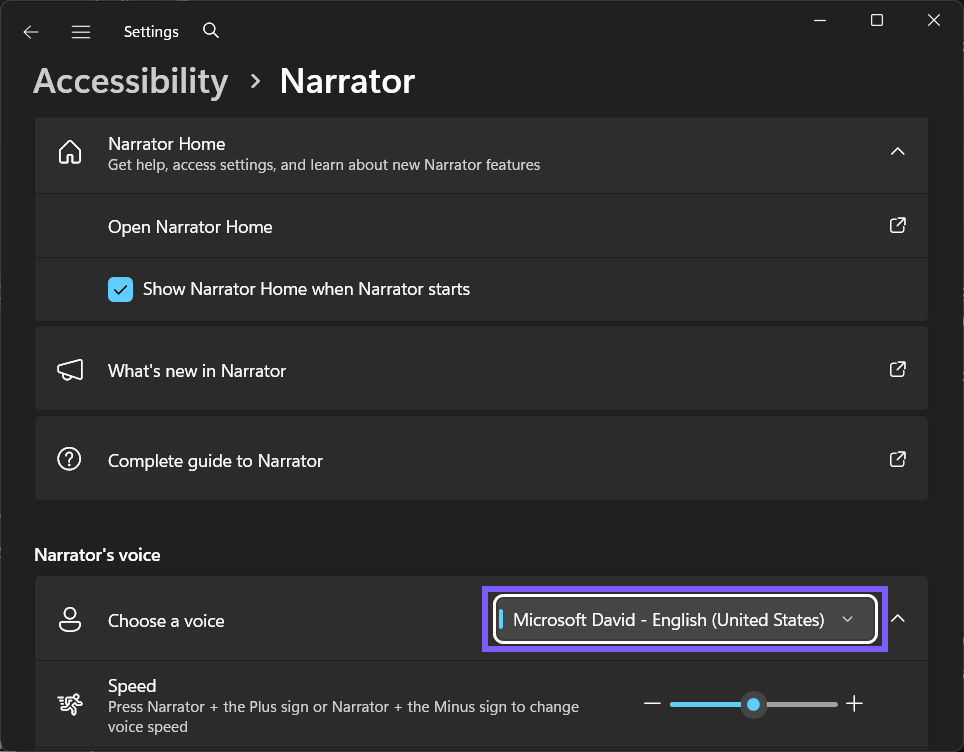
On the Windows 11 25H2 test laptop, the starting selection was Microsoft David - English (United States). I temporarily selected Microsoft Zira - English (United States), verified that exact name in the menu, and then restored Microsoft David. Narrator stayed off throughout, so the test did not speak a document, notification, account name, or other private text.
What changes when you choose a different Narrator voice?
The selected entry determines which installed text-to-speech voice Narrator uses the next time it speaks. A different voice can have a different accent, timbre, language, or speech engine, even when the nearby speed, pitch, and volume settings stay exactly as they were. That separation matters when you are trying to solve a clarity problem: first choose the voice, then adjust its characteristics only if the voice itself is suitable.
Microsoft's current Narrator customization guide places Choose a voice under Narrator's voice and explains that the list contains voices available in the relevant language. It also separates choosing a voice from adding natural or legacy voices. This guide follows that supported boundary and does not download, install, remove, or recommend an untested voice package.
Changing this menu also does not switch the Windows output device or raise the volume of other applications. If Narrator is silent even though the intended voice is selected, check whether Narrator is running and whether the correct audio output is active before changing more settings.
Table of contents
What should you check before selecting a voice?
Record the complete selected name, including its language. Similar-looking entries can be separate installed voices. The reproduced PC, for example, listed Microsoft David as well as Microsoft David Desktop. Treat those as distinct choices rather than assuming that one label is a duplicate.
Keep the comparison narrow. You do not need to turn Narrator on merely to prove that Windows saved a menu selection. Leaving Narrator off is useful when email, browser tabs, passwords, or account details might be visible. You can listen later with a disposable sentence after the private material is closed.
No administrator rights or restart are needed for the selection itself. The option is stored for the current Windows user and applies as soon as the menu reports the new voice. On a managed PC, installed voice availability can still be limited by language packages, organization policy, or the Windows build.
How do you change the Narrator voice?
Press Windows logo key + I to open Settings. You should see the normal Settings window for the current account; no administrator prompt should appear.
Select Accessibility, then select Narrator. Confirm that the page heading reads Accessibility > Narrator. If you are preparing a privacy-safe comparison, leave the main Narrator switch off.
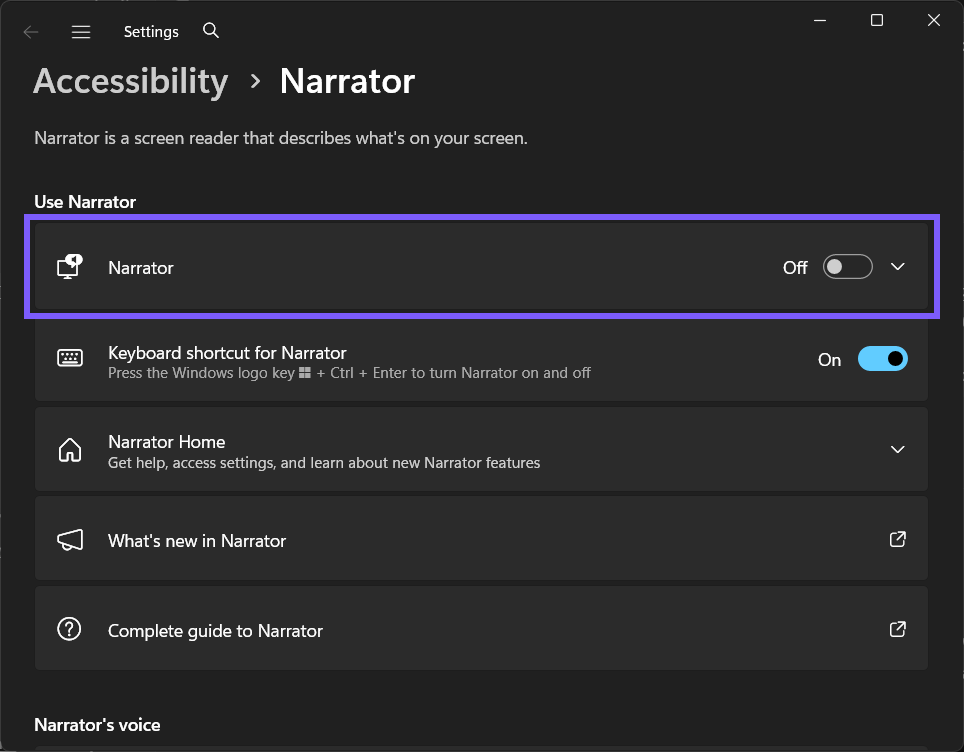
Scroll to Narrator's voice. Locate Choose a voice and write down the full selected entry before opening the menu. On the test laptop, Windows showed Microsoft David - English (United States).
Open Choose a voice. Review the installed options and select the voice you want. For the controlled test, I selected Microsoft Zira - English (United States).
Wait for the menu to close, then read the name displayed in the control. Seeing Microsoft Zira in the collapsed menu confirms that the new selection was saved. A separate Apply button, sign-out, or restart is not required.
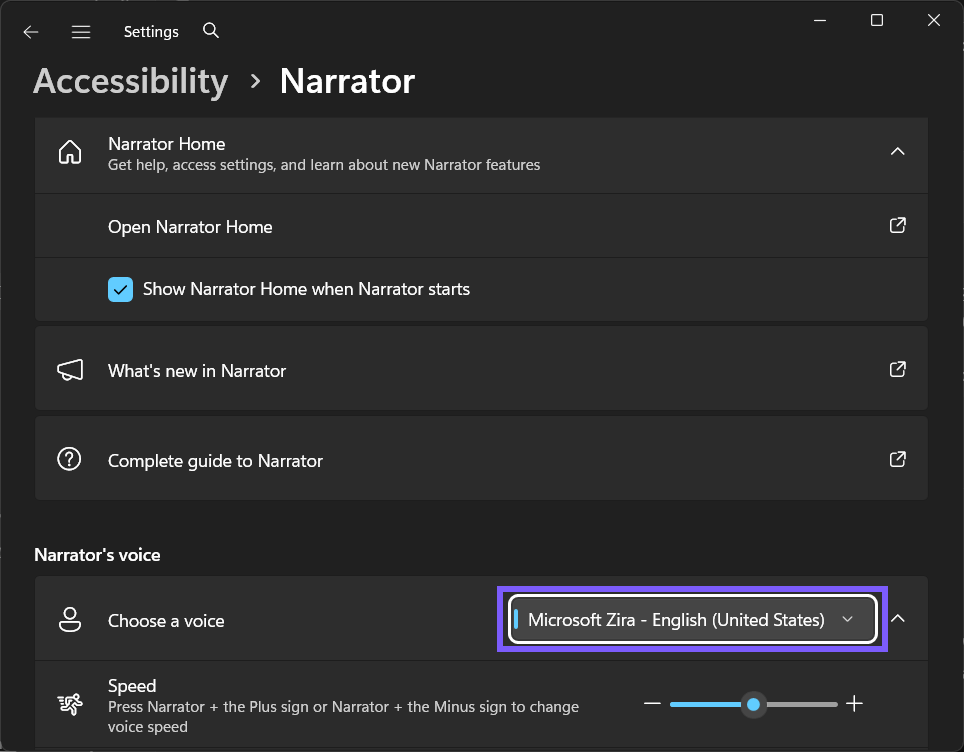
The visible result is the selected name in the same control. It is stronger evidence than assuming a voice changed because another application sounded different. Apps such as a browser reader, Office Read Aloud, or a third-party screen reader can maintain their own speech preferences.
How can you verify the change without exposing private content?
For a settings-only verification, keep Narrator off and read the selected entry back through Choose a voice. That confirms the stored preference without causing Windows to announce the page, notifications, or text in another open app. It is the safest check when you only need to document the configuration.
If you actually need to compare the sound, close private applications first and open a short disposable sentence. Start Narrator only after the test surface is ready, listen long enough to identify the voice, and stop speech before returning to normal work. Do not use a password field, customer message, medical record, or confidential document as sample text.
A voice that sounds different from its name is not necessarily a settings failure. Confirm the language and the exact selected label, then make sure the sound came from Narrator rather than another text-to-speech feature. The locally reproduced gate was deliberately limited to the Windows Settings selection and exact rollback.
How do you restore the previous Narrator voice?
Return to Settings > Accessibility > Narrator and scroll to Narrator's voice.
Open Choose a voice and select the complete name you recorded before the test. In this case, that was Microsoft David - English (United States).
Read the collapsed menu again. Close Settings only after it shows the original voice. This final read-back prevents a similar David, Zira, or Desktop entry from being mistaken for the baseline.
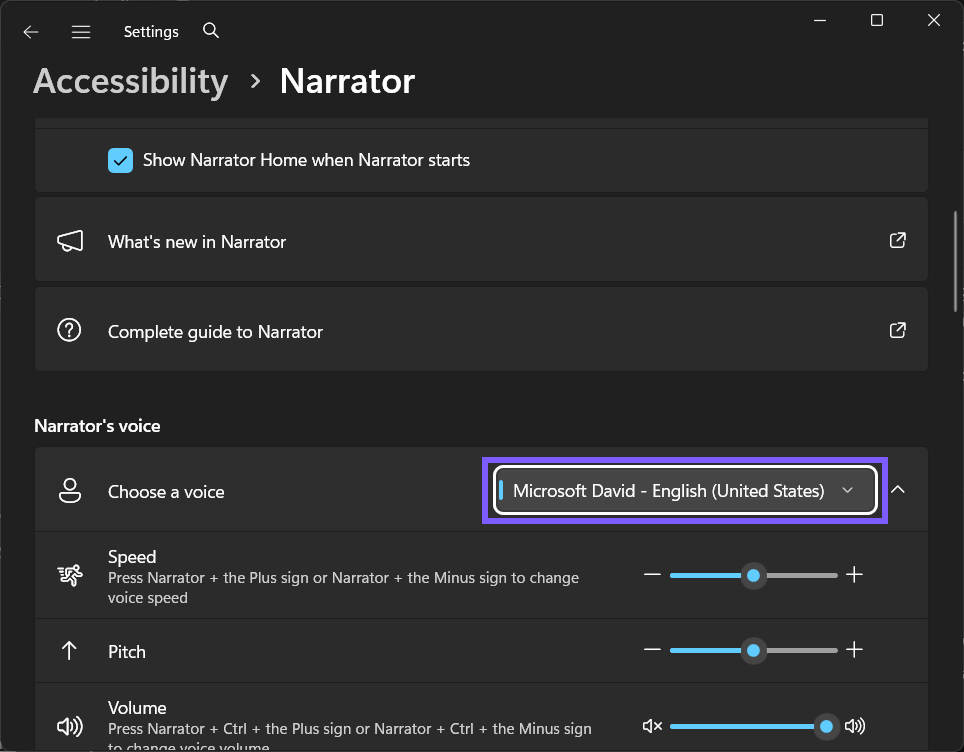
The final screenshot is a fresh post-rollback frame. It shows Microsoft David selected again while the nearby speed, pitch, and volume controls remain on the same Narrator voice page. Settings, Narrator, ShareX, and preview tools were closed after the restoration check.
Why might the voice you want be missing?
Choose a voice is a selector, not a catalog. It shows voices that Windows currently exposes to Narrator. The list can differ between PCs because language packs, text-to-speech components, natural voices, and compatible third-party voices are installed separately.
Use the nearby supported voice-addition control only when installation is genuinely part of your goal. A download changes the test boundary: it may require internet access, disk space, package installation, and a separate removal decision. None of those actions is needed to switch between two voices already listed.
When two entries share a familiar name, compare the entire label and language. Selecting the wrong entry is easy to reverse, but recording the full baseline before the change makes restoration unambiguous.
Common problems and careful fixes
Why is the voice you want missing from the menu?
Only installed, compatible voices appear. Review the separate Add voices route and the required language before downloading anything. Do not use an unofficial package simply because a name is absent.
Why does the selected voice not change its speed or volume?
Voice identity and voice characteristics are separate controls. Keep the selected voice, then adjust speed, pitch, or Narrator volume only when those characteristics are the actual problem.
Why did the computer remain silent after the selection?
Windows can save the selected voice while Narrator is off. That silent state is expected in a settings-only test. Start Narrator later with nonprivate sample text if you need an audible comparison.
Why does another application still use a different voice?
The application may use its own speech engine or voice preference. Confirm that the sound is coming from Narrator before changing the Windows setting again.
Related Narrator choices
For the commands that open Windows settings and start accessibility tools, review the main Windows and Narrator keyboard shortcuts. If tactile output is part of the same accessibility setup, you can also set up a braille display for Narrator. These are live WinSides guides; voice characteristics and future Narrator topics remain deferred until their own canonicals are public.
Frequently Asked Questions
Does changing the Narrator voice also change Magnifier's reading voice?
No. This menu belongs to Narrator. Magnifier has its own reading voice preference, so verify that feature separately instead of assuming both tools share the selection.
Do you need to turn Narrator on before choosing a voice?
No. The tested Windows 11 Settings menu saved and reported the selected voice while Narrator remained off. You only need to start Narrator when you want an audible comparison.
Why do some installed voices include Desktop in the name?
Windows can expose multiple installed voice entries with similar names. Treat each full label as a distinct choice and record the complete starting entry before you switch.
Can you return to the original voice without a restart?
Yes. Reopen Choose a voice, select the recorded baseline, and confirm that exact name in the collapsed menu. The reproduced rollback required no administrator prompt, sign-out, or restart.
Conclusion
Use Settings > Accessibility > Narrator > Narrator's voice to select an installed voice, then verify the complete name shown in Choose a voice. Keep installation and voice-characteristic changes separate, protect private content during any listening test, and record the original selection so rollback takes only a few seconds.
For more interesting articles, stay tuned to WinSides.com!
Community
Comments (0)