

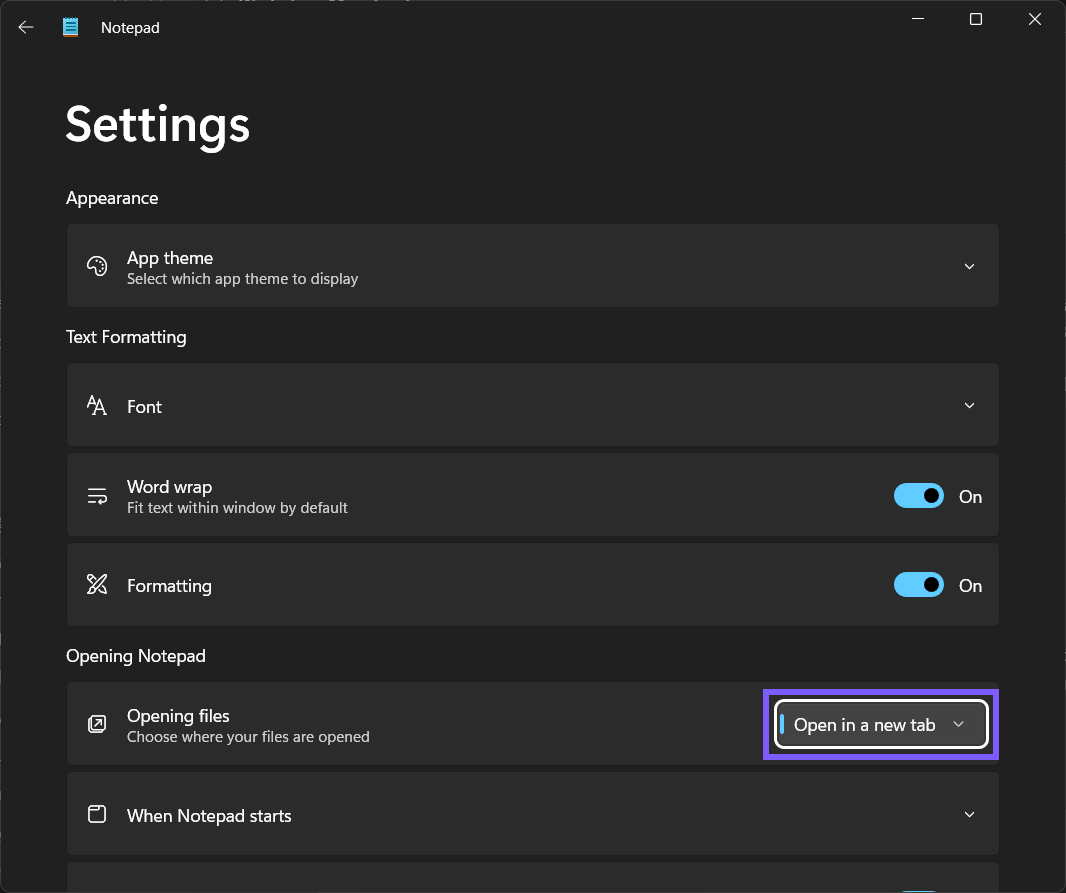
To choose how Notepad opens files in Windows 11, open Notepad > Settings, find Opening files under Opening Notepad, and select Open in a new tab or Open in a new window. The first choice keeps newly opened files together as tabs in one Notepad window. The second gives each newly opened file a separate app window.
This guide reproduces the complete change in Notepad 11.2606.15.0 with two disposable text files. The starting choice was recorded, the separate-window result was verified, both disposable files were removed, and Open in a new tab was restored. The procedure uses a standard-user app preference and does not require a restart or administrator rights.
What does the Opening files setting change?
The setting controls the container Notepad uses when you open another saved file. With Open in a new tab, Notepad normally adds the file to a tab strip in an existing window. With Open in a new window, Notepad creates a separate top-level window for that file. Separate windows are easier to place on different monitors or snap side by side; tabs reduce taskbar clutter and keep related files together.
Microsoft introduced tabs so multiple files could be managed in one Notepad window. Its Notepad tabs announcement also explains that files can be opened in new tabs by default or in new windows. The exact labels below come from the current locally reproduced app rather than an older screenshot.
This preference does not merge files, duplicate their contents, change their encoding, or save unsaved work. It also does not rearrange files that are already open. Test it by opening known disposable files after changing the choice.
Table of contents
What should you check before changing it?
Save any text you need and record the current Opening files value. Although this setting is reversible, a controlled comparison is easier when the test files contain no personal information and have unmistakable names. Close unrelated Notepad windows from the test view, but do not discard unsaved work merely to make the interface look tidy.
Also separate this choice from When Notepad starts, which appears directly below it. The startup option controls session recovery when Notepad launches; Opening files controls where subsequently opened saved files appear. Changing one does not prove that the other changed.
How do you open the Opening files preference?
Open Notepad. For a privacy-safe test, create a blank window rather than using a window that displays a personal file.
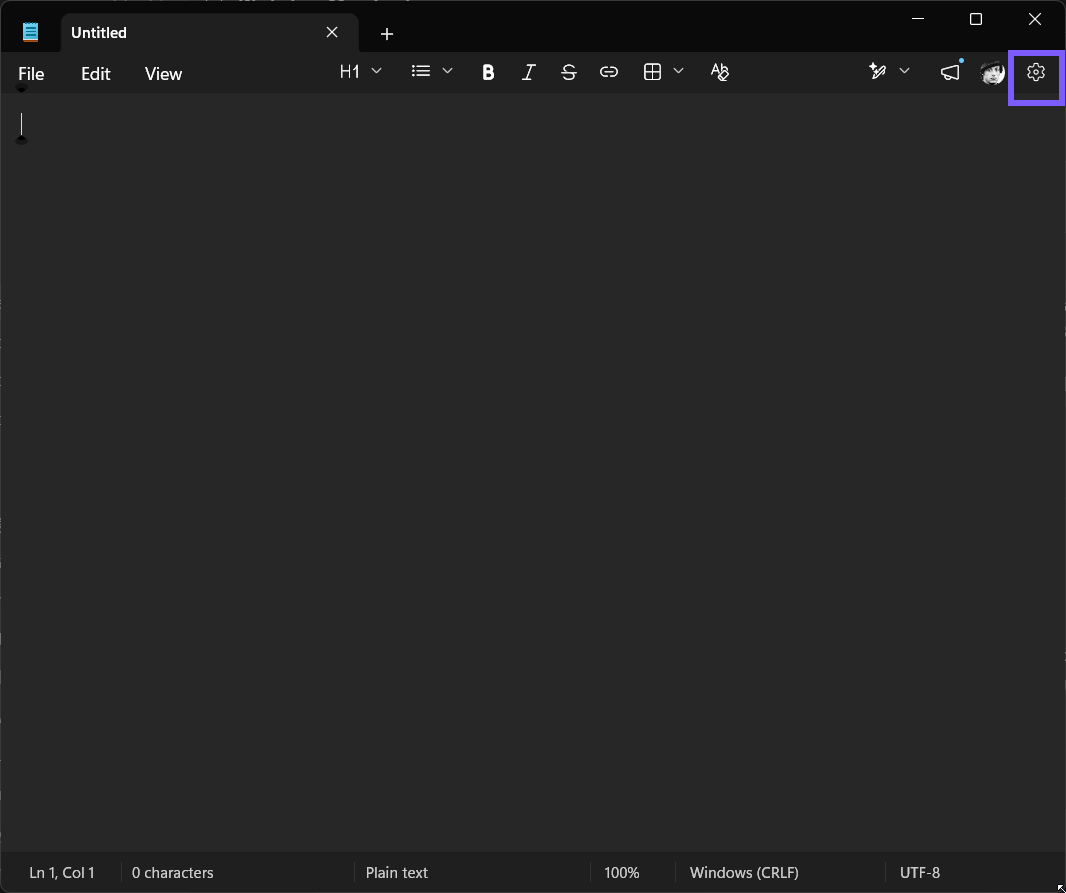
Select the Settings gear in the upper-right corner. You should see the Notepad Settings page, not the Windows Settings app.
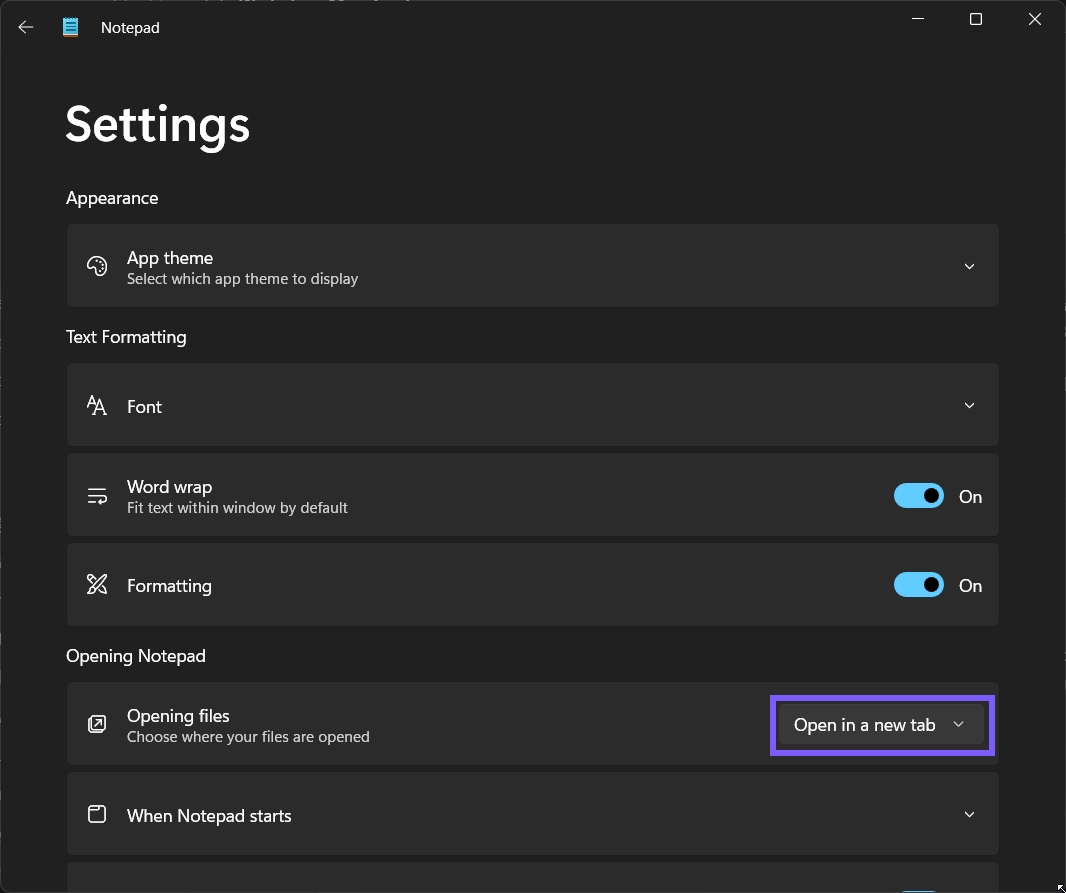
Scroll to Opening Notepad, then find Opening files. Its description reads “Choose where your files are opened.”
Read the current value and write it down. The reproduced system began with Open in a new tab.
If Opening files is not visible, update Notepad through Microsoft Store and reopen Settings. Do not substitute the nearby startup-session control; it answers a different question.
How do you open every file in a new Notepad window?
Select the Opening files drop-down.
Select Open in a new window. The drop-down should immediately display that exact value.
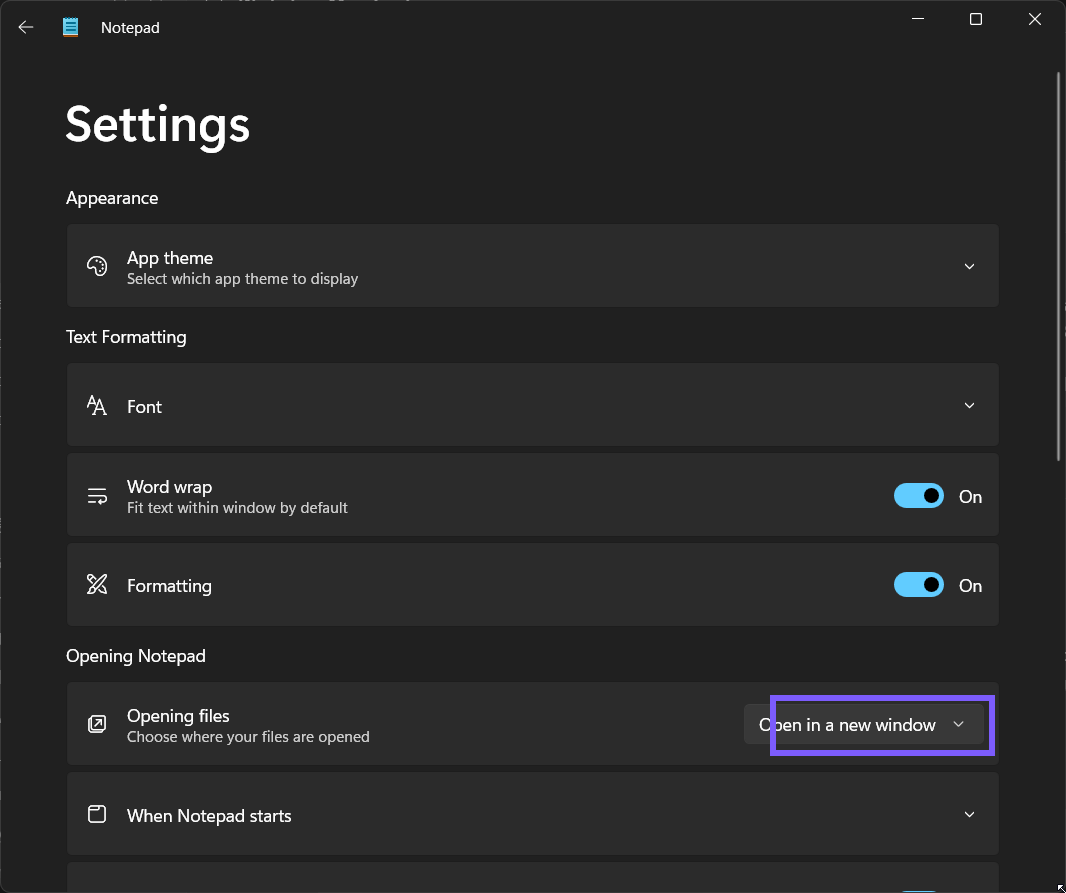
There is no separate Save button. The value takes effect for files you open afterward. Leave the Settings window available until you finish a disposable verification, so rolling back is straightforward if the result is not what you wanted.
How do you verify the new-window result safely?
Create two harmless text files in a temporary folder. Give them distinct names and put one short non-sensitive line in each file.
Close the editors used to create the samples, then open the first file in Notepad.
Open the second file the same way. With Open in a new window selected, Windows should show two complete Notepad windows, each with its own title bar and taskbar presence.
Read both file names and one known sample line. That verifies the intended files opened without relying only on the number of windows.
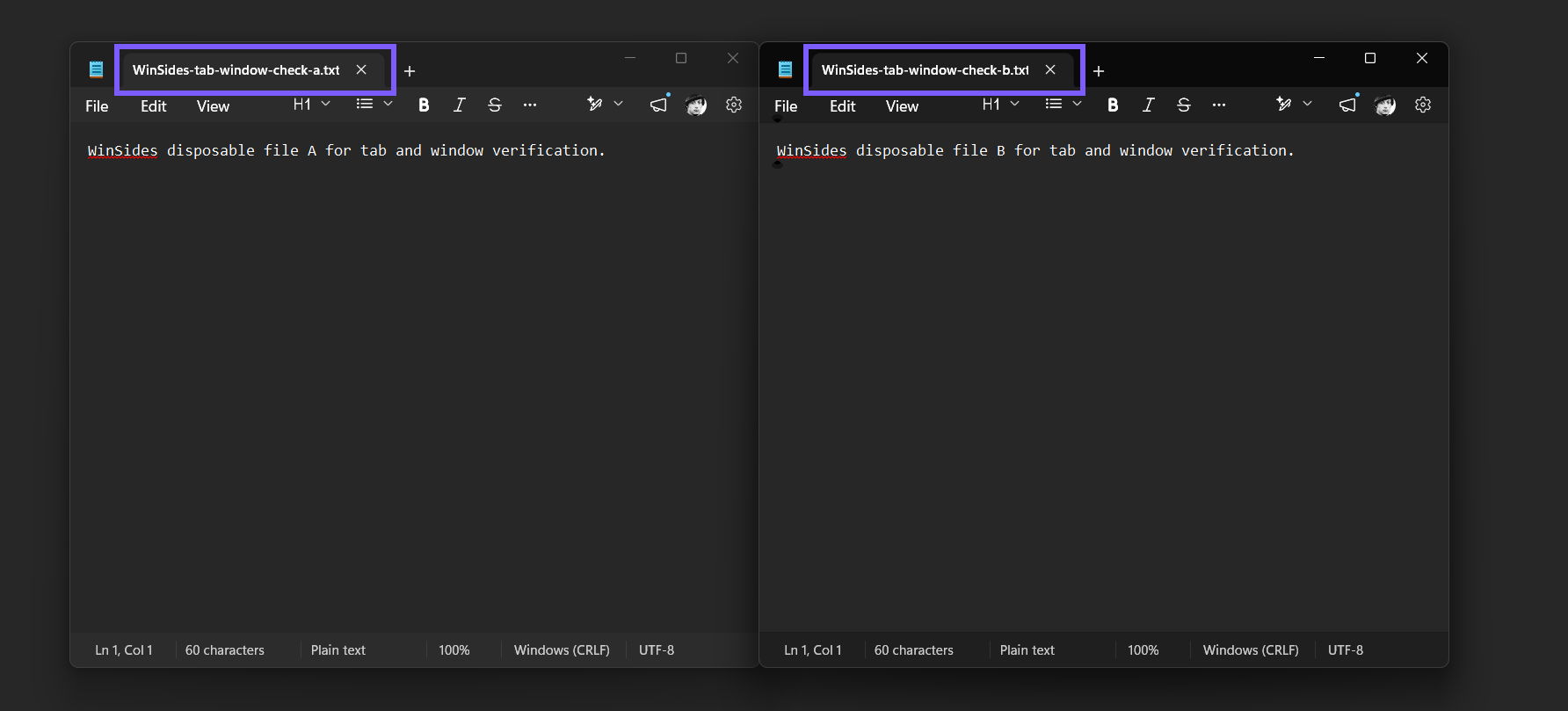
The reproduced result showed the A and B samples in separate side-by-side windows. After verification, both windows were closed and only the exact two disposable files and their empty temporary folder were removed.
How do you switch back to opening files in tabs?
Open a blank Notepad window and select Settings.
Under Opening Notepad, open the Opening files drop-down.
Select Open in a new tab.
Read the value back from a fresh Settings view. If this was only a test, it should match the starting value you recorded.
Opening a third disposable file is optional if the final control read-back is clear. If you do test again, expect the newly opened file to become a tab; files already open in separate windows are not automatically consolidated.
When are tabs better than separate windows?
Tabs work well when several notes belong to one task and you want a compact taskbar. You can switch among files from the tab strip, drag a tab to reorder it, and keep the group in one snapped window. The tradeoff is that only the active tab's contents are visible at a time.
Separate windows are better when you need to compare two files at once, place a reference on another monitor, or use different snap layouts. They consume more screen and taskbar space, so many small files can become harder to manage. The choice changes presentation, not the files themselves.
Why might a file still open somewhere unexpected?
The file was already open. Selecting an existing file or tab can bring its current window forward instead of creating another copy. Close only a disposable duplicate, then test with a file that is not already open.
Another app owns the file type. Opening files in a new tab or window applies after the file reaches Notepad. It does not make Notepad the default app for every extension.
The Settings value was changed in a different Notepad build. Reopen Notepad Settings and read the exact current drop-down. An app update can change layout details, so use the visible label rather than a remembered position.
The file is protected. Window placement does not grant permission to read or save a protected file. Use an ordinary writable location for routine work, and run Notepad as administrator only when the file itself requires elevated access only when the file genuinely requires elevated access.
Frequently Asked Questions
Where is Opening files in Windows 11 Notepad?
Open Notepad Settings and scroll to Opening Notepad. The Opening files drop-down offers Open in a new tab and Open in a new window.
Does Open in a new window duplicate the text file?
No. It opens the same saved file in a separate Notepad window. The preference changes the interface container, not the file's path or contents.
Will changing the preference move files that are already open?
No. It applies to files opened afterward. Existing tabs and windows normally stay where they are until you close, move, or reopen them.
Do you need to restart Windows after changing it?
No. The reproduced setting took effect for the next opened file without a Windows restart. Reopen Notepad Settings if you want to confirm the saved value.
Conclusion
Open Notepad Settings, find Opening files, and choose tabs for a compact workspace or separate windows for side-by-side placement. Verify the choice with two disposable files, distinguish it from startup-session recovery, and restore the value you recorded if the change was only a test.
For more interesting articles, stay tuned to WinSides.com!




Community
Comments (0)