

To turn the hidden icon menu on or off in Windows 11, open Settings > Personalization > Taskbar, expand Other system tray icons, and change the Hidden icon menu switch. On enables the overflow chevron that opens the hidden-icons flyout. Off removes that menu; it does not close the apps, disable their notifications, or change each app's individual tray-icon switch.
I reproduced the complete change on Windows 11 25H2 build 26220.7872. The tested preference began at On, changed to Off, and was restored to On. A fresh Settings instance confirmed the final state. No administrator permission, Registry edit, Explorer restart, sign-out, or reboot was used.
What does the Hidden icon menu control?
The hidden icon menu is the overflow area for background-app icons that are not kept in the visible row of the system tray. Microsoft calls it the hidden icon menu and also describes it as the overflow area in its current taskbar customization guidance. When the menu is available, its upward chevron opens a small flyout near the clock.
This one switch controls the menu, not the underlying apps. Turning it Off does not quit OneDrive, Windows Security, ShareX, Bluetooth utilities, or other background programs. It also does not change notification banners, sounds, startup behavior, security protection, or synchronization. If your real goal is to suppress banners or sounds, use the separate guide to turn Settings notifications on or off rather than treating the tray menu as a notification policy.
Each background app listed below the menu has its own switch. That per-app preference decides whether Windows may keep that icon in the visible system tray. The Hidden icon menu switch decides whether icons that are not kept visible can be reached through the overflow flyout. Keeping those two layers separate prevents accidental changes.
Table of contents
What should you record before changing it?
- Read the current state. Note whether Hidden icon menu says On or Off so you can restore the exact starting preference after testing.
- Check which app icons matter. If you routinely open a sync, security, or capture tool from the chevron, plan how you will reach it while the menu is Off.
- Leave individual app switches alone. Changing several controls at once makes it difficult to identify which setting caused the visible result.
- Do not reset the icon cache. Clearing notification-area history is a much broader troubleshooting action and is unnecessary for enabling or removing this menu.
This is a current-user personalization setting and applies immediately. The supported Settings interface is sufficient; a Registry edit or Explorer restart would add risk without improving the result.
How do you open the correct Taskbar settings section?
- Right-click an empty area of the taskbar and choose Taskbar settings. You can also press Windows + I, select Personalization, and then choose Taskbar.
- Scroll below Taskbar items and System tray icons.
- Find Other system tray icons. Its description reads Show or hide additional system tray icons.
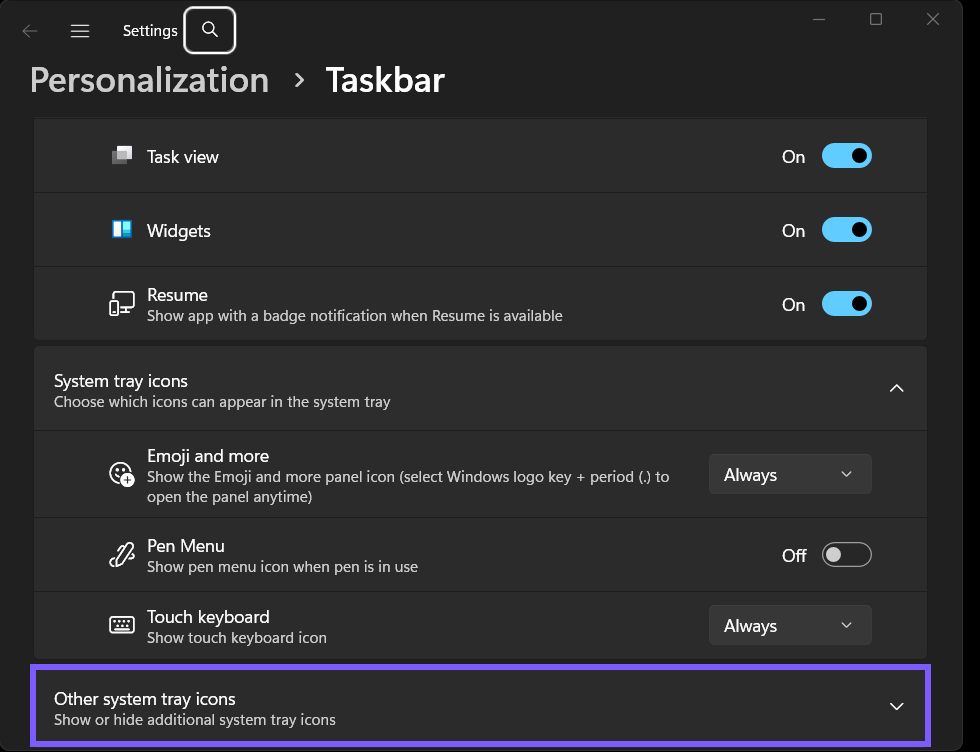
Select the row or its arrow to expand it. Do not confuse this section with System tray icons, which contains controls such as the touch keyboard and pen menu. The clock also has separate settings; use the dedicated guide if you want to show or hide the time and date.
How do you check the current Hidden icon menu state?
- Expand Other system tray icons.
- Look at the first switch, labeled Hidden icon menu.
- Read the state word beside the switch rather than relying only on color. The reproduced baseline was On.
- Leave the app-specific switches below it unchanged.
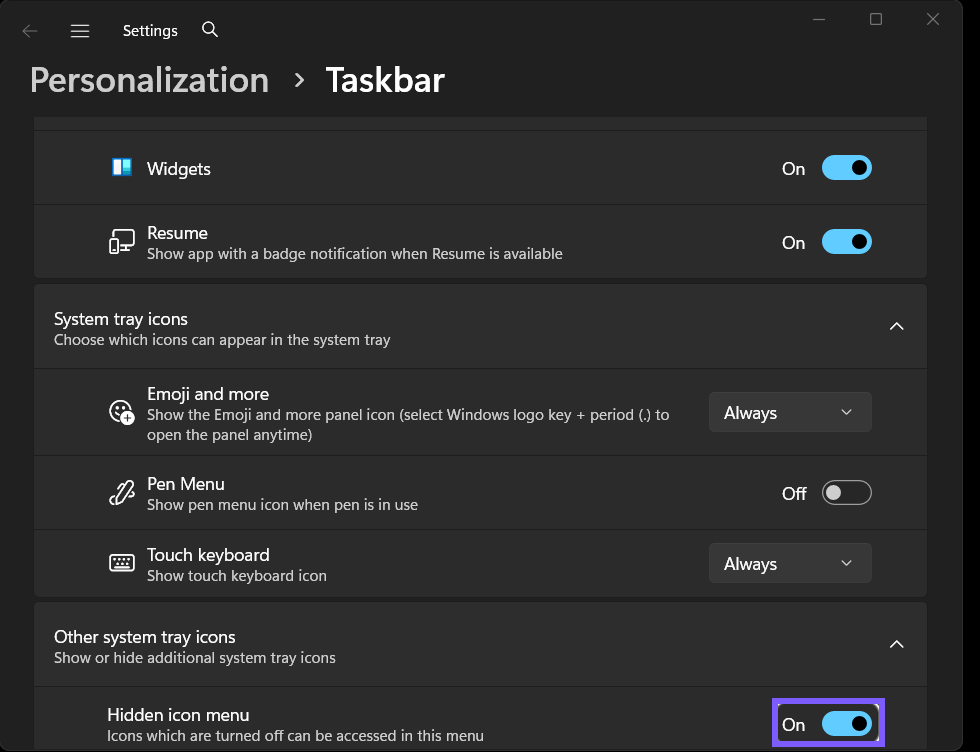
With the preference On, Windows can show the overflow chevron when there are active icons to place in the hidden menu. An On setting does not guarantee that the chevron is visible at every moment: an app must be running and publishing a tray icon, and at least one eligible icon must be outside the visible row.
How do you turn the Hidden icon menu off?
- Select the Hidden icon menu switch once so its state changes from On to Off.
- Check the state word in Settings to confirm that the change registered.
- Look at the system tray. The overflow chevron should no longer be available for hidden app icons.
- Do not change the individual app switches while testing this result.
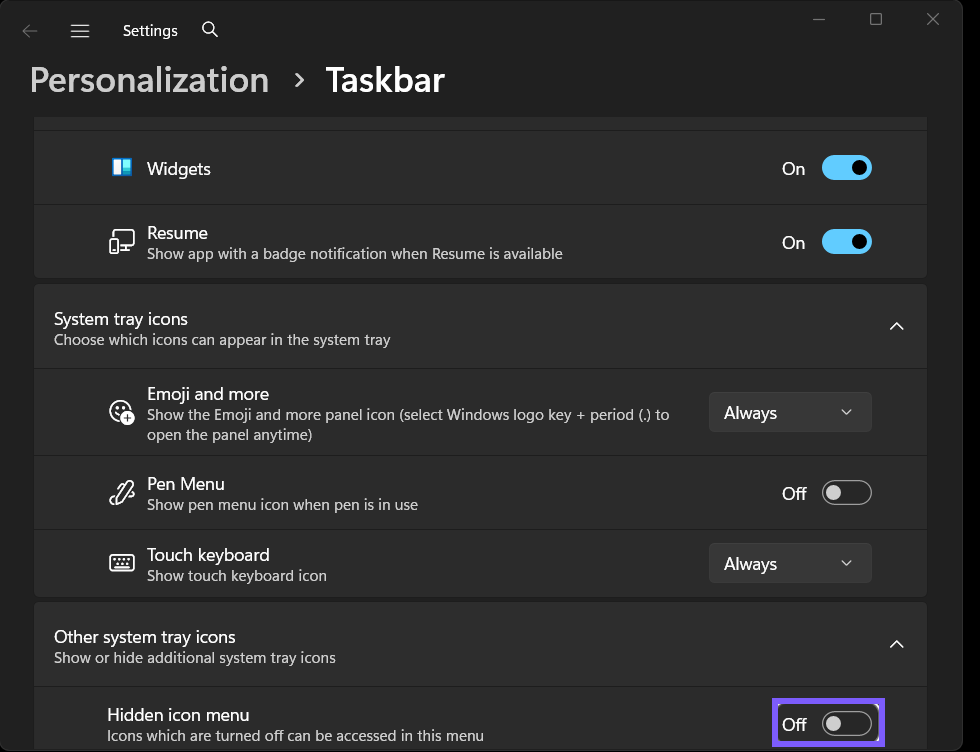
There is no Apply button. The preference changes immediately for the current user. Icons assigned to the hidden area are not promoted automatically merely because the menu is Off. If you still need direct access to one app icon, return to this section and turn that app's individual switch On.
How do you turn it back on and verify the rollback?
- Return to Settings > Personalization > Taskbar > Other system tray icons.
- Change Hidden icon menu from Off back to the state you recorded. In this reproduction, the required state was On.
- Close Settings completely.
- Open Taskbar settings again, expand Other system tray icons, and read the Hidden icon menu state in the fresh window.
- Close Settings after the fresh instance confirms the restored value.
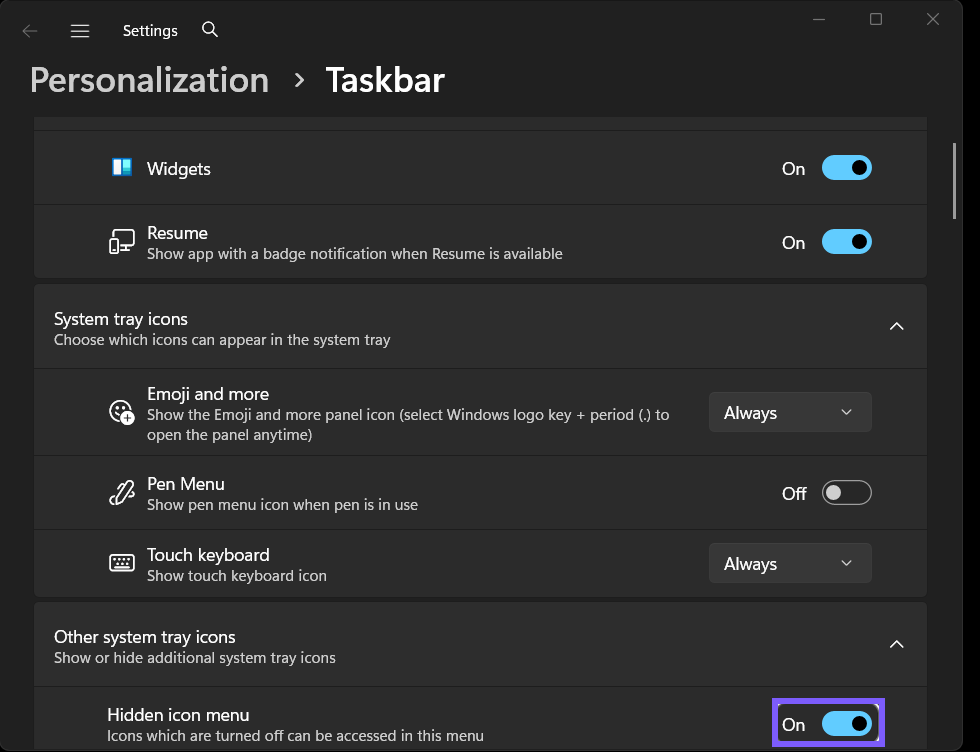
The reproduced setting persisted as On without restarting Explorer or Windows. If the chevron is still absent, do not assume the rollback failed; first confirm that an active app currently has a tray icon assigned to the hidden area.
What happens to app icons when the menu is Off?
Turning the menu Off removes the overflow entry point. It does not rewrite every app's individual visibility preference. A background utility can continue to run normally even when its icon is not reachable through the chevron. Open the app from Start, Search, or its normal shortcut if you need it while the menu remains Off.
For a specific app that should remain easy to reach, expand Other system tray icons and turn that app's switch On. That asks Windows to keep the app icon in the visible tray when the app is active. Conversely, turning an app switch Off normally assigns its active icon to the hidden area when the menu is enabled.
Core controls such as network, volume, battery, privacy indicators, the clock, and the notification bell are not ordinary background-app entries. They have their own behavior or settings and should not be diagnosed through the Hidden icon menu switch.
Why might the chevron still be missing when the switch is On?
No eligible icon is active. The menu is an overflow container, so Windows may omit its chevron when no running app currently contributes a hidden tray icon.
The app is closed. A saved icon preference cannot display an icon that the app is not publishing. Start the app and check whether its own tray-icon option is enabled.
The app's individual switch is On. Its icon may already be in the visible tray, leaving nothing for the overflow menu. Inspect the taskbar before changing more settings.
Settings has a stale view. Close Settings, open Taskbar settings again, and recheck both the menu and the exact app entry. Avoid clearing icon history for an ordinary visibility issue.
The icon is a core system control. Network, volume, battery, the clock, and the notification bell do not behave like the background-app entries in this list.
How can you open and navigate the menu with the keyboard?
Microsoft's current taskbar navigation guidance documents Windows + B for moving focus to the system tray or hidden-icons area. After focus reaches the tray, use the arrow keys to move through available items and press Enter or Space to activate the focused control.
This shortcut does not override the preference. If Hidden icon menu is Off, Windows + B cannot create an overflow flyout that the setting has removed. Turn the menu On first, then ensure an active icon is assigned to the hidden area. Keyboard access is especially useful when the chevron is small or when you prefer not to use a pointer.
Frequently Asked Questions
Does turning off the Hidden icon menu close any apps?
No. It removes the overflow menu entry point. Background apps, synchronization, security protection, startup behavior, and notification delivery keep using their separate settings.
Why is the chevron absent even though Hidden icon menu is On?
The menu needs an active icon assigned to the hidden area. If eligible apps are closed or all active icons are kept visible, Windows may have nothing to place behind the chevron.
Can I keep one app icon visible while the menu is Off?
Yes. In Other system tray icons, turn that app's individual switch On. Windows can then keep its active tray icon visible without relying on the hidden menu.
Do I need a Registry edit or Explorer restart?
No. The supported Settings switch changed immediately and persisted after reopening Settings on the tested Windows 11 build. No elevation, sign-out, Explorer restart, or reboot was required.
For more interesting articles, stay tuned to WinSides.com!




Community
Comments (0)