Skip to content
Winsides.com

Windows Insides

Winsides.com

Windows Insides

  • Windows 11
    • Windows Features
    • Windows Security
  • Shortcuts
    • Windows Shortcuts
    • Desktop Shortcuts
  • Microsoft
    • Microsoft Copilot
    • Microsoft Powertoys
  • Video Tutorials
  • About
    • What’s New?!
    • About us
    • Contact us
    • Privacy Policy
    • Terms of Use
  • Follow us
    • Reddit
    • Dev.to
    • YouTube
    • Linked In
    • X
    • Tumblr
    • Facebook
    • Instagram
    • Buy Me A Coffee
  • Our Tools
    • PeriodlyWise
    • ClockTools
    • Epoch Converter
    • Livetime.io
  • Windows 11
    • Windows Features
    • Windows Security
  • Shortcuts
    • Windows Shortcuts
    • Desktop Shortcuts
  • Microsoft
    • Microsoft Copilot
    • Microsoft Powertoys
  • Video Tutorials
  • About
    • What’s New?!
    • About us
    • Contact us
    • Privacy Policy
    • Terms of Use
  • Follow us
    • Reddit
    • Dev.to
    • YouTube
    • Linked In
    • X
    • Tumblr
    • Facebook
    • Instagram
    • Buy Me A Coffee
  • Our Tools
    • PeriodlyWise
    • ClockTools
    • Epoch Converter
    • Livetime.io
Close

Search

Winsides.com

Windows Insides

Winsides.com

Windows Insides

  • Windows 11
    • Windows Features
    • Windows Security
  • Shortcuts
    • Windows Shortcuts
    • Desktop Shortcuts
  • Microsoft
    • Microsoft Copilot
    • Microsoft Powertoys
  • Video Tutorials
  • About
    • What’s New?!
    • About us
    • Contact us
    • Privacy Policy
    • Terms of Use
  • Follow us
    • Reddit
    • Dev.to
    • YouTube
    • Linked In
    • X
    • Tumblr
    • Facebook
    • Instagram
    • Buy Me A Coffee
  • Our Tools
    • PeriodlyWise
    • ClockTools
    • Epoch Converter
    • Livetime.io
  • Windows 11
    • Windows Features
    • Windows Security
  • Shortcuts
    • Windows Shortcuts
    • Desktop Shortcuts
  • Microsoft
    • Microsoft Copilot
    • Microsoft Powertoys
  • Video Tutorials
  • About
    • What’s New?!
    • About us
    • Contact us
    • Privacy Policy
    • Terms of Use
  • Follow us
    • Reddit
    • Dev.to
    • YouTube
    • Linked In
    • X
    • Tumblr
    • Facebook
    • Instagram
    • Buy Me A Coffee
  • Our Tools
    • PeriodlyWise
    • ClockTools
    • Epoch Converter
    • Livetime.io
Close

Search

Home/Windows 11/How To?/How To Select The Far Corner Of The Taskbar To Show The Desktop In Windows 11?

How To Select The Far Corner Of The Taskbar To Show The Desktop In Windows 11?

Narendhiran Vijayakumar
By Narendhiran Vijaykumar
June 26, 2024 3 Min Read
0

This is one of the unique features provided by Microsoft in Windows OS. As you know, I’m a full-time web app developer and content writer. I usually work with multiple tabs and applications, including browsers, code editors, and virtual environments. Most of the temporary files and working project files are stored on the desktop before deploying to the live server. Multiple windows and their previews are present on my screen while I’m working. To access the files from the desktop, I usually have to minimize the windows one by one.

I later found that I can click the far right of the taskbar, which should display the desktop by minimizing all the working windows. Recently, I upgraded my PC to Windows 11 from 10 and found that this feature is disabled by default. In this article, I will share the quick and easy steps to enable it on your device.

Key Points:

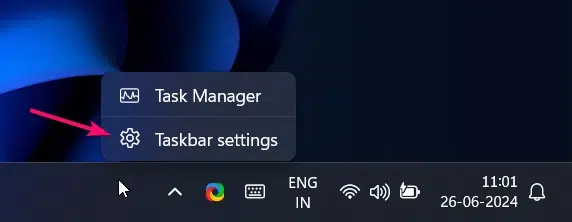
  • Right click on an empty space on the taskbar.
  • Select Taskbar settings from the context menu.
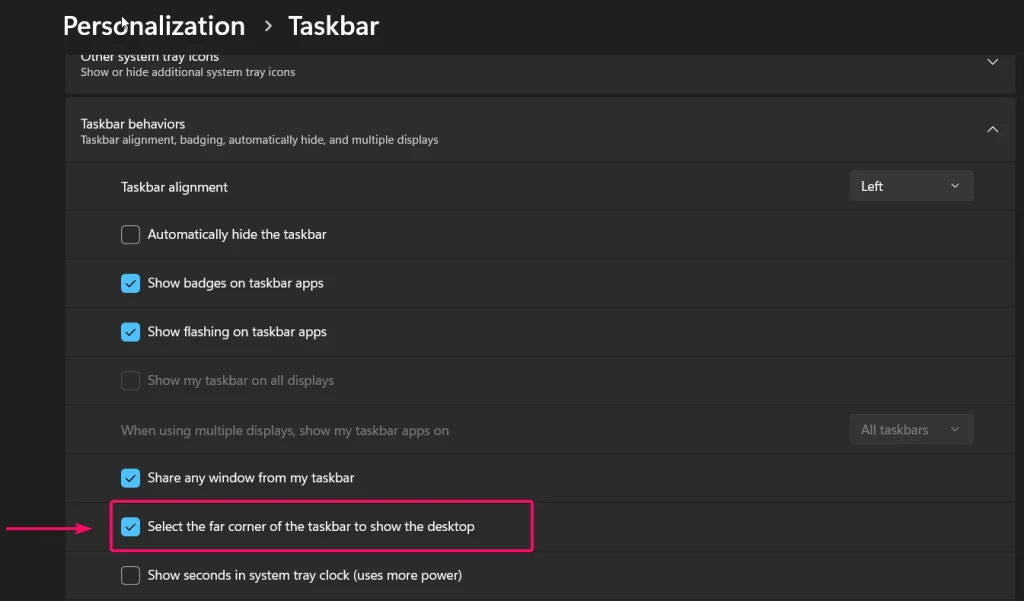
  • In the Taskbar settings window, scroll down to find the Taskbar behaviors section.
  • Click on Taskbar behaviors to expand it.
  • Check the box next to Select the far corner of the taskbar to show the desktop.
Steps To Show The Desktop By Click In The Right Corner Of The Taskbar:

Open Taskbar Settings:

  • Firstly, you need to Right click on an empty space on the taskbar.
  • Select Taskbar settings from the context menu.
Open taskbar settings

Enable ‘Select the far corner of the taskbar to show the desktop’:

  • In the Taskbar settings window, scroll down to find the Taskbar behaviors section.
  • You need to click on Taskbar behaviors to expand it.
  • Now, Check the box next to Select the far corner of the taskbar to show the desktop.
Taskbar Behaviors
Taskbar Behaviors

Once you have completed the above steps, move your mouse to the right corner of the taskbar. You will see a small vertical highlighter line appear. When you click on the right corner, all the working and non-working tabs will be minimized to show your desktop screen instantly.
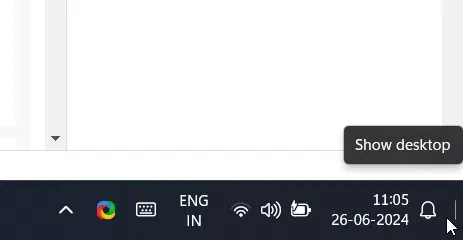
Show Desktop
Show Desktop

In this way, you can select the far corner of the taskbar to show the desktop on your Windows 11 PC. This is one of the quickest ways, and you can also use shortcuts to minimize all working tabs and show the desktop.

Keyboard Shortcut to Display Desktop screen:

  • You need to use Winkey + D on your keyboard to display the Desktop screen by minimizing all the currently working and non working windows.
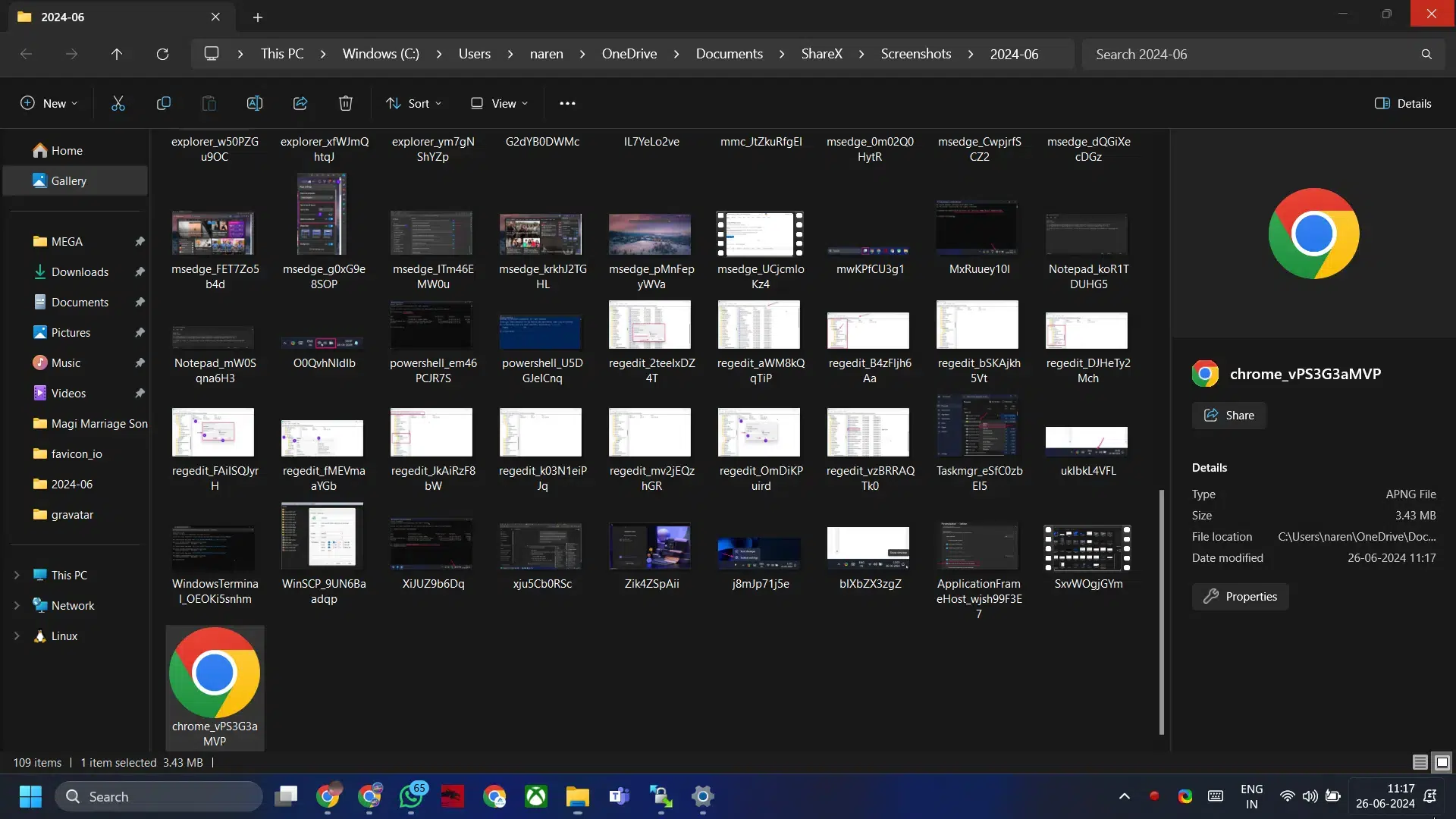
Selecting the right far corner in taskbar shows desktop

Conclusion:

I understand that it can take some time to get used to Windows 11 if you have recently upgraded from Windows 10. All essential features that you are accustomed to have been carried forward to Windows 11. However, some features may be disabled by default, and you need to enable them manually. So, I have shared effective tips to enable the desktop preview when you click on the far right corner of the taskbar. Find more tutorials on our homepage, Winsides.com.

Tags:

TaskbarTaskbar TipsTipsTrickswindows 11
Narendhiran Vijayakumar
Author

Narendhiran Vijaykumar

I Am a Frontend Developer, and Business Creator With Over 8 Years of Experience in Php and Frontend Web Development. I Have Over 15 Years of Experience Using Windows Os, From Windows Xp to Windows 11, and Possess Sound Knowledge in Using and Solving Real-time Problems. I Am Getting Proficient in Ai-based Technologies and Have Developed 3 Successful Web Apps and Saas Platforms.

Follow Me
Other Articles
Enable Task View Windows 11
Previous

How to Enable Task View in Windows 11? 4 Best Methods!

Upgrade Windows 10 to Windows 11
Next

Easy Upgrade Windows 10 to Windows 11

No Comment! Be the first one.

Leave a Reply Cancel reply

Your email address will not be published. Required fields are marked *

  • IIS Admin Service on Windows 11: Comprehensive Guide & Management
  • CNG Key Isolation on Windows 11: Understanding & Management
  • System Image Backup on Windows 11: Comprehensive Guide
  • Declared Configuration Service on Windows 11 Explained
  • DHCP Client on Windows 11: Comprehensive Setup & Troubleshooting
  1. Vigneshwaran Vijayakumar
    Vigneshwaran Vijayakumar on How to Enable Windows PowerShell 2.0 in Windows 11?October 5, 2025

    Hello Mr. Mohamad El-Kheir, Thank you for contacting us. Microsoft has removed PowerShell version 2.0 completely from Windows 11 24H2…

  2. Avatar of Mohamad El-Kheir
    Mohamad El-Kheir on How to Enable Windows PowerShell 2.0 in Windows 11?October 5, 2025

    i have a MSI laptop with windows 11 Home Installed on it. how to install powershell v2.0 on it

  3. Vigneshwaran Vijayakumar
    Vigneshwaran Vijayakumar on DxDiag Windows 11 – What is it & How to use it for Troubleshooting?August 14, 2025

    Hey Myla Shannon Thank you for your valuable feedback. We are delighted to hear your compliment and excited to know…

  4. Avatar of Myla Shannon
    Myla Shannon on DxDiag Windows 11 – What is it & How to use it for Troubleshooting?August 14, 2025

    This content is incredibly informative.

  5. Avatar of seven
    seven on How to Enable IIS [Internet Information Services] in Windows 11?July 29, 2025

    I found this post very helpful.

Winsides.com

At WinSides, we believe in simplifying technology and making it accessible to everyone.

Explore

Windows 11 Windows Features Windows Security Microsoft Shortcuts

Resources

Video Tutorials What’s New?! Publication Sitemap Why Trust Winsides.com?

Company

About us Contact us Authors Careers

Legal

Privacy Policy Terms of Use Disclaimer Content Removal Request

Our Projects

PeriodlyWise ClockTools EpochTools LiveTime

Copyright 2024-2026 Winsides.com. All rights reserved.