Skip to content
Winsides.com

Windows Insides

Winsides.com

Windows Insides

  • Windows 11
  • Windows Features
  • Windows Security
  • Microsoft
    • Microsoft Copilot
    • Microsoft Powertoys
  • Shortcuts
    • Windows Shortcuts
    • Desktop Shortcuts
  • Video Tutorials
  • About
    • What’s New?!
    • About us
    • Contact us
    • Privacy Policy
    • Terms of Use
  • Follow us
    • Reddit
    • Dev.to
    • YouTube
    • Linked In
    • X
    • Tumblr
    • Facebook
    • Instagram
    • Buy Me A Coffee
  • Windows 11
  • Windows Features
  • Windows Security
  • Microsoft
    • Microsoft Copilot
    • Microsoft Powertoys
  • Shortcuts
    • Windows Shortcuts
    • Desktop Shortcuts
  • Video Tutorials
  • About
    • What’s New?!
    • About us
    • Contact us
    • Privacy Policy
    • Terms of Use
  • Follow us
    • Reddit
    • Dev.to
    • YouTube
    • Linked In
    • X
    • Tumblr
    • Facebook
    • Instagram
    • Buy Me A Coffee
Close

Search

Winsides.com

Windows Insides

Winsides.com

Windows Insides

  • Windows 11
  • Windows Features
  • Windows Security
  • Microsoft
    • Microsoft Copilot
    • Microsoft Powertoys
  • Shortcuts
    • Windows Shortcuts
    • Desktop Shortcuts
  • Video Tutorials
  • About
    • What’s New?!
    • About us
    • Contact us
    • Privacy Policy
    • Terms of Use
  • Follow us
    • Reddit
    • Dev.to
    • YouTube
    • Linked In
    • X
    • Tumblr
    • Facebook
    • Instagram
    • Buy Me A Coffee
  • Windows 11
  • Windows Features
  • Windows Security
  • Microsoft
    • Microsoft Copilot
    • Microsoft Powertoys
  • Shortcuts
    • Windows Shortcuts
    • Desktop Shortcuts
  • Video Tutorials
  • About
    • What’s New?!
    • About us
    • Contact us
    • Privacy Policy
    • Terms of Use
  • Follow us
    • Reddit
    • Dev.to
    • YouTube
    • Linked In
    • X
    • Tumblr
    • Facebook
    • Instagram
    • Buy Me A Coffee
Close

Search

Home/Windows 11/How To?/4+ Easy Ways to Lock Your Screen in Windows 11!

4+ Easy Ways to Lock Your Screen in Windows 11!

Narendhiran Vijayakumar
By Narendhiran Vijaykumar
April 10, 2026 5 Min Read
2

I was watching my personal and family photos on my personal laptop at the office when, all of a sudden, my colleague came into my cabin without any announcement. I had to protect my private space among them, so I tried to close the albums immediately. However, the photos were in slideshow fullscreen mode, and I couldn’t close the apps instantly, so my colleagues saw my personal family photos. This incident made me realize the importance of protecting my private space quickly, especially in public places. That’s when I learned about locking my screen in Windows 11. In this article, I will share the different ways to access the lock screen by locking your screen on Windows 11 devices.

Table of Contents

  • Key Points to Lock Your Screen In Windows 11
  • Method 1: Using Start Menu:
  • Method 2: Using CTRL + ALT + Del:
  • Method 3: Using Power User Menu:
  • Method 4: Using Run Command:
  • Method 5: Using Screensaver (Automated Lock Screen):
  • Frequently Asked Questions
    • What is the fastest keyboard shortcut to lock my PC?
    • What is Dynamic Lock on Windows 11?
    • Does locking my screen close my running programs?
  • Take Away:
  • Have Queries?

Key Points to Lock Your Screen In Windows 11

  • On your keyboard, use the shortcut Winkey + L
  • It will instantly lock your screen & take you out to the login screen.

Method 1: Using Start Menu:

This is one of the old, unique, and straightforward methods to lock your screen on your Windows 11 device. However, this method is suitable for those who prefer using the GUI and a mouse.

  • Step 1: Click the Start button located at the bottom-left corner of your screen.
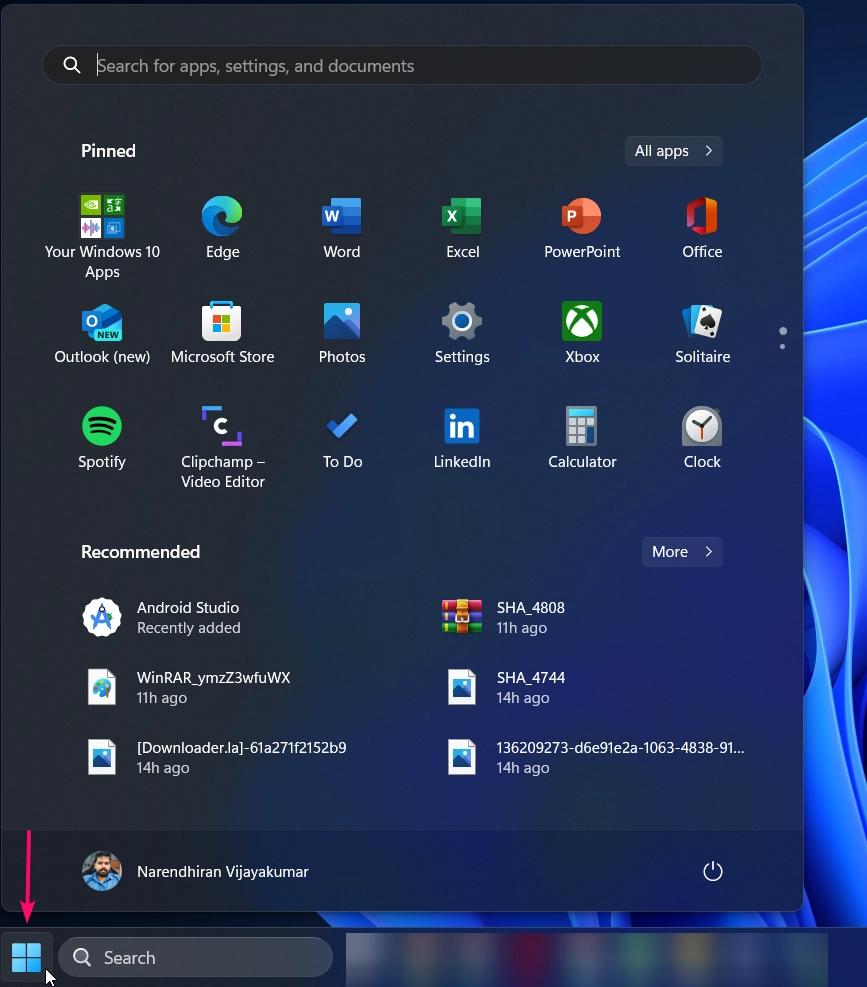
Clicking the Start Menu Button
  • Step 2: Now you need to click on your profile icon at the top of the Start menu.
  • Step 3: From the dropdown menu, select Lock. It will instantly lock your screen.
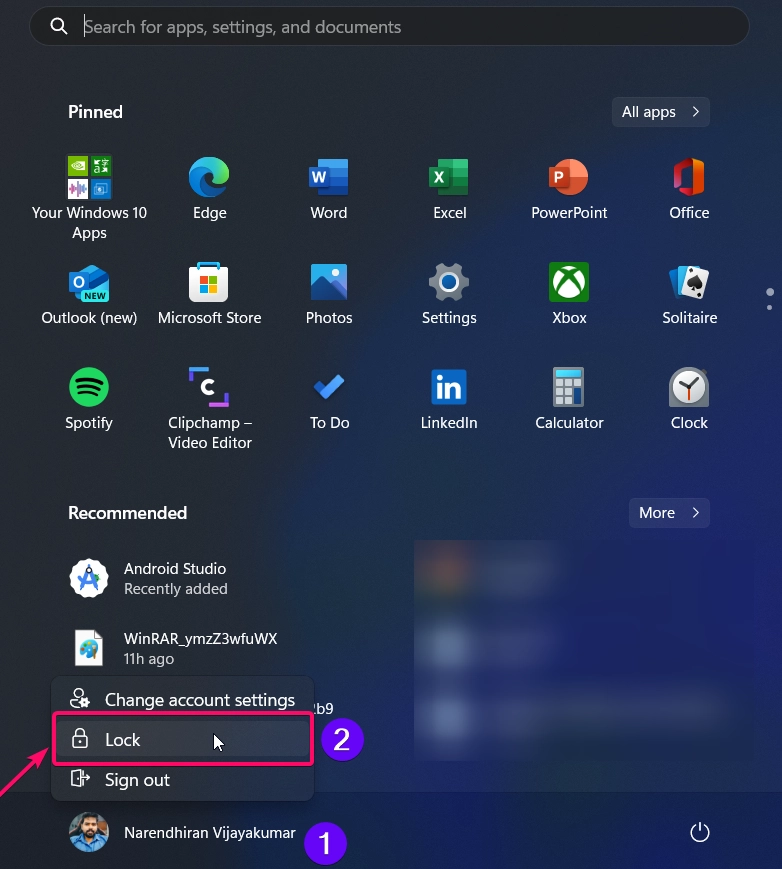
Lock your Screen using Start Menu
Lock your Screen using the Start Menu

This is the fast & simple method to lock your screen. You can secure your device in just a few clicks.

Method 2: Using CTRL + ALT + Del:

This method is one of the classic ways to lock your screen. Those who are familiar with Windows XP, Vista, 7, 8, and 10 definitely know this method to lock the screen.

  • Step 1: You need to press Ctrl + Alt + Delete keys on your keyboard simultaneously.
  • Step 2: From the screen that appears, click on Lock. It will bring you to the lock screen.
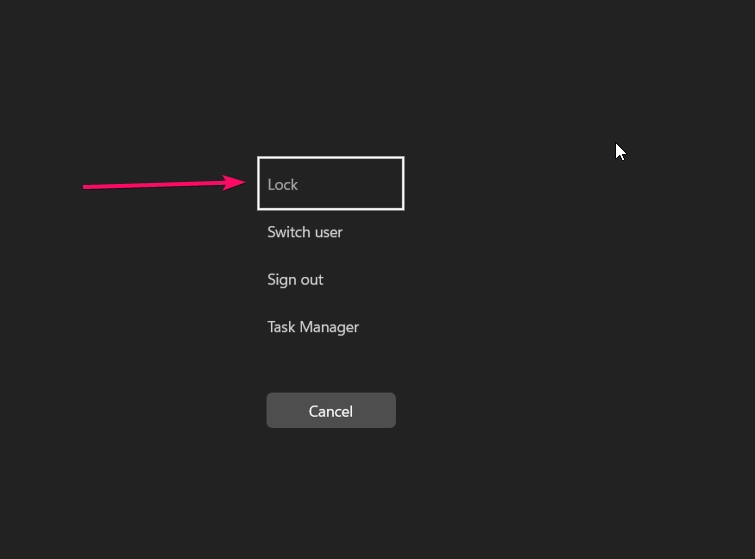
Lock your Screen using CTRL + ALT + Del

Method 3: Using Power User Menu:

  • Step 1: Firstly, you need to right-click the Start button or simply use the keyboard shortcut Winkey + X.
  • Step 2: In the list of options, you need to click the option Shut down or sign out >.
  • Step 3: Now simply click the Lock button to lock your screen instantly.
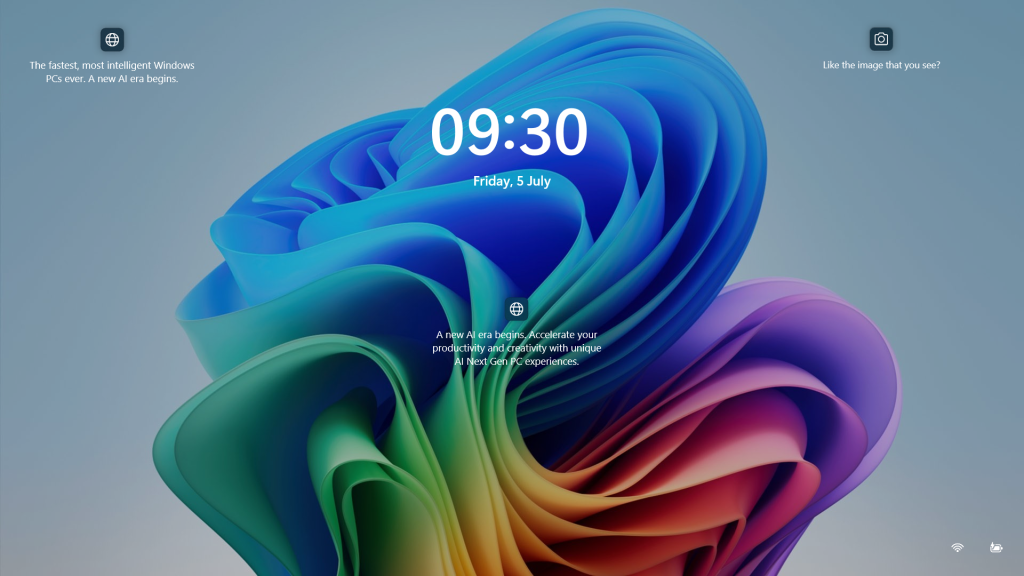
Lock Screen Preview
Lock Screen Preview

Method 4: Using Run Command:

This is one of the unique methods to lock your screen using the Run Dialog box. This is mostly suitable for tech-savvy people.

  • Firstly, you need to open the Run window using the keyboard shortcut Winkey + R
  • Now, enter the following command rundll32.exe user32.dll,LockWorkStation
  • Hit the Enter button or click the OK button to lock your screen.
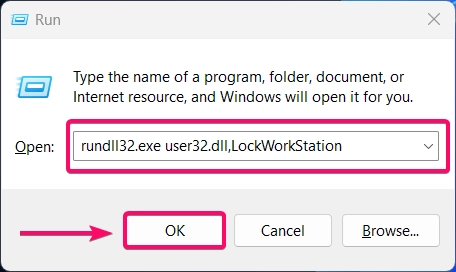
Using RUN Window to Lock your Screen
Using the RUN Window to Lock Your Screen

Method 5: Using Screensaver (Automated Lock Screen):

This is one of the unique methods, and it is a kind of automation process. All you have to do is set a screensaver and a timeout for a minute or longer.

  • Step 1: Firstly, you need to right-click on the desktop and choose Personalize.
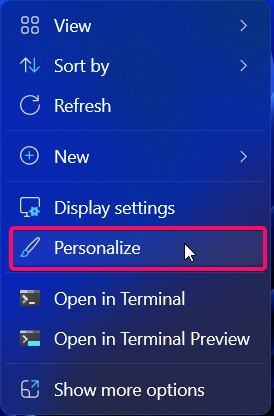
Choose Personalize
Choose Personalize
  • Step 2: Now, go to Lock screen settings.
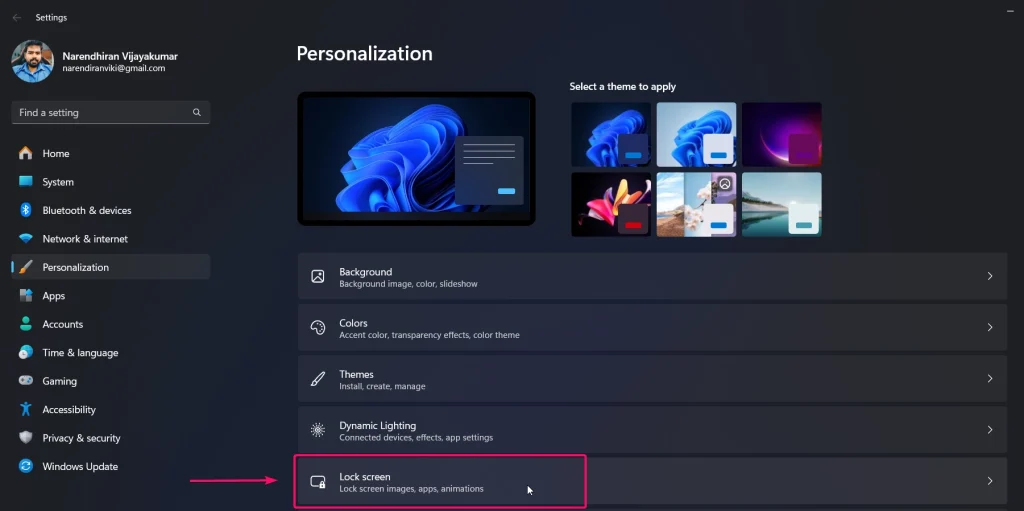
Choose Lock Screen option
Choose the Lock Screen option
  • Step 3: Scroll down and click on Screen saver settings.
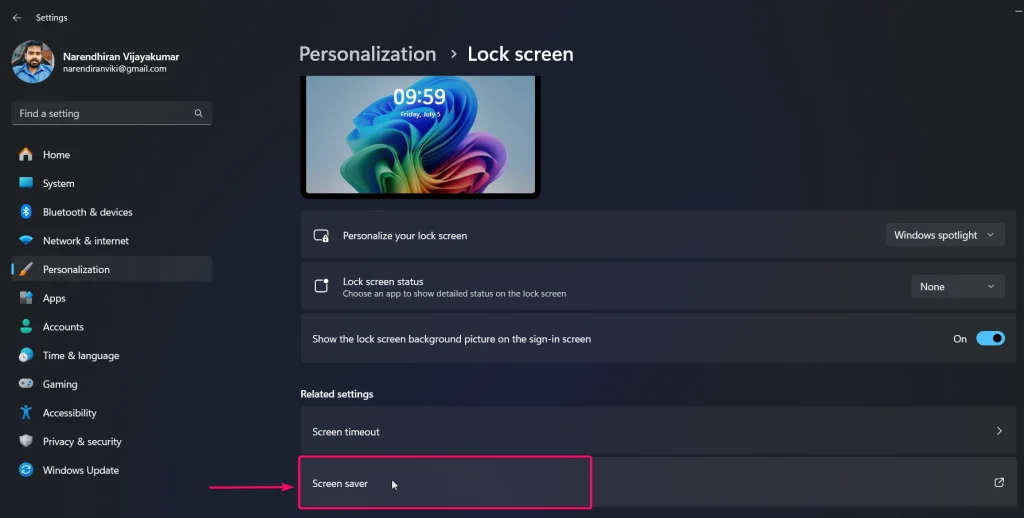
Choose ScreenSaver option
Choose the ScreenSaver option
  • Step 4: Once you click the option, the Screensaver Settings window will be displayed on your screen.
  • Step 5: Here, I choose the 3D Text option as a screensaver and set the time to 1 minute. Check the option “On resume, display logon screen,” which will ask you to re-enter the login password to sign in.
  • Step 6: Once you have done all the settings, click the Apply and OK buttons.

Setting Screensaver to Lock your Screen
Setting the Screen Saver to Lock Your Screen
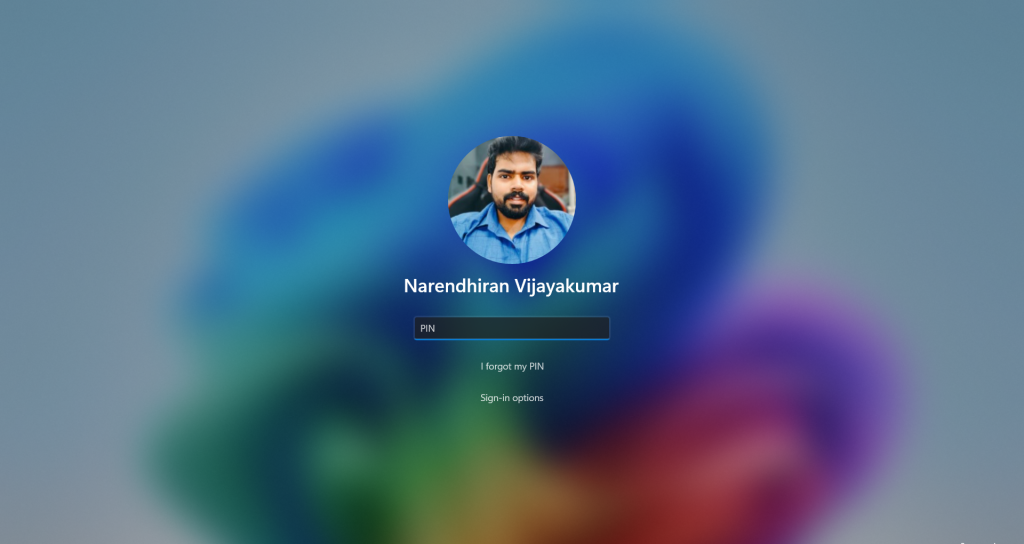
  • After a minute, your computer will launch the screensaver on your device by locking your screen automatically, as shown in the image below.

ScreenSaver Preview
ScreenSaver Preview
Logon Screen Preview

Frequently Asked Questions

What is the fastest keyboard shortcut to lock my PC?

The most efficient way to lock your screen is by pressing the Windows Key + L. This immediately sends you to the Lock Screen, requiring your PIN, password, or biometric login to return to your desktop. All your windows and applications remain open in the background exactly as you left them.

What is Dynamic Lock on Windows 11?

Dynamic Lock is a “hands-free” security feature that uses Bluetooth to sense when you’ve walked away from your desk. Refer to our detailed article on Dynamic Lock for Windows 11 for more information.

Does locking my screen close my running programs?

Locking your screen is different from “Signing Out.” When you lock the screen, your session remains active. Downloads will continue, music may continue to play (depending on the app), and all your documents will stay open. It simply places a security gate in front of your active session.

Take Away:

Locking my screen in Windows 11 is essential for maintaining security and privacy, especially when I need to step away from my computer. I’ve found that there are multiple ways to do this, each offering convenience and reliability.

Have Queries?

Whether I use the Start menu, the classic Ctrl + Alt + Delete method, or even set up an automatic lock through screen saver settings, I have several options to choose from. By using these methods, I can ensure that my personal information and work remain secure. If you have any questions, let us know in the comments. Find more informative tutorials on our Blog WinSides.com


Tags:

BeginnersHow toLock ScreenTipsTutorialswindows 11
Narendhiran Vijayakumar
Author

Narendhiran Vijaykumar

I Am a Frontend Developer, and Business Creator With Over 8 Years of Experience in Php and Frontend Web Development. I Have Over 15 Years of Experience Using Windows Os, From Windows Xp to Windows 11, and Possess Sound Knowledge in Using and Solving Real-time Problems. I Am Getting Proficient in Ai-based Technologies and Have Developed 3 Successful Web Apps and Saas Platforms.

Follow Me
Other Articles
HOW TO RUN AND INSTALL X SERVER IN WINDOWS 11
Previous

How to Install and Run X Server in Windows 11?

HOW TO CHECK SYSTEM INFORMATION ON WINDOWS 11
Next

How to check System Information in Windows 11?

2 Comments
  1. Avatar of Paul Eze Paul Eze says:
    October 22, 2024 at 9:48 pm

    Very helpful, thanks

    Reply
    1. Narendhiran Vijayakumar Narendhiran Vijaykumar says:
      October 23, 2024 at 4:13 am

      Thank You for your positive feedback, Explore more Windows 11 based tutorials on our HomePage WinSides.com

      Reply

Leave a Reply Cancel reply

Your email address will not be published. Required fields are marked *

  • Easy Way to Enable Windows Subsystem for Linux in Windows 11
  • Enable Windows Subsystem for Linux (WSL 2) using Command Prompt & PowerShell
  • How to check System Information in Windows 11?
  • 4+ Easy Ways to Lock Your Screen in Windows 11!
  • How to Install and Run X Server in Windows 11?
  1. Vigneshwaran Vijayakumar
    Vigneshwaran Vijayakumar on How to Enable Windows PowerShell 2.0 in Windows 11?October 5, 2025

    Hello Mr. Mohamad El-Kheir, Thank you for contacting us. Microsoft has removed PowerShell version 2.0 completely from Windows 11 24H2…

  2. Avatar of Mohamad El-Kheir
    Mohamad El-Kheir on How to Enable Windows PowerShell 2.0 in Windows 11?October 5, 2025

    i have a MSI laptop with windows 11 Home Installed on it. how to install powershell v2.0 on it

  3. Vigneshwaran Vijayakumar
    Vigneshwaran Vijayakumar on DxDiag Windows 11 – What is it & How to use it for Troubleshooting?August 14, 2025

    Hey Myla Shannon Thank you for your valuable feedback. We are delighted to hear your compliment and excited to know…

  4. Avatar of Myla Shannon
    Myla Shannon on DxDiag Windows 11 – What is it & How to use it for Troubleshooting?August 14, 2025

    This content is incredibly informative.

  5. Avatar of seven
    seven on How to Enable IIS [Internet Information Services] in Windows 11?July 29, 2025

    I found this post very helpful.

  • About us
  • What’s New?!
  • Guest Posts on Winsides.com – Terms and Conditions
  • Publication Sitemap
  • Careers
  • Authors
  • Why Trust Winsides.com?
  • Content Removal Request
  • Terms of Use
  • Disclaimer
  • Contact us
Copyright 2024-2026 - Winsides.com. All rights reserved.