Skip to content
Winsides.com

Windows Insides

Winsides.com

Windows Insides

  • Windows 11
  • Windows Features
  • Windows Security
  • Microsoft
    • Microsoft Copilot
    • Microsoft Powertoys
  • Shortcuts
    • Windows Shortcuts
    • Desktop Shortcuts
  • Video Tutorials
  • About
    • What’s New?!
    • About us
    • Contact us
    • Privacy Policy
    • Terms of Use
  • Follow us
    • Reddit
    • Dev.to
    • YouTube
    • Linked In
    • X
    • Tumblr
    • Facebook
    • Instagram
    • Buy Me A Coffee
  • Windows 11
  • Windows Features
  • Windows Security
  • Microsoft
    • Microsoft Copilot
    • Microsoft Powertoys
  • Shortcuts
    • Windows Shortcuts
    • Desktop Shortcuts
  • Video Tutorials
  • About
    • What’s New?!
    • About us
    • Contact us
    • Privacy Policy
    • Terms of Use
  • Follow us
    • Reddit
    • Dev.to
    • YouTube
    • Linked In
    • X
    • Tumblr
    • Facebook
    • Instagram
    • Buy Me A Coffee
Close

Search

Winsides.com

Windows Insides

Winsides.com

Windows Insides

  • Windows 11
  • Windows Features
  • Windows Security
  • Microsoft
    • Microsoft Copilot
    • Microsoft Powertoys
  • Shortcuts
    • Windows Shortcuts
    • Desktop Shortcuts
  • Video Tutorials
  • About
    • What’s New?!
    • About us
    • Contact us
    • Privacy Policy
    • Terms of Use
  • Follow us
    • Reddit
    • Dev.to
    • YouTube
    • Linked In
    • X
    • Tumblr
    • Facebook
    • Instagram
    • Buy Me A Coffee
  • Windows 11
  • Windows Features
  • Windows Security
  • Microsoft
    • Microsoft Copilot
    • Microsoft Powertoys
  • Shortcuts
    • Windows Shortcuts
    • Desktop Shortcuts
  • Video Tutorials
  • About
    • What’s New?!
    • About us
    • Contact us
    • Privacy Policy
    • Terms of Use
  • Follow us
    • Reddit
    • Dev.to
    • YouTube
    • Linked In
    • X
    • Tumblr
    • Facebook
    • Instagram
    • Buy Me A Coffee
Close

Search

Home/Windows 11/How To?/How to Enable Game Mode on Windows 11?

How to Enable Game Mode on Windows 11?

Vigneshwaran Vijayakumar
By Vigneshwaran Vijayakumar
March 2, 2025 4 Min Read
0

Enable Game Mode on Windows 11: It is one of the interesting features available on Windows 11 and it helps Gamers to enhance the Gaming Performance on Windows 11 OS. This Mode allows Windows to prioritize gaming experience by optimizing the other processes that are running in the background. It may help reducing the Frame Drop, Game Lag, Network Latency, etc. In this article, let’s check out How to Enable Game Mode on Windows 11 using simple steps. Let’s get Started.

It is a built-in feature on Windows 11 and that means that this feature does not need to be installed separately rather can just be turned on in Windows 11. Check out: DirectX Shader Cache on Windows 11

Different Methods to Turn on Game Mode on Windows 11

Microsoft offers various methods to enable Game Mode on Windows 11 OS.

  1. Via Windows Settings.
  2. Enable via the Registry Editor.

Quick Way to Enable Game Mode on Windows 11 using the Windows Settings

  • Open Windows Settings using the keyboard combination WinKey + I.
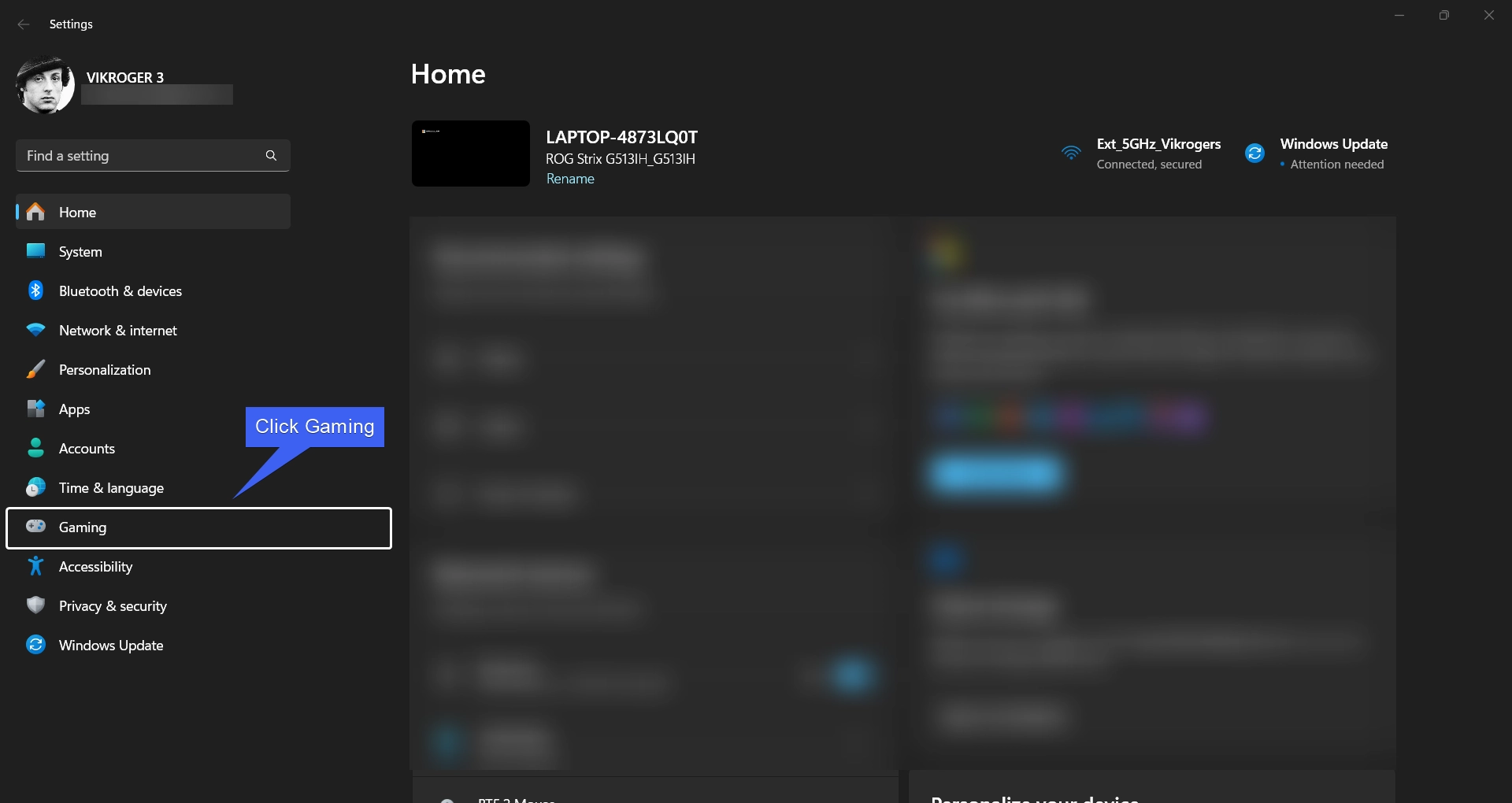
  • Click on Gaming from the Left Pane.
Click Gaming from the left pane
  • Now, you can find the option Game Mode. Click on that.
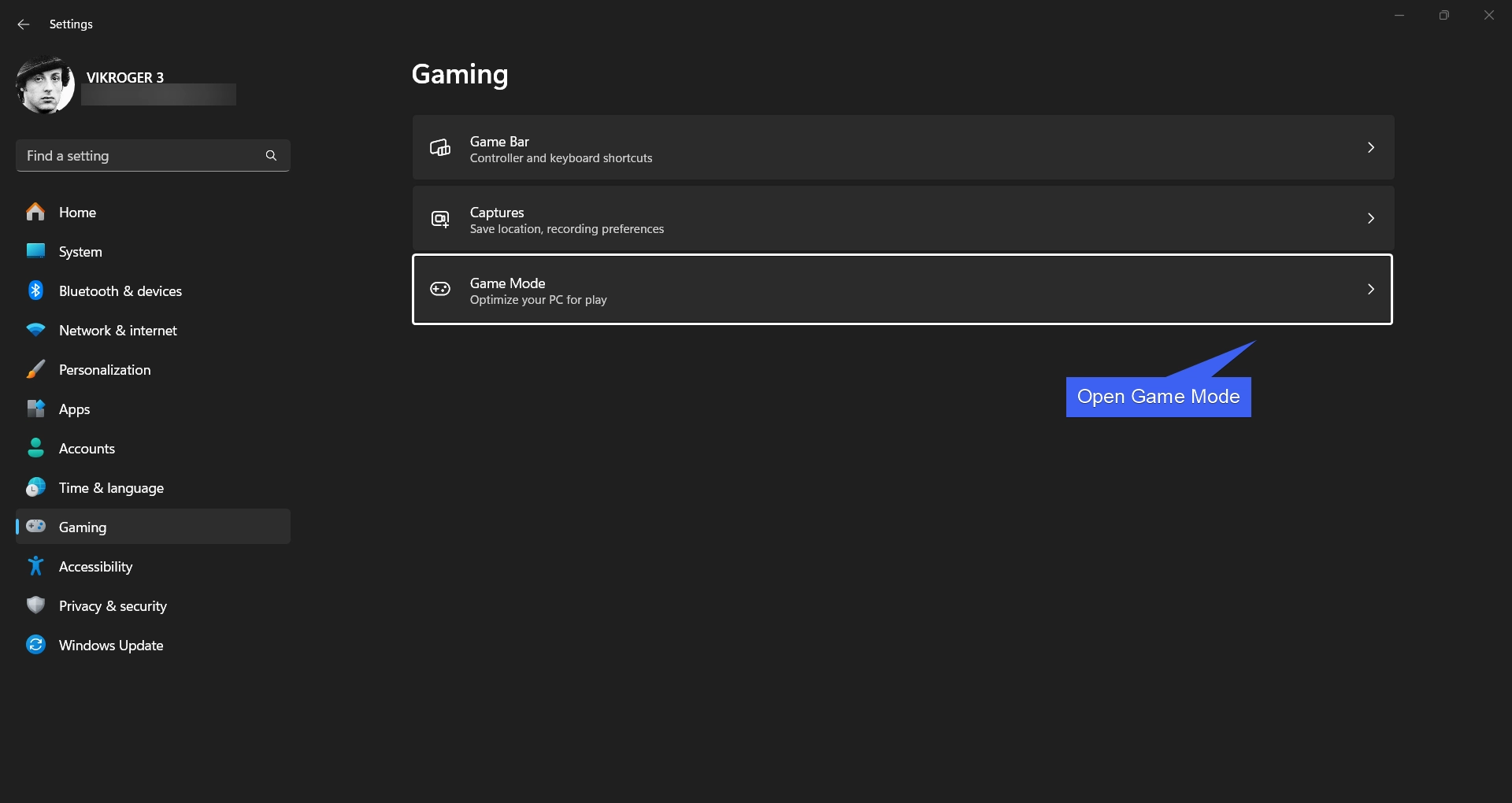
Open Game Mode
Open Game Mode
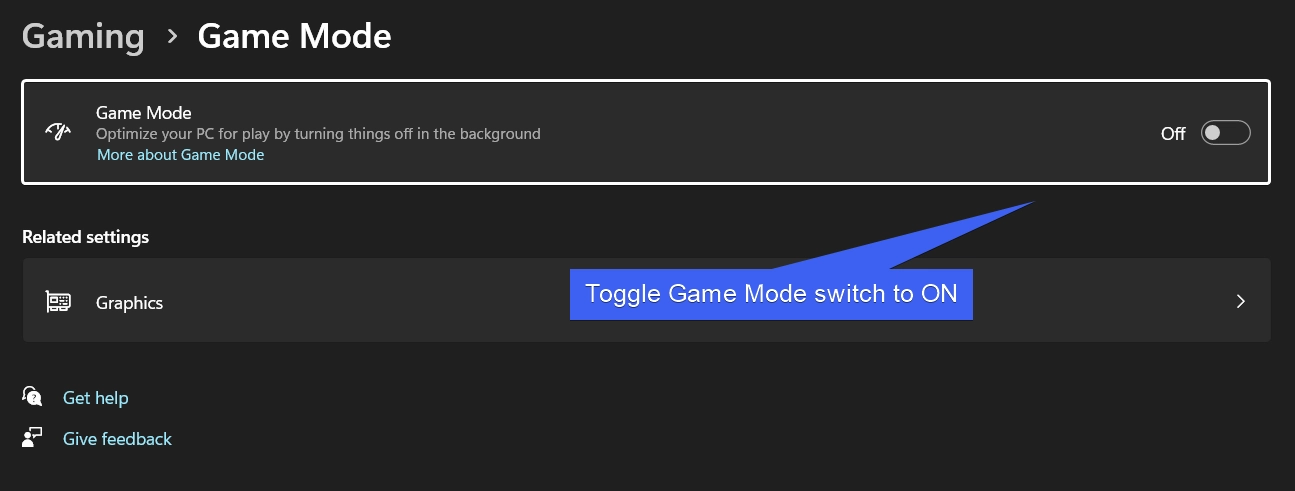
  • Toggle the Game Mode Switch to ON.
Enable Game Mode on Windows 11
  • That’s it. Game Bar is now enabled on Windows 11.
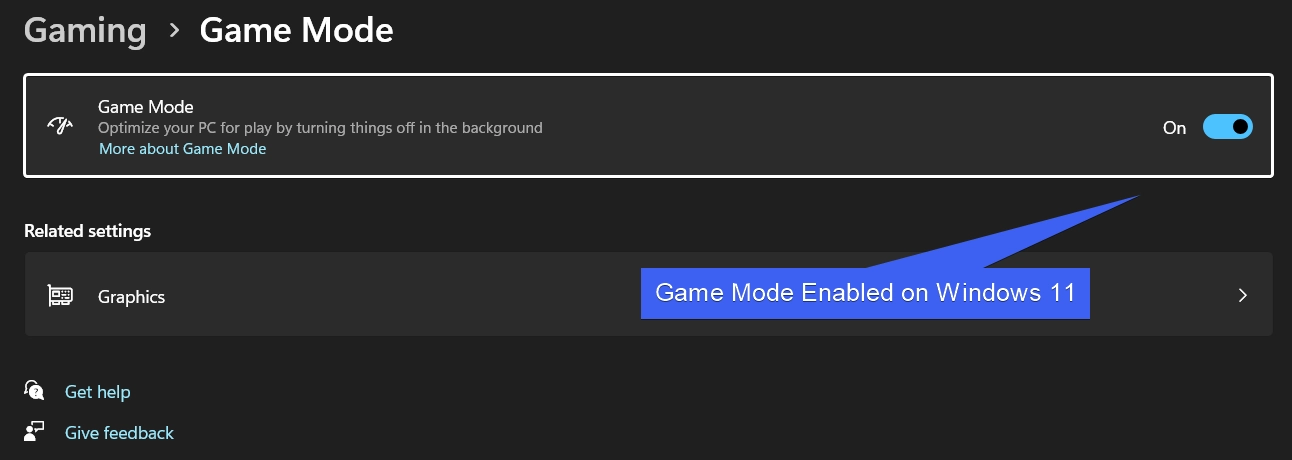
Game Mode Enabled on Windows 11

Enable Game Mode on Windows 11 using the Registry Editor

This method is quite a work around. Though it is very easy to enable this mode using the Windows Settings, for some users, the Game Mode Settings may be greyed out due to system policies, or Windows Bugs. For such scenarios, this method can be helpful.

  • Go to the Run Command using the shortcut WinKey + R.
  • The User Account Control will confirm and open the Run Command. Execute the following command in the Run. regedit
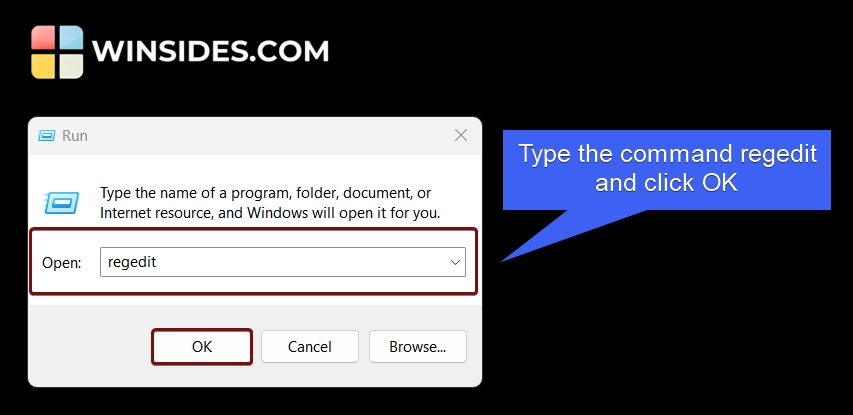
Execute the following command in the Run
  • Now, navigate to the following path. HKEY_CURRENT_USER\Software\Microsoft\GameBar
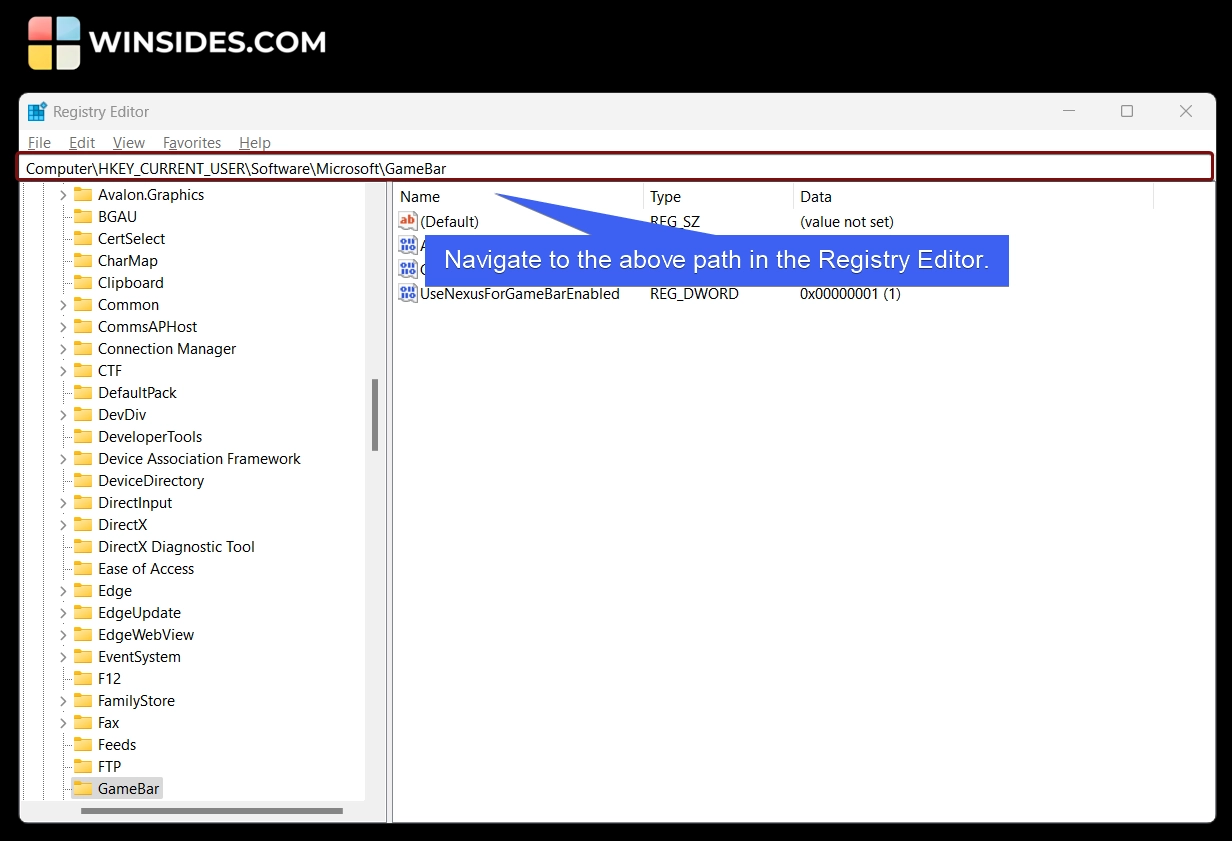
Navigate to the following path in the Registry Editor
  • Once you navigate to this path, you can find the file AutoGameModeEnabled.
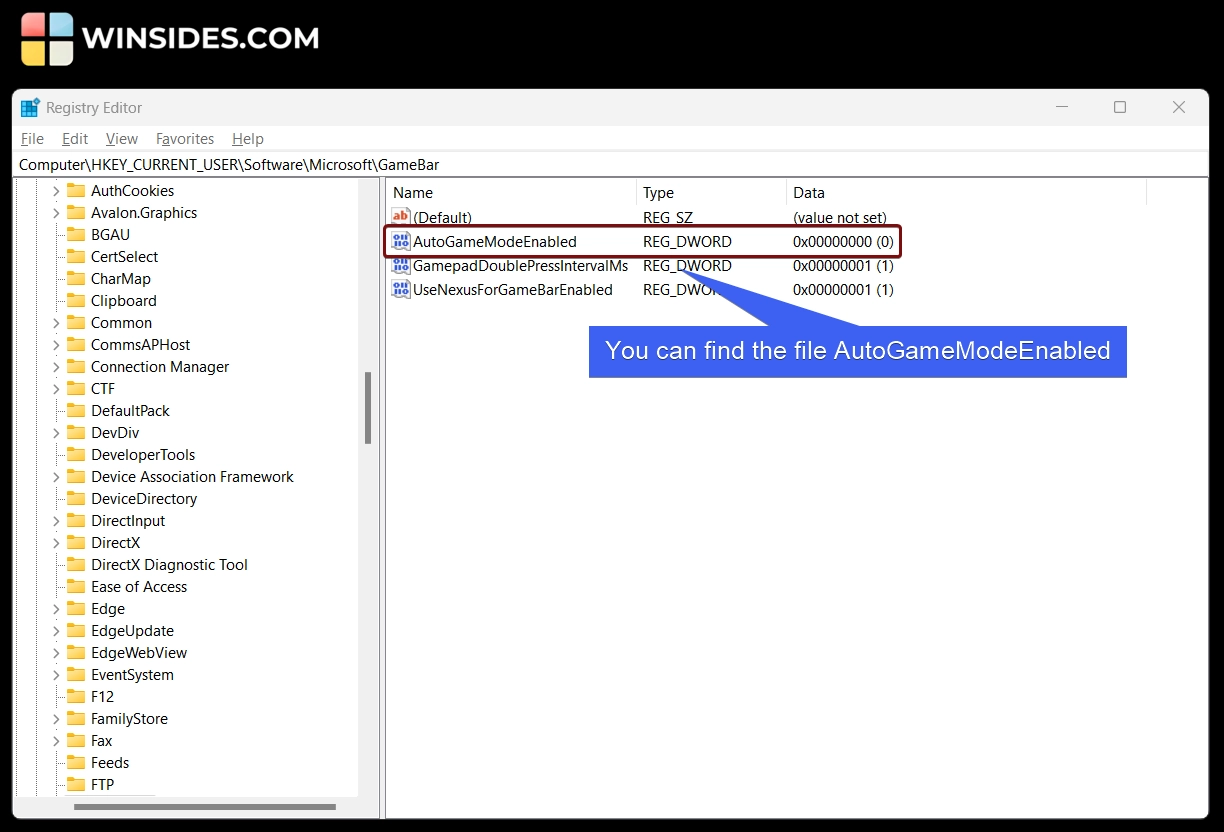
Locate the file AutoGameModeEnabled
  • Double-click on this file to open it and you can just set the Value Data to 1.
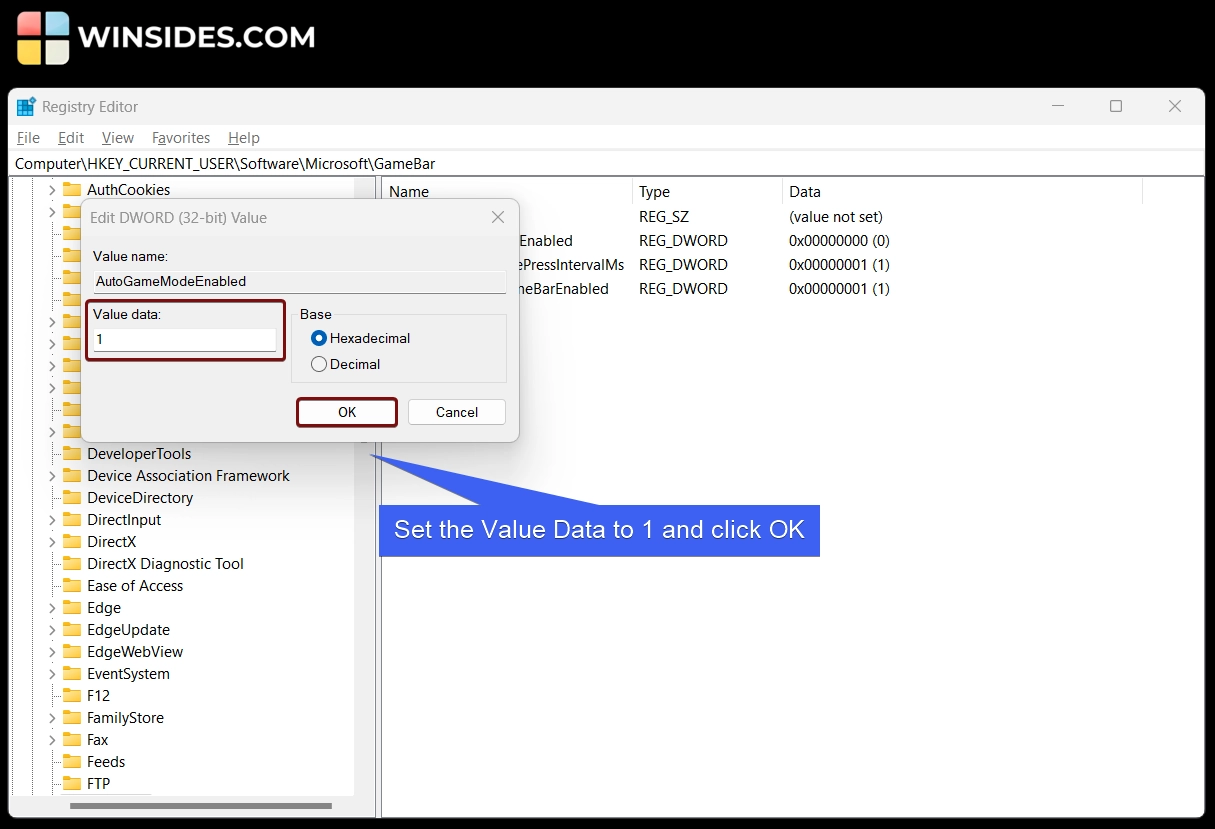
Set the DWORD Value Data to 1
  • If you don’t have this file, then you can manually create this file using the following steps.
  • Right-click on the GameBar Folder in the left panel.
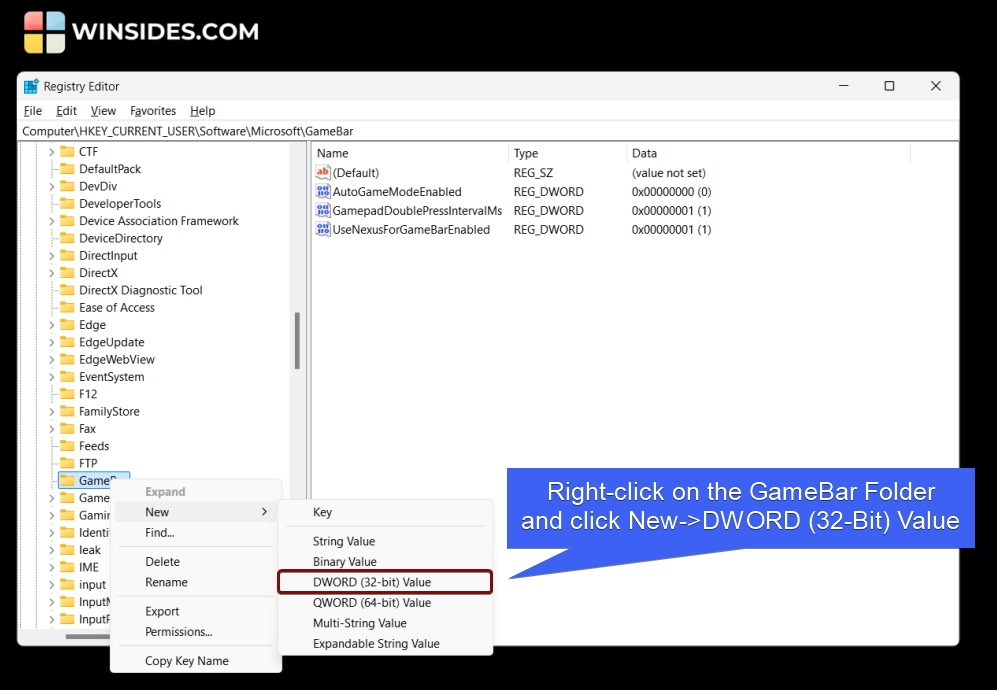
Create a New DWORD (32-Bit) Value
  • Select New >DWORD (32-bit) Value. Name the file as AutoGameModeEnabled.
  • Set the Value Data to 1, and click OK.
  • Finally, Close the Registry Editor and make sure to restart your Windows 11 OS.
  • After Restarting the System, you can find the Game Mode Enabled on Windows 11.

What Does Game Mode Offers on Windows 11?

What Game Mode Offers on Windows 11?

It offers Better Performance by freeing up the system resources for the Games, minimize background interruptions and restrict Windows Updates, Driver Installations, Restart Prompts, etc, Enhanced FPS Stability, and Reduces Input Lag.

Take Away

We hope you are satisfied with our above article on How to Enable Game Mode on Windows 11. If you have any queries, kindly let us know in the comment section. For more interesting articles, stay tuned to Winsides.com. Happy Gaming! Peace out!
Tags:

Game ModeHow to Enable in Windows 11
Vigneshwaran Vijayakumar
Author

Vigneshwaran Vijayakumar

Hello, I'm Vigneshwaran, the founder, owner, and author of WinSides.Com. With nearly a decade of experience in blogging across various domains and specializing in Windows-related tutorials for over five years, I bring a wealth of knowledge and expertise to WinSides.Com

Follow Me
Other Articles
Check PC Specs without Logging into Windows 11
Previous

How to Check PC Specs without Logging into Windows 11?

Enable Dynamic Lighting on Windows 11
Next

How to Enable Dynamic Lighting on Windows 11?

No Comment! Be the first one.

Leave a Reply Cancel reply

Your email address will not be published. Required fields are marked *

  • How to Run Group Policy Editor as Administrator on Windows 11?
  • Easy Way to Enable Windows Subsystem for Linux in Windows 11
  • Enable Windows Subsystem for Linux (WSL 2) using Command Prompt & PowerShell
  • Enable IIS Management Console in Windows 11 [GUI]
  • How to check System Information in Windows 11?
  1. Vigneshwaran Vijayakumar
    Vigneshwaran Vijayakumar on How to Enable Windows PowerShell 2.0 in Windows 11?October 5, 2025

    Hello Mr. Mohamad El-Kheir, Thank you for contacting us. Microsoft has removed PowerShell version 2.0 completely from Windows 11 24H2…

  2. Avatar of Mohamad El-Kheir
    Mohamad El-Kheir on How to Enable Windows PowerShell 2.0 in Windows 11?October 5, 2025

    i have a MSI laptop with windows 11 Home Installed on it. how to install powershell v2.0 on it

  3. Vigneshwaran Vijayakumar
    Vigneshwaran Vijayakumar on DxDiag Windows 11 – What is it & How to use it for Troubleshooting?August 14, 2025

    Hey Myla Shannon Thank you for your valuable feedback. We are delighted to hear your compliment and excited to know…

  4. Avatar of Myla Shannon
    Myla Shannon on DxDiag Windows 11 – What is it & How to use it for Troubleshooting?August 14, 2025

    This content is incredibly informative.

  5. Avatar of seven
    seven on How to Enable IIS [Internet Information Services] in Windows 11?July 29, 2025

    I found this post very helpful.

  • About us
  • What’s New?!
  • Guest Posts on Winsides.com – Terms and Conditions
  • Publication Sitemap
  • Careers
  • Authors
  • Why Trust Winsides.com?
  • Content Removal Request
  • Terms of Use
  • Disclaimer
  • Contact us
Copyright 2024-2026 - Winsides.com. All rights reserved.