Skip to content
Winsides.com

Windows Insides

Winsides.com

Windows Insides

  • Windows 11
  • Windows Features
  • Windows Security
  • Microsoft
    • Microsoft Copilot
    • Microsoft Powertoys
  • Shortcuts
    • Windows Shortcuts
    • Desktop Shortcuts
  • Video Tutorials
  • About
    • What’s New?!
    • About us
    • Contact us
    • Privacy Policy
    • Terms of Use
  • Follow us
    • Reddit
    • Dev.to
    • YouTube
    • Linked In
    • X
    • Tumblr
    • Facebook
    • Instagram
    • Buy Me A Coffee
  • Windows 11
  • Windows Features
  • Windows Security
  • Microsoft
    • Microsoft Copilot
    • Microsoft Powertoys
  • Shortcuts
    • Windows Shortcuts
    • Desktop Shortcuts
  • Video Tutorials
  • About
    • What’s New?!
    • About us
    • Contact us
    • Privacy Policy
    • Terms of Use
  • Follow us
    • Reddit
    • Dev.to
    • YouTube
    • Linked In
    • X
    • Tumblr
    • Facebook
    • Instagram
    • Buy Me A Coffee
Close

Search

Winsides.com

Windows Insides

Winsides.com

Windows Insides

  • Windows 11
  • Windows Features
  • Windows Security
  • Microsoft
    • Microsoft Copilot
    • Microsoft Powertoys
  • Shortcuts
    • Windows Shortcuts
    • Desktop Shortcuts
  • Video Tutorials
  • About
    • What’s New?!
    • About us
    • Contact us
    • Privacy Policy
    • Terms of Use
  • Follow us
    • Reddit
    • Dev.to
    • YouTube
    • Linked In
    • X
    • Tumblr
    • Facebook
    • Instagram
    • Buy Me A Coffee
  • Windows 11
  • Windows Features
  • Windows Security
  • Microsoft
    • Microsoft Copilot
    • Microsoft Powertoys
  • Shortcuts
    • Windows Shortcuts
    • Desktop Shortcuts
  • Video Tutorials
  • About
    • What’s New?!
    • About us
    • Contact us
    • Privacy Policy
    • Terms of Use
  • Follow us
    • Reddit
    • Dev.to
    • YouTube
    • Linked In
    • X
    • Tumblr
    • Facebook
    • Instagram
    • Buy Me A Coffee
Close

Search

Home/Windows 11/How To?/Personalization/How to Enable Dynamic Lighting on Windows 11?

How to Enable Dynamic Lighting on Windows 11?

Vigneshwaran Vijayakumar
By Vigneshwaran Vijayakumar
March 13, 2025 4 Min Read
0

Dynamic Lighting on Windows 11: This is a popular feature among the Gamers who are into RGB Lightings. You don’t need a 3rd party software to control RGB Lighting on compatible peripherals like Keyboard, Mouse, Mouse Pad, etc., on Windows 11. Popular Brands like Razer, Logitech, Corsair, etc., are selling various RGB Devices and Peripherals, and you can manage these peripheral’s Native Lighting Control using the Dynamic Lighting on Windows 11. In this article, let’s check out How to Enable Dynamic Lighting on Windows 11 using simple steps.

Turn on Dynamic Lighting on Windows 11 – Simple Steps

  • Go to the Windows Settings using the shortcut WinKey + I.
  • From the left pane, click on Personalization.
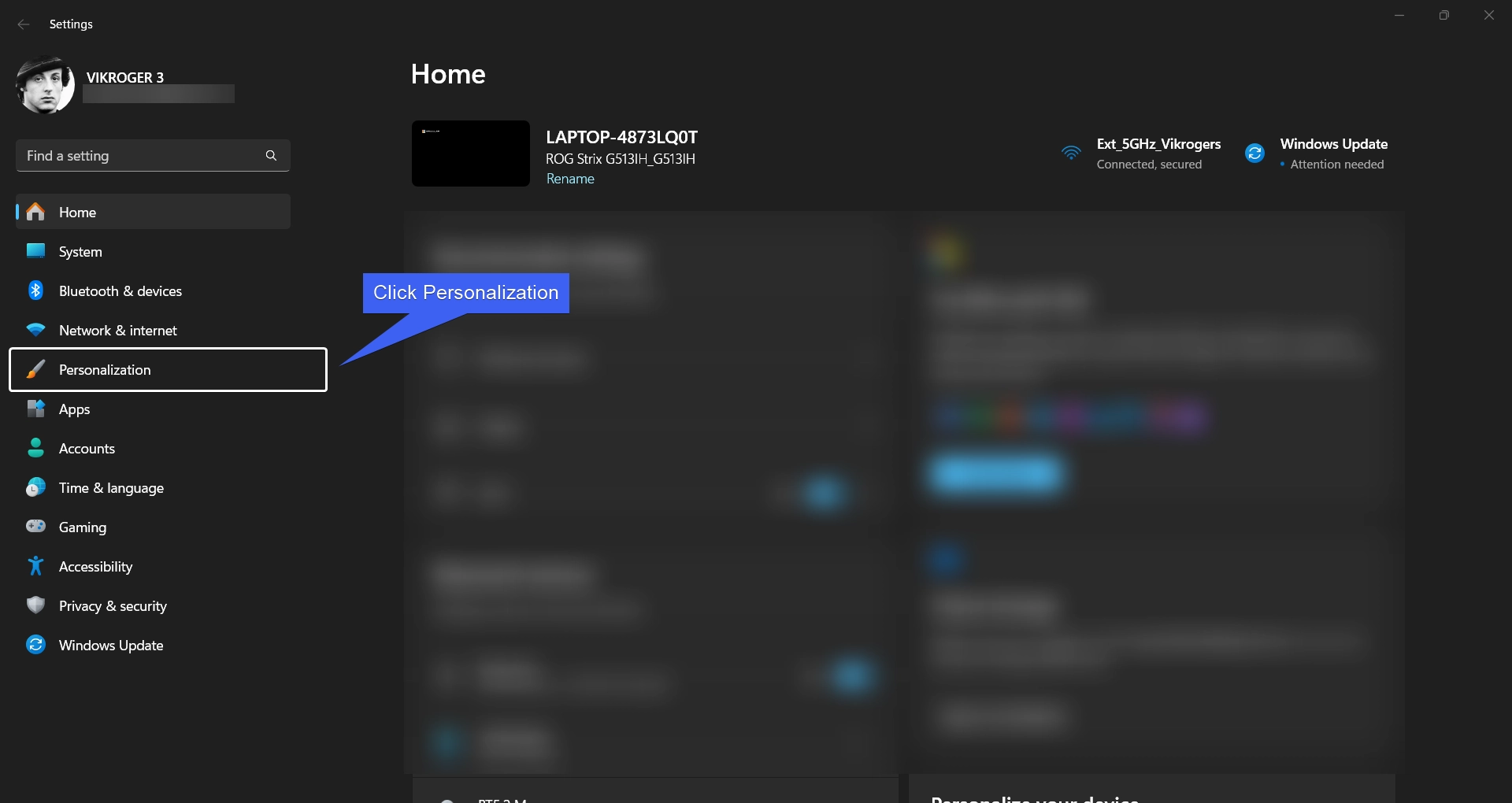
Click Personalization
  • Under Personalization, you can find various options like Background, Colors, Themes, Dynamic Lighting, Lock Screen, etc. Click on Dynamic Lighting.
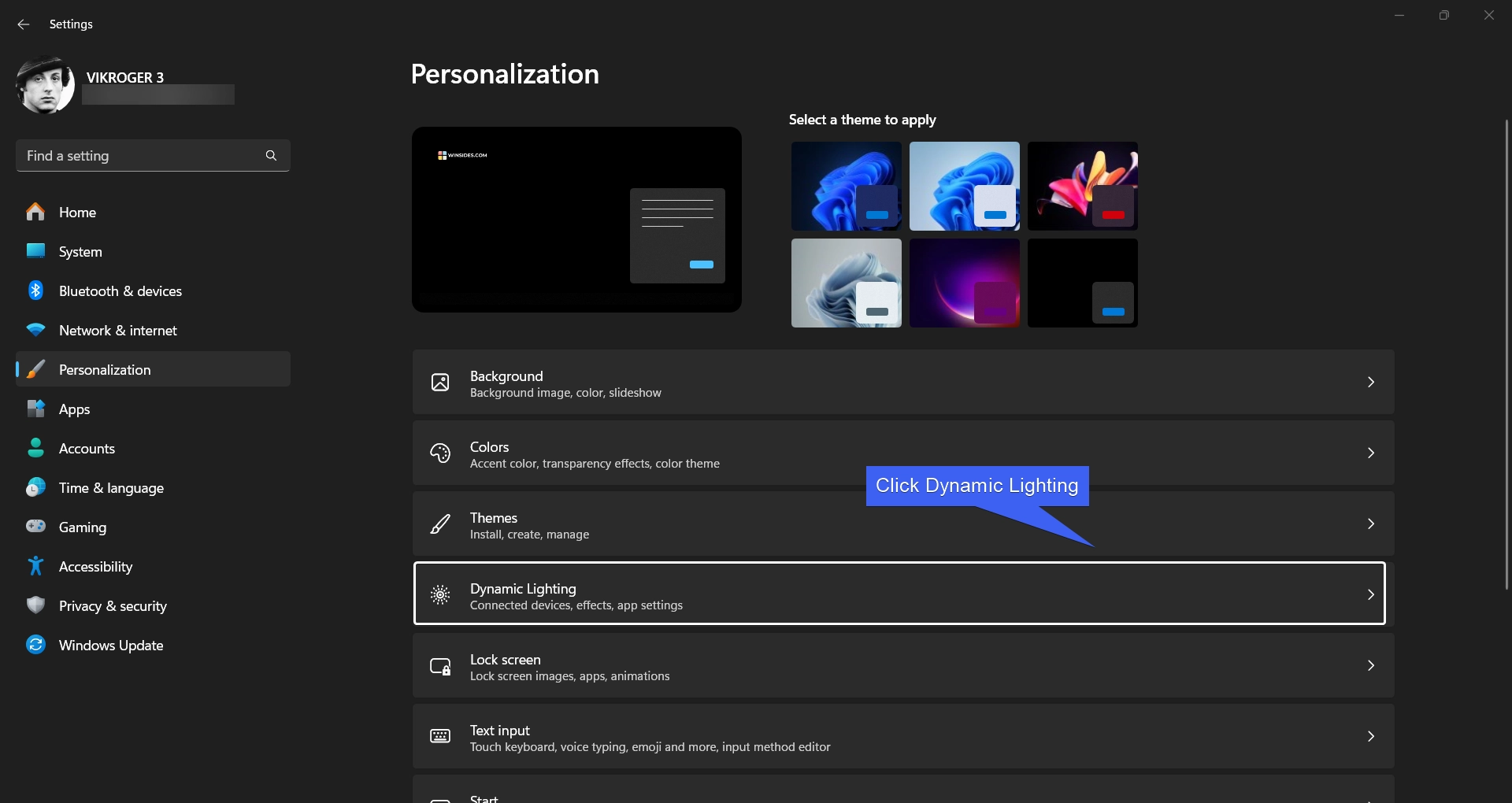
Select Dynamic Lighting
  • Toggle “Use Dynamic Lighting on my Devices” to ON under Manage all Dynamic Lighting Devices.
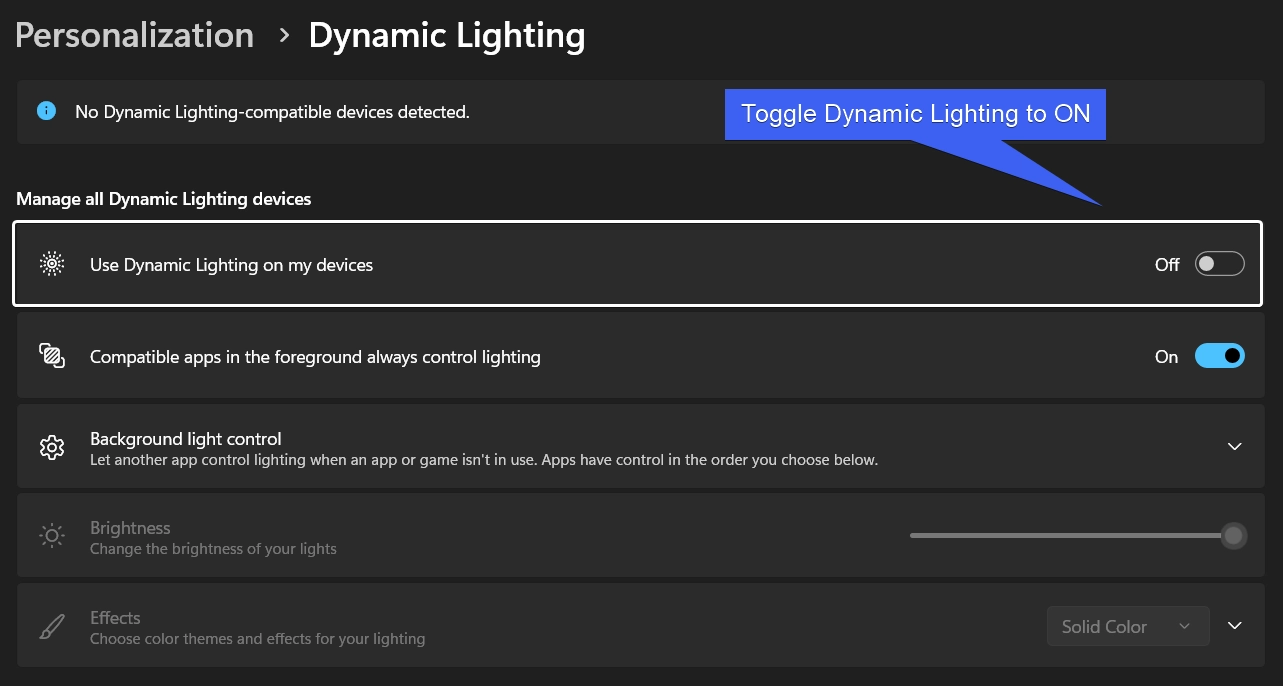
Enable Dynamic Lighting
  • This option will enable Dynamic Lighting on Windows 11.
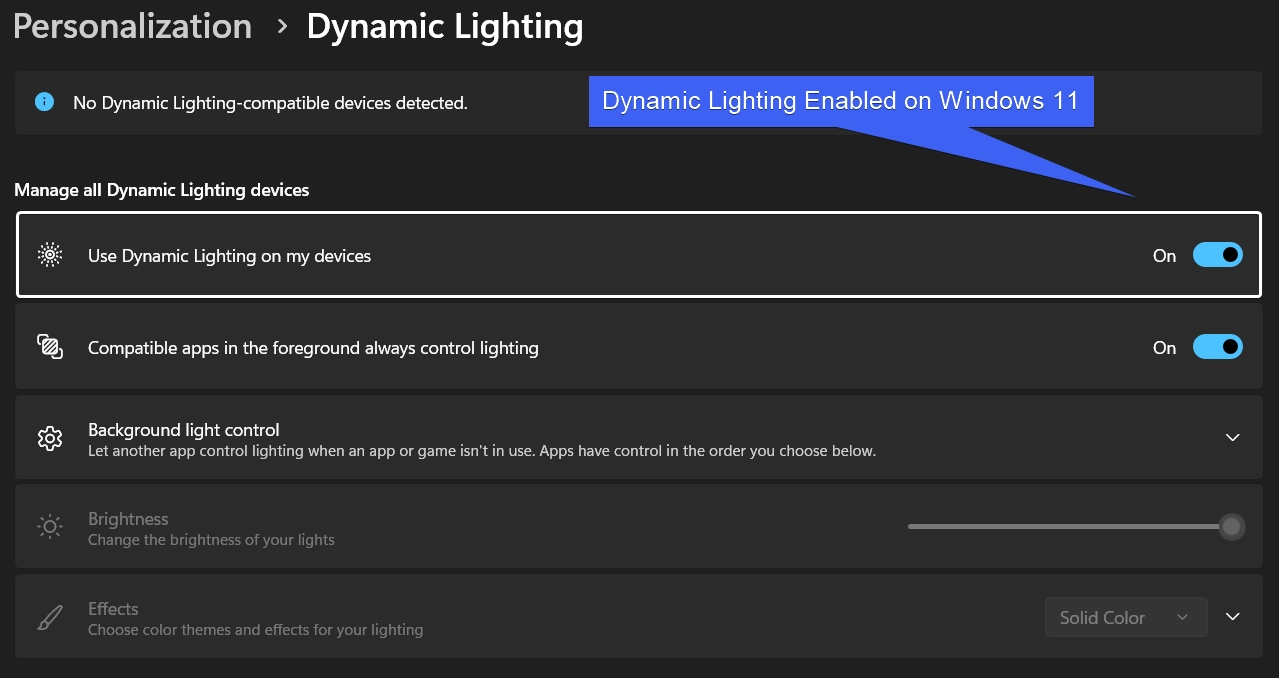
Dynamic Lighting Enabled on Windows 11
  • I don’t have any Dynamic Lighting-compatible devices connected to my Windows 11, hence, I am getting the banner message “No Dynamic Lighting-compatible devices detected“.
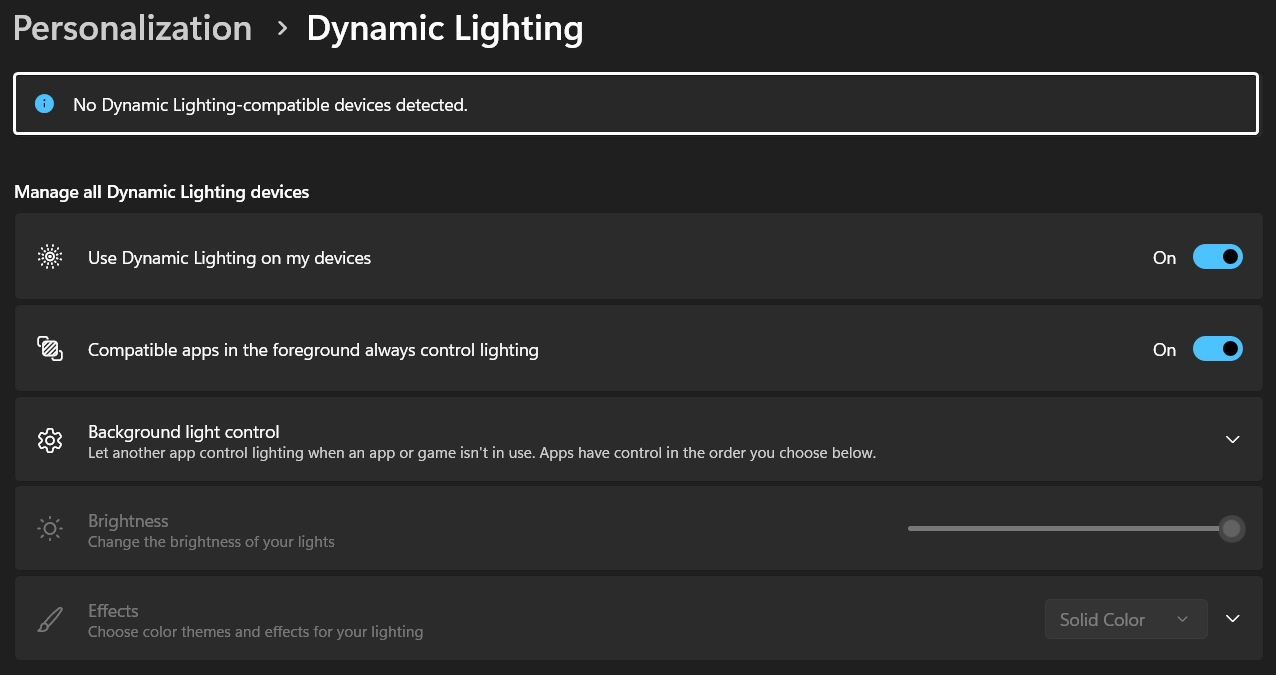
No Compatible Dynamic Lighting Devices Detected

Various Options on Dynamic Lighting

If you are using multiple controller apps, you can choose the priority by ordering the devices accordingly.

  • You can also Allow compatible apps in the foreground always control lighting. You can just toggle this option ON.
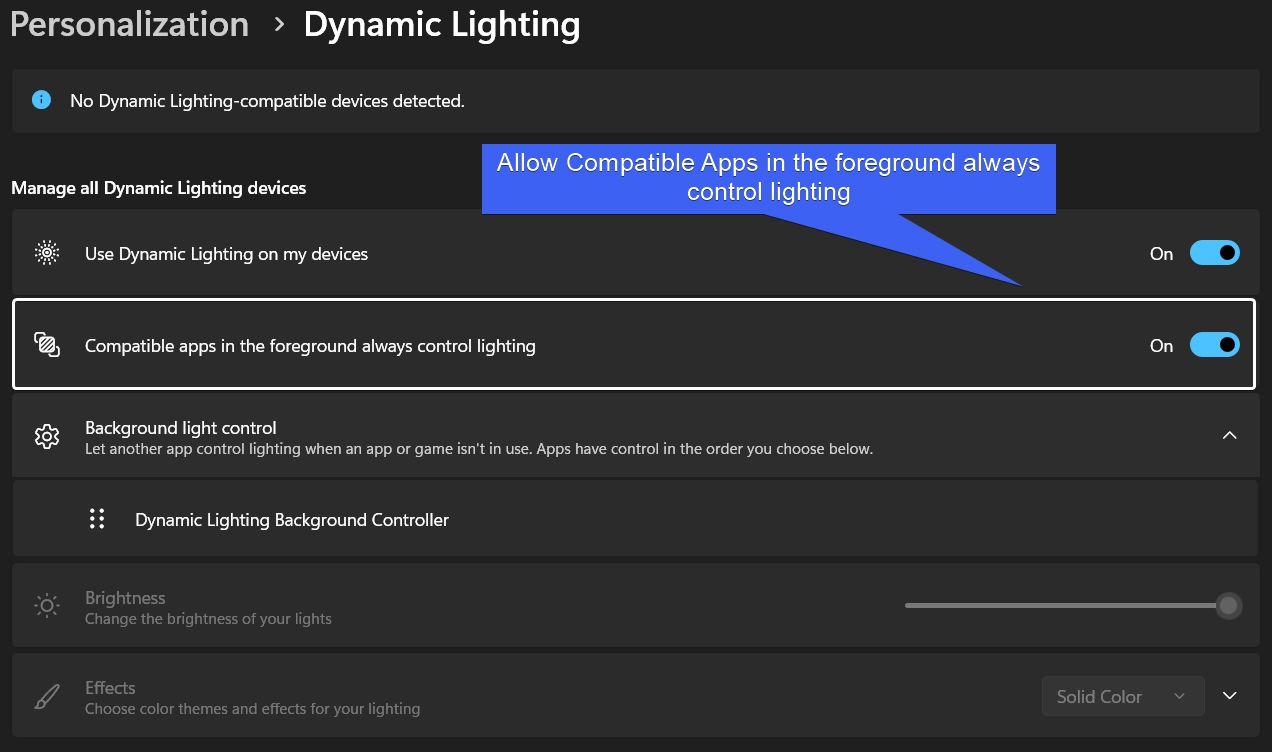
Allow Compatible Apps in the Foreground to control the Lighting
  • If you have multiple apps controlling the Lighting, then you can set a hierarchy by rearranging the control order.
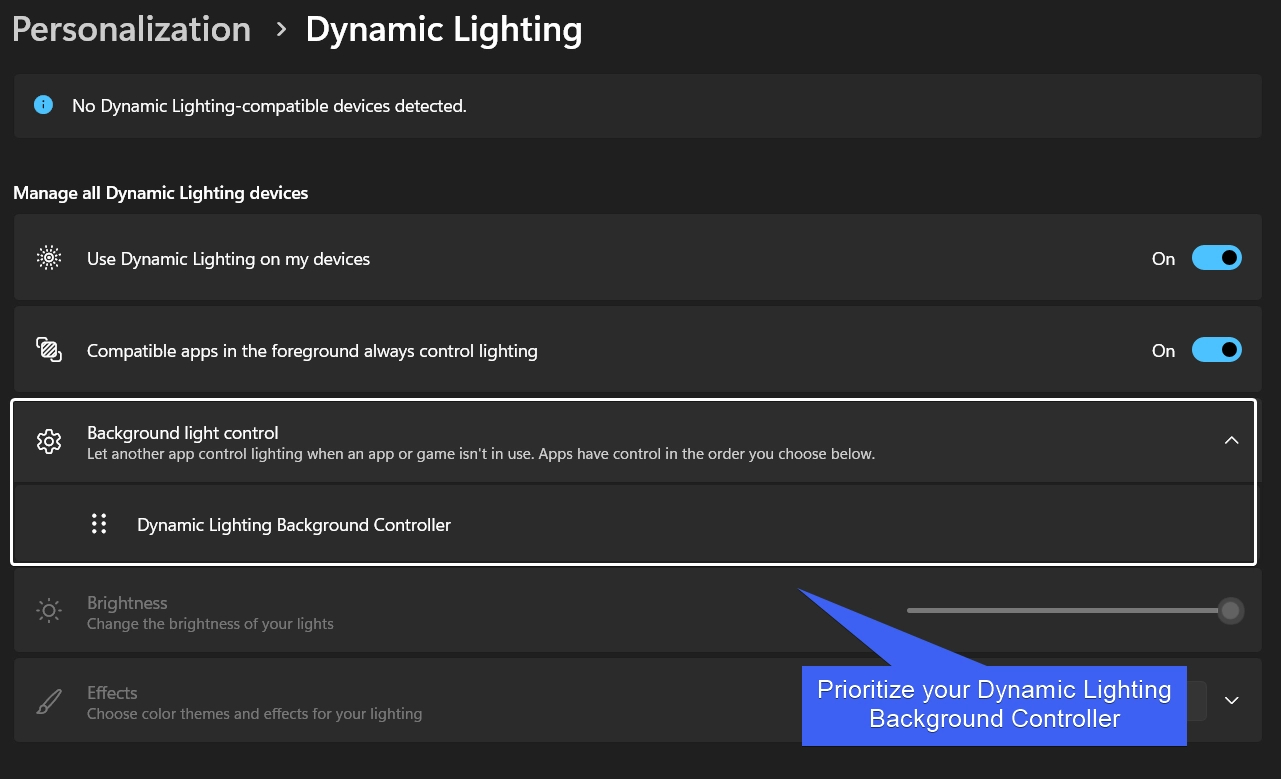
Prioritize your Dynamic Lighting background Controller
  • Additionally, you can adjust the Brightness of your Lights and choose Color Themes, and Effects for your Lighting. Since, I have no compatible devices connected, these options are disabled for me.
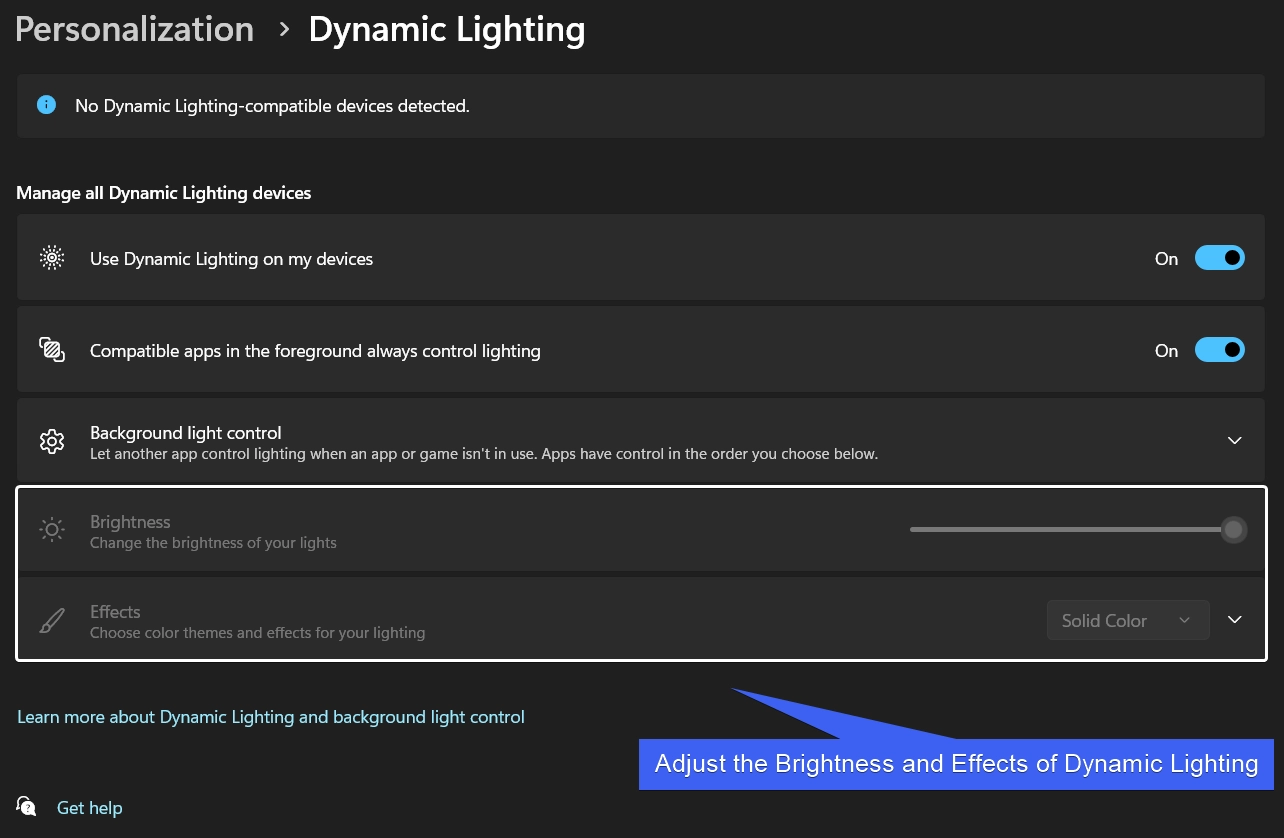
Adjust Brightness and Effects of the Dynamic Lighting

Armoury Crate in Asus ROG Series

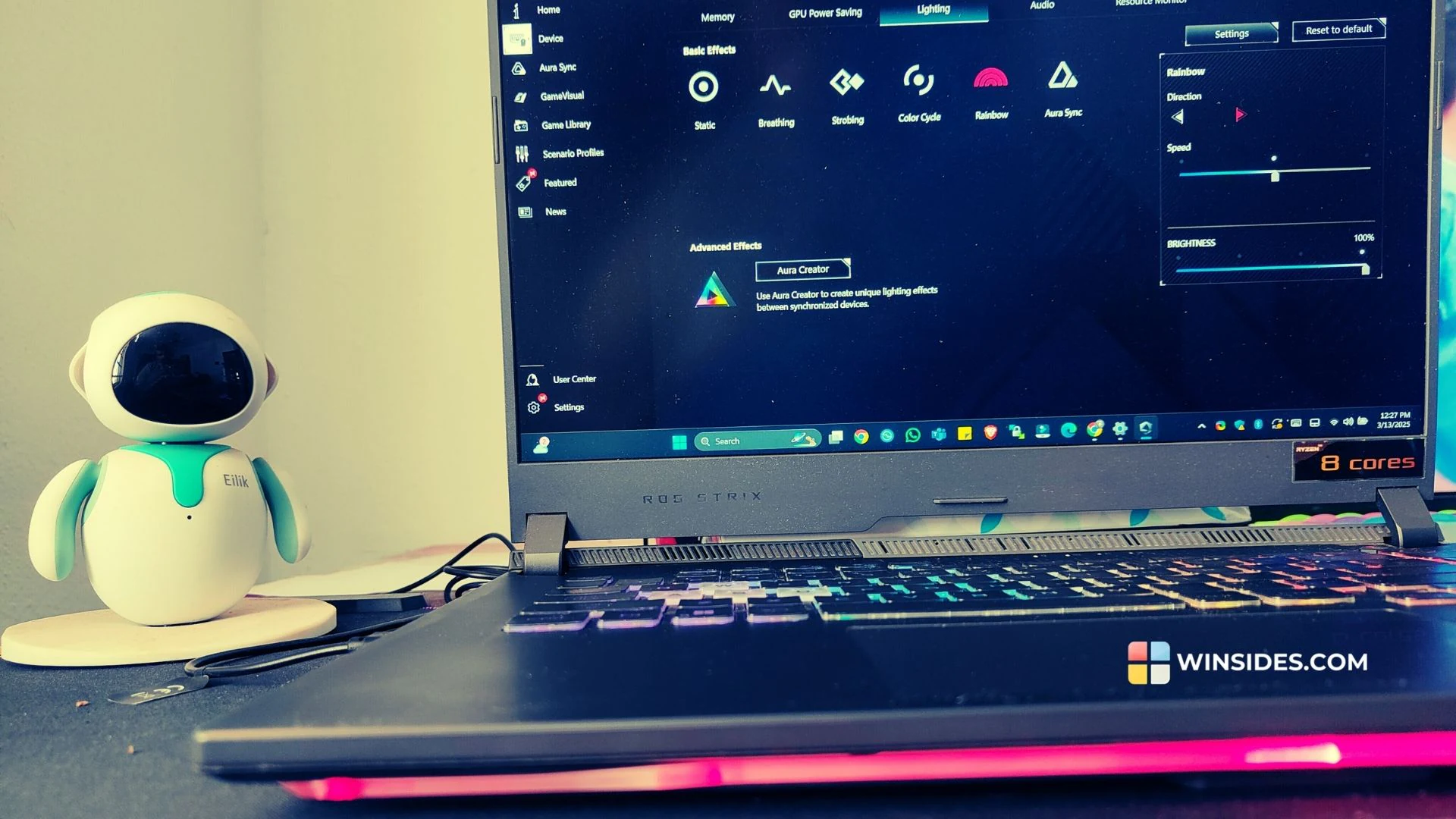
My ASUS ROG G15 Strix

As we are discussing about Dynamic Lighting on Windows 11, it is imperative that we go through the Armoury Crate Software from Asus on their ROG Series. If you are a regular Winsides.com user, you may be aware that my primary laptop is ASUS ROG Strix G15. My Laptop has a transperant RGB Bar on my Laptop Edges, and my keyboard is also RGB. Armoury Crate provides various interesting options like RGB Control, Live Wallpapers, Real-time performance, Game Visual Effects, and more.

In this section, we will check out those options in detail. This software comes built-in in the ASUS ROG Series, the app provides extensive control over your Laptop in vaious aspects.

  • All ROG Series will have a dedicated Armoury Crate Keyboard button. Click on that to open it.

Dedicated Armoury Crate Button on the ASUS ROG
  • From the left pane, click on Device, and then navigate to Lighting.
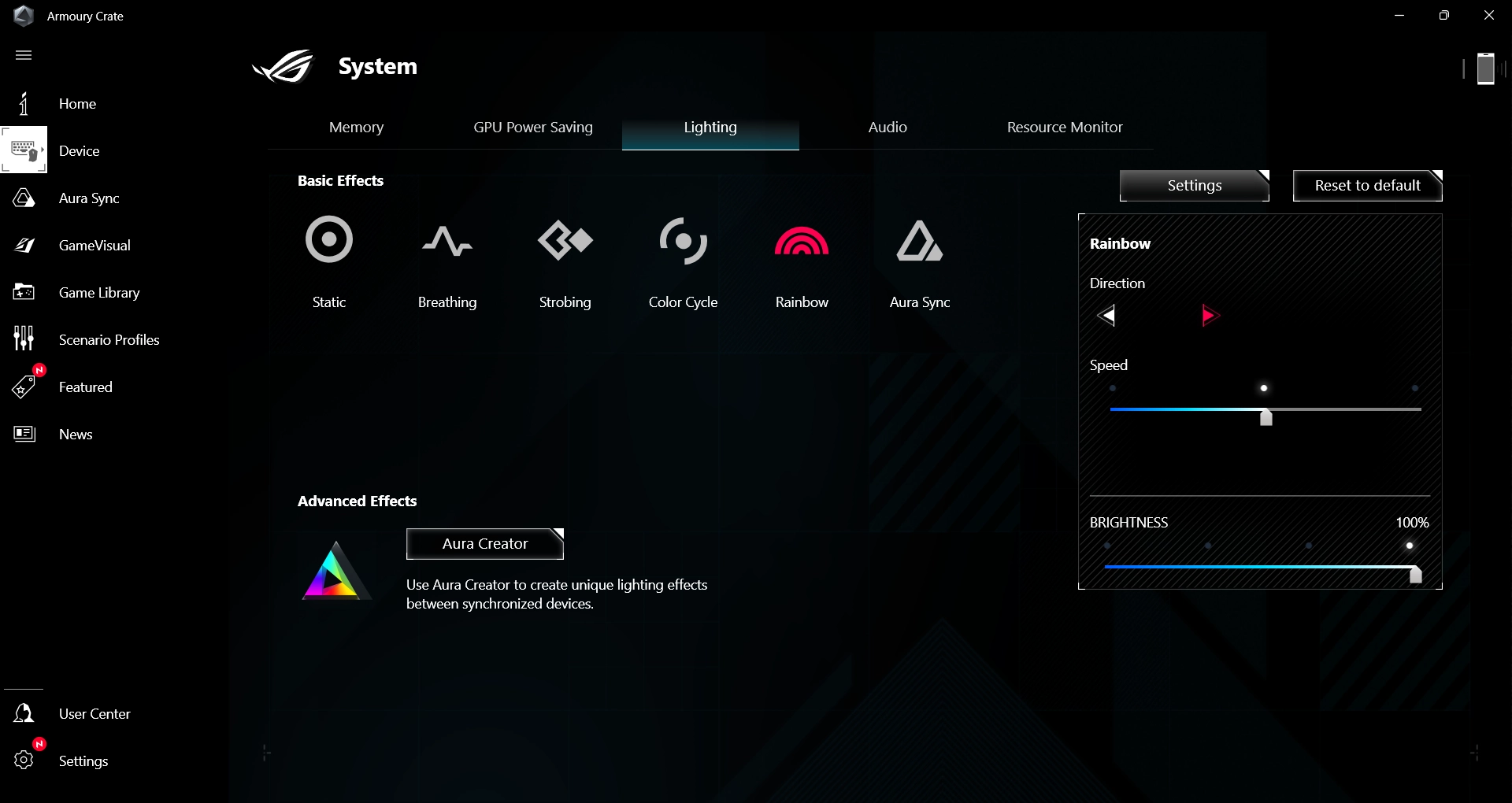
Aura Lighting
Aura Lighting
  • You can find various options such as Static, Breathing, Strobing, Color Cycle, Rainbow, and Aura Sync. These are basically RGB Patterns for your ROG Keyboard and the transperant bar. You can control the Direction, Speed, and Brightness.
  • Additionally, under Advanced Effects, you can find Aura Creator. This option allows you creating your own RGB Pattern.
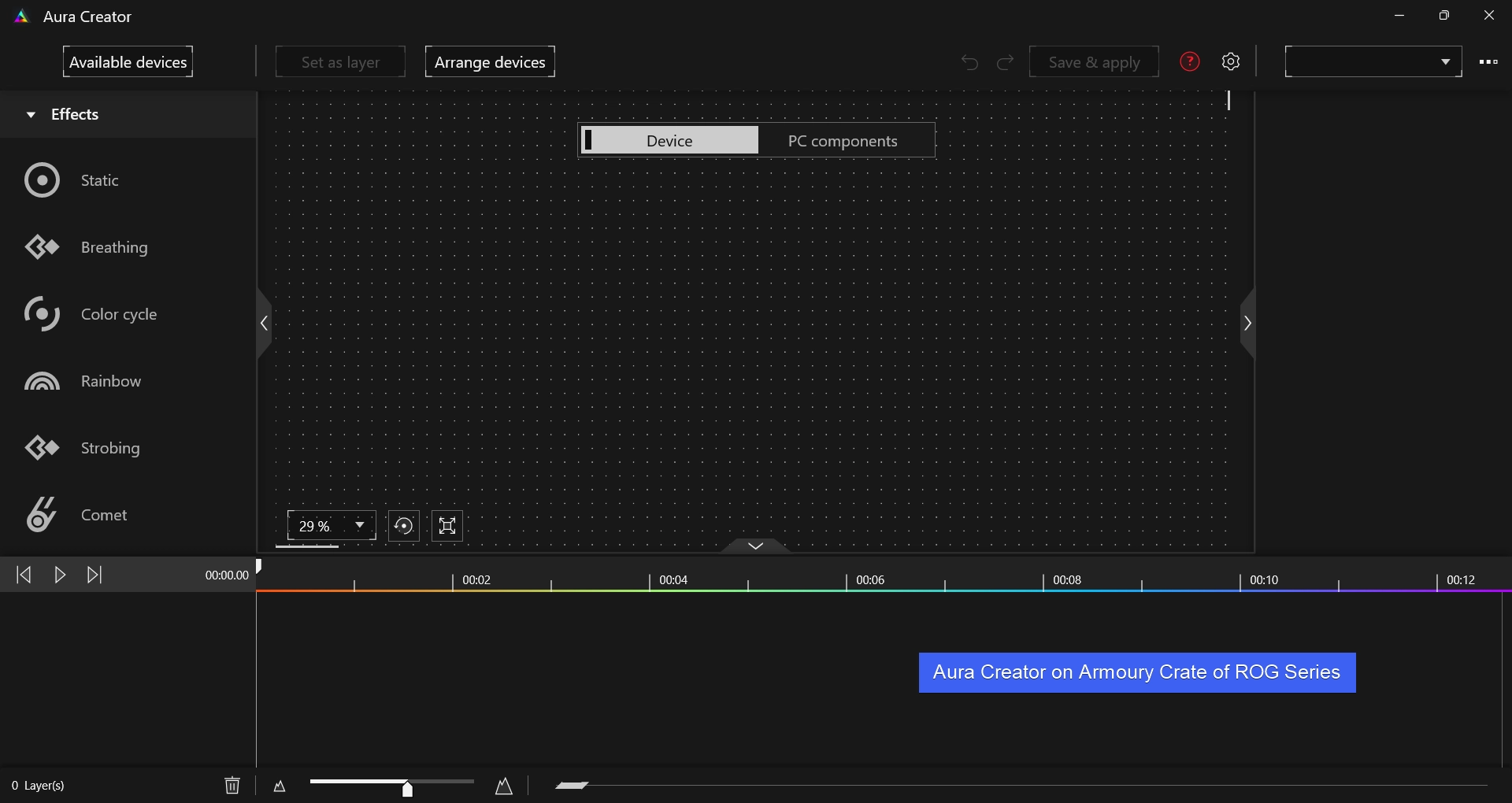
Advanced Aura Creator

Take Away

RGB Accessories, and RGB System setups are indispensible for Gamers and it add value to the setup. Additionally, you can always make your Laptop or your system, a party-ready setup with all those RGB Glowups. With Dynamic Lighting Enabled on Windows 11, it allows native control for RGB peripheral setups. If you have queries, kindly let us know in the comment section. For more interesting articles, stay tuned to Winsides.com. Happy Computing! Peace out!
Tags:

Dynamic Lighting Windows 11Windows Personalization
Vigneshwaran Vijayakumar
Author

Vigneshwaran Vijayakumar

Hello, I'm Vigneshwaran, the founder, owner, and author of WinSides.Com. With nearly a decade of experience in blogging across various domains and specializing in Windows-related tutorials for over five years, I bring a wealth of knowledge and expertise to WinSides.Com

Follow Me
Other Articles
How to Enable Game Mode on Windows 11
Previous

How to Enable Game Mode on Windows 11?

Disable Sticky Keys on Windows 11
Next

How to Turn Off Sticky Keys on Windows 11?

No Comment! Be the first one.

Leave a Reply Cancel reply

Your email address will not be published. Required fields are marked *

  • How to check System Information in Windows 11?
  • How to Install and Run X Server in Windows 11?
  • How to Enable Client for NFS in Windows 11?
  • 5+ Easy Methods to Find/Search Video Files Only in Windows 11!
  • How to Enable TFTP Client in Windows 11?
  1. Vigneshwaran Vijayakumar
    Vigneshwaran Vijayakumar on How to Enable Windows PowerShell 2.0 in Windows 11?October 5, 2025

    Hello Mr. Mohamad El-Kheir, Thank you for contacting us. Microsoft has removed PowerShell version 2.0 completely from Windows 11 24H2…

  2. Avatar of Mohamad El-Kheir
    Mohamad El-Kheir on How to Enable Windows PowerShell 2.0 in Windows 11?October 5, 2025

    i have a MSI laptop with windows 11 Home Installed on it. how to install powershell v2.0 on it

  3. Vigneshwaran Vijayakumar
    Vigneshwaran Vijayakumar on DxDiag Windows 11 – What is it & How to use it for Troubleshooting?August 14, 2025

    Hey Myla Shannon Thank you for your valuable feedback. We are delighted to hear your compliment and excited to know…

  4. Avatar of Myla Shannon
    Myla Shannon on DxDiag Windows 11 – What is it & How to use it for Troubleshooting?August 14, 2025

    This content is incredibly informative.

  5. Avatar of seven
    seven on How to Enable IIS [Internet Information Services] in Windows 11?July 29, 2025

    I found this post very helpful.

  • About us
  • What’s New?!
  • Guest Posts on Winsides.com – Terms and Conditions
  • Publication Sitemap
  • Careers
  • Authors
  • Why Trust Winsides.com?
  • Content Removal Request
  • Terms of Use
  • Disclaimer
  • Contact us
Copyright 2024-2026 - Winsides.com. All rights reserved.