

To add or remove the Widgets button on the Windows 11 taskbar, open Settings > Personalization > Taskbar. Under Taskbar items, turn Widgets On to show the button or Off to hide it. The change is immediate, applies to the signed-in user, and does not require an administrator prompt.
I reproduced the complete On-to-Off-to-On sequence on Windows 11 version 25H2, build 26220.7872. The test changed only the Widgets taskbar button, showed no warning, and did not require an Explorer restart or sign-out. After restoring On, I closed Settings, opened a new Settings instance, confirmed On again, and verified that the exact current-user DWORD 1 baseline had returned.
What does the Widgets taskbar switch change?
The switch controls whether the Widgets entry appears on the taskbar. When it is On, the button can display weather or another glanceable update and can open the Widgets board when you select it. When it is Off, that taskbar entry disappears, giving the main taskbar group a little more room and reducing visual clutter.
Turning the switch Off does not uninstall Widgets, erase your board, remove individual cards, sign you out, or disable the Windows + W keyboard shortcut. Microsoft specifically documents Windows + W as an access method even when the taskbar button is removed. Feed personalization, notification badges, announcements, and opening the board on hover are separate Widgets settings and are outside this taskbar-button procedure.
This control also does not affect Search, Task view, Resume, pinned apps, the system tray, or taskbar alignment. Those items have their own rows on the same page. If your goal is to move the Start and app-button group instead, use the separate taskbar alignment control rather than the Widgets switch.
Table of contents
How do you open the Windows 11 Taskbar page?
Use either of these built-in routes:
- Settings route: Press Windows + I, select Personalization, and then select Taskbar.
- Taskbar shortcut: Right-click or press and hold an empty part of the taskbar, then select Taskbar settings.
Both routes open the same Taskbar page for the current Windows account. On the Personalization page, Taskbar is normally near the lower part of the list, so scroll if it is not initially visible.
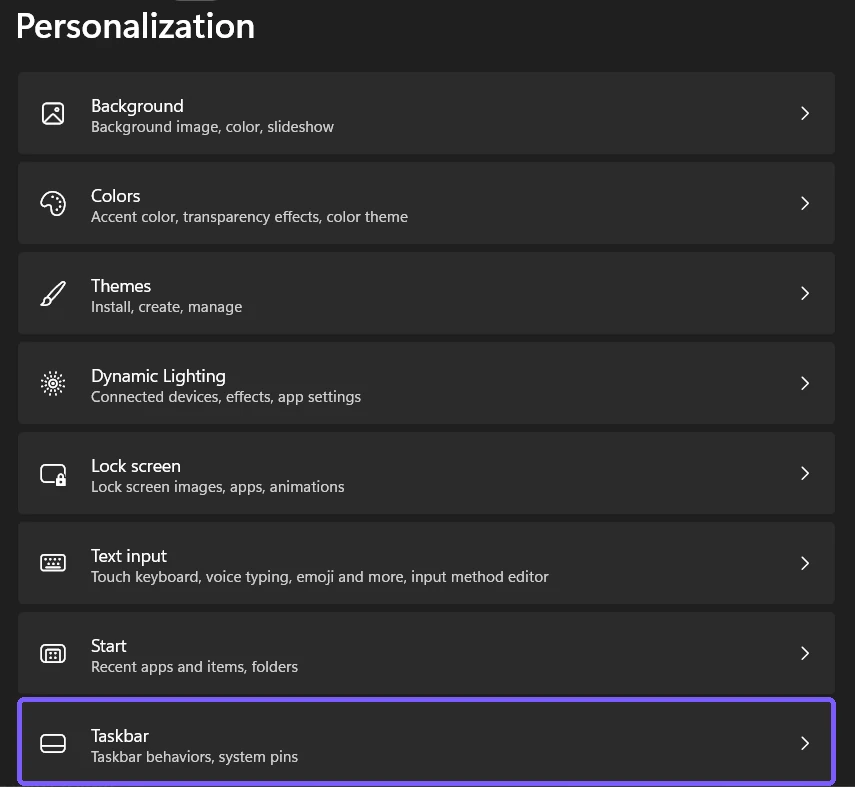
Once the page opens, keep the first section, Taskbar items, expanded. Do not change nearby Search, Task view, Resume, system-tray, or taskbar-behavior settings while following this guide. Reading the row label before selecting a switch makes the test and rollback unambiguous.
How do you remove the Widgets button from the taskbar?
- Under Taskbar items, find Widgets.
- Record whether the switch currently says On or Off. This is the state to restore if you are only testing.
- If it says On, select the switch once to turn it Off.
- Look at the taskbar and confirm that the Widgets entry has disappeared.
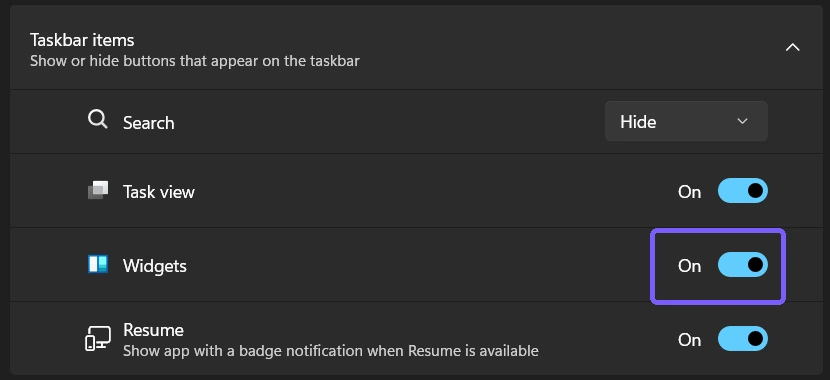
There is no separate Save or Apply button. On the reproduced PC, Settings changed from On to Off immediately and the current-user TaskbarDa value changed from DWORD 1 to DWORD 0 at the same time. That registry observation was used only to verify the reproduction; Registry Editor is unnecessary for the normal reader procedure.
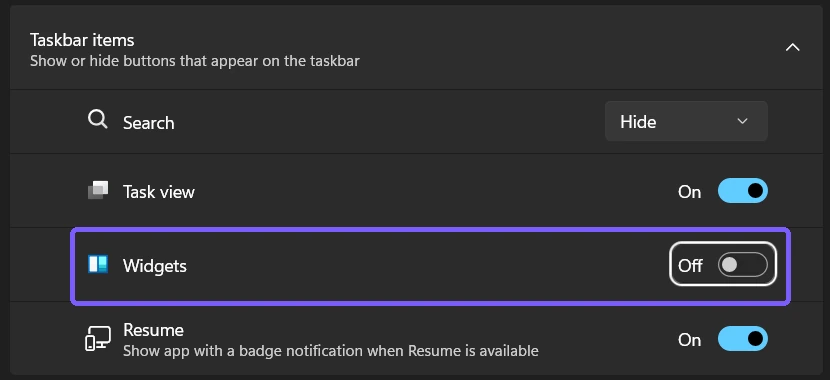
If the taskbar is crowded, removing the Widgets button can make the layout feel simpler. It does not improve processor speed, block news content at the network level, or change privacy permissions. It only removes this entry point from the taskbar.
How do you add the Widgets button back?
Return to Settings > Personalization > Taskbar and turn Widgets On. The button should reappear immediately. If you began with On and were only testing the change, this is the correct rollback.
For a stronger check, close Settings completely, reopen the Taskbar page through either route, and confirm that Widgets still reads On. I used that fresh-window check after the live test; the interface showed On and the exact DWORD 1 baseline was present again.
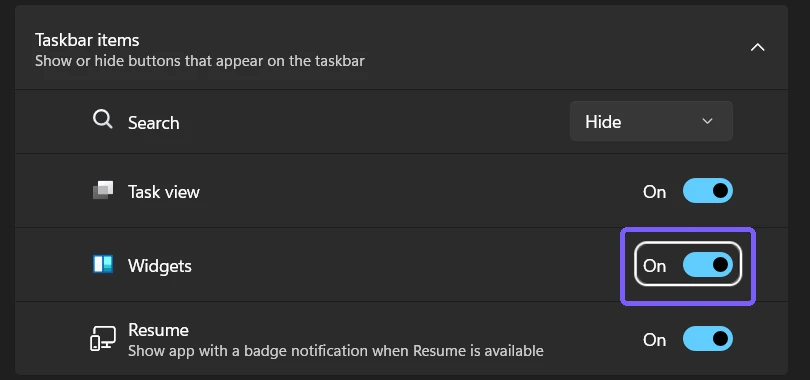
The rollback touched no files, credentials, network settings, cloud data, learned data, or system-availability controls. Settings and the screenshot tool were then closed, and the screenshot configuration was restored byte-for-byte.
Can you open Widgets after hiding its taskbar button?
Yes. Press Windows + W to open the Widgets board while the taskbar button is hidden. This is the simplest way to keep keyboard access without reserving space for the taskbar entry. Microsoft also documents touch access on supported layouts, but Windows + W is the most consistent alternative for a keyboard-equipped PC.
Hiding the button and turning off board behaviors are different jobs. If the board opens when you hover over its entry, change the board's own Open Widgets board on hover setting instead. If taskbar badges or rotating announcements are the concern, use the notification controls inside the Widgets board. Those choices can be adjusted without removing the button, and removing the button alone should not be described as disabling every Widgets feature.
How is Widgets different from the other Taskbar items?
Search can use a dropdown presentation on current builds, while Task view, Widgets, and some other items use On or Off switches. Each row affects only its named taskbar entry. Turning Widgets Off should not remove Task view or change Search.
Pinned and running applications are managed separately. To launch and switch between them, see the focused WinSides guide to open apps from the Windows 11 taskbar. If you want the entire bar to retract when it is not in use, follow the separate procedure to auto-hide the Windows 11 taskbar. The far-right Show desktop target also has its own Taskbar behaviors setting.
Why is the Widgets switch missing or not staying selected?
- Confirm the page. The switch belongs under Personalization > Taskbar > Taskbar items, not inside the Widgets board.
- Expand Taskbar items. Select the section header if its rows are collapsed.
- Reopen Settings. If the page stopped responding, close it and return through Taskbar settings before changing anything else.
- Check Windows Update normally. A current Windows component or servicing issue can change what appears. Install only the updates intended for the PC and restart only when Windows requests it.
- Consider device management. An organization can enforce taskbar behavior. If a work or school PC reverses the choice, ask its administrator instead of editing the Registry or trying to remove a Windows package.
- Remove third-party variables. A taskbar replacement or Explorer customization can present controls that do not match Microsoft's supported interface. Use that product's official restore guidance before blaming the built-in switch.
A normal change on the reproduced personal PC required no elevation, command-line tool, Explorer restart, sign-out, or Windows restart. Those more disruptive steps should not be the first response to a missing row or a Settings page that simply needs to be reopened.
What mistakes should you avoid?
- Do not call the button switch an uninstall. Off hides the entry but leaves Windows + W access available.
- Do not change nearby rows accidentally. Search, Task view, Resume, and system-tray controls have different effects.
- Do not edit the Registry for this routine task. The visible Settings switch is safer, clearer, and easy to reverse.
- Do not remove Windows components just to declutter the taskbar. The built-in Off state already handles the visual change.
- Do not expect the switch to manage feeds or notifications. Those are configured inside the Widgets board.
If Copilot is the item you want to clean up rather than Widgets, use the focused procedure to remove Copilot from the taskbar without disabling it. Keeping each change to its named control makes rollback predictable.
Frequently Asked Questions
Does turning Widgets Off uninstall it from Windows 11?
No. The Taskbar items switch hides the button. The Widgets board remains available through Windows + W.
Can you open Widgets without its taskbar button?
Yes. Press Windows + W. Removing the taskbar entry does not remove that documented keyboard shortcut.
Do you need administrator rights to hide the Widgets button?
No administrator prompt appeared on the reproduced personal PC. Managed devices can still have organization-enforced settings.
Does hiding the Widgets button turn off its news feed and notifications?
No. Button visibility, hover behavior, badges, announcements, and feed personalization are separate controls.
Use the built-in switch and keep rollback simple
Open Taskbar items, record the starting state, and turn Widgets Off to hide the button or On to show it. Verify the visible taskbar result, then restore the recorded state if you were only testing. The Settings control is immediate and reversible, while Windows + W keeps the board accessible when the button is hidden.
For more interesting articles, stay tuned to WinSides.com!
Community
Comments (0)