

The Windows Web Experience Pack is a Microsoft Store-delivered package behind parts of Windows 11 such as Widgets. To find the version registered for your current account, run an exact Get-AppxPackage name query and read its Version property. The reproduced PC reported version 526.21100.0.0.
This is a local version check, not an update check. It does not open personalized Widgets, contact Microsoft Store, compare with a catalog version, or modify the package. The result tells you what is registered for the signed-in user at the moment of the query.
What is Windows Web Experience Pack?
Microsoft explains in its Windows Web Experience Pack guidance that the app helps deliver and update features such as Widgets through Microsoft Store. Separating those web-powered experiences into a Store package lets Microsoft service parts of the experience independently from a full Windows feature update.
Do not confuse this package with Windows Feature Experience Pack, a different component whose version can appear on the About page. The similar names describe different servicing paths. This article covers only the Appx package named MicrosoftWindows.Client.WebExperience.
Table of contents
Look for the package in Installed apps
Open Settings > Apps > Installed apps and search for Windows Web Experience Pack. Depending on the current Windows interface and package registration, it may appear as an installed app with an advanced-options page.
The direct Settings URI is:
Start-Process 'ms-settings:appsfeatures'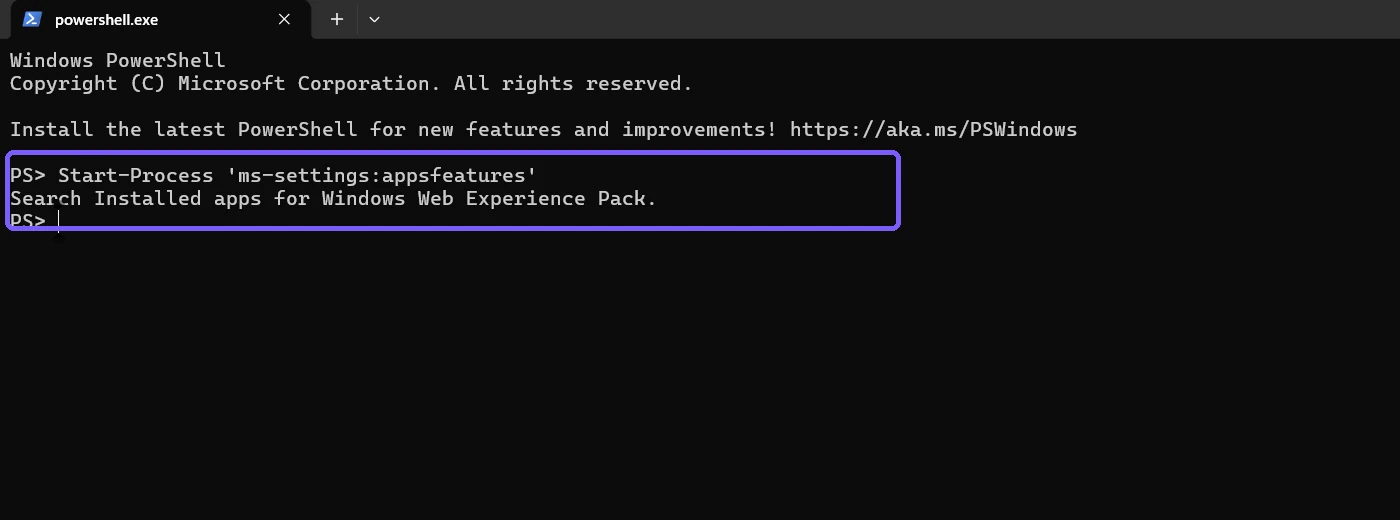
Settings is useful for confirming the friendly product name. It is not always the clearest source for a four-part registered package version, so PowerShell provides a precise read without opening Microsoft Store.
Query the exact current-user package
Microsoft documents Get-AppxPackage as the cmdlet for listing app packages installed in a user profile. Open a normal, non-administrator Windows PowerShell session and provide the exact package name:
Get-AppxPackage -Name MicrosoftWindows.Client.WebExperience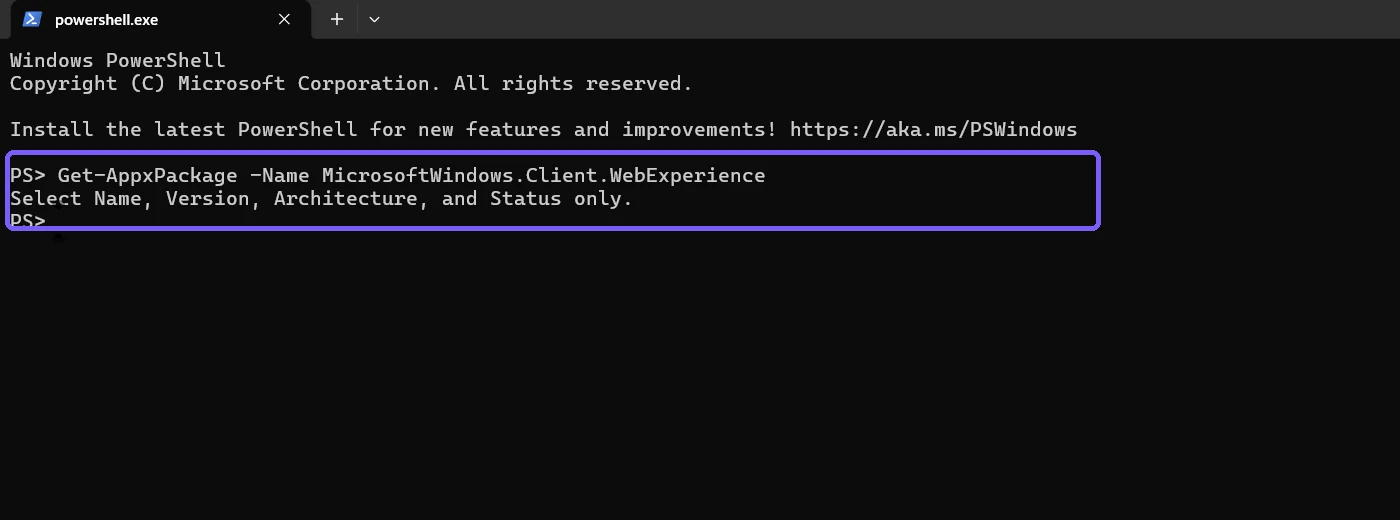
Do not add -AllUsers for this routine check. The normal query answers the useful question—what version is registered for the account currently using Windows—without expanding scope or requiring elevation.
Read Version, Architecture, and Status
Limit the visible output to four fields:
Get-AppxPackage -Name MicrosoftWindows.Client.WebExperience |
  Select-Object Name, Version, Architecture, Status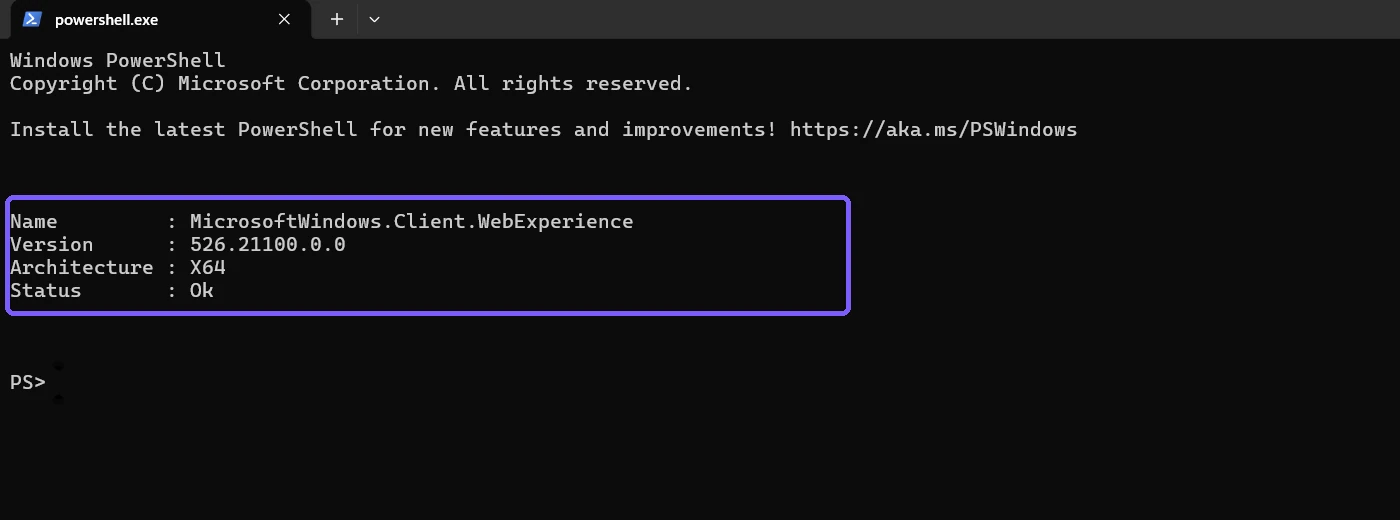
- Name verifies that the exact Web Experience package matched.
- Version is the locally registered four-part package version.
- Architecture describes this package registration, not the complete Windows system type.
- Status reports package registration state.
Okis not a full Widgets health test.
Record the scope with the version
When documenting the result, keep the version and scope together: Windows Web Experience Pack 526.21100.0.0, current-user registration, Status Ok. This prevents the number from being mistaken for an online Store catalog result or an all-users inventory.
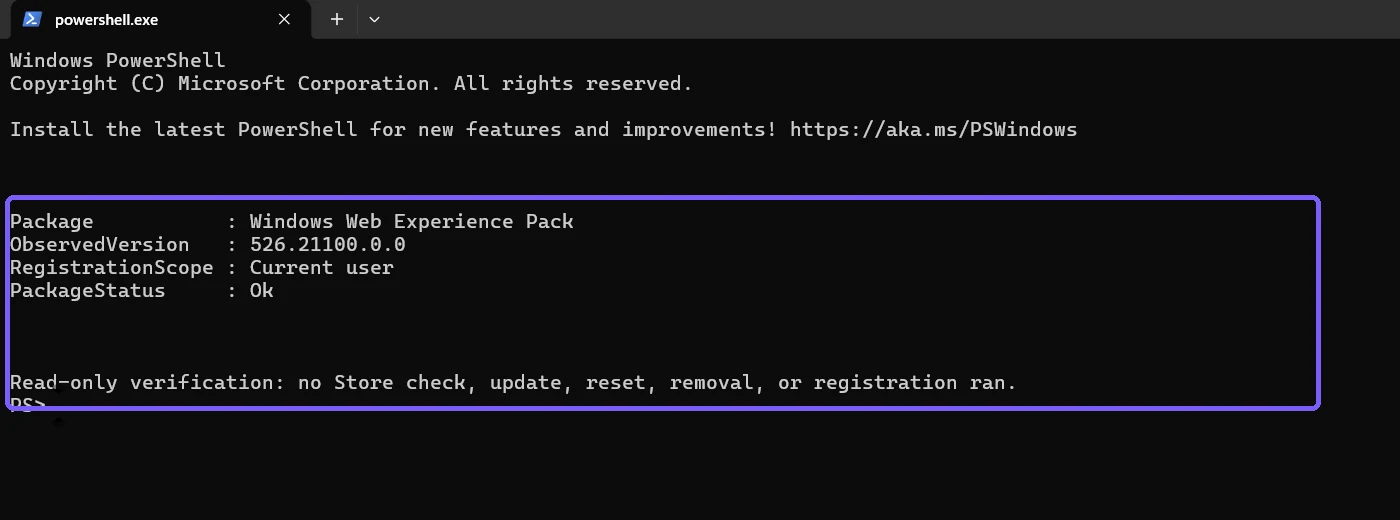
Version numbers change as Microsoft Store services the package. A different value on another PC or later date does not automatically indicate a problem. Compare like-for-like: the same package identity, account scope, date, and Windows servicing context.
Why doesn't this check tell you the latest version?
Get-AppxPackage reads local registration. It does not ask Microsoft Store whether a newer package is available. Saying “latest” requires a current Store check and can become outdated quickly. Keep the article's conclusion limited to the observed local version.
If you intentionally want to update the package, Microsoft says to open Microsoft Store, select Library, search for Windows Web Experience Pack, and select Update if offered. That is a separate network and mutation workflow. Save work and follow organizational update policy before using it.
What Status Ok does and does not prove
Status: Ok indicates that PowerShell sees a normal package registration status. It does not prove that every widget loads, that the network is available, that Microsoft Edge WebView components are healthy, or that an account's personalized feed is working.
If Widgets has a specific symptom, reproduce that symptom separately and use Microsoft's current troubleshooting guidance. Do not reset, remove, or re-register the package simply because its version differs from a screenshot on another device.
Troubleshoot the version query
No package is returned
Check the exact spelling and run the command in Windows PowerShell for the signed-in user. Absence can mean the package is not registered for that profile. Stop there rather than using removal or registration commands as a diagnostic experiment.
More than one line appears
Confirm that the -Name value is exact and that no wildcard was added. Select the four fields shown above so resource or dependency details do not distract from the version intent.
Settings and PowerShell look different
Settings shows a friendly installed-app interface; PowerShell exposes package identity metadata. Use the friendly name for navigation and the exact package Version field for the recorded number.
The version changed without a Windows feature update
That can be normal because Microsoft services Windows Web Experience Pack through Microsoft Store. Record the observation date instead of assuming that the package version must track the Windows build.
Privacy and safety checklist
- Query the exact package name instead of publishing an entire Appx inventory.
- Use current-user scope; do not add
-AllUsersfor a routine check. - Do not open Widgets in evidence if it could reveal account, weather-location, news, or personalization data.
- Do not call Store update, reset, remove, install, provision, or registration commands.
- Describe the number as the observed local version, not automatically the latest available version.
Frequently Asked Questions
What package name identifies Windows Web Experience Pack?
The registered Appx package name used by this check is MicrosoftWindows.Client.WebExperience.
Does Get-AppxPackage check Microsoft Store for updates?
No. It reads local package registration. A Store availability check is a separate action.
Is Windows Web Experience Pack the same as Windows Feature Experience Pack?
No. They are distinct components with similar names and different identities.
Do you need administrator rights to read the current-user version?
No. The reproduced exact-name current-user query ran in a standard-user PowerShell session.
Conclusion
Run Get-AppxPackage -Name MicrosoftWindows.Client.WebExperience and read the Version field to identify the current user's registered Windows Web Experience Pack version. Record the package identity, scope, architecture, and status with it, and keep local inspection separate from Store updating or package repair.
For more interesting articles, stay tuned to WinSides.com!

Community
Comments (0)