

Windows 11 can expose a date recorded by an app's installer, but that value needs careful interpretation. For a traditional desktop app, look for the optional InstallDate entry in its Uninstall metadata. The value is usually written as eight digits in yyyyMMdd order. It may be absent, and it is not always the app's first-ever installation date.
This guide checks one known app—ShareX—without publishing the rest of the installed-software inventory. The reproduced query is read-only, uses an exact display-name allowlist, and does not install, repair, update, move, archive, or uninstall anything.
What “install date” can mean
There is no single universal installation-date field covering every Windows app type. Traditional desktop installers can register metadata under the Windows Uninstall keys. Microsoft documents the standard Windows Installer properties for the Uninstall key, including DisplayName, DisplayVersion, Publisher, and InstallDate.
For Windows Installer packages, Microsoft says InstallDate represents the last time the product received service. Applying or removing a patch, or repairing the product with an applicable option, can replace the value. If no servicing occurred, it can reflect installation time. Other installer technologies can populate the same-looking field according to their own rules.
That distinction matters: treat the result as the installer-recorded date, not unquestionable proof of when the app first appeared on the PC. File timestamps, download history, Start-menu registration, Store package registration, and last-use dates answer different questions.
Table of contents
Start with Installed apps in Settings
Microsoft's installed-app check directs Windows 11 users to Start > Settings > Apps > Installed apps. Search for the specific app there first. This confirms that Windows presents it in the current app inventory, although the date detail and layout can vary by app and Windows build.
You can open the page directly from a normal PowerShell or Run window:
Start-Process 'ms-settings:appsfeatures'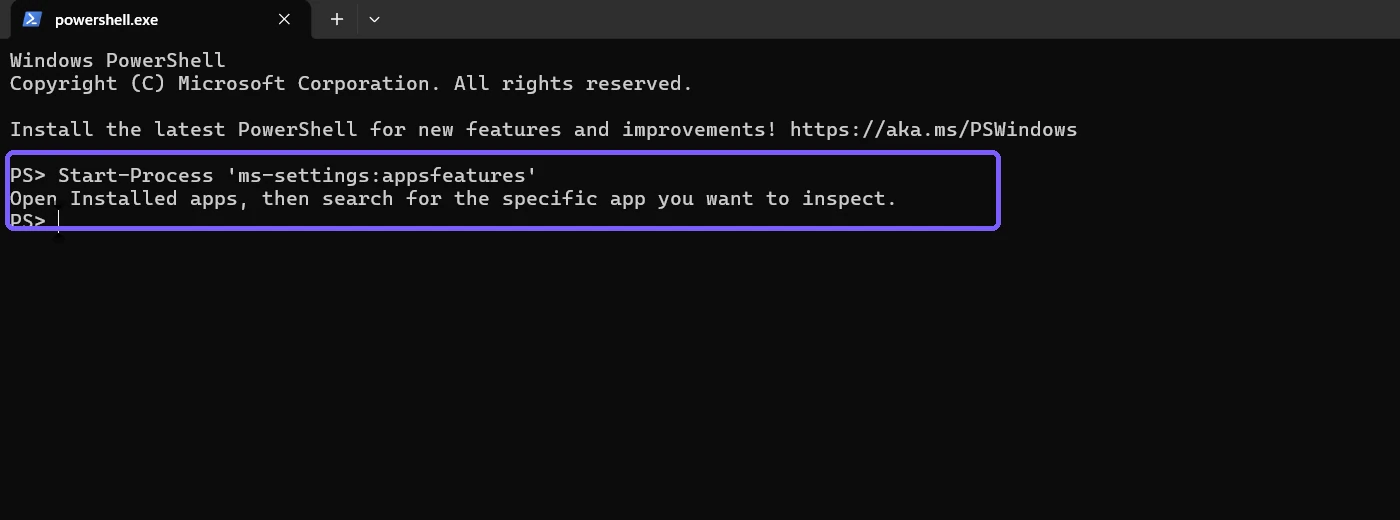
Do not scroll through or capture the entire page for public evidence. An installed-app list can disclose security tools, work software, personal utilities, and other private device details. Search narrowly and crop any UI evidence to the relevant result.
Read one app's Uninstall metadata in PowerShell
Desktop-app entries can be registered for the current user, for the computer, or in the 32-bit software view. A bounded script can check those standard locations in memory and print only the exact app you request. The reproduced command used an $uninstallKeys array containing those three locations, then applied an exact display-name filter:
Get-ItemProperty $uninstallKeys |
  Where-Object DisplayName -eq 'ShareX'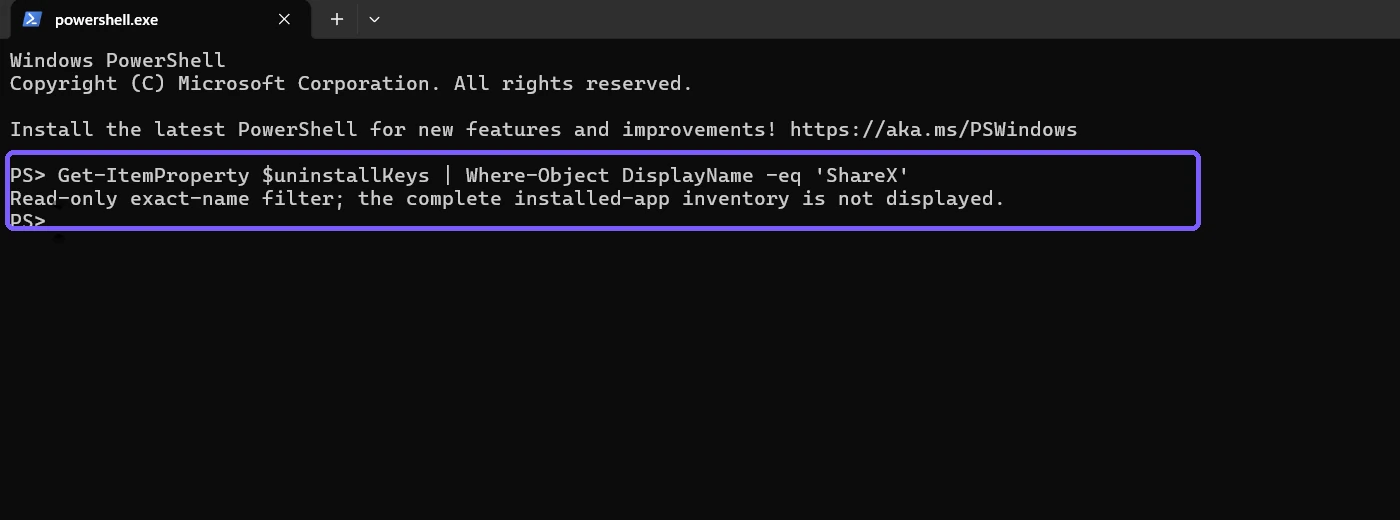
Get-ItemProperty reads the values. This workflow does not call Set-ItemProperty, New-ItemProperty, an uninstaller, or a package manager. Administrator rights were not needed for the reproduced read.
Check whether InstallDate is present
Select only the useful, non-sensitive fields for the matching app:
Select-Object -First 1 DisplayName, DisplayVersion, Publisher, InstallDate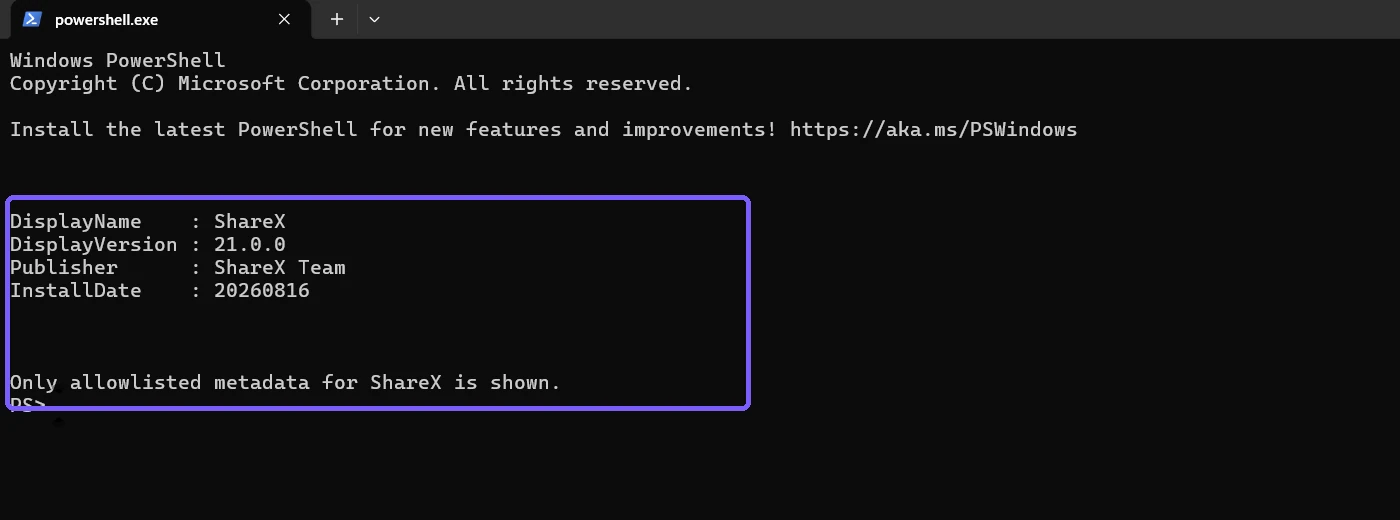
The eight digits are ordered as four-digit year, two-digit month, and two-digit day. In this example, 20260816 means August 16, 2026. Do not interpret an empty property as an error: registration metadata is optional, and not every installer writes the same fields.
Convert the recorded value to a readable date
When the value contains exactly eight digits, parse it with an invariant yyyyMMdd pattern rather than relying on the PC's regional date order:
$date = [datetime]::ParseExact(
  $app.InstallDate,
  'yyyyMMdd',
  [Globalization.CultureInfo]::InvariantCulture
)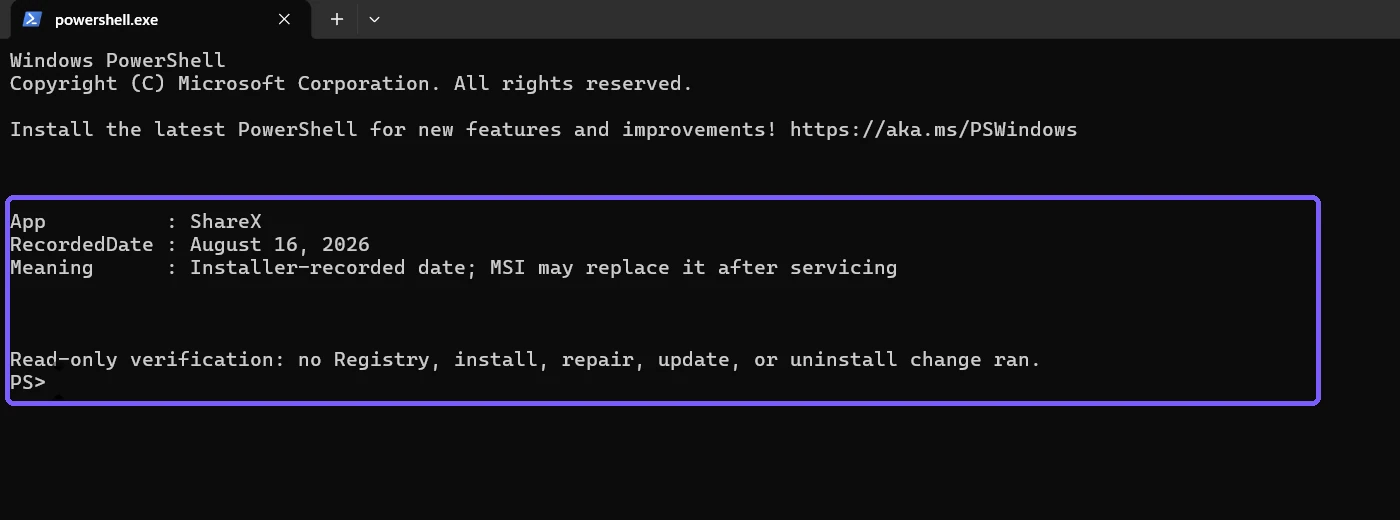
The parsed result changes presentation only. It does not strengthen the underlying evidence. Record the app name, raw value, source, and caveat together so a later reader knows this is installer metadata rather than a forensic creation timestamp.
Why can the date be newer than expected?
An app can have been on the computer for months while its recorded date is recent. For an MSI product, a patch, patch removal, or qualifying repair can replace InstallDate. A major upgrade can also create a new product registration. For non-MSI software, the installer's update behavior determines whether it rewrites the date.
This is why the field is useful for inventory and troubleshooting but weak as sole proof. If a problem began after an application update, compare the recorded date with the app's version, update history, vendor release notes, and organization deployment records. Do not uninstall or roll back the app based on the date alone.
What to do when InstallDate is missing
- Confirm the exact app name. A product can register under a vendor name or suite name rather than the Start-menu label.
- Check whether it is a Store or packaged app. The classic Uninstall metadata method is not a universal Microsoft Store registration-date method.
- Accept that the value is optional. Do not create an
InstallDatevalue merely to make the field appear; that would manufacture evidence. - Use vendor or management records. Deployment systems, installer logs retained by an organization, and purchase or download records may provide better provenance.
- Avoid file creation times as a shortcut. Files can be replaced, extracted, restored, copied, or serviced, so a single executable timestamp is not equivalent to app installation.
Settings, Registry metadata, and Store apps
The Installed apps page is the easiest place to confirm that Windows recognizes an app. The Uninstall keys expose traditional desktop-app metadata when an installer registers it. Microsoft Store and other packaged apps use a different deployment model, and this article does not claim that their registration dates are represented by the same field.
Likewise, the date shown by a current Windows interface can be derived differently for different entries. If Settings and InstallDate disagree, preserve both observations and identify their source. Do not overwrite one to make it match the other.
Privacy and safety checklist
- Filter by one expected display name before printing output.
- Select only name, version, publisher, and date fields needed for the explanation.
- Do not publish product-code subkeys, install-source paths, user paths, uninstall strings, or the complete app inventory.
- Use read commands only; do not add or modify
InstallDate. - Describe the result as installer-recorded metadata and retain the servicing caveat.
- Do not repair, patch, update, reinstall, or uninstall an app merely to obtain a different date.
Troubleshoot the bounded query
More than one entry matches
Do not silently choose the first broad substring match. Compare exact display names and publishers, then use a narrower allowlist. A suite can register separate language packs, runtimes, and update components with similar names.
Access is denied
The reproduced standard-user reads did not need elevation. If an organization restricts access, stop and use an approved inventory channel. Do not elevate solely to capture article evidence.
The value is not eight digits
Do not force it through the yyyyMMdd parser. Preserve the raw installer-defined value, consult that product's documentation, and omit a date claim unless the format can be established.
The app appears in Settings but not in these keys
It may be a packaged app, use a different registration location, or expose incomplete classic metadata. The absence does not prove the app was never installed.
Frequently Asked Questions
Is InstallDate always the first installation date?
No. Microsoft says an MSI product's value can be replaced after patching or repair, and other installers can define their own behavior.
What format does the recorded date use?
A common valid value uses eight digits in yyyyMMdd order, such as 20260816 for August 16, 2026.
Do all Windows 11 apps have an InstallDate value?
No. The metadata is optional, and packaged or Microsoft Store apps do not necessarily use the classic Uninstall entry in the same way.
Does reading the date change the Registry?
No. Get-ItemProperty is a read. This guide does not create, replace, or delete any Registry value.
Conclusion
Use Installed apps to confirm the target, then read one exact desktop app's optional InstallDate metadata with a privacy-safe filter. Parse an eight-digit value as yyyyMMdd, but call it an installer-recorded date and remember that servicing can replace it. Missing metadata is a limitation, not a reason to manufacture a value.
For more interesting articles, stay tuned to WinSides.com!









Community
Comments (0)