

To check USB4 capabilities and attached peripherals in Windows 11, first look for Settings > Bluetooth & devices > USB > USB4 Hubs and Devices. Microsoft documents that page as the user-facing place to inspect the USB4 domain when Windows detects a USB4 host router. A narrow PowerShell inventory can then confirm whether Windows currently enumerates a USB4 host, root, or device router.
I reproduced the checks on Windows 11 version 25H2, build 26220.7872. This PC had no present USB4 host, root, or device router, so it had no current USB4 topology to report. The Windows inbox Usb4HostRouter driver was installed in a stopped, manual-start state. That driver entry by itself is not proof that the PC, a USB-C socket, a cable, or an attached peripheral supports USB4. The procedure read inventory only and changed no device, driver, firmware, Registry, connection, networking, tunneling, or power state.
Where does Windows show USB4 capabilities?
Microsoft's USB4 Settings-enablement guidance says the USB4 Hubs and Devices page is shown when the system has a USB4 host router. The page can display the USB4 host router and connected USB4 device routers, including capability details exposed through the Windows USB4 connection manager. Microsoft also states that the page does not appear on a system that does not support USB4.
- Open Settings.
- Select Bluetooth & devices.
- Select USB.
- Look for USB4 Hubs and Devices.
If the page exists, open it and review the host router and attached-device hierarchy. If the page is absent, do not infer USB4 capability from the oval USB-C connector alone. Continue with the present-device inventory below, then consult the exact PC model's specifications if the results remain uncertain.
Table of contents
How do you check for a present USB4 router?
Open Windows Terminal with a normal PowerShell tab and enter this present-only filter:
Get-PnpDevice -PresentOnly | Where-Object FriendlyName -Match 'USB4 (Host|Root|Device) Router'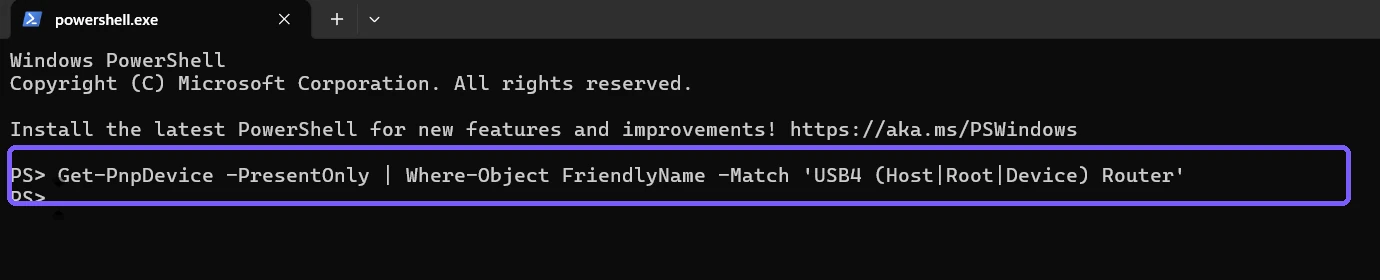
The filter deliberately avoids a broad Plug and Play dump. It does not retain instance IDs, serial numbers, unrelated devices, user paths, or account details. A result may identify a host router in the computer, a root device router for the local USB4 domain, or a device router representing a connected USB4 peripheral.
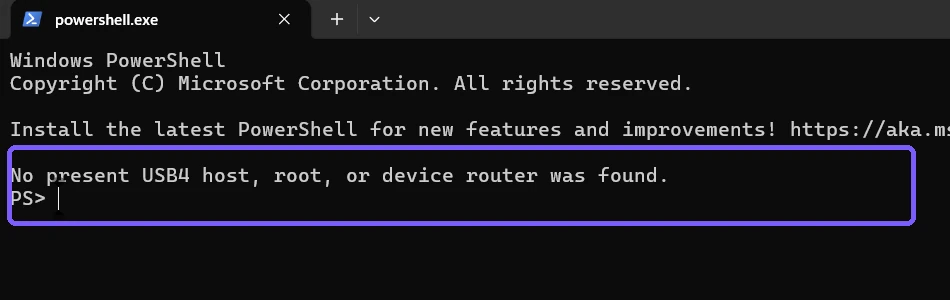
The explicit no-match sentence means the query completed but Windows did not expose a matching present router at collection time. It does not claim that another configuration of the same product lacks USB4, that a disconnected peripheral is unsupported, or that a future firmware or driver configuration would behave identically.
What are host and device routers?
Microsoft's introduction to the Windows USB4 connection manager describes the software components for USB4 host routers, root device routers, and attached device routers. Windows uses these components to discover the USB4 domain and manage capabilities exposed by the hardware and connection.
The host router belongs to the computer side of the domain. Device routers represent USB4 devices or hubs reached through that domain. This terminology is more precise than searching for every device whose name contains “USB,” because ordinary USB 2.0, USB 3.x, and USB-C devices are not automatically USB4 routers.
How do you distinguish the USB4 driver from present hardware?
Use a second narrow read-only query to inspect the Windows system-driver entry:
Get-CimInstance Win32_SystemDriver -Filter "Name='Usb4HostRouter'" | Select-Object Name,State,StartMode
This command does not start, stop, reconfigure, reinstall, or update the driver. It reads the service record that Windows has available. The selected properties are intentionally narrow: the internal driver name, its current running state, and its configured start mode.
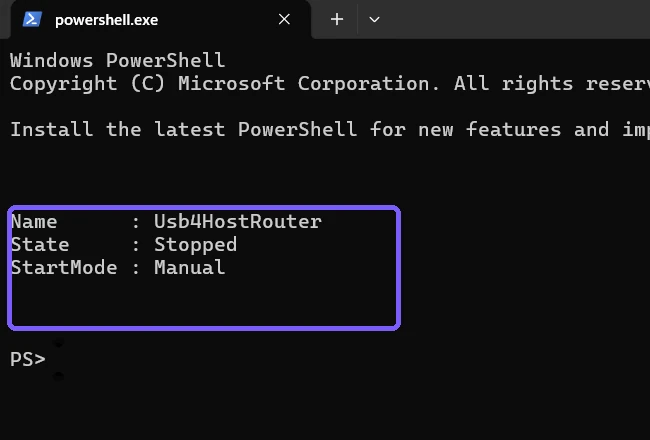
An installed inbox driver can exist on Windows systems that do not currently enumerate the corresponding hardware. Therefore, Installed + Stopped + Manual must not be translated into “USB4 supported.” On this PC, the absent present-router inventory is the relevant current-hardware observation, while the driver result merely confirms that Windows contains the named software component.
How should you interpret the combined results?
- USB4 Hubs and Devices appears and routers are listed: Windows currently exposes a USB4 domain. Inspect each listed router or peripheral for the capabilities Windows reports.
- The Settings page is absent and no present router is found: Windows does not currently expose a USB4 domain on that PC. Check the exact model documentation before drawing a permanent hardware conclusion.
- A present router is found but the Settings page differs: record both observations and check Windows updates, vendor documentation, firmware, and policy without changing them during the inventory.
- Only the Usb4HostRouter driver exists: treat that as software availability, not proof of a USB4 controller, port, cable, hub, or peripheral.
Does a USB-C port prove USB4 support?
No. USB-C describes the connector shape. The same shape can carry different USB generations, charging capabilities, display modes, Thunderbolt implementations, or no USB4 support at all. Symbols beside a port, the PC manual, and the manufacturer's exact model specifications provide useful context, but the Windows USB4 page and router inventory show what Windows currently exposes.
A USB4-capable PC also does not make every cable or peripheral USB4-capable. Link behavior depends on both endpoints and the cable. Do not advertise a speed, tunnel type, charging level, display capability, or Thunderbolt certification unless the relevant device, cable, and manufacturer documentation establish it.
How do you check attached USB4 peripherals?
When the USB4 Hubs and Devices page exists, its topology is the preferred user-facing view. Select an attached router or device only to read the capabilities Windows presents. If the page lists the host router but not the expected peripheral, first verify that the peripheral is actually connected with the intended cable and port.
Do not connect an unknown device, enable interdomain networking, force tunneling, install a driver, update firmware, or change power behavior merely to make the inventory more interesting. Those are separate actions with availability, privacy, compatibility, and recovery consequences. A safe capability check can end with “not currently enumerated.”
What should you do when the checks disagree?
- Record whether USB4 Hubs and Devices is present.
- Record only the narrow router names returned by the present-only query.
- Record the named driver state separately, without treating it as hardware evidence.
- Check the computer's exact model and port specifications.
- Check the cable and peripheral specifications if a device is attached.
- Ask the manufacturer about current firmware or driver requirements before changing either one.
Keeping these evidence types separate prevents a common diagnostic mistake: using a generic Windows component to claim a physical capability that has not been enumerated.
What is safe to share with support?
You can usually share whether the USB4 page appears, the narrow router names, and the three displayed driver properties. Avoid broad hardware reports containing serial numbers, device-instance paths, account names, computer names, removable-storage details, or unrelated devices unless a trusted support process specifically requires them.
The retained evidence uses an anonymous PS> prompt. It contains only the two narrow commands, an explicit no-router result, and the named inbox driver state. It includes no credential, personal file, notification, account identifier, device serial number, network name, or unrelated application.
Frequently Asked Questions
Where is USB4 Hubs and Devices in Windows 11?
Look under Settings > Bluetooth & devices > USB. Microsoft says the page appears when Windows detects a USB4 host router.
Does the Usb4HostRouter driver prove USB4 hardware exists?
No. An installed Windows driver entry is software evidence, not proof that a USB4 router is present.
Did the reproduced PC expose USB4 hardware?
No present host, root, or device router was found. The inbox driver existed but was stopped and manual.
Do the PowerShell checks change USB devices?
No. They read present PnP inventory and the named system-driver record.
Separate current USB4 evidence from assumptions
Use USB4 Hubs and Devices as the primary Windows view, the present-router query as a narrow local cross-check, and the driver query only to distinguish installed software from hardware. If Windows exposes no router, report that current result and verify the exact model, port, cable, and peripheral specifications before taking any corrective action.
For more interesting articles, stay tuned to WinSides.com!






Community
Comments (0)