

Windows 11 can list the hardware that supports waking a PC, the hardware whose wake behavior can be configured, and the devices currently armed to wake it. The built-in powercfg /devicequery command provides a separate filter for each question, so you can inspect the current state before changing a driver or Device Manager setting.
I reproduced all three queries on Windows 11 Home Single Language version 25H2, build 26220.7872, from a regular non-administrator terminal. Every command completed with exit code 0. The tested PC returned 41 devices for wake_from_any, 11 for wake_programmable, and three for wake_armed. These were read-only results; no device permission, driver, registry value, firmware option, or power plan was changed.
What are the three wake-device lists?
The official Microsoft powercfg reference defines several /devicequery flags. The three most useful for a wake inventory answer different questions:
wake_from_anyreturns devices that support waking the system from a sleep state.wake_programmablereturns devices whose wake permission is user-configurable.wake_armedreturns devices currently configured to wake the system.
A device can appear in the broad support list without being currently armed. Do not treat the three lists as synonyms.
Table of contents
How do you list wake devices?
- Open Windows Terminal, Command Prompt, or Windows PowerShell. The tested laptop did not require an administrator window.
- Run the support query to see devices that can wake from a supported sleep state.
- Run the programmable query to see which devices expose a configurable wake permission.
- Run the armed query to see which devices are currently permitted to wake the PC.
powercfg /devicequery wake_from_any
powercfg /devicequery wake_programmable
powercfg /devicequery wake_armed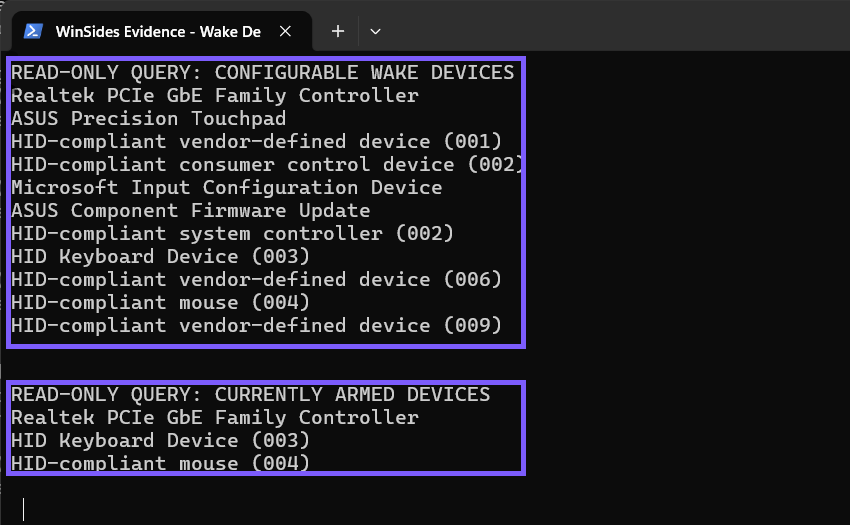
Close the terminal when you finish. The queries do not need a rollback because they only return device names.
Which devices were armed on the tested PC?
The reproduced wake_armed query returned a wired network controller, one HID keyboard entry, and one HID-compliant mouse entry. The programmable list was longer and also included the laptop touchpad, input-configuration components, and other HID entries.
This result describes only the tested hardware. Your PC may show a different network adapter, keyboard, mouse, Bluetooth device, touchpad, USB controller, or no armed device at all. Copy the exact name from your own screen before investigating it.
Does wake support mean a device is currently enabled?
No. wake_from_any is a capability list. It can be much larger than wake_armed because many installed devices may support some form of wake behavior without currently having permission to wake the system.
Use wake_programmable when you need to know whether Windows exposes a configurable wake setting for a device. Use wake_armed when your immediate question is which device permissions are active now. A supported device that is absent from the armed list is not currently reported as armed by this query.
Can the armed list prove what woke the PC?
No. The armed list reports permission, not a historical cause. A keyboard, mouse, or network adapter can be allowed to wake the PC without being responsible for a specific unexpected wake. Likewise, the list does not show active scheduled wake timers or applications that are preventing sleep.
If you are investigating one genuine wake event, preserve its timing and use the separate last-wake query soon afterward. Do not blame every device in the armed list or disable several devices at once.
What does an empty result mean?
An empty wake_armed result means this query did not return a device currently configured to wake the system. It does not prove that the PC cannot wake for another reason. Firmware behavior, scheduled timers, and other platform mechanisms are separate questions.
An empty wake_programmable or wake_from_any result also needs to be read literally. Record the exact output and confirm the PC’s current driver and manufacturer documentation before assuming the hardware is defective.
What should you do before changing a wake permission?
- Save the exact current
wake_armedlist. - Identify one device that matches the real symptom and timing.
- Confirm the device in Device Manager or the manufacturer’s current documentation.
- Record the original wake setting and a proven reversal path.
- Change only that specific device in a separately tested procedure.
This article intentionally stops at inventory. It does not run powercfg /deviceenableawake or powercfg /devicedisablewake, and it does not change Device Manager, drivers, firmware, or the registry.
Frequently Asked Questions
What is the difference between wake_programmable and wake_armed?
wake_programmable lists devices whose wake behavior can be configured. wake_armed lists devices currently configured to wake the system.
Does every wake-capable device appear in wake_armed?
No. Capability and current permission are separate. The broad support list can contain many more devices than the armed list.
Does an armed network adapter prove Wake-on-LAN caused the wake?
No. It proves only that the adapter is currently allowed to wake the PC. A historical wake source and network evidence are still needed to identify a real event.
Do these device queries change Windows settings?
No. The reproduced /devicequery commands only return device lists. They do not enable or disable a wake permission.
Inventory support, configuration, and active permission separately
Run the three powercfg /devicequery filters and compare their real output. Use wake_from_any for capability, wake_programmable for configurable devices, and wake_armed for permissions active now. The lists narrow an investigation without changing Windows, but they do not identify a past wake by themselves.
For more interesting articles, stay tuned to WinSides.com!









Community
Comments (0)