

If a Windows 11 PC wakes when you did not expect it to, the safest first check is the built-in powercfg /lastwake command. Microsoft documents this option as a report of what woke the system from its last sleep transition. It reads the retained wake record; it does not change a power plan, a device permission, a wake timer, or the current sleep state.
I reproduced the command on Windows 11 Home Single Language version 25H2, build 26220.7872, from a regular non-administrator terminal. The query completed successfully with exit code 0 and returned Wake History Count - 0. That is an honest empty result: this Windows session had no retained wake source to display. No sleep or hibernation was triggered during the check; the command only read existing history.
What can powercfg /lastwake tell you?
The official Microsoft powercfg reference says that /lastwake reports information about what woke the system from the last sleep transition. It is a historical check for the most recent retained transition, not a continuous monitor and not a prediction of what will wake the PC next.
When Windows has a source to report, the output can help you decide which device, system component, or scheduled activity deserves closer investigation. When the history count is zero, the command has still run correctly; it simply did not return a source for the current retained history.
Table of contents
How do you check the last wake source?
- Open Windows Terminal, Command Prompt, or Windows PowerShell. The tested laptop did not require an administrator window.
- Enter
powercfg /lastwake, and then press Enter. - Read the wake history count and any source details that Windows returns.
powercfg /lastwake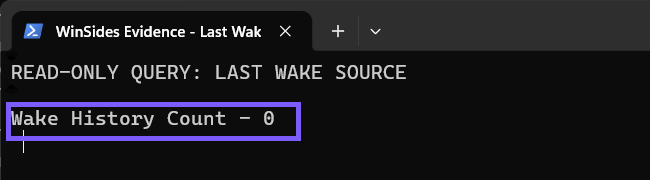
Close the terminal when you finish. There is no rollback because the command only reads the wake record.
How should you read the result?
- A source is returned: Record the exact name and description before changing anything. Treat it as the starting point for investigation, not automatic proof that the component is faulty.
- Wake History Count is 0: Windows returned no retained source. This is inconclusive and does not prove that the PC has never woken unexpectedly.
- The command completes without an error: The query itself worked even if the history is empty.
- An access error appears: Record the exact message. Do not substitute an invented result or start changing power settings to make the command look successful.
Treat the text on your own screen as the evidence. Do not replace a zero count with a sample device name from another PC, because that name does not identify your wake source.
What does Wake History Count - 0 mean?
On the tested laptop, it meant that powercfg /lastwake had no retained wake entry to show in the current Windows session. The command does not explain why the history is empty, so a zero count should remain an honest unknown rather than being converted into a diagnosis.
If you are investigating a real unexpected wake on your own PC, run the command soon after that genuine event and before making unrelated changes. Do not repeatedly sleep, hibernate, or restart a work computer just to force a nonzero result. Preserving the real incident is more useful than manufacturing one.
How is the last wake different from timers and power requests?
Microsoft documents three separate powercfg questions:
powercfg /lastwakeasks what woke the PC from the last retained sleep transition.powercfg /waketimersenumerates active timers that may wake the PC in the future when those timers are enabled.powercfg /requestsenumerates application and driver requests that can prevent the display from turning off or the PC from entering a low-power sleep mode.
These results are not interchangeable. A PC that refuses to sleep presents a different question from a PC that sleeps and later wakes. This article reproduces only the historical /lastwake query; it does not claim a timer or power-request result from another system.
What should you do after Windows names a source?
- Write down or privately capture the exact returned name.
- Confirm that the timing matches the unexpected wake you are investigating.
- Check the PC or device manufacturer’s current documentation before changing a driver or wake permission.
- Change only the specific, verified cause and keep a clear reversal path.
- Run
powercfg /lastwakeagain only after a later genuine wake if you need a new record.
Do not disable every wake-capable device, remove drivers, or alter firmware settings merely because a component name appears once. The last-wake report narrows the investigation; it is not an automatic repair command.
Does the command change sleep or wake settings?
No. The reproduced command is a read-only query. It did not put the laptop to sleep, wake it, change the active power plan, enable or disable a timer, modify a device’s wake permission, write a report file, or require a restart. No Windows state restoration was necessary after the test.
This distinction matters because nearby powercfg options can make persistent changes. Always verify the exact option before pressing Enter, and use /lastwake only for the historical check described here.
Frequently Asked Questions
Is Wake History Count - 0 proof that nothing woke the PC?
No. It means the command returned no retained source in the current history. The result is inconclusive and should not be treated as proof that an unexpected wake never occurred.
Can powercfg /lastwake show a future scheduled wake?
No. Microsoft documents /lastwake as a report of the last sleep transition. Active future timers are a separate /waketimers query.
Should you disable a device as soon as it appears?
No. First confirm that the returned source and timing match the problem. Then use current manufacturer guidance and keep a tested reversal path for any change.
Does running powercfg /lastwake put the PC to sleep?
No. The command reads existing wake history. It does not start sleep, hibernation, shutdown, or a wake event.
Use the retained wake record as a starting point
Run powercfg /lastwake after a genuine unexpected wake and preserve exactly what Windows reports. A named source can narrow the investigation, while a zero history count remains an honest unknown. The query itself is safe and read-only; make no device, driver, firmware, timer, or power-plan change until the returned evidence supports it.
For more interesting articles, stay tuned to WinSides.com!









Community
Comments (0)