

To find when Windows 11 last booted, read the LastBootUpTime property from Win32_OperatingSystem. The value is a local timestamp for the operating system's most recent start. You can cross-check it against the System Boot Time line returned by the built-in systeminfo command.
I reproduced both standard-user reads on Windows 11 version 25H2, build 26220.7872. Both methods reported August 16, 2026 at 9:38:46 AM in the local Asia/Kolkata time zone. No restart, shutdown, sleep, hibernation, boot-configuration change, event-log action, or firmware action occurred.
What does LastBootUpTime mean?
Microsoft's Win32_OperatingSystem reference defines LastBootUpTime as the read-only date and time when the operating system was last restarted. It is an operating-system timestamp, not the firmware's measured startup duration and not a history of every boot.
The value answers “When did this Windows session begin?” It does not answer why the machine started, whether the previous transition used Fast Startup, whether a user signed in immediately, or whether every service remained available since that moment.
Because the property is returned as a date-time object, PowerShell formats it in the local time zone. Keep the time zone with the value when comparing output from different regions or support systems.
Table of contents
How do you find the last boot time with PowerShell?
- Open Windows Terminal.
- Open a normal PowerShell tab.
- Enter:
Get-CimInstance Win32_OperatingSystem | Select-Object LastBootUpTime,LocalDateTime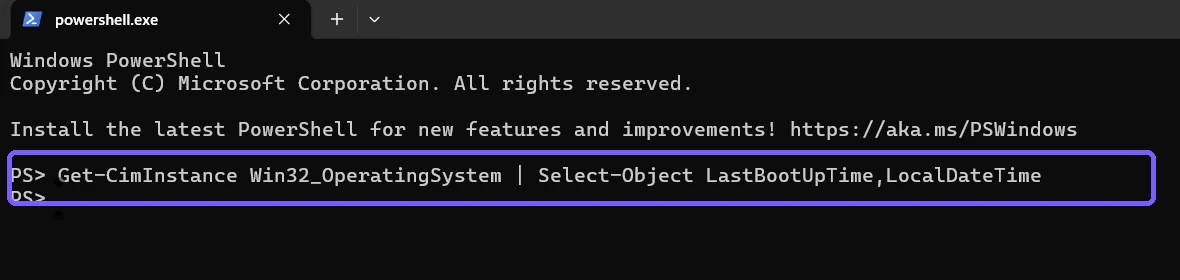
Press Enter. Read LastBootUpTime and retain LocalDateTime as collection context.
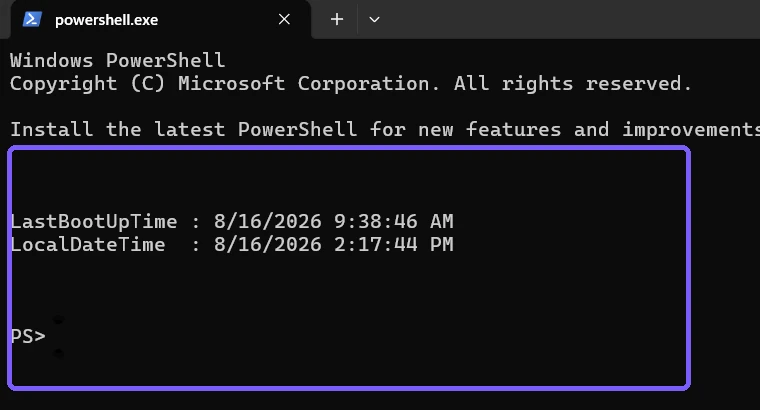
LocalDateTime is not another boot value. It is the operating system's current local clock when the query runs. The difference between the two values is the approximate uptime at collection, but elapsed-time calculation is not required to answer the queue intent.
How do you cross-check the boot time with systeminfo?
Run the local systeminfo command and filter its output to the boot-time label:
systeminfo | Select-String 'System Boot Time'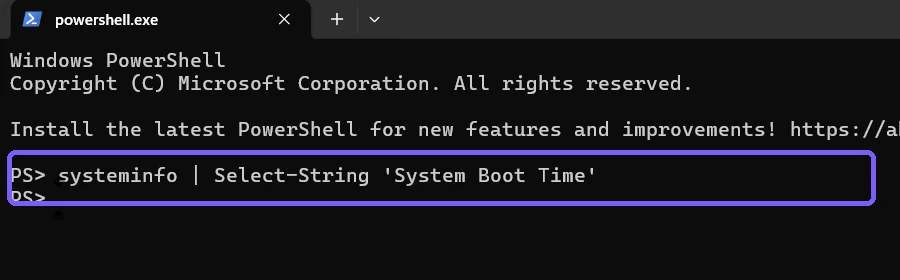
Microsoft's systeminfo documentation lists Windows 11 as supported and describes the command as displaying detailed operating-system and computer configuration. The full output can contain product and hardware details, so the reproduced command keeps only the System Boot Time line.
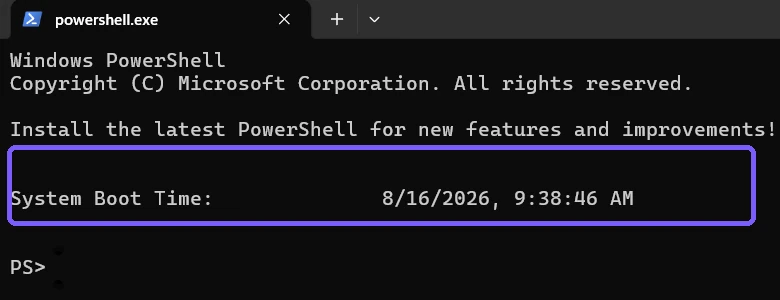
Matching results strengthen the observation because two Windows surfaces independently report the same second. They are not independent historical logs, however; both describe the current operating-system session.
How do you use the boot time to understand uptime?
Subtract LastBootUpTime from the current local time to estimate how long the operating system has been running. Record both inputs and the collection time. A later calculation performed from a screenshot is only as precise as the displayed values.
Uptime does not guarantee uninterrupted application availability. A service, network connection, user session, or application can restart without the operating system rebooting. Conversely, Fast Startup and hybrid transitions can complicate assumptions about what a person considers a “full restart.”
Use the timestamp as one diagnostic clue. When a vendor says a fix requires a restart, compare the boot time with the change time and confirm the restart mechanism separately if necessary.
Why might another tool show a different time?
- A tool may report firmware duration rather than the Windows session start.
- An event log may record a service start, shutdown request, sleep resume, or sign-in instead of OS boot.
- A remote system may format the value in another time zone.
- A dashboard may cache a previous collection.
- The PC may have restarted between two reads.
Run both reproduced commands again in the same session before treating a difference as an error. Preserve the exact labels and time zone rather than comparing unlabeled clock values.
Can this show previous boot dates?
No. LastBootUpTime is a single current-session property. It does not provide a boot history. Historical analysis usually requires event logs or management telemetry, which can contain more sensitive information and is outside this article.
Do not clear event logs or restart the PC to test this read-only procedure. Those actions would destroy or change evidence. If historical evidence is needed, define the time range and privacy scope before collecting it.
What should you do if the timestamp looks wrong?
- Confirm the displayed local time zone and clock.
- Rerun the CIM query and systeminfo filter from the same account.
- Compare complete dates, times, and AM/PM markers.
- Check whether the PC restarted between captures.
- On a managed PC, report both labeled values to the administrator.
Do not change the system clock, time zone, boot configuration, or power settings merely to make the values align. Diagnose those areas separately if the current clock is genuinely wrong.
Is the boot timestamp safe to share?
A boot time can reveal work schedules, maintenance windows, or device usage patterns. Share it only when relevant. Full systeminfo output can expose product, network, and hardware details, which is why this procedure filters to one line.
The retained screenshots use an anonymous PS> prompt and show only the two timestamps or one System Boot Time line. They contain no account name, device name, product ID, network adapter, personal path, credential, notification, or unrelated application. Exact Terminal and ShareX configuration hashes were restored.
Frequently Asked Questions
What PowerShell property shows the last Windows boot?
Read Win32_OperatingSystem.LastBootUpTime. Microsoft defines it as the operating system's last restart date and time.
Does this command restart the PC?
No. Both reproduced methods only read local operating-system information.
Is LastBootUpTime the same as Last BIOS time?
No. LastBootUpTime is a timestamp; firmware timing is a different measurement.
Can LastBootUpTime show every previous boot?
No. It represents the current operating-system session, not a historical list.
Record the boot time with its local context
Use Win32_OperatingSystem.LastBootUpTime as the primary read and systeminfo's System Boot Time as a compact cross-check. Keep the time zone and collection time, and treat boot mechanism, firmware duration, history, restarts, and power actions as separate tasks.
For more interesting articles, stay tuned to WinSides.com!








Community
Comments (0)