

To export a list of running and stopped Windows services, use Get-Service to read the local inventory, select only Status, Name, and DisplayName, and send those fields to Export-Csv. This produces a portable checklist without starting, stopping, or reconfiguring a service.
I reproduced the workflow as a standard user on Windows 11 version 25H2, build 26220.7872. The CSV was written to one exact temporary filename, imported again to verify its columns and row counts, and removed. The final check reported that the temporary file did not exist. No service state, startup type, dependency, account, or security setting changed.
What is included in the services export?
The export contains one row for each service visible to Get-Service in the reproduced local session. Status distinguishes Running and Stopped rows. Name is the compact service identifier used by service commands, while DisplayName is the longer label normally shown in management interfaces.
Microsoft's Get-Service documentation says the cmdlet returns objects representing services on the computer, including running and stopped services. The command is an inventory read. It does not change a service unless it is combined with a separate state-changing cmdlet, which this procedure never does.
The export deliberately omits properties that do not help this checklist. It does not attempt to collect service account credentials, executable command lines, security descriptors, recovery actions, dependencies, or startup configuration. A smaller schema is easier to audit and safer to share.
Table of contents
How do you export running and stopped services to CSV?
- Open Windows Terminal.
- Open a normal PowerShell tab.
- Confirm that you are comfortable creating the exact temporary file
winsides-services.csv. Use another approved path if you need to retain the inventory. - Run this command:
Get-Service | Sort-Object Status,DisplayName | Select-Object Status,Name,DisplayName | Export-Csv "$env:TEMP\winsides-services.csv" -NoTypeInformation
The command may not print a success message because Export-Csv writes to the file. For an evidence-driven result, import the CSV and group its rows by Status. The reproduced verification displayed the file name, total rows, Running count, and Stopped count.
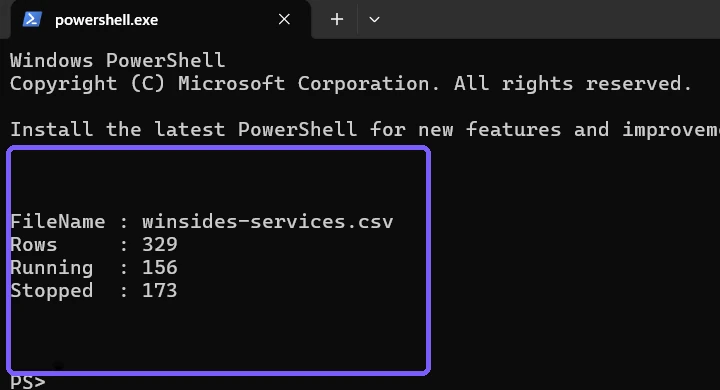
Microsoft's Export-Csv documentation explains that the cmdlet converts selected objects into CSV strings and includes an example that exports service objects. -NoTypeInformation avoids the legacy type-information header and keeps the first row focused on the selected column names.
How do you verify the CSV before using it?
Import the file rather than trusting its existence alone. Check that the first row exposes exactly Status, Name, and DisplayName, then count the rows and group them by Status. A nonzero file length is not enough: an interrupted export can leave an incomplete or malformed file.
$rows = Import-Csv "$env:TEMP\winsides-services.csv"
$rows[0].PSObject.Properties.Name
$rows.Count
If your result contains a different number of services than the screenshot, that is not automatically an error. Windows edition, installed software, optional features, drivers, and management tools can add or remove services. Compare names and statuses with the PC and collection time being documented.
How do you remove the temporary export safely?
Delete only the exact path you created. Do not use a wildcard against the temporary directory. Then run Test-Path against the same literal path and require False. The final reproduced frame reports the verified columns and counts, followed by TemporaryCsvExists: False and ServiceStateChanged: False.
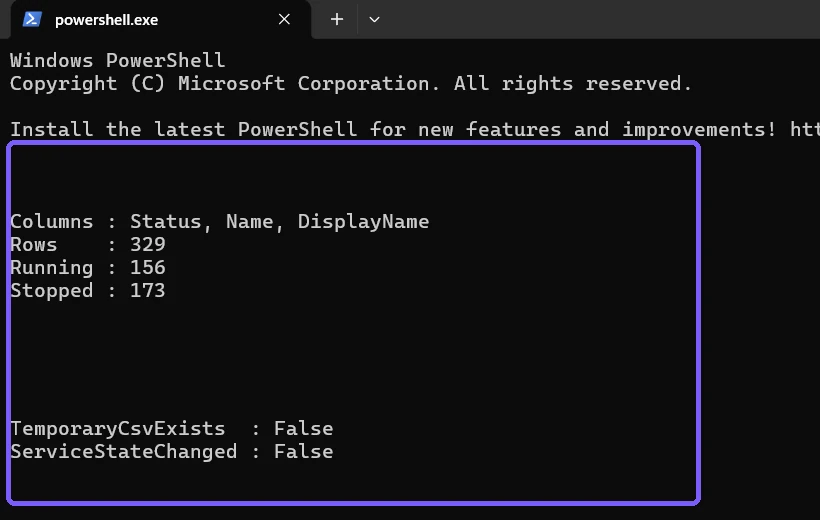
If you need to keep the export, move it intentionally to an approved support or documentation location instead of deleting it. Apply the organization's retention and access rules, especially when the installed service names reveal security, management, virtualization, or business software.
How should you interpret Running and Stopped?
Running means the service reported an active state at collection time. Stopped means it was not running at that moment. Neither label alone tells you whether the state is healthy, required, disabled, delayed, triggered, or appropriate for the PC.
Many Windows services start only when an event requires them. A stopped row is therefore not permission to start it, and a running row is not permission to stop it. Use the export as an observation and compare it with documented application or administrator requirements before taking action.
Statuses can change after the export. Record the collection time when comparing two files, and generate a fresh inventory if current state matters. Do not describe the CSV as a live monitor.
How can you compare two service exports?
Keep the same three-column schema and sort order. Compare rows by the stable service Name rather than DisplayName alone, because display labels may be localized or changed by a vendor. Treat a changed Status as a lead to investigate, not proof of a fault.
When differences matter, verify them with a fresh Get-Service read on the affected PC. Do not replay a previous CSV into a service-control command. This article exports evidence; it does not provide an import or restoration mechanism.
Is a services list safe to share?
A service list does not contain passwords in this three-field design, but names can reveal installed antivirus, VPN, remote-management, database, virtualization, or corporate software. Review the CSV and screenshots before sharing them publicly. Use a trusted support channel when the inventory exposes organizational tools.
The retained screenshots show an anonymous PS> prompt, the generic temporary filename, selected fields, and aggregate counts. They contain no account name, personal path, credential, notification, service executable path, or unrelated file. Exact Terminal and ShareX hashes were restored after the temporary file was removed.
Frequently Asked Questions
Does Get-Service change any service?
No service changed during the reproduced inventory. Get-Service read the current local service objects.
Why export Name and DisplayName?
Name is the compact identifier used by tools, while DisplayName is the human-readable label. Keeping both makes the CSV easier to compare and explain.
Why can the row count differ between PCs?
Windows edition, optional features, drivers, and installed software can register different services. Collect a fresh inventory from the PC being diagnosed.
Does the CSV restore services?
No. It is an observation-only inventory and is not a service configuration backup or import format.
Export evidence without controlling services
Use Get-Service, select only the fields you need, export to a deliberate path, and import the file again to verify its schema and counts. Preserve or remove the file intentionally. Keep service start, stop, enable, disable, deletion, and configuration as separately authorized procedures.
For more interesting articles, stay tuned to WinSides.com!









Community
Comments (0)