

Introduction to the Print Spooler on Windows 11
In the intricate ecosystem of Windows 11, countless background services work tirelessly to ensure a seamless user experience. Among these, the Print Spooler on Windows 11 stands out as a fundamental component, often operating silently until a printing issue arises. This crucial service acts as an intermediary, managing all print jobs sent from your applications to your printer, whether it’s a local device or a networked one. Learn more about Print Spooler Architecture.
Without the Print Spooler, your computer would have to wait for the printer to physically complete each job before you could resume other tasks, leading to significant delays and productivity bottlenecks. It efficiently queues print requests, processes them in the background, and feeds them to the printer at its own pace, freeing up your system resources almost instantly. Understanding how this service operates and how to manage it is essential for anyone who regularly prints documents.
This comprehensive guide will demystify the Print Spooler, exploring its architecture, troubleshooting common problems, and offering advanced tips for optimization and security. By the end, you’ll possess the knowledge to maintain a smooth and reliable printing environment on your Windows 11 machine, transforming potential frustrations into effortless output.
Table of contents
Key Takeaways
- The Print Spooler on Windows 11 is a vital service that manages print jobs, allowing applications to quickly hand off data to be printed without waiting for the physical printer.
- It functions as a buffer, storing print data temporarily and sending it to the printer in the background, thus improving system responsiveness.
- Common issues like “Print Spooler service is not running” or stuck print jobs can often be resolved by simply restarting the service or clearing the print queue manually.
- Understanding the Print Spooler’s architecture, including spoolsv.exe, print processors, and print monitors, is key to effective troubleshooting.
- Regularly updating printer drivers and ensuring system file integrity are crucial steps in preventing and resolving Print Spooler problems.
- While disabling the Print Spooler might seem like a solution for certain security concerns, it effectively prevents all printing functionality and is generally not recommended for most users.
- Proactive management, including configuring recovery options and optimizing settings, contributes significantly to a stable and secure printing environment.
Understanding the Print Spooler Service Architecture
The Print Spooler service is more than just a simple queue; it’s a complex architectural component within Windows 11 designed to handle the intricacies of printing. Its primary function is to manage the entire printing process from the moment an application initiates a print command until the document physically emerges from the printer. This involves several stages, each handled by specific sub-components working in concert.
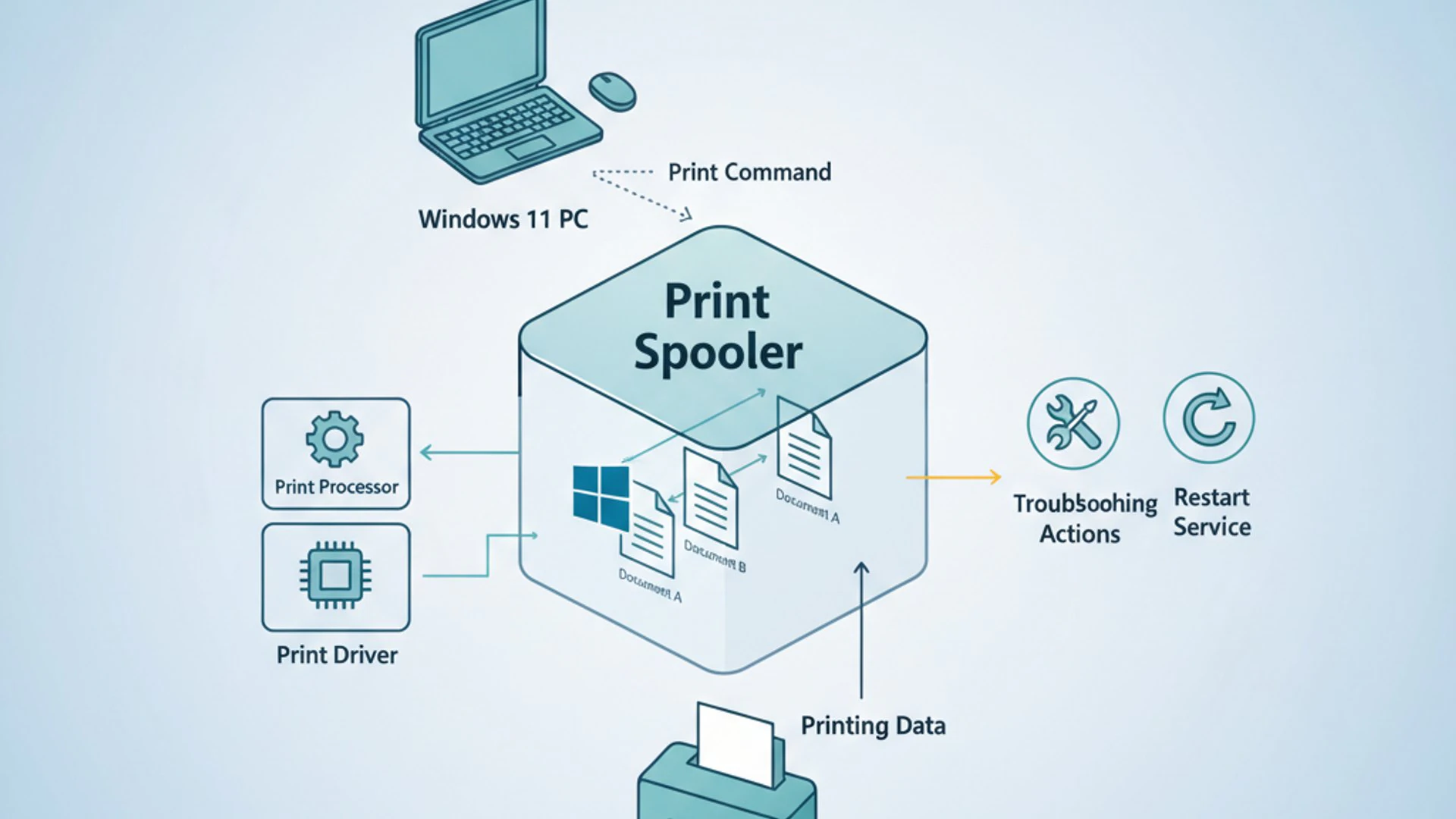
This sophisticated design ensures that your applications don’t get bogged down waiting for a slow printer. Instead, they quickly pass the print data to the spooler, which then takes over the heavy lifting, allowing you to continue working uninterrupted. Understanding this architecture is foundational for effective troubleshooting and management of your printing setup.
How Print Spooling Works in Windows 11
When you click “Print” in an application on Windows 11, the process isn’t instantaneous. Instead, your application sends the print job data to the Print Spooler service. This service then takes on the responsibility of preparing the data for the specific printer, storing it temporarily on your hard drive, and sending it to the printer at a rate the printer can handle.
This buffering mechanism is what we call “spooling.” It allows your computer to process print jobs much faster than the printer can physically print them. The spooler acts as a middleman, translating the application’s print request into a format the printer understands, managing the queue of multiple print jobs, and handling communication with the printer hardware.
For instance, if you print a large document, the application hands off the entire document to the spooler in mere seconds. The spooler then stores this data in a temporary file (a spool file) and sends it to the printer page by page. This means you can close the application or even shut down your computer (after the spooler has finished sending the data) without interrupting the printing process.
Core Components of the Print Spooler
The Print Spooler isn’t a monolithic entity; it’s composed of several interconnected modules, each with a specific role. These components work together seamlessly to ensure print jobs are processed correctly and efficiently. Understanding these parts helps in diagnosing where a problem might originate when printing goes awry.
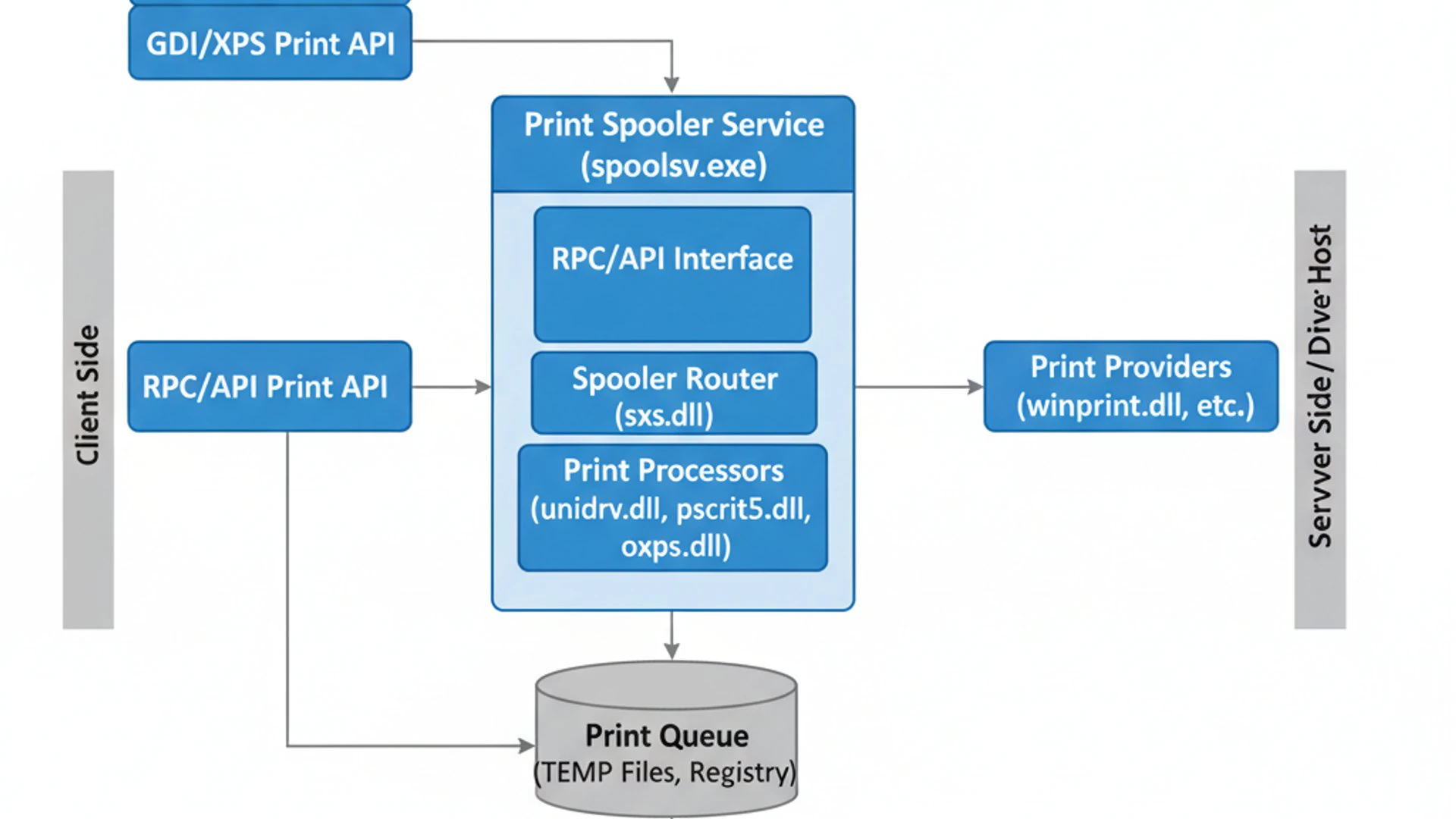
The main components include the Spooler Subsystem App (spoolsv.exe), print processors, and print monitors. Each plays a critical role in taking raw print data from an application and transforming it into a physical printout. This modular design also allows for flexibility and extensibility, accommodating a wide range of printers and printing technologies.
Spooler Subsystem App (spoolsv.exe)
At the heart of the Print Spooler service is the executable file spoolsv.exe. This is the main process that runs in the background as part of the Windows operating system. It’s responsible for managing the entire print queue, scheduling print jobs, loading printer drivers, and communicating with other spooler components.
When you interact with the Print Spooler, for example, by viewing pending print jobs or canceling one, you are indirectly interacting with spoolsv.exe. This process constantly monitors for new print requests, allocates resources, and ensures that jobs are sent to the correct printer in the proper order. It’s the central orchestrator of all printing activities.
Print Processors and Print Monitors
Beyond the core spoolsv.exe, two other critical components are Print Processors and Print Monitors. Print Processors are dynamic link libraries (DLLs) that convert a print job’s spooled data from an application-independent format into a printer-specific format. This ensures that the data is correctly interpreted by the target printer.
For example, a print processor might convert an Enhanced Metafile (EMF) into a Printer Command Language (PCL) or PostScript format, depending on what the specific printer understands. Different printers and drivers may utilize different print processors to achieve compatibility and optimal output quality.
Print Monitors, on the other hand, are responsible for sending the processed print data from the spooler to the printer hardware. They manage the physical communication channel, whether it’s a USB port, a network connection (like TCP/IP), or a traditional parallel port. There are local print monitors (e.g., USB port monitor) and language monitors (e.g., for bidirectional communication with the printer).
A common print monitor is the Standard TCP/IP Port Monitor, which handles network printing. It establishes and maintains the connection to the network printer, sending the data and receiving status updates. Both print processors and print monitors are essential for the seamless translation and delivery of print jobs across diverse hardware and network configurations.
Managing the Print Spooler Service
Effective management of the Print Spooler on Windows 11 is crucial for maintaining a healthy printing environment. While the service typically runs reliably in the background, there are times when you might need to manually intervene. This could involve restarting it to clear minor glitches, stopping it for maintenance, or configuring its recovery options to ensure it automatically restarts after a failure.
Knowing how to perform these actions using various tools like the Services app, Command Prompt, or PowerShell provides flexibility and control. These methods cater to different levels of user expertise and can be invaluable when troubleshooting or automating tasks. Proper management can prevent many common printing frustrations before they even begin.
Starting, Stopping, and Restarting the Service
The most frequent management tasks for the Print Spooler involve starting, stopping, or restarting it. A simple restart can often resolve issues like print jobs getting stuck or the printer appearing offline. Stopping the service might be necessary before performing certain driver installations or clearing corrupt spool files.
Conversely, starting the service is essential if it has stopped unexpectedly or if you’ve manually halted it. Windows 11 offers several straightforward ways to perform these actions, allowing you to choose the method that best suits your comfort level and the situation at hand. Each method achieves the same outcome but through a different interface.
Using the Services App
The Services app provides a graphical interface for managing all services on your Windows 11 system, including the Print Spooler. It’s often the most intuitive method for users who prefer a visual approach.
- Press Windows Key + R to open the Run dialog.
- Type
services.mscand press Enter. This will open the Services window. - Scroll down and locate Print Spooler in the list of services.
- Right-click on Print Spooler.
- From the context menu, you will see options to:
- Start: If the service is stopped.
- Stop: If the service is running.
- Restart: To stop and then immediately start the service again.
- Click the desired action. You might see a progress bar as the action is performed.
This method is excellent for a quick visual check of the service status and for performing immediate actions. It also allows you to easily access the service’s properties for more advanced configurations, which we’ll discuss next.
Command Prompt and PowerShell Methods
For users who prefer command-line interfaces or need to automate these tasks, Command Prompt and PowerShell offer powerful alternatives. These methods are particularly useful for IT professionals or in scripting scenarios.
Using Command Prompt (Admin):
- Open Command Prompt as administrator. You can do this by searching for “cmd” in the Start menu, right-clicking “Command Prompt,” and selecting “Run as administrator.”
- To stop the Print Spooler:
net stop spooler - To start the Print Spooler:
net start spooler - To restart the Print Spooler (you need to stop it first, then start it):
net stop spooler && net start spooler
Using PowerShell (Admin):
- Open PowerShell as administrator. Search for “PowerShell” in the Start menu, right-click, and select “Run as administrator.”
- To stop the Print Spooler:
Stop-Service -Name spooler - To start the Print Spooler:
Start-Service -Name spooler - To restart the Print Spooler:
Restart-Service -Name spooler
PowerShell commands are generally more verbose but offer greater control and scripting capabilities. Both command-line methods are efficient for quick operations without navigating through a graphical interface.
Configuring Print Spooler Recovery Options
To ensure the Print Spooler on Windows 11 remains resilient, especially in environments where continuous printing is critical, configuring its recovery options is a smart move. These settings dictate what action Windows should take if the service unexpectedly stops or fails. By default, Windows might not always attempt to restart a failed service, leading to prolonged printing outages.
Adjusting these options can significantly improve the reliability of your printing system. It’s a proactive measure that can prevent manual intervention during minor hiccups, keeping your print queues flowing smoothly even when issues arise.
- Open the Services app (
services.msc) as described earlier. - Locate and double-click on Print Spooler to open its Properties window.
- Navigate to the Recovery tab.
- You will see options for “First failure,” “Second failure,” and “Subsequent failures.” For each of these, you can choose an action from the dropdown menu:
- Take No Action: The service will remain stopped.
- Restart the Service: Windows will attempt to restart the Print Spooler.
- Run a Program: You can specify a program or script to run, though this is less common for the Print Spooler.
- It’s generally recommended to set “First failure” and “Second failure” to Restart the Service. For “Subsequent failures,” you might also choose “Restart the Service” or “Take No Action” if you prefer manual intervention after multiple failures.
- You can also adjust the “Restart service after” delay, which determines how long Windows waits before attempting a restart. A value of 1 minute is usually sufficient.
- Click Apply, then OK to save your changes.
Pro Tip: Setting the recovery options to automatically restart the Print Spooler after a failure can significantly reduce downtime and user frustration, especially in shared or busy environments. This small configuration change can make a big difference in printing reliability.
Common Print Spooler Issues and Error Messages
Even with robust architecture, the Print Spooler on Windows 11 is not immune to problems. Users frequently encounter various issues that disrupt printing, ranging from minor annoyances to complete system halts. Recognizing the common error messages and understanding their underlying causes is the first step toward effective troubleshooting.
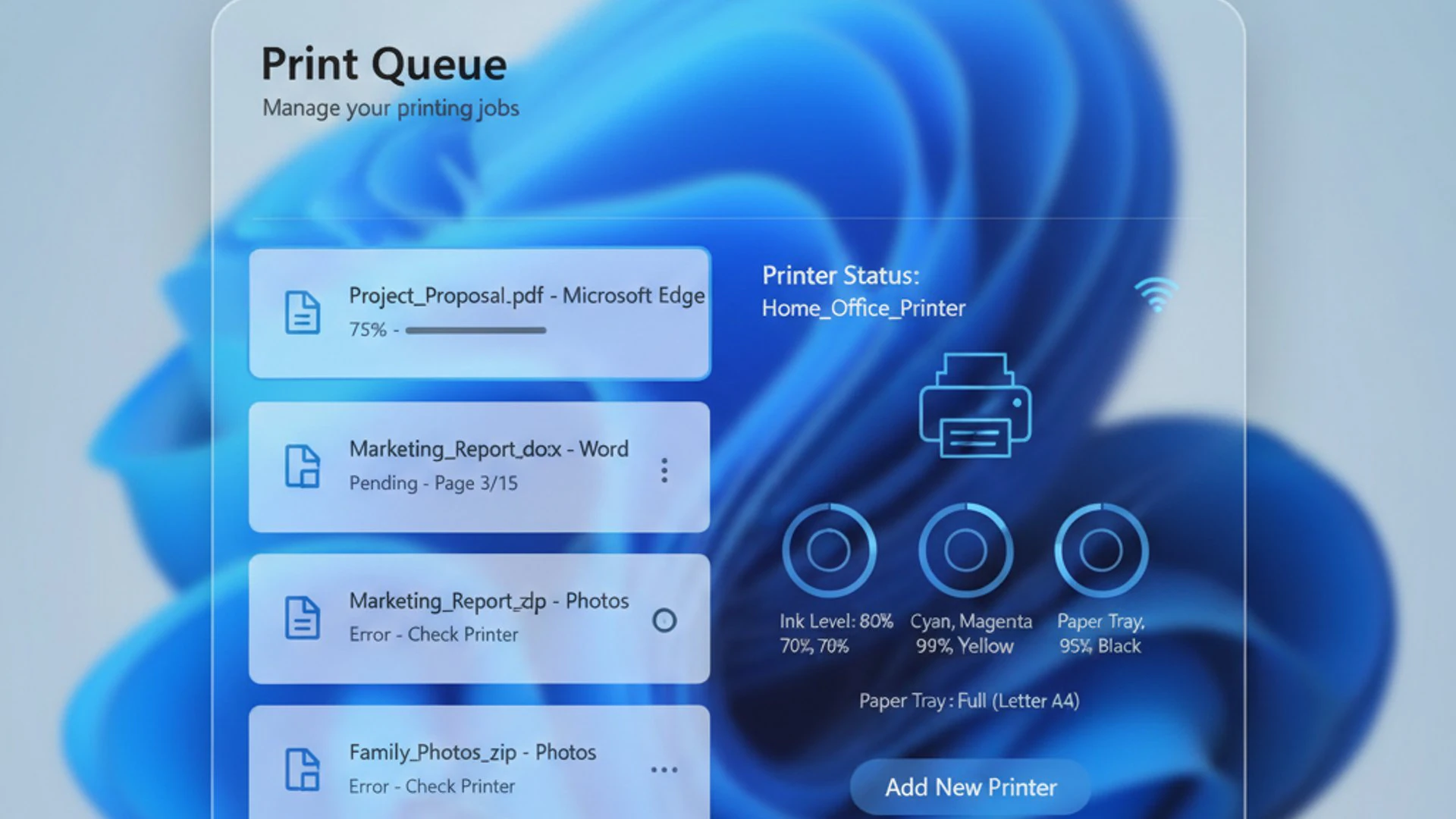
These problems often manifest as an inability to print, documents stuck in the queue, or the printer simply not responding. While frustrating, most of these issues have straightforward solutions once you identify the root cause. Let’s explore some of the most prevalent Print Spooler problems.
“Print Spooler service is not running”
This is perhaps one of the most common and definitive error messages indicating a problem with the Print Spooler. When you try to print, or even just view your printers, you might see a message stating that the “Print Spooler service is not running.” This means the core component responsible for managing print jobs has stopped functioning.
The causes can vary: it might be a crash due to a corrupt print job, a problematic printer driver, or even conflicts with other software. Without the service running, no print jobs can be processed, and your printer will effectively be unusable. The immediate solution is to restart the service, but understanding why it stopped is crucial for preventing recurrence.
Print Jobs Stuck in Queue
Another frequent issue is when print jobs get “stuck” in the print queue. You send a document to the printer, it appears in the queue, but never actually prints. The status might show “Printing,” “Spooling,” or simply “Error” without any progress. This can be incredibly frustrating, especially when you have multiple documents waiting.
This often happens due to a corrupt print job, an unresponsive printer, or a communication breakdown between the spooler and the printer. Sometimes, a partially sent job can prevent subsequent jobs from processing. Clearing these stuck jobs is usually the first step, followed by investigating the underlying cause.
Printer Not Responding or Offline
When your printer is connected and powered on, but Windows 11 reports it as “Offline” or “Not Responding,” the Print Spooler might be involved. While this can sometimes be a physical connectivity issue (cable, Wi-Fi), it often points to a communication problem that the spooler is failing to manage.
The spooler relies on proper communication channels to send data to the printer and receive status updates. If this channel is disrupted, or if the spooler itself is in an unstable state, it might incorrectly report the printer’s status. Troubleshooting this requires examining both the spooler’s health and the printer’s connection.
Advanced Troubleshooting for Print Spooler Problems
When basic restarts don’t resolve your printing woes, it’s time to delve into more advanced troubleshooting techniques for the Print Spooler on Windows 11. These methods address deeper issues, such as corrupt files, outdated drivers, or incorrect system configurations that can cripple your printing capabilities. A systematic approach is key here, starting with clearing the queue and progressing to system-level checks.
These steps require a bit more technical comfort but can be incredibly effective in restoring full printing functionality. Remember to always back up important data or create a system restore point before making significant system changes.
Clearing the Print Spooler Queue Manually
If print jobs are persistently stuck, simply restarting the Print Spooler might not be enough. Corrupt spool files can remain even after a restart, causing the same issue to reappear. Manually clearing the print queue ensures that all pending jobs are removed, providing a clean slate for new print requests.
This process involves stopping the Print Spooler service, deleting the temporary spool files, and then restarting the service. It’s a common and highly effective first step when dealing with stubborn stuck print jobs.
- Stop the Print Spooler Service:
- Open Command Prompt as administrator.
- Type
net stop spoolerand press Enter. You should see a confirmation that the service was stopped successfully.
- Delete Spooler Files:
- Open File Explorer.
- Navigate to
C:\Windows\System32\spool\PRINTERS. - You might need to grant administrator permissions to access this folder.
- Delete all files within this folder. These are your stuck print jobs. Do not delete the “PRINTERS” folder itself.
- Restart the Print Spooler Service:
- Go back to the Command Prompt window.
- Type
net start spoolerand press Enter. The service should start successfully.
After these steps, try printing a test page. If the issue was due to corrupt spool files, your printer should now function normally. This method effectively flushes out any problematic data that might be clogging the print queue.
Deleting Spooler Files
The temporary files stored in the C:\Windows\System32\spool\PRINTERS directory are the actual print jobs waiting to be sent to the printer. These files are typically named with a .SPL extension (spool file) and a .SHD extension (shadow file, containing job information).
When you encounter stuck print jobs, these files are often corrupt or incomplete, preventing the Print Spooler from processing them correctly. Manually deleting them forces the spooler to discard the problematic jobs and start fresh. It’s a safe operation as these are temporary files, and new ones will be created for subsequent print jobs.
Updating or Reinstalling Printer Drivers
Outdated or corrupt printer drivers are a leading cause of Print Spooler problems. Drivers are the software that allows Windows 11 to communicate with your printer. If they are incompatible, buggy, or damaged, the Print Spooler can crash or fail to send jobs correctly.
Ensuring your printer drivers are up-to-date is a critical maintenance step. If problems persist, a clean reinstallation of the drivers can often resolve deep-seated issues by removing any corrupt driver components.
- Check for Driver Updates:
- Go to Settings > Bluetooth & devices > Printers & scanners.
- Select your printer and look for a “Check for updates” option or visit the manufacturer’s website directly.
- Download and install the latest drivers specifically designed for Windows 11.
- Uninstall Existing Drivers (for a clean reinstall):
- In the Printers & scanners settings, select your printer and click “Remove.”
- Open Device Manager (search for it in the Start menu).
- Expand “Print queues,” right-click on your printer, and select “Uninstall device.” If prompted, check the box to “Delete the driver software for this device.”
- Restart your computer.
- Reinstall Drivers:
- Install the latest drivers you downloaded from the manufacturer’s website.
- Alternatively, go to Settings > Bluetooth & devices > Printers & scanners and click “Add device” to let Windows detect and install the printer.
A fresh driver installation can often resolve cryptic errors and bring the Print Spooler back to a stable state. Always prioritize drivers from the printer manufacturer’s official website over generic Windows drivers.
Checking for Corrupt System Files
The Print Spooler service relies on various core Windows system files. If these files become corrupt or damaged, the spooler may behave erratically or fail to start. Windows 11 includes built-in tools to scan for and repair such issues, providing a robust way to ensure system integrity.
Running a System File Checker (SFC) scan and a Deployment Image Servicing and Management (DISM) scan can identify and fix underlying system file corruption that might be impacting the Print Spooler.
- Run System File Checker (SFC):
- Open Command Prompt as administrator.
- Type
sfc /scannowand press Enter. - This scan will check for and attempt to repair any corrupt Windows system files. It may take some time to complete.
- Run Deployment Image Servicing and Management (DISM):
- If SFC reports issues it couldn’t fix, or if the problem persists, run DISM.
- In the same administrator Command Prompt, type:
DISM /Online /Cleanup-Image /RestoreHealth - Press Enter. This command uses Windows Update to provide files needed to fix corruptions.
- After DISM completes, run
sfc /scannowagain.
- Restart your computer after completing these scans.
These scans are powerful tools for maintaining the overall health of your Windows 11 installation and can often resolve issues that seem unrelated to printing but are actually caused by deeper system problems.
Adjusting Print Spooler Dependencies
The Print Spooler on Windows 11 doesn’t operate in isolation; it depends on other services to function correctly. If one of its dependent services is stopped, disabled, or malfunctioning, the Print Spooler itself might fail to start or operate properly. Understanding and verifying these dependencies can be a crucial troubleshooting step.
Typically, the Print Spooler relies on services like Remote Procedure Call (RPC) and DCOM Server Process Launcher. Ensuring these services are running and configured correctly can resolve issues where the spooler fails to start with an error message indicating a dependency problem.
- Open the Services app (
services.msc). - Locate and double-click on Print Spooler to open its Properties window.
- Go to the Dependencies tab.
- Here, you will see a list of services that the Print Spooler depends on. Common ones include:
- Remote Procedure Call (RPC)
- DCOM Server Process Launcher
- Note down these services.
- Close the Print Spooler Properties window and find each of the dependent services in the main Services list.
- For each dependent service, double-click to open its Properties, ensure its “Startup type” is set to Automatic, and verify that its “Service status” is Running. If not, click “Start.”
- Click Apply and OK for each dependent service.
- Once all dependencies are confirmed to be running and set to Automatic, attempt to start the Print Spooler service again.
Verifying and correcting dependency issues can be a subtle but effective solution when other troubleshooting steps have failed. It ensures that the foundational services required for the Print Spooler are correctly operational.
Optimizing Print Spooler Performance and Security
Beyond troubleshooting, proactive management of the Print Spooler on Windows 11 involves optimizing its performance and ensuring its security, especially in networked environments. A well-managed spooler not only runs more efficiently but also reduces potential vulnerabilities that could be exploited. Implementing best practices can significantly enhance your overall printing experience and safeguard your system.
This section focuses on preventative measures and configurations that contribute to a robust and secure printing infrastructure, moving beyond reactive problem-solving to proactive system health.
Best Practices for Spooler Management
Adopting certain habits and configurations can prevent many common Print Spooler issues and ensure smooth operation. These best practices apply to both individual users and system administrators managing multiple printers.
- Keep Printer Drivers Updated: Regularly check for and install the latest drivers from your printer manufacturer’s website. Outdated drivers are a frequent source of instability.
- Clear Print Queue Regularly: If you frequently encounter stuck jobs, consider periodically clearing the queue manually, especially after a power outage or system crash.
- Configure Recovery Options: As discussed, set the Print Spooler service to automatically restart after a failure to minimize downtime.
- Monitor System Resources: Ensure your system has adequate RAM and disk space. While print spool files are temporary, a lack of resources can impact performance.
- Use Reliable Printers and Cables: Faulty hardware or unreliable network connections can indirectly cause spooler issues. Invest in quality equipment.
- Avoid Overloading the Queue: For very large or numerous print jobs, consider printing in smaller batches to reduce the load on the spooler and printer.
By adhering to these practices, you can significantly reduce the likelihood of encountering Print Spooler problems and enjoy a more reliable printing experience.
Security Considerations for Network Printing
In networked environments, the Print Spooler can become a potential attack vector if not properly secured. Historically, vulnerabilities in the Print Spooler service have been exploited (e.g., PrintNightmare), making security a paramount concern for network administrators. Protecting the Print Spooler on Windows 11 is crucial for overall network security.
When printers are shared across a network, the spooler handles requests from multiple users and machines, increasing its exposure. Implementing robust security measures is not just about preventing printing issues but also about protecting your network from malicious attacks.
- Apply Windows Updates Promptly: Microsoft regularly releases security patches for the Print Spooler. Ensure your Windows 11 systems are always up-to-date to mitigate known vulnerabilities.
- Restrict Printer Sharing: Only share printers with necessary users and groups. Avoid sharing printers with “Everyone” permissions.
- Implement Strong Authentication: For network printers, ensure that users require proper authentication to access and print.
- Use Group Policy for Spooler Settings: In domain environments, leverage Group Policy to centrally manage Print Spooler settings, such as restricting driver installation to administrators.
- Disable Unnecessary Services: If certain printing features (e.g., internet printing) are not used, consider disabling them to reduce the attack surface.
- Monitor Event Logs: Regularly check the Windows Event Log for Print Spooler-related errors or suspicious activity, which could indicate a compromise or instability.
Important Security Note: Microsoft frequently releases patches for Print Spooler vulnerabilities. Keeping your Windows 11 system updated is the single most critical step in securing this service against known exploits. Consult official Microsoft security advisories for the latest recommendations.
For more information on securing Windows services, you might find resources on managing other critical services helpful, such as Encrypting File System on Windows 11: A Comprehensive Guide or RPC Endpoint Mapper on Windows 11: Explained & Managed.
When to Disable the Print Spooler (and Why Not To)
The idea of disabling the Print Spooler often arises when users face persistent printing issues or when security concerns are highlighted. While it is technically possible to disable the Print Spooler on Windows 11, it’s a decision with significant implications that should not be taken lightly. Understanding the scenarios where it might be considered, alongside the substantial drawbacks, is crucial.
Generally, disabling this service is a drastic measure that eliminates all printing functionality. For most users, the benefits of a functioning spooler far outweigh any perceived advantages of disabling it.
Scenarios where disabling might be considered (with strong caveats):
- Security Concerns: In highly secure environments where printers are deemed a significant attack vector, and all printing is strictly prohibited or handled by dedicated, isolated systems. This is an extreme measure, typically only seen in very specialized, high-security contexts.
- Non-Printing Systems: On a server or workstation that is explicitly configured to never print and where the service is causing an inexplicable, unresolvable resource drain or crash. Even then, investigating the root cause is usually preferred.
- Temporary Isolation: As a very temporary troubleshooting step to confirm if the Print Spooler is indeed the source of a system-wide instability, though restarting is usually sufficient for this.
Why you generally should NOT disable the Print Spooler:
- No Printing Capability: The most obvious consequence is that you will not be able to print anything from your computer, to any printer, local or network.
- Impact on Printer-Related Features: Many applications and system features that interact with printers (e.g., “Print to PDF” options, fax services, some scanning software) may also cease to function correctly.
- Loss of Spooling Benefits: You lose the core benefit of the spooler – the ability to quickly hand off print jobs and continue working without waiting for the printer.
- Potential for Other Issues: While rare, disabling a core Windows service can sometimes lead to unexpected behavior in other parts of the operating system that might have indirect dependencies.
In almost all practical scenarios, troubleshooting and resolving Print Spooler issues, or implementing robust security measures, is a far better approach than disabling the service entirely. The service is fundamental to the printing experience on Windows 11, and its absence creates more problems than it solves for the vast majority of users.
Conclusion: Ensuring Smooth Printing on Windows 11
The Print Spooler on Windows 11, while often overlooked, is a cornerstone of a functional and efficient computing experience. Its role in managing print jobs, buffering data, and orchestrating communication between applications and printers is indispensable. From the moment you click “Print” to the physical output, the spooler works diligently in the background, freeing up your system and ensuring a seamless workflow.
Understanding its architecture, knowing how to manage its service, and being equipped with effective troubleshooting techniques are vital skills for any Windows 11 user. Whether it’s a simple restart to clear a stuck job or a deeper dive into driver updates and system file integrity, the ability to diagnose and resolve Print Spooler issues can save significant time and frustration.
Furthermore, proactive measures such as configuring recovery options, keeping drivers updated, and adhering to security best practices, especially in networked environments, are crucial for maintaining a robust and secure printing infrastructure. While the option to disable the service exists, it’s almost always a last resort, as it completely sacrifices printing functionality.
By embracing the knowledge shared in this guide, you can ensure that your Windows 11 printing experience remains consistently smooth, reliable, and secure. Empower yourself with proactive management, and let the Print Spooler continue its essential work without interruption.









Community
Comments (0)