

Introduction to DISM Commands
Windows operating systems are complex ecosystems, constantly juggling countless files, services, and features to deliver a seamless user experience. Over time, however, this intricate balance can be disrupted by various factors, including software conflicts, improper shutdowns, or even malicious attacks. When critical system files become corrupted or the Windows image itself suffers damage, the stability and performance of your PC can rapidly degrade. This is where DISM commands step in as an indispensable toolkit for system administrators, IT professionals, and advanced users alike. For additional context, see What is DISM?, DISM Image Management Commands, DISM Operating System Package Servicing Command-Line Options, and Repair a Windows Image.
DISM, which stands for Deployment Image Servicing and Management, is a powerful command-line utility integrated into Windows. It serves as the backbone for maintaining the health, integrity, and functionality of your Windows installation. Far beyond simple troubleshooting, DISM allows you to diagnose and repair deep-seated issues within the Windows image, manage system features, and even prepare operating system deployments.
Understanding and mastering DISM commands is not just about fixing problems; it’s about proactive system maintenance and ensuring your Windows environment remains robust and reliable. This comprehensive guide will demystify DISM, exploring its core functionalities, practical applications, and best practices. By the end, you’ll be equipped to leverage this potent tool to keep your Windows system in optimal condition, tackling everything from minor glitches to significant image corruption with confidence.
Table of contents
Key Takeaways
Before diving deep into the technicalities, here are the most crucial insights about DISM commands that every Windows user should grasp:
- Core Functionality: DISM is primarily used for repairing corrupted Windows system files and managing features within the Windows image, both online and offline.
- Administrative Privileges: All DISM operations require an elevated Command Prompt or PowerShell session to execute successfully.
- Internet Connection for Repairs: For online repair operations, an active internet connection is often necessary to download replacement files from Microsoft’s update servers.
- Complementary to SFC: While SFC (System File Checker) repairs individual system files, DISM repairs the underlying Windows component store, from which SFC draws its healthy files. They work best in conjunction.
- Image Management: Beyond repair, DISM is crucial for mounting, modifying, and applying Windows image files (WIM, VHD, ESD) for deployment and customization.
- Proactive Maintenance: Regular use of DISM’s health check commands can help identify and resolve potential issues before they escalate into major system failures.
- Backup Before Major Changes: Always create a system restore point or backup before performing significant DISM operations, especially those involving image modification.
What is DISM and Why is it Essential?
At its core, DISM stands for Deployment Image Servicing and Management. It is a command-line utility that Microsoft includes in all modern versions of Windows, starting with Windows 7 and Windows Server 2008 R2. Its primary purpose is to service a Windows image, which can be an online (running) operating system or an offline image stored in a WIM, VHD, or ESD file.
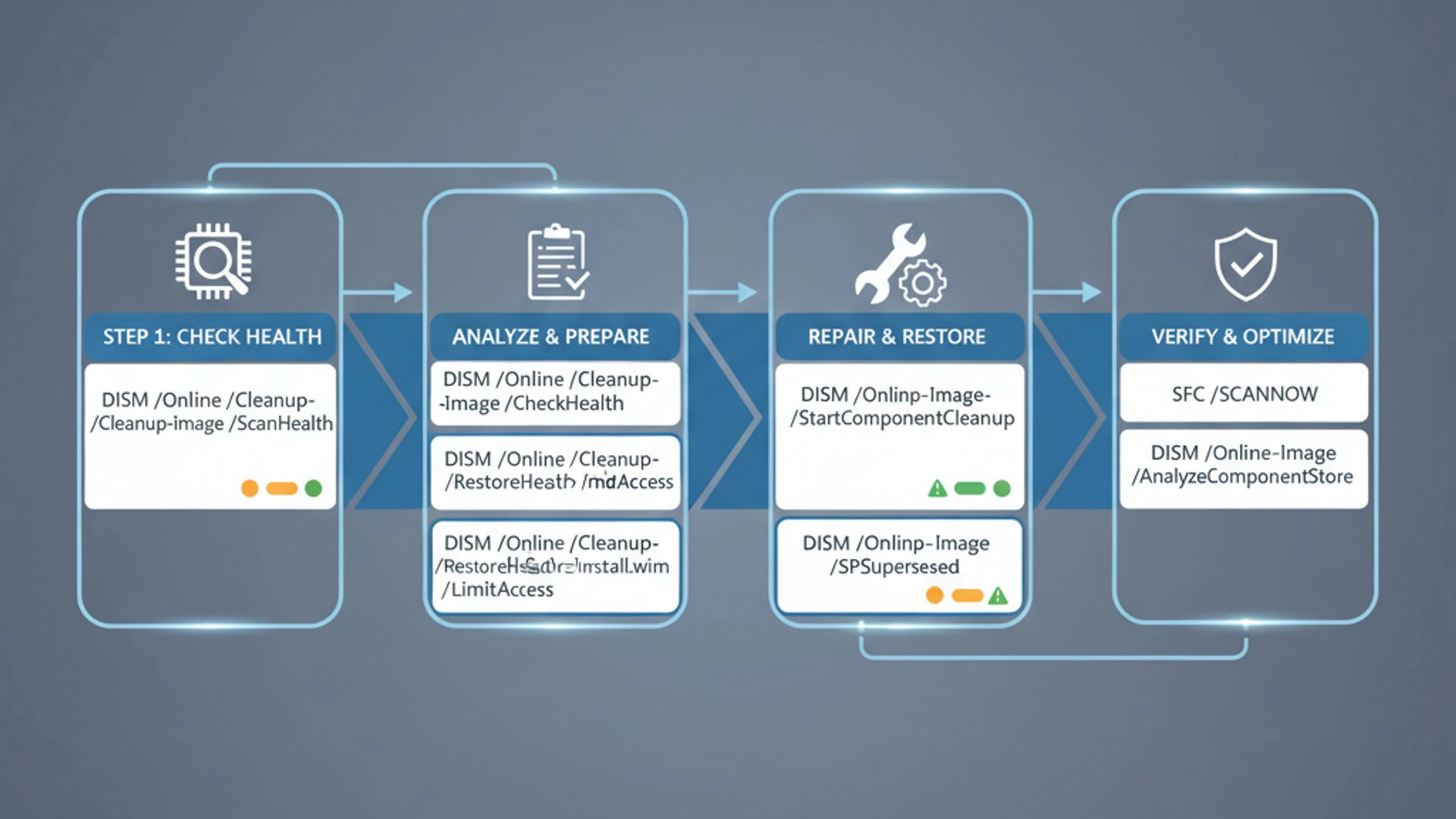
The essence of DISM’s importance lies in its ability to directly interact with the Windows component store. This store is a critical repository of all the files and components that make up your Windows installation. When this store becomes corrupted, or individual components within it are damaged, the entire operating system’s stability can be compromised. DISM provides the tools to inspect, repair, and manage this fundamental aspect of Windows.
Without DISM, resolving deep-seated system corruption often required drastic measures, such as reinstalling Windows entirely. This tool empowers users and administrators to perform surgical repairs, saving countless hours and preventing data loss. It’s not just a repair tool; it’s a comprehensive image management utility that supports the entire lifecycle of a Windows deployment.
Understanding the Role of DISM in System Maintenance
DISM plays a multifaceted role in maintaining the health and integrity of a Windows system. Its capabilities extend far beyond simple file checks, touching upon the very foundation of how Windows operates. One of its most critical functions is to ensure the integrity of the Windows component store.
The component store, often referred to as WinSxS (Windows Side-by-Side), stores multiple versions of system components, enabling Windows to maintain compatibility and roll back updates. If this store gets corrupted, system updates might fail, features might not install correctly, and the operating system can become unstable. DISM can scan this store for corruption and attempt to repair it using healthy files.
Beyond repair, DISM is instrumental in managing Windows features. Modern Windows versions allow users to enable or disable various features, such as Hyper-V, Windows Sandbox, or specific server roles. DISM provides the command-line interface to perform these actions, making it invaluable for automated deployments and custom system configurations. This granular control over system components is a key reason for its essential status.
Furthermore, DISM is crucial for offline servicing of Windows images. This means you can mount a Windows installation image (e.g., from an ISO or a backup) and apply updates, drivers, or even enable/disable features without booting into that operating system. This capability is vital for IT professionals who manage multiple systems or prepare custom Windows images for deployment.
DISM vs. SFC: When to Use Which Tool
It’s common for users to confuse DISM with another well-known Windows utility: System File Checker (SFC). While both tools are designed to address system file integrity, they operate at different levels and serve distinct purposes. Understanding their differences is key to effective troubleshooting.
SFC (System File Checker) is primarily designed to scan and repair protected Windows system files. When you run sfc /scannow, it checks the integrity of all protected system files and replaces incorrect, corrupted, changed, or damaged versions with the correct versions from the component store. SFC focuses on the active operating system’s files.
The limitation of SFC arises when the source it uses for repairs—the Windows component store—is itself corrupted. If the component store is damaged, SFC might not be able to find healthy copies of the files it needs, leading to errors or an inability to complete repairs. This is where DISM becomes essential.
DISM, on the other hand, works at a deeper level. Its primary role in repair is to fix the underlying Windows component store. It ensures that the repository of files from which SFC draws its healthy copies is intact and uncorrupted. Therefore, the recommended practice for system repair is often to run DISM first, especially the /RestoreHealth command, to ensure the component store is healthy. Once DISM has completed its work, you can then run SFC to repair any individual system files that might still be damaged.
Think of it this way: DISM repairs the “toolbox” (component store), making sure all the tools (system files) are in good condition. SFC then uses those healthy tools from the toolbox to fix any damaged parts of the “machine” (the running Windows system). For minor issues or quick checks, SFC might suffice. For persistent problems, update failures, or suspected deep corruption, DISM is the go-to tool, often followed by SFC. Together, they form a powerful duo for maintaining Windows health.
Preparing Your System for DISM Operations
Before you can harness the power of DISM commands, it’s crucial to ensure your system is properly prepared. Executing these commands requires specific environmental conditions and permissions. Neglecting these preliminary steps can lead to errors, failed operations, or even unintended system behavior. Proper preparation sets the stage for successful and effective system maintenance.
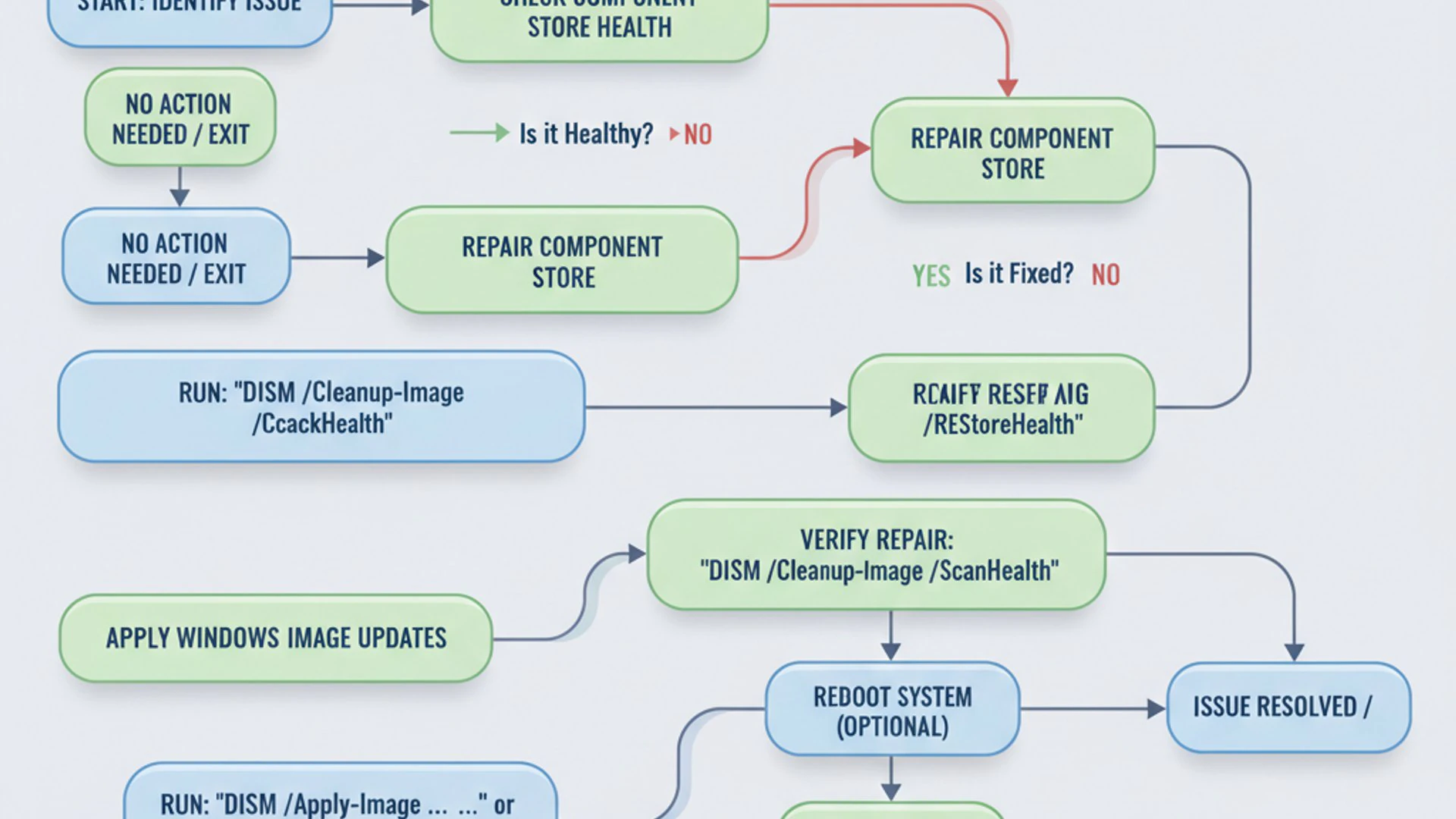
The primary prerequisite for almost all DISM operations is elevated privileges. Without them, the commands will simply fail to execute, returning access denied errors. Additionally, for certain repair tasks, an active internet connection is not just recommended but often mandatory, as DISM may need to download healthy files from Microsoft’s servers. Understanding these foundational requirements will save you considerable troubleshooting time.
Running Command Prompt or PowerShell as Administrator
The most fundamental step for any DISM operation is to open your command-line interface with administrative privileges. This elevation grants DISM the necessary permissions to modify critical system files and components. Attempting to run DISM commands from a standard user session will result in an “Error 740: The requested operation requires elevation” or similar access denied messages.
Here’s how to open Command Prompt or PowerShell with administrative rights:
- For Command Prompt:
- Click the Start button.
- Type
cmdin the search bar. - Right-click on “Command Prompt” in the search results.
- Select “Run as administrator” from the context menu.
- Confirm the User Account Control (UAC) prompt by clicking “Yes.”
- For PowerShell:
- Right-click the Start button (or press
Windows Key + X). - Select “Windows PowerShell (Admin)” or “Windows Terminal (Admin)” from the menu.
- Confirm the User Account Control (UAC) prompt by clicking “Yes.”
- Right-click the Start button (or press
Once the window opens, you should see “Administrator:” in the title bar, indicating that you have the necessary permissions to proceed with DISM commands. This elevated state is non-negotiable for most of the powerful operations DISM performs.
Internet Connection Requirements for Online Operations
Many of DISM’s repair and servicing capabilities, particularly those involving the /RestoreHealth command, rely on accessing fresh, uncorrupted files. When DISM cannot find these files locally within your Windows installation, it attempts to download them from Windows Update servers. This process necessitates a stable and active internet connection.
If you’re performing an online repair and lack an internet connection, or if your connection is unstable, DISM might fail to complete the operation, reporting errors related to source files not being found. It’s a good practice to ensure your network connection is robust before initiating any repair commands that might require external resources. For systems in air-gapped environments or those with limited internet access, alternative methods like specifying a local repair source (discussed later) become essential.
Configuring Proxy Settings for DISM
In corporate or managed network environments, internet access often goes through a proxy server. If your system is configured to use a proxy, DISM might encounter issues connecting to Windows Update servers unless it’s aware of these settings. While DISM typically inherits system-wide proxy settings, sometimes explicit configuration or verification is necessary.
If you suspect proxy issues are preventing DISM from accessing online resources, you can try a few approaches:
- Verify System Proxy Settings: Ensure your system’s proxy settings are correctly configured in Windows Settings (Network & Internet > Proxy).
- Temporary Proxy Configuration (for Command Prompt/PowerShell): For a temporary session, you can set environment variables. However, DISM itself doesn’t have a direct command-line argument for proxy settings. It usually relies on the system’s settings.
- Bypass Proxy (if applicable): If possible and permissible within your network, temporarily bypass the proxy for Windows Update traffic or try connecting from a network segment that doesn’t require a proxy.
Important Note: For most home users, proxy configuration is rarely an issue. This step is primarily relevant for users in corporate or educational networks with strict internet access policies. If DISM fails with connection errors, checking proxy settings should be part of your troubleshooting routine.
Ensuring DISM can reach its online sources is as critical as running it with administrator privileges, especially when dealing with severe system corruption that requires fresh components.
Essential DISM Commands for Image Health and Repair
One of the most vital applications of DISM commands is diagnosing and repairing the health of your Windows image. A healthy image ensures system stability, allows updates to install correctly, and prevents unexpected crashes. This section focuses on the core commands that help you assess and restore the integrity of your Windows installation.
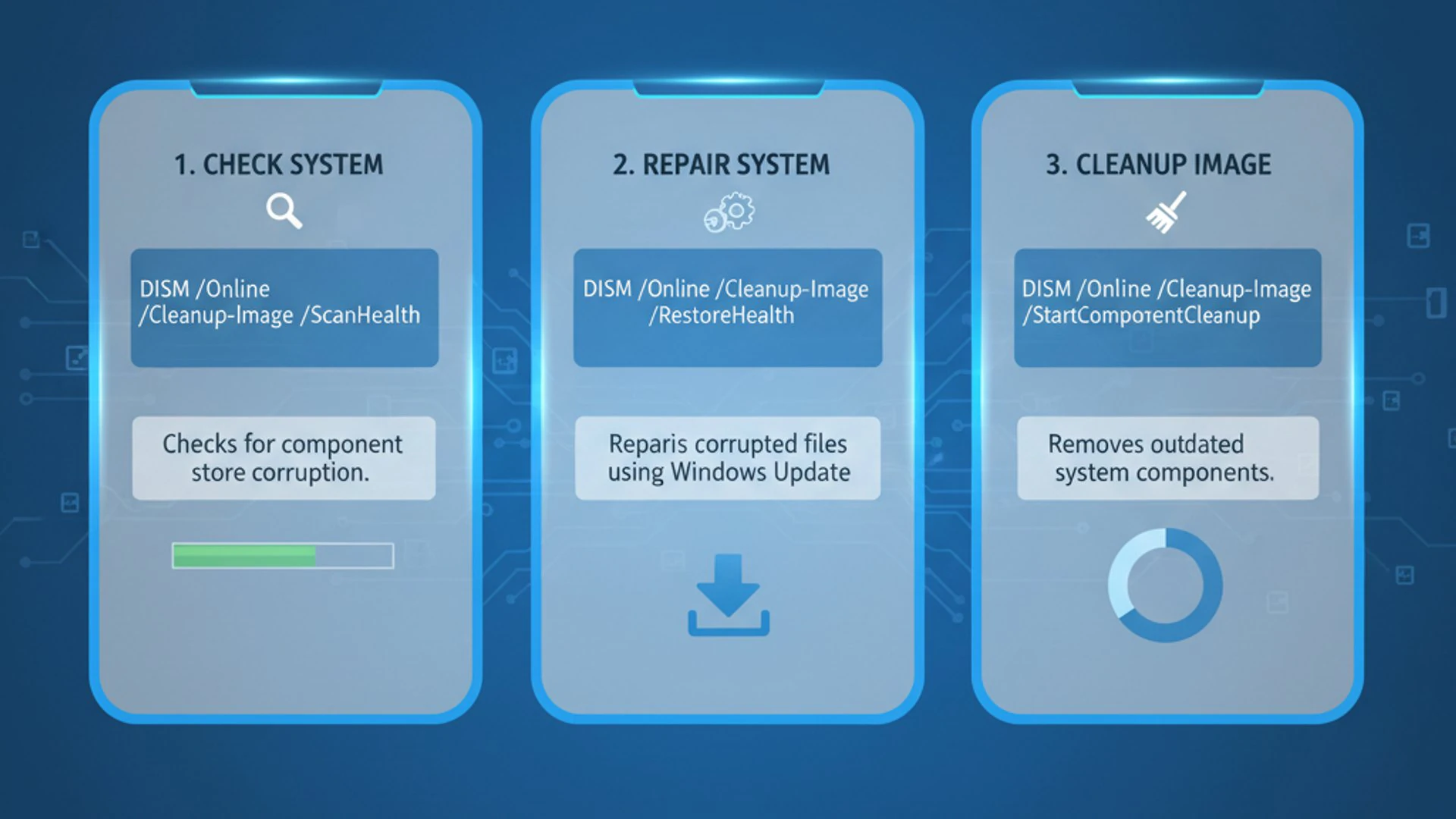
These commands are often the first line of defense when Windows starts behaving erratically, updates fail, or system files are suspected of corruption. They provide a hierarchical approach: first checking for issues, then performing a deeper scan, and finally attempting a repair. Understanding each step and its output is crucial for effective troubleshooting.
Checking Windows Image Health: /CheckHealth, /ScanHealth, /RestoreHealth
DISM offers three primary commands to assess and repair the health of your Windows image. They are typically executed in a specific order, moving from a quick check to a more thorough scan and then to a full repair.
DISM /Online /Cleanup-Image /CheckHealthThis command performs a very quick check to see if any corruption has been detected by Windows and logged. It does not scan the entire system for corruption; it merely reports on previously detected issues. It’s a fast way to see if there are any pending repairs flagged by the operating system.
Example:
DISM /Online /Cleanup-Image /CheckHealthThe output will typically state “No component store corruption detected” or indicate if corruption has been found and whether a repair is pending.
DISM /Online /Cleanup-Image /ScanHealthThis command performs a more thorough scan of the Windows component store to check for corruption. Unlike
/CheckHealth, it actively scans all components for inconsistencies. This process can take several minutes to complete, sometimes even hours, depending on system performance and the extent of the scan required. It will report whether corruption is detected but will not attempt to fix it.Example:
DISM /Online /Cleanup-Image /ScanHealthThis command provides a more detailed status of the component store’s health, indicating if it’s repairable or if corruption was found.
DISM /Online /Cleanup-Image /RestoreHealthThis is the most powerful repair command. It scans the Windows component store for corruption and attempts to repair any detected issues. By default, it tries to use Windows Update as the source for healthy files. If Windows Update is unavailable or cannot provide the necessary files, you might need to specify an alternative source (as discussed in a later section).
Example:
DISM /Online /Cleanup-Image /RestoreHealthThis command can take a significant amount of time to run, often pausing at certain percentages. It’s crucial not to interrupt the process. Upon completion, it will report whether the repair was successful.
Interpreting DISM Health Reports
Understanding the output of DISM commands is crucial for effective troubleshooting. After running /CheckHealth, /ScanHealth, or /RestoreHealth, DISM will provide a status report. Key information to look for includes:
- “No component store corruption detected.”: This is the ideal outcome, indicating your Windows image is healthy.
- “The component store is repairable.”: This means DISM found corruption but believes it can fix it. You should then run
/RestoreHealth. - “The component store is corrupted.”: This indicates severe corruption. Running
/RestoreHealthis necessary, and you might need to specify a local source if online repair fails. - Error codes (e.g., 0x800f081f, 0x800f0906): These codes often indicate that DISM couldn’t find the source files needed for the repair. This usually points to an internet connection issue, proxy problem, or the need to specify a local source.
Always check the DISM log file for more detailed information. The log file is typically located at C:\Windows\Logs\DISM\dism.log. This log contains extensive details about each operation, including specific files that were scanned, repaired, or failed to be repaired, which can be invaluable for advanced diagnostics.
Repairing Corrupt System Files with /RestoreHealth
The /RestoreHealth command is your primary tool for fixing a corrupted Windows component store. When executed, DISM attempts to replace damaged components with healthy versions. By default, it uses Windows Update as its source. If this fails, or if you prefer to work offline, you can provide an alternative source.
To use an alternative source, such as a mounted Windows ISO or a network share containing the Windows installation files, you would modify the command as follows:
In this example:
X:represents the drive letter where your Windows installation media (e.g., a mounted ISO) is located.\Sources\Install.wimis the path to the main Windows image file within the installation media.:1specifies the index of the Windows edition within the WIM file (e.g., 1 for Windows Home, 2 for Pro). You might need to check your WIM file for the correct index usingDISM /Get-WimInfo /WimFile:X:\Sources\Install.wim./LimitAccessprevents DISM from contacting Windows Update for repair files, forcing it to use only the specified local source.
After running /RestoreHealth, it is highly recommended to run sfc /scannow again. This ensures that any individual system files that might have been corrupted are now repaired using the newly healthy component store. This two-step approach (DISM then SFC) is the most robust method for resolving system file and component store corruption.
Managing Windows Features and Packages with DISM
Beyond its repair capabilities, DISM is an incredibly versatile tool for managing Windows features and packages. Modern Windows versions allow for the addition or removal of various optional components, from graphical tools to server roles. DISM commands provide a powerful, command-line interface to control these features, making it invaluable for system customization, automation, and deployment scenarios.
Whether you need to enable Hyper-V for virtualization, disable an unnecessary feature to reduce attack surface, or prepare a custom Windows image with specific components, DISM offers the granular control required. This section explores how to list, enable, and disable these features, along with understanding their dependencies.
Listing Available Features: /Get-Features
Before you can enable or disable a Windows feature, it’s often helpful to know what features are available and their current status. The /Get-Features command provides a comprehensive list of all optional Windows features, indicating whether they are enabled, disabled, or in a pending state.
To list all features for the currently running operating system, use the following command:
This command will output a long list, with each entry showing the “Feature Name” and its “State” (e.g., “Enabled”, “Disabled”, “Disable Pending”). You can pipe this output to a file or use findstr to search for specific features if the list is too extensive.
Example of filtered output:
This would show you the status of all Hyper-V related features. Understanding the exact feature name is critical for enabling or disabling them correctly.
Enabling or Disabling Windows Features: /Enable-Feature, /Disable-Feature
Once you’ve identified the feature you want to manage, DISM provides straightforward commands to change its state. These commands are particularly useful for scripting and automating system configurations.
To enable a feature, use the /Enable-Feature command:
/FeatureName:NameOfFeature: ReplaceNameOfFeaturewith the exact name obtained from/Get-Features./All: This optional switch ensures that all parent features of the specified feature are also enabled. This is important because many features have dependencies./NoRestart: Another optional switch to suppress an automatic restart if the feature requires one. You can then restart manually later.
Example: Enabling Hyper-V
To disable a feature, use the /Disable-Feature command:
/FeatureName:NameOfFeature: Again, use the exact name of the feature./Remove: This optional switch removes the feature’s payload files from the image, freeing up disk space. This is more aggressive than just disabling.
Example: Disabling Windows Media Player
After enabling or disabling features, a system restart might be required for the changes to take full effect. DISM will usually prompt you if a restart is necessary.
Specifying Feature Packages and Parent Features
Windows features are often organized into packages, and some features are dependent on others (parent features). When enabling a feature, it’s good practice to consider these dependencies to avoid incomplete installations or errors.
The /All switch with /Enable-Feature is designed to address parent features automatically. It ensures that if the feature you’re enabling requires other features to function, those prerequisites are also enabled. For instance, enabling “Windows Sandbox” might require several underlying virtualization components, which /All would handle.
Sometimes, features are part of a larger package. While /FeatureName usually suffices, for more advanced scenarios or when dealing with specific updates or language packs, you might interact with packages directly. The /Get-Packages command can list installed packages, and /Add-Package or /Remove-Package can manage them. However, for typical optional features, /Enable-Feature and /Disable-Feature are the commands you’ll use most often.
Pro Tip: When dealing with complex feature dependencies or if you encounter errors, always consult the DISM log file (
C:\Windows\Logs\DISM\dism.log) for detailed information on why a feature operation might have failed. This log is an invaluable resource for troubleshooting.
Mastering these commands allows for precise control over your Windows installation, tailoring it to specific needs, whether for development, gaming, or server roles, without resorting to graphical interfaces that might not offer the same level of automation or detail.
Working with Windows Image Files (WIM/VHD/ESD)
Beyond servicing the currently running Windows installation, DISM commands are profoundly powerful for managing Windows image files themselves. These files, typically in WIM (Windows Imaging Format), VHD (Virtual Hard Disk), or ESD (Electronic Software Download) formats, are the blueprints of a Windows operating system. They are used for installation, deployment, backup, and recovery purposes.
DISM provides a comprehensive set of tools to interact with these images offline. This capability is critical for IT professionals who need to customize Windows images before deployment, apply updates to offline images, or recover systems from image backups. Understanding how to mount, unmount, apply, and capture images unlocks a new level of control over your Windows environments.
Mounting and Unmounting Images: /Mount-Image, /Unmount-Image
To modify an offline Windows image, you first need to “mount” it. Mounting an image makes its contents accessible as a regular file system, typically assigned a drive letter, allowing you to browse, add, or remove files and features. Once modifications are complete, the image must be “unmounted” to save the changes.
Mounting an Image:
/ImageFile:C:\path\to\install.wim: Specifies the full path to your WIM, VHD, or ESD file./Index:1: Crucial for WIM files, as they can contain multiple Windows editions.:1typically refers to the first edition. UseDISM /Get-WimInfo /WimFile:C:\path\to\install.wimto see available indices. For VHD/ESD, this might not be necessary or applicable./MountDir:C:\Mount: Specifies an empty folder where the image will be mounted. This folder must exist before running the command.
After mounting, you can navigate to C:\Mount in File Explorer or Command Prompt and treat it like a regular drive. You can then use other DISM commands (e.g., /Enable-Feature) against this offline image by replacing /Online with /Image:C:\Mount.
Unmounting an Image:
Once you’ve finished making changes, you must unmount the image. This process saves any modifications back to the image file.
/MountDir:C:\Mount: Specifies the path to the mount directory./Commit: This critical switch saves all changes made to the image file. If you use/Discardinstead, all changes will be lost.
It’s vital to always unmount images properly. Failing to do so can lead to corrupted image files or issues with the mount directory. If a mount operation fails or is interrupted, you might need to use /Cleanup-Mountpoints to release any orphaned mount points.
Applying and Capturing Images: /Apply-Image, /Capture-Image
DISM also provides commands for deploying (applying) and creating (capturing) Windows images, which are fundamental operations in system deployment and backup strategies.
Applying an Image:
The /Apply-Image command is used to deploy a Windows image from a WIM, VHD, or ESD file to a specific partition on a hard drive. This is a core step in installing Windows from a customized image.
/ImageFile:C:\path\to\install.wim: Path to the source image file./Index:1: Index of the Windows edition within the WIM./ApplyDir:D:\: The target partition where Windows will be installed. This partition must be formatted and prepared beforehand.
This command effectively copies the entire operating system structure from the image file to the specified drive, making it bootable (after additional steps like boot configuration).
Capturing an Image:
The /Capture-Image command allows you to create a WIM file from a running Windows installation or a specific drive. This is incredibly useful for creating custom Windows images for deployment or for making a system image backup of a perfectly configured system.
/ImageFile:D:\CustomWindows.wim: The path and filename for the new WIM file that will be created./CaptureDir:C:\: The source directory or drive to capture. This is typically the root of your Windows installation./Name:"My Custom Windows 11": A descriptive name for the image within the WIM file.
Before capturing an image, it’s best practice to generalize the Windows installation using Sysprep (System Preparation Tool). This removes system-specific information like SIDs and hardware drivers, making the image suitable for deployment on different hardware. Sysprep is run separately using sysprep /generalize /oobe /shutdown before capturing the image.
Caution: Capturing a live, running system without Sysprep can lead to issues when deploying that image to other machines due to unique identifiers and driver conflicts. Always generalize an image before capturing for deployment purposes.
These image management commands are fundamental for advanced Windows administration, enabling robust deployment strategies and efficient system recovery.
Advanced DISM Operations and Troubleshooting
While the basic repair and feature management commands cover most common scenarios, DISM commands offer even more advanced functionalities for optimizing your system and resolving complex issues. This section delves into reducing disk space usage, specifying custom repair sources, and tackling common errors that might arise during DISM operations.
These advanced techniques are particularly useful for maintaining system performance over time, managing systems in environments with limited internet access, or diagnosing persistent problems that standard repairs can’t fix. Mastering these aspects elevates your proficiency with DISM from basic user to an advanced troubleshooter.
Cleaning Up Component Store: /Cleanup-Image
The Windows component store (WinSxS folder) can grow quite large over time, as it accumulates older versions of components, updates, and language packs. While necessary for system stability and rollback capabilities, an excessively large WinSxS folder can consume significant disk space. DISM provides a command to clean up this store.
The /Cleanup-Image command, used with the /StartComponentCleanup switch, removes superseded components from the WinSxS folder, effectively reducing its size. This operation is safe and does not impact system functionality, as it only removes components that are no longer needed.
This command can be run regularly as part of system maintenance. For an even more aggressive cleanup, you can combine it with the /ResetBase switch:
The /ResetBase switch removes all superseded versions of every component in the component store, making it impossible to uninstall any currently installed updates. While it frees up more space, it also reduces your ability to roll back updates. Use this option with caution and only if you are confident you won’t need to uninstall recent updates.
Note: Windows 10 and 11 automatically perform component cleanup as part of scheduled maintenance. However, manually running these commands can be beneficial after major updates or if you’re experiencing low disk space issues.
Using a Specific Source for Repairs: /Source Option
As mentioned earlier, when /RestoreHealth runs, it defaults to using Windows Update as its source for healthy files. However, there are scenarios where this isn’t feasible or desirable:
- No internet connection or limited bandwidth.
- Windows Update service is itself corrupted or disabled.
- You want to ensure repairs come from a specific version of Windows (e.g., matching your current build exactly).
In these cases, the /Source option allows you to point DISM to a local or network location containing the necessary Windows installation files. The most common source is a mounted Windows ISO file or a folder containing the install.wim or install.esd file.
Here, X:\Sources\Install.wim:1 specifies the path to the install.wim file on drive X (where your ISO is mounted) and the index of the Windows edition. The /LimitAccess switch tells DISM to *only* use this specified source and not attempt to contact Windows Update.
This method provides robust control over the repair process, ensuring offline systems can still be serviced effectively. It’s an indispensable technique for IT professionals managing multiple machines.
Creating a Local Repair Source from an ISO
To use an ISO as a local repair source, follow these steps:
- Download a Windows ISO: Obtain a Windows installation ISO file that matches your currently installed version and edition of Windows. You can download this from Microsoft’s website.
- Mount the ISO: In Windows File Explorer, right-click the ISO file and select “Mount.” This will assign a drive letter to the ISO, making its contents accessible. Let’s assume it mounts as drive
X:. - Identify the Correct Index (for WIM files): If your ISO contains an
install.wimfile (newer ISOs might useinstall.esd), you might need to find the correct index for your Windows edition. Open an elevated Command Prompt and run:DISM /Get-WimInfo /WimFile:X:\Sources\Install.wimLook for the entry that matches your Windows edition (e.g., “Windows 11 Pro”) and note its index number.
- Run
/RestoreHealthwith the Source: Now, execute the repair command, replacingX:and the index number with your specific details:DISM /Online /Cleanup-Image /RestoreHealth /Source:WIM:X:\Sources\Install.wim:IndexNumber /LimitAccessIf your ISO has an
install.esdfile, the command would be similar but specify ESD:DISM /Online /Cleanup-Image /RestoreHealth /Source:ESD:X:\Sources\Install.esd:IndexNumber /LimitAccess
This process ensures that DISM has all the necessary healthy files at its disposal, even without an active internet connection to Windows Update.
Troubleshooting Common DISM Errors
Despite its power, DISM can sometimes encounter errors. Understanding common error codes and their resolutions is key to effective troubleshooting.
- Error 0x800f081f (Source files could not be found):
This is one of the most frequent errors. It means DISM couldn’t find the necessary files to complete the repair. Resolution: Ensure you have an active internet connection for online repairs. If not, specify a local repair source using the
/Sourceoption as described above. Verify the source path and index are correct. - Error 0x800f0906 (The source files could not be downloaded):
Similar to 0x800f081f, but specifically indicates a failure to download from Windows Update. Resolution: Check your internet connection, proxy settings, and ensure Windows Update services are running correctly. Temporarily disable any third-party firewalls or antivirus software that might be blocking access. If issues persist, use a local repair source.
- Error 0x80070005 (Access is denied):
This error almost always means you did not run Command Prompt or PowerShell with administrative privileges. Resolution: Close the current command window and reopen it by right-clicking and selecting “Run as administrator.”
- Error 0x800f081f or 0x80070490 during feature enablement:
Indicates that the feature payload files could not be found or are corrupted. Resolution: Ensure your Windows image is healthy by running
DISM /RestoreHealthfirst. If enabling an offline feature, ensure the source image is complete and uncorrupted. - DISM hangs or freezes:
DISM operations, especially
/ScanHealthand/RestoreHealth, can take a long time and might appear to freeze at certain percentages. Resolution: Be patient. Let it run. Interrupting a DISM operation can leave your system in an unstable state. If it truly hangs for hours without any disk activity, you might need to restart and try again, potentially in Safe Mode or using a different source.
Always review the dism.log file (C:\Windows\Logs\DISM\dism.log) for detailed error information. This log provides the most granular insights into what went wrong during a DISM operation.
Best Practices for Using DISM Commands
While DISM commands are powerful tools for system maintenance, using them effectively and safely requires adherence to certain best practices. These guidelines help maximize the benefits of DISM while minimizing potential risks to your system’s stability and data integrity. Proactive measures and careful execution are key to successful DISM operations.
Integrating DISM into a regular maintenance routine can prevent many common Windows issues from escalating. Furthermore, understanding the importance of backups and restore points before making significant system changes is paramount. These practices empower you to leverage DISM with confidence and maintain a robust Windows environment.
Regular System Health Checks
Proactive maintenance is always better than reactive troubleshooting. Incorporating regular DISM health checks into your routine can help identify and resolve minor component store issues before they lead to more significant problems like failed updates or system instability. A simple monthly or quarterly check can make a big difference.
Consider running the following commands periodically:
DISM /Online /Cleanup-Image /CheckHealth: A quick check for any logged corruption.DISM /Online /Cleanup-Image /ScanHealth: A more thorough scan to detect underlying issues.- If
/ScanHealthreports corruption, follow up withDISM /Online /Cleanup-Image /RestoreHealth. - After any repair, always run
sfc /scannowto ensure individual system files are also repaired.
This routine ensures that your Windows component store remains healthy, providing a solid foundation for your operating system. It’s a fundamental step in maintaining optimal system performance and reliability.
Creating System Restore Points Before Major Changes
Any operation that modifies core system components, such as running /RestoreHealth, enabling/disabling features, or especially working with offline images, carries an inherent risk. While DISM is generally reliable, unforeseen issues can sometimes arise, leaving your system in an undesirable state.
Therefore, it is a critical best practice to create a system restore point or a full system backup before initiating any significant DISM operation. A restore point allows you to revert your system to a previous, stable state if something goes wrong. For more comprehensive protection, especially when dealing with image capture or application, consider a full system image backup.
To create a system restore point:
- Type “create a restore point” in the Windows search bar and select the corresponding option.
- In the System Properties window, go to the “System Protection” tab.
- Click the “Create…” button.
- Give your restore point a descriptive name (e.g., “Before DISM RestoreHealth 2023-10-27”).
- Click “Create” and wait for the process to complete.
This simple step provides a safety net, giving you peace of mind when performing powerful system modifications. It’s a fundamental principle of responsible system administration.
Golden Rule: “When in doubt, back it out.” Always have a clear path to revert changes if a DISM operation yields unexpected or negative results. This could be a restore point, a system image, or even a simple file backup.
By following these best practices, you can harness the full potential of DISM commands to keep your Windows system running smoothly, securely, and efficiently, without unnecessary risks.
Conclusion
The journey through the capabilities of DISM commands reveals a truly indispensable tool for anyone serious about Windows system maintenance and management. From diagnosing and repairing deep-seated corruption within the Windows component store to granularly managing optional features and preparing custom operating system images, DISM stands as a cornerstone of Windows integrity.
We’ve explored its fundamental role in distinguishing it from SFC, walked through the essential steps of preparing your system for operations, and delved into the core commands for health checks and repairs. Beyond basic troubleshooting, DISM empowers users to customize their Windows installations, optimize disk space, and handle complex deployment scenarios with precision.
The ability to work with offline images, specify custom repair sources, and troubleshoot common errors further solidifies DISM’s position as a versatile and powerful utility. By adopting best practices, such as regular health checks and creating system restore points, users can confidently leverage DISM to maintain a robust, stable, and high-performing Windows environment.
Integrating DISM commands into your regular system upkeep routine is not just a recommendation; it’s a strategic move towards proactive problem-solving and ensuring the longevity of your Windows installation. Mastering these commands transforms you from a passive user into an active guardian of your system’s health, ready to tackle any challenge the digital landscape throws your way. Embrace DISM, and empower your Windows experience.
For more interesting articles, stay tuned to Winsides.com!









Community
Comments (0)