

Welcome to the dynamic world of web hosting on Microsoft’s latest operating system! If you’re a developer, system administrator, or simply curious about running websites from your Windows 11 machine, understanding Internet Information Services (IIS) is absolutely fundamental. At the heart of IIS lies a critical, often unsung hero: the IIS Admin Service on Windows 11.
This service is not just another background process; it’s the very backbone that enables IIS to function, manage your web applications, and serve content to users across the globe. Without it, your carefully crafted websites and web services would remain dormant, unable to respond to requests or even maintain their configuration.
In this comprehensive guide, we’ll peel back the layers of the IIS Admin Service, exploring its core functions, how to install and manage it on Windows 11, and crucial troubleshooting steps when things don’t go as planned. We’ll also delve into security best practices and advanced automation techniques to ensure your web environment is both robust and efficient. Get ready to master this essential component for seamless web hosting.
Table of contents
Key Takeaways
Before we dive deep, here are the essential points to grasp about the IIS Admin Service on Windows 11: Learn more at Troubleshooting IIS with Failed Request Tracing and WebAdministration PowerShell Module.
- The IIS Admin Service (IISADMIN) is indispensable for managing and configuring Internet Information Services on Windows 11.
- It acts as the central control point, handling configuration changes, website states, and application pool management.
- Installation of IIS on Windows 11 is done via “Turn Windows features on or off” in the Control Panel, which automatically installs the necessary services.
- You can manage the service’s lifecycle (start, stop, restart) using both the graphical Services.msc console and powerful PowerShell commands.
- Troubleshooting often involves checking service dependencies, analyzing Event Viewer logs, and ensuring proper file system permissions.
- Implementing security best practices, such as the principle of least privilege and regular updates, is crucial for a secure web server.
- Advanced users can leverage PowerShell scripting to automate routine IIS administration tasks and enable remote management for efficiency.
Now, let’s explore these points in detail, starting with a deeper look at the service itself.
Understanding the IIS Admin Service (IISADMIN)
The IIS Admin Service, often referred to by its short name IISADMIN, is a cornerstone of Microsoft’s Internet Information Services. On Windows 11, its role remains as vital as ever, acting as the primary interface for managing the entire web server environment. It’s the central nervous system that allows you to configure, control, and monitor all aspects of your IIS deployment.
This service doesn’t directly serve web pages; instead, it provides the underlying infrastructure and configuration management capabilities that allow the actual web server processes (like the World Wide Web Publishing Service) to do their job. Think of it as the conductor of an orchestra, ensuring all instruments are in tune and playing their parts correctly.
When you make changes in the IIS Manager graphical interface, or even through command-line tools, it’s the IIS Admin Service that interprets these commands and applies them to the system. This centralized control ensures consistency and integrity across all your hosted websites and applications.
Core Functions and Dependencies
The IIS Admin Service performs several critical functions that are essential for the operation of IIS. Its primary responsibility is to manage the IIS configuration store, which is typically located in %SystemRoot%\System32\inetsrv\config. This store contains all the settings for your websites, application pools, virtual directories, and security configurations.
Key functions include:
- Configuration Management: It reads, writes, and validates the configuration files (e.g., applicationHost.config). Any change you make to IIS settings goes through this service.
- Website and Application Pool State Management: It’s responsible for starting, stopping, and restarting websites and their associated application pools. This ensures that your web applications are available and responsive.
- Metabase Compatibility: While modern IIS uses XML-based configuration, IISADMIN still provides compatibility for older applications that might rely on the legacy metabase.
- Event Logging: It logs significant events related to IIS operation, which are crucial for troubleshooting issues and monitoring server health.
The IIS Admin Service on Windows 11 also has several crucial dependencies. It relies on other system services to function correctly. Without these dependencies running, IISADMIN will fail to start or operate properly. One of the most important dependencies is the Remote Procedure Call (RPC) service, which facilitates communication between different processes and computers.
Another key dependency is the Windows Process Activation Service (WAS). WAS is responsible for managing application pools and worker processes, and it relies on IISADMIN for configuration information. Understanding these interdependencies is vital for effective troubleshooting.
Ensuring all dependent services are running and healthy is often the first step in diagnosing issues with the IIS Admin Service. A chain is only as strong as its weakest link.
Evolution from Previous Windows Versions
The IIS Admin Service has undergone significant evolution across different Windows versions, reflecting Microsoft’s continuous efforts to improve security, performance, and manageability. In older versions, particularly IIS 6.0 and earlier, the service was tightly coupled with the IIS metabase, a proprietary binary database.
With IIS 7.0 (introduced with Windows Vista and Windows Server 2008) and subsequent versions, including IIS 10 on Windows 11, a major architectural shift occurred. The metabase was replaced by a new, more flexible XML-based configuration system. This change brought several advantages, including easier readability, version control, and programmatic access to settings.
While the underlying configuration storage changed, the IIS Admin Service retained its central role in managing these configurations. Its responsibilities expanded to include managing the new Windows Process Activation Service (WAS), which decoupled the core process management from the HTTP listener, allowing for more robust and flexible application hosting.
On Windows 11, the IIS Admin Service continues this legacy, providing a stable and efficient platform for managing web applications. The core principles of its operation remain consistent, even as the underlying technologies evolve to support modern web development and deployment practices.
Installing and Enabling IIS on Windows 11
To leverage the power of the IIS Admin Service on Windows 11, you first need to install Internet Information Services itself. Unlike server editions of Windows, IIS is not enabled by default on client operating systems like Windows 11. The installation process is straightforward and involves activating it as a Windows Feature.
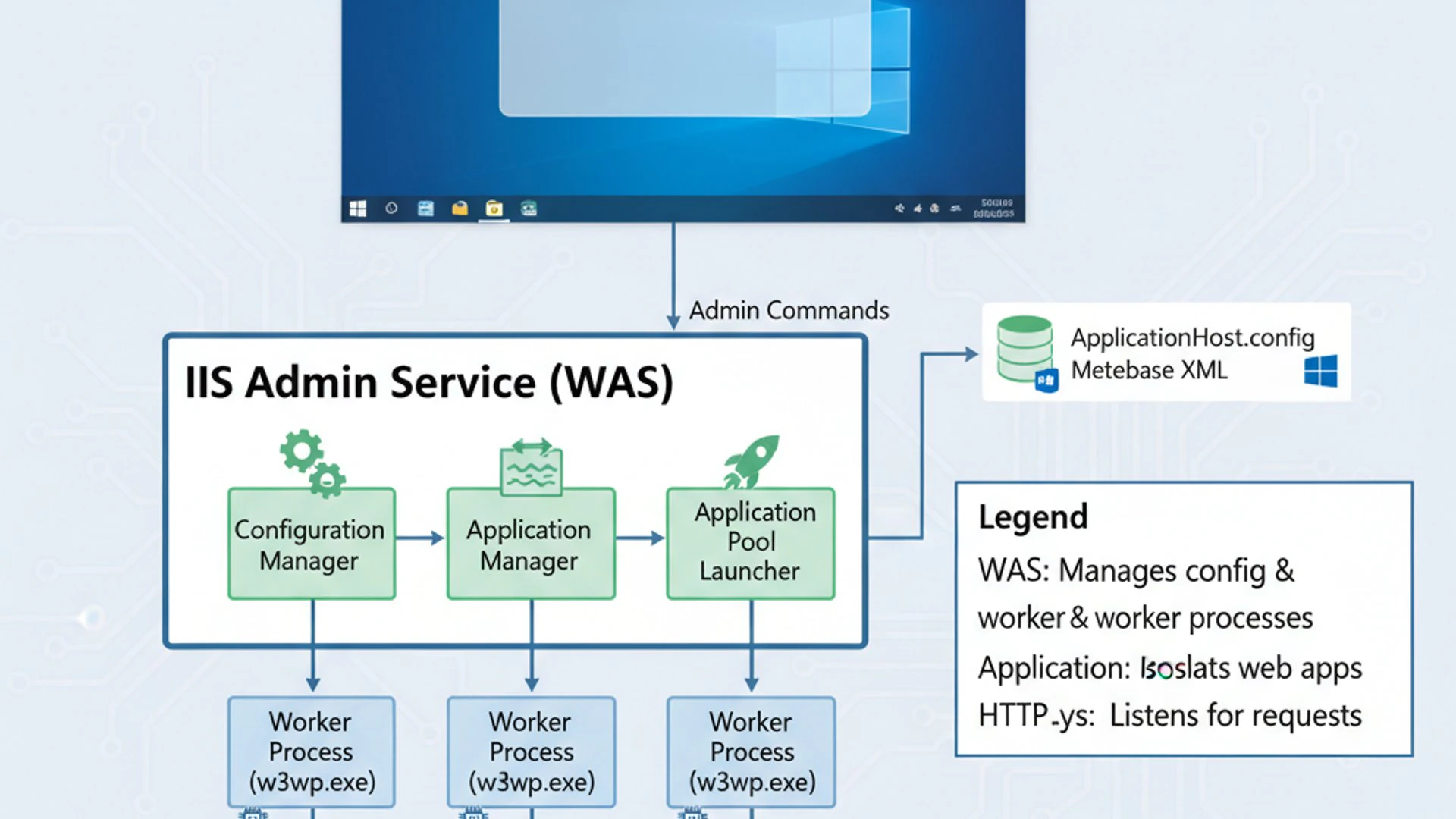
Once IIS is installed, the necessary services, including the IIS Admin Service, are automatically configured and set to start. This section will guide you through the prerequisites and the step-by-step process to get IIS up and running on your Windows 11 machine, ensuring you’re ready to host your web content.
Prerequisites for IIS Installation
Before you begin the installation of IIS on Windows 11, there are a few prerequisites to consider. While Windows 11 is generally capable of running IIS, ensuring your system meets basic requirements will prevent potential issues.
Learn more at IIS 8.0 Installation Overview.
Firstly, you need to be logged in with an account that has administrative privileges. Installing system components requires elevated permissions. Secondly, ensure you have sufficient disk space, though IIS itself is relatively small, the websites and applications you host will consume space.
It’s also a good practice to have your Windows 11 installation fully updated. Microsoft frequently releases updates that improve stability and security, which can positively impact IIS performance and reliability. A stable operating system provides a solid foundation for your web server.
Activating Windows Features
The primary method for installing IIS on Windows 11 is through the “Turn Windows features on or off” dialog. This interface allows you to add or remove optional components of the operating system.
- Open the Control Panel. You can do this by searching for “Control Panel” in the Start menu.
- Navigate to Programs, then click on Turn Windows features on or off under “Programs and Features.”
- In the Windows Features dialog box, scroll down and locate Internet Information Services.
- Expand the “Internet Information Services” node. For a basic web server, you’ll want to select “Web Management Tools” and “World Wide Web Services.”
- Under “World Wide Web Services,” expand “Application Development Features” and select components like ASP.NET 4.8 (or higher), ISAPI Extensions, and ISAPI Filters if you plan to host ASP.NET applications.
- Under “Common HTTP Features,” ensure Default Document, Directory Browsing, HTTP Errors, and Static Content are selected.
- Click OK to begin the installation. Windows will download and install the selected components. You might be prompted to restart your computer.
Once the installation is complete, IIS and its associated services, including the IIS Admin Service on Windows 11, will be available on your system. This process ensures that all necessary components are correctly registered and configured to work together.
Verifying Installation
After installing IIS, it’s crucial to verify that everything is working as expected. This involves a couple of simple checks:
- Access the Default Website: Open your web browser and navigate to
http://localhost. If IIS is successfully installed, you should see the default IIS welcome page. This page confirms that the World Wide Web Publishing Service is running and serving content. - Check IIS Manager: Search for “IIS Manager” in the Start menu and open it. You should see your computer name listed under “Connections” on the left pane. Expanding it should reveal “Sites,” with “Default Web Site” underneath.
- Verify Service Status: Open the Services console (search for services.msc). Locate the IIS Admin Service and the World Wide Web Publishing Service. Both should be listed with a “Running” status and their “Startup type” set to “Automatic.”
If you encounter any issues during verification, such as the default page not loading or services not starting, it’s an indication that further troubleshooting is required. Often, firewall rules or conflicting services can prevent IIS from starting correctly.
Managing the IIS Admin Service
Effective management of the IIS Admin Service on Windows 11 is paramount for maintaining a healthy and responsive web server environment. This includes knowing how to control its lifecycle – starting, stopping, and restarting – and configuring its properties for optimal performance and resilience. Whether you prefer a graphical interface or the command line, Windows 11 offers robust tools for these tasks.
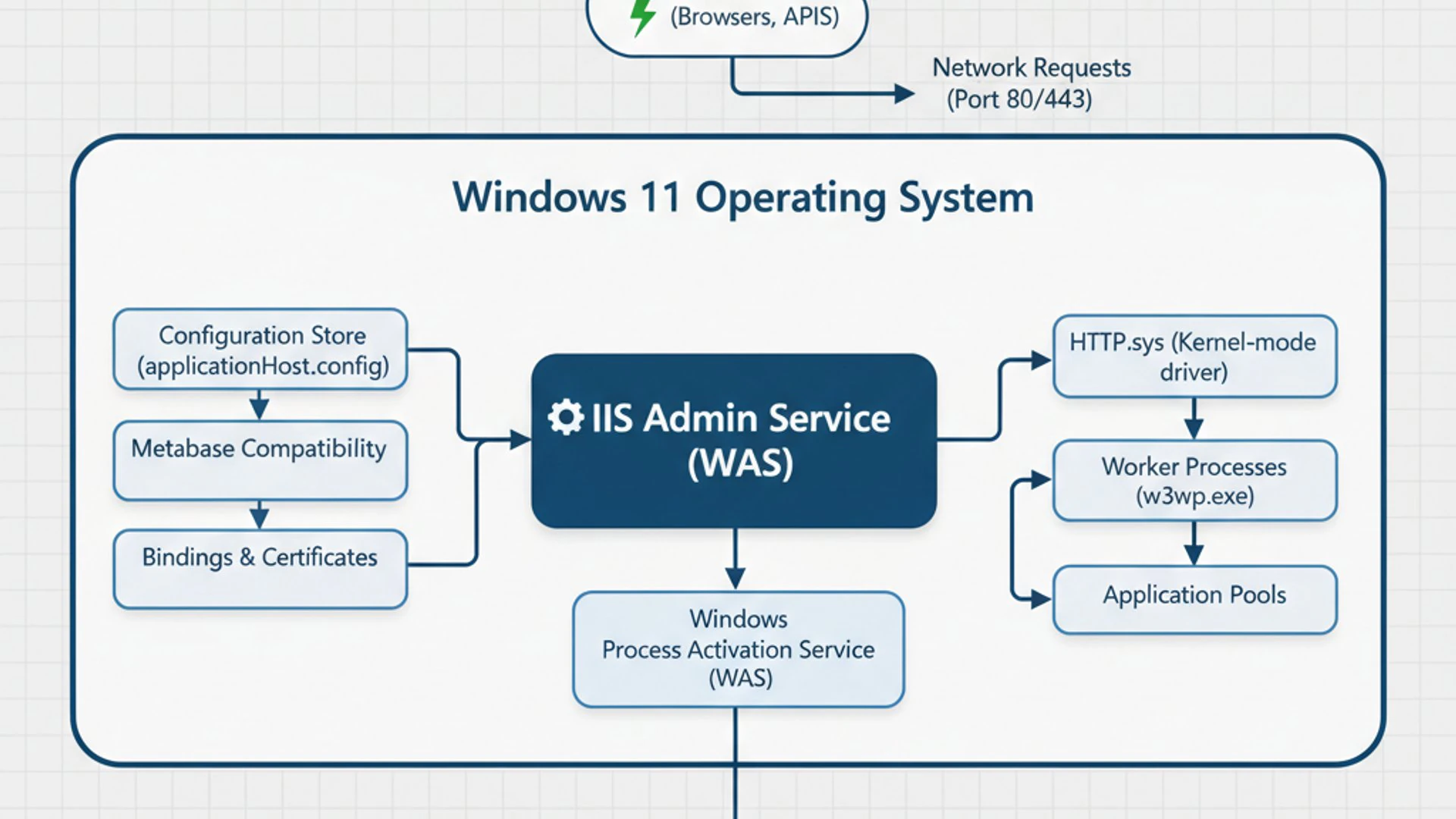
Proper service management allows you to apply configuration changes, troubleshoot issues, and ensure your web applications remain available to users. Understanding these management techniques is a core skill for anyone working with IIS.
Starting, Stopping, and Restarting the Service
Controlling the state of the IIS Admin Service is a fundamental administrative task. You might need to stop the service to apply certain configuration changes, restart it to clear cached settings, or start it if it has unexpectedly stopped. There are two primary methods for performing these actions.
Using Services.msc
The Services console (services.msc) provides a user-friendly graphical interface for managing all services on your Windows 11 system.
- Press
Win + Rto open the Run dialog, typeservices.msc, and press Enter. - In the Services window, scroll down and locate IIS Admin Service.
- Right-click on “IIS Admin Service.”
- From the context menu, you will see options for Start, Stop, and Restart. Select the desired action.
- Observe the “Status” column to confirm the service’s new state.
When you stop the IIS Admin Service, it will often prompt you to also stop dependent services, such as the World Wide Web Publishing Service and the Windows Process Activation Service (WAS). It’s generally advisable to allow it to stop these dependencies to ensure a clean shutdown.
PowerShell Commands for Service Control
For administrators who prefer command-line tools or need to automate tasks, PowerShell offers powerful cmdlets for service management. These commands are particularly useful for scripting and remote administration.
To open PowerShell with administrative privileges, search for “PowerShell” in the Start menu, right-click on “Windows PowerShell,” and select “Run as administrator.”
- To Start the IIS Admin Service:
To Stop the IIS Admin Service:Start-Service -Name "IISADMIN"Stop-Service -Name "IISADMIN" -ForceThe
-Forceparameter is often necessary to stop dependent services without requiring manual confirmation. - To Restart the IIS Admin Service:
Restart-Service -Name "IISADMIN" -Force - To check the Status of the IIS Admin Service:
Get-Service -Name "IISADMIN"
Using PowerShell provides a more efficient way to manage services, especially when dealing with multiple servers or complex automation scripts. It’s a key tool for advanced system administration.
Configuring Service Properties
Beyond simply starting and stopping, you can configure various properties of the IIS Admin Service on Windows 11 to tailor its behavior to your specific needs. These properties are accessible through the Services console.
- Open Services.msc as described previously.
- Double-click on IIS Admin Service to open its Properties dialog.
Key tabs and settings to consider:
- General Tab:
- Startup type: This determines how the service starts. For IIS, it’s typically set to Automatic, meaning it starts automatically when Windows boots. Other options include “Manual” and “Disabled.”
- Service status: Shows the current state (Running, Stopped).
- Log On Tab:
- This tab specifies the account under which the service runs. By default, IIS Admin Service runs under the Local System account, which has extensive privileges. For security reasons, it’s generally best to leave this as default unless you have a very specific, well-understood reason to change it.
- Recovery Tab:
- This is crucial for service resilience. You can configure what action Windows should take if the service fails unexpectedly.
- First failure: Often set to “Restart the Service.”
- Second failure: Can also be set to “Restart the Service.”
- Subsequent failures: You might choose to “Take No Action” or “Run a Program” for more advanced recovery scripts.
- Reset fail count after: Defines how often the failure count is reset.
- Restart service after: Sets a delay before attempting to restart the service.
- Dependencies Tab:
- This tab lists the services that IIS Admin Service depends on and the services that depend on IIS Admin Service. This information is invaluable for troubleshooting startup issues.
Careful configuration of these properties ensures that your IIS Admin Service operates reliably and recovers gracefully from unexpected interruptions, minimizing downtime for your web applications.
Common Issues and Troubleshooting the IIS Admin Service
Even with careful configuration, you might occasionally encounter issues with the IIS Admin Service on Windows 11. Problems can range from the service failing to start to performance degradation or access denied errors. Knowing how to diagnose and resolve these common problems is a critical skill for any IIS administrator.

This section will equip you with practical diagnostic steps and solutions to get your IIS environment back on track, ensuring your web applications remain available and performant.
Service Fails to Start
One of the most frustrating issues is when the IIS Admin Service refuses to start. This can render your entire IIS installation inoperable. Several factors can contribute to this problem.
A common cause is a conflict with another application or service trying to use the same port (usually port 80 or 443). Another frequent culprit is corrupted configuration files or incorrect permissions on critical IIS directories. Identifying the root cause is key to resolving the issue effectively.
Dependency Check and Event Viewer Analysis
When the IIS Admin Service fails to start, your first course of action should be to check its dependencies and consult the Event Viewer.
- Check Dependencies:
- Open Services.msc.
- Double-click on IIS Admin Service to open its Properties.
- Go to the Dependencies tab. Note down all the services listed under “This service depends on the following system components.”
- Manually check the status of each dependent service in the Services console. Ensure they are all running and set to “Automatic” startup type. If any are stopped, try starting them first.
- Event Viewer Analysis:
- Press
Win + R, typeeventvwr.msc, and press Enter to open the Event Viewer. - Navigate to Windows Logs > System.
- Look for error or warning events related to “IISADMIN” or “Service Control Manager” around the time you attempted to start the service.
- Pay close attention to the Event ID and the description, as these often provide specific clues about the failure, such as “The service did not start due to a logon failure” or “The service terminated with service-specific error.”
- Press
Common dependency issues include the Remote Procedure Call (RPC) service not running, or the Windows Process Activation Service (WAS) being unable to start due to its own issues. Resolving these underlying dependencies is crucial for the IIS Admin Service on Windows 11 to function.
The Event Viewer is your best friend when troubleshooting service startup failures. It often holds the precise error message that will guide you to a solution.
Performance Degradation and Resource Usage
Sometimes, the IIS Admin Service might be running, but your web applications are slow, or your system experiences high resource usage. This can indicate a performance issue within IIS itself or a misconfiguration.
High CPU or memory usage by the IISADMIN process itself is rare, as its primary role is configuration management, not serving content. More often, performance issues stem from the worker processes (w3wp.exe) managed by WAS, which are the actual processes serving your web applications.
To diagnose performance issues:
- Check Application Pool Settings:
- In IIS Manager, examine the settings of your application pools. Look for excessive recycling, incorrect .NET CLR versions, or insufficient private memory limits.
- Consider implementing application pool recycling with specific time intervals rather than relying on default settings.
- Monitor Worker Processes:
- Use Task Manager (Details tab) to identify which w3wp.exe processes are consuming the most CPU or memory. You can often map these back to specific application pools in IIS Manager.
- Consider using tools like Performance Monitor (perfmon.exe) to track IIS-specific counters, such as “Web Service” and “ASP.NET Applications,” to identify bottlenecks.
- Review IIS Logs:
- IIS access logs (typically in %SystemDrive%\inetpub\logs\LogFiles) can reveal slow requests, high error rates, or frequently accessed pages that might be causing a bottleneck.
Optimizing your web application code, database queries, and static content delivery can significantly improve overall IIS performance, reducing the load on the entire system.
Access Denied Errors
Access Denied errors are common in web server environments and can manifest in various ways, such as HTTP 401 (Unauthorized) or HTTP 403 (Forbidden) errors when trying to access a website, or even errors when IIS tries to read configuration files.
These errors typically point to incorrect file system permissions or issues with the identity under which your application pools are running. The IIS Admin Service on Windows 11 relies on proper permissions to read and write its configuration files.
Troubleshooting steps for access denied errors:
- Check File System Permissions:
- Ensure the IUSR account and the IIS_IUSRS group have read permissions on your website’s content folder.
- For application pools running under a specific identity, ensure that identity has the necessary permissions to the web content, log folders, and any other resources it needs to access.
- The %SystemRoot%\System32\inetsrv\config folder, where IIS configuration files reside, must have appropriate permissions for the IIS Admin Service to function.
- Application Pool Identity:
- In IIS Manager, go to Application Pools, right-click on your application pool, and select Advanced Settings.
- Check the Identity setting. By default, it’s often “ApplicationPoolIdentity,” which is a virtual account. If you’ve changed it to a custom account, ensure that account has the necessary permissions.
- Authentication and Authorization Rules:
- Within IIS Manager, for your specific website or application, check the Authentication and Authorization Rules settings. Misconfigured rules can block legitimate users.
Always apply the principle of least privilege when configuring permissions. Grant only the necessary permissions to the accounts and groups that need them, reducing the attack surface of your web server.
Security Best Practices for IIS Admin Service
Securing your web server is paramount in today’s threat landscape. The IIS Admin Service on Windows 11, being the core management component of IIS, must be protected vigilantly. A compromise of this service could lead to unauthorized access, data breaches, or even a complete takeover of your web infrastructure.
Learn more at IIS 8.0 Security.
Implementing robust security best practices ensures that your web applications are not only functional but also resilient against malicious attacks. This section focuses on key strategies to harden your IIS environment.
Principle of Least Privilege
The principle of least privilege is a fundamental security concept that dictates that every user, program, or process should have only the minimum necessary privileges to perform its function. For the IIS Admin Service and related components, this means carefully managing account permissions.
- Service Account: The IIS Admin Service typically runs under the Local System account by default. While this account has extensive privileges, it’s generally considered secure for this specific service because its primary function is to manage configuration, not directly serve web content. Avoid changing this unless you have a very strong security justification and understanding of the implications.
- Application Pool Identities: Your web applications run under specific application pool identities (e.g., ApplicationPoolIdentity, Network Service, or a custom user account). Ensure these identities only have read/write access to the directories and resources they absolutely need. For instance, a web application should generally only need read access to its content folder and write access only to specific upload or log directories.
- IIS Manager Permissions: If multiple administrators manage IIS, use the IIS Manager’s built-in authorization features to delegate specific tasks without granting full administrative access to the entire server. You can grant permissions to specific users or groups for managing sites, applications, or even individual features.
Regularly review and audit permissions to ensure they align with the principle of least privilege. Over-privileged accounts are a significant security risk.
Regular Updates and Patching
Keeping your Windows 11 operating system and IIS installation updated is one of the most effective security measures you can take. Microsoft frequently releases security updates and patches that address newly discovered vulnerabilities in IIS, the operating system, and related components.
Ignoring updates leaves your server exposed to known exploits, making it an easy target for attackers. A proactive patching strategy is essential for maintaining a secure web environment.
- Windows Updates: Ensure your Windows 11 system is configured to receive and install critical and security updates automatically. Regularly check for pending updates and apply them promptly.
- IIS Component Updates: While IIS is part of Windows, specific components or extensions might also receive updates. Stay informed about IIS-related security advisories from Microsoft.
- Third-Party Components: If your web applications use third-party frameworks, libraries, or content management systems (e.g., WordPress, Joomla, ASP.NET Core), ensure these are also kept up-to-date. Vulnerabilities in these components can also compromise your IIS server.
A diligent patching regimen is not just a recommendation; it’s a critical defense mechanism against evolving cyber threats. Never underestimate the importance of staying current.
Beyond updates, consider implementing a web application firewall (WAF) to provide an additional layer of protection against common web-based attacks, and regularly scan your server for vulnerabilities using security assessment tools.
Advanced Management and Automation
For system administrators and developers managing complex or multiple IIS environments, manual configuration and monitoring can quickly become inefficient. This is where advanced management techniques, particularly scripting with PowerShell and remote management capabilities, become invaluable. These tools allow for greater efficiency, consistency, and scalability in managing the IIS Admin Service on Windows 11 and its associated web applications.
Embracing automation can significantly reduce the time spent on routine tasks, free up resources for more critical work, and minimize the potential for human error.
Scripting with PowerShell for IIS Administration
PowerShell is Microsoft’s powerful, object-oriented scripting language and command-line shell. It provides a rich set of cmdlets specifically designed for managing IIS, making it an indispensable tool for automation. The IIS PowerShell provider allows you to navigate and modify the IIS configuration hierarchy as if it were a file system.
Here are examples of tasks you can automate with PowerShell:
- Creating and Configuring Websites:
Import-Module WebAdministration
New-Website -Name "MyNewWebsite" -PhysicalPath "C:\inetpub\wwwroot\MyNewSite" -Port 8080
Set-ItemProperty "IIS:\Sites\MyNewWebsite" -Name "logFile.directory" -Value "D:\Logs\MyNewWebsite" - Managing Application Pools:
New-WebAppPool -Name "MyAppPool"
Set-ItemProperty "IIS:\AppPools\MyAppPool" -Name "managedRuntimeVersion" -Value "v4.0"
Set-ItemProperty "IIS:\AppPools\MyAppPool" -Name "recycling.periodicRestart.time" -Value "06:00:00" - Controlling IIS Services: As shown earlier,
Start-Service,Stop-Service, andRestart-Servicecmdlets can be used for the IIS Admin Service and World Wide Web Publishing Service. - Backing Up and Restoring IIS Configuration:
Backup-WebConfiguration -Name "DailyIISBackup"
Restore-WebConfiguration -Name "DailyIISBackup"
By combining these cmdlets, you can create complex scripts to deploy new applications, update existing configurations, monitor server health, and perform routine maintenance tasks with minimal manual intervention. This level of automation is particularly beneficial in development and testing environments, as well as for managing production servers.
Remote Management of IIS
Managing IIS directly on the server can be inconvenient, especially when dealing with multiple servers or when administrators are not physically present. Remote management capabilities allow you to administer IIS from a different machine, significantly enhancing flexibility and efficiency.
There are several ways to remotely manage IIS on Windows 11:
- IIS Manager for Remote Administration:
- You can install the IIS Manager on a client machine (e.g., another Windows 11 PC) and connect to a remote IIS server.
- To enable this, the remote server must have the “Management Service” role service installed under “Web Management Tools” in Windows Features.
- The Management Service listens on port 8172 by default and uses HTTPS for secure communication. Ensure this port is open in the firewall.
- PowerShell Remoting:
- PowerShell remoting allows you to execute PowerShell commands on a remote computer. This is incredibly powerful for scripting and automation across multiple servers.
- To enable PowerShell remoting on the target machine, run
Enable-PSRemoting -Forcein an elevated PowerShell prompt. - You can then use commands like
Invoke-Command -ComputerName YourServerName -ScriptBlock { Get-Website }to execute commands remotely.
- Windows Admin Center (WAC):
- WAC is a browser-based management tool that provides a centralized interface for managing Windows servers, clusters, and Windows 10/11 machines.
- It includes extensions for managing IIS, offering a modern, intuitive way to perform many administrative tasks remotely without needing to RDP into each server.
Implementing remote management strategies allows administrators to efficiently oversee their web infrastructure from a central location, reducing operational overhead and improving response times to critical issues. This is a crucial aspect of modern server administration, especially for the IIS Admin Service on Windows 11.
Conclusion: Mastering IIS Admin Service on Windows 11
Throughout this comprehensive guide, we’ve journeyed deep into the workings of the IIS Admin Service on Windows 11, uncovering its fundamental importance for anyone looking to host web content on Microsoft’s latest operating system. From its core role in managing configuration and service states to its intricate dependencies, the IIS Admin Service stands as the silent guardian of your web server’s functionality.
We’ve walked through the practical steps of installing IIS, verifying its setup, and mastering the various methods for managing the service’s lifecycle. Crucially, we’ve also equipped you with the knowledge to diagnose and troubleshoot common issues, transforming potential roadblocks into solvable challenges. Furthermore, the emphasis on security best practices and the exploration of advanced automation techniques underscore the commitment required to maintain a robust and efficient web environment.
By applying the insights and actionable advice provided, you are now better prepared to configure, secure, and optimize your IIS deployment on Windows 11. Remember, continuous learning and proactive management are key to harnessing the full potential of IIS. Embrace the power of the IIS Admin Service, and confidently deliver your web applications to the world.









Community
Comments (0)