

Introduction to Declared Configuration Service on Windows 11
In the dynamic landscape of modern IT, managing configurations across numerous devices can quickly become a daunting task. Windows 11, with its advanced capabilities, introduces and refines mechanisms to simplify this complexity. Among these, the Declared Configuration Service (DCS) stands out as a pivotal technology for ensuring consistency, security, and efficiency in system administration. Learn more at PowerShell DSC (Desired State Configuration).
This service represents a significant leap from traditional, imperative scripting methods, offering a declarative approach to define and maintain the desired state of your Windows 11 systems. It’s not just about setting configurations once; it’s about continuously enforcing them, preventing deviations that can lead to vulnerabilities or operational issues.
Understanding the Declared Configuration Service on Windows 11 is crucial for IT professionals, developers, and power users alike who aim to harness the full potential of automated, robust system management. This comprehensive guide will delve into its core principles, operational mechanics, practical benefits, and best practices, equipping you with the knowledge to implement it effectively.
We will explore how DCS transforms the way you interact with your operating system, moving towards a more predictable and resilient computing environment. Get ready to unlock a new level of control and automation for your Windows 11 deployments.
Table of contents
Key Takeaways
- Declarative Management: DCS defines the desired state of a system, rather than specifying the steps to achieve it, ensuring consistency and reliability.
- Core of DSC: The Declared Configuration Service on Windows 11 is built upon PowerShell Desired State Configuration (DSC), leveraging its robust framework for configuration management.
- Idempotence Guaranteed: Configurations applied via DCS are idempotent, meaning applying the same configuration multiple times yields the same result without unintended side effects.
- Architectural Components: Key elements include the Local Configuration Manager (LCM) and various configuration providers, which work together to enforce desired states.
- Enhanced System Health: DCS helps prevent configuration drift, maintaining security baselines, compliance, and operational stability across Windows 11 devices.
- Automation Powerhouse: It streamlines software deployment, policy enforcement, and system settings management, significantly reducing manual effort and potential errors.
- Future-Ready: DCS integrates seamlessly with cloud platforms like Azure, aligning with the “configuration as code” paradigm for scalable, modern IT infrastructure management.
What is Declared Configuration Service (DCS)?
The Declared Configuration Service (DCS) on Windows 11 is a fundamental component of Microsoft’s strategy for modern configuration management. At its heart, DCS embodies the principles of Desired State Configuration (DSC), a powerful management platform introduced with PowerShell. It allows administrators to define the ideal state of their systems using a declarative syntax.
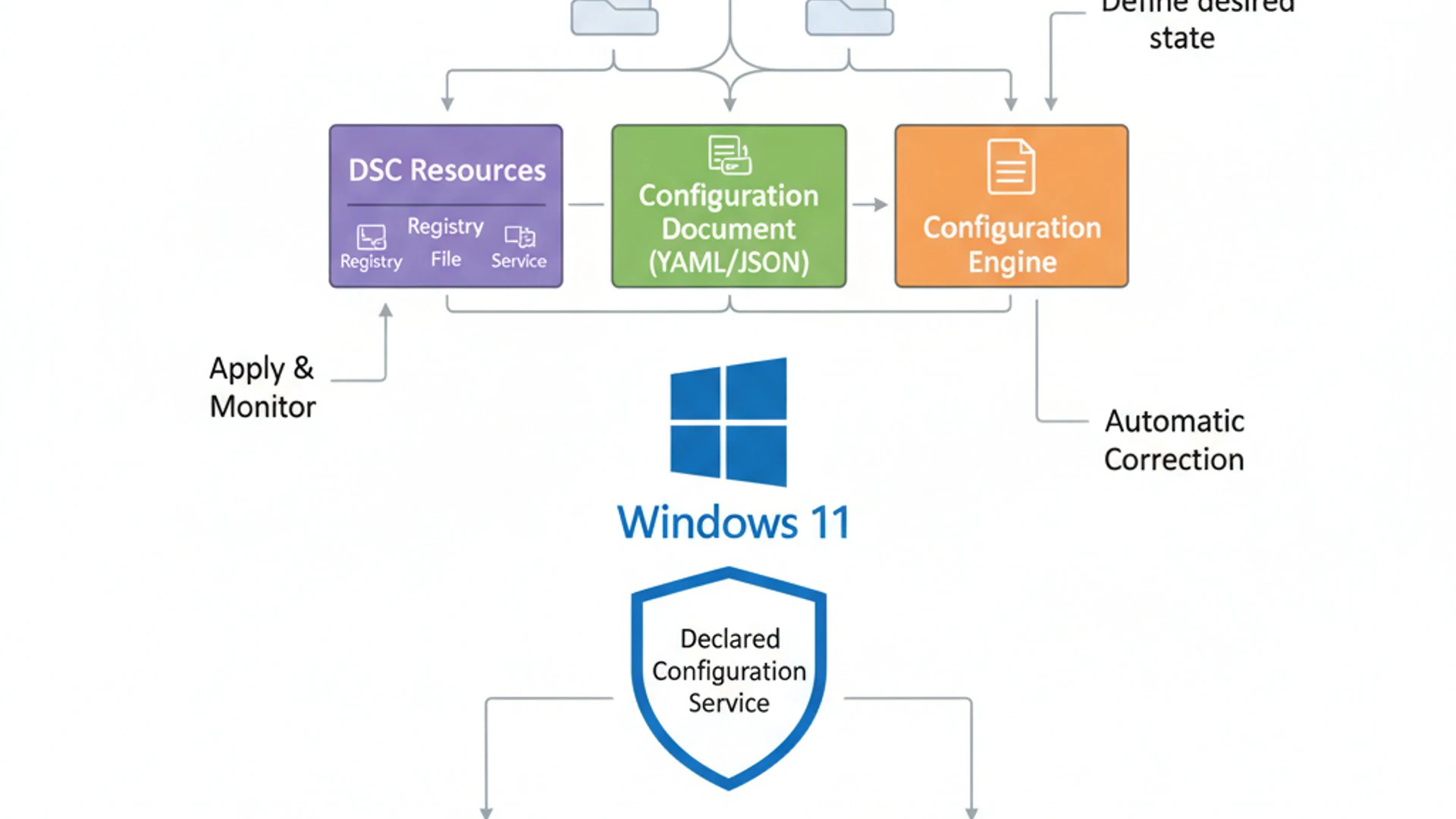
Instead of writing scripts that dictate how to achieve a configuration, DCS focuses on what the end state should be. This paradigm shift simplifies complex management tasks, making them more robust and easier to understand. The service continuously monitors and enforces these defined states, ensuring that systems remain compliant and correctly configured over time.
This capability is particularly vital in environments with a large number of Windows 11 devices, where manual configuration is impractical and prone to human error. DCS provides a consistent, automated way to manage everything from operating system settings to application installations, directly impacting system reliability and security.
By leveraging the Declared Configuration Service on Windows 11, organizations can achieve a higher level of automation and predictability in their IT operations, paving the way for more efficient and secure computing environments. It’s a cornerstone for implementing infrastructure as code principles within the Windows ecosystem.
The Evolution of Configuration Management
Configuration management has undergone a significant transformation, evolving from manual, ad-hoc processes to sophisticated, automated systems. Initially, system administrators relied heavily on manual intervention, executing commands directly or using simple batch scripts to configure individual machines. This approach was inherently slow, error-prone, and difficult to scale.
As environments grew, the need for more systematic methods became apparent. This led to the development of imperative scripting languages and tools, which allowed administrators to write detailed instructions for configuring systems. While an improvement, these scripts still focused on the step-by-step process, often struggling with state management and error recovery.
The advent of declarative configuration management, exemplified by technologies like PowerShell DSC and the Declared Configuration Service on Windows 11, marked a pivotal moment. This new approach abstracts away the procedural details, allowing administrators to simply declare the desired end state. The underlying system then takes responsibility for achieving and maintaining that state.
This evolution reflects a broader trend in IT towards automation, standardization, and the “infrastructure as code” philosophy. It underscores the importance of reliable, repeatable processes in maintaining complex digital infrastructures, especially with the continuous updates and features of Windows 11.
From Manual Setup to Automated Deployment
The journey from manual setup to fully automated deployment is a testament to the power of modern configuration management tools. In the past, setting up a new Windows machine involved a lengthy checklist of manual steps: installing the OS, drivers, applications, and then meticulously configuring various settings. This process was not only time-consuming but also introduced inconsistencies between machines.
Early automation efforts involved creating installation images or using simple scripts to automate parts of this process. However, these methods often lacked the intelligence to handle variations or ensure ongoing compliance. They were primarily “one-shot” solutions, requiring manual intervention for updates or changes.
With the rise of Desired State Configuration (DSC) and its implementation through the Declared Configuration Service on Windows 11, true automated deployment and continuous configuration management became a reality. Administrators can now define a comprehensive configuration for a Windows 11 device in a declarative script.
This script can then be applied automatically to new machines, ensuring they are provisioned identically and correctly from the start. More importantly, DCS continuously monitors these machines, automatically remediating any deviations from the desired state, thereby transforming deployment into an ongoing management process rather than a one-time event.
Core Principles of Desired State Configuration (DSC)
The Declared Configuration Service on Windows 11 is deeply rooted in the core principles of Desired State Configuration (DSC). Understanding these principles is key to leveraging DCS effectively. The primary tenets revolve around declarative syntax, idempotence, and the continuous enforcement of a defined state.
Firstly, declarative syntax is paramount. Instead of writing procedural code that describes how to perform an action, DSC configurations describe what the end state of the system should be. For instance, you don’t write steps to install a feature; you simply declare that the feature should be installed. This makes configurations easier to read, write, and maintain.
Secondly, idempotence is a critical characteristic. An idempotent operation is one that can be applied multiple times without changing the result beyond the initial application. In DSC, applying the same configuration repeatedly will always result in the system being in the desired state, without causing errors or unintended modifications if the state is already achieved.
Finally, DSC emphasizes state enforcement. Once a configuration is applied, the system actively works to maintain that state. If a setting is changed manually or by another process, DCS can detect the deviation and automatically reapply the desired configuration, preventing configuration drift and ensuring continuous compliance.
“The power of Desired State Configuration lies in its ability to abstract away the complexity of system management, allowing administrators to focus on the ‘what’ rather than the ‘how’, ensuring consistent and reliable system states.”
How Declared Configuration Service Works on Windows 11
The operational mechanics of the Declared Configuration Service on Windows 11 involve several interconnected components working in harmony to define, apply, and maintain system configurations. At its core, DCS leverages the PowerShell Desired State Configuration (DSC) engine, which acts as the orchestrator for all configuration activities.
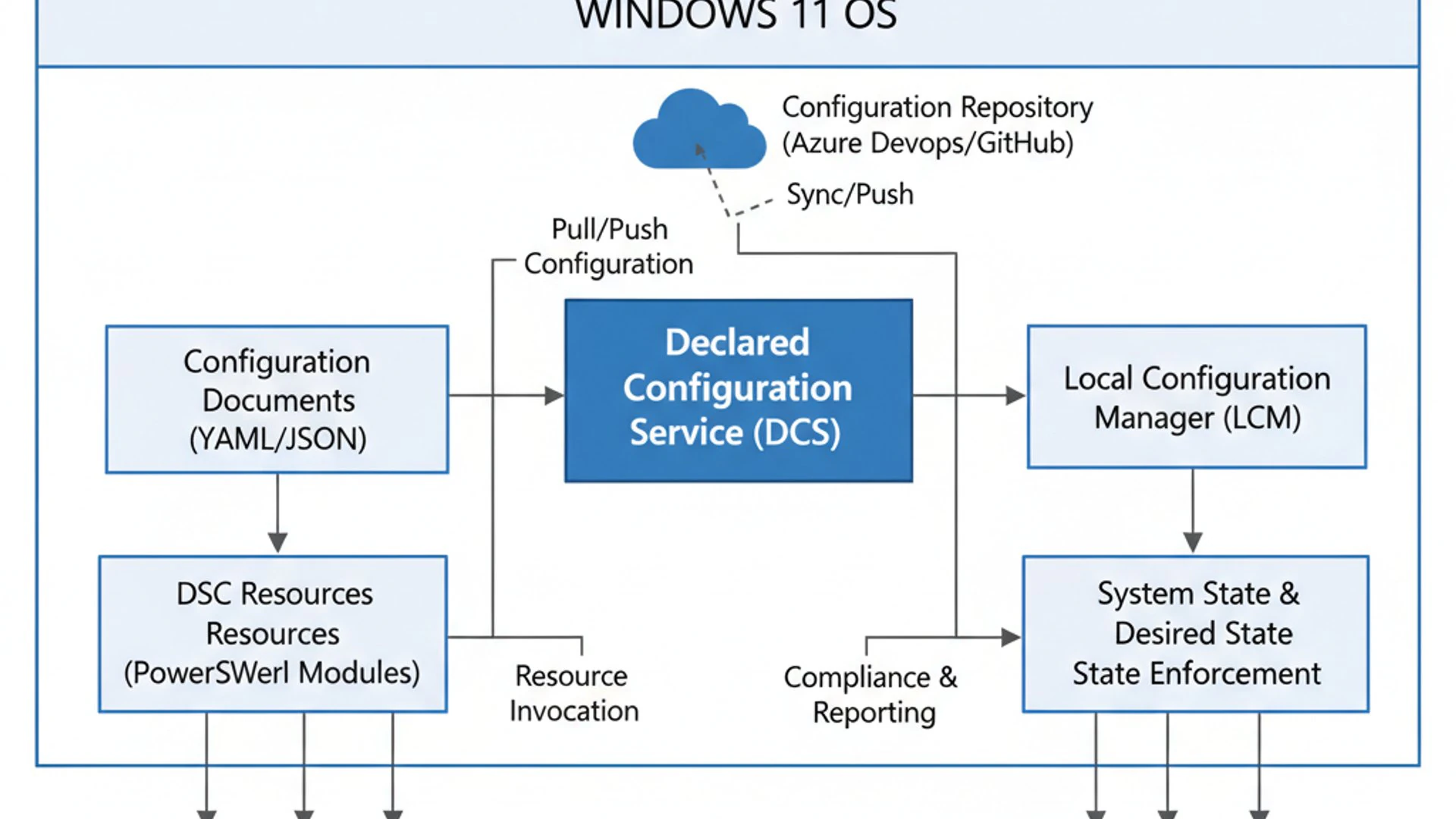
When a configuration is defined, it’s typically written in a declarative script format, often using PowerShell. This script specifies the desired state for various aspects of the Windows 11 operating system, such as installed features, registry settings, services, or even software packages. This configuration is then compiled into a Management Object Format (MOF) document.
The Local Configuration Manager (LCM) on each Windows 11 device is responsible for processing this MOF document. It interprets the desired state and interacts with specialized configuration providers to make the necessary changes to the system. The LCM also periodically checks the system’s current state against the desired state defined in the MOF file.
If any discrepancies are found, the LCM initiates remediation actions to bring the system back into compliance with the desired configuration. This continuous monitoring and enforcement mechanism is what makes the Declared Configuration Service on Windows 11 so effective in preventing configuration drift and ensuring system stability.
Architecture and Components
The architecture of the Declared Configuration Service on Windows 11 is designed for robustness and flexibility, consisting of several key components that collaborate to manage system configurations. Understanding these components is essential for effective deployment and troubleshooting.
At the highest level, you have the DSC Configuration Scripts, which are PowerShell scripts defining the desired state. These scripts are then compiled into MOF (Managed Object Format) files, which are the actual instructions understood by the system.
The central agent on each Windows 11 machine is the Local Configuration Manager (LCM). This service is responsible for parsing the MOF documents, invoking the appropriate resources, and enforcing the desired state. It also handles reporting on the current configuration status.
Supporting the LCM are DSC Resources, which are specialized PowerShell modules that interact with specific system components. These resources abstract the complexity of managing features, services, files, and more, allowing the LCM to apply configurations declaratively. Together, these components form a powerful framework for automated system management.
Local Configuration Manager (LCM) and Configuration Providers
The Local Configuration Manager (LCM) is the engine room of the Declared Configuration Service on Windows 11. It’s a built-in component present on every Windows system that supports DSC. The LCM’s primary role is to ensure that the machine’s configuration matches the desired state defined in the MOF document.
The LCM operates through a defined cycle: it retrieves the configuration, processes it, applies the necessary changes, and then monitors the system to ensure the configuration remains in place. It also generates reports on the configuration status, indicating whether the system is compliant or if remediation was required.
To perform its tasks, the LCM relies heavily on Configuration Providers, also known as DSC Resources. These are specialized PowerShell modules that encapsulate the logic for managing specific system components. For example, there are built-in resources for managing files, services, registry keys, Windows features, and environment variables.
Beyond the built-in resources, you can also create custom DSC resources or leverage community-contributed ones to extend the capabilities of the Declared Configuration Service on Windows 11 to manage virtually any aspect of your system. This modularity makes DSC incredibly powerful and adaptable to diverse IT environments.
Configuration Lifecycle: Push and Pull Modes
The Declared Configuration Service on Windows 11 supports two primary modes for delivering and applying configurations: Push Mode and Pull Mode. Each mode offers distinct advantages depending on the scale and complexity of your environment.
In Push Mode, an administrator manually initiates the configuration deployment. The compiled MOF configuration file is “pushed” directly from a management workstation to the target Windows 11 machine. This mode is straightforward and ideal for smaller environments, testing, or one-off deployments where direct control is preferred.
The process involves using PowerShell cmdlets to apply the configuration to a specific node. While simple, it requires active management to ensure all machines receive updates and to track their compliance status. It’s a direct, imperative way to use the declarative power of DCS.
Conversely, Pull Mode offers a more scalable and automated approach. In this scenario, Windows 11 machines are configured to periodically “pull” their configurations from a central Pull Server. This server hosts the MOF configuration files and potentially any custom DSC resources required.
The Pull Server can be a dedicated DSC Pull Server, Azure Automation DSC, or a third-party solution. Machines check in at regular intervals, download their assigned configuration, and apply it. This mode is highly beneficial for large-scale deployments, continuous compliance, and environments where machines might frequently come online and offline, ensuring they always retrieve the latest desired state.
Benefits of Utilizing DCS for Windows 11 Environments
Implementing the Declared Configuration Service on Windows 11 brings a multitude of benefits that significantly enhance system administration, security posture, and operational efficiency. Moving beyond manual configurations or basic scripting, DCS offers a robust framework for managing the modern Windows ecosystem.
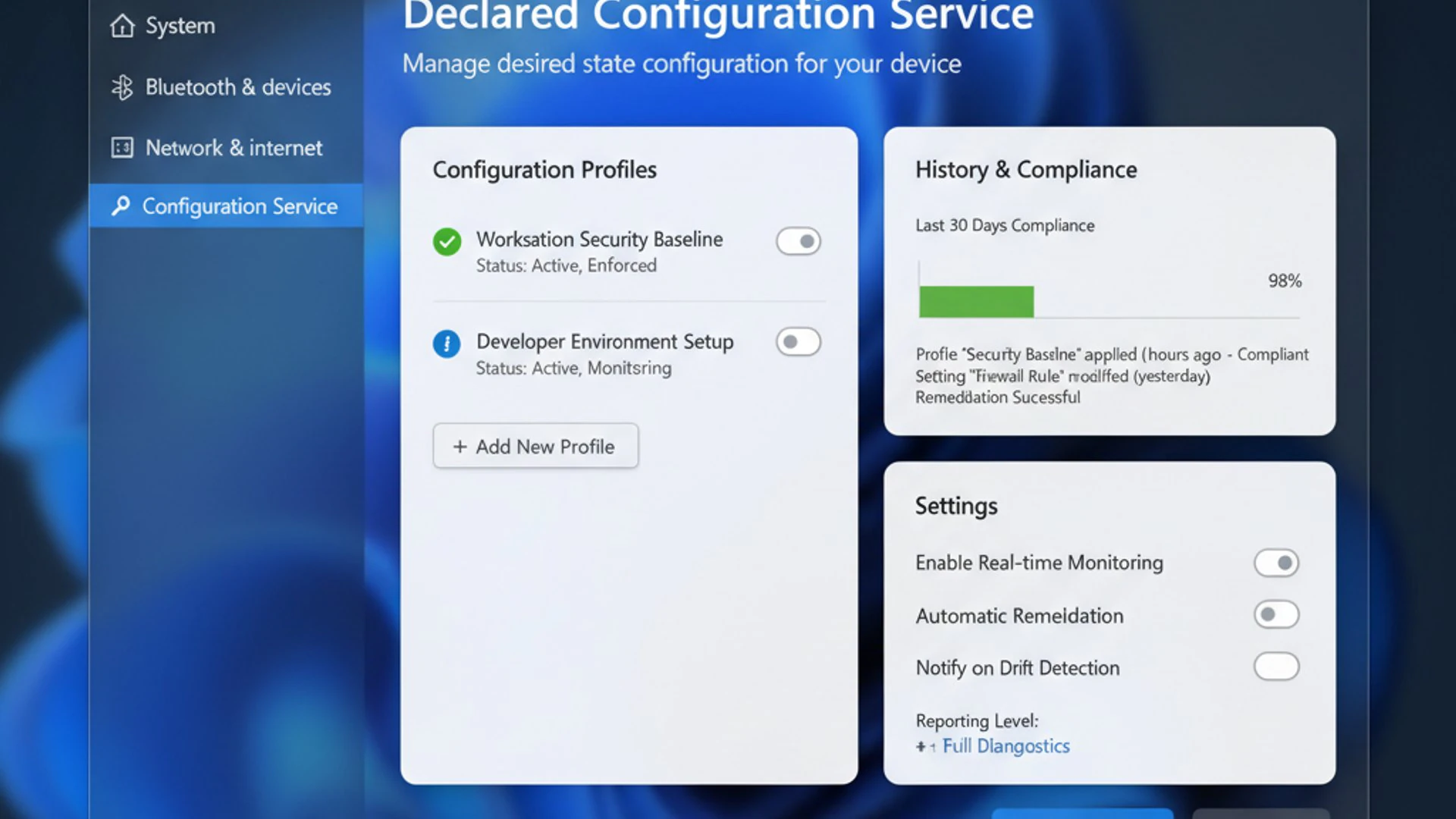
One of the most compelling advantages is the inherent consistency it provides. By defining a desired state, organizations can ensure that every Windows 11 device adheres to specific standards, reducing variability and the potential for human error. This consistency is vital for maintaining a predictable and stable IT environment.
Furthermore, DCS plays a critical role in bolstering security and compliance. It allows for the enforcement of security baselines, ensuring that critical settings are never inadvertently changed or misconfigured. This proactive approach helps in meeting regulatory requirements and safeguarding sensitive data.
The automation capabilities of the Declared Configuration Service on Windows 11 also lead to substantial time and cost savings. Tasks that once required manual intervention across many machines can now be automated and managed centrally, freeing up IT staff to focus on more strategic initiatives. It truly transforms the landscape of Windows 11 management.
Enhanced Security and Compliance
For any organization, maintaining a strong security posture and adhering to compliance regulations are non-negotiable. The Declared Configuration Service on Windows 11 is an invaluable tool in achieving both, providing a systematic and automated way to enforce security policies and meet audit requirements.
DCS allows administrators to define and enforce security baselines across all Windows 11 devices. This includes settings like firewall rules, user account controls, password policies, software restrictions, and critical operating system updates. Any deviation from these defined baselines is automatically detected and remediated, significantly reducing the attack surface.
For instance, you can use DCS to ensure that Encrypting File System on Windows 11 is always enabled on specific drives, or that certain services, like the Radio Management Service on Windows 11, are disabled if not required. This proactive enforcement prevents unauthorized changes that could create security vulnerabilities.
From a compliance perspective, DCS provides clear, auditable evidence that systems are configured according to established standards. The reporting features of the Local Configuration Manager (LCM) can be used to demonstrate continuous adherence to internal policies and external regulations like GDPR, HIPAA, or PCI DSS. This makes compliance reporting much simpler and more reliable.
Streamlined Deployment and Management
The traditional methods of deploying and managing Windows 11 systems can be resource-intensive and prone to inconsistencies. The Declared Configuration Service on Windows 11 dramatically streamlines these processes, offering a more efficient and reliable approach from initial setup to ongoing maintenance.
During deployment, DCS allows for the rapid provisioning of new Windows 11 machines. Instead of manually configuring each device, administrators can apply a standardized DSC configuration, ensuring that every new system is set up identically and correctly from day one. This drastically reduces deployment time and effort.
For ongoing management, DCS automates routine tasks such as installing software, configuring network settings, managing services, and applying system updates. This automation minimizes the need for manual intervention, reducing operational costs and freeing up IT staff to focus on more strategic projects.
The ability to manage configurations centrally and apply them consistently across an entire fleet of Windows 11 devices simplifies complex environments. Whether it’s updating a specific registry key or deploying a new application, the Declared Configuration Service on Windows 11 ensures that changes are applied uniformly and predictably, enhancing overall IT agility.
Improved Consistency and Reduced Configuration Drift
One of the persistent challenges in IT environments is configuration drift – the gradual, unintended deviation of systems from their intended or desired state. This drift can occur due to manual changes, software installations, or even subtle differences in update application, leading to instability, security vulnerabilities, and troubleshooting nightmares.
The Declared Configuration Service on Windows 11 directly addresses this problem by continuously monitoring and enforcing the desired state. Once a configuration is applied, the Local Configuration Manager (LCM) periodically checks if the system still matches that state. If a deviation is detected, the LCM automatically remediates it, bringing the system back into compliance.
This proactive enforcement ensures an unparalleled level of consistency across all managed Windows 11 devices. Every machine, regardless of its age or history, will maintain the exact configuration defined by the DSC script. This consistency simplifies troubleshooting, as administrators can be confident that system settings are as expected.
By eliminating configuration drift, the Declared Configuration Service on Windows 11 significantly improves system reliability and reduces the likelihood of unexpected issues. It creates a stable and predictable environment, which is crucial for business continuity and efficient IT operations.
Common Use Cases for Declared Configuration Service
The versatility of the Declared Configuration Service on Windows 11 makes it suitable for a wide array of practical applications across various organizational needs. From automating routine IT tasks to enforcing critical security policies, DCS proves to be an indispensable tool for modern system administration.
Its declarative nature and continuous enforcement capabilities allow it to tackle challenges that traditional scripting or manual methods often struggle with. Whether you’re managing a small office network or a large enterprise infrastructure, DCS can streamline operations and enhance reliability.
Common use cases often revolve around standardization, compliance, and automation. By defining configurations once and applying them everywhere, organizations can achieve a level of control and predictability previously unattainable. This section will explore some of the most impactful ways to leverage the Declared Configuration Service on Windows 11.
These examples illustrate how DCS can be integrated into daily IT operations, transforming reactive problem-solving into proactive state management. It’s about building a resilient and consistently configured Windows 11 environment.
Automating Software Installation and Updates
One of the most common and impactful applications of the Declared Configuration Service on Windows 11 is the automation of software installation and updates. Manually installing applications across multiple machines is tedious and prone to errors, especially when dealing with specific versions or configurations.
With DCS, you can define the desired state where a particular application should be installed. For example, you can specify that Microsoft Office or a specific line-of-business application must be present on all user workstations. The DSC configuration will then ensure that the software is installed if missing and, crucially, remains installed.
This extends to updates as well. You can define that certain patches or specific versions of software components should be applied. The Declared Configuration Service on Windows 11 will detect if a machine is running an outdated version and automatically initiate the update process to bring it into compliance with the desired state.
This automation not only saves significant administrative time but also ensures that all systems are running approved and up-to-date software, which is critical for security and compatibility. It transforms software deployment from a reactive task into a continuously managed process.
Enforcing Security Baselines and Policies
Security is paramount, and the Declared Configuration Service on Windows 11 provides a powerful mechanism for enforcing stringent security baselines and organizational policies across all devices. This capability is vital for mitigating risks and maintaining a robust defense against cyber threats.
Administrators can use DCS to define a comprehensive set of security configurations. This might include ensuring that Windows Defender is always active, specific firewall rules are in place, Encrypting File System on Windows 11 is enabled for sensitive data, or that certain services are disabled to reduce the attack surface.
For example, you could configure DCS to ensure that the GameInput Redist Service on Windows 11 is disabled on corporate machines if not needed, or that specific registry keys related to security settings are always set to a secure value. The LCM will then continuously monitor these settings.
If any security setting deviates from the defined baseline, perhaps due to user action or malware, the Declared Configuration Service on Windows 11 will automatically detect and remediate the change. This continuous enforcement ensures that your security posture remains strong and consistent, providing peace of mind and simplifying audit processes.
Managing System Settings and Features
Beyond software and security, the Declared Configuration Service on Windows 11 excels at managing a wide array of core system settings and Windows features. This allows for fine-grained control over the operating environment, tailoring it precisely to organizational requirements.
You can use DCS to configure network settings, such as ensuring specific DNS servers are used or that the DHCP Client on Windows 11 is configured correctly. It can also manage environment variables, local user accounts, groups, and even scheduled tasks.
For instance, an organization might use DCS to ensure that specific Windows features, like Hyper-V or certain media components, are either enabled or disabled across different groups of users. This helps in standardizing the user experience and optimizing system resources.
The ability to declaratively manage these diverse settings means that administrators no longer need to rely on manual clicks, Group Policy Objects (GPOs) alone, or complex scripts that are hard to maintain. The Declared Configuration Service on Windows 11 offers a unified, automated, and continuously enforced method for system configuration.
Managing Declared Configuration Service on Windows 11
Effectively managing the Declared Configuration Service on Windows 11 involves understanding how to interact with its core components, check its operational status, and troubleshoot common issues. While DCS aims for automation, administrators still need the tools and knowledge to oversee its operations.
Interaction with DCS primarily occurs through PowerShell, which provides a comprehensive set of cmdlets for configuring, starting, stopping, and monitoring the service. However, some basic service management can also be performed through graphical interfaces.
Knowing how to quickly assess the health of the Declared Configuration Service on Windows 11 is crucial for diagnosing configuration problems or ensuring that desired states are being correctly enforced. Proactive monitoring and timely troubleshooting can prevent minor issues from escalating into significant operational disruptions.
This section will guide you through the practical steps of managing DCS, empowering you to maintain control over your automated configuration environment. It’s about balancing automation with administrative oversight to ensure optimal system performance and compliance.
Checking Service Status and Properties
Before making any changes or troubleshooting issues, it’s essential to check the current status and properties of the Declared Configuration Service on Windows 11. This provides immediate insight into whether the service is running correctly and what configuration is currently active.
The primary way to check the status of the Local Configuration Manager (LCM), which is the heart of DCS, is through PowerShell. You can use the Get-DscLocalConfigurationManager cmdlet to retrieve detailed information about its current settings.
Get-DscLocalConfigurationManager | Format-List *This command will display properties such as the ConfigurationMode (e.g., ApplyAndMonitor, ApplyAndAutoCorrect), the RefreshMode (e.g., PUSH, PULL), and the ConfigurationModeFrequencyMins, which indicates how often the LCM applies the configuration. Understanding these properties is key to verifying its operation.
Additionally, you can check the general status of the underlying service responsible for DSC operations using the standard Get-Service cmdlet. Look for services related to “Desired State Configuration” or “Windows PowerShell DSC.”
Starting, Stopping, and Restarting the Service
While the Declared Configuration Service on Windows 11 is designed to run autonomously, there are times when you might need to manually start, stop, or restart its components, especially during troubleshooting or maintenance. This can be done using both graphical tools and PowerShell.
Using Services Manager and PowerShell
The most straightforward graphical method is through the Services Manager (services.msc). Open the Run dialog (Win + R), type services.msc, and press Enter. In the Services window, locate the service related to “Windows PowerShell Desired State Configuration” or “Local Configuration Manager.”
Right-click on the service, and you’ll see options to Start, Stop, or Restart it. This is useful for quick, visual control. However, for more granular control and scripting, PowerShell is the preferred method.
Using PowerShell, you can manage the service with standard cmdlets:
- To stop the service:
Stop-Service -Name "WinRM" -Force(DSC relies on WinRM) - To start the service:
Start-Service -Name "WinRM" - To restart the service:
Restart-Service -Name "WinRM" -Force
Remember that the Local Configuration Manager (LCM) itself is not a traditional Windows service you can directly start/stop in services.msc. It’s a component of the Windows Management Framework (WMF) that runs within the WinRM service. Therefore, managing the WinRM service often impacts DCS operations. For specific DSC configuration actions, you’d use cmdlets like Start-DscConfiguration.
Troubleshooting Common DCS Issues
Even with its robust design, you might encounter issues when working with the Declared Configuration Service on Windows 11. Effective troubleshooting involves understanding common pitfalls and knowing where to look for diagnostic information.
One frequent issue is a configuration not applying correctly. Start by checking the event logs, specifically the “Microsoft-Windows-DSC/Operational” log, which provides detailed insights into LCM operations, errors, and warnings. PowerShell’s Get-WinEvent cmdlet can help filter these logs.
Get-WinEvent -LogName 'Microsoft-Windows-DSC/Operational' | Select-Object TimeCreated, Id, Message | Format-ListAnother common problem is syntax errors in the DSC configuration script. Ensure your MOF file compiles without errors. If using Pull Mode, verify network connectivity to the Pull Server and check the server’s logs for client connection issues or configuration retrieval failures.
Also, ensure that the necessary DSC resources are available on the target Windows 11 machine. If a custom resource is missing, the configuration will fail. Verify that the Windows Remote Management (WinRM) service is running and properly configured, as DCS relies on it for communication. A misconfigured RPC Endpoint Mapper on Windows 11 or firewall rules can also impede communication.
Best Practices for Implementing DCS on Windows 11
Successful implementation of the Declared Configuration Service on Windows 11 goes beyond merely writing a few DSC scripts. It requires a thoughtful approach encompassing planning, design, version control, rigorous testing, and continuous monitoring. Adhering to best practices ensures that your DCS deployments are robust, scalable, and maintainable.
Without a structured methodology, even the most powerful automation tools can lead to unforeseen complications. A well-planned DCS strategy minimizes risks, maximizes efficiency, and ensures that your Windows 11 environment remains consistently configured and secure.
These best practices are designed to help you build a resilient configuration management system. They cover the entire lifecycle of a DSC configuration, from its initial conception to its ongoing operation and refinement.
By integrating these principles into your workflow, you can fully leverage the power of the Declared Configuration Service on Windows 11, transforming your approach to system administration and achieving a higher level of IT maturity.
Planning and Designing Configurations
Effective planning and design are the cornerstones of a successful Declared Configuration Service on Windows 11 implementation. Before writing any code, it’s crucial to clearly define your objectives and understand the desired state for your systems.
Start by identifying the specific configurations you want to manage. This could include operating system settings, installed software, security policies, or network configurations. Document these requirements thoroughly, considering the different roles or types of Windows 11 machines in your environment.
Design your DSC configurations to be modular and reusable. Instead of creating one monolithic configuration, break it down into smaller, focused configurations that can be combined as needed. This improves readability, simplifies maintenance, and allows for greater flexibility.
Consider the dependencies between different configuration items. For example, a service might need a specific Windows feature enabled before it can start. Plan for these dependencies within your DSC scripts to ensure smooth and predictable application of configurations. Think about how the Declared Configuration Service on Windows 11 will integrate with your existing management tools.
Version Control and Testing
Just like any other critical code or infrastructure definition, your Declared Configuration Service on Windows 11 configurations must be managed under version control. This is a non-negotiable best practice that provides numerous benefits.
Using systems like Git allows you to track every change made to your DSC scripts, revert to previous versions if needed, and collaborate effectively with a team. It creates an auditable history of your system configurations, which is invaluable for compliance and troubleshooting.
Equally important is rigorous testing. Never deploy a new or modified DSC configuration directly to production without thorough testing. Start with a development or staging environment that closely mirrors your production setup.
Test various scenarios: applying the configuration to a fresh machine, applying it to a machine that’s already partially configured, and applying it multiple times to ensure idempotence. Use tools like Pester for unit testing your DSC resources and configurations. This systematic approach minimizes the risk of introducing unintended issues into your Windows 11 environment.
Monitoring and Reporting
Implementing the Declared Configuration Service on Windows 11 is not a set-it-and-forget-it task. Continuous monitoring and reporting are essential to ensure configurations remain in their desired state and to quickly identify and address any issues that arise.
The Local Configuration Manager (LCM) on each Windows 11 machine generates detailed event logs (specifically in the “Microsoft-Windows-DSC/Operational” channel) that provide insights into its operations, including when configurations were applied, any errors encountered, and whether remediation actions were taken.
Integrate these logs into your centralized monitoring system, such as Azure Monitor or a third-party SIEM solution. This allows you to gain a holistic view of your configuration compliance across all your Windows 11 devices and receive alerts for critical deviations.
Regularly review compliance reports to identify patterns of configuration drift or recurring issues. This data can inform refinements to your DSC configurations or highlight underlying problems in your environment. Effective monitoring ensures that the Declared Configuration Service on Windows 11 continuously delivers its intended benefits of consistency and security.
Potential Impact on System Performance and Resources
While the Declared Configuration Service on Windows 11 offers immense benefits, it’s natural to consider its potential impact on system performance and resource utilization. Like any background service, DCS consumes CPU, memory, and disk I/O to perform its tasks.
However, DSC is designed to be lightweight and efficient. The Local Configuration Manager (LCM) typically runs periodically, not continuously, checking the system state at configurable intervals. This means its resource consumption is generally bursty rather than constant.
The actual impact largely depends on the complexity and frequency of your configurations. A configuration that checks many items or performs resource-intensive operations (like large software installations) will naturally consume more resources during its execution cycle.
Understanding these factors is crucial for optimizing your DCS implementation, especially in environments with resource-constrained Windows 11 devices. This section will delve into analyzing resource consumption and strategies to ensure DCS operates efficiently without adversely affecting user experience or system stability.
Resource Consumption Analysis
To understand the resource consumption of the Declared Configuration Service on Windows 11, it’s important to analyze its operational characteristics. The primary resource usage occurs when the Local Configuration Manager (LCM) executes a configuration cycle.
During a configuration cycle, the LCM performs several actions: retrieving the configuration (if in Pull Mode), comparing the desired state with the current state, and applying any necessary changes. Each of these steps can consume CPU, memory, and disk I/O.
CPU usage will spike during the compilation of MOF files (if done locally), the execution of DSC resources, and any remediation actions. Memory consumption is generally moderate but can increase with complex configurations or custom resources that load large modules.
Disk I/O occurs when reading configuration files, writing logs, and when DSC resources interact with the file system (e.g., installing software). Network bandwidth is primarily used in Pull Mode for retrieving configurations from a Pull Server. Monitoring these metrics using tools like Task Manager, Performance Monitor, or optimizing HV Host Service on Windows 11 can provide valuable insights into the actual impact of the Declared Configuration Service on Windows 11.
Optimizing DCS for Efficiency
To minimize the performance impact of the Declared Configuration Service on Windows 11, several optimization strategies can be employed. These focus on reducing the frequency and intensity of configuration cycles.
First, adjust the ConfigurationModeFrequencyMins setting of the LCM. By default, it might be set to 15 or 30 minutes. For less critical configurations or stable environments, increasing this interval (e.g., to 60 or 120 minutes) can significantly reduce resource consumption without compromising compliance.
Second, design your DSC configurations to be as efficient as possible. Avoid unnecessary checks or resource-intensive operations within your configurations. Ensure that custom DSC resources are well-written and optimized for performance.
Third, consider using Partial Configurations. This allows different configurations to be managed by different LCMs or applied at different frequencies, preventing a single monolithic configuration from consuming excessive resources. Finally, ensure that your Windows 11 machines have adequate hardware resources to comfortably run both the operating system and the Declared Configuration Service on Windows 11 alongside other applications.
Future of Declared Configuration and Windows Management
The landscape of Windows management is continuously evolving, and the Declared Configuration Service on Windows 11 is poised to play an even more central role in its future. As organizations increasingly embrace cloud-first strategies and the “configuration as code” paradigm, DCS provides a robust foundation for these advancements.
The trend towards unified endpoint management and intelligent automation means that declarative configuration will become an even more critical component of IT operations. It offers the consistency and scalability required to manage diverse and distributed Windows 11 environments effectively.
We can anticipate further integration with cloud services, enhanced capabilities for managing hybrid infrastructures, and a continued emphasis on security and compliance through automated state enforcement. The future promises a more seamless and intelligent approach to Windows management.
This section will explore these forward-looking trends, highlighting how the Declared Configuration Service on Windows 11 is adapting and expanding its reach to meet the demands of tomorrow’s IT challenges. It’s about building a foundation for truly autonomous and resilient systems.
Integration with Azure and Cloud Management
The future of the Declared Configuration Service on Windows 11 is inextricably linked with cloud management platforms, particularly Microsoft Azure. Azure provides powerful services that extend the capabilities of DCS, enabling scalable and centralized configuration management for hybrid and cloud-native environments.
Azure Automation DSC is a prime example of this integration. It acts as a cloud-based Pull Server, allowing Windows 11 machines (both on-premises and in Azure) to pull their configurations from a central, highly available service. This simplifies the deployment and management of DSC configurations across a large fleet of devices.
Furthermore, Azure Automation DSC provides robust reporting and compliance monitoring, giving administrators a consolidated view of the configuration state of all their managed Windows 11 nodes. It integrates with other Azure services like Azure Monitor, enabling comprehensive alerting and analytics.
This integration facilitates the management of Windows 11 machines as part of a broader cloud infrastructure, aligning with the principles of Infrastructure as Code and enabling consistent configuration management across diverse environments. The Declared Configuration Service on Windows 11 becomes a powerful agent in a cloud-managed ecosystem.
Emerging Trends in Configuration as Code
The concept of “configuration as code” is a transformative trend in IT, and the Declared Configuration Service on Windows 11 is a key enabler of this philosophy within the Windows ecosystem. This approach treats infrastructure configurations as source code, managed through version control systems and deployed via automated pipelines.
By defining desired states in declarative scripts, DCS allows organizations to version, review, and test their Windows 11 configurations just like application code. This brings engineering discipline to infrastructure management, reducing errors and improving reliability.
The trend extends beyond individual machine configurations to encompass entire environments. Tools like Terraform or Bicep are used to provision infrastructure, while DCS (often via Azure Automation DSC) then configures the operating systems and applications running on that infrastructure. This creates a fully automated, end-to-end deployment pipeline.
As organizations continue to adopt DevOps practices and seek greater agility, the Declared Configuration Service on Windows 11 will remain a critical component in achieving true configuration as code, ensuring that Windows environments are consistently built, maintained, and secured through automated, auditable processes.
Conclusion
The Declared Configuration Service on Windows 11 stands as a cornerstone of modern system administration, offering a powerful and efficient approach to managing the state of your Windows environments. Throughout this article, we’ve explored its foundational principles, operational mechanisms, and myriad benefits, from enhanced security to streamlined deployment.
By embracing declarative configuration, organizations can move beyond manual, error-prone processes to achieve unprecedented levels of consistency, compliance, and automation. The core tenets of Desired State Configuration, such as idempotence and continuous state enforcement, ensure that your Windows 11 machines always conform to their intended configurations, mitigating configuration drift and bolstering overall system stability.
Whether it’s automating software installations, enforcing stringent security baselines, or managing intricate system settings, the practical applications of the Declared Configuration Service on Windows 11 are vast and impactful. Adhering to best practices in planning, version control, and monitoring will unlock its full potential, transforming your IT operations.
As Windows management continues to evolve with deeper cloud integration and the pervasive adoption of “configuration as code,” DCS is not just a current solution but a future-proof technology. It empowers IT professionals to build resilient, secure, and highly efficient Windows 11 infrastructures, ready to meet the challenges of tomorrow’s digital landscape. Mastering the Declared Configuration Service on Windows 11 is an investment in a more automated, reliable, and secure computing future.









Community
Comments (0)