

Windows 11 gives each user on a PC an Advertising ID that supported Windows apps can use to recognize that user for advertising and other personalized experiences. You can turn access to that identifier off without disabling the apps or removing ads entirely.
I reproduced the current Settings route on Windows 11 Home Single Language version 25H2, build 26220.7872. The Advertising ID switch started Off. I changed it to On, verified the live UI state, and then restored Off. No other recommendation, language, notification, browser, account, Registry, or app setting was changed.
What does the Windows 11 Advertising ID do?
Microsoft says Windows generates a unique advertising identifier for each user on a device. Apps and advertising networks can use that value alongside information they collect to show more relevant ads or other personalized experiences inside apps.
The switch is narrower than a universal ad-blocking or tracking control. Microsoft explicitly says it applies to Windows apps that use the Windows advertising identifier. It does not control website cookies, every Microsoft advertising preference, or other identifiers used under a third party's own privacy policy.
If you are reviewing several Windows privacy choices, Activity History is a separate setting. Changing Advertising ID does not clear Activity History, browser history, recent files, or an app's own account data.
Table of contents
Where is the Advertising ID setting?
- Press Windows + I to open Settings.
- Select Privacy & security.
- Select Recommendations & offers.
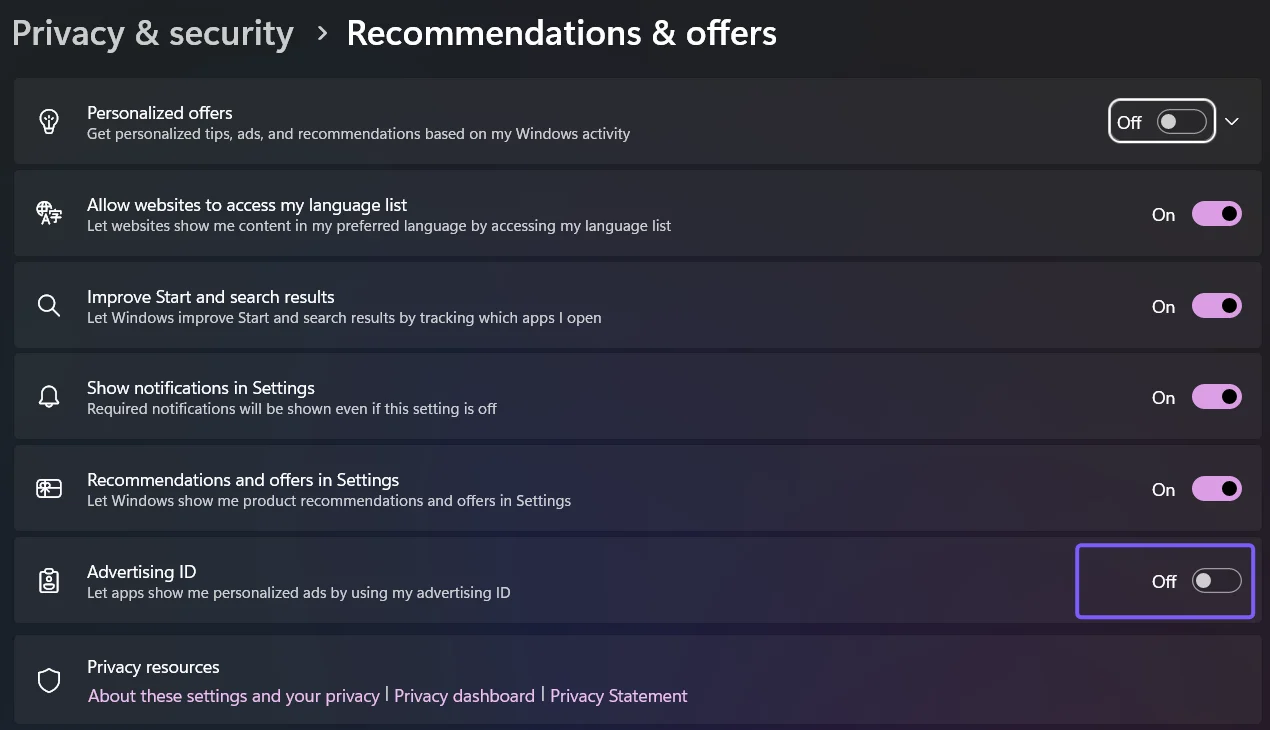
- Find Advertising ID, with the description Let apps show me personalized ads by using my advertising ID.
Microsoft Support currently describes the third step as General. On the reproduced 25H2 build, Windows labels the page Recommendations & offers. If your PC still shows General, open it and look for the same Advertising ID switch.
How do you turn the Advertising ID off?
- Record whether the Advertising ID switch is currently On or Off so you can undo the test.
- Open Settings > Privacy & security > Recommendations & offers.
- Set Advertising ID to Off.
- Leave the other switches on the page unchanged unless you intend to configure those separate features too.
The change takes effect without a restart. Turning the switch off prevents apps from using the Windows Advertising ID for personalized ads. Microsoft notes that it does not reduce the number of ads you see; the ads may simply be less relevant.
On the reproduced PC, UI Automation identified the control as SystemSettings_Privacy_AdvertisingIdEnabled_ToggleSwitch and reported the restored final TogglePattern state as Off.
How do you turn the Advertising ID on?
- Return to Settings > Privacy & security > Recommendations & offers.
- Set Advertising ID to On.
- Confirm the word On appears beside the switch.
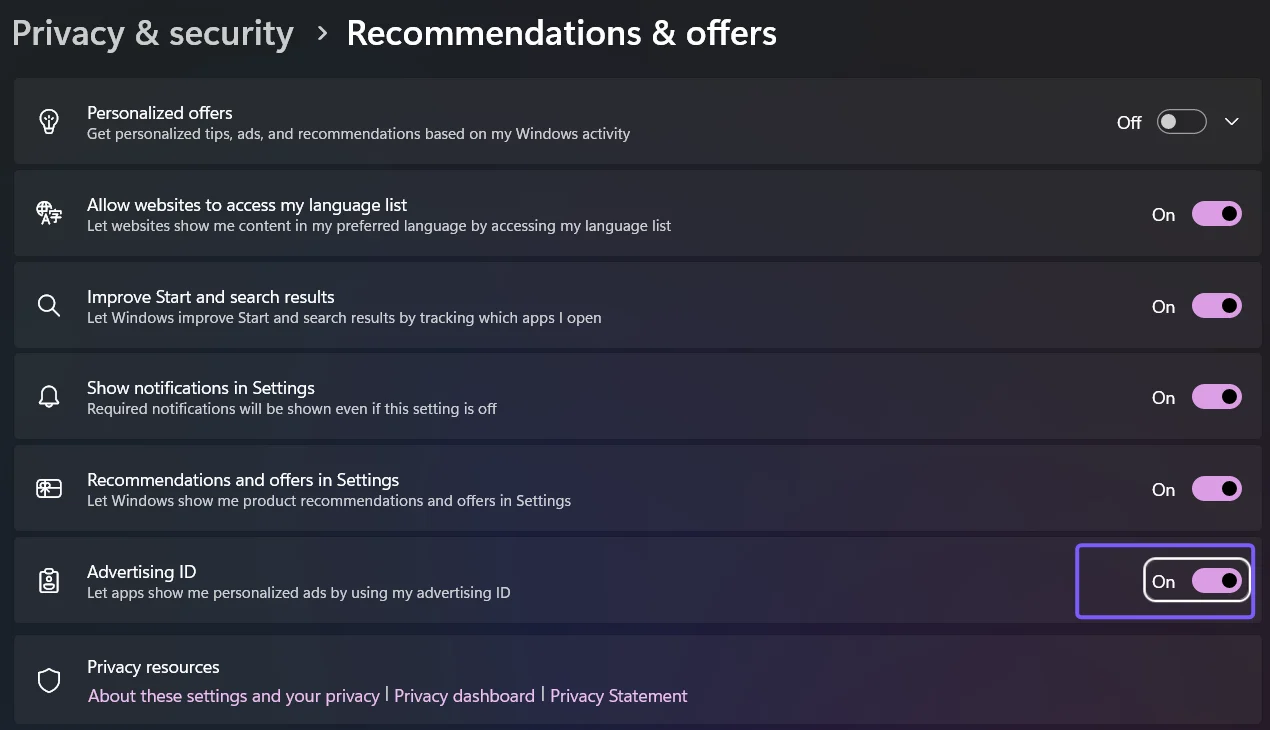
Microsoft says turning the setting back on resets the Advertising ID. Apps that support the identifier can then access the new value and use it for personalization. This is not the same as restoring the exact identifier that existed before you turned the setting off.
What changes when you turn the Advertising ID off?
- Supported Windows apps lose access to the Advertising ID for app-level advertising personalization.
- Ads do not disappear. Microsoft says the number of ads is not reduced.
- Website cookies do not change. Browser-based interest advertising uses separate controls.
- Other Recommendations & offers switches stay independent. Personalized offers, language-list access, Start and search improvement, Settings notifications, and Settings recommendations are separate controls.
- No restart is required. The reproduced switch changed state immediately.
For that reason, avoid treating this switch as a complete privacy reset. Review browser, Microsoft account, and app-specific privacy controls separately if those are also part of your goal.
How do you restore the previous Advertising ID setting?
Open the same page, return the Advertising ID switch to the state you recorded before testing, and verify the On or Off label beside it. If the original state was On, remember that Microsoft says re-enabling the feature creates a reset Advertising ID rather than recovering the old identifier.
The reproduced rollback returned the switch from On to its original Off state. UI Automation verified Off after the rollback, and Settings was then closed. No Registry backup was necessary because no Registry method was used.
Frequently Asked Questions
Does turning off the Advertising ID remove ads?
No. Microsoft says turning it off does not reduce the number of ads. It limits use of the Windows identifier, so ads in supported apps may be less personalized.
Does the Advertising ID switch block website cookies?
No. The switch applies to Windows apps using the Windows advertising identifier. Website cookies and browser advertising preferences are separate.
Does turning the Advertising ID back on restore the old ID?
No. Microsoft says turning the setting back on resets the Advertising ID, so supported apps receive a new identifier rather than the previous value.
Why does Microsoft say General when Settings says Recommendations & offers?
The control has moved or been relabeled on newer Windows 11 builds. Open either General or Recommendations & offers and use the switch labeled Advertising ID.
Use the Advertising ID switch for app-level personalization
Use Settings > Privacy & security > Recommendations & offers to turn the Advertising ID off or on. The setting controls app access to a Windows advertising identifier; it does not remove ads, erase unrelated history, or replace browser and account privacy controls. Record the starting state first, then return to the same switch if you need to undo the change.



Community
Comments (0)