

Windows 11 recognizes several shell: aliases that open special folders without requiring you to type or reveal a long path. The three commands in this guide are documented by Microsoft: shell:appsfolder opens the virtual Applications view, shell:startup opens the current account's Startup folder, and shell:common startup opens the Startup folder shared by all users. You can enter any of them in Run or File Explorer's address bar.
This is a deliberately short, verified set—not a claim that every shell: alias on the internet is supported. The reproduced procedure only opened and viewed each location. It did not launch an app, add or remove a Startup shortcut, change permissions, or require administrator rights. Windows may retain Run or Explorer navigation history, so close the windows when finished if that history matters on a shared computer.
What does a shell folder command do?
A shell alias asks File Explorer to resolve a Windows shell location. That location can be a normal file-system folder or a virtual namespace view. Microsoft distinguishes file-system known folders, virtual folders, and other known-folder categories in its Known Folders documentation. That distinction explains why some commands produce a conventional path while others show a friendly location name.
shell:appsfolderopens Applications, a virtual view that brings different kinds of registered apps together. It is not a folder you should expect to browse by entering aC:\path.shell:startupresolves the Startup folder associated with the signed-in account.shell:common startupresolves the shared Startup folder whose shortcuts can apply to every account on the PC.
The alias is often safer and more portable than copying a literal path. Microsoft notes that known folders can have default paths, but their actual locations can be redirected. Let Windows resolve the alias instead of assuming that every PC uses the same path.
Table of contents
Method 1: Open the Applications virtual folder
Use the Applications view when you want to find a registered app in one shell location, including entries that do not behave like ordinary executable files. Opening the view does not launch an app.
- Press Windows + R to open Run.
- Enter
shell:appsfolderexactly. The alias is not case-sensitive, but it must include the colon. - Select OK or press Enter.
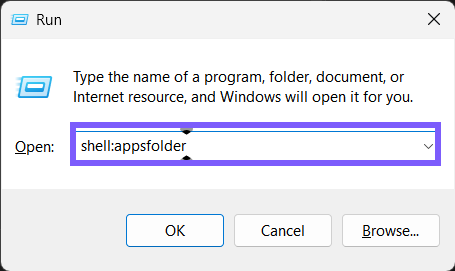
shell:appsfolder alias. The pointer was moved away from the control before the ShareX capture.File Explorer opens a location named Applications. This is the expected result even though the address bar does not show a conventional disk path. Microsoft identifies FOLDERID_AppsFolder as a virtual known folder, so the lack of a normal path is not an error.

You can use the view to locate an app, inspect its context menu, or create a shortcut when that is your intended task. For this read-only check, do not double-click an entry or choose commands such as Uninstall. Close Explorer after confirming the location.
Method 2: Open the current-user Startup folder
Microsoft's Startup-app guidance documents shell:startup for the folder that affects the current user. Opening it is observational; changing its contents is a separate action with a persistent effect.
- Press Windows + R.
- Enter
shell:startup, then press Enter. - Confirm that File Explorer opens a folder ending in
Microsoft\Windows\Start Menu\Programs\Startupunder the current profile.

Do not infer that every startup app appears here. Windows also manages startup behavior through Settings and application-specific mechanisms. Conversely, a shortcut in this folder can start when this account signs in, so do not drag files into it, delete an unfamiliar item, or move shortcuts while merely checking the location. The capture workflow recorded the same item count before and after observation.
Method 3: Open the all-users Startup folder
The shared Startup folder is different from the current-user folder. Microsoft documents the alias with a space: shell:common startup. Items placed there can affect every user who signs in, which makes view-only handling especially important.
- Open Run with Windows + R.
- Enter
shell:common startupexactly, including the space. - Press Enter. Confirm that Explorer resolves the location under
C:\ProgramData\Microsoft\Windows\Start Menu\Programs\Startupon a default installation.

You normally do not need elevation merely to open this folder, but a managed PC can restrict access, and changing its contents may require authorized administrator rights. Do not weaken permissions or take ownership to force access. If Explorer reports that access is denied, close the window and ask the device administrator whether the policy is intentional.
Should you use Run or File Explorer?
Both entry points ask the shell to resolve the alias. Run is quicker when you already know the command: press Windows + R, type it, and press Enter. Explorer is convenient when you are already managing folders: focus the address bar with Ctrl + L, enter the same alias, and press Enter.
A Run entry can remain in the Run history, and Explorer can retain recent navigation state. Neither changes the target folder's contents, but they are still small traces of use. On a shared or presentation device, avoid typing sensitive paths and close the opened windows. These three aliases contain no personal value themselves; the resolved current-user path can expose the Windows profile name, which is why the public screenshot removes it.
Troubleshooting shell folder commands
The command opens a search or website instead
Confirm that you entered the alias in Run or Explorer's address bar, not a web browser. Include the colon after shell. For the shared Startup folder, retain the space between common and startup.
Applications opens without a C drive path
That is expected. AppsFolder is a virtual shell location rather than an ordinary directory. Do not try to manufacture a path or modify the registry to make one appear.
The Startup folder is empty
An empty folder is valid. It only means that no shortcut is present in that particular Startup folder. Check Settings > Apps > Startup if you are diagnosing startup behavior, because not every startup registration uses a Startup-folder shortcut.
The current-user and shared folders show different items
They have different scopes. shell:startup is tied to the signed-in account, while shell:common startup is shared. Do not copy or remove items merely to make the lists match.
A command copied from another list does not work
Online lists often mix documented aliases, legacy names, GUID paths, URI schemes, and build-specific discoveries. This article only presents the three aliases directly documented in the cited Microsoft guidance. Treat any additional alias as a separate claim that needs local reproduction on the relevant Windows build.
Privacy and safety notes
AppsFolder can expose a revealing inventory of security, work, finance, communication, and account-related software. Crop that inventory out before sharing an image. A current-user Startup path can expose the Windows profile name, while shortcut names can reveal installed tools or an employer. The public images in this guide use tight crops and one opaque profile-path redaction; the untouched ShareX originals remain private.
Viewing these locations does not require changing ACLs, taking ownership, launching a shortcut, or adding a startup entry. If your actual goal is to enable or disable a startup app, use the documented Startup apps controls and create a restore plan before changing the shared folder. The observed item counts remained unchanged and no rollback was necessary.
Frequently Asked Questions
Are shell folder commands case-sensitive?
No for the three aliases reproduced here. You can type them in lowercase as shown. Preserve the colon, and preserve the space in shell:common startup.
Does shell:appsfolder reveal a physical folder path?
No. AppsFolder is a virtual shell location that aggregates registered applications. Its Applications label without a conventional disk path is the expected result.
Do I need administrator rights to open the shared Startup folder?
Not on the reproduced default system merely to view it. Organizational policy can restrict access, and changing shared Startup contents may require authorized elevation. Do not bypass those controls.
Will opening a Startup folder change which apps run?
No. Opening the folder is read-only. Startup behavior changes only if an item or another startup registration is added, removed, enabled, or disabled.
Conclusion
Use shell:appsfolder for the Applications virtual view, shell:startup for the signed-in account's Startup folder, and shell:common startup for the shared Startup folder. Let Windows resolve the alias, verify the resulting scope, and close the window without editing its contents when your task is only to inspect it.
For a wider set of non-folder launch targets, see the separate Windows 11 URI commands guide; URI schemes are intentionally outside this article's shell-folder scope.
For more interesting articles, stay tuned to WinSides.com!




Community
Comments (0)