

The Preview pane in Windows 11 File Explorer lets you inspect the contents of a supported file without opening it in its usual app. A picture can appear on the right side of the Explorer window as soon as you select it. The pane is useful for quick checks, but it also reduces the space available for the folder's item view.
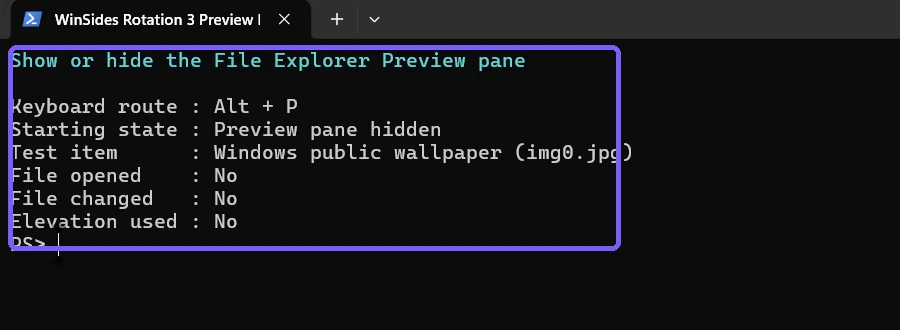
Press Alt + P while File Explorer is active to show or hide the Preview pane. Microsoft documents this as the pane's keyboard shortcut. I reproduced both states with a public Windows wallpaper, then returned the pane to its original hidden state and verified that the selected file did not change.
Choose a privacy-safe file before showing the pane
The Preview pane can reveal document text, photographs, file names, and other content on screen. Do not test it with a personal document, tax form, private photo, work file, cloud item, or shared-folder content if someone else may see the display or screenshot.
The screenshots use C:\Windows\Web\Wallpaper\Windows\img0.jpg, which is a built-in Windows wallpaper. It provides a useful visual result without exposing a personal name or file. The image was selected but not opened, edited, copied, or saved.
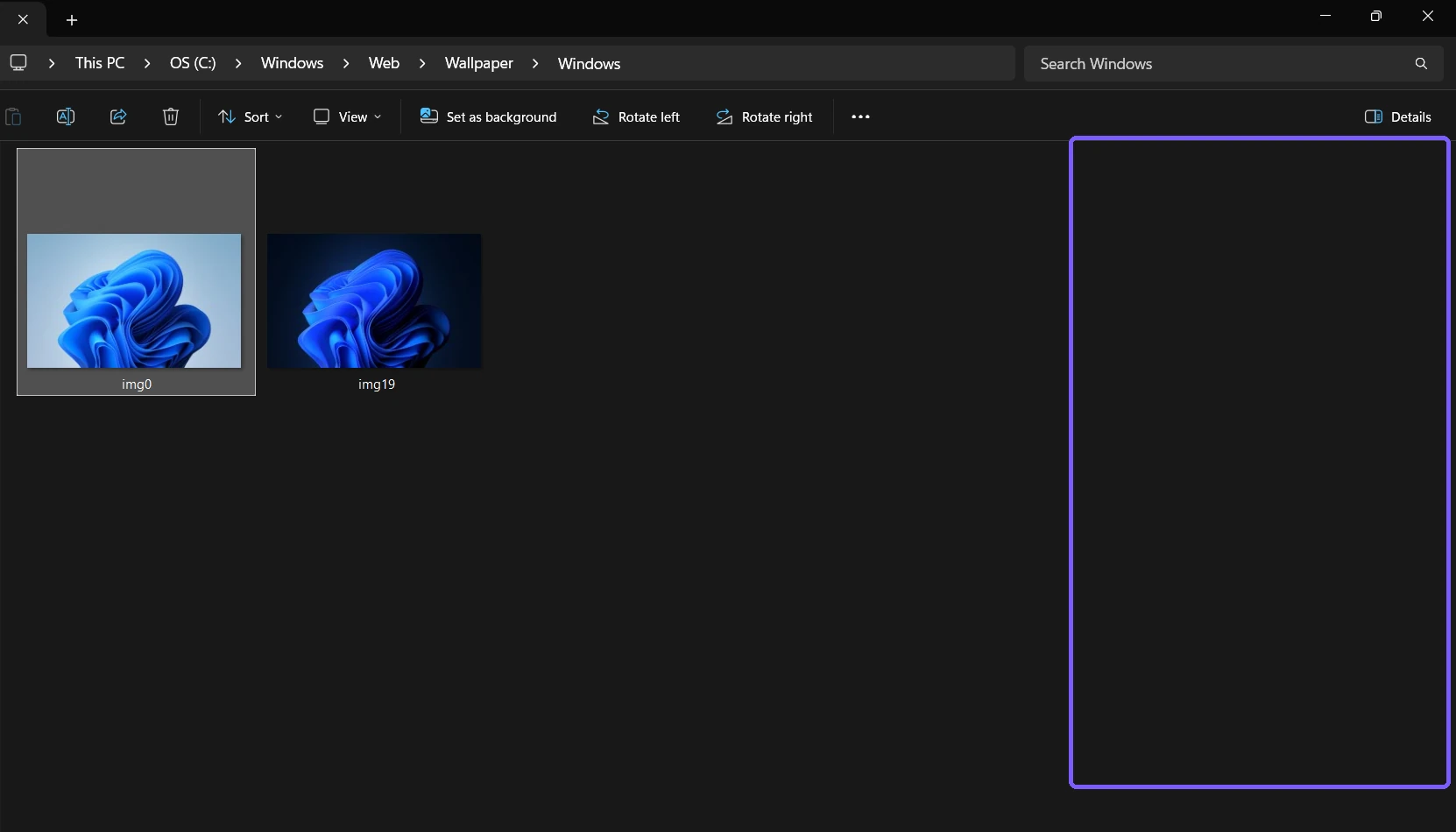
Table of contents
How do you show the Preview pane with Alt + P?
Open File Explorer. Press Windows + E if you need a quick way to open it.
Browse to a folder containing a non-sensitive file.
Select the file once. Do not double-click it.
Press Alt + P.
The pane should appear on the right side of File Explorer. If the selected format has a working preview handler, its content appears inside the pane. No Apply or Save button is required, and opening the pane does not require administrator rights.
What does a successful preview look like?
For the public JPG used in the evidence pass, File Explorer showed a larger view of the selected wallpaper on the right. The folder continued to show both available wallpaper thumbnails on the left, which makes the Preview pane's effect on the layout easy to see.
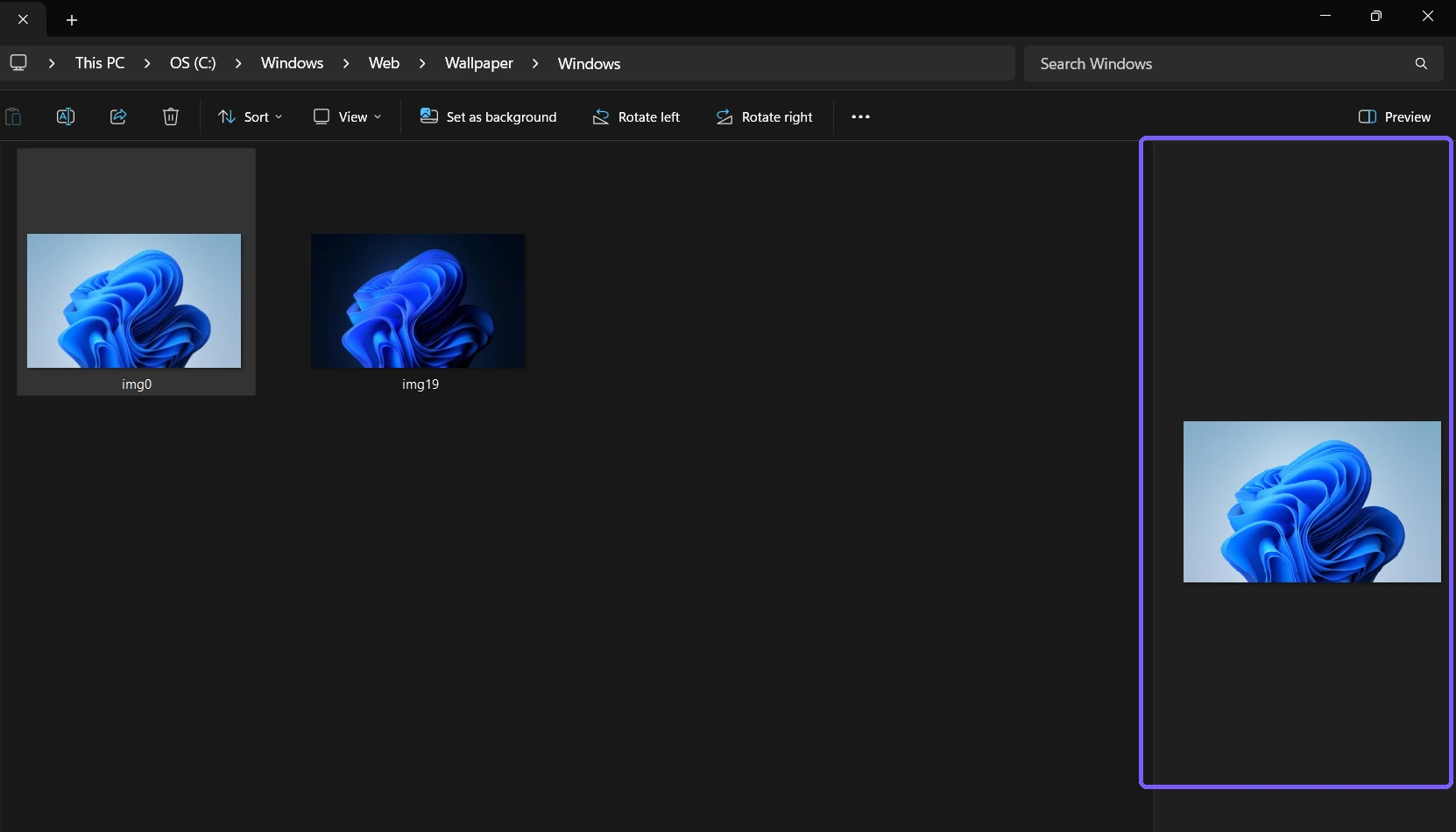
The exact result depends on the file type and the preview handler installed for it. A picture, PDF, text file, Office document, video, or other item can behave differently. A blank pane does not automatically mean that File Explorer itself is broken.
How do you hide the Preview pane?
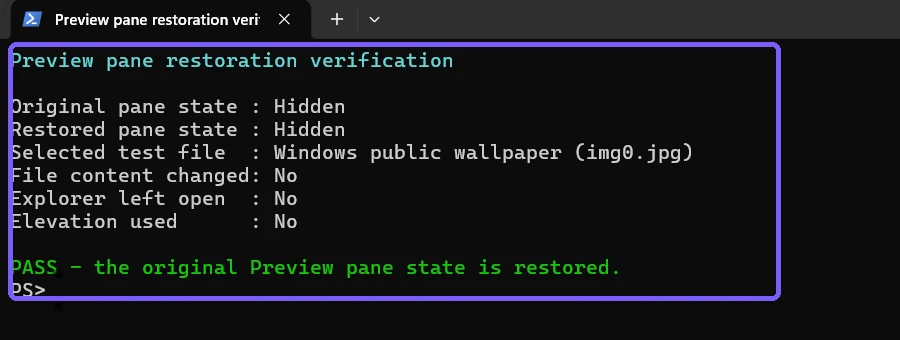
Press Alt + P again while File Explorer is active. The right-side pane closes and the folder view regains the available width. Hiding the pane does not delete a preview, clear file contents, or remove the selected item; it only changes the Explorer layout.
The reproduction ended by restoring the original hidden state, closing the disposable Explorer window, and comparing the selected wallpaper's SHA-256 hash with the pre-test value. The file bytes were unchanged.
Can you use the File Explorer View menu instead?
Microsoft's File Explorer preview documentation describes the graphical route as File Explorer > View > Preview pane. Menu placement can vary as File Explorer's command bar evolves, so use the label you see on your build. The Alt + P shortcut remains the reproduced method in this guide.
If a graphical control is already visible near the right side of the command bar, read its label before selecting it. Preview and Details are separate panes. Do not assume that a button showing one label controls the other.
Is the Preview pane the same as the Details pane?
No. The Preview pane attempts to render the selected file's contents. The Details pane emphasizes properties and metadata such as type, size, path, dates, or dimensions. They have different shortcuts: Alt + P controls Preview, while Alt + Shift + P controls Details.
Neither pane changes whether hidden items appear in the folder. If file visibility is the problem, use the separate guide to show hidden files in Windows 11. Do not toggle a preview pane expecting it to reveal an item that the folder view is hiding.
Why is the Preview pane blank?
Make sure one supported file is selected
Select exactly one normal local file. With no selection, multiple selected items, a folder, or some virtual locations, the pane may have nothing useful to render.
Wait for the preview to load
Large files, network locations, cloud placeholders, and complex formats can take longer. Give the pane a moment before toggling it repeatedly. Avoid downloading a private cloud file merely to create a test.
Try a known local image or text file
A built-in Windows wallpaper is a safer diagnostic target than a personal document. If that file previews correctly, the original format or its preview handler is the more likely source of the problem.
Check the preview-handler setting separately
File Explorer Options includes a setting for showing preview handlers in the Preview pane. That setting is outside this guide. Do not change it unless you first record its current state and understand which handlers are installed.
Avoid unknown preview-handler downloads
A third-party handler runs code to interpret a file. Do not install an unknown extension because one format is blank. Prefer the file type's trusted vendor and current Microsoft guidance, and scan unexpected files before opening or previewing them.
Does the Preview pane open or edit the file?
Showing the pane and selecting an item does not launch the file's normal editor. The reproduced JPG stayed byte-identical. However, a preview handler still reads content to render it, so a cautious user should avoid previewing an untrusted or unexpectedly downloaded file.
The pane can contain interactive controls for some formats. Do not click playback, links, form controls, or embedded actions unless that is your intent. For a basic show-or-hide test, selecting a trusted local image is enough.
Do you need administrator rights?
No. The pane toggled under a standard user account and showed no elevation prompt. You do not need to run File Explorer as administrator merely to show or hide the Preview pane.
File permissions still matter. If you cannot read an item normally, do not change ownership or permissions just to force a preview. Choose a file you already have permission to view.
What should keyboard users remember?
Microsoft's app shortcut reference lists Alt + P for showing or hiding the Preview pane in File Explorer. The shortcut applies to the active Explorer window. If another app, address bar, rename field, or dialog has focus, return focus to the file list and try again.
Frequently Asked Questions
What is the Preview pane shortcut in Windows 11?
Press Alt + P while File Explorer is active to show or hide the Preview pane.
Why does a selected file not appear in the pane?
The format may lack a working preview handler, the item may be unavailable, or File Explorer may still be loading it. Test a trusted local image first.
Does hiding the pane delete anything?
No. Hiding the Preview pane only changes the File Explorer layout; it does not delete or edit the selected file.
Can the Preview and Details panes be treated as the same feature?
No. Preview renders supported content, while Details reports properties and metadata. Their keyboard shortcuts are different.
Conclusion
Select a trusted non-sensitive file and press Alt + P to toggle the File Explorer Preview pane. Use a local image to diagnose a blank pane, keep Preview distinct from Details, and press the same shortcut again when you want the folder view to regain its full width.
For more interesting articles, stay tuned to WinSides.com!
Community
Comments (0)