

The text cursor indicator in Windows 11 adds colored markers above and below the insertion point so it is easier to find in a field or block of text. You can turn the indicator on or off, increase its size, and select a recommended or custom color from one Accessibility page.
This guide covers only the indicator. It does not change the separate text cursor thickness control, text scaling, mouse pointer, or the way every app draws its insertion point. I reproduced the toggle, size, and recommended-color controls under a standard account, then restored the exact recorded On, size 1, black baseline.
Where is the Text cursor page in Windows 11?
Press Windows + I to open Settings.
Select Accessibility in the left navigation.
Under Vision, select Text cursor.
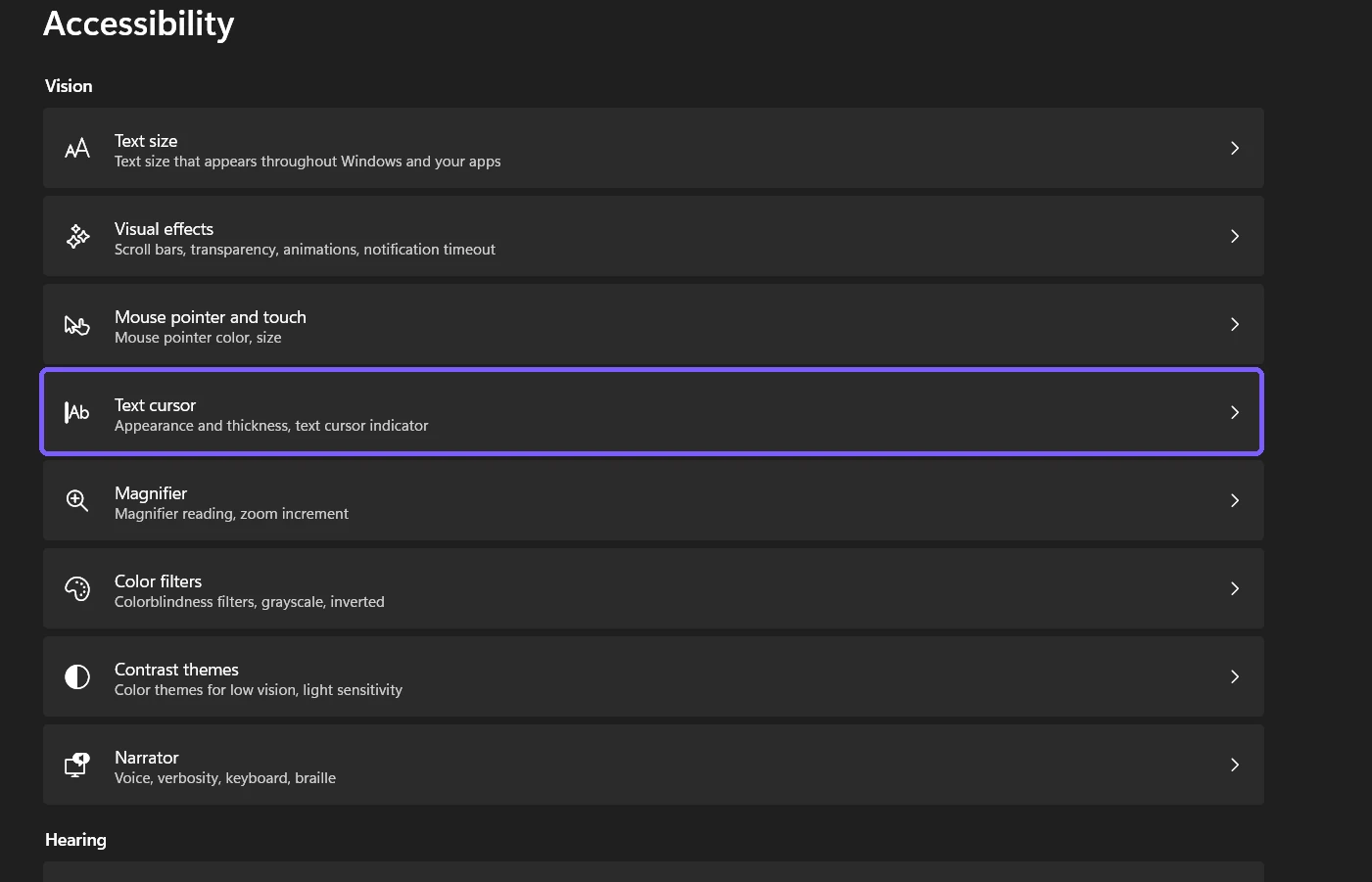
Microsoft's input-device accessibility guide documents this route and the indicator's toggle, size, and color controls. Microsoft's Settings URI reference also documents ms-settings:easeofaccess-cursor for opening this page, but the Settings navigation above is easier to recognize and remember.
Table of contents
How do you turn the text cursor indicator on or off?
Expand Text cursor indicator if its options are collapsed. Use the switch on the right to turn the feature On or Off. The preview at the top of the page updates immediately; there is no Apply or Save button.
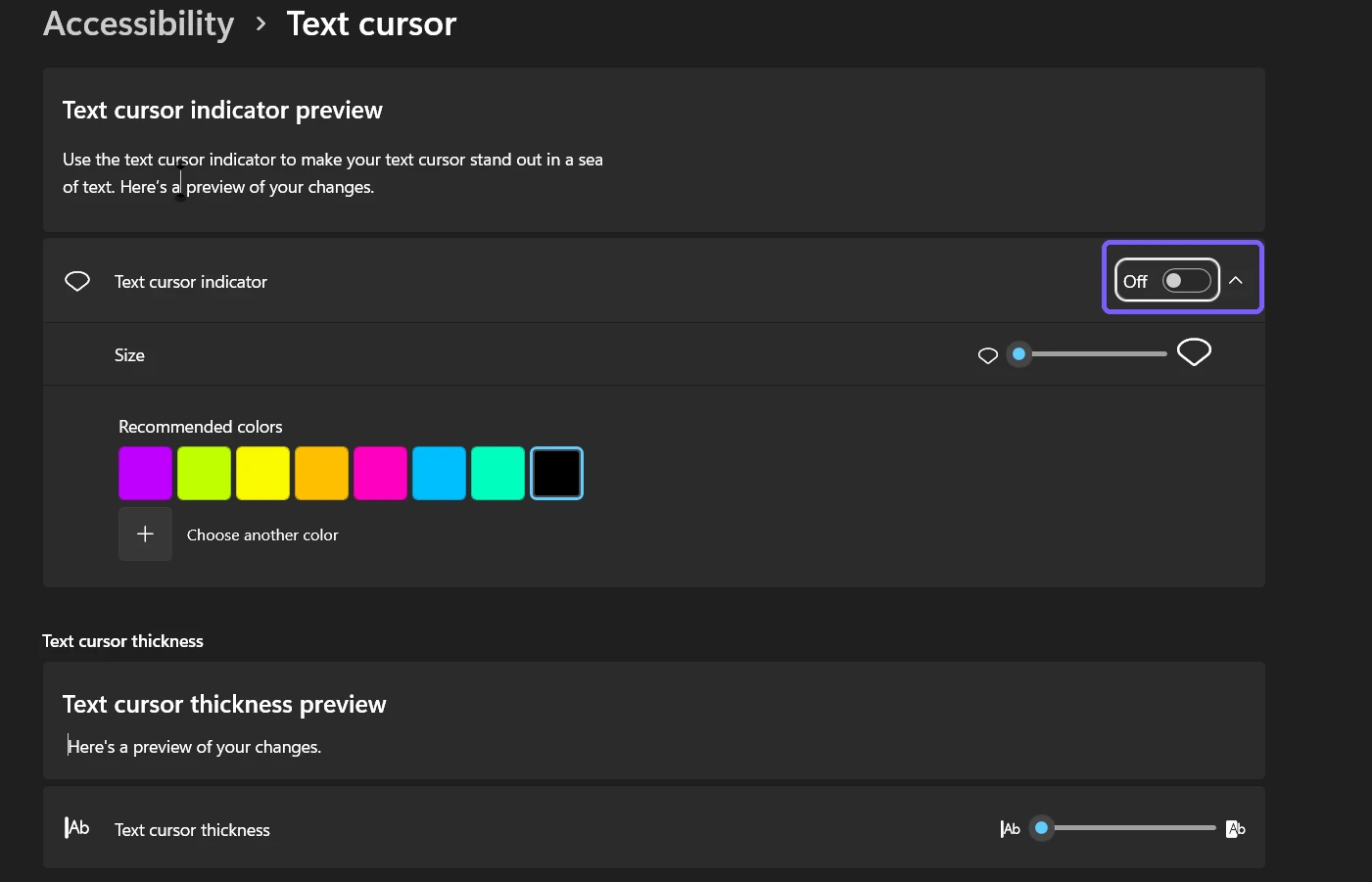
The indicator is an accessibility aid, not the text cursor itself. Turning it off does not prevent typing, remove focus from a field, or hide the normal insertion caret. It only removes the additional colored markers. If you are helping someone else, ask before changing this preference because the current appearance may be deliberate.
How do you change the indicator size and color?
Turn Text cursor indicator On.
Move the Size slider. Watch the preview rather than assuming a larger value will be comfortable in every text field.
Select one of the Recommended colors, or choose Choose another color for a custom choice.
Test the result in the built-in preview before opening a personal document.
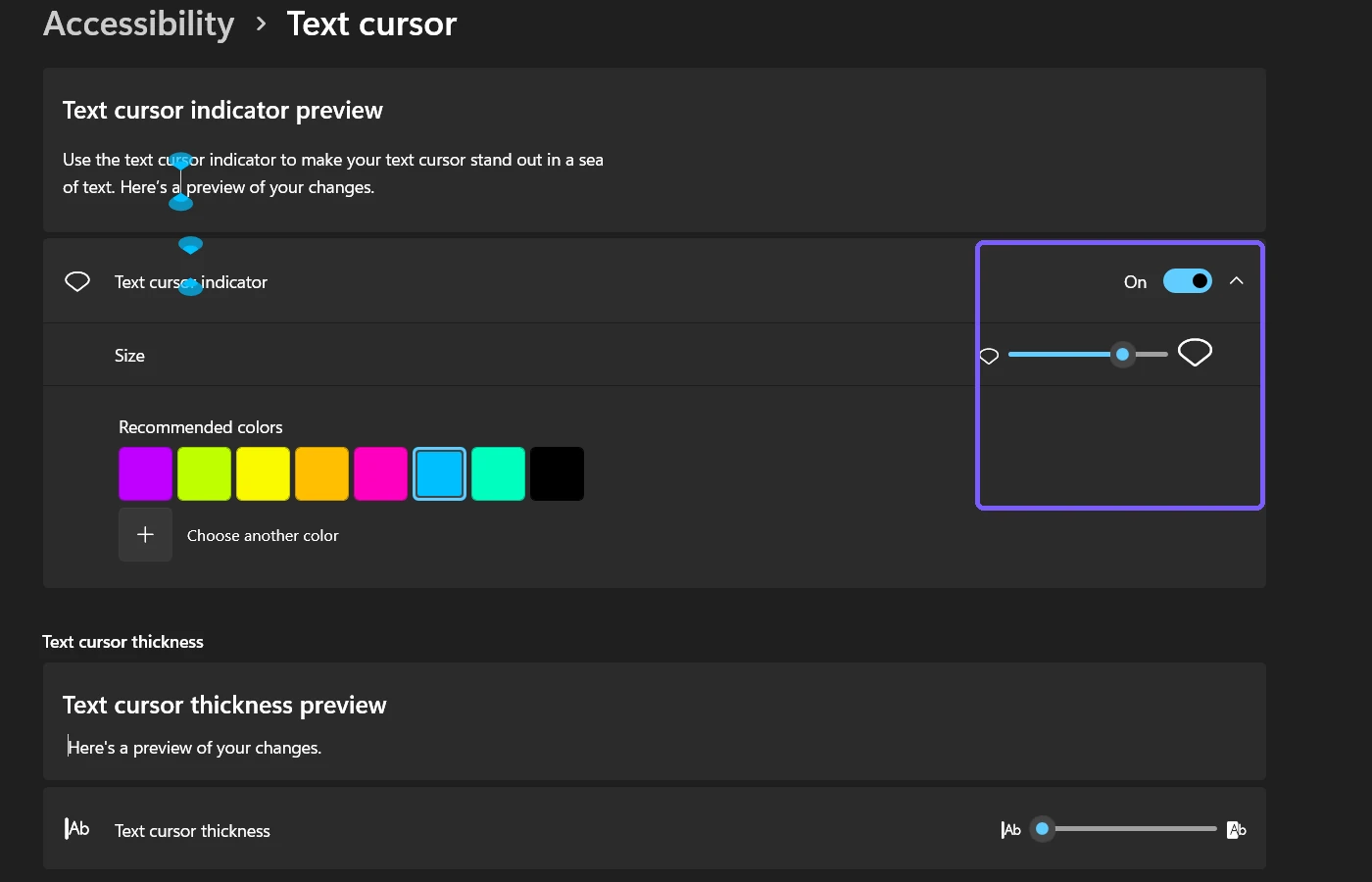
The screenshot shows a deliberately noticeable temporary state: the indicator is On, the size is 4, and Turquoise is selected. The separate Text cursor thickness slider is visible lower on the page but was not changed. Keeping these controls distinct makes rollback precise and avoids combining two different accessibility choices in one procedure.
How should you choose an indicator color?
Choose a color that remains visible against the backgrounds you use most. A bright color may stand out in a dark editor but blend into a similarly colored website, while black may work on a light page and disappear in a dark app. The preview is a starting point, not proof that every application will render the same result.
Try a recommended color before opening the full color picker. Recommended choices are faster to compare and easier to reverse. If you use a custom color, record the current selection first so you can return to it without guessing.
How do you restore the original text cursor indicator?
Return the switch, Size value, and color to the values you recorded before testing. In the controlled reproduction, the starting state was On, size 1, and black. The evidence harness imported its package-local pre-test backup, reopened Settings, and compared the visible controls and persisted values with that baseline. It also confirmed that thickness stayed at 1, Settings was closed, no personal document was opened, and no elevation was used.
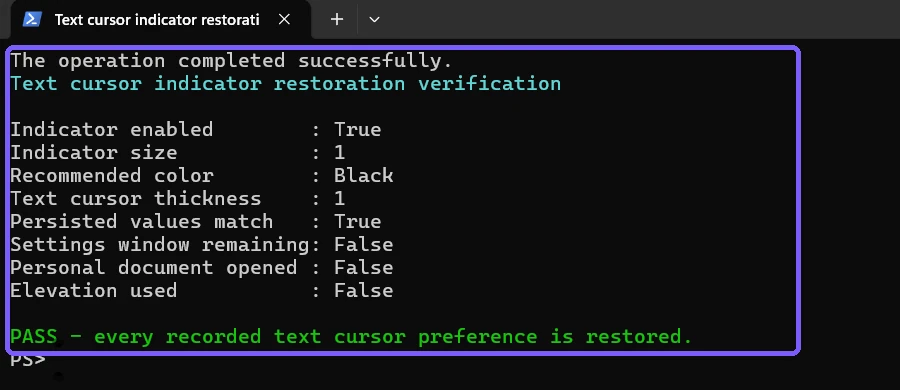
The package-local backup was a verification and exact-rollback safeguard for this reproduction, not an alternate tutorial method. For normal use, restore the values through Settings. Avoid copying Registry commands from an unknown source merely to change an accessibility preference.
Is the text cursor indicator the same as the mouse pointer?
No. The text cursor marks where typed characters will appear. The mouse pointer moves with your mouse, touchpad, or pointing device and can select controls anywhere on the screen. Windows provides separate settings to customize the mouse pointer style.
Changing the indicator will not resize the arrow pointer, alter pointer trails, or change mouse button behavior. If the object you are trying to find moves when you move the mouse, you are looking for the pointer rather than the text cursor.
Does changing the indicator make text larger?
No. The colored markers help locate the insertion point; they do not enlarge menus, labels, or document text. Use the separate Windows option to change the text size in Windows 11 when the characters themselves are difficult to read.
You can use both features together, but change one control at a time and observe the result. That makes it clear which preference helped and makes restoration easier.
Why can the indicator be difficult to see in an app?
The chosen color blends into the background
Return to the Text cursor page and compare another recommended color. Test both a light and dark field if you regularly switch app themes.
The indicator is enabled but very small
Increase Size by one step and check the preview. The largest value is not automatically the best choice; a very large marker can cover nearby characters in compact interfaces.
The app draws its own editor or caret
Some applications use custom text controls and may not present the indicator exactly like the Settings preview. Test a standard Windows text field as a comparison before assuming the Windows preference failed.
You changed thickness instead of indicator size
The thickness slider affects the caret line, while the indicator Size slider affects the colored markers. Recheck the label above the control before moving it.
Do you need administrator rights?
No. These are per-user Accessibility settings. The reproduced changes required no administrator prompt and no restart. If a guide asks for elevation, system-file replacement, or an unrelated utility just to change this indicator, stop and use the built-in Settings page.
Frequently Asked Questions
What does the text cursor indicator do?
It adds colored markers around the insertion caret so the place where text will be typed is easier to locate.
Can I change only the indicator color?
Yes. Leave the switch and Size value as they are, then select a recommended color or use the custom color picker.
Does turning the indicator off stop typing?
No. It removes the added colored markers but leaves the normal text cursor and keyboard input working.
Is text cursor thickness changed by this guide?
No. Thickness is a separate control and remained unchanged throughout the reproduced procedure.
Conclusion
Open Settings > Accessibility > Text cursor to control the indicator. Turn it On, choose a comfortable size and contrasting color, and use the built-in preview before testing an app. Record the starting values first, keep thickness separate, and restore each changed preference if the result is not useful.
For more interesting articles, stay tuned to WinSides.com!




Community
Comments (0)