Skip to content
Winsides.com

Windows Insides

Winsides.com

Windows Insides

  • Windows 11
    • Windows Features
    • Windows Security
  • Shortcuts
    • Windows Shortcuts
    • Desktop Shortcuts
  • Microsoft
    • Microsoft Copilot
    • Microsoft Powertoys
  • Video Tutorials
  • About
    • What’s New?!
    • About us
    • Contact us
    • Privacy Policy
    • Terms of Use
  • Follow us
    • Reddit
    • Dev.to
    • YouTube
    • Linked In
    • X
    • Tumblr
    • Facebook
    • Instagram
    • Buy Me A Coffee
  • Our Tools
    • PeriodlyWise
    • ClockTools
    • Epoch Converter
    • Livetime.io
    • SteamPulse
  • Windows 11
    • Windows Features
    • Windows Security
  • Shortcuts
    • Windows Shortcuts
    • Desktop Shortcuts
  • Microsoft
    • Microsoft Copilot
    • Microsoft Powertoys
  • Video Tutorials
  • About
    • What’s New?!
    • About us
    • Contact us
    • Privacy Policy
    • Terms of Use
  • Follow us
    • Reddit
    • Dev.to
    • YouTube
    • Linked In
    • X
    • Tumblr
    • Facebook
    • Instagram
    • Buy Me A Coffee
  • Our Tools
    • PeriodlyWise
    • ClockTools
    • Epoch Converter
    • Livetime.io
    • SteamPulse
Close

Search

Winsides.com

Windows Insides

Winsides.com

Windows Insides

  • Windows 11
    • Windows Features
    • Windows Security
  • Shortcuts
    • Windows Shortcuts
    • Desktop Shortcuts
  • Microsoft
    • Microsoft Copilot
    • Microsoft Powertoys
  • Video Tutorials
  • About
    • What’s New?!
    • About us
    • Contact us
    • Privacy Policy
    • Terms of Use
  • Follow us
    • Reddit
    • Dev.to
    • YouTube
    • Linked In
    • X
    • Tumblr
    • Facebook
    • Instagram
    • Buy Me A Coffee
  • Our Tools
    • PeriodlyWise
    • ClockTools
    • Epoch Converter
    • Livetime.io
    • SteamPulse
  • Windows 11
    • Windows Features
    • Windows Security
  • Shortcuts
    • Windows Shortcuts
    • Desktop Shortcuts
  • Microsoft
    • Microsoft Copilot
    • Microsoft Powertoys
  • Video Tutorials
  • About
    • What’s New?!
    • About us
    • Contact us
    • Privacy Policy
    • Terms of Use
  • Follow us
    • Reddit
    • Dev.to
    • YouTube
    • Linked In
    • X
    • Tumblr
    • Facebook
    • Instagram
    • Buy Me A Coffee
  • Our Tools
    • PeriodlyWise
    • ClockTools
    • Epoch Converter
    • Livetime.io
    • SteamPulse
Close

Search

Home/Windows 11/Underline Access Keys Windows 11: Show Keyboard Hints in Menus

Underline Access Keys Windows 11: Show Keyboard Hints in Menus

Vigneshwaran Vijayakumar
By Vigneshwaran Vijayakumar
August 4, 2026 18 Min Read
0

Introduction to Underline Access Keys Windows 11

Underline Access Keys Windows 11 is an accessibility and keyboard-navigation setting that makes menu shortcut letters easier to see. When an app supports access keys, one letter in a menu name, command label, dialog button, or control may be underlined. That underline tells you which key can activate the command when used with Alt or within the current menu context.

If you use the keyboard more than the mouse, this setting can make Windows feel more predictable. Instead of guessing whether File, Edit, View, Save, Properties, Apply, or Cancel has a keyboard path, you can scan the interface and see the available letters. The setting does not create new shortcuts. It only makes supported access-key hints visible when an app exposes them.

The confusing part is that Windows 11 mixes old desktop apps, modern apps, web apps, browser pages, Settings pages, Office-style ribbons, context menus, and custom interfaces. Some of them use underlined letters. Some show KeyTips only after you press Alt. Some use normal keyboard shortcuts such as Ctrl + C. Some have no visible access keys at all. That is why users sometimes turn on Underline access keys and think it is broken. It may be working, but only in places where the app supports the older access-key style.

Microsofts Windows keyboard shortcut reference is a useful baseline because it separates keyboard shortcuts from mouse-driven navigation and lists many Windows key combinations that work across the operating system. Microsoft Support Windows keyboard shortcuts reference Microsofts Windows app guidance also explains access keys as keyboard shortcuts for UI controls that improve accessibility and keyboard efficiency. Microsoft Learn access keys guidance This article connects those official ideas to the practical Windows 11 setting.

Table of Contents

  • Introduction to Underline Access Keys Windows 11
  • Key Takeaways
  • What Are Access Keys in Windows 11?
  • How Underline Access Keys Works
  • How to Enable Underline Access Keys in Windows 11
  • How to Test Whether the Setting Is Working
  • Access Keys vs Keyboard Shortcuts vs Keyboard Accelerators
  • Why Underlined Letters Do Not Appear Everywhere
  • Troubleshooting Underline Access Keys Windows 11
  • Accessibility Value of Underlined Access Keys
  • Best Places Where Underline Access Keys Helps
  • How to Use Access Keys Efficiently
  • Common Misunderstandings
  • Work and School Device Notes
  • Developer Perspective: Why Apps Decide What Appears
  • When to Keep Underline Access Keys Turned On
  • Frequently Asked Questions
  • What is Underline Access Keys in Windows 11?
  • Where is Underline Access Keys in Windows 11?
  • Why do I not see underlined letters after enabling it?
  • Is an access key the same as a keyboard shortcut?
  • Does Underline Access Keys affect games and web apps?
  • Should I keep Underline Access Keys turned on?
  • Does the setting make Windows faster?
  • Can my organization disable this setting?
  • Conclusion: Keep Access Keys Visible When Keyboard Navigation Matters

Key Takeaways

  • Underline Access Keys Windows 11 shows supported menu access-key letters more visibly. It helps keyboard users discover commands without pressing Alt repeatedly.
  • Access keys are not the same as regular keyboard shortcuts. Ctrl + C, Alt + Tab, and Windows key shortcuts are different from an underlined letter in a menu or dialog.
  • The setting does not force every app to show underlines. Apps must support access keys or expose keyboard hints in their own interface.
  • Modern Windows apps may use KeyTips or other keyboard cues instead of permanent underlines. Pressing Alt may reveal hints even when the setting does not make them always visible.
  • It is an accessibility setting, not a performance tweak. It improves discoverability and keyboard usability; it does not change system speed.
  • If underlines do not appear, test in classic desktop apps first. Notepad menus, File Explorer dialogs, and older Control Panel windows are better tests than custom web pages.

What Are Access Keys in Windows 11?

Access keys are keyboard paths to visible commands. In a classic menu, you may see a letter underlined in a word such as File, Edit, View, Options, Apply, or Cancel. That underlined letter is the access key. When the menu or dialog is active, pressing the corresponding key can open or activate that item.

For example, in many classic Windows desktop apps, pressing Alt activates the menu bar. If File has F underlined, pressing F opens the File menu. Inside that menu, another command may have its own underlined letter. This creates a keyboard path that does not require the mouse.

Access keys are especially helpful for people who use screen magnification, have limited pointer control, prefer keyboard navigation, use assistive technology, work on remote sessions, or repeat administrative tasks where the mouse slows them down.

Microsofts access-key guidance for Windows apps describes access keys as keyboard shortcuts that improve usability and accessibility by letting users invoke controls through the keyboard. Microsoft Learn access keys guidance In real Windows 11 usage, that can mean a visible underlined letter in a menu, a button label, a check box, a tab, or a dialog command.

The important part is context. An access key usually works when its related menu, window, or dialog is active. It is not always global. The same letter can mean different things in different windows because it belongs to the currently focused interface.

Access keys also help with discoverability. You may know that Ctrl + C copies text, but you may not know whether a specific settings dialog has a keyboard path for Advanced, Apply, Browse, Restore defaults, or Properties. Underlined letters make those paths visible.

How Underline Access Keys Works

The Underline access keys setting changes visual behavior. When available, it makes access-key underlines visible without requiring you to press Alt first. This is useful because many interfaces hide underlines until the keyboard is used.

Without the setting, Windows may show menu underlines only after you press Alt. That behavior keeps the interface visually cleaner for mouse users, but it makes keyboard paths harder to discover. With the setting enabled, supported apps can show those underlines more persistently.

The setting does not add access keys to apps that do not define them. If a modern app, web app, game launcher, custom utility, or browser page does not expose access keys in a Windows-compatible way, there may be nothing for Windows to underline.

It also does not convert every keyboard shortcut into an underline. Ctrl + S, Ctrl + P, Windows + I, Alt + Tab, and F2 are keyboard shortcuts, but they are not always access keys. Access keys are usually attached to visible text labels in the current interface.

This distinction matters when troubleshooting. If Ctrl + S works in an app but no underlined letters appear, the app may support keyboard shortcuts without supporting visible access keys. If pressing Alt reveals letter badges or KeyTips instead of underlines, the app may use a newer access-key presentation.

Microsofts keyboard accessibility guidance for Windows apps emphasizes that users should be able to access interactive UI elements through the keyboard. Microsoft Learn keyboard accessibility guidance Underline access keys is one way Windows helps users discover those keyboard paths where the app supports them.

How to Enable Underline Access Keys in Windows 11

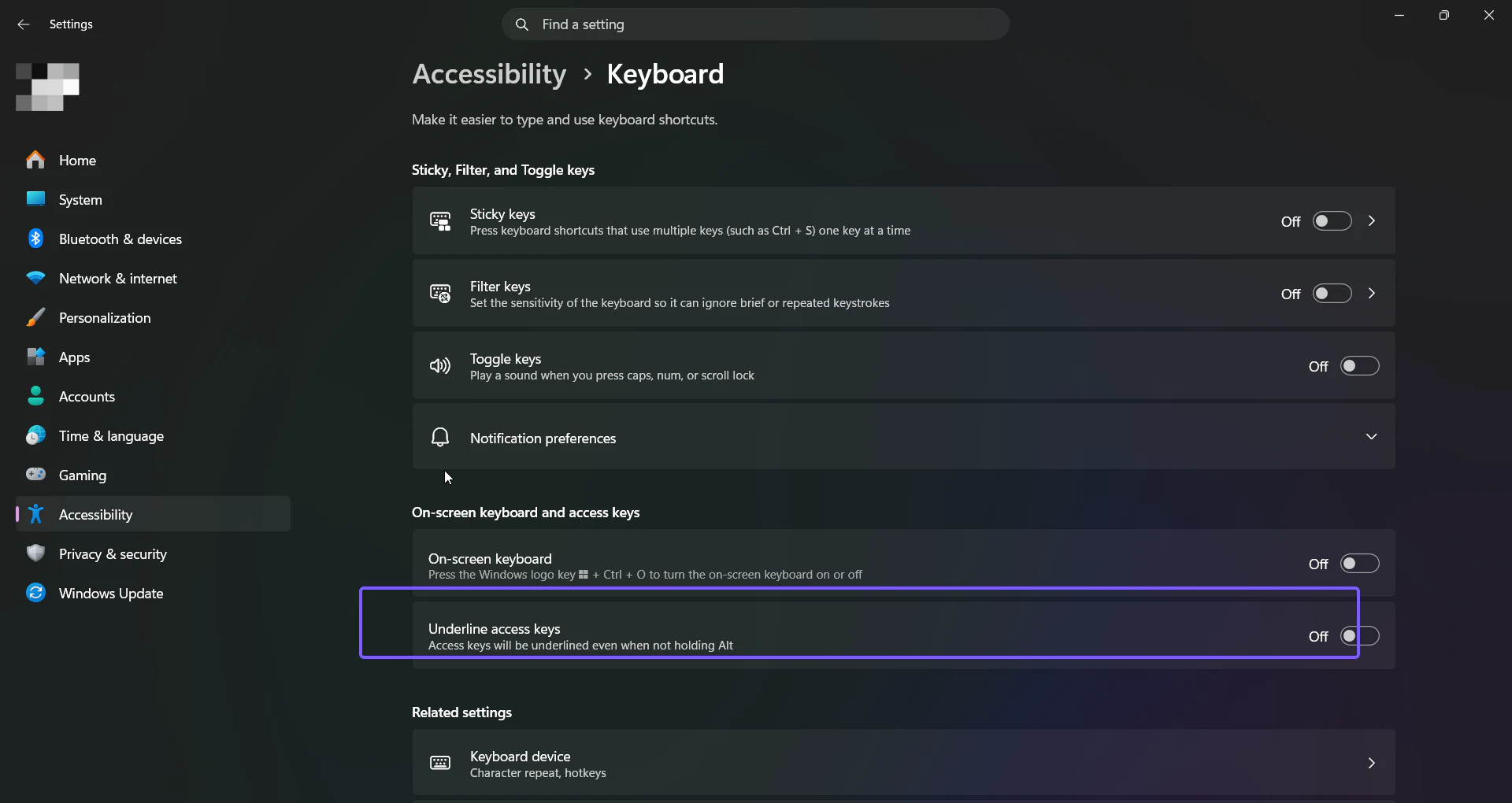
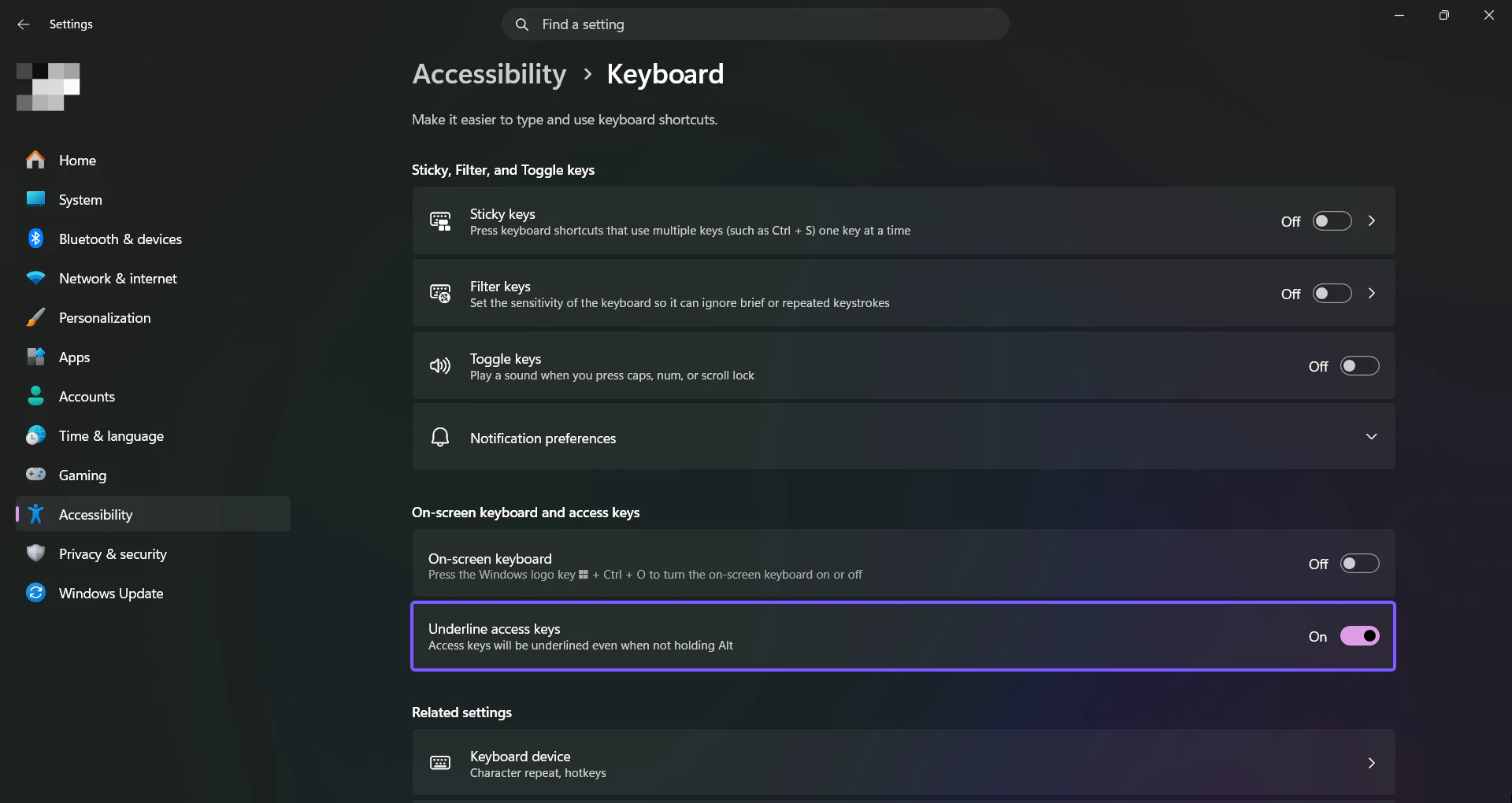
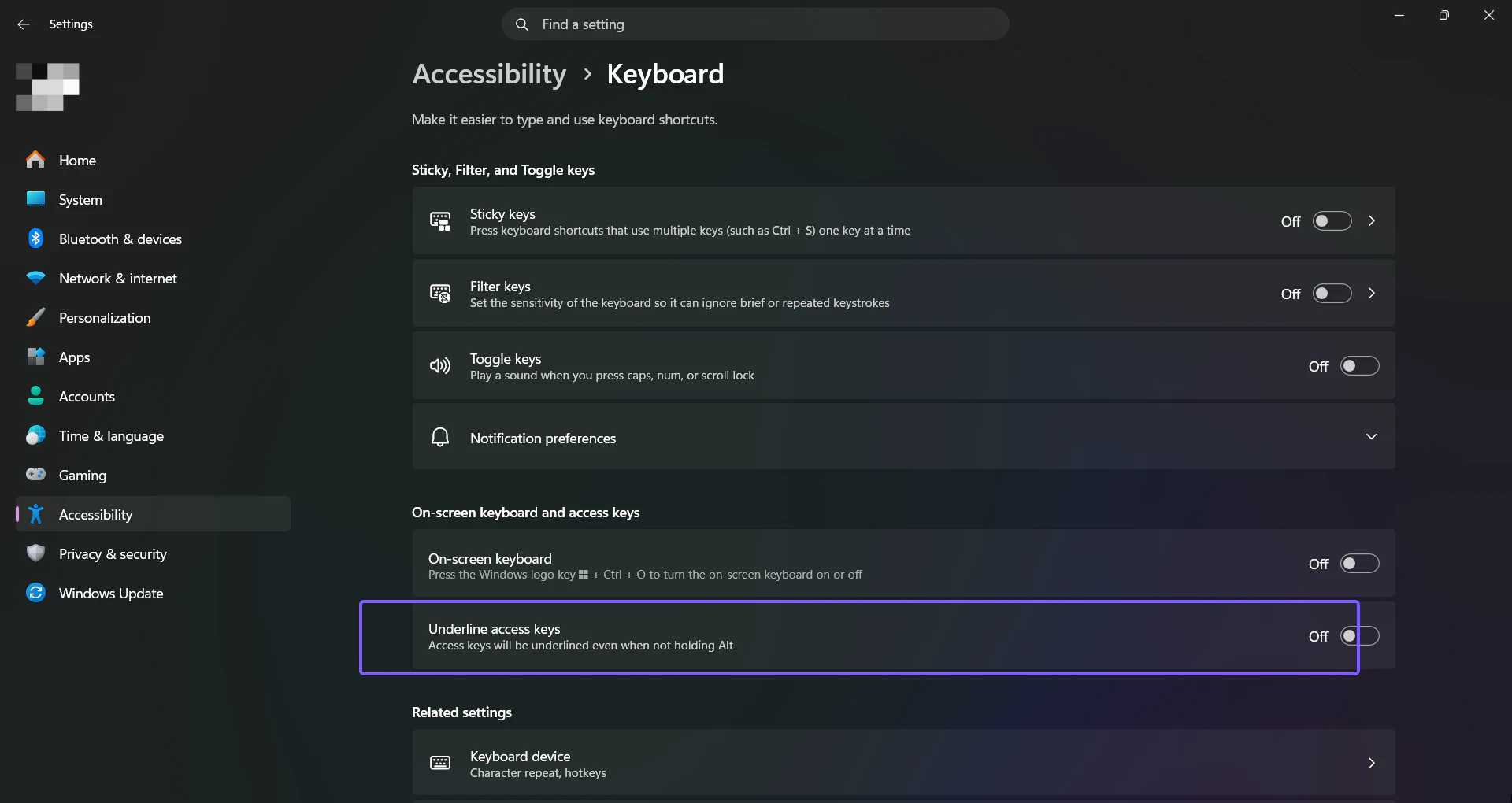
The usual path is through the Windows 11 Accessibility settings.

  • Open Settings.
  • Select Accessibility.
  • Select Keyboard.
  • Turn on Underline access keys or Underline access keys when available, depending on the exact Windows build and wording.
  • Close and reopen the app you want to test if its menu was already open.

You can also search from Start. Press the Windows key, type keyboard accessibility, and open the relevant Settings result. Then look for the keyboard-related accessibility options.

If you prefer the older route, some Windows builds and Control Panel areas still expose keyboard accessibility settings through classic dialogs. However, the Settings app is the cleaner path on Windows 11.

After enabling it, open a classic desktop app such as Notepad or a Control Panel dialog and look for menu or button underlines. If you do not see them immediately, press Alt once. Some apps still reveal access-key hints only when keyboard navigation begins.

If the setting is controlled by your organization, it may be disabled, hidden, or reverted by policy. On managed work or school devices, accessibility and keyboard settings can be configured by IT, especially in locked-down environments.

Underline Access Keys Windows 11 scope map
Underline Access Keys Windows 11 scope map showing what the setting shows, where it helps, how to test it, and what it cannot create.

How to Test Whether the Setting Is Working

Do not test only in a custom app or website. The fastest way to test is to use a classic Windows desktop surface that has known menu behavior.

Open Notepad, press Alt, and look at the menu bar. You should see keyboard cues for menu navigation. Try opening menus from the keyboard. Depending on the app version and Windows behavior, underlines may be visible after Alt or visible more persistently when the setting is enabled.

Open a classic dialog with buttons such as OK, Cancel, Apply, Browse, Advanced, or Properties. These are the kinds of controls where underlined letters often appear. If the control has an access key, the letter can be underlined.

Try File Explorer context and properties dialogs. Some File Explorer surfaces are modernized, while some details and properties dialogs still use older controls. That makes them a useful mixed test.

Try Control Panel. Windows 11 still includes many legacy control panels, and those windows are more likely to expose classic access-key underlines.

Then compare with a modern app such as Settings or a Microsoft Store app. If classic dialogs show underlines but the modern app does not, the setting is not necessarily broken. The modern app may use a different hint model or may reveal keys only after keyboard focus is active.

Finally, close and reopen the app. Some apps read UI settings when they launch. If an app was already open before you changed the setting, it may not repaint all labels until the window is recreated.

Access Keys vs Keyboard Shortcuts vs Keyboard Accelerators

Windows users often mix these terms because they all involve keys. They are related, but they are not identical.

An access key is usually a letter associated with a visible UI label. It helps you activate a command in the current window, menu, or dialog. The visual hint is often an underlined character or a KeyTip.

A keyboard shortcut is a key combination that performs an action. Ctrl + C copies, Ctrl + V pastes, Alt + Tab switches apps, Windows + I opens Settings, and Windows + E opens File Explorer. Microsofts Windows shortcut reference lists many of these system-level and app-level shortcuts. Microsoft Support Windows keyboard shortcuts reference

A keyboard accelerator is a command shortcut that can invoke an app action efficiently, often even when the visible command is not currently focused. Microsoft documents keyboard accelerators for Windows apps separately from access keys because their purpose and implementation are different. Microsoft Learn keyboard accelerators guidance

A menu mnemonic is the older term many people use for the underlined letter in a menu. It is closely related to access keys in classic Win32-style UI.

This matters because turning on Underline access keys will not suddenly show every Ctrl-based shortcut. It affects access-key visuals where the application provides them. If you are looking for all app shortcuts, open the apps help menu or command palette if it has one.

For troubleshooting, ask one question: is the key tied to visible text in this window, or is it a broader command shortcut? If it is tied to visible text, underline access keys may help. If it is a broader command shortcut, the setting may not change anything.

Underline Access Keys Windows 11 keyboard cue map
Underline Access Keys Windows 11 keyboard cue map comparing access keys, shortcuts, accelerators, Alt behavior, Tab order, and app design.

Why Underlined Letters Do Not Appear Everywhere

The most common reason is simple: the app does not expose access keys in a way that Windows can underline. Modern Windows 11 includes multiple UI frameworks and app styles. Not every app uses classic labels with underlined mnemonic characters.

Some apps hide access keys until you press Alt. The setting may make them easier to see in supported places, but pressing Alt is still a useful test because it tells the app you want keyboard navigation.

Some apps use KeyTips instead. Office-style ribbons and newer Windows app designs may show small letter badges or overlays after pressing Alt. Those are still keyboard cues, but they are not always permanent underlines.

Some web apps use browser-level shortcuts or website-defined keyboard behavior. Windows cannot underline every web button because the web page controls its own HTML, scripting, and accessibility implementation. A browser page may have access-key attributes, but display behavior varies by browser and website.

Some apps draw their own interface. Games, design tools, media editors, device utilities, and vendor apps may not use standard Windows controls. If the app paints its own buttons, Windows may not have normal text labels to underline.

Some languages and localizations behave differently. Access keys are based on labels, and labels change across languages. An English menu may use one letter, while a translated interface uses another.

Some controls are icon-only. If a button has no visible text label, there may be no letter to underline. Accessibility can still be provided through names, tooltips, or screen-reader labels, but underlined access keys require visible text cues.

Troubleshooting Underline Access Keys Windows 11

Start by confirming that the setting is enabled. Open Settings > Accessibility > Keyboard and make sure Underline access keys is turned on. If it is already on, toggle it off and back on, then close and reopen the app you are testing.

Test in a classic desktop app. If underlines appear in classic dialogs but not in one modern app, the setting is working and the app is the limitation.

Press Alt. Some interfaces reveal access keys only after Alt starts menu navigation. This is normal and can coexist with the Windows accessibility setting.

Check keyboard focus. If the app is not active, access keys belong to another window. Click the title bar or use Alt + Tab to focus the correct app, then try again.

Close and reopen the app. UI settings may not repaint until controls are recreated. If you changed the setting while the app was already open, a restart of that app is a clean test.

Check whether the app uses a ribbon, command bar, or custom UI. If it shows KeyTips after Alt, the app may not use permanent underlines at all.

Try another Windows user profile if the behavior is profile-specific. Accessibility settings can be per-user, and profile corruption or policy drift can cause one account to behave differently.

Check managed-device policy. In business or school environments, accessibility settings may be configured by policy, reset at sign-in, or hidden by the administrator.

Avoid registry edits unless you have a documented reason. The Settings path is safer, reversible, and enough for normal troubleshooting.

Accessibility Value of Underlined Access Keys

Underlined access keys are not just a cosmetic preference. They make keyboard operation visible. That matters for users who cannot comfortably use a mouse, who use adaptive keyboards, who rely on screen magnification, or who want to keep hands on the keyboard for speed and precision.

Visible keyboard cues also help learning. A new user may not know a dialogs keyboard path, but underlines provide hints without opening help. Over time, repeated use builds muscle memory.

They help in remote sessions too. Remote Desktop, virtual machines, support sessions, and remote admin tools can make pointer movement less precise. Keyboard navigation is often faster and more reliable in those environments.

They reduce cognitive load in repetitive workflows. If a technician repeatedly opens properties, applies a setting, confirms a prompt, or navigates menu commands, visible access keys make the route consistent.

They also support progressive disclosure. You do not need to memorize every shortcut at once. You can discover the path by looking at the interface, pressing Alt, and following the underlined cues.

Microsofts keyboard accessibility guidance emphasizes keyboard access to interactive elements as an accessibility requirement for app experiences. Microsoft Learn keyboard accessibility guidance Underlined access keys are one practical expression of that principle in Windows desktop interfaces.

Best Places Where Underline Access Keys Helps

Underline access keys helps most in classic desktop apps with menu bars. Apps such as older Notepad versions, Paint-style menus, administrative tools, MMC consoles, registry-related dialogs, and legacy utilities often expose useful access-key hints.

It helps in dialog-heavy workflows. Installers, properties windows, Control Panel items, print dialogs, file dialogs, security prompts, and advanced settings panels often include labeled buttons and check boxes that can use access keys.

It helps when using Windows without a mouse. If a mouse, trackpad, or touch input is unavailable, underlined access keys can make it easier to navigate windows without relying only on Tab order.

It helps when teaching someone keyboard navigation. Instead of saying, memorize this hidden command, you can point to the underlined letter and explain how to follow visible cues.

It helps with admin and support documentation. If your guide says press Alt, then F, then A, visible underlines make the instruction easier to validate on the screen.

It is less helpful in apps that already expose a command palette, searchable settings, ribbon KeyTips, or custom shortcut lists. In those apps, use the apps own keyboard help alongside Windows access-key hints.

How to Use Access Keys Efficiently

Start with Alt. In many desktop apps, pressing Alt activates the menu system. Look for the underlined letter or visible KeyTip. Press that letter to open the menu or activate the command.

Follow the chain. After opening a menu, more underlined letters may appear. You can press the next letter to choose a command. For example, a File menu may open, then Save As, Print, or Properties may have their own letters.

Use Tab for controls that do not expose access keys. Not every field has a visible letter. Tab and Shift + Tab move focus between controls, while Space toggles many check boxes and buttons.

Use Enter and Esc. Enter often activates the default button in a dialog, while Esc often cancels or closes. These are not underlined access keys, but they are essential keyboard navigation habits.

Learn the high-frequency shortcuts too. Access keys are discoverable, but common keyboard shortcuts are faster once learned. Microsofts Windows shortcut list is worth bookmarking for system-wide combinations. Microsoft Support Windows keyboard shortcuts reference

Be aware of conflicts. If two commands in one menu would use the same letter, the app may choose different letters or require another navigation step. This is one reason access keys are app-defined rather than globally identical.

Common Misunderstandings

The setting does not underline every shortcut in Windows. It only affects supported access-key cues. A command can have a shortcut without having an underlined letter.

The setting does not guarantee all modern Windows 11 pages will show underlines. Modern UI may use different keyboard hint systems, and some Settings pages do not expose the same classic menu behavior.

The setting does not change what Alt + Tab, Windows key shortcuts, or Ctrl shortcuts do. Those shortcuts work independently of the underline setting.

The setting does not mean an app is inaccessible if no underline appears. The app may still support keyboard navigation through Tab order, screen-reader names, command search, or other shortcuts. Underlines are one accessibility technique, not the only one.

The setting does not fix a broken keyboard. If Alt, Tab, Ctrl, or letter keys do not work, troubleshoot the keyboard hardware, layout, language, driver, remote session, or stuck modifier keys.

The setting does not control browser website design. Websites can implement their own keyboard support, but Windows cannot force every web button to show an underlined letter.

The setting does not remove the need for application documentation. Complex apps may have many shortcuts that are not visible in the interface. Use the apps help page, shortcut editor, or command palette when available.

Work and School Device Notes

On managed Windows 11 devices, accessibility settings can be influenced by organization policy. If Underline access keys turns off after sign-in, after reboot, or after policy refresh, your administrator may be enforcing a standard configuration.

If you rely on keyboard navigation for accessibility, report the requirement clearly. This is not a cosmetic preference in that context. It affects usability and may need to be preserved through policy.

Remote Desktop sessions add another layer. Access keys inside the remote session belong to the remote window, but local keyboard shortcuts may be intercepted depending on the RDP configuration. If Alt combinations behave strangely, check whether Windows key combinations are applied locally or on the remote computer.

Virtual machines can behave similarly. The host may capture certain key combinations, while the guest Windows 11 system receives others. Underlines may be visible, but the key path may not trigger if the host intercepts the command.

Enterprise apps may use custom frameworks. If an internal tool does not show access keys, the app may need developer changes. Windows cannot draw underlines for controls that the app does not expose.

For accessibility testing, developers should verify that commands are reachable by keyboard, focus is visible, tab order is logical, and access keys or alternatives are documented. Microsofts Windows app keyboard accessibility guidance is a useful reference for that expectation. Microsoft Learn keyboard accessibility guidance

Underline Access Keys Windows 11 troubleshooting map
Underline Access Keys Windows 11 troubleshooting map showing setting state, app restart, Alt reveal behavior, custom apps, modern hints, and policy.

Developer Perspective: Why Apps Decide What Appears

Windows 11 can expose the setting, but applications still decide whether they define access keys. A text label must usually identify which character is the access key or expose an equivalent keyboard hint through the UI framework.

In modern Windows app development, access keys and keyboard accelerators are separate concepts. Access keys help users invoke visible controls through keyboard cues. Keyboard accelerators let users invoke commands with key combinations. Microsoft documents both because good apps often need both. Microsoft Learn access keys guidance Microsoft Learn keyboard accelerators guidance

Developers also have to consider localization. If the English label uses P for Print, that may not work in another language. Access keys must be chosen so they make sense and avoid conflicts inside each localized UI.

Developers should avoid hiding all keyboard support behind icon-only buttons. If a command is important, it needs a clear accessible name, logical focus behavior, and a discoverable keyboard path.

For desktop apps, traditional menu mnemonics remain useful. For modern apps, KeyTips, command bars, and accelerators can serve similar goals. The design should let keyboard users discover actions without reading source code or guessing.

This is why one Windows setting cannot make every app behave identically. Underline access keys can reveal supported hints, but the app must supply meaningful hints first.

When to Keep Underline Access Keys Turned On

Keep Underline access keys turned on if you regularly navigate Windows with the keyboard. The visual underlines make command paths easier to discover, especially in dialog boxes where Tab order alone can feel slow. If you frequently use Properties windows, printer dialogs, Control Panel tools, MMC consoles, installers, or administrative utilities, the setting can save small amounts of time many times a day.

Keep it on if you help other users. Support work often involves guiding someone through a screen you cannot fully control. When access keys are visible, instructions such as press Alt, then the underlined letter are easier to follow and easier to verify.

Keep it on if you use remote desktops, virtual machines, or remote support tools. Mouse precision can be weaker in remote sessions, and keyboard paths are often more dependable. Visible access-key letters reduce guessing when the remote interface is lagging.

Keep it on if you are learning Windows keyboard navigation. The underlines act like training wheels. They show you the available route until the path becomes familiar. Later, you may not need to look at the hints, but they remain useful when an unfamiliar dialog appears.

Turn it off only if you find the underlines visually distracting and you do not rely on them. There is no performance penalty worth worrying about, and there is no security downside to leaving the setting enabled. It is mostly a preference unless keyboard navigation is part of your accessibility workflow.

Frequently Asked Questions

What is Underline Access Keys in Windows 11?

It is a keyboard accessibility setting that makes supported access-key underlines visible in menus, dialogs, and controls. These underlined letters show keyboard paths to commands.

Where is Underline Access Keys in Windows 11?

Open Settings > Accessibility > Keyboard, then turn on Underline access keys or Underline access keys when available. The exact wording can vary slightly by Windows build.

Why do I not see underlined letters after enabling it?

The app may not support classic access-key underlines, may show hints only after pressing Alt, may use KeyTips instead, or may draw a custom interface that Windows cannot underline.

Is an access key the same as a keyboard shortcut?

No. An access key is usually tied to a visible command label in the current window. A keyboard shortcut such as Ctrl + C or Windows + I is a broader key combination that may work without a visible underline.

Does Underline Access Keys affect games and web apps?

Usually not much. Games and web apps often use custom interfaces or browser-level behavior. Windows cannot force every custom button or website control to show an underlined letter.

Should I keep Underline Access Keys turned on?

Yes, if you use keyboard navigation often, support other users, work in remote sessions, or prefer visible command hints. It is low risk and easy to turn off if you dislike the visual style.

Does the setting make Windows faster?

No. It is an accessibility and usability setting. It changes visual keyboard cues, not system performance.

Can my organization disable this setting?

Yes. On managed work or school devices, policy or configuration tools may control accessibility and keyboard settings. If you need it for accessibility, ask IT to preserve the setting.

Conclusion: Keep Access Keys Visible When Keyboard Navigation Matters

Underline Access Keys Windows 11 is a small setting with real value for keyboard users. It makes supported command letters easier to discover, reduces mouse dependence, and helps users navigate classic menus, dialogs, and administrative tools more confidently.

The main thing to remember is scope. The setting reveals access-key hints when an app supports them. It does not create shortcuts, rewrite modern apps, or force every website to show underlined letters. If underlines appear in classic dialogs but not in a custom app, Windows is probably working correctly.

For the best experience, enable the setting, test it in classic desktop apps, use Alt to reveal hidden cues, learn the difference between access keys and keyboard shortcuts, and combine it with other keyboard accessibility habits such as Tab navigation, visible focus, Enter, Esc, and common Windows shortcuts.

For more interesting articles, stay tuned to Winsides.com!

Vigneshwaran Vijayakumar
Author

Vigneshwaran Vijayakumar

Hello, I'm Vigneshwaran, the founder, owner, and author of WinSides.Com. With nearly a decade of experience in blogging across various domains and specializing in Windows-related tutorials for over five years, I bring a wealth of knowledge and expertise to WinSides.Com

Follow Me
Other Articles
DISM RestoreHealth stuck at 62% Windows 11
Previous

DISM RestoreHealth Stuck at 62% on Windows 11: Fixes & Guide

CLEAR SSL STATE WINDOWS 11
Next

Clear SSL State Windows 11: Fix HTTPS Certificate Errors

No Comment! Be the first one.

Leave a Reply Cancel reply

Your email address will not be published. Required fields are marked *

  • Camera Driver for Windows 11: Install, Update, and Fix Webcam Issues
  • Fake Windows Update Screen Windows 11: Identify and Remove the Scam
  • SFC Found Corrupt Files But Could Not Repair on Windows 11
  • Clear SSL State Windows 11: Fix HTTPS Certificate Errors
  • Underline Access Keys Windows 11: Show Keyboard Hints in Menus
  1. Vigneshwaran Vijayakumar
    Vigneshwaran Vijayakumar on How to Enable Windows PowerShell 2.0 in Windows 11?October 5, 2025

    Hello Mr. Mohamad El-Kheir, Thank you for contacting us. Microsoft has removed PowerShell version 2.0 completely from Windows 11 24H2…

  2. Avatar of Mohamad El-Kheir
    Mohamad El-Kheir on How to Enable Windows PowerShell 2.0 in Windows 11?October 5, 2025

    i have a MSI laptop with windows 11 Home Installed on it. how to install powershell v2.0 on it

  3. Vigneshwaran Vijayakumar
    Vigneshwaran Vijayakumar on DxDiag Windows 11 – What is it & How to use it for Troubleshooting?August 14, 2025

    Hey Myla Shannon Thank you for your valuable feedback. We are delighted to hear your compliment and excited to know…

  4. Avatar of Myla Shannon
    Myla Shannon on DxDiag Windows 11 – What is it & How to use it for Troubleshooting?August 14, 2025

    This content is incredibly informative.

  5. Avatar of seven
    seven on How to Enable IIS [Internet Information Services] in Windows 11?July 29, 2025

    I found this post very helpful.

Winsides.com

At WinSides, we believe in simplifying technology and making it accessible to everyone.

Explore

Windows 11 Windows Features Windows Security Microsoft Shortcuts

Resources

Video Tutorials What’s New?! Publication Sitemap Why Trust Winsides.com?

Company

About us Contact us Authors Careers Guest Posts

Legal

Privacy Policy Terms of Use Disclaimer Content Removal Request

Our Projects

PeriodlyWise ClockTools EpochTools LiveTime SteamPulse

Copyright 2024-2026 Winsides.com. All rights reserved.