

Introduction to Clear SSL State Windows 11
Clear SSL State Windows 11 is one of those old but still useful fixes that hides inside the classic Internet Properties dialog. It is not in the modern Settings app, and it does not look exciting, but it can help when Windows or a browser keeps reusing stale secure connection information after a website, proxy, certificate, VPN, or network path has changed.
The important thing is understanding its scope. Clear SSL state does not repair the internet by magic. It does not replace an expired certificate, remove malware, update a broken website, or rewrite Windows TLS settings. It clears cached SSL and TLS session information used by Windows Internet components so the next secure connection is forced to negotiate again instead of relying on old state.
That makes it useful after certificate renewals, HTTPS errors that appear only on one Windows profile, repeated client certificate prompts, sign-in loops on old web portals, enterprise proxy changes, VPN changes, or testing work where a server certificate was recently replaced. It is also safe compared with many heavier fixes because it does not delete your personal files, browser bookmarks, saved documents, or Windows account.
This guide explains what Clear SSL State does in Windows 11, how to run it, when it helps, what it does not clear, how it differs from browser cache and certificate store changes, and what to check next when HTTPS certificate errors continue. Microsoft documents Schannel as the Windows Secure Channel provider for TLS and SSL communication, and that background is useful when deciding whether the problem is cached session state, certificate trust, browser cache, proxy inspection, or server-side configuration. Microsoft Learn Schannel secure channel overview
Table of contents
Key Takeaways
- Clear SSL State Windows 11 is a low-risk first step for stale HTTPS session problems. It forces supported Windows Internet components to stop relying on cached secure session state.
- It is not the same as clearing browser history. Browser cache, cookies, DNS cache, and SSL state are different layers.
- It does not remove installed certificates. Trusted root certificates, personal client certificates, and enterprise certificates remain in the Windows certificate stores.
- It helps most when the website, certificate, proxy, VPN, or client certificate path recently changed. It is less useful for genuinely expired, revoked, mismatched, or untrusted certificates.
- Some apps and browsers may keep their own secure connection state. Close and reopen the browser or app after clearing SSL state.
- If errors continue, troubleshoot in order. Check date and time, certificate details, browser cache, DNS, proxy or VPN, security software, and server configuration before making registry changes.
What Clear SSL State Means in Windows 11
Clear SSL State is a button in Internet Properties under the Content tab. In Windows 11, you can open that dialog by pressing Windows + R, typing inetcpl.cpl, and selecting OK. The button is old, but the underlying idea still matters because many Windows networking and browser components depend on cached security context, TLS sessions, certificate choices, and connection decisions.
SSL is the older name people still use, but modern secure web traffic normally uses TLS. When a browser connects to an HTTPS website, the client and server perform a handshake. During that handshake, the browser validates the server certificate, negotiates protocol and cipher information, and creates session material so encrypted communication can continue. Windows Schannel is one of the core components behind this secure channel behavior for Windows-based applications. Microsoft Learn Schannel secure channel overview
For performance, operating systems and browsers do not want to perform every expensive handshake from zero every time. They can cache session information and reuse certain details when safe. Microsofts TLS registry documentation notes that, after a full TLS or SSL handshake, items such as the master secret, cipher suite, and certificates are stored in session cache on the client and server sides. Microsoft Learn TLS registry settings That caching is normal and usually helpful.
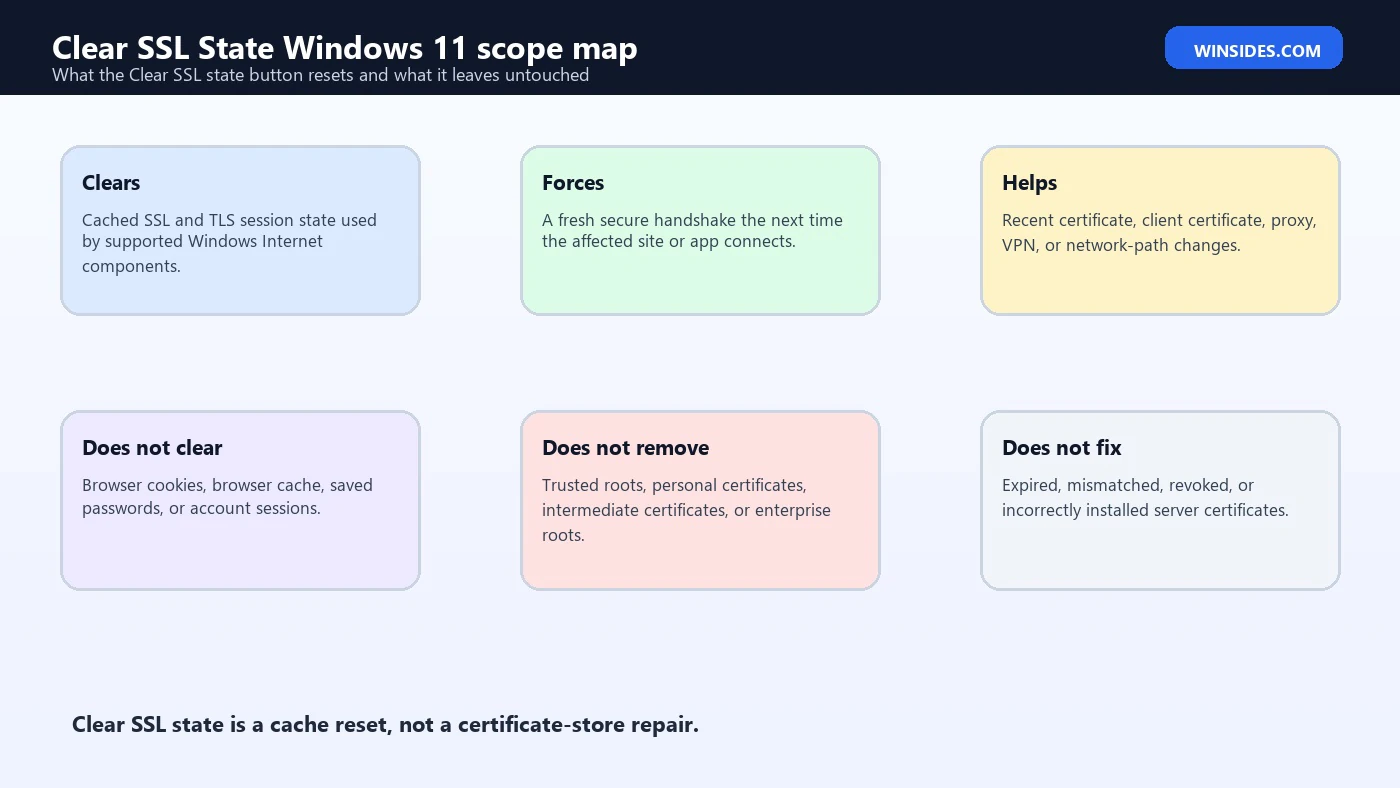
Clear SSL State tells Windows to discard cached SSL or TLS state for supported Internet components. The next connection has to build a fresh secure session. If the problem was caused by stale state, stale client certificate selection, or a recently changed server/proxy path, the new handshake may work correctly.
The key word is state. The button is not a certificate manager. It does not uninstall trusted root authorities. It does not delete certificates from Current User or Local Machine certificate stores. It does not reset the TLS protocol versions configured by policy. It does not fix a server that is still sending the wrong certificate. It simply clears a cached layer that can sometimes outlive the condition that created it.
When Clear SSL State Actually Helps
Clear SSL State is most helpful when something changed recently. If a website had a certificate renewal, a company replaced its TLS inspection certificate, a VPN route changed, a client certificate was added or removed, or you moved from one network to another, Windows might still have cached state that no longer matches the current connection path.
For example, a company portal may ask for a client certificate. You select the wrong one, the portal remembers that connection state, and later attempts keep failing or keep prompting incorrectly. Clearing SSL state, closing the browser, and reopening the portal may force the choice to be made again.
Another example is a website administrator replacing a misconfigured certificate. If your system saw the bad path earlier, a fresh handshake may be needed before the browser behaves normally. This does not mean Clear SSL State fixes the certificate itself. It only prevents a local stale secure session from being the reason the old behavior continues.
It can also help after proxy or VPN changes. Enterprise networks often inspect or route TLS traffic through a proxy, gateway, secure web filter, or VPN tunnel. If the route changes and the old secure session remains cached, some sites may fail until a fresh connection is built.
It may help with old sign-in portals, payment sites, government portals, router pages, intranet apps, or legacy line-of-business websites that rely on older Windows Internet components. These apps are exactly where Internet Properties still matters.
It is less likely to help when every device on the network sees the same error, when the website certificate is genuinely expired, when the site name does not match the certificate, when your system date is wrong, when a root certificate is missing, or when a security product is actively intercepting traffic incorrectly.
How to Clear SSL State in Windows 11
The fastest method is through the classic Internet Properties dialog. It only takes a few seconds.
- Press Windows + R.
- Type inetcpl.cpl.
- Select OK.
- Open the Content tab.
- Under Certificates, select Clear SSL state.
- When Windows confirms that the SSL cache was cleared, select OK.
- Close and reopen the browser, app, or sign-in window that had the HTTPS issue.
You can also open it from Control Panel if you prefer the visual route. Open Control Panel, search for Internet Options, open Internet Properties, select the Content tab, and use Clear SSL state.
After using the button, test the affected site again. If the site was open in a browser tab, close the tab completely. If the browser has several windows open, close the entire browser. Some connection state can remain inside a running process, so testing in the same already-open tab is not always a clean test.
If the problem is with a Windows app, close the app and reopen it. If it is a sign-in problem inside Office, Teams, a VPN client, an endpoint security agent, or a corporate portal, sign out of the affected app if possible, close it, reopen it, and test again.
A restart is usually not required for Clear SSL State itself. However, if a VPN client, proxy agent, security product, certificate installation, or browser update was involved, restarting Windows can remove more process-level leftovers. Use restart as the next step, not as the first explanation.
What Clear SSL State Does Not Delete
The button does not delete browser cookies. If a website keeps redirecting you to the wrong account, failing a session cookie, or looping during authentication, clearing cookies for that site may still be needed.
It does not delete browser cache. If the issue is a cached script, cached redirect, cached HSTS behavior, or an old page file, clearing SSL state alone will not remove those browser artifacts.
It does not flush DNS. If the site recently moved servers and your computer still resolves the old IP address, use DNS troubleshooting. Clear SSL State will not change name resolution.
It does not reset proxy settings. If Windows is configured to use the wrong proxy, if a VPN is required, or if a web filtering product is intercepting traffic, clearing SSL state will not correct the route.
It does not modify Schannel registry settings. Microsoft cautions that Schannel and TLS registry settings should be changed only with care, and that unsupported registry changes can cause unintended consequences. Microsoft Learn TLS registry settings Clear SSL State is much safer than editing those registry paths.
It does not remove certificates from the certificate stores. If you need to inspect personal, trusted root, intermediate, or enterprise certificates, use the certificate manager tools or administrator guidance. Do not delete certificates just because a website error appears.
It does not fix an invalid certificate on the server. If a website sends a certificate for the wrong domain, uses an expired certificate, lacks intermediate certificates, or has a broken chain, that is a site or server-side problem.
Clear SSL State vs Browser Cache vs DNS Cache vs Certificate Store
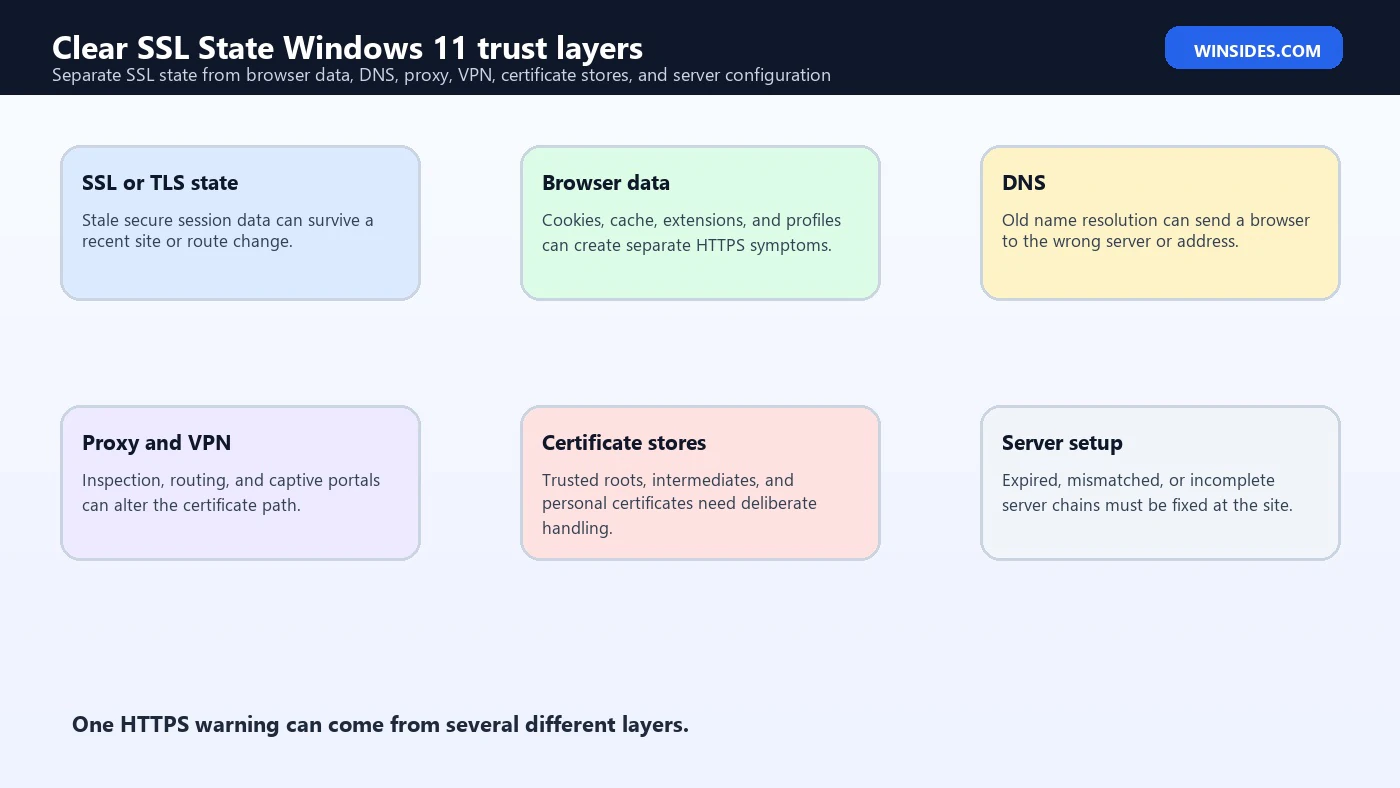
Many HTTPS fixes get mixed together because users see one symptom: the page will not load securely. Underneath that symptom are several layers. Clearing the wrong layer wastes time and can create side effects.
Clear SSL State targets secure session state. Use it when the site, certificate, client certificate selection, proxy path, VPN state, or TLS session behavior may have changed.
Browser cache stores web content, scripts, images, redirects, and site data. Use browser cache clearing when a page loads old content, keeps a broken redirect, or behaves differently in a private window.
Cookies store session identity and site preferences. Use cookie clearing when sign-in loops, wrong account state, repeated consent pages, or application session errors continue after SSL state is cleared.
DNS cache maps names to IP addresses. Use DNS troubleshooting when the website moved, a local hosts file entry exists, only one network resolves incorrectly, or the browser says the host cannot be found.
The certificate store holds trusted roots, intermediate certificates, and personal certificates. Inspect it when Windows does not trust a certificate chain, a company certificate is missing, a client certificate is required, or an endpoint security product installed a TLS inspection root certificate. Do not delete certificate store entries unless you know exactly what they are.
Schannel and TLS registry settings are deeper operating system configuration. Microsoft documents that Schannel implements the Windows TLS and SSL protocols and that protocol settings can affect applications and services. Microsoft Learn TLS registry settings Those settings are not a casual troubleshooting knob. If a normal user-facing clear-state action does not solve the problem, registry changes should still be near the end of the list, not the next click.
How to Know If SSL State Was the Problem
A good troubleshooting step gives you a clear before-and-after result. If clearing SSL state fixes the problem immediately after you reopen the browser or app, the cached secure session was probably part of the issue. The fix is especially convincing if the problem started right after a certificate change, VPN change, proxy change, client certificate prompt, or network move.
If the error returns after a few minutes, the state may not be the root cause. Something may be recreating the bad condition. A proxy might still be intercepting traffic incorrectly. A website might still present an incomplete certificate chain. A security product might still rewrite certificates. A captive portal might still be in the way.
If the same site fails on every browser, every profile, and every device on the same network, SSL state on one Windows profile is unlikely to be the main issue. Look at the network path, DNS, proxy, VPN, firewall, or website configuration.
If one browser works and another browser fails, compare browser-specific cache, extensions, profile settings, enterprise browser policies, and certificate behavior. Clear SSL State may help browsers and apps that use Windows Internet components, but it does not guarantee a full reset of every browsers internal network stack.
If only one Windows user profile has the issue, local state is more likely. Clear SSL State, browser site data, saved credentials, client certificate selection, and user certificate stores become more relevant.
If only one website fails, inspect the certificate details. Look for the subject name, issuer, validity dates, chain status, and whether the certificate is issued to the site you are visiting. Do not bypass warnings on banking, email, admin portals, payment systems, healthcare, or work portals.
Command Line and Admin Notes
For everyday Windows 11 users, the Internet Properties button is the cleanest way to clear SSL state. Administrators and technicians may also use command-line tools to inspect related certificate and URL cache behavior, but those tools are not the same as the Clear SSL state button.
Microsoft documents Certutil as a command-line program for certificate services and certificate-related tasks. Microsoft Learn Certutil command reference You may see advice such as clearing URL cache entries with Certutil. That can be relevant in certificate revocation or CryptoAPI troubleshooting, but it should not be treated as a universal replacement for the Internet Properties button.
Use this kind of command only when you understand why you are using it:
certutil -urlcache * deleteThat command targets certificate URL cache data such as cached retrievals related to certificate chain and revocation checking. It is different from clearing browser cookies, different from flushing DNS, and different from removing installed certificates.
For basic troubleshooting, start with the GUI Clear SSL state button. Then close and reopen the affected app. Then test. If the issue remains and you have evidence of certificate chain or revocation caching trouble, Certutil may become part of an administrator workflow.
Do not run random certificate deletion commands from forums. Removing trusted roots, enterprise roots, personal client certificates, or intermediate certificates can break VPN, Wi-Fi, device management, sign-in, Microsoft services, and internal apps.
Troubleshooting HTTPS Errors After Clearing SSL State
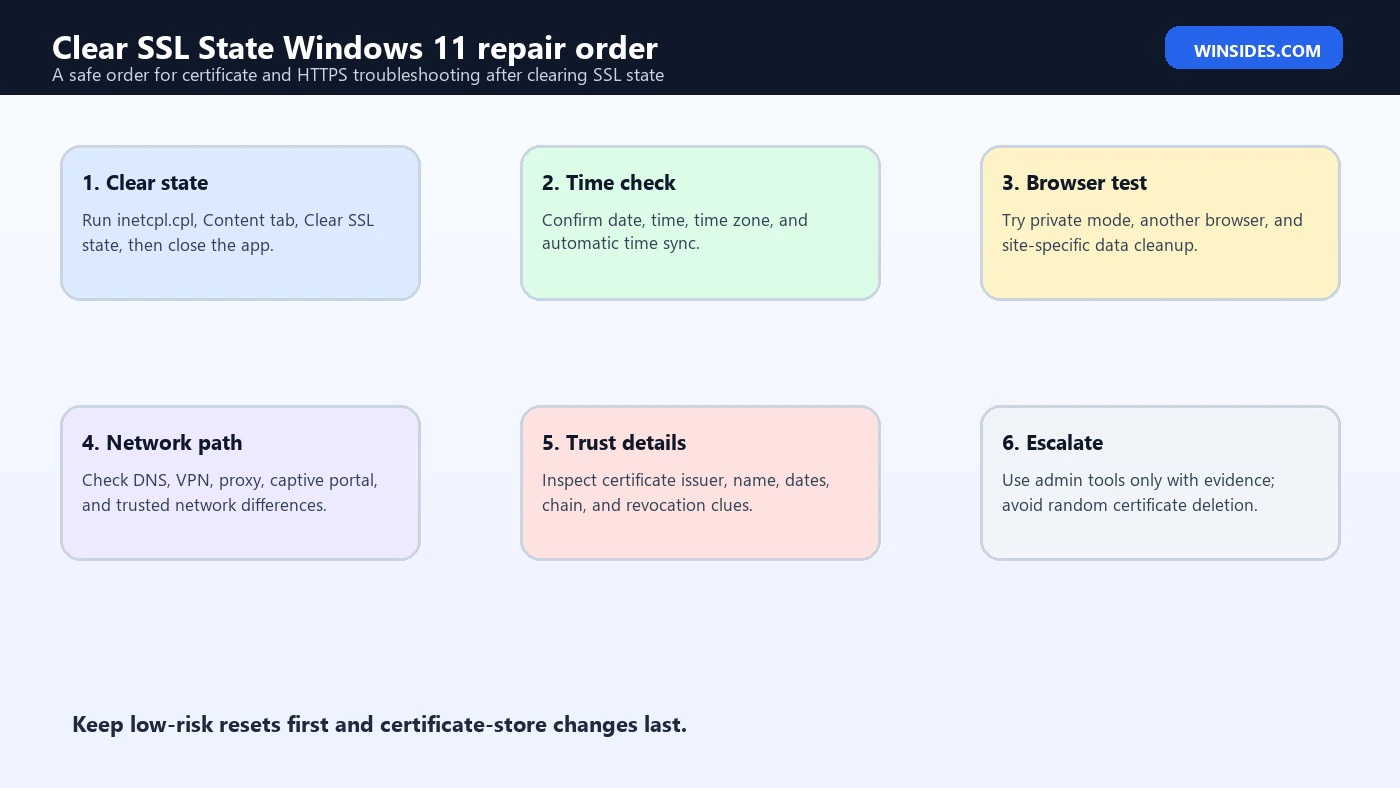
If Clear SSL State does not fix the problem, use a layered repair order. This keeps the work controlled and avoids changing deep settings too early.
First, check the Windows date, time, time zone, and automatic time sync. Certificates are time-sensitive. A PC with the wrong clock may report valid certificates as expired or not yet valid. This is one of the simplest causes and one of the easiest to miss.
Second, check whether the site works in a private or InPrivate window. If it works privately, the issue may be browser site data, cookies, cache, extensions, or profile-specific state rather than Windows SSL state.
Third, test another browser. If Edge and Chrome behave the same way but Firefox behaves differently, the difference may involve the Windows certificate store, browser certificate handling, or profile-level browser settings. If every browser fails identically, look beyond a single browser.
Fourth, check the network path. Disable and re-enable VPN only if your environment allows it. Try another trusted network. If the problem appears only on one network, proxy, captive portal, DNS, firewall, or TLS inspection is more likely than local SSL state.
Fifth, inspect the certificate warning details. Look for expired certificates, name mismatch, untrusted issuer, revoked certificate, incomplete chain, or weak protocol warnings. Each warning points to a different cause.
Sixth, check security software. Antivirus, endpoint protection, parental controls, web filters, and VPN tools can inspect HTTPS traffic. If one of them uses a local certificate or proxy and it is misconfigured, the browser may show certificate warnings. Do not simply disable protection permanently. Update or repair the product, then test.
Seventh, restart the browser and then Windows. If certificate stores, VPN clients, proxy agents, or security filters changed recently, a restart may be needed for processes to pick up the new state.
Eighth, escalate server-side problems. If a public website has a bad certificate, only the site owner can fix it. If an internal website has a broken chain, the server administrator may need to install the correct intermediate certificate, update bindings, renew the certificate, or correct hostname coverage.
Certificate Errors You Should Not Ignore
Some users treat every certificate warning as a nuisance. That is dangerous. Certificate warnings exist because HTTPS depends on verifying identity, integrity, and encryption. Clear SSL State is a troubleshooting reset, not permission to ignore browser warnings.
Do not bypass a certificate warning when the site handles passwords, bank accounts, work accounts, admin consoles, email, tax information, medical information, payment information, device management, or any sensitive data.
Do not install a certificate from an unknown website just because a page says it is required. A malicious certificate can allow traffic interception if trusted by Windows.
Do not change TLS protocol registry settings because an old website fails. Enabling obsolete protocols or weakening cipher settings can reduce the security of the whole system. Microsofts Schannel documentation explains that protocol and TLS settings apply at the Windows TLS layer and may affect applications and services. Microsoft Learn TLS registry settings
Do not assume a certificate error is your PCs fault. If many people see the same warning, the server may be misconfigured. If only one network sees it, a proxy or captive portal may be involved. If only one device sees it, local state, date/time, certificate stores, or security software become more likely.
When in doubt, stop before entering credentials. Take a screenshot of the warning details, note the website address exactly, and compare from another trusted device or network.
Work, School, VPN, and Proxy Environments
Clear SSL State is common in enterprise troubleshooting because work and school networks often add more TLS layers than a home PC. There may be a secure web gateway, authenticated proxy, TLS inspection appliance, endpoint detection product, VPN route, device certificate, user certificate, or conditional access requirement.
If your organization uses TLS inspection, Windows may trust an enterprise root certificate that allows the proxy to inspect traffic. If that root certificate is missing, expired, or installed in the wrong store, certificate errors may appear. Clearing SSL state will not install or repair that certificate.
If your organization uses client certificates, the site may ask Windows or the browser to present a certificate during the TLS handshake. If the wrong client certificate was selected earlier, clearing SSL state and reopening the browser may help force a new selection. If the certificate is missing or expired, clearing state will not help.
If VPN is required, test while connected to the VPN. Some internal sites present certificates that are valid only for internal names, internal DNS, or private certificate authorities. Outside the VPN, the route may point somewhere else or fail certificate validation.
If a proxy is required, confirm that Windows proxy settings are correct. A wrong proxy can produce certificate warnings if traffic is being intercepted, redirected, or sent through a gateway that is not trusted by the device.
If the device is managed by Intune, Group Policy, domain policy, or a security agent, do not remove certificates, disable security features, or alter TLS settings without administrator guidance. The local error may be a symptom of policy drift, device compliance failure, expired credentials, or missing configuration.
Browser-Specific Notes for Edge, Chrome, Firefox, and Legacy Apps
Microsoft Edge and Google Chrome on Windows often interact with Windows certificate infrastructure, but they also maintain browser-level caches, site data, profiles, extensions, and network service processes. That means Clear SSL State can help some issues, but it is not a complete browser reset.
After clearing SSL state, fully close the browser. Make sure all browser windows are closed. If the browser continues running in the background, exit it from the tray or task manager before retesting. Then reopen it and test the site directly.
If one site still fails, clear that sites cookies and cached data rather than wiping the entire browser immediately. Site-specific cleanup is cleaner and preserves unrelated sign-ins.
Firefox has its own profile behavior and may not respond exactly the same way as browsers that rely more heavily on Windows Internet components. If Firefox works but Edge fails, compare Windows certificate trust, Edge profile state, extensions, and enterprise browser policies. If Edge works but Firefox fails, check Firefox-specific site data, certificate settings, and enterprise roots behavior.
Legacy apps are different. Some old applications use WinINet, some use WinHTTP, some use embedded browser controls, and some bring their own TLS library. Clear SSL State may help a WinINet-based app but not an app that uses its own network stack. Microsofts WinINet option documentation is useful background because Windows Internet components have their own options and session behavior. Microsoft Learn InternetSetOption WinINet reference
For Microsoft Store apps, Office sign-ins, VPN clients, and enterprise agents, a process restart or Windows restart may be more important than the button itself. These apps may keep tokens, sessions, or network handles open beyond the Internet Properties dialog.
Developer and Localhost Scenarios
Developers run into SSL state problems when testing HTTPS locally, changing development certificates, switching between self-signed and trusted certificates, rotating reverse proxy certificates, or using the same hostname for different test environments.
If localhost or a development domain fails after certificate changes, clear SSL state, close the browser, and reopen the test URL. If that does not help, check the certificate binding, hostname, subject alternative name, trusted root, and browser site data.
Do not trust every self-signed certificate permanently. For development, use a controlled local development certificate workflow. Remove old development certificates when they are no longer needed, but do so deliberately from the proper certificate store.
If you use IIS, a local reverse proxy, Docker, WSL, a dev tunnel, or a corporate proxy, confirm which layer is presenting the certificate. The browser warning shows the certificate it received, not necessarily the certificate you intended to serve.
If you reused a hostname and see the wrong certificate, clear SSL state and DNS cache, restart the browser, and confirm name resolution. Then inspect the server binding. Many local HTTPS problems are really name resolution or binding problems, not Windows SSL cache problems.
For scripted testing, do not depend on Clear SSL State as a substitute for correct certificate lifecycle management. Automated test environments should create, trust, rotate, and remove certificates predictably.
Safe Repair Order for Clear SSL State Windows 11 Problems
Use this order when you are troubleshooting a stubborn HTTPS or certificate problem on Windows 11.
- Confirm the exact error message and site address.
- Check Windows date, time, and time zone.
- Clear SSL State from Internet Properties.
- Close and reopen the affected browser or app.
- Test the site in a private browser window.
- Test another browser.
- Clear site-specific cookies and cached data if private browsing works.
- Flush DNS only if name resolution seems wrong.
- Test another trusted network if possible.
- Check VPN and proxy state.
- Update the browser, Windows, VPN client, and security software.
- Inspect the certificate details without bypassing the warning.
- Check whether other users or devices see the same error.
- For managed devices, escalate to IT before removing certificates or changing TLS policy.
- For server-side sites, verify certificate chain, hostname, binding, and intermediate certificates.
This order keeps the low-risk steps first. It also separates local cached state from real trust failures. The goal is not just to make the warning disappear; the goal is to restore a trustworthy secure connection.
Common Mistakes to Avoid
Do not clear SSL state and then retest in the same already-open failing tab. Close and reopen the browser or app so the next connection is actually fresh.
Do not delete certificates randomly. Certificate stores are part of Windows trust, Wi-Fi, VPN, device management, enterprise sign-in, code signing, and secure web browsing. Removing the wrong certificate can create more failures than the original issue.
Do not disable HTTPS scanning or endpoint security permanently. If a security product is causing certificate warnings, update it, repair it, or ask the administrator. Permanent disablement is not a fix.
Do not ignore the website address. Attack pages often use similar-looking names. Before troubleshooting, verify that the URL is exactly the one you intended to visit.
Do not assume Clear SSL State works for every app. Some apps use their own TLS stack, store, cache, or credential layer. For those apps, look for app-specific network settings and logs.
Do not edit Schannel registry settings unless you have a specific, documented requirement. Microsoft warns that registry changes can have serious consequences, and TLS configuration changes can affect many applications. Microsoft Learn TLS registry settings
Do not use obsolete SSL terminology to make bad security decisions. The button says SSL state, but modern Windows 11 HTTPS traffic should use TLS. The old label does not mean you should enable old SSL protocols.
Frequently Asked Questions
Where is Clear SSL State in Windows 11?
Press Windows + R, type inetcpl.cpl, select OK, open the Content tab, and select Clear SSL state. You can also search Control Panel for Internet Options and open the same Internet Properties dialog.
What does Clear SSL State do?
It clears cached SSL and TLS session state for supported Windows Internet components. The next secure connection must negotiate fresh state instead of relying on old cached secure session information.
Does Clear SSL State delete certificates?
No. It does not remove trusted root certificates, intermediate certificates, personal certificates, or enterprise certificates from Windows certificate stores.
Does Clear SSL State clear browser cache?
No. Browser cache, cookies, DNS cache, and SSL state are separate. You may need browser site-data cleanup if the issue is a sign-in loop, bad cookie, or cached redirect.
Should I restart after clearing SSL state?
Usually you can close and reopen the affected browser or app first. Restart Windows if a VPN client, security product, certificate installation, or proxy change was involved, or if the problem continues after closing the app.
Why does the SSL certificate error come back?
The underlying cause may still exist. Common causes include wrong system time, expired site certificate, name mismatch, missing intermediate certificate, untrusted root, proxy inspection, VPN routing, security software, captive portal, or server misconfiguration.
Is it safe to clear SSL state?
Yes, it is generally a low-risk troubleshooting step. It is much safer than deleting certificates or changing TLS registry settings. Still, it is only a cache/state reset, not a full certificate repair.
Does Clear SSL State work for Chrome and Edge?
It can help in some cases because Windows certificate and Internet components may be involved, but Edge and Chrome also have browser-level profile, cache, cookie, extension, and network-process state. Close and reopen the browser after using it.
What should I do if a work website still fails?
Check whether VPN is required, whether the device is managed, whether a proxy or TLS inspection certificate is involved, and whether other users see the same issue. On managed devices, contact IT before removing certificates or changing TLS settings.
Conclusion: Clear SSL State Is a Safe First Reset, Not a Certificate Fix
Clear SSL State Windows 11 is useful when HTTPS problems are caused by stale secure session information, recent certificate changes, client certificate selection, proxy changes, VPN changes, or old Windows Internet component state. It is quick, low risk, and worth trying before heavier resets.
The safest workflow is simple: open Internet Properties, clear SSL state, close and reopen the affected browser or app, and test again. If the problem disappears, the cached state was likely part of the issue. If the problem continues, move through the layers carefully: time, browser data, DNS, VPN, proxy, security software, certificate details, and server configuration.
Do not use Clear SSL State as an excuse to bypass certificate warnings. Secure connection errors can indicate real identity or interception problems. Use the button as a reset, then verify that the connection is actually trustworthy.
For more interesting articles, stay tuned to Winsides.com!









Community
Comments (0)