

Introduction to VN Video Editor for PC Windows 11
VN Video Editor for PC Windows 11 is a popular search because many creators know VN from mobile editing and want the same timeline style on a desktop or laptop. The good news is that VN now exposes an official Windows download path from its own website. The important detail is that you should use that official route instead of random emulator pages, fake PC installers, APK repacks, or download portals.
The official VN website describes VN as a photo and video editor for creators, with messaging around free editing, no watermark, no ads, 4K support, keyframes, filters, music, and social media workflows. official VN website The official download page presents VN download choices for supported platforms and includes a Windows option. official VN download page The Windows option currently routes through VN’s official PC download path, which redirects to the latest Windows desktop package. official VN Windows PC download route
That distinction matters. A video editor can access local media folders, large project files, imported clips, exported videos, audio, fonts, overlays, and sometimes account or cloud features. A fake installer can do much more damage than simply failing to open. For Windows 11 users, the safest approach is to download from VN’s official site, confirm the source, install the desktop version normally, and avoid cracked premium builds or unofficial APK-based workarounds.
This guide explains how to download VN Video Editor for PC on Windows 11 safely, what to expect from the official Windows build, how to prepare your PC for editing, how to set up a first project, how to export for YouTube, Shorts, Reels, and TikTok, and how to troubleshoot common problems such as lag, failed export, missing audio, and confusing fake download pages.
Table of contents
Key Takeaways
- Use the official VN website. Start from the official VN home page or download page, then choose the Windows option. official VN website official VN download page
- There is an official Windows route. The official Windows download path redirects to a VN desktop installer instead of merely telling users to use an emulator. official VN Windows PC download route
- Avoid fake PC download pages. Do not install cracked, patched, modded, APK-repacked, or emulator-bundled VN packages from random sites.
- Expect a large installer. The official Windows route currently points to a desktop package around hundreds of megabytes, so use a stable connection.
- Windows 11 editing performance depends on hardware. CPU, GPU, RAM, storage speed, display resolution, and source footage format all matter.
- VN is strongest for quick creator edits. It fits social video, short-form content, vlogs, simple timelines, captions, music, filters, speed changes, and export workflows.
- Back up original clips and project files. A video editor is not a backup system, and exported videos are not the same as editable projects.
What Is VN Video Editor?
VN, also known as VN Photo & Video Editor or VN Video Editor, is a creator-focused editing app. It is known for a clean timeline, easy trimming, music, filters, transitions, text, keyframe-style motion, speed controls, and export options aimed at social platforms.
The official VN website positions the app around easy professional-style editing for YouTube, Shorts, Reels, and social video. It highlights ideas such as 4K editing, keyframes, zero ads, no watermark, and a creator-friendly workflow. official VN website Those claims should be understood as VN’s own product positioning, not a guarantee that every Windows PC can edit every 4K file smoothly.
On Windows 11, VN is useful if you want a simpler editor than Adobe Premiere Pro, DaVinci Resolve, or complex desktop NLE software. It is not meant to replace every professional post-production workflow. Instead, it is attractive for fast edits, mobile-style creator content, quick reels, simple overlays, family videos, educational clips, product demos, and casual YouTube work.
The PC version matters because desktop editing is different from phone editing. A Windows PC can offer a larger screen, easier keyboard shortcuts, better folder organization, external drives, mouse precision, multiple monitors, and more comfortable long editing sessions.
The key is downloading the right version. Because VN is widely searched, many websites try to capture traffic with fake PC installer pages. Some only provide Android APKs, some push emulators, and some may bundle unrelated software. Use the official source first.
Is VN Video Editor Available for Windows 11?
Yes, the official VN site currently provides a Windows path. On the home page download area, the Windows option appears as a PC-related download entry, and the official route `/download/pc/` redirects to the latest Windows package. official VN Windows PC download route
This is important because older advice around VN for PC often depended on Android emulators. That may still appear in search results, but it is not the cleanest recommendation when an official Windows desktop package exists.
The official download path can change over time. VN may update the version, file host, installer package, or website layout. That is why it is safer to link users to the official VN download route rather than a third-party copy of one installer.
If the Windows option is temporarily unavailable in your region, use the official download page and help center for the current route. official VN download page official VN Help Center Do not switch to an unknown mirror just because it promises a faster PC download.
A Windows 11 PC should generally handle the installer, but editing performance depends on hardware. A basic office laptop may install VN successfully but still struggle with high-bitrate 4K files, heavy effects, screen recordings, or long timelines.
Official Download Path for VN on Windows 11
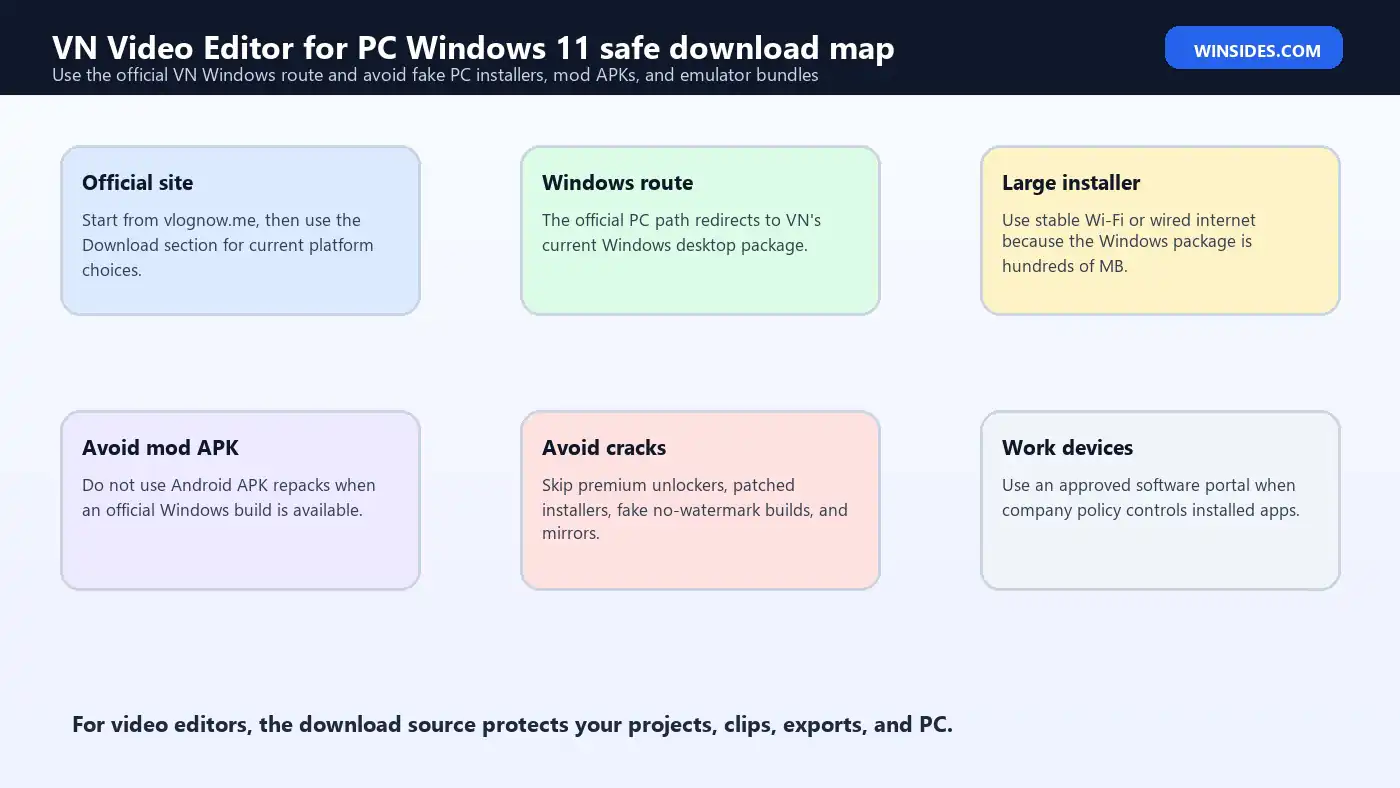
The safest route is to open the official VN website, use the Download section, and choose Windows. official VN website official VN download page You can also use the official PC download route, which redirects to the current Windows package. official VN Windows PC download route
If you start from search, check the URL carefully. The official website is under `vlognow.me`. Avoid pages that use names similar to VN but are not the official domain. Also avoid pages that present themselves as a special Windows 11 version, premium unlocked version, offline crack, mod APK for PC, or emulator preinstall bundle.
A safe download process looks like this:
- Open the official VN website.
- Choose Download.
- Select Windows or PC from the official page.
- Let the official redirect deliver the current installer.
- Save the installer to Downloads.
- Run it only after confirming the source.
- Keep one installer copy if needed, then clean old downloads later.
If your browser or security software blocks the file, do not immediately disable protection. First confirm the source. If the file came from the official VN route but your work device blocks it, organization policy may be involved. On managed devices, use the IT-approved software portal.
Why Fake VN for PC Download Pages Are Risky
Video editor download pages are heavily abused. A user searches for VN Video Editor for PC Windows 11 and may see pages offering direct downloads, old APK files, emulator bundles, cracked builds, or installer wrappers. Some may work, but that does not make them safe.
A fake installer can ask for permissions, create startup entries, install browser extensions, bundle adware, collect system data, or hide additional payloads. Even a less malicious portal can give you an outdated or modified build.
APK-based pages are another issue. VN has Android availability, but an Android APK is not the same as a native Windows desktop package. Running APKs on Windows usually requires an emulator or subsystem-style environment. That adds complexity, more background processes, and often worse editing performance than a native PC app.
Cracked or modded packages are especially unsafe. VN’s official site already promotes free editing and no watermark. official VN website There is no good reason to install a random cracked VN build that claims to unlock features while risking malware.
Treat video editor downloads like browser, remote access, and password manager downloads: the source is part of the security model.
System Requirements and Practical Performance
VN’s official site may not present a simple Windows 11 spec table in the same way some desktop editors do, so it is better to think in practical editing requirements.
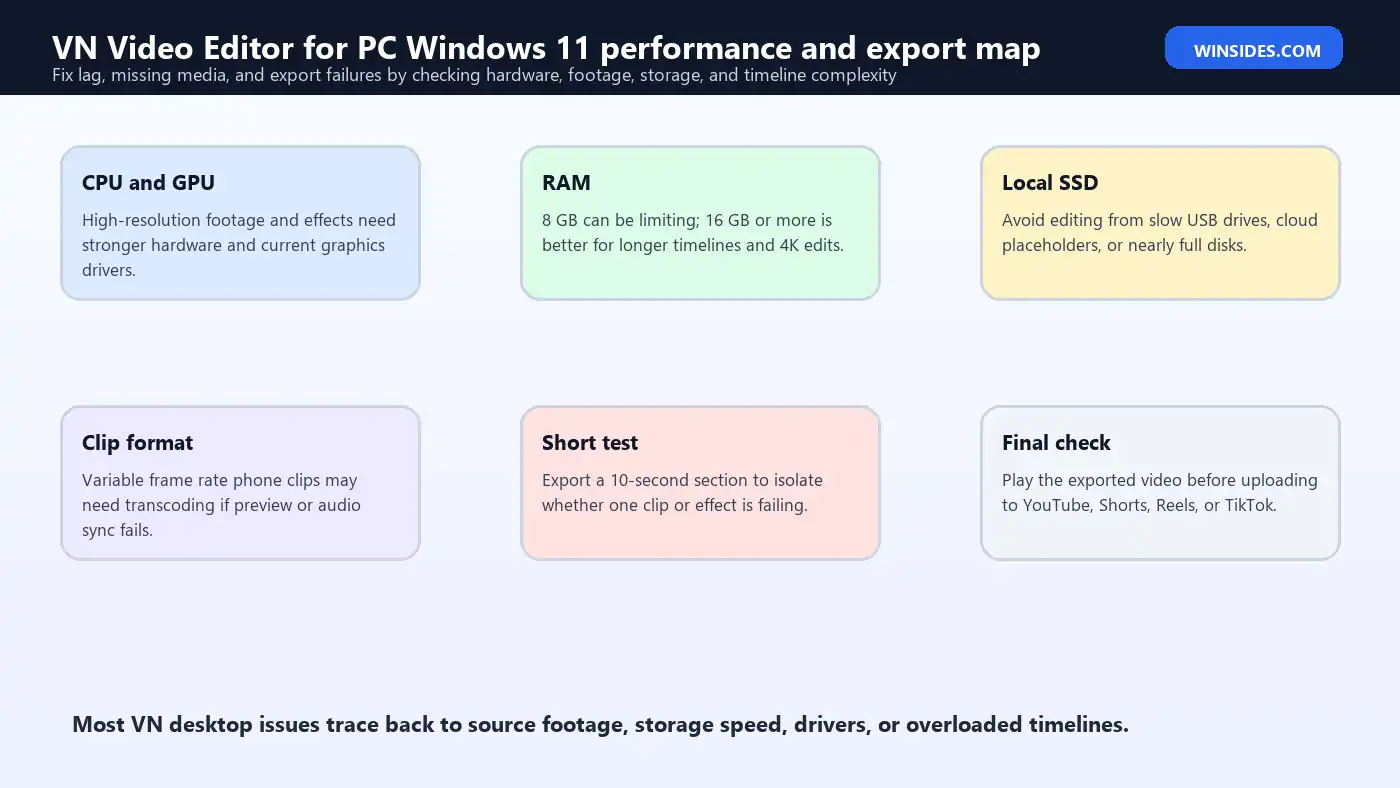
For light 1080p editing, a modern Windows 11 laptop with an SSD, 8 GB of RAM, and a current Intel, AMD, or ARM-based processor may be acceptable. For smoother editing, 16 GB of RAM is a better baseline. For 4K footage, long timelines, multiple layers, effects, or high-bitrate phone video, a stronger CPU, dedicated GPU, and faster storage help a lot.
Storage speed matters. Editing from an old hard drive, a slow USB flash drive, a nearly full SSD, or a cloud-synced folder can cause lag. Copy active footage to a fast local SSD before editing.
Source format matters too. Phone videos can use high-efficiency codecs that look great but are harder to decode. Screen recordings may use variable frame rate, which can cause audio sync or stutter issues in some editors. If a clip behaves badly, transcoding it to a more editing-friendly format may help.
Display size also affects comfort. VN may install on a small laptop, but long editing sessions are easier on a 15-inch or larger display, or with an external monitor.
How to Install VN Video Editor on Windows 11
After downloading the Windows installer from the official VN route, open the file from your Downloads folder. If Windows asks for confirmation, check that the file came from VN’s official download path or the file host reached through that official path.
Run the installer and follow the prompts. Keep the default installation location unless you have a clear reason to change it. After installation, open Start and search for VN or VN Video Editor.
Before editing an important project, create a small test project. Import a short clip, trim it, add a text layer, add music if needed, export a short video, and play the exported file in a normal media player. This confirms that the app, import, timeline, preview, and export pipeline work on your PC.
If the app does not launch, restart Windows once and try again. If it still fails, update Windows, update graphics drivers, and check whether your security software quarantined part of the installation.
If you are on a work or school PC, installation may fail because non-approved software is blocked. That is policy, not necessarily a VN bug.
First Project Setup on PC
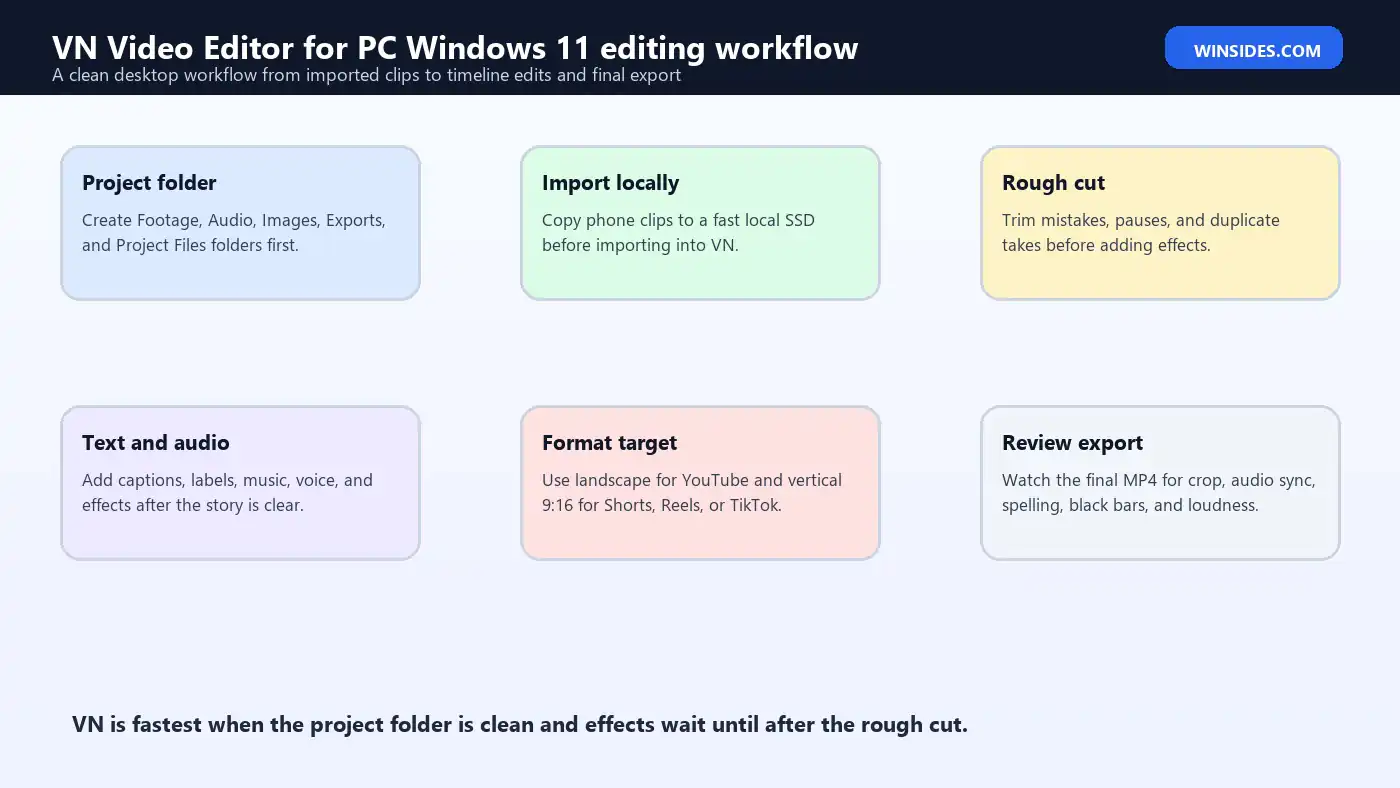
A clean folder structure makes PC editing easier. Create a project folder before opening VN. Inside it, create folders such as Footage, Audio, Images, Exports, and Project Files. Copy your clips into the Footage folder before importing.
Do not edit directly from a phone connected by USB if the project matters. Copy the files locally first. Editing from a phone, memory card, or cloud-only folder can cause missing media and slow preview.
Open VN, create a new project, and import your media. Arrange clips on the timeline in story order. Trim the beginning and ending of each clip before adding effects. A clean rough cut makes the rest of editing easier.
Add text, music, transitions, filters, and overlays after the basic structure is right. New editors often add effects too early and then spend time fixing timing problems.
Save project work regularly if the app provides a save or project management flow. Also keep original media files in the same folder structure until the entire project is complete and backed up.
Basic Editing Workflow in VN on Windows 11
Start with a rough cut. Remove mistakes, dead air, duplicate takes, long pauses, and accidental camera movement. Keep the edit simple until the story is clear.
Next, adjust pacing. Short-form videos usually need tighter pacing than long YouTube videos. Do not add transitions to hide every cut. Most edits work best with simple cuts and occasional transitions only where they support the flow.
Add text for clarity. Captions, labels, lower thirds, step titles, and callouts can make a video easier to follow. Keep text inside safe areas so it does not get covered by platform UI on Shorts, Reels, or TikTok.
Add music and sound effects carefully. Music should support the video, not overpower speech. If a voice track is important, lower the music volume and preview with headphones.
Use filters and color adjustments lightly. Heavy filters can damage skin tones, make screen recordings hard to read, and increase export time.
Finish with export settings. Choose resolution, frame rate, and quality based on the target platform and source footage.
Export Settings for YouTube, Shorts, Reels, and TikTok
Export settings should match the destination. For YouTube landscape videos, 1920 x 1080 is a practical default for many creators. If your footage and PC can handle it, 4K export can preserve more detail, but it takes longer and creates larger files.
For YouTube Shorts, Instagram Reels, and TikTok, vertical 9:16 video is usually the standard. A common resolution is 1080 x 1920. Keep captions and important visuals away from the very bottom and sides because platform buttons and captions may cover them.
Frame rate should usually match the source footage. If the footage is 30 fps, export at 30 fps. If it is 60 fps and the content benefits from smooth motion, export at 60 fps. Do not upscale frame rate for no reason.
Bitrate and quality settings affect file size. Higher quality looks better but takes longer to export and upload. For social media, avoid exporting a huge file if the platform will heavily recompress it anyway.
Always watch the exported file before uploading. Check audio sync, text spelling, crop, black bars, loudness, and whether any overlays are cut off.
Keep the project file and original media until the final upload is complete and approved.
VN on PC vs VN on Mobile
VN on mobile is convenient because footage often starts on a phone. You can shoot, import, edit, and publish quickly. Mobile editing is good for fast social content.
VN on PC is better when you want a larger timeline, easier file management, keyboard and mouse precision, bigger preview, external drives, and longer editing sessions. It is also easier to organize assets across folders on a PC.
The tradeoff is transfer. If footage is shot on a phone, you must move clips to the Windows PC. Use a reliable cable, cloud transfer, local network transfer, or external storage. After transfer, verify file sizes and playback before deleting anything from the phone.
Some mobile features may not behave exactly the same on desktop, and some desktop build behavior may change as VN updates. When in doubt, create a small test project before committing to a large edit.
A practical workflow is to capture clips on phone, organize and edit on PC, export on PC, then upload from either PC or phone depending on the platform.
VN vs Clipchamp on Windows 11
Clipchamp is Microsoft’s built-in or Microsoft-backed video editor experience for many Windows users, while VN is a third-party creator-focused editor. Both can be useful, but they appeal to different workflows.
Clipchamp is convenient if it is already integrated into your Microsoft account or Windows workflow. It is easy for basic trimming, templates, and quick edits.
VN may feel more familiar to users who already edit on mobile or want a timeline style built around short-form creator editing. VN’s official site emphasizes no watermark, no ads, 4K support, keyframes, and social video use cases. official VN website
Use Clipchamp when you want a Windows-first beginner editor and template-driven simplicity. Use VN when you specifically like VN’s editing style, mobile-to-PC workflow, or creator-focused controls.
For professional color grading, complex audio mixing, advanced multicam editing, and large production workflows, consider heavier tools. VN is best judged as a creator editor, not a full professional post-production suite.
VN vs CapCut, DaVinci Resolve, and Premiere Pro
CapCut is a major competitor for short-form social video. It has strong templates, effects, captions, and social trend features. VN is often preferred by users who want a cleaner editor with less clutter and a straightforward timeline.
DaVinci Resolve is far more powerful for color grading, audio, effects, and professional workflows. It also has a steeper learning curve and heavier hardware needs. If your Windows 11 PC struggles with simple editing, Resolve may be too demanding.
Adobe Premiere Pro is a professional editor used in many production environments. It is excellent for complex projects, but it requires a subscription and more learning.
VN sits in the middle: simpler than professional desktop editors, more editing-focused than basic trimming tools, and familiar to many mobile creators.
The best editor is the one that lets you finish videos reliably. If VN exports cleanly, handles your footage, and fits your content style, it is a good Windows 11 choice.
Troubleshooting VN Download Problems
If the official download route does not start, try another browser and make sure your connection is stable. The Windows installer is large, so interrupted downloads can happen on unstable Wi-Fi.
If the browser shows a warning, verify the source. The official path starts from `vlognow.me` and redirects to VN’s package host. official VN Windows PC download route If the file came from a random site, delete it and download again from the official page.
If a third-party site tries to install a download manager first, leave the page. VN does not need a separate third-party downloader.
If the official site is blocked on a work network, use an approved network or ask IT. Do not bypass corporate controls to install editing software on managed hardware.
If the installer download is slow, wait or try later. Do not switch to an unofficial mirror unless VN itself links to it.
If you downloaded a partial file, delete it and restart the download. A corrupted installer can produce confusing setup errors.
Troubleshooting Installation and Launch Issues
If the installer fails, restart Windows and run the installer again from a local Downloads folder. Do not run it from a network share, cloud placeholder, or incomplete download.
If Windows blocks installation, check Windows Security history. Confirm whether the file was blocked because of policy, reputation, or actual detection. Source verification comes before overriding warnings.
If VN installs but does not open, update Windows 11, update graphics drivers, and close heavy background apps. Video editors use graphics and media components that can fail when drivers are old or unstable.
If the app opens to a blank window, try restarting the PC and launching again. If you use multiple monitors, move the app to the primary display.
If VN crashes when importing a certain clip, test with another small MP4 file. If the second clip works, the first file may use a codec, variable frame rate, high bitrate, or corruption that VN does not handle well.
If every clip causes a crash, the installation, driver, or Windows media environment may need repair.
Troubleshooting Laggy Preview
Laggy preview does not always mean VN is broken. Video editing is demanding. High-resolution footage, high-bitrate phone clips, screen recordings, filters, speed changes, and multiple layers can overload a weak laptop.
Copy media to a fast local SSD. Close browsers, games, screen recorders, and cloud sync apps while editing. Keep enough free disk space for temporary files and exports.
Lower preview quality if VN provides that option. Preview quality can be lower than export quality. This helps the timeline play smoothly while preserving final output.
Break long projects into shorter sections. A 30-minute timeline with many layers is harder to manage than several smaller sequences.
If one clip causes lag, transcode it to a more editing-friendly MP4 with constant frame rate. Variable frame rate phone or screen recordings are a common source of weird timeline behavior.
If lag started after a graphics driver update, consider installing a stable driver from your PC maker or GPU vendor.
Troubleshooting Export Failures
If export fails, first try a short test export from the same project. If a 10-second export works but the full export fails, the problem may be a specific clip, effect, storage limit, or long timeline issue.
Check free disk space. Exporting video requires enough space for the final file and sometimes temporary render files. A nearly full system drive can break export.
Export to a local folder, not a cloud-synced folder. OneDrive, Google Drive, and other sync tools can lock files while they upload.
Simplify the timeline. Disable or remove one suspicious effect, overlay, or clip and try again. Export failures often come from one problematic segment.
Avoid exporting directly to external drives with weak connections. Use a local SSD first, then copy the final video.
If the exported video has no audio, check track mute states, source file audio, export audio settings, and whether your media player supports the audio codec.
Safe Workflow for Creators
Keep your original files. Do not delete camera or phone footage just because it appears inside VN. A project can reference files, and missing media can break future edits.
Use one project folder. Keep footage, audio, images, exports, and project files together. This makes backup easier.
Name exports clearly. Use names like `client-demo-v1-1080p.mp4` or `youtube-short-final-2026-06-30.mp4` instead of `exportnewfinal2.mp4`.
Watch the export before posting. Check spelling, captions, audio sync, crop, black bars, and loudness. Social platforms can be unforgiving once a video is public.
Keep a copy of the final export and a copy of the editable project until you are sure no changes are needed.
For client work, export a review version first. After approval, export the final version at the required resolution and quality.
Frequently Asked Questions
Is VN Video Editor available for PC on Windows 11?
Yes. The official VN site currently provides a Windows download path that redirects to the latest VN desktop package. official VN Windows PC download route Use the official website instead of emulator-only third-party pages.
Where should I download VN Video Editor for PC Windows 11?
Start from the official VN website or its download page, then choose Windows. official VN website official VN download page Avoid cracked builds, mod APKs, repacked installers, and software portals that add their own downloader.
Is VN Video Editor free on Windows 11?
VN’s official site promotes the editor as free, with no watermark and no ads in its product messaging. official VN website Always check the current official app behavior because product packaging can evolve over time.
Does VN for PC need an Android emulator?
Not if you use the official Windows desktop route currently provided by VN. Emulator guides are older or alternative approaches and are less clean than the official Windows path.
Why is the VN Windows installer large?
Video editors often include media frameworks, UI resources, effects, templates, and desktop components. Use a stable connection and avoid interrupting the download.
Can VN edit 4K video on Windows 11?
VN’s official site mentions 4K support, but actual performance depends on your PC hardware, footage codec, storage speed, effects, and export settings. official VN website Test with a small 4K project before committing to a large edit.
Why does VN lag on my laptop?
Lag can come from weak hardware, high-bitrate clips, variable frame rate footage, slow storage, background apps, heavy effects, or outdated graphics drivers. Copy footage to a local SSD and test with a short clip.
Is VN better than CapCut for PC?
It depends on workflow. CapCut is strong for template-heavy short-form editing. VN is attractive for users who like a cleaner timeline and VN’s mobile-to-PC style. Test both with the same clip and export target.
Conclusion: Download VN from the Official Source and Edit with a Clean Workflow
VN Video Editor for PC Windows 11 can be a useful desktop editor for creators who want a simple timeline, social-video exports, text, music, filters, transitions, and fast project turnaround. The official VN site currently provides a real Windows download path, which means you do not need to rely on emulator-only pages or risky third-party PC installer claims.
The safest process is straightforward: start from the official VN website, choose the Windows route, install the desktop package, test a small project, organize media in a clean folder, and export based on your target platform. Avoid cracked builds, mod APKs, fake premium unlockers, and download portals that wrap VN in their own installer.
For smooth editing, treat VN like any other video editor. Use fast local storage, keep original clips safe, update graphics drivers, avoid overloaded timelines on weak hardware, and watch the exported file before posting. A clean download and a clean project structure will save far more time than chasing random fixes after a messy install.
For more interesting articles, stay tuned to Winsides.com!









Community
Comments (0)