

Introduction to PuTTY Download for Windows 11
PuTTY download for Windows 11 is a common search because PuTTY is still one of the most recognized SSH clients for Windows. Many users first learn server access through PuTTY because it is small, familiar, and focused. It can connect to SSH servers, save sessions, work with serial consoles, support key-based login through PuTTYgen and Pageant, and help Windows users manage Linux servers, routers, firewalls, virtual machines, Raspberry Pi devices, and cloud systems.
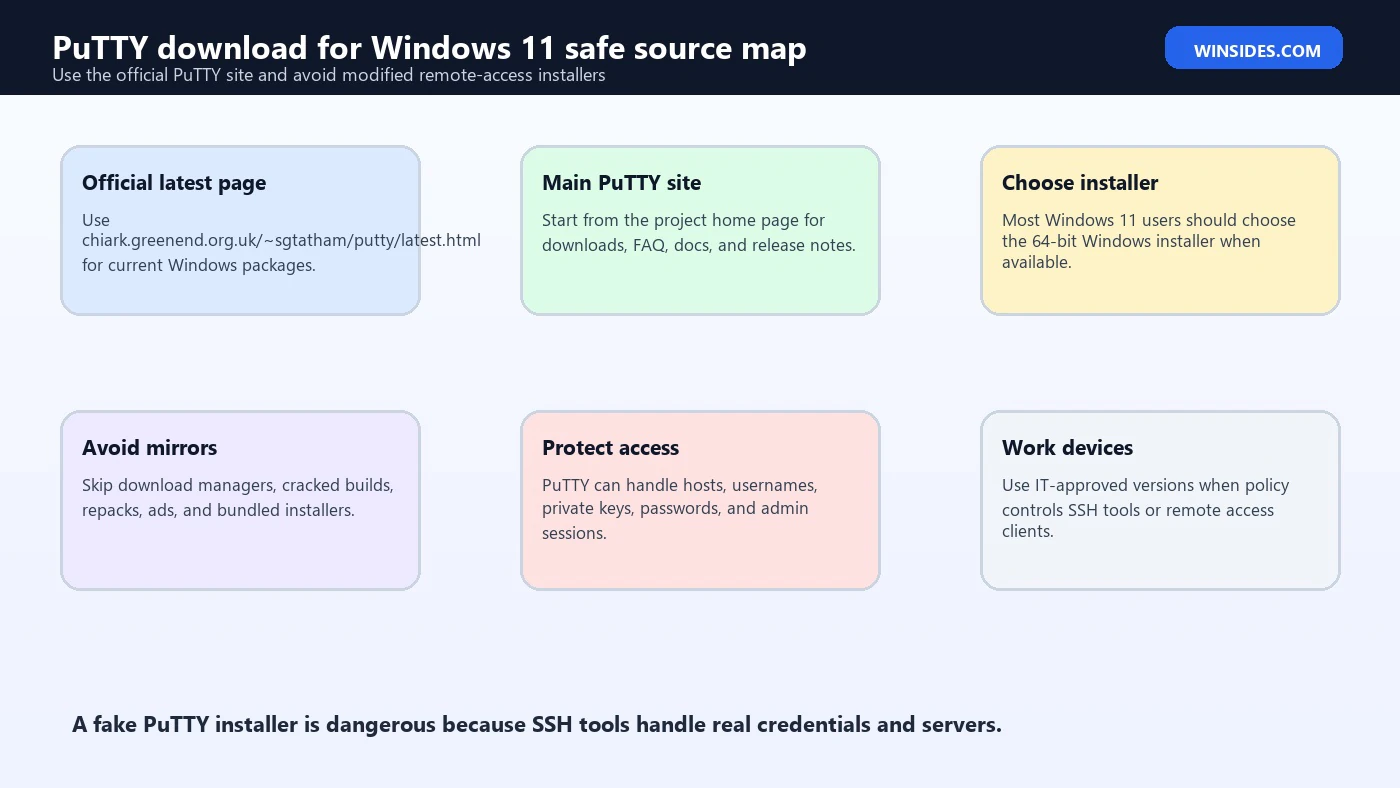
The most important rule is simple: download PuTTY from the official PuTTY site, not from a random software portal. A remote terminal tool is not like a wallpaper app. It can handle server hostnames, usernames, passwords, private keys, command sessions, and administrative access. A modified or fake PuTTY installer can steal credentials or install unwanted software before you ever connect to a server.
The official PuTTY download page is maintained by the PuTTY project and provides the current release packages for Windows. official PuTTY latest download page The main PuTTY site is also the safe starting point for project information, documentation, release notes, and related tools. official PuTTY project home page The official documentation explains how PuTTY works and how its configuration options fit together. official PuTTY documentation
For most Windows 11 users, the correct choice is the 64-bit Windows installer from the official download page. It installs PuTTY and related tools such as PuTTYgen, Pageant, PSCP, and PSFTP in a normal Windows way. Advanced users may choose ZIP packages or architecture-specific builds when they have a reason, but the ordinary MSI installer is the cleanest starting point.
This guide explains how to download PuTTY safely on Windows 11, which package to choose, how to install it, how to create your first SSH session, how PuTTYgen and Pageant fit into key-based login, how PuTTY compares with Windows built-in OpenSSH, and what to avoid when third-party sites offer fake or bundled PuTTY downloads.
Table of contents
Key Takeaways
- Download PuTTY only from the official PuTTY site. Avoid mirror sites, cracked builds, bundled installers, download managers, and fake ads.
- Most Windows 11 users should choose the 64-bit Windows installer. It provides PuTTY and companion tools in a standard install package.
- PuTTY is still useful on Windows 11. It is lightweight, familiar, and good for SSH, serial consoles, saved sessions, and key-based workflows.
- Windows 11 also has OpenSSH. Microsoft documents OpenSSH for Windows, so PuTTY is optional rather than mandatory. Microsoft Learn OpenSSH on Windows guidance
- PuTTYgen and Pageant matter for keys. PuTTY uses its own key workflow, and private keys should be protected with passphrases.
- Host key prompts are security checks. Do not blindly accept a new server fingerprint for important systems.
- Use the right tool for the workflow. PuTTY is great for focused SSH and serial work; Windows Terminal and OpenSSH may be better for command-line automation.
What Is PuTTY?
PuTTY is a client program for remote access protocols, especially SSH. In everyday Windows 11 use, people use PuTTY to open a terminal session on a remote Linux server, network appliance, development machine, cloud VM, or local lab system.
The main PuTTY app is the terminal client. You enter a host name or IP address, choose the protocol, set the port, and connect. For SSH, the default port is usually 22. Once connected, you interact with the remote system through a terminal window.
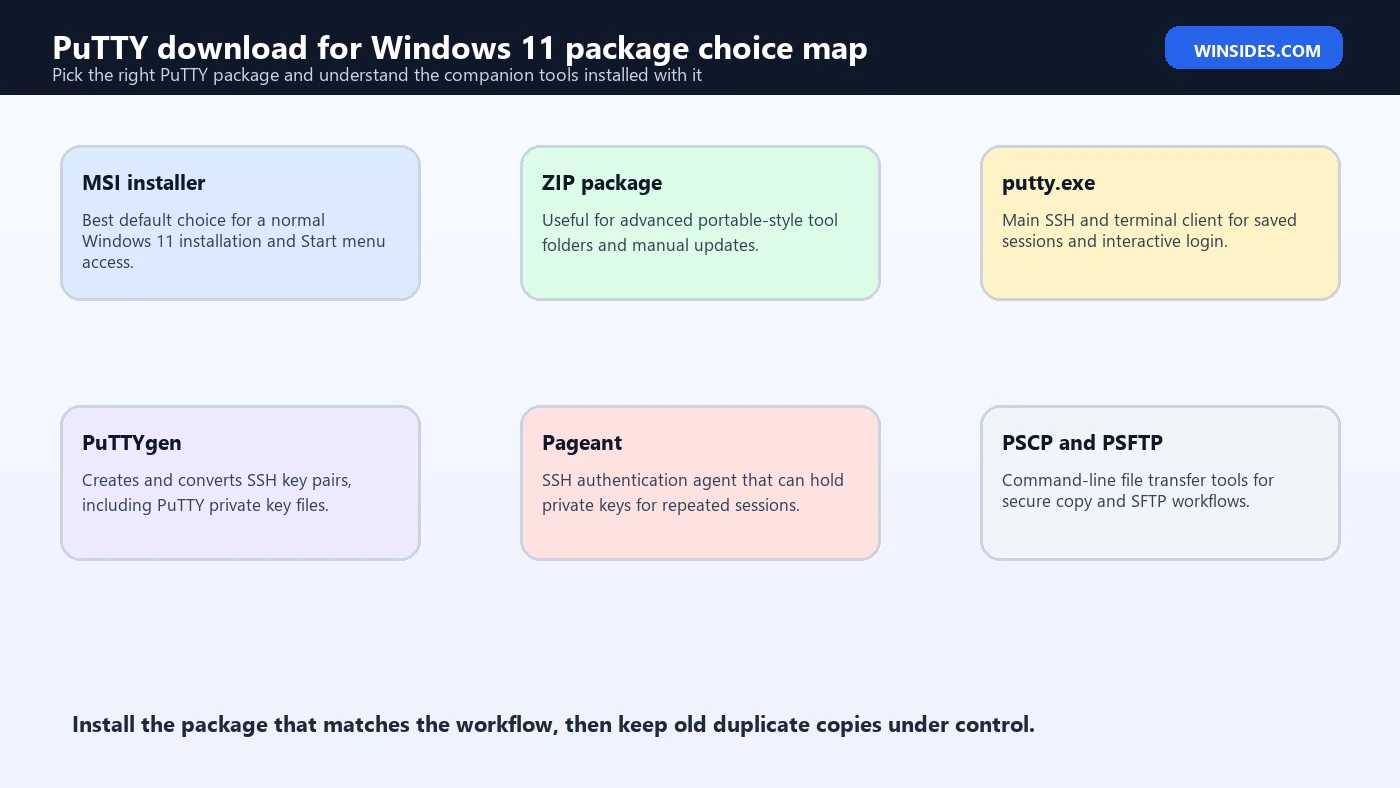
PuTTY is not just one executable in practice. The Windows installer usually includes related tools. PuTTYgen creates and converts SSH key pairs. Pageant is an SSH authentication agent that can hold private keys in memory for repeated logins. PSCP and PSFTP provide command-line secure copy and file transfer tools. Plink provides command-line connection behavior useful for automation.
PuTTY is popular because it is small, direct, and has a long history. It does not try to be a full remote-work suite with built-in file browser, tabs, X server, and multiple protocol dashboards. That is a strength for users who want a focused SSH client.
The tradeoff is that PuTTY has its own configuration style. Saved sessions, terminal settings, key files, colors, fonts, tunnels, and connection options live inside PuTTYs configuration model. Users coming from Linux, macOS, Windows Terminal, or OpenSSH config files may need a little time to adjust.
PuTTY remains relevant on Windows 11 because not every environment wants a large tool. Sometimes the best answer is a trusted, lightweight SSH client that opens quickly, stores a few sessions, and does the job without extra UI.
Is PuTTY Compatible with Windows 11?
Yes. PuTTY is widely used on Windows 11. The official PuTTY download page provides Windows packages, and Windows 11 can run the standard Windows builds. official PuTTY latest download page
Most Windows 11 PCs are 64-bit x86 systems, so the 64-bit Windows installer is usually the right choice. If you are using an ARM-based Windows 11 device, choose the package that matches your architecture if the official page provides one, or test compatibility carefully.
The most common PuTTY problems on Windows 11 are not basic compatibility problems. They are usually download-source confusion, corporate policy blocks, antivirus warnings on third-party packages, wrong SSH host or port, firewall restrictions, unsupported key format, or host key warnings.
On personal PCs, installing PuTTY is straightforward. Download from the official page, run the installer, launch PuTTY from Start, and create a session.
On work or school PCs, ask whether PuTTY is approved. IT departments may provide PuTTY through a software portal, require a specific version, block unmanaged SSH clients, or prefer Windows built-in OpenSSH. Do not bypass policy on managed devices.
If PuTTY opens but cannot connect, the app is probably installed correctly. Connection failures usually mean the server address, network path, VPN, firewall, SSH service, username, port, key, or authentication method needs attention.
Official PuTTY Download Path
The official download page is https://www.chiark.greenend.org.uk/~sgtatham/putty/latest.html. This is the safest place to get the current Windows installer and related packages. official PuTTY latest download page
You can also start from the main PuTTY website at https://www.chiark.greenend.org.uk/~sgtatham/putty/. official PuTTY project home page From there, use the official links to reach downloads, documentation, FAQ, change logs, and key information.
Be careful with search results. Software download searches often show ads, download portals, and look-alike pages above the official result. A third-party page may still deliver a working PuTTY executable, but it can add wrappers, outdated versions, bundled apps, or modified installers.
Do not download PuTTY from pages that say things like free full version, cracked, premium, pro, license bypass, driver update, download assistant, or enhanced PuTTY unless you intentionally want a separate fork and understand the source. The standard PuTTY project is free and does not require a cracked build.
After downloading, check the file name and source. If the browser shows that the file came from the official domain, that is a good sign. If a security warning appears, stop and verify the source before running it.
If your organization provides a trusted internal package, use that. The internal package may include approved versioning, configuration, or deployment controls.
Which PuTTY Package Should You Choose?
Most Windows 11 users should choose the Windows installer package. The installer sets up PuTTY and related utilities in a normal way and makes them available from the Start menu. This is the easiest route for beginners and ordinary SSH users.
The 64-bit x86 installer is usually correct for modern Windows 11 PCs. If the official download page lists multiple architecture options, choose the one matching your device. Do not install a package from another architecture just because it looks newer.
The ZIP package is useful for advanced users who want a portable-style folder, a tools directory, or a copy that does not use a full installer. However, ZIP use puts more responsibility on you. You need to extract it properly, place it in a sensible folder, and manage updates manually.
The individual executables are useful when you only need one tool, such as PuTTYgen or PSFTP. Most beginners should not start there because they may miss companion tools.
The MSI installer is usually better for a shared or repeatable Windows setup. It is easier to install, update, and remove. It also helps keep PuTTY out of messy Downloads folders where old copies accumulate.
Do not mix many old copies. A common problem is having putty.exe in Downloads, Desktop, a tools folder, and Program Files, each from a different version. When troubleshooting, users then open the wrong one. Pick one installation path and keep it clean.
How to Install PuTTY on Windows 11
After downloading the installer from the official page, open the file from your Downloads folder. Windows may show a User Account Control prompt. Confirm only if you are sure the file came from the official PuTTY site or your organizations trusted software portal.
Follow the installer prompts. The default options are usually fine. Install PuTTY and the companion tools unless you have a reason to customize the selection.
After installation, open Start and search for PuTTY. Launch the app. You should see the PuTTY Configuration window with fields for host name, port, connection type, saved sessions, terminal options, window options, and connection categories.
Before connecting to anything important, create a simple test session. Enter the host name or IP address of a server you are allowed to access. Leave the connection type as SSH and the port as 22 unless your server uses a different port.
If you downloaded a ZIP package instead of the installer, extract it to a folder such as C:\Tools\PuTTY or a folder inside your user profile. Do not run it from inside the compressed archive. Make sure you know where the tools live so you can update them later.
If your antivirus flags PuTTY after downloading from the official page, check the warning details and verify the source. If the file came from a third-party page, delete it and re-download from the official source.
Create Your First SSH Session in PuTTY
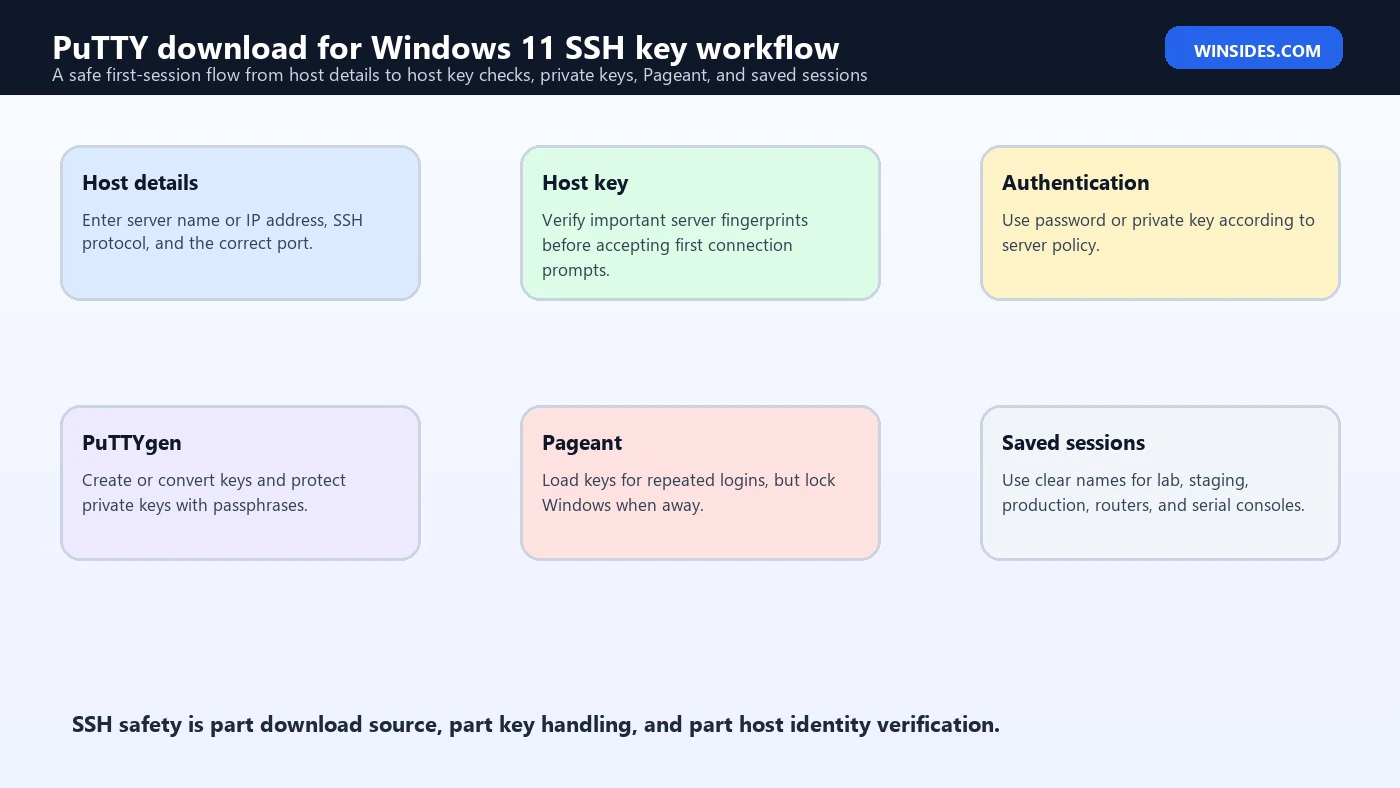
Open PuTTY. In the Host Name field, enter the remote server address. This can be a domain name such as server.example.com or an IP address. Make sure SSH is selected as the connection type. The default SSH port is 22.
If the server uses a nonstandard port, enter that port. Many servers use a custom port for policy reasons, but the server administrator should tell you what it is.
Click Open to connect. The first time you connect to a server, PuTTY may show a host key warning. This is not an error by itself. It means PuTTY has not seen that server identity before. For important systems, compare the fingerprint with a trusted source before accepting it.
Enter your username and password if the server uses password login. If the server uses key-based login, configure the private key under Connection > SSH > Auth. PuTTY may expect a PuTTY private key format, which is where PuTTYgen becomes useful.
After a successful login, you will see the remote shell. Run harmless commands first, such as pwd, whoami, hostname, or ls on Linux servers. Do not run administrative commands until you are certain you are connected to the correct system.
To save the session, return to PuTTY Configuration, enter a name under Saved Sessions, and click Save. Use clear names such as Lab Ubuntu VM, Production Web Server, Router Console, or Raspberry Pi. Good naming prevents dangerous mistakes.
PuTTYgen, PPK Files, and SSH Keys
PuTTYgen is the PuTTY key generator. It can create new SSH key pairs and convert some existing key formats into PuTTYs private key format. PuTTY private keys often use the .ppk extension.
SSH keys are more secure and convenient than passwords when used correctly. A key pair includes a private key and a public key. The public key goes on the server. The private key stays on your Windows 11 PC and must be protected.
Use a passphrase on private keys whenever possible. A passphrase protects the key if the file is copied or stolen. Without a passphrase, anyone who obtains the key file may be able to use it if server-side restrictions do not stop them.
Do not store private keys in Downloads, Desktop, email attachments, shared cloud folders, or chat apps. Use a controlled folder in your user profile and back it up securely if needed.
PuTTYgen can also help convert an OpenSSH key to PuTTY format if you already have a key generated elsewhere. The official PuTTY documentation explains PuTTY configuration and related key behavior in more detail. official PuTTY documentation
The PuTTY project also publishes key and signature information, which is relevant for users who want to verify downloads more deeply. official PuTTY keys and signatures page Most home users will not verify every signature manually, but advanced and business users should know that official key information exists.
Pageant and Saved Authentication
Pageant is PuTTYs SSH authentication agent. It can load private keys into memory so you do not have to select the key file and enter its passphrase every time you open a related session.
Pageant is convenient when you connect to several servers during the day. You load the key once, enter the passphrase once, and PuTTY can use the key for matching sessions.
Convenience has a security side. If you leave your Windows account unlocked, someone with access to the session may be able to use loaded keys while Pageant is running. Lock your PC when away.
Do not load keys you do not need. A simple personal workflow may not need Pageant at all. If you connect to one server occasionally, selecting the key inside PuTTY session settings may be enough.
If you use Pageant at work, follow policy. Organizations may have rules about agent forwarding, key storage, passphrases, and jump hosts.
Be careful with agent forwarding. It can be useful, but it can also expose authentication paths through a remote server. Only enable forwarding when you understand why you need it.
PuTTY vs Windows Built-In OpenSSH
Windows 11 can use OpenSSH. Microsoft documents installing and using OpenSSH on Windows, including client and server components. Microsoft Learn OpenSSH on Windows guidance This means PuTTY is no longer the only normal way to SSH from Windows.
Windows OpenSSH is excellent for users who like command-line tools, Windows Terminal, PowerShell, scripts, Git workflows, and OpenSSH config files. If you already type ssh user@host comfortably, the built-in client may be enough.
PuTTY is better when you prefer a graphical configuration window, saved sessions, quick serial console access, PuTTYgen, Pageant, and a standalone SSH client with a long Windows history. It is also familiar in many networking and server support environments.
OpenSSH is often better for automation. Scripts, CI tools, command-line copy operations, and cross-platform workflows tend to fit OpenSSH better than PuTTYs GUI.
PuTTY is often better for users who want to save many session profiles without learning SSH config syntax. Its tree of settings can be easier for some users than editing text configuration files.
You can use both. Many Windows 11 users keep PuTTY for interactive sessions and Windows OpenSSH for command-line work. The important thing is to manage keys and known hosts carefully so you do not confuse one tools trust prompts with another.
PuTTY vs MobaXterm, KiTTY, and Other SSH Clients
PuTTY is focused. MobaXterm is broader. MobaXterm includes an integrated terminal workspace, graphical SFTP browser, X server, session manager, and many extra tools. PuTTY is smaller and more direct.
If you want one app with SSH, SFTP browsing, tabs, X11, and remote workflow features, MobaXterm may feel easier. If you want a minimal SSH client and companion utilities, PuTTY is simpler.
KiTTY and other PuTTY-derived tools add features around the PuTTY base. Some users like them, but they are separate projects. If you need official PuTTY, download official PuTTY. If you choose a fork, research the fork carefully and download it from its official source.
Windows Terminal plus OpenSSH is another strong option. It is clean, modern, and native to Windows workflows, but it does not replace PuTTYgen, Pageant, or PuTTYs GUI session model exactly.
For serial console work, PuTTY remains very convenient. Network engineers often keep it because it can handle SSH and serial sessions in a familiar interface.
For file transfer, PuTTY includes PSCP and PSFTP, but it does not provide the same beginner-friendly graphical SFTP browser as MobaXterm or WinSCP. Choose based on the task.
Serial Console and File Transfer Use Cases
PuTTY is not only for SSH to Linux servers. It is also widely used for serial console access. Network engineers, hardware technicians, embedded developers, and lab users often use PuTTY to connect to routers, switches, firewalls, development boards, microcontrollers, and recovery consoles through a COM port.
For serial use, the important details are the COM port number, speed, data bits, stop bits, parity, and flow control. These values usually come from the device manual. A common setting is 9600 or 115200 baud, but you should not guess on production equipment. If the text appears as unreadable characters, the serial speed or format may be wrong.
PuTTY also ships with command-line file transfer tools. PSCP can copy files over secure copy, and PSFTP can provide an SFTP-style command interface. These tools are useful when you want a small PuTTY-based toolkit without installing a full graphical SFTP client.
For beginners, a graphical file transfer app can feel easier. For admins and scripts, PSCP and PSFTP can be convenient. The safest approach is to test on a noncritical folder first so you understand the direction of upload and download before touching important configuration files.
The practical takeaway is that PuTTY is not just a login window. The installer gives you a compact remote-access toolkit, and knowing which tool does which job helps you avoid installing random extras from unsafe sites.
Safe Download Checklist
Use this checklist before installing PuTTY on Windows 11.
- Confirm the URL is the official PuTTY site.
- Use the official latest download page.
- Choose the Windows installer unless you specifically need ZIP or individual tools.
- Match your architecture when options are listed.
- Avoid download manager sites.
- Avoid cracked or modified PuTTY builds.
- Avoid installers that bundle unrelated apps.
- Do not run PuTTY from a random email attachment.
- Remove old duplicate copies from Downloads or Desktop.
- Save session names clearly.
- Protect private keys with passphrases.
- Compare host key fingerprints for important servers.
This checklist matters because PuTTY handles access to remote systems. A fake PuTTY installer can do more harm than a fake utility app because it may see sensitive connection details.
Troubleshooting PuTTY Download and Install Problems
If the download does not start, try another browser or network. Some corporate networks block SSH tools or unfamiliar downloads. If you are on a work device, use the approved software portal.
If the download page looks strange, verify the address. The official site is not a flashy download portal. Do not assume a more polished page is safer.
If Windows blocks the installer, check whether the file came from the official source. If it came from a third-party site, delete it and download again from PuTTYs official page.
If PuTTY installs but will not open, restart Windows and try again. Also check whether security software is blocking it. On managed devices, policy may prevent remote access tools.
If PuTTY opens but cannot connect, check the server address, port, VPN, firewall, SSH service, username, and authentication method. The download is probably not the issue.
If key login fails, check whether the public key is installed on the server, whether the private key is selected in PuTTY, whether the key format is supported, and whether the server account permissions are correct.
Security Tips After Installing PuTTY
Do not save passwords casually. PuTTYs saved sessions are convenient, but password storage and authentication behavior should be handled carefully. Prefer key-based login with passphrases for systems you manage.
Protect private keys. A private key can be more valuable than a password because it may unlock multiple systems. Store it in a controlled folder and back it up securely.
Watch host key warnings. If PuTTY warns that a servers host key changed, do not blindly accept it for important infrastructure. A changed host key can be normal after a server rebuild, but it can also indicate a man-in-the-middle risk.
Keep PuTTY updated from the official site. Do not keep an old copy forever just because it still opens. Remote access tools should receive security and protocol updates.
Use clear session names. Accidentally connecting to production instead of a lab system is a real operational risk.
If you use PuTTY for work, follow company rules for SSH keys, jump hosts, session logging, MFA, and approved software. Personal habits do not always fit enterprise requirements.
Updating or Removing PuTTY
To update PuTTY, download the current installer from the official latest page and install it over the existing version if the installer supports that flow. Close active sessions first.
If you use the ZIP package, updating is manual. Extract the new tools into the correct folder and remove old duplicates. Be careful not to delete configuration you still need.
PuTTY saved sessions are not always stored inside the same folder as putty.exe. If you are moving PCs or rebuilding Windows, research how your sessions and registry settings are stored before wiping the old system.
To remove PuTTY installed by MSI, use Settings > Apps > Installed apps and uninstall it normally. Then decide whether saved sessions or keys should remain.
To remove a ZIP copy, close PuTTY and delete the folder. Then remove shortcuts that point to it. Also review whether private keys are stored nearby.
Do not leave old copies scattered across the PC. Stale copies create confusion and may miss security updates.
Frequently Asked Questions
Where should I download PuTTY for Windows 11?
Download PuTTY from the official PuTTY latest download page at https://www.chiark.greenend.org.uk/~sgtatham/putty/latest.html. Avoid third-party mirrors and bundled installers.
Is PuTTY free for Windows 11?
Yes. PuTTY is free software. You do not need a cracked, premium, or modified version. If a site is selling a suspicious PuTTY download, use the official source instead.
Which PuTTY file should I download for Windows 11?
Most users should download the Windows 64-bit installer from the official page. Use ZIP or individual executables only if you specifically need a portable or manual setup.
Is PuTTY better than Windows OpenSSH?
Neither is universally better. PuTTY is useful for graphical session configuration, saved sessions, serial consoles, PuTTYgen, and Pageant. Windows OpenSSH is better for command-line and scripting workflows.
What is PuTTYgen?
PuTTYgen is PuTTYs key generator. It can create SSH key pairs and convert key formats for use with PuTTY. Use passphrases to protect private keys.
What is Pageant?
Pageant is PuTTYs SSH authentication agent. It can hold private keys in memory so PuTTY can use them across sessions without repeatedly asking for the key file.
Why does PuTTY show a host key warning?
PuTTY shows a host key warning when it has not seen that server before or when the saved identity changed. For important systems, verify the fingerprint before accepting.
Can I use PuTTY for serial console on Windows 11?
Yes. PuTTY is commonly used for serial console connections to routers, switches, development boards, and embedded devices. You need the correct COM port and serial settings.
Conclusion: Download PuTTY from the Official Source and Keep SSH Clean
PuTTY download for Windows 11 is simple when you stay on the official path. Use the PuTTY projects own download page, choose the right Windows installer, avoid third-party download portals, and keep old duplicate copies under control.
PuTTY remains useful because it is lightweight, familiar, and focused. It is a good fit for saved SSH sessions, serial consoles, PuTTYgen, Pageant, and users who prefer a graphical configuration window. Windows built-in OpenSSH is also a strong option, especially for command-line users and automation.
Whichever tool you use, treat SSH access seriously. Verify host keys, protect private keys, name sessions clearly, update from official sources, and never trust cracked or repackaged remote access tools.
For more interesting articles, stay tuned to Winsides.com!









Community
Comments (0)