

Introduction to Windows 11 Low Latency Profile
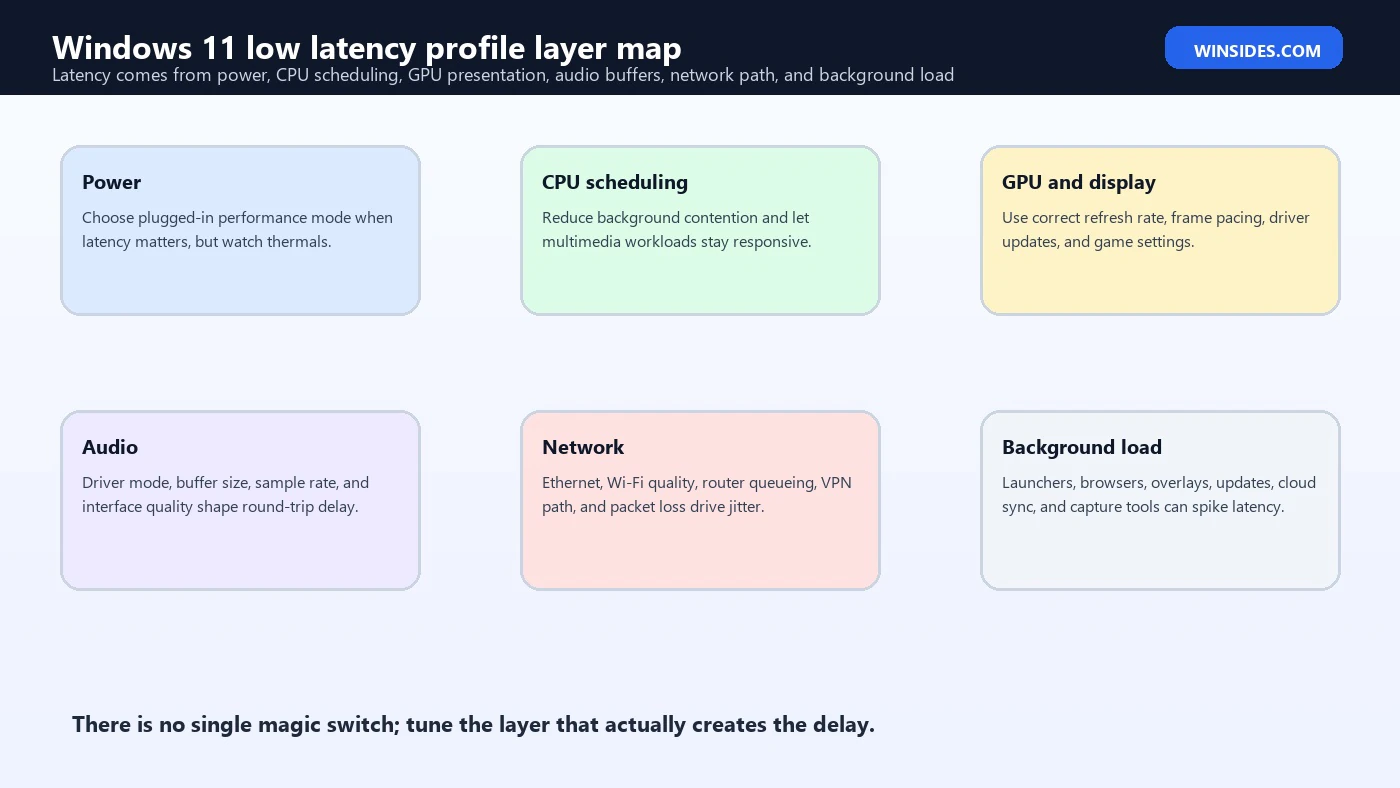
Windows 11 low latency profile is a useful phrase, but it can also be misleading. Windows 11 does not include one official switch called Low Latency Profile that magically makes every game, audio app, stream, remote session, controller, and network path faster. Low latency is not one setting. It is the result of several layers working together: power behavior, CPU scheduling, GPU presentation, audio buffer size, network stability, driver quality, background tasks, app settings, and hardware limits.
That matters because many users chase latency by installing random optimizer scripts, disabling security features, changing registry values, or copying settings from gaming forums. Some tweaks can help in a specific setup, but many create instability, audio crackle, worse battery life, broken sleep behavior, network drops, or impossible-to-diagnose stutter. A proper Windows 11 low latency profile should be measurable, reversible, and matched to the workload.
Latency also means different things in different workflows. A competitive gamer may care about input-to-display response. A music producer may care about audio round-trip latency and avoiding crackles. A streamer may care about capture delay and dropped frames. A remote desktop user may care about network jitter. A developer may care about terminal responsiveness. The right low latency profile depends on which delay matters.
Microsofts low-latency audio documentation explains that Windows audio latency involves the application, audio engine, driver, and hardware path, and that smaller buffers reduce latency but can increase the risk of glitches if the system cannot keep up. Microsoft low-latency audio documentation Microsofts Multimedia Class Scheduler Service documentation also explains how multimedia tasks can be scheduled so time-sensitive audio and video work receives appropriate CPU attention. Microsoft Multimedia Class Scheduler Service documentation Those two concepts are a good reminder: latency tuning is about controlled tradeoffs, not blind maximum-performance slogans.
This guide explains how to build a safe Windows 11 low latency profile for gaming, audio, streaming, remote work, and general responsiveness. It covers what to change, what to leave alone, how to test, how to roll back, and why the best profile is usually a balanced set of official settings, updated drivers, and app-specific tuning rather than an unknown one-click optimizer.
Table of contents
Key Takeaways
- Windows 11 low latency profile is not one official Windows toggle. It is a practical configuration across power, graphics, audio, network, drivers, apps, and background workload.
- Latency tuning must match the workload. Gaming latency, audio latency, network latency, and UI responsiveness are related but not identical.
- Use measurable changes. Change one setting at a time, test the result, and keep notes so you can undo bad tweaks.
- Do not start with registry hacks. Most users should begin with power mode, Game Mode, driver updates, app settings, audio buffer settings, display refresh rate, and background app cleanup.
- Lower is not always better. Very small audio buffers, aggressive power settings, or extreme network tweaks can create stutter, crackle, heat, battery drain, or instability.
- Drivers matter. GPU, audio interface, chipset, network, Bluetooth, controller, and firmware updates can affect latency more than cosmetic Windows tweaks.
- Keep security and stability intact. Do not disable Windows Security, Secure Boot, memory integrity, firewall, or updates just because a tweak guide says it reduces latency.
What Low Latency Means on Windows 11
Low latency means reducing delay between an action and a result. But the action and result change by workload. In a game, the chain may be mouse movement, game engine processing, CPU work, GPU rendering, display scanout, and monitor response. In audio, it may be guitar input, audio interface buffer, driver processing, digital audio workstation processing, output buffer, and speaker playback. In networking, it may be packet travel time, Wi-Fi jitter, router queueing, DNS delay, server distance, and packet loss.
That is why a generic profile can be wrong. A setting that helps a plugged-in gaming desktop can hurt a laptop on battery. A tiny audio buffer that helps a high-end USB audio interface can crackle on a built-in Realtek device. A network adapter interrupt setting that helps throughput can hurt responsiveness for a low-bandwidth real-time game.
The first job is to define the target. Are you trying to reduce FPS stutter, input lag, audio monitoring delay, Bluetooth delay, Wi-Fi spikes, streaming capture delay, or remote desktop lag? Each target points to a different layer.
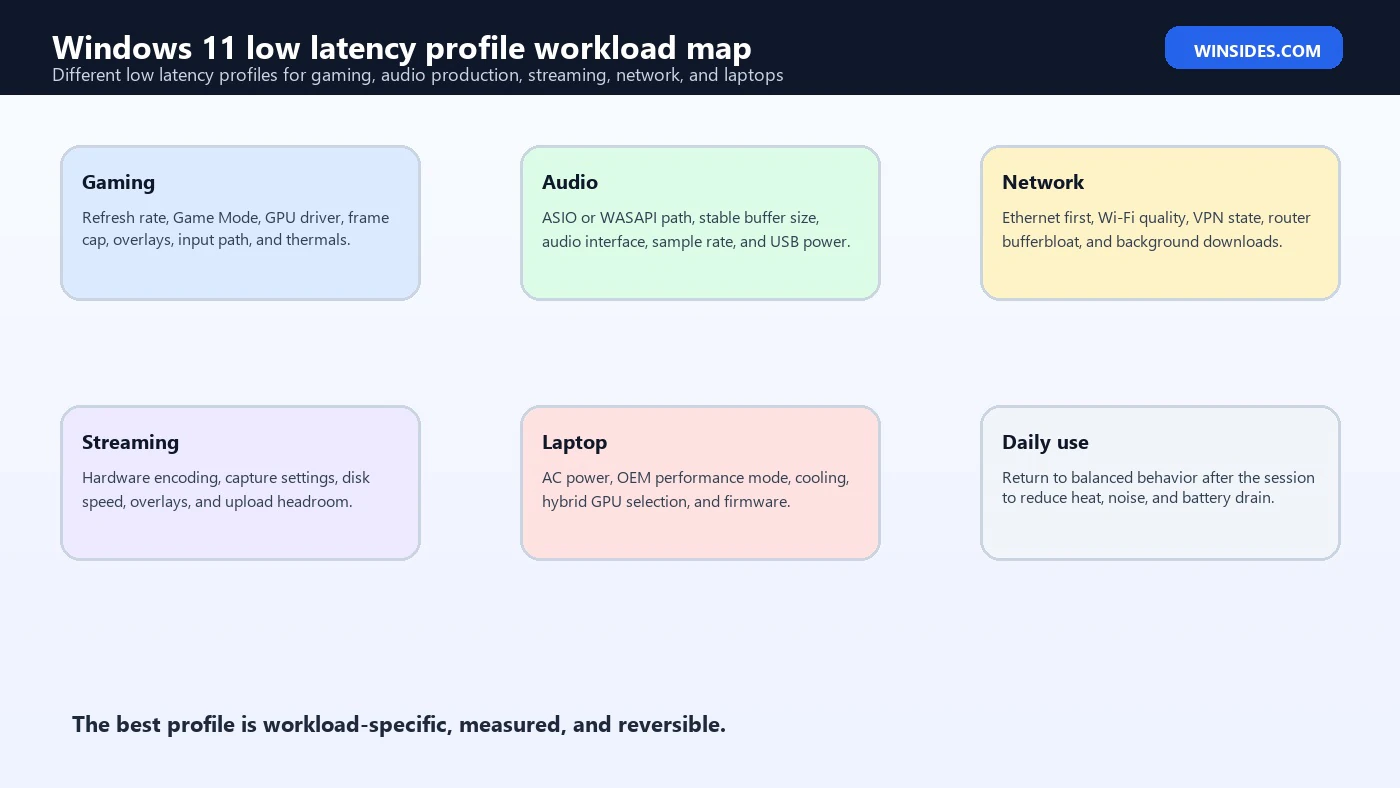
For gaming, focus on display refresh rate, GPU driver, game display mode, frame pacing, controller polling, background capture, overlays, and thermal stability. For audio, focus on the audio interface, driver mode, buffer size, sample rate, USB power, DPC latency, and background CPU spikes. For network, focus on wired Ethernet, Wi-Fi signal quality, router bufferbloat, VPN path, DNS, and background downloads.
A good Windows 11 low latency profile is therefore a set of profiles, not one. You can have a gaming profile, an audio recording profile, a streaming profile, and a battery-friendly daily profile. The mistake is trying to use the most aggressive profile all day.
Start with a Baseline Before Changing Settings
Before changing anything, measure or at least observe the current state. If you do not know the baseline, you cannot tell whether the profile helped.
For gaming, note average FPS, 1 percent lows, frame-time spikes, input feel, display mode, refresh rate, and whether stutter happens during loading, combat, network play, or shader compilation. Use the games built-in benchmark if available.
For audio, note the driver mode, buffer size, sample rate, reported round-trip latency, crackle frequency, CPU load in the DAW, and whether glitches happen during recording, playback, plugin use, or screen sharing.
For network, test wired vs Wi-Fi, ping to the router, ping to the game server or remote system, packet loss, jitter, VPN state, and whether spikes happen when another device is downloading.
For system responsiveness, note startup apps, background CPU use, disk activity, update state, thermals, power mode, and whether the device is on battery or plugged in.
Change one category at a time. For example, do not change power mode, GPU driver, audio buffer, network adapter settings, and startup apps all at once. If something gets worse, you will not know which change caused it.
Keep a rollback note. Write down the old buffer size, old power mode, old driver version, and old app settings. Latency tuning is much calmer when every step can be undone.
Power Mode and Processor Behavior
Power behavior is a major part of latency. A device that aggressively saves power may take longer to ramp CPU frequency, wake devices, or keep background services responsive. A device in a high-performance mode may respond faster but use more battery, create more heat, and increase fan noise.
On Windows 11, start with Settings > System > Power & battery. When plugged in, choose the power mode that matches your workload. For a gaming or audio session, Best performance can be appropriate. For normal browsing or battery use, Balanced or Best power efficiency may be better.
Power plans and advanced power settings can also be managed with Powercfg. Microsoft documents Powercfg as a command-line tool for controlling power settings and power schemes. Microsoft Powercfg command-line options documentation That does not mean every user should copy random Powercfg commands from forums. It means power policy is real and should be changed deliberately.
For a desktop workstation, a performance-oriented profile can make sense while plugged in. For a laptop, performance mode can help during plugged-in sessions, but it may increase temperature. Thermal throttling can then create stutter that feels like latency. The profile must keep the machine cool enough to sustain performance.
Avoid disabling all sleep and power-saving features permanently unless the machine is a dedicated workstation. It is better to create a session routine: plug in, choose performance mode, close background apps, run the workload, then return to normal mode afterward.
Also check OEM utilities. Lenovo, Dell, HP, ASUS, Acer, MSI, and other manufacturers often include performance, silent, balanced, or thermal modes. These can matter as much as Windows settings because they control firmware behavior, fan curves, and platform power limits.
CPU Scheduling, Background Tasks, and MMCSS
Low latency depends on predictable CPU time. A powerful CPU can still produce stutter if background tasks, overlays, antivirus scans, update installers, indexing, launchers, or browser tabs interrupt the workload at the wrong time.
Windows includes the Multimedia Class Scheduler Service, or MMCSS, which helps multimedia applications receive prioritized CPU access for time-sensitive audio and video workloads. Microsoft documents MMCSS as a service that enables multimedia applications to make sure time-sensitive processing receives prioritized access to CPU resources without denying CPU resources to lower-priority applications. Microsoft Multimedia Class Scheduler Service documentation
For users, the practical lesson is not to disable scheduling services. It is to reduce unnecessary contention. Close apps that do not need to run during the low-latency session. Pause large downloads. Avoid running game launchers, browsers with many tabs, screen recorders, and cloud sync tools unless they are needed.
Startup apps matter. Open Settings > Apps > Startup and disable nonessential launch-at-login apps. Do not disable security or driver components blindly. Focus on chat launchers, game launchers, updaters, cloud tools, vendor utilities you do not use, and helper apps that can be opened manually.
Windows Update can also affect timing if it is downloading or installing in the background. Keep Windows updated, but avoid starting a competitive match, recording session, or livestream while a major update is pending. Restart beforehand if Windows asks.
Task Manager is enough for basic observation. Sort by CPU, Memory, Disk, and Network. If a low-latency workload stutters when another process spikes, you have a clue. The fix may be scheduling the session better, updating that app, or disabling its background behavior.
Gaming Low Latency Profile
A gaming-focused Windows 11 low latency profile should reduce input-to-display delay without making the system unstable. Start with display basics. Set the monitor to its highest stable refresh rate in Settings > System > Display > Advanced display. A 144 Hz monitor running at 60 Hz is a very common wasted-latency problem.
Enable Game Mode if it is available and appropriate. Game Mode is designed to help Windows prioritize the gaming experience by reducing certain background interruptions. It is not magic, but it is a safer first step than registry tweaks.
Update the GPU driver from the GPU vendor or the PC maker. NVIDIA, AMD, and Intel drivers can affect frame pacing, shader behavior, latency modes, and game compatibility. Use official sources. Avoid repacked GPU drivers from random sites.
Use the games own display and latency options. Many modern games include Reflex, Anti-Lag, frame limiters, exclusive fullscreen, borderless fullscreen, V-Sync, frame generation, low latency modes, and upscaling settings. These are often more important than Windows tweaks.
Understand frame pacing. Higher FPS is useful only if frames arrive consistently. A slightly capped frame rate can feel better than an uncapped rate that hits thermal or GPU limits. If your GPU is pinned at 99 percent and input feels heavy, a frame cap below max refresh may help.
Microsofts DXGI flip model documentation is relevant for graphics presentation because modern presentation models reduce overhead and improve efficiency for windowed and borderless scenarios. Microsoft DXGI flip model documentation Users do not manually rewrite DXGI behavior, but this explains why modern Windows gaming settings, drivers, and game display modes matter.
Disable unnecessary overlays if they cause problems. Xbox Game Bar, GPU overlays, Discord overlay, Steam overlay, performance monitors, and capture tools can all be useful, but too many overlays can create conflicts. Turn off only the ones you do not need.
Audio Low Latency Profile
Audio latency is its own world. The best Windows 11 low latency profile for music production or live monitoring starts with the audio device, not with Windows cosmetic tweaks.
Use a proper audio interface if you need serious low-latency monitoring. Built-in laptop audio can be fine for playback, but dedicated USB or Thunderbolt audio interfaces often provide better drivers, lower buffers, and more stable round-trip latency.
Use the correct driver mode in your DAW or audio app. ASIO drivers are common for professional audio interfaces. WASAPI exclusive mode can also be useful in some Windows audio workflows. MME or DirectSound paths are usually not the lowest-latency choice.
Set the buffer size carefully. Smaller buffers reduce monitoring delay but increase CPU pressure and crackle risk. Larger buffers are safer for mixing with many plugins. A common workflow is low buffer while recording, higher buffer while mixing.
Microsofts low-latency audio documentation explains that latency is affected by the app, audio engine, driver, and hardware, and that driver and hardware support are central to low-latency operation. Microsoft low-latency audio documentation That is why installing the correct audio interface driver often matters more than toggling random Windows settings.
Keep sample rate consistent. Switching between 44.1 kHz, 48 kHz, 96 kHz, app settings, Windows settings, and interface control panels can create resampling, device resets, or confusion. Use the sample rate your project needs and keep related settings aligned.
Avoid Bluetooth for serious low-latency monitoring. Bluetooth audio adds codec and wireless delay. For recording, gaming voice monitoring, or rhythm-sensitive work, wired headphones or a direct audio interface path is usually better.
If crackles appear, do not only lower latency further. Raise the buffer one step, update the audio driver, check USB power, close background apps, and test without heavy plugins. Stable audio at slightly higher latency is better than unusable low-latency crackle.
Network Low Latency Profile
Network latency is not fixed by Windows alone. The path includes your PC, network adapter, Wi-Fi signal, router, ISP, route to the server, VPN, server load, and congestion. Windows tuning can help, but physical and network conditions dominate.
Use wired Ethernet when latency matters. Good Wi-Fi can be fast, but it is more vulnerable to interference, roaming, signal quality, airtime contention, and jitter. For competitive gaming, remote desktop, cloud gaming, and real-time work, Ethernet is still the cleanest baseline.
If using Wi-Fi, use a strong 5 GHz or 6 GHz connection, keep the router close, avoid congested channels, and update the Wi-Fi driver. Do not hide a weak wireless link behind Windows tweaks.
Avoid saturating the connection. Bufferbloat can create large latency spikes when uploads or downloads fill the link. If ping is fine when idle but terrible during downloads, router quality of service or bandwidth management may matter more than a Windows setting.
Microsofts network subsystem performance tuning documentation is aimed at deeper network performance topics and network adapter behavior. Microsoft network performance tuning documentation For ordinary users, the practical takeaway is that adapter drivers, offload behavior, interrupt behavior, and network path design can affect performance, but changes should be tested carefully.
Disable VPN for latency testing unless the VPN is required. A VPN can add routing distance, encryption overhead, and server congestion. Some games or work systems require VPN; others perform better without it.
Close background downloads. Game launchers, cloud sync, Windows Update, streaming apps, and browser downloads can all spike latency. Use Task Manager network view when diagnosing.
Do not install random ping booster tools. Many are VPNs, route changers, or subscription overlays that may not help. If you need route optimization, use a reputable service and test with measurable ping and packet loss data.
Display, GPU, and Frame Delivery
Display latency includes monitor refresh rate, GPU rendering time, frame queueing, display mode, V-Sync behavior, and monitor response. A Windows 11 low latency profile should make sure the display is configured correctly before chasing deeper tweaks.
Set the correct refresh rate. Check Settings > System > Display > Advanced display. If the monitor supports 120 Hz, 144 Hz, 165 Hz, or higher, confirm Windows is actually using it. Also check the monitor OSD and cable. Some refresh rates require DisplayPort or a capable HDMI version.
Use variable refresh rate if your monitor, GPU, and game support it. FreeSync, G-SYNC Compatible, and VRR can reduce tearing and improve smoothness when frame rates fluctuate. Configure it through Windows and the GPU control panel according to the hardware.
Choose display mode per game. Some games perform best in exclusive fullscreen. Others are fine in borderless windowed mode because modern Windows presentation paths have improved. Test rather than assuming one rule.
Avoid piling on post-processing. GPU scaling, driver sharpening, frame generation, capture overlays, HDR conversions, and monitor processing can add delay or complexity. Use only what improves your experience.
Use a sane frame cap. If a game constantly maxes the GPU, input latency can rise. A frame cap slightly below the monitors refresh rate or below the point of GPU saturation can feel smoother. This is game-specific.
Keep the GPU driver current, but do not update right before a tournament, recording session, or important stream unless you have time to test. New drivers can fix latency problems, but they can also introduce game-specific regressions.
Controller, Mouse, and Keyboard Latency
Input devices are part of the profile. A fast system still feels slow if the mouse, controller, keyboard, or Bluetooth path is adding delay.
For mouse and keyboard, use wired connections or reliable low-latency wireless receivers. Avoid connecting a gaming receiver through a crowded hub behind the PC if signal quality suffers. Place receivers where they have a clean path.
Use an appropriate polling rate. Very high polling rates can reduce input granularity delay, but they also increase CPU interrupt load. Most users do not need to push every device to its maximum if it creates stutter.
Disable mouse acceleration in games if the game requires raw input consistency. In Windows, pointer settings and in-game raw input behavior can both matter.
For controllers, wired USB is often the cleanest latency baseline. Bluetooth can be convenient, but delay varies by adapter, driver, controller, battery, and interference. Official wireless adapters can perform better than generic Bluetooth for some controllers.
Update controller firmware through official tools when available. Do not use unofficial firmware packages or device modifier tools unless you understand the risk.
If input delay appears only in one game, check the games input settings, V-Sync, frame cap, fullscreen mode, and controller mode before blaming Windows globally.
Background Apps, Overlays, and Capture Tools
A low latency profile should reduce unnecessary background activity. This does not mean disabling half of Windows. It means closing the apps that compete with the workload.
Browsers with many tabs can consume CPU, memory, GPU, and network. Close heavy tabs before gaming, recording, or streaming. Browser hardware acceleration can also interact with GPU load.
Cloud sync tools can spike disk and network activity. Pause sync during a recording or tournament if needed, then resume afterward.
Game launchers can update in the background. Steam, Epic, Xbox, Battle.net, and others may download patches while a game is running. Configure update schedules if this causes spikes.
Overlays are useful but cumulative. One overlay for FPS or capture may be fine. Five overlays can create conflicts. Disable the ones you do not need for that session.
Screen recording and streaming tools add encoding load. Use hardware encoding when appropriate, test bitrate, and avoid recording to a slow disk. A smooth game can stutter when the recording disk or encoder is overloaded.
Security software should not be disabled as a latency tweak. If scans cause issues, schedule them better or configure trusted exclusions carefully for known game or audio project folders. Do not turn off protection permanently.
Laptop Low Latency Profile
Laptop latency tuning has an extra enemy: heat. Many gaming and creator laptops can run fast for a short time, then throttle if the cooling system cannot sustain the load.
Plug in the charger. Most laptops reduce performance on battery, even when Windows power mode says performance. Use the original charger or a charger that meets the laptops power requirements.
Select the OEM performance mode if available. Manufacturer control software often controls CPU/GPU power limits and fans. Windows power mode alone may not override those limits.
Keep vents clear. A laptop on a bed or soft surface can overheat quickly. Use a desk or cooling stand if needed.
Update BIOS, chipset, GPU, audio, Wi-Fi, and controller drivers from official sources. Laptop performance is a platform problem, not only a Windows setting.
For hybrid graphics laptops, make sure the game or DAW uses the correct GPU. Settings > System > Display > Graphics lets you choose per-app GPU preference on many systems. GPU control panels can also matter.
Avoid using the most aggressive low-latency profile on battery. Battery drain, heat, and power throttling can make latency worse. Create a plugged-in performance routine and a separate daily battery routine.
What Not to Change Blindly
Do not disable Windows Update permanently. Updates can include scheduler, driver, security, and compatibility fixes. Instead, avoid starting low-latency sessions while updates are actively installing.
Do not disable Windows Security, firewall, Secure Boot, memory integrity, or Defender services as a generic tweak. The security tradeoff is not worth it for most users.
Do not delete services because a tweak guide says they are unnecessary. Many services support audio, networking, graphics, devices, updates, licensing, Store apps, or security.
Do not apply registry files you do not understand. Registry latency tweaks often persist long after the user forgets them. If you do test one, export the original key and document exactly what changed.
Do not force every advanced network adapter setting to off. Offloads, interrupt moderation, receive side scaling, energy efficient Ethernet, and power saving options can help or hurt depending on hardware, driver, workload, and network. Test one setting at a time.
Do not run multiple optimizer apps together. They can fight over power plans, services, startup entries, overlays, and network settings.
Do not assume every low latency guide applies to every PC. A desktop with wired Ethernet, 240 Hz monitor, and discrete GPU is not the same as a thin laptop on Wi-Fi and Bluetooth headphones.
Safe Windows 11 Low Latency Profile Checklist
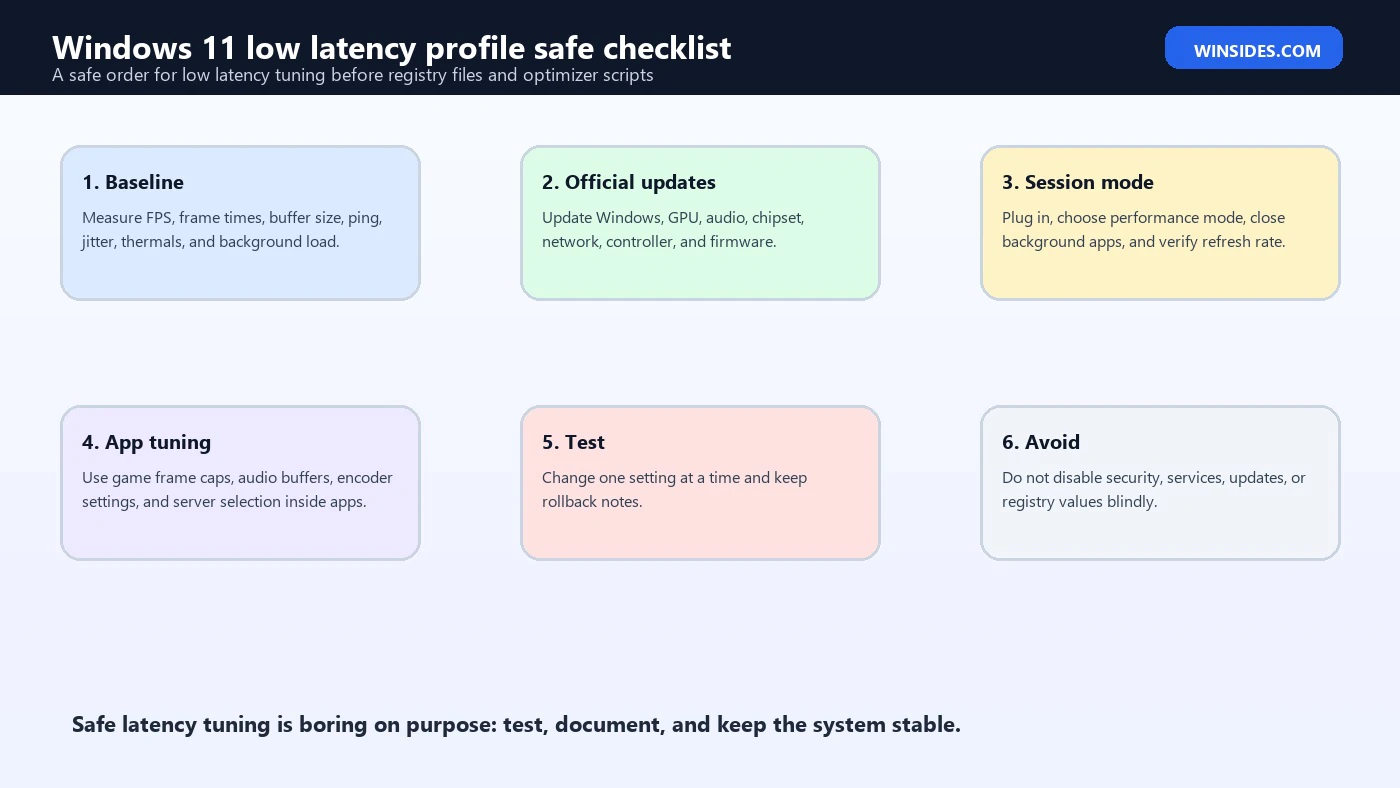
Use this checklist for a safe, reversible profile.
- Update Windows and restart before important sessions.
- Update GPU, audio, chipset, Wi-Fi, Ethernet, controller, and firmware from official sources.
- Plug in laptops and choose the appropriate OEM performance mode.
- Set Windows power mode to Best performance for plugged-in low-latency sessions.
- Confirm display refresh rate in Advanced display.
- Enable Game Mode for gaming tests.
- Close unnecessary apps, launchers, browser tabs, overlays, and downloads.
- Use Ethernet for network-critical sessions when possible.
- Use wired headphones or an audio interface for low-latency audio monitoring.
- Set audio buffer size based on recording or mixing needs.
- Use app-specific latency settings such as frame caps, low latency modes, ASIO buffer size, or capture encoder settings.
- Test one change at a time.
- Keep a rollback note.
- Return to a balanced profile after the session if battery, noise, or heat matters.
This checklist is intentionally ordinary. The most reliable low latency profile is usually built from official settings, good drivers, clean background load, and workload-specific app tuning.
Troubleshooting If Latency Gets Worse
If latency gets worse after tuning, undo the last change first. Do not keep adding new tweaks to compensate for a bad tweak.
If gaming gets worse, check whether the GPU is thermal throttling, whether the frame cap changed, whether V-Sync or VRR changed, whether an overlay is active, or whether the game is using the wrong GPU.
If audio crackles, raise the buffer size one step, close background apps, check the audio driver, switch USB ports for the audio interface, and test without heavy plugins.
If network latency spikes, test wired Ethernet, pause downloads, remove VPN temporarily, restart the router, and check whether other devices are saturating the connection.
If the laptop gets hot and stutters, reduce settings or improve cooling. A slightly lower sustained performance level beats a higher level that throttles every few minutes.
If Windows behaves strangely after optimizer tools, restore the original power plan, uninstall the optimizer, re-enable services it changed, and consider System Restore if available.
Frequently Asked Questions
Does Windows 11 have a Low Latency Profile setting?
No. Windows 11 does not have one official Low Latency Profile toggle. Users create a low latency setup by combining power, graphics, audio, network, driver, and app settings.
What is the best Windows 11 low latency profile for gaming?
Use plugged-in performance mode, correct display refresh rate, Game Mode, updated GPU drivers, a sensible frame cap, reduced overlays, wired input or reliable wireless, and Ethernet when possible.
What is the best low latency profile for audio production?
Use a proper audio interface, the correct driver mode such as ASIO when available, a low but stable buffer size, consistent sample rate, wired monitoring, and minimal background CPU load.
Should I disable Windows services for lower latency?
No, not blindly. Disabling services can break audio, networking, updates, devices, security, and apps. Close unnecessary user apps first and change services only when you understand the dependency.
Does Best performance mode reduce latency?
It can help by reducing aggressive power saving, especially on plugged-in systems. It can also increase heat and battery use. If heat causes throttling, it may make latency worse.
Is Ethernet better than Wi-Fi for low latency?
Usually yes. Ethernet is typically more stable and has less jitter than Wi-Fi. Good Wi-Fi can work, but interference and congestion make it less predictable.
Should I use registry tweaks for Windows 11 low latency?
Only as an advanced, documented, reversible test. Most users should start with official settings, drivers, app configuration, and hardware basics instead of registry files.
Why does lower audio buffer size cause crackling?
A smaller buffer gives the system less time to process audio. If the CPU, driver, USB path, or app cannot finish in time, you hear dropouts or crackles.
Conclusion: Build a Low Latency Setup, Not a Mystery Tweak Stack
Windows 11 low latency profile should mean a clean, measurable setup for the workload you care about. For gaming, focus on display, GPU, frame pacing, input, and background load. For audio, focus on driver mode, buffer size, sample rate, interface quality, and CPU stability. For network work, focus on Ethernet, Wi-Fi quality, routing, packet loss, and background traffic.
The safest profile is not the most aggressive one. It is the one that improves response while staying stable, cool, secure, and reversible. Use official settings, keep drivers current, test one change at a time, and avoid mystery scripts that disable services or rewrite registry values without explaining the tradeoff.
When latency matters, make Windows 11 predictable first. Then tune the app, driver, hardware, and network path that actually controls the delay.
For more interesting articles, stay tuned to Winsides.com!









Community
Comments (0)