

To find the Windows 11 release version and exact OS build, open a normal PowerShell tab and enter winver. The About Windows dialog shows the friendly release label, such as 25H2, followed by the complete build number. A separate cmd /c ver read provides a compact numeric cross-check without changing the PC.
I reproduced both methods on Windows 11 Home Single Language. About Windows reported Version 25H2 (OS Build 26220.7872). The command-line cross-check reported Microsoft Windows [Version 10.0.26220.7872]. Both were standard-user reads; no update, activation, edition, Registry, servicing, or licensing setting changed.
Which Windows number do you need?
Windows exposes several labels that answer different questions. The edition describes the product configuration, such as Home or Pro. The release version is the friendly feature-update label, such as 24H2 or 25H2. The OS build identifies the installed Windows build and revision with more precision. In 26220.7872, 26220 is the build and 7872 is the revision.
Keep each label with its value when you copy the result. A support engineer asking for the OS build usually needs the complete dotted value, not only 25H2. Someone checking feature availability may need the edition and release version as well.
Application, driver, firmware, DirectX, WSL, and Windows Terminal versions are separate. A number from one component cannot substitute for the host Windows version merely because it appears in the same diagnostic session.
Table of contents
How do you find the Windows 11 version with winver?
- Open Windows Terminal.
- Use a normal PowerShell tab. Administrator rights were not required for this check.
- Enter the following command:
winver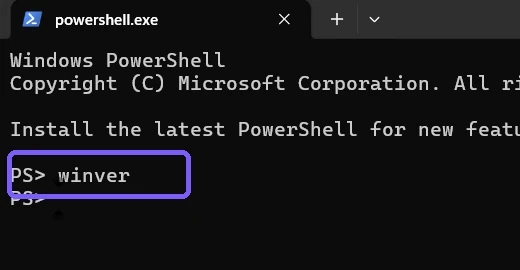
- Press Enter.
- Read the release label after Version.
- Record the entire value inside the OS Build parentheses.
- Read the edition from the sentence below the copyright notice, then close the dialog.
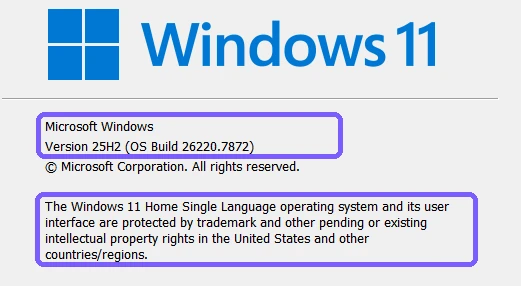
Microsoft Support's activation-error guidance directs users to type winver when they need the Windows version and build. The dialog is therefore a suitable primary source for the friendly release label and complete build revision on the PC being examined.
How do you read the About Windows result?
- Windows 11: identifies the Windows product family shown by the dialog.
- Version 25H2: is the friendly release label on the reproduced PC.
- OS Build 26220.7872: is the precise build and revision recorded at capture time.
- Windows 11 Home Single Language: is the installed edition reported in the dialog text.
Your values can differ and still be valid. Do not install an update merely to match the screenshot. The purpose of the procedure is to observe the current system, not to force it to a particular release.
The About Windows dialog can also contain registered-owner or organization information lower in the window. Review it before sharing. The retained evidence uses an original ShareX rectangle region that contains only the public product branding, version/build fields, edition statement, and copyright text; it excludes the licensing identity area rather than publishing a personal identifier.
How do you cross-check the numeric Windows version?
The built-in ver command is implemented by Command Prompt. From PowerShell, run it through cmd /c:
cmd /c ver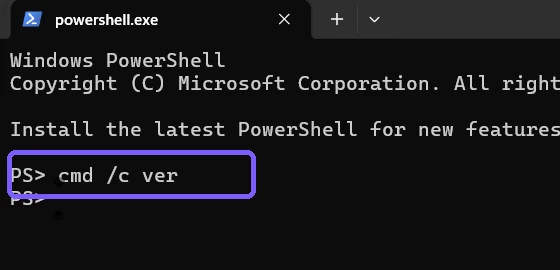
Press Enter, then compare the final build and revision with About Windows.
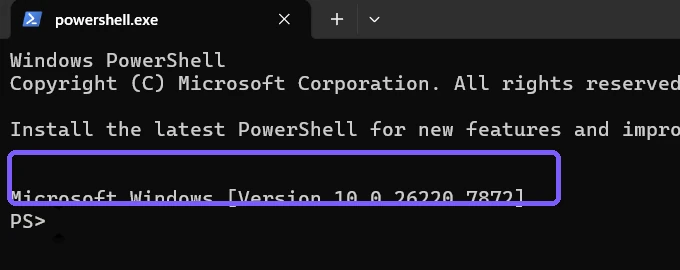
Microsoft's ver command documentation states that the command displays the operating-system version and applies to Windows 11. On the reproduced PC, the final numeric portion matches the complete About Windows build exactly.
Why does ver show 10.0 on Windows 11?
The ver output uses Windows' internal numeric version format. Seeing 10.0 at the beginning does not prove that the PC is running the Windows 10 product. Use the Windows 11 branding and edition in About Windows for the product identity, and use the remaining numeric fields for the exact build.
Do not rewrite the value or remove the prefix when pasting command output into a support case. Preserve the complete line so the recipient can distinguish an observed result from a manually reformatted summary.
The two methods complement each other: winver is easier for people because it exposes edition, release, and OS build together; ver is compact and script-friendly but does not show the friendly 25H2 label or edition.
What does the build number not tell you?
An OS build does not confirm that Windows is activated. If licensing is the problem, use the separate read-only procedure to check Windows activation status. Do not infer activation from the edition name or from a successful version command.
The build also does not identify every installed component. If software asks for the graphics API level, follow the dedicated guide to check the installed DirectX version. Firmware, drivers, Store apps, WSL, and Windows Terminal each have their own version source.
A build number alone does not guarantee that a feature is enabled, a device is supported, an update is available, or a managed PC is compliant. Those are separate checks with their own evidence.
What if the two build values do not match?
- Close both surfaces and open fresh processes.
- Run
winveragain and copy the complete OS Build value, including the digits after the period. - Run
cmd /c veragain in the same Windows session. - Confirm that you did not compare 25H2 with 10.0; those are different label types.
- If a servicing operation is pending, record both observations and the time rather than forcing an update or restart solely for the article.
On the reproduced PC, both methods agreed on 26220.7872. No mismatch repair was needed. On a work or school device, send the exact labeled results to the administrator instead of bypassing update or management policy.
What should you remove before sharing Windows version evidence?
A normal Terminal screenshot can reveal an account name, personal path, command history, notification, open tab, or unrelated application. About Windows can show registered-owner information. Crop or redact personal fields before sharing, and make the edit visibly clear when a redaction is necessary.
The retained Terminal captures use an anonymous PS> prompt in disposable standard-user sessions. The About Windows capture is an original ShareX region chosen before saving, not a later concealment of a retained private frame. No email address, user name, product key, credential, personal file, or notification appears in the publishable originals. Exact configuration hashes confirmed that Terminal and ShareX returned to their initial state.
Frequently Asked Questions
What is the quickest way to find the Windows 11 version and build?
Run winver. About Windows shows the friendly release label, complete OS build, and edition together.
What does 26220.7872 mean?
26220 is the reproduced OS build and 7872 is its revision. Keep the complete dotted value when reporting the system.
Why does Windows 11 report Version 10.0 in the ver command?
That is Windows' internal numeric prefix. The About Windows dialog provides the Windows 11 product identity and friendly release label.
Do you need administrator rights to check the version?
No. Both reproduced methods ran as a standard user and did not display an administrator prompt.
Record the friendly release and the complete build
Use winver for the clearest Windows 11 edition, release, and OS-build view. Use cmd /c ver as a compact read-only cross-check, and compare the build and revision rather than the different label formats. Preserve the complete values and keep activation, updates, component versions, and repairs as separate tasks.
For more interesting articles, stay tuned to WinSides.com!







Community
Comments (0)