

Introduction to WARP JIT Service on Windows 11
In the intricate ecosystem of Windows 11, countless background services work tirelessly to ensure a seamless and responsive user experience. Among these, the WARP JIT Service on Windows 11 plays a particularly crucial, though often unnoticed, role in rendering graphics. It’s a foundational component that underpins much of what you see on your screen, especially when your dedicated graphics hardware isn’t fully utilized or is absent. Learn more at DirectX 12 Ultimate and Direct3D 11 advanced rasterization.
Understanding system services like WARP JIT is not just for advanced users; it empowers anyone to better comprehend their PC’s performance and troubleshoot potential issues. This service is a testament to Windows’ adaptability, ensuring that even systems without powerful GPUs can still deliver acceptable visual fidelity and application responsiveness.
This comprehensive guide will demystify the WARP JIT Service, exploring its core functions, how it integrates into Windows 11’s graphics architecture, and practical steps for managing and optimizing its operation. We’ll delve into common problems and provide actionable advice to help you maintain peak system performance, ensuring your Windows 11 experience remains smooth and visually engaging.
By the end of this article, you’ll have a profound understanding of this vital service and the knowledge to ensure it contributes positively to your system’s overall health and graphical capabilities. Let’s embark on this journey to uncover the secrets behind efficient software-based rendering.
Table of contents
Key Takeaways
Before diving into the technical details, here are the most crucial points about the WARP JIT Service on Windows 11:
- The WARP JIT Service Windows on 11 is a critical component for software-based graphics rendering, ensuring visual applications run smoothly even without a powerful dedicated GPU.
- WARP (Windows Advanced Rasterization Platform) is Microsoft’s high-performance software renderer, while JIT (Just-In-Time) compilation optimizes graphics code on the fly for better efficiency.
- It integrates deeply with DirectX, acting as a fallback mechanism when hardware acceleration is unavailable or insufficient, making it vital for older hardware or virtualized environments.
- Troubleshooting often involves checking for high CPU/memory usage, ensuring graphics drivers are updated, and maintaining a current Windows 11 installation.
- Modifying or disabling the WARP JIT Service is generally not recommended due to potential performance degradation and application instability.
- Optimal performance relies on a well-maintained system, including up-to-date drivers and Windows updates, rather than interfering with core services.
- Understanding this service helps users appreciate the sophisticated mechanisms that contribute to a responsive and visually rich Windows 11 experience.
What is WARP JIT Service?
To truly grasp the significance of the WARP JIT Service, we must first break down its constituent parts: WARP and JIT. These two technologies combine to form a powerful software-based rendering solution within Windows 11, designed to ensure graphical applications function reliably across a wide spectrum of hardware configurations.
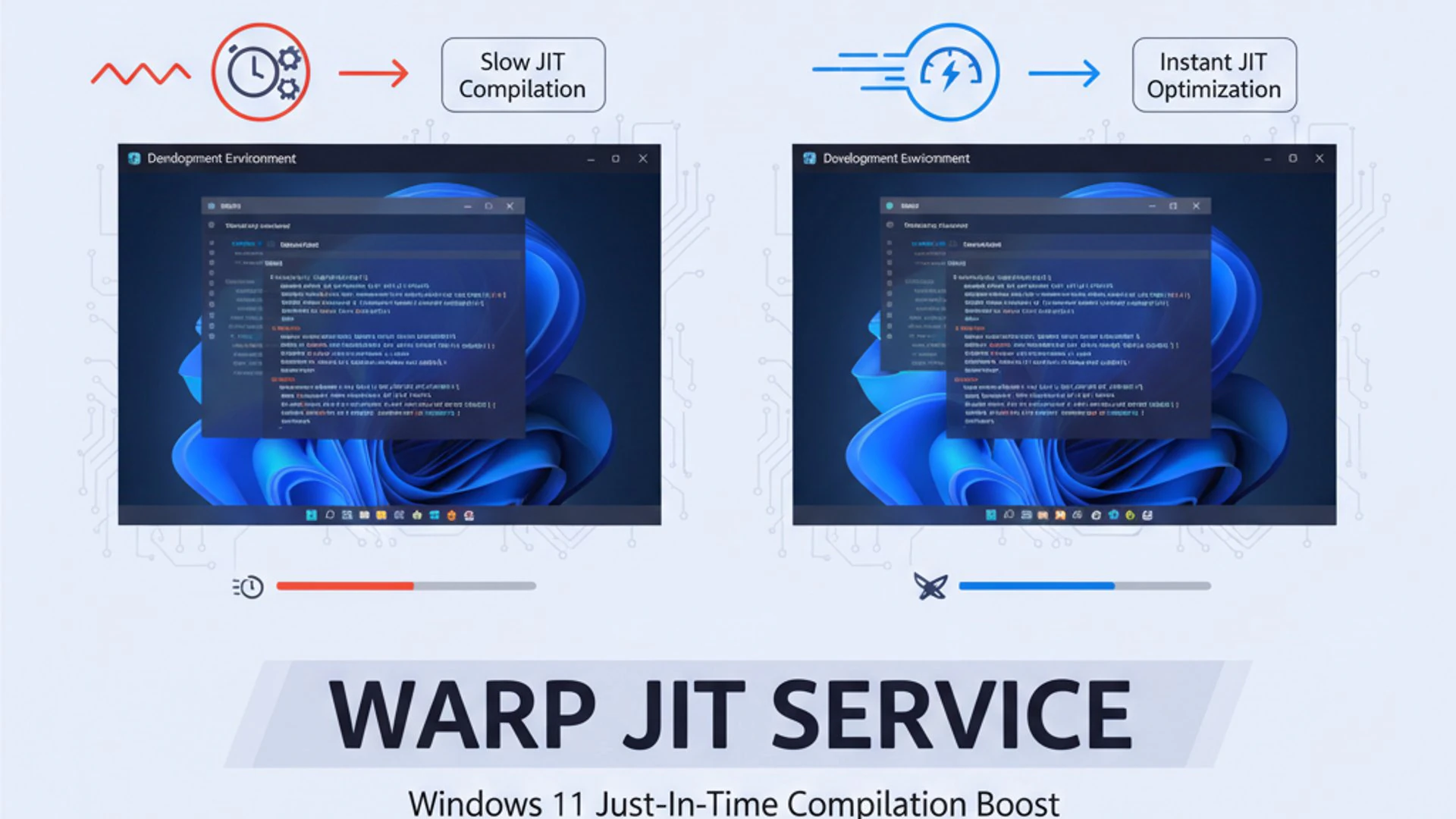
At its heart, this service provides a robust alternative when your system’s primary graphics hardware isn’t up to the task or simply isn’t present. It’s a testament to Microsoft’s commitment to accessibility and performance, ensuring that no user is left behind due to hardware limitations.
The service acts as a crucial bridge, translating complex graphical instructions into visual output, even in demanding scenarios. This capability is particularly valuable in modern computing, where applications increasingly rely on sophisticated visual elements.
Understanding WARP (Windows Advanced Rasterization Platform)
WARP stands for Windows Advanced Rasterization Platform. Essentially, it is a high-performance software rasterizer developed by Microsoft. In simpler terms, it’s a program that can render 3D graphics using your computer’s central processing unit (CPU) instead of a dedicated graphics processing unit (GPU).
When a game or application needs to draw something on your screen, it sends instructions to the graphics driver. If a powerful GPU is available, it handles these instructions with extreme efficiency. However, if there’s no dedicated GPU, or if the existing GPU doesn’t support certain features, WARP steps in.
WARP allows DirectX 10, DirectX 11, and even DirectX 12 applications to run on systems that might otherwise struggle. It translates the complex graphics commands into operations that the CPU can execute, effectively simulating the work of a GPU. This ensures that a wide range of software can still display graphics, albeit typically at a lower performance level than with dedicated hardware.
The platform is designed to be highly optimized, leveraging modern CPU instruction sets to perform calculations as quickly as possible. This makes it a surprisingly capable fallback, preventing many applications from failing to launch or displaying corrupted graphics on less powerful machines.
The Role of JIT (Just-In-Time) Compilation in Graphics
The “JIT” in WARP JIT Service refers to Just-In-Time compilation. This is a programming technique used to improve the performance of computer programs. Instead of compiling all code before execution, JIT compilers translate code into machine-readable instructions during runtime, right when it’s needed.
In the context of graphics rendering, JIT compilation is incredibly powerful. Graphics shaders, which are small programs that define how objects look and behave, can be highly complex. A JIT compiler can analyze these shaders as they are about to be executed and optimize them specifically for the CPU architecture present in your system.
This dynamic optimization means that the code executed by the CPU for graphics rendering is tailored for maximum efficiency at that specific moment. It avoids the overhead of pre-compiling for every possible CPU variant, leading to faster execution and better overall performance for software-rendered graphics.
How JIT Boosts Performance in Real-Time
JIT compilation provides a significant performance boost by adapting to the specific runtime environment. When a graphics application requests a shader, the WARP JIT Service doesn’t just execute a generic version. Instead, it compiles that shader into highly optimized machine code right before it’s used.
This real-time optimization takes into account the CPU’s capabilities, instruction sets, and even current system load. For instance, if your CPU supports advanced vector instructions, the JIT compiler can generate code that fully leverages these, leading to much faster pixel and vertex processing.
The result is a more responsive and fluid graphical experience, even when relying on software rendering. Without JIT compilation, WARP would still function, but it would be significantly slower, making many applications practically unusable on systems without dedicated GPUs. It’s a cornerstone of the service’s ability to provide acceptable performance.
How WARP JIT Service Functions in Windows 11
The WARP JIT Service isn’t an isolated component; it’s deeply integrated into the Windows 11 operating system’s graphics pipeline. Its primary function is to act as a reliable fallback, ensuring that graphical applications continue to run smoothly even under challenging circumstances. This integration makes it a silent workhorse, often operating without direct user intervention.
Learn more at DirectX Graphics and Gaming.
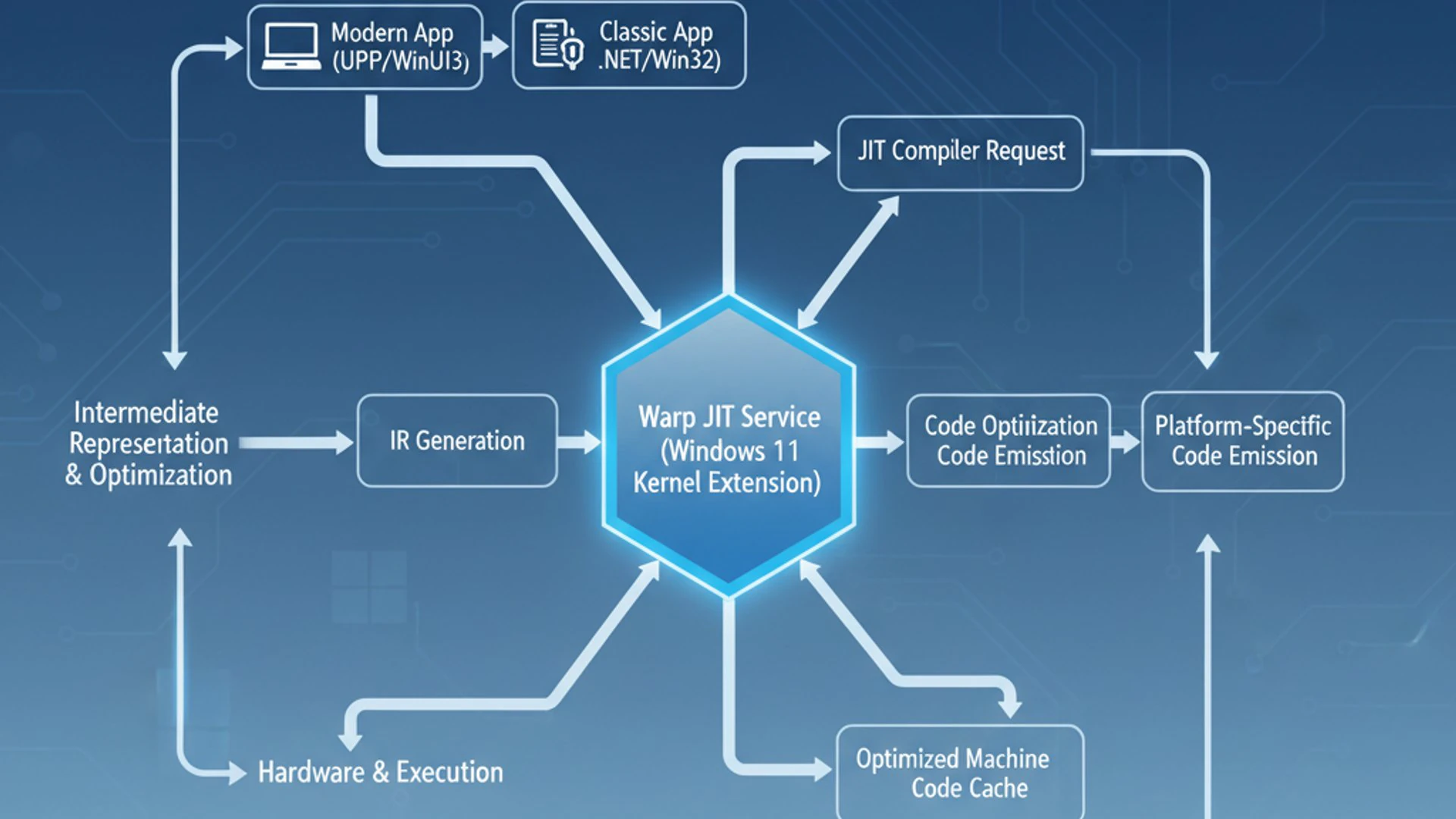
Understanding its operational aspects helps clarify why it’s so critical and why tampering with it can lead to unexpected issues. The service effectively extends the reach of modern graphics APIs to a broader range of hardware, democratizing access to visually rich applications.
It’s a prime example of how Windows 11 is designed to be highly adaptable, catering to diverse hardware configurations from high-end gaming rigs to basic office machines. This adaptability is key to its widespread adoption and utility.
Integration with DirectX and Graphics Stack
The WARP JIT Service is an integral part of Microsoft’s DirectX ecosystem. DirectX is a collection of APIs (Application Programming Interfaces) that handle tasks related to multimedia, especially game programming and video. When a game or application uses DirectX to render graphics, it typically expects a hardware GPU to perform the heavy lifting.
However, if the system lacks a compatible GPU or if the GPU driver is unstable, DirectX can be configured to use WARP. In such cases, the DirectX runtime directs its rendering commands to the WARP JIT Service, which then processes them using the CPU. This ensures that the application doesn’t crash or display errors due to a lack of hardware support.
Essentially, WARP acts as a software implementation of a DirectX device. It supports various DirectX feature levels, allowing applications designed for modern GPUs to still function on systems that only have integrated graphics or even just a basic CPU. This seamless integration makes it a powerful compatibility layer within the Windows 11 graphics stack.
Scenarios Where WARP JIT Service is Crucial
The WARP JIT Service becomes particularly crucial in several common scenarios. One of the most obvious is on systems without a dedicated graphics card, relying solely on integrated graphics, or even older CPUs that lack modern GPU capabilities. In these cases, WARP provides the necessary rendering capabilities to run applications that demand DirectX features.
Another critical scenario is within virtualized environments. Virtual machines (VMs) often don’t have direct access to a host’s powerful GPU, or the virtualized GPU might have limited capabilities. WARP enables these VMs to run graphical applications and even some games, albeit with performance limitations, ensuring basic functionality and visual output.
Furthermore, if your dedicated GPU drivers are corrupted, outdated, or fail to load correctly, WARP can act as a temporary fallback. This prevents a complete loss of graphical output and allows you to troubleshoot driver issues without being left with a black screen. It’s a vital safety net for system stability.
Impact on Gaming and Graphics-Intensive Applications
For gaming and other graphics-intensive applications, the WARP JIT Service plays a specific, albeit usually secondary, role. Ideally, these applications leverage a powerful dedicated GPU for optimal performance. However, when such hardware is unavailable, WARP steps in.
In gaming, WARP allows titles that require DirectX 10, 11, or 12 to launch and run on systems that would otherwise be incompatible. While performance will be significantly lower than with a dedicated GPU – often resulting in lower frame rates, reduced resolutions, and simplified graphical settings – it still enables the game to be playable.
For applications like CAD software, video editors, or 3D modeling tools, WARP ensures that the interface and basic rendering functions are available. While complex operations might be slow or impractical, the software remains functional. This makes the WARP JIT Service Windows on 11 a critical component for broad software compatibility.
Common Issues and Troubleshooting WARP JIT Service
While the WARP JIT Service is designed to be robust and operate in the background, like any system component, it can sometimes encounter issues. Recognizing these problems and knowing how to approach troubleshooting is essential for maintaining a healthy and responsive Windows 11 system. Most issues manifest as performance degradation or application instability.
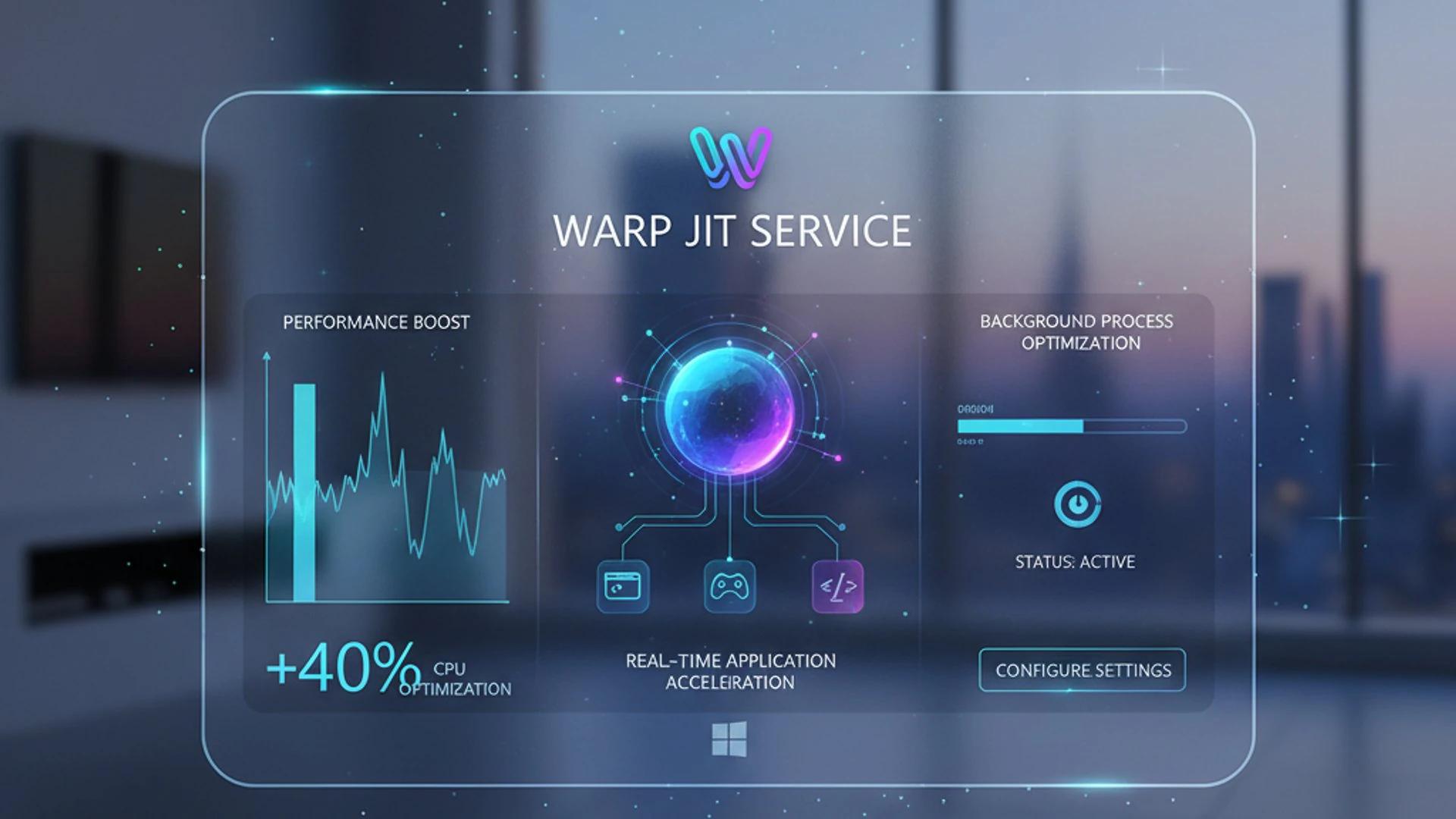
It’s important to differentiate between WARP JIT being the cause of a problem and merely being a symptom of a larger underlying issue, such as outdated drivers or hardware limitations. Our goal here is to equip you with the knowledge to make that distinction and take appropriate action.
Effective troubleshooting begins with careful observation of symptoms and a systematic approach to diagnosis. Let’s explore some of the most common challenges users might face with this service.
High CPU or Memory Usage
One of the most frequently reported issues related to the WARP JIT Service is unusually high CPU or memory usage. When WARP is active, it means your CPU is performing tasks typically handled by a GPU. If you’re running a demanding graphical application without a dedicated GPU, it’s natural for WARP to consume significant CPU resources.
However, if you notice consistently high CPU usage from a process like “Desktop Window Manager” (DWM) or other system processes, and you suspect WARP is involved, it could indicate a problem. This might happen if your dedicated GPU is failing, its drivers are corrupted, or an application is incorrectly forcing WARP rendering.
Excessive memory usage by WARP-related processes can also point to issues. This might occur if there’s a memory leak in the service or if an application is requesting an unusually large amount of texture data to be processed by the CPU. Monitoring these metrics is the first step in diagnosing potential problems.
Diagnosing Performance Bottlenecks
To diagnose performance bottlenecks related to WARP JIT Service, you’ll need to use Windows’ built-in tools. The Task Manager is your primary utility for this. Open it by pressing Ctrl + Shift + Esc, then navigate to the “Processes” tab.
Look for processes consuming high CPU or memory. While WARP itself might not appear as a distinct process, its activity often manifests through processes like dwm.exe (Desktop Window Manager) or the application itself. If you see high CPU usage from DWM, especially when performing graphical tasks, WARP might be active.
For a more detailed analysis, the Performance Monitor (search for “perfmon” in the Start menu) can provide in-depth data. You can add counters for CPU usage, memory usage, and even specific DirectX metrics to pinpoint exactly where the bottleneck lies. This level of detail helps confirm whether WARP is indeed the culprit or if another component is struggling.
“Understanding your system’s resource allocation through tools like Task Manager and Performance Monitor is crucial for effective troubleshooting, allowing you to distinguish between normal operation and genuine performance bottlenecks.”
Service Not Starting or Crashing
A more severe issue is when the WARP JIT Service fails to start or crashes unexpectedly. While less common, this can lead to significant graphical problems, including applications failing to launch, corrupted visuals, or even a black screen if the system relies heavily on software rendering.
If the service fails to start, it often indicates deeper system instability, possibly related to corrupted system files, conflicts with other drivers or software, or even underlying hardware issues. A crash might be triggered by a specific application’s rendering request that the service cannot handle, or a bug within the service itself.
In such cases, checking the Event Viewer (search for “Event Viewer” in the Start menu) is paramount. Look under “Windows Logs” -> “System” and “Application” for any error messages related to WARP, DirectX, or graphics drivers. These logs often provide specific error codes or descriptions that can guide your troubleshooting efforts.
Managing WARP JIT Service: A Step-by-Step Guide
While the WARP JIT Service typically operates autonomously in the background, there might be occasions when you need to check its status, restart it, or understand its configuration. Managing system services requires a degree of caution, as improper modifications can lead to system instability. This section will guide you through the process safely.
Understanding how to interact with system services is a valuable skill for any Windows user. It provides insight into the operating system’s inner workings and empowers you to diagnose and resolve minor issues without resorting to more drastic measures.
Always remember that core services like WARP JIT are integral to Windows 11’s functionality. Any changes should be made with a clear understanding of the potential consequences. Let’s explore the practical steps for managing this service.
Checking Service Status via Services.msc
The primary tool for managing Windows services is the Services management console. Here’s how to access it and check the status of the WARP JIT Service:
- Press
Win + Rto open the Run dialog. - Type
services.mscand pressEnter. This will open the Services window. - In the Services window, scroll down the list to find a service related to WARP. It might be listed under names like “Desktop Window Manager” (DWM) or a more generic “Graphics” or “Display” service, as WARP is often an underlying component rather than a standalone, user-facing service entry.
- Its status will be displayed in the “Status” column (e.g., “Running”). The “Startup Type” column indicates how it starts (e.g., “Automatic,” “Manual,” “Disabled”).
It’s important to note that WARP JIT Service itself might not appear as a distinct entry in services.msc. Instead, its functionality is often integrated into other core display services, such as the Desktop Window Manager. If DWM is running, and your system is using software rendering, WARP is likely active.
Restarting the WARP JIT Service
If you suspect an issue with WARP JIT Service, restarting the associated display service can sometimes resolve minor glitches. Since WARP is integrated, you’ll typically be restarting the Desktop Window Manager (DWM) service, which heavily relies on WARP for software rendering.
- Open
services.mscas described above. - Locate “Desktop Window Manager Session Manager”.
- Right-click on it and select “Restart”.
- Alternatively, you can select “Stop” first, wait a few seconds, and then select “Start.”
Restarting DWM will briefly cause your screen to flicker or go black, as it’s responsible for rendering your entire desktop. This is normal behavior. If the issue persists after restarting, the problem likely lies elsewhere, possibly with your graphics drivers or hardware.
Adjusting Service Startup Type (Caution Advised)
Modifying the startup type of core Windows services, especially those related to graphics, should be done with extreme caution. Changing the startup type of services like the Desktop Window Manager can have significant negative impacts on your system’s stability and graphical performance.
- Automatic: The service starts automatically when Windows boots up. This is the default and recommended setting for critical services.
- Manual: The service starts only when explicitly called by an application or another service.
- Disabled: The service cannot be started by the system or applications.
To change the startup type:
- In
services.msc, double-click on the service (e.g., “Desktop Window Manager Session Manager”). - In the “Startup type” dropdown menu, select your desired option.
- Click “Apply” and then “OK.”
For the WARP JIT Service, which is an underlying component, directly disabling it is generally not possible or advisable. Disabling DWM, for instance, would severely degrade your Windows 11 experience, potentially making the system unusable. It is strongly recommended to leave the startup type for graphics-related services set to their default “Automatic” configuration.
“Never disable or modify the startup type of essential system services like those related to graphics without fully understanding the implications. Such actions can lead to severe system instability and loss of functionality.”
Optimizing WARP JIT Service for Enhanced Performance
While you can’t directly “optimize” the WARP JIT Service in the same way you might tweak a game’s settings, you can create an environment where it performs optimally when called upon. The goal is to ensure that when WARP JIT is needed, it runs as efficiently as possible, and that it’s only needed when truly necessary.
This optimization primarily involves maintaining a healthy and up-to-date Windows 11 system, ensuring all related components are functioning correctly. A well-tuned system minimizes the reliance on software rendering and maximizes the performance of any hardware-accelerated tasks.
These practices are not just beneficial for WARP JIT but contribute to the overall responsiveness and stability of your entire operating system. Let’s explore the key strategies to achieve this.
Ensuring Graphics Drivers are Up-to-Date
The single most critical factor influencing graphics performance, and by extension, the proper functioning of WARP JIT Service, is having up-to-date graphics drivers. Your graphics drivers act as the communication bridge between your operating system and your GPU (whether integrated or dedicated).
Outdated or corrupted drivers can force Windows to rely more heavily on WARP, even if capable hardware is present. This leads to reduced performance and increased CPU usage. Always download drivers directly from your GPU manufacturer’s website (NVIDIA, AMD, Intel) or your laptop/PC manufacturer’s support page.
- Visit the official website of your graphics card manufacturer.
- Locate the “Drivers” or “Support” section.
- Enter your GPU model to find the latest drivers.
- Download and install the recommended driver package.
- Restart your computer after installation.
Regularly checking for driver updates ensures you benefit from performance improvements, bug fixes, and enhanced compatibility with new applications and games. This is paramount for minimizing the workload on the WARP JIT Service Windows on 11.
Windows Update and System Integrity
Keeping your Windows 11 installation fully updated is another vital step in optimizing WARP JIT Service performance. Microsoft frequently releases updates that include performance enhancements, security patches, and fixes for system services, including those related to graphics and DirectX.
These updates can improve how WARP interacts with the rest of the system, potentially making it more efficient when it needs to be invoked. Furthermore, maintaining system integrity through regular updates helps prevent file corruption that could impact any service.
To ensure your system is up-to-date:
- Go to
Settings>Windows Update. - Click “Check for updates”.
- Install any available updates and restart your PC as prompted.
Additionally, running the System File Checker (SFC) can help resolve issues with corrupted system files. Open Command Prompt as an administrator and type sfc /scannow, then press Enter. This tool scans for and repairs corrupted Windows system files.
Utilizing Performance Monitoring Tools
To truly understand how WARP JIT Service is performing and to identify areas for optimization, leveraging performance monitoring tools is invaluable. Beyond Task Manager and Event Viewer, Windows offers more advanced utilities.
- Resource Monitor: Accessible via Task Manager’s “Performance” tab, then “Open Resource Monitor.” This tool provides a real-time overview of CPU, memory, disk, and network usage by individual processes and services.
- GPU-Z: A third-party utility (TechPowerUp GPU-Z) that provides detailed information about your graphics card, including its current usage, temperatures, and clock speeds. This can help you determine if your dedicated GPU is being properly utilized or if WARP is unnecessarily taking over.
- Windows Performance Recorder/Analyzer (WPR/WPA): These are advanced tools part of the Windows Assessment and Deployment Kit (ADK). They allow for deep system tracing and analysis, which can pinpoint exact bottlenecks and resource contention related to graphics rendering.
By regularly monitoring these metrics, you can gain insights into when WARP JIT is active and how efficiently it’s operating, helping you make informed decisions about system maintenance.
Graphics Settings and Application-Specific Optimizations
While WARP JIT is a system-level service, its behavior can be influenced by application-specific graphics settings. Many games and graphics applications allow you to choose which graphics adapter to use or to force software rendering. Ensure these settings are configured to use your dedicated GPU if available.
For example, in Windows 11, you can specify GPU preferences for individual applications:
- Go to
Settings>System>Display>Graphics. - Select an app from the list or browse to add an executable (.exe) file.
- Click “Options” and choose “High performance” (for dedicated GPU) or “Power saving” (often uses integrated graphics, potentially invoking WARP more).
Additionally, within applications themselves, check their graphics settings. Lowering resolution, texture quality, or disabling demanding effects can reduce the workload on WARP if it’s being used, leading to better performance. This is especially true for older or less powerful systems relying on software rendering.
When to Disable or Modify WARP JIT Service (and Why Not To)
Given the critical role of the WARP JIT Service in Windows 11’s graphics rendering, the question often arises: should I disable or modify it? The short answer is almost universally no. While the idea of gaining more control over system services can be appealing, interfering with core components like WARP JIT carries significant risks that far outweigh any perceived benefits.
It’s crucial to understand that this service isn’t a frivolous background process; it’s a fundamental part of how Windows 11 displays graphical content, especially in fallback scenarios. Disabling it would be akin to removing a safety net from a tightrope walker – potentially disastrous.
Let’s delve into why such actions are ill-advised and what constitutes best practices for maintaining system stability.
Potential Risks of Disabling the Service
Disabling the WARP JIT Service, or the services it’s integrated with (like Desktop Window Manager), can lead to a cascade of negative consequences:
- Degraded Graphics Performance: Without WARP, applications that rely on software rendering or that encounter issues with hardware acceleration will either run extremely slowly or fail to launch entirely.
- Application Instability: Many modern applications and games expect a certain level of DirectX support. If WARP is unavailable as a fallback, these applications might crash, display errors, or exhibit corrupted visuals.
- System Instability: Core Windows 11 UI elements, including the desktop, taskbar, and windows themselves, are rendered using DirectX and can be affected. Disabling DWM, for instance, can remove Aero Glass effects and reduce overall desktop fluidity.
- Inability to Troubleshoot: If your dedicated GPU or its drivers fail, WARP provides a basic graphical environment that allows you to troubleshoot the issue. Without it, you might be left with a black screen, making recovery much more difficult.
- Security Concerns: While not directly a security service, a compromised graphics pipeline can indirectly affect system security by preventing security software from displaying alerts or by making the system vulnerable to rendering-related exploits if a robust fallback is absent.
The WARP JIT Service Windows on 11 is designed to be resilient and adaptive. Interfering with it introduces unnecessary risk without providing any tangible performance gains on a healthy system.
Best Practices for System Stability
Instead of attempting to disable or modify the WARP JIT Service, focus on best practices that ensure overall system stability and optimal graphical performance. These practices will naturally allow WARP JIT to function efficiently when needed, and remain dormant when not.
- Keep Drivers Updated: As highlighted earlier, this is paramount. Ensure your graphics drivers are always the latest stable versions from the manufacturer.
- Regular Windows Updates: Install all recommended Windows 11 updates to benefit from performance improvements, bug fixes, and security enhancements.
- Monitor System Health: Regularly use Task Manager, Event Viewer, and other diagnostic tools to identify potential issues early.
- Maintain Clean Software Environment: Avoid installing unnecessary software, especially those that might interfere with system services or graphics drivers.
- Adequate Hardware: If you frequently run graphics-intensive applications, invest in a dedicated GPU. This will minimize the reliance on WARP JIT for demanding tasks.
- Proper Cooling: Ensure your system has adequate cooling to prevent thermal throttling, which can degrade CPU and GPU performance and potentially force WARP to activate more often.
By adhering to these guidelines, you create an environment where the WARP JIT Service can perform its intended function effectively and efficiently, without requiring manual intervention or posing risks to your system’s stability.
“A well-maintained Windows 11 system with up-to-date drivers and software will naturally optimize the performance of services like WARP JIT, ensuring a smooth and reliable graphical experience without the need for risky modifications.”
Conclusion: Maximizing Your Windows 11 Graphics Experience
The WARP JIT Service on Windows 11, though often operating silently in the background, is a cornerstone of the operating system’s graphical versatility. It represents Microsoft’s commitment to ensuring a broad range of hardware can still deliver a functional and often surprisingly capable visual experience. By combining the power of the Windows Advanced Rasterization Platform with Just-In-Time compilation, it provides a robust software-based rendering solution that keeps your applications running, even when dedicated GPU resources are scarce or absent.
Understanding this service empowers you to better comprehend your system’s behavior, particularly when it comes to graphics performance and resource allocation. We’ve explored its fundamental definitions, its intricate integration with the DirectX ecosystem, and the specific scenarios where its role becomes absolutely crucial.
While troubleshooting and managing the WARP JIT Service might involve checking its status or restarting associated display components, the overarching message is clear: optimization comes from system health, not interference. Keeping your graphics drivers updated, ensuring Windows 11 is current, and maintaining overall system integrity are the most effective ways to ensure WARP JIT operates efficiently when needed and gracefully steps aside when hardware acceleration is available.
Ultimately, a deep appreciation for services like the WARP JIT Service on Windows 11 allows you to maximize your Windows 11 graphics experience, ensuring responsiveness, stability, and visual fidelity across all your applications. By following the best practices outlined in this guide, you can confidently manage your system and enjoy a smooth, high-performing computing environment.
For more interesting articles, stay tuned to Winsides.com!









Community
Comments (0)