

Introduction to DSREGCMD on Windows 11
DSREGCMD Windows 11 is one of the most useful built-in commands for understanding whether a PC is correctly connected to Microsoft Entra ID, Active Directory, work or school accounts, Windows Hello for Business, and cloud single sign-on. The command is not flashy, and it does not repair every identity problem by itself, but the output gives administrators and advanced users a clear diagnostic snapshot of device registration, join state, user token state, and authentication health. If a Windows 11 device can open Microsoft 365 in the browser but fails Conditional Access, if Teams keeps asking for credentials, if Intune enrollment looks inconsistent, or if a hybrid joined computer does not appear correctly in Microsoft Entra ID, dsregcmd /status is often the fastest first command to run.
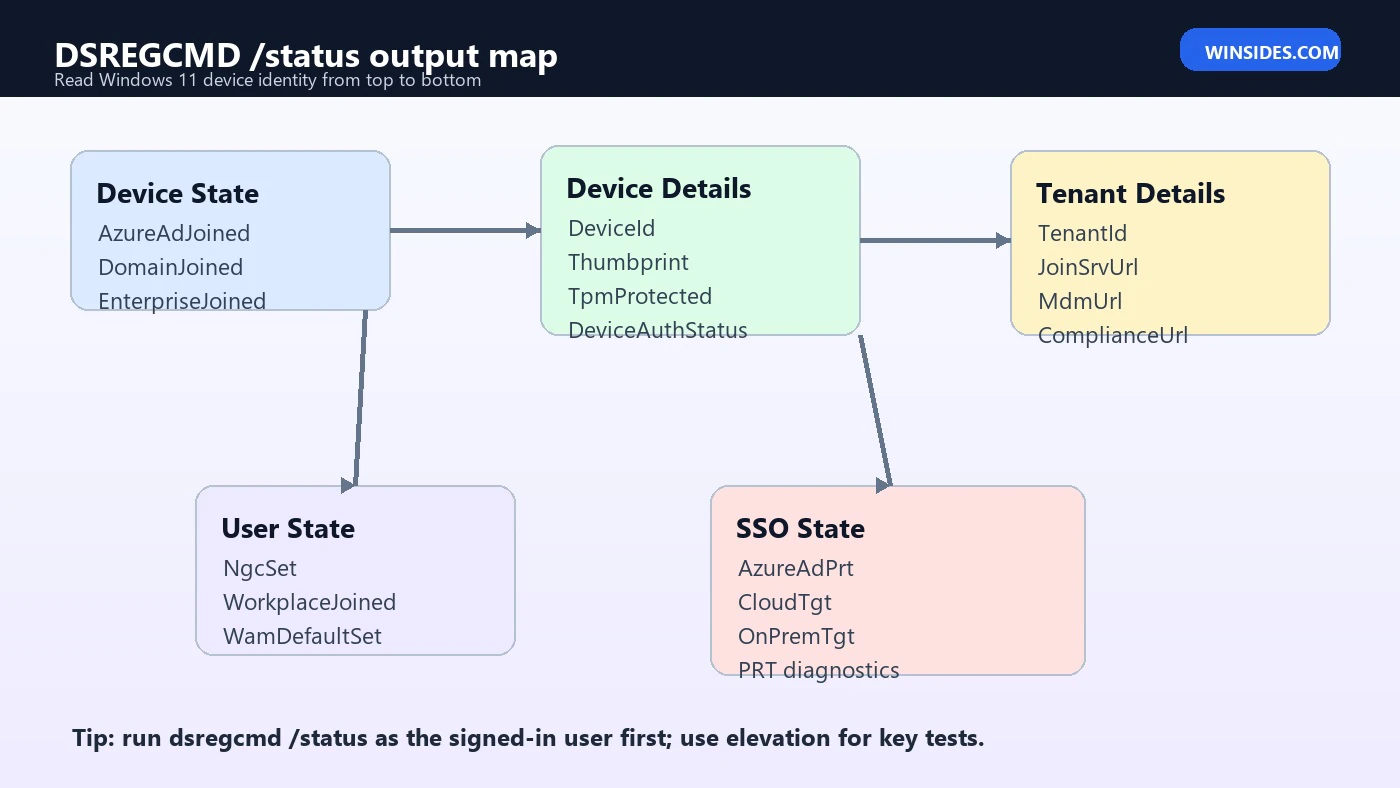
Microsoft documents DSREGCMD as a troubleshooting utility for interpreting device state in Microsoft Entra ID. The command is especially valuable because it separates the problem into readable sections: Device State, Device Details, Tenant Details, User State, SSO State, Diagnostic Data, and Windows Hello for Business checks. Instead of guessing whether a sign-in problem is caused by a missing device object, a failed Primary Refresh Token, a broken device certificate, or a hybrid join discovery issue, you can read the relevant section and narrow the problem before making changes. This article explains how to use DSREGCMD on Windows 11, what the key fields mean, and how to troubleshoot common results without causing unnecessary device re-registration.
This guide is written for Windows 11 users, help desk teams, Intune administrators, Microsoft Entra administrators, and anyone who needs a practical way to read identity state from the client side. It focuses on useful interpretation rather than dumping every possible field. For official reference, Microsoft has a detailed DSREGCMD troubleshooting guide, a device identity overview, Primary Refresh Token documentation, and hybrid join configuration guidance. The sections below turn those concepts into a working Windows 11 troubleshooting workflow.
Table of contents
Key Takeaways
- DSREGCMD is built into Windows 11. You normally use
dsregcmd /statusfrom Command Prompt or Windows Terminal to inspect device registration and sign-in state. - Device State tells you the join type. The combination of
AzureAdJoined,DomainJoined, andEnterpriseJoinedshows whether the PC is Microsoft Entra joined, hybrid joined, domain joined, or in another registration state. - DeviceAuthStatus matters. A device can look joined locally while the cloud device object is disabled, deleted, or unreachable.
- AzureAdPrt is central to cloud SSO. If
AzureAdPrtisNOfor a work user, Microsoft 365 and Conditional Access behavior can become inconsistent. - Run the command in the right context. User state and SSO state should be checked as the affected user, while some diagnostic checks need elevation.
- Do not jump directly to
dsregcmd /leave. Leaving and rejoining may be appropriate in specific cases, but it can also disrupt Intune enrollment, certificates, and user access if used without diagnosis.
What DSREGCMD Actually Does
DSREGCMD is a Windows command-line tool connected to the device registration components used by Microsoft Entra ID. On Windows 11, it helps report whether the device is registered, joined, hybrid joined, workplace joined, or merely domain joined. It also exposes details that are difficult to see from the graphical interface, such as the device certificate thumbprint, TPM protection state, tenant registration endpoints, WAM default account status, and Primary Refresh Token diagnostics. In everyday troubleshooting, that makes it a bridge between what users experience and what administrators see in Microsoft Entra admin center, Intune, Active Directory, and sign-in logs.
The most common command is simple:
dsregcmd /statusIt helps to understand what DSREGCMD does not do. It is not a general Windows repair tool like DISM or SFC. It does not repair damaged system files. It does not directly manage local user profiles. It does not replace Entra sign-in logs, Intune device records, or Active Directory checks. Instead, DSREGCMD gives a client-side identity report. You use that report to decide whether the problem is join state, tenant discovery, device certificate health, user token state, Windows Hello for Business prerequisites, or network access to Microsoft registration services.
Why DSREGCMD Matters on Windows 11
Windows 11 is deeply connected to modern identity. A work PC may be Microsoft Entra joined, hybrid joined, Intune managed, protected by Conditional Access, configured for Windows Hello for Business, and expected to provide single sign-on to Microsoft 365, Azure resources, VPN clients, remote apps, and internal web applications. When everything works, users barely notice the identity plumbing. They sign in once and applications quietly receive tokens. When something breaks, the symptoms are scattered: repeated credential prompts, Office activation problems, Teams sign-in loops, missing Intune compliance state, browser SSO failure, Windows Hello setup errors, or Conditional Access blocks that say the device is not compliant or not joined.
The graphical Windows 11 Settings app can show that a work or school account is connected, but it does not show the full state. Microsoft Entra admin center can show a device object, but it does not prove that the local private key, certificate, PRT, WAM account, and user context are healthy. DSREGCMD is valuable because it reads the local registration state and presents the values that connect the client to cloud identity. Microsoft explains in its device identity documentation that devices can be registered, joined, or hybrid joined with Microsoft Entra ID, and those identities support scenarios like SSO, device-based Conditional Access, and mobile device management. DSREGCMD is one of the most practical ways to verify that identity from the Windows 11 device itself.
This becomes especially important in mixed environments. A home user may only care whether a work account is connected. A small business may use Microsoft Entra join and Intune. An enterprise may still use on-premises Active Directory and Microsoft Entra hybrid join. Another organization may use federation, AD FS, proxy rules, tenant restrictions, and staged rollouts. The DSREGCMD output helps all of these environments, but you must read the values according to the device scenario.
How to Run DSREGCMD on Windows 11
For most checks, start with the affected user signed in to Windows 11. Open Windows Terminal, Command Prompt, or PowerShell, then run:
dsregcmd /statusIf you are troubleshooting an end user remotely, ask them not to send screenshots that reveal tenant IDs, device IDs, certificate thumbprints, or user principal names unless your organization has a safe support process for that data. The output can include identifying information. It is better to collect the specific fields you need, or sanitize the output before sharing it outside the support team.
For elevated diagnostics, right-click Command Prompt or Windows Terminal and choose Run as administrator, then run the same command. Elevated mode is useful when you want post-join diagnostic checks such as KeySignTest, or when troubleshooting hybrid join where the actual join activity occurs under system context. However, do not rely only on an elevated window for user-specific SSO issues. The User State and SSO State sections are most useful when the command is run in the actual affected user context.
| Scenario | Recommended command context | Why it matters |
|---|---|---|
| Cloud SSO prompts or Teams sign-in loop | Normal user session | Shows AzureAdPrt, WAM state, and user-specific token diagnostics. |
| Hybrid join does not complete | Elevated Command Prompt | Closer to machine-context diagnostics and join checks. |
| Device certificate or key health | Elevated Command Prompt | Some key tests need administrator privileges. |
| Windows Hello for Business setup issue | User context first, elevated if needed | User state and NGC prerequisite checks may both matter. |
Understanding the Device State Section
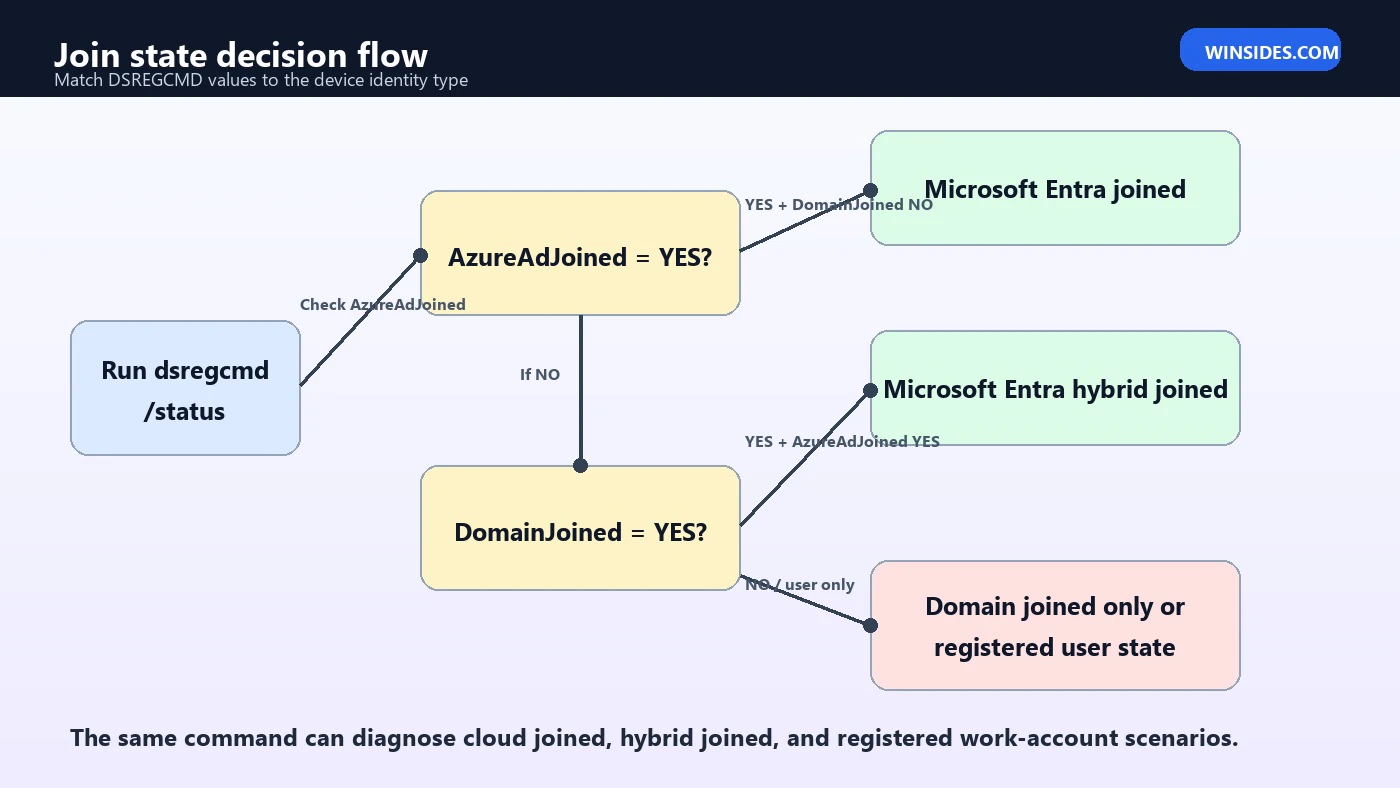
The Device State section is the first place to look because it tells you what kind of device identity Windows thinks it has. The key fields are AzureAdJoined, EnterpriseJoined, DomainJoined, and DomainName. Microsoft lists the criteria for the main states: a Microsoft Entra joined device has AzureAdJoined : YES and DomainJoined : NO; a domain joined device has DomainJoined : YES and AzureAdJoined : NO; a Microsoft Entra hybrid joined device has both AzureAdJoined : YES and DomainJoined : YES. That combination is the quickest way to determine whether Windows 11 is in the expected join model.
+----------------------------------------------------------------------+
| Device State                                                         |
+----------------------------------------------------------------------+
             AzureAdJoined : YES
          EnterpriseJoined : NO
              DomainJoined : YES
                DomainName : CONTOSO
+----------------------------------------------------------------------+
In the sample above, the important part is not just that the device is Azure AD joined. The combination of AzureAdJoined : YES and DomainJoined : YES indicates a hybrid joined Windows 11 device. If your organization expects Microsoft Entra join only, DomainJoined : YES may be unexpected. If your organization expects hybrid join, AzureAdJoined : NO indicates the cloud join has not completed even if the device is still joined to Active Directory.
Do not confuse WorkplaceJoined with the main Device State section. Workplace Joined appears in User State and usually refers to a Microsoft Entra registered work account in the current user profile. A personally owned Windows 11 PC can have a work account connected and show Workplace Joined for that user without the device being Microsoft Entra joined. This distinction matters because Conditional Access rules that require a joined or compliant device may not be satisfied by a simple connected account.
Reading Device Details and DeviceAuthStatus
After Device State, the Device Details section helps validate whether the cloud registration is healthy. This section appears for Microsoft Entra joined or hybrid joined devices, not merely registered devices. You will see fields such as DeviceId, Thumbprint, DeviceCertificateValidity, KeyContainerId, KeyProvider, TpmProtected, and DeviceAuthStatus. These values connect the local Windows 11 registration to the cloud device identity.
DeviceId should match the device object in Microsoft Entra ID. Thumbprint identifies the device certificate used by the registration. DeviceCertificateValidity tells you whether the certificate date range looks valid. TpmProtected tells you whether the private key is protected by the Trusted Platform Module. Microsoft notes that DeviceAuthStatus checks the device health in Microsoft Entra ID. A successful result indicates the device is present and enabled. Failed results can point to a disabled or deleted device, or to a test that cannot run because the system context cannot reach Microsoft Entra ID.
| Field | Good sign | What to investigate if wrong |
|---|---|---|
| DeviceId | Matches the Microsoft Entra device object | Wrong tenant, stale registration, duplicate device, or deleted cloud object. |
| DeviceCertificateValidity | Current date is inside the validity range | Expired or missing certificate, re-registration need, or device key issue. |
| TpmProtected | YES on hardware that should use TPM | TPM unavailable, software key storage, firmware or provisioning history. |
| DeviceAuthStatus | SUCCESS | Disabled/deleted device, no system-context connectivity, or tenant/device mismatch. |
Tenant Details: URLs, MDM Scope, and Registration Endpoints
Tenant Details shows the Microsoft Entra tenant information and registration endpoints discovered by the device. You may see TenantName, TenantId, JoinSrvUrl, KeySrvUrl, MdmUrl, MdmTouUrl, and MdmComplianceUrl. These fields are useful when the device appears to be joined to the wrong tenant, when MDM auto-enrollment is expected but not happening, or when the join service endpoints cannot be reached.
A common misunderstanding is assuming that MDM URLs prove the device is managed. Microsoft notes that the presence of MDM URLs indicates tenant MDM configuration for automatic enrollment, but it does not guarantee that the specific device is managed. If the MDM URL fields are empty, it may mean MDM is not configured or the current user is not in scope for MDM enrollment. For actual management state, compare DSREGCMD with Intune device records, Windows Settings, enrollment logs, and the Microsoft Entra device object.
For hybrid join, network access is especially important. Microsoft hybrid join guidance lists endpoints such as https://enterpriseregistration.windows.net, https://login.microsoftonline.com, and https://device.login.microsoftonline.com among the resources devices may need. If SSL inspection, proxy rules, tenant restrictions, or machine-context authentication block those endpoints, DSREGCMD diagnostics can show discovery, connectivity, or token acquisition failures even though the user can browse the internet normally.
User State: Windows Hello, Workplace Join, and WAM
The User State section is about the signed-in user, not just the machine. That is why context matters so much. Run dsregcmd /status as the affected user if the problem is Windows Hello for Business, Office sign-in, browser SSO, or work account registration. Key fields include NgcSet, WorkplaceJoined, and WamDefaultSet. NgcSet indicates whether a Windows Hello key is set for the user. WorkplaceJoined indicates whether a Microsoft Entra registered account is present in the current user context. WamDefaultSet indicates whether Web Account Manager has a default account for the user.
WAM is especially important for Windows 11 cloud sign-in behavior. Many Microsoft applications use WAM to request tokens silently. If WAM state is broken, users may see repeated sign-in prompts even when the device join state looks correct. A support technician might spend time rejoining the device, but the real problem is an affected user profile, stale work account, or broker state. DSREGCMD helps separate machine registration from user token broker state.
If WamDefaultSet shows an error from an elevated Command Prompt, rerun the command normally as the user. Microsoft notes that this field can display an error when dsregcmd /status is run from an elevated command prompt. This is a small detail, but it prevents a lot of false troubleshooting. The user-context output is the one that matters most for WAM and PRT questions.
SSO State and AzureAdPrt
The SSO State section is where many Microsoft 365 sign-in mysteries are solved. The most famous field is AzureAdPrt. A Primary Refresh Token is a core Microsoft Entra authentication artifact used by Windows and Microsoft token brokers to provide single sign-on. Microsoft explains in its Primary Refresh Token documentation that a PRT supports SSO, token acquisition, and Conditional Access-related device and user claims. In simple terms: if the correct work user on a joined Windows 11 device has AzureAdPrt : YES, Microsoft apps and browsers have a much better foundation for silent authentication.
+----------------------------------------------------------------------+
| SSO State                                                            |
+----------------------------------------------------------------------+
                AzureAdPrt : YES
       AzureAdPrtAuthority : https://login.microsoftonline.com/tenant-id
     AzureAdPrtUpdateTime : 2026-06-22 09:10:00.000 UTC
     AzureAdPrtExpiryTime : 2026-09-20 09:10:00.000 UTC
                CloudTgt : YES
               OnPremTgt : YES
+----------------------------------------------------------------------+
If AzureAdPrt is NO, do not assume one single cause. It can be caused by a device that is not joined as expected, a user who is not signing in with the right organizational context, federation requirements, WAM issues, invalid credentials, network problems, or tenant-side policy and configuration. The DSREGCMD diagnostics fields can show previous PRT attempts, HTTP status, server error codes, endpoints, correlation IDs, and credential type. Those values are extremely useful when you need to compare client-side evidence with Microsoft Entra sign-in logs.
For hybrid environments, SSO State may also show EnterprisePrt, OnPremTgt, and CloudTgt. Windows 11 added Cloud Kerberos diagnostics fields in the original Windows 11 release, which can help with scenarios involving cloud Kerberos trust and access to on-premises resources. If your environment does not use those capabilities, do not over-read them. Focus first on the join state, PRT, WAM, and device health fields that match the reported symptom.
Common DSREGCMD Windows 11 Scenarios
Scenario 1: AzureAdJoined is NO on a Device That Should Be Joined
If AzureAdJoined is NO on a Windows 11 device that should be Microsoft Entra joined, start by confirming the provisioning path. Was the device supposed to be joined during Windows setup, Autopilot, manual work account setup, or hybrid join? If it is a company-owned cloud-first device, check Settings > Accounts > Access work or school and confirm whether the device is connected to the organization. Then compare with the Microsoft Entra device list. A missing local join state usually means the device never completed the join, the user used the wrong account flow, or the device was reset or reimaged without proper enrollment.
Scenario 2: DomainJoined is YES but AzureAdJoined is also YES
This is not automatically wrong. On a hybrid joined Windows 11 device, both fields should be YES. The key is whether that matches your intended design. In many enterprises, hybrid join is expected because devices are still joined to on-premises Active Directory while also registered in Microsoft Entra ID. In a cloud-native Intune environment, however, a device that is both domain joined and Entra joined may be outside the expected deployment path. Always interpret DSREGCMD according to the organization design, not according to a universal good or bad value.
Scenario 3: DeviceAuthStatus is FAILED
A failed DeviceAuthStatus means the local registration cannot be fully trusted as healthy. Microsoft describes statuses such as success, failed because the device is disabled or deleted, or failed because the test could not run. Start with the Microsoft Entra device object: is it present, enabled, and associated with the expected user or owner? Then check whether system context can reach Microsoft Entra endpoints. A user may have internet access in the browser while the machine context is blocked by a proxy or security product.
Scenario 4: AzureAdPrt is NO
AzureAdPrt : NO is one of the most common DSREGCMD findings behind cloud SSO problems. First confirm that you ran the command as the affected user. Then confirm the device join state and user account. If the device is not joined or the work account is only registered, Conditional Access behavior may differ from a fully joined or compliant device. If the join state is correct, inspect PRT diagnostics in the SSO State section.
Scenario 5: WamDefaultSet is NO or Shows an Error
If WamDefaultSet is not healthy, applications that rely on Windows Web Account Manager may not get tokens smoothly. Rerun DSREGCMD in a non-elevated user session, confirm the work account under Access work or school, and check whether the issue follows the user profile or only one app. Sometimes disconnecting and reconnecting a work account is enough for a registered personal device, but for a company-managed joined device you should avoid casual account removal.
Troubleshooting Workflow: From Safe Checks to Repair
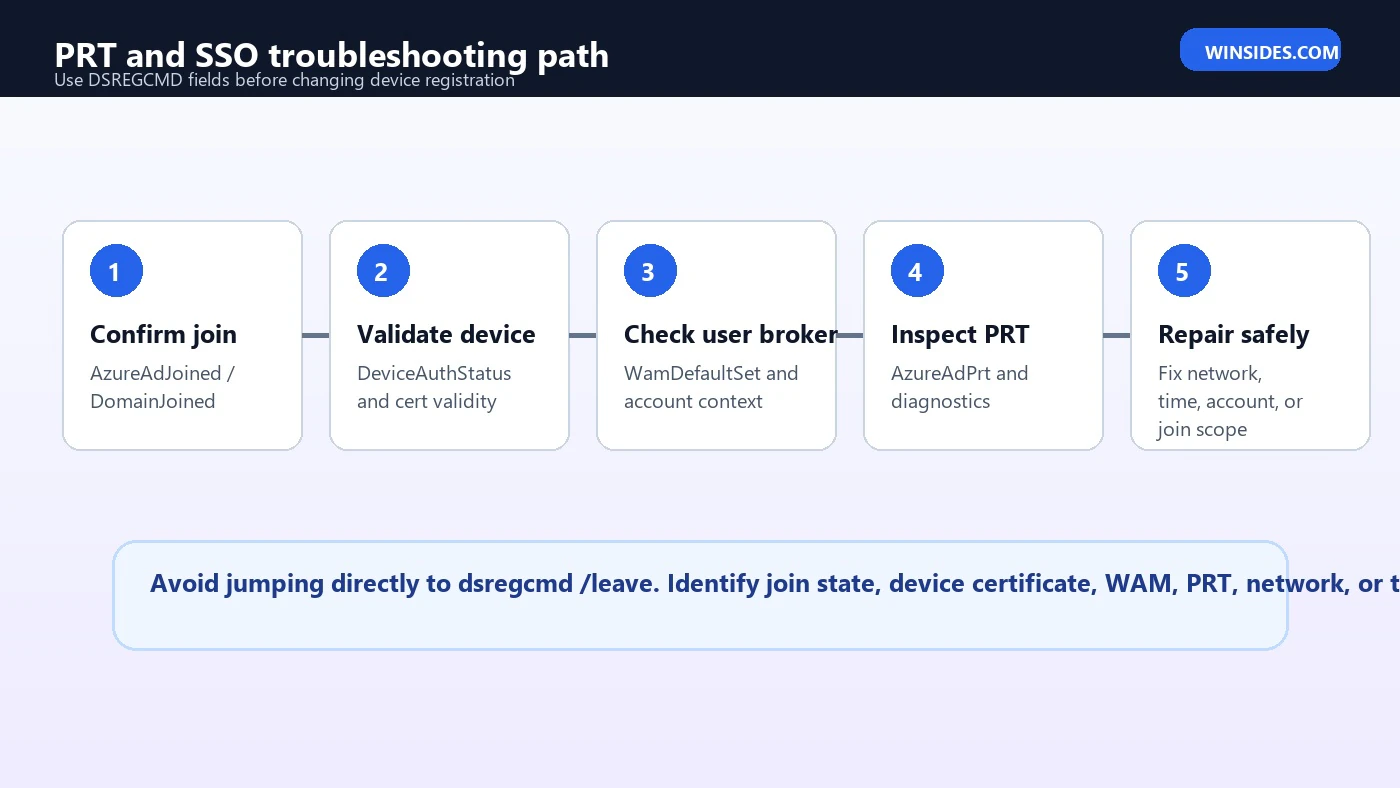
A safe DSREGCMD troubleshooting sequence starts with observation, not repair. Capture the output, identify the device scenario, compare it with the intended design, and only then decide what to change. This prevents the most common mistake: running dsregcmd /leave because an online forum suggested it, even though the real problem is PRT, WAM, proxy, or tenant scope.
- Step 1: Run
dsregcmd /statusas the affected user and save the relevant sections. - Step 2: Identify join state from
AzureAdJoined,DomainJoined, andWorkplaceJoined. - Step 3: Confirm whether the state matches the expected deployment model: Entra joined, hybrid joined, domain joined, or registered only.
- Step 4: Check
DeviceAuthStatus, certificate validity, and tenant details. - Step 5: Check
WamDefaultSetandAzureAdPrtin the affected user context. - Step 6: Compare client-side evidence with Microsoft Entra device records, Intune device state, and sign-in logs.
- Step 7: Repair the specific layer that failed: network, tenant scope, user profile, WAM, certificate, hybrid join configuration, or device registration.
When Should You Use dsregcmd /leave?
dsregcmd /leave removes Microsoft Entra registration state from the device. It can be useful in specific recovery cases, such as stale registration, lab devices, or devices being intentionally rejoined. However, it is not a harmless first step. On managed Windows 11 devices, leaving the registration can affect Intune enrollment, compliance, Conditional Access, certificates, Windows Hello for Business, and user productivity. If the device is production-managed, confirm the recovery plan before using it.
Before using /leave, ask four questions. First, is the device object disabled or deleted in Microsoft Entra ID? Second, is the device Intune-managed, and will re-enrollment be automatic or manual? Third, is the issue actually user-specific rather than device-specific? Fourth, do you have local administrator access and a way to restore management if rejoin fails? If you cannot answer those questions, collect more evidence before making the change.
dsregcmd /leaveDSREGCMD Commands and Practical Examples
DSREGCMD is not a large command family for everyday use. Most administrators use /status, and occasionally /leave. The power comes from reading the output well. Still, it helps to keep a few command patterns ready.
| Command | Use |
|---|---|
dsregcmd /status | Show device registration, tenant, user, SSO, and diagnostics state. |
dsregcmd /status > "%USERPROFILE%\Desktop\dsregcmd-status.txt" | Save output to a text file for internal troubleshooting. |
dsregcmd /leave | Remove Entra registration from the device when a planned rejoin or recovery is required. |
whoami /upn | Confirm the signed-in user identity before interpreting user-context DSREGCMD output. |
nltest /dsgetdc:contoso.com | For domain/hybrid scenarios, confirm domain controller discovery separately. |
dsregcmd /status > "%USERPROFILE%\Desktop\dsregcmd-user-status.txt"dsregcmd /status > "%PUBLIC%\Desktop\dsregcmd-admin-status.txt"Best Practices for Administrators
Administrators should standardize how DSREGCMD output is collected and interpreted. A small checklist can save hours of confusion. Ask users for symptoms first, not just output. Record whether the device is expected to be Entra joined, hybrid joined, domain joined only, or personally registered. Confirm whether the issue affects one user, one device, many devices, or a whole network segment. Then read DSREGCMD through that lens.
For hybrid environments, pair DSREGCMD with Microsoft Entra Connect health, OU synchronization scope, SCP configuration, event logs, and network checks. Microsoft hybrid join documentation notes that devices need access to specific Microsoft resources, and that SSL interception can interfere with client certificate authentication and device registration. If many devices fail at the same phase, do not rejoin them one by one. Look for shared configuration, proxy, certificate inspection, federation, or synchronization causes.
For cloud-only environments, pair DSREGCMD with Intune enrollment records, compliance policy state, Conditional Access reports, and user sign-in logs. If AzureAdPrt is missing but device join looks healthy, sign-in logs and WAM state may tell the rest of the story. If the device object is disabled, no amount of local token cleanup will make Conditional Access trust it. If the user profile is broken, rejoining the device may not fix the affected account.
Security and Privacy Notes
DSREGCMD output can reveal tenant IDs, device IDs, certificate thumbprints, user identities, endpoints, and diagnostic correlation details. In an enterprise, treat it like support data. It is not a password, but it can expose enough environment context that you should avoid posting raw output on public forums. Redact identifiers before sharing externally. When working with a vendor, follow your organization support data handling rules.
Be equally careful with repair advice. Commands that disconnect work accounts, remove registration, reset tokens, or rejoin devices can affect compliance and access. If a Windows 11 device is enrolled in Intune or governed by Conditional Access, a repair that looks local can have tenant-wide policy consequences for the user. Safe troubleshooting means proving the failed layer before changing state.
Frequently Asked Questions
Is DSREGCMD available on Windows 11 Home?
The command exists on Windows 11, but the useful output depends on whether the device is connected to work or school accounts, Microsoft Entra ID, Active Directory, or hybrid identity. A personal Windows 11 Home PC with no work account will not show the same enterprise join details as a managed business device.
Should AzureAdJoined always be YES?
No. It depends on the intended device model. A Microsoft Entra joined device should show AzureAdJoined : YES. A hybrid joined device should typically show both AzureAdJoined : YES and DomainJoined : YES. A traditional domain-only device may show AzureAdJoined : NO. Interpret the value against the expected design.
Why is AzureAdPrt NO even though the device is joined?
A joined device is only one part of cloud SSO. The user must also obtain a valid Primary Refresh Token. Problems with credentials, WAM, federation, network access, tenant policy, or user context can prevent PRT issuance. Rerun DSREGCMD as the affected user and review the PRT diagnostics fields.
Can DSREGCMD fix Intune enrollment?
Not directly. DSREGCMD can show tenant and MDM-related URLs, join state, and user/device registration health. Intune enrollment problems may require checking enrollment restrictions, MDM user scope, licenses, compliance state, event logs, and Company Portal or Settings enrollment flows.
Is dsregcmd /leave safe?
It is safe only when you understand the impact and have a rejoin plan. On managed devices, it can affect Entra registration, Intune management, Windows Hello for Business, and Conditional Access. Use it as a targeted repair step, not as the first troubleshooting action.
Conclusion: Use DSREGCMD as a Map, Not a Hammer
DSREGCMD on Windows 11 is best understood as a map of modern device identity. It shows whether the device is joined, whether the cloud device object is healthy, which tenant endpoints the PC knows, whether the user has WAM and Windows Hello state, and whether a Primary Refresh Token is available for single sign-on. When read carefully, the command turns vague sign-in symptoms into a structured troubleshooting path.
The most important habit is to avoid overreacting to one field. A missing PRT does not always mean the device must be rejoined. A domain joined value is not wrong if the device is designed for hybrid join. MDM URLs do not prove the device is managed. An elevated output may not answer a user-context SSO problem. DSREGCMD is powerful because it gives clues in layers. Read those layers in order, compare them with the intended deployment, and then repair the actual failed layer.
For official background, keep Microsoft documentation for DSREGCMD troubleshooting, device identity, Primary Refresh Token behavior, and Microsoft Entra hybrid join nearby. Together, those references and a clean DSREGCMD output usually provide enough evidence to solve Windows 11 join and SSO problems without unnecessary resets.
For more interesting articles, stay tuned to Winsides.com!









Community
Comments (0)