

Introduction to Windows 11 Secure Boot Expiry
Windows 11 secure boot expiry is a phrase many users search after hearing that Secure Boot certificates are expiring in 2026. The phrase sounds frightening, as if Secure Boot itself is about to stop working or Windows 11 will suddenly refuse to start. That is not the right way to understand it. Secure Boot is not being removed, and Windows 11 does not expire because Secure Boot certificates reach their planned end dates. What is expiring is a set of older Microsoft Secure Boot certificates originally issued in 2011.
Those certificates help firmware decide which boot components are trusted before Windows starts. Secure Boot exists to protect the early startup path from bootkits and other pre-operating-system attacks. Microsoft explains that Secure Boot verifies pre-boot software against trusted certificates stored in firmware, using pieces such as the Key Enrollment Key, the allowed signature database, and the disallowed signature database. Microsoft Support Secure Boot certificate expiration and CA updates
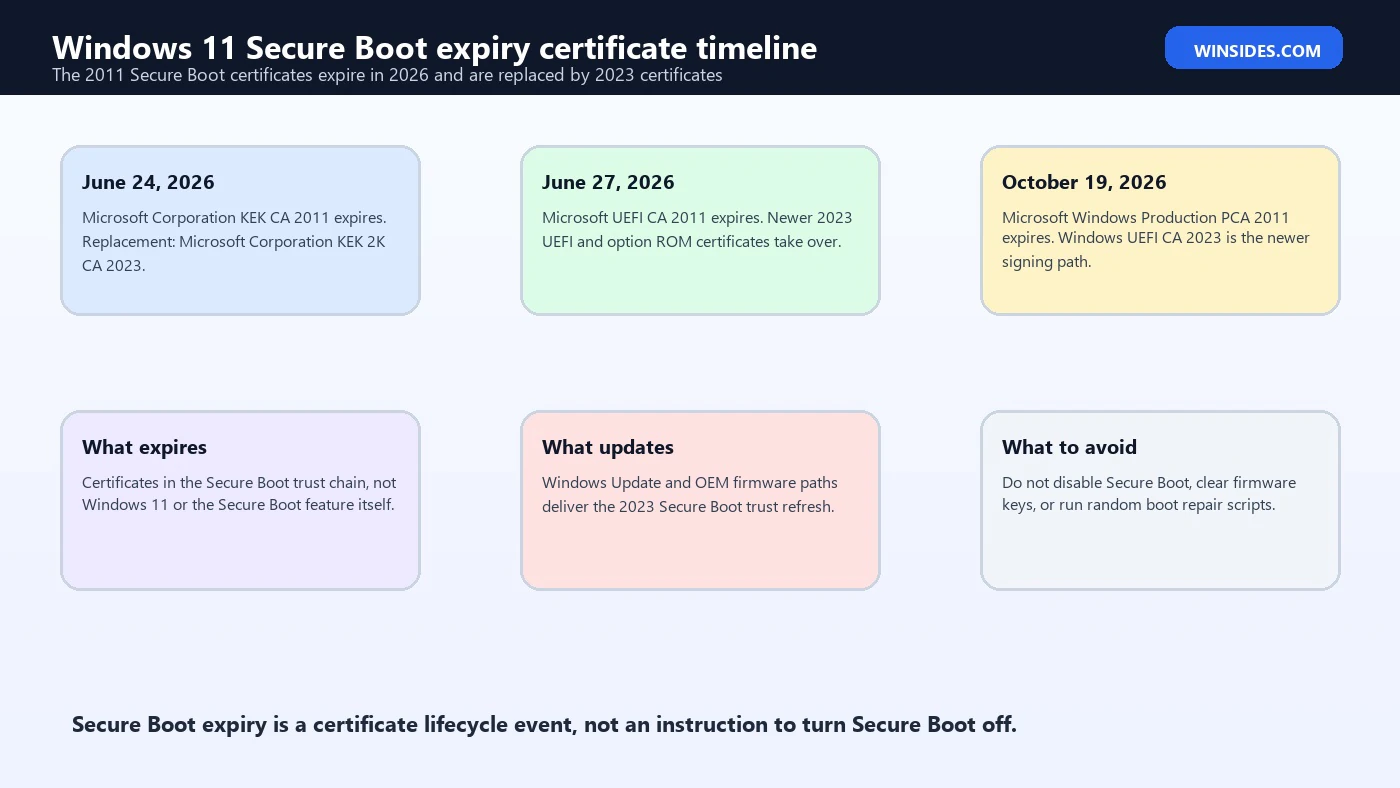
The 2026 transition matters because the older 2011 certificates are reaching expiration and Microsoft is moving Windows devices to newer 2023 certificates. Microsofts Secure Boot certificate expiration guidance lists key dates: Microsoft Corporation KEK CA 2011 expires on June 24, 2026; Microsoft UEFI CA 2011 expires on June 27, 2026; and Microsoft Windows Production PCA 2011 expires on October 19, 2026. Microsoft Support Secure Boot certificate expiration and CA updates As of June 30, 2026, the first two dates have already passed, while the Windows Production PCA 2011 date is still ahead.
For most supported Windows 11 home and business users who get normal Microsoft-managed updates, the action is simple: keep Windows Update enabled, keep Secure Boot enabled, and install firmware or OEM updates when offered. Microsoft says the new 2023 certificates are delivered through regular Windows Update channels for most supported systems, and in many cases no user action is needed. Microsoft Support Secure Boot updates for Microsoft-managed devices
This guide explains what Windows 11 Secure Boot expiry really means, why the 2011 certificates matter, what the 2023 certificate refresh does, how to check whether Secure Boot is enabled, what not to do, and how to approach home PCs, work PCs, dual-boot systems, BitLocker-protected devices, and older hardware safely.
Table of contents
Key Takeaways
- Windows 11 Secure Boot expiry means certificate expiration, not Secure Boot disappearing. The Secure Boot feature remains part of UEFI-based Windows security.
- The older 2011 Secure Boot certificates are being replaced by 2023 certificates. This keeps boot-level trust and future Secure Boot protections current.
- Key 2026 dates matter. Microsoft Corporation KEK CA 2011 expired on June 24, 2026; Microsoft UEFI CA 2011 expired on June 27, 2026; Microsoft Windows Production PCA 2011 expires on October 19, 2026.
- Most supported Windows 11 devices receive updates through Windows Update. Home, Pro, and Education devices with Microsoft-managed updates generally do not need manual certificate editing.
- Do not disable Secure Boot as a fix. Disabling Secure Boot reduces protection and may affect BitLocker, Windows Hello, device compliance, and anti-cheat or security requirements.
- Firmware and OEM updates may matter. Some devices need manufacturer firmware support to complete the transition correctly.
- IT-managed devices need administrator planning. Enterprises, labs, dual-boot fleets, and custom Secure Boot key environments should follow Microsoft and OEM guidance, not random registry advice.
What Secure Boot Does Before Windows Starts
Secure Boot is a firmware security feature in UEFI systems. It helps ensure that only trusted software runs during the device startup sequence. The important part is that this protection happens before Windows fully loads. That is why Secure Boot is relevant to bootkits and other early-boot attacks.
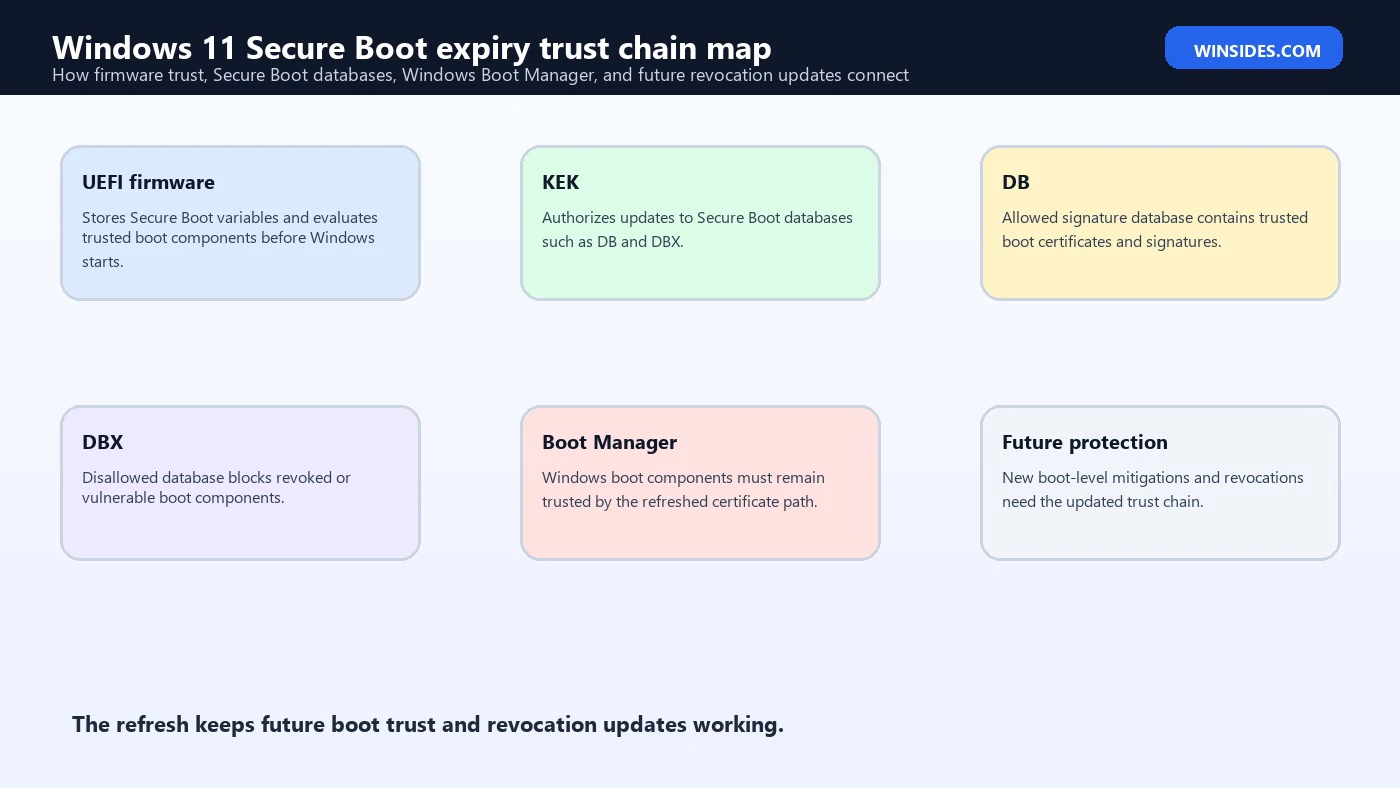
When a Windows 11 PC starts, the firmware checks whether boot components are trusted. It does this using certificates and signature databases stored in firmware. The firmware trust hierarchy includes the Platform Key, Key Enrollment Key, allowed signature database, and disallowed signature database. Microsofts Secure Boot article explains that the allowed database and disallowed database determine which code can run in the UEFI environment before the operating system starts. Microsoft Support Secure Boot certificate expiration and CA updates
The allowed database, often called DB, contains trusted signatures or certificates. The disallowed database, often called DBX, contains revoked signatures or hashes that should not run. The KEK can authorize updates to these databases. This is how the device can keep boot trust current over time.
Windows Boot Manager, third-party boot loaders, and certain UEFI applications are all part of this trust conversation. The firmware checks boot components before handing control to the Windows boot path. If a component is not trusted, Secure Boot can block it.
This is why certificate expiration is important. Secure Boot depends on certificates that were issued for a finite period. Certificates are not meant to last forever. Rotating them is part of keeping the trust chain healthy.
However, Secure Boot certificate expiry does not mean the feature is obsolete. It means the certificates must be updated so the device can keep trusting newly signed boot components and receiving future boot-level protections.
What Is Actually Expiring in 2026?
The confusing part is that users hear Secure Boot expiry and imagine one single switch. In reality, several Secure Boot-related certificates are involved. Microsofts 2026 guidance lists the older 2011 certificates and the newer 2023 replacements. Microsoft Support Secure Boot certificate expiration and CA updates
Microsoft Corporation KEK CA 2011 expired on June 24, 2026. The replacement is Microsoft Corporation KEK 2K CA 2023, stored in KEK. This certificate signs updates to Secure Boot databases such as DB and DBX.
Microsoft UEFI CA 2011 expired on June 27, 2026. Microsoft splits this renewal into newer 2023 certificates for different purposes, including Microsoft UEFI CA 2023 and Microsoft Option ROM UEFI CA 2023. These relate to third-party boot loaders, EFI applications, and option ROM trust.
Microsoft Windows Production PCA 2011 expires on October 19, 2026. The newer Windows UEFI CA 2023 is stored in DB and is used for signing the Windows boot loader.
The transition is not a random emergency patch. Microsoft published guidance and began a staged rollout so devices can move from 2011 certificates to 2023 certificates. Microsoft describes this as refreshing the root of trust and coordinating across the Windows ecosystem, OEMs, silicon partners, enterprise customers, and the broader industry. Windows Experience Blog on refreshing the Secure Boot root of trust
The practical takeaway is that the device needs the new 2023 Secure Boot certificates in firmware so Windows and related boot security updates can continue smoothly. The goal is continuity, not panic.
Does Windows 11 Stop Booting When Certificates Expire?
For most users, no. Microsoft states that devices that have not received the newer 2023 certificates will continue to start and operate normally, and standard Windows updates will continue to install. Microsoft Support Secure Boot certificate expiration and CA updates That sentence matters because it corrects the most common fear.
The issue is not an immediate boot failure for ordinary Windows 11 users. The issue is that devices without the newer certificates will no longer be able to receive new security protections for the early boot process, including updates to Windows Boot Manager, Secure Boot databases, revocation lists, or mitigations for newly discovered boot-level vulnerabilities.
That means the risk grows over time. The PC may boot today, browse today, and install normal updates today, but the early boot trust chain can become less capable of receiving future protections. For security, that is not a place to leave a system indefinitely.
This is similar to other trust lifecycle problems. A certificate can expire without immediately making every existing thing stop. But future trust, renewal, revocation, and update scenarios become constrained.
Users should not interpret normal booting as proof that no action is needed forever. A device can boot normally and still need Secure Boot certificate updates to preserve future protection.
At the same time, users should not respond by disabling Secure Boot, deleting firmware keys, or installing unofficial boot files. Those actions can create more risk than the certificate transition itself.
What Most Home Users Need to Do
For most supported Windows 11 Home and Pro users, the right action is simple. Keep Windows Update enabled. Do not pause updates for long periods. Restart when Windows asks. Keep Secure Boot enabled. Install firmware or OEM updates when Windows Update or your PC manufacturer offers them.
Microsofts home-user guidance says that if you use a Windows 10 or Windows 11 Home, Pro, or Education device and get updates automatically from Microsoft, the new 2023 certificates are delivered through regular Windows Update channels. It also says that for most supported Windows systems, no action is needed. Microsoft Support Secure Boot updates for Microsoft-managed devices
That does not mean ignore the device. It means do not manually edit Secure Boot variables unless you are following a specific IT or OEM procedure. Normal users should avoid registry hacks, unsigned firmware tools, random boot repair utilities, or forum scripts that promise to update Secure Boot keys.
Open Settings > Windows Update and check for updates. If updates are paused, resume them. If a restart is pending, schedule or perform it. Then check the PC manufacturers support app or support website for BIOS, UEFI, firmware, and security updates for your exact model.
If your PC is old, unsupported, or running a Windows 11 version that is out of servicing, fix that first. Certificate update delivery depends on a supported update path.
If you see guidance from Microsoft or your OEM saying no action is needed, follow that. If you see a third-party site telling home users to disable Secure Boot to avoid expiry, ignore it.
How to Check Whether Secure Boot Is Enabled
You can check Secure Boot status without changing anything. Press Windows + R, type msinfo32, and press Enter. In System Information, look for Secure Boot State. If it says On, Secure Boot is enabled. If it says Off, Secure Boot is disabled. If it says Unsupported, the device may not support Secure Boot or may not be configured in UEFI mode.
You can also check Settings > System > Recovery > Advanced startup if you need to enter UEFI firmware settings, but do not change firmware settings unless you know why. Looking is safer than editing.
Windows Security may also expose Secure Boot-related information depending on the Windows version, update state, and Microsoft rollout. Microsofts Secure Boot support pages include guidance for certificate update status in the Windows Security app, but availability can vary by rollout and device management state.
If Secure Boot is Off on a Windows 11 PC, do not immediately turn it on without checking disk layout, BitLocker state, boot mode, and firmware settings. Many Windows 11 systems are already UEFI and ready, but older upgraded systems or custom installations can be more complicated.
If BitLocker is enabled, suspend BitLocker protection before firmware changes only when following trusted guidance. Firmware and Secure Boot changes can trigger BitLocker recovery key prompts. Make sure the recovery key is backed up before changing boot settings.
For normal users, the first step is observation. Check Secure Boot state, check Windows Update, check the OEM update path, and avoid experimental fixes.
Why Disabling Secure Boot Is the Wrong Fix
Disabling Secure Boot may make some boot problems disappear temporarily, but it removes an important protection layer. It is not the right response to Windows 11 Secure Boot expiry.
Secure Boot protects the pre-boot environment. Turning it off can allow unsigned or untrusted boot components to run. That matters because malware that loads before Windows can be harder to detect and remove.
Disabling Secure Boot can affect BitLocker. A firmware state change may trigger recovery. If the user does not have the recovery key, they can be locked out of data. The certificate transition should not be turned into a BitLocker recovery emergency.
Disabling Secure Boot can affect Windows 11 compliance checks, enterprise security baselines, anti-cheat systems, virtualization-based security expectations, and device health reporting. On a managed device, it can make the PC noncompliant.
Disabling Secure Boot also does not update certificates. It simply stops using the security check that depends on them. That is like removing a smoke detector because the battery is old.
The correct response is to keep Secure Boot enabled and let supported Windows and firmware updates deliver the newer 2023 trust material. For unusual cases, follow Microsoft, OEM, or IT administrator guidance.
What Work and School Devices Need
Work and school devices may not follow the same path as home PCs. They may be managed by Intune, Configuration Manager, Group Policy, Windows Update for Business, WSUS, OEM management tools, or a custom imaging process. Some may have Secure Boot settings controlled by policy.
The important point for users is not to self-repair a managed PC. If your organization controls updates, Secure Boot, BitLocker, firmware, or compliance, report the issue to IT. Do not change firmware keys, disable Secure Boot, install BIOS updates from random pages, or run PowerShell scripts you found online.
IT administrators need staged deployment, monitoring, firmware testing, rollback planning, and model-based targeting. Microsoft has separate guidance for IT-managed updates and deployment methods. Microsoft Support Secure Boot certificate expiration and CA updates That exists because enterprise Secure Boot changes can affect fleets, imaging, dual-boot tools, recovery, hardware models, and compliance policies.
For users, the practical signs are simple. If Windows Update is managed by your organization, if settings say some settings are managed, if BitLocker is enforced, or if device health matters for work access, treat Secure Boot certificate updates as an IT-managed item.
If your device is blocked from receiving updates because it is out of support, disconnected from update services, or stuck behind a policy, IT needs to correct that path before certificate refresh can be trusted.
If you are an IT admin, the user-facing advice is not enough. Use Microsofts official enterprise guidance and OEM pages, then test on representative hardware before broad deployment.
Dual-Boot and Linux Considerations
Dual-boot devices need extra care. The Microsoft UEFI CA 2011 certificate has historically been important for many third-party boot loaders and EFI applications. Microsofts 2026 certificate guidance notes separate 2023 certificates for third-party boot loaders and option ROMs. Microsoft Support Secure Boot certificate expiration and CA updates
If you dual boot Windows and Linux, do not assume that the Windows side is the only stakeholder. The Linux distribution, shim, boot loader, firmware trust database, and Secure Boot state all matter.
Most mainstream distributions that support Secure Boot plan around certificate changes, but timing and implementation can vary. Keep both Windows and the Linux distribution updated. Check your distribution guidance before making firmware key changes.
Do not disable Secure Boot as a permanent workaround unless you understand the security tradeoff. If a boot loader fails after certificate changes, the right fix may be updated distribution boot components, updated shim packages, firmware updates, or distribution-specific Secure Boot guidance.
If you use custom Secure Boot keys, self-signed boot loaders, specialized boot tools, disk encryption, or enterprise Linux images, document your current firmware variables before changes. This is not a casual home-user flow.
If the PC has BitLocker and dual boot, take extra care. Changing Secure Boot state, boot order, firmware keys, or boot loaders can trigger BitLocker recovery. Back up recovery keys before any boot-chain work.
BitLocker and Recovery Key Precautions
BitLocker is tightly connected to the boot trust path. If the boot environment changes, BitLocker may ask for a recovery key. That is expected protective behavior, but it can surprise users who are only trying to fix Secure Boot.
Before changing firmware settings, BIOS settings, Secure Boot state, boot order, TPM settings, or boot files, confirm that your BitLocker recovery key is available. Check your Microsoft account, work account, printed backup, USB backup, or organizational recovery system.
For normal Secure Boot certificate updates delivered through Windows Update, users usually should not need manual BitLocker handling. But if you are entering firmware settings or installing BIOS updates, preparation is wise.
If a device unexpectedly asks for a BitLocker recovery key after firmware or Secure Boot changes, do not keep guessing. Find the recovery key through the proper account or organizational recovery process.
Do not turn off BitLocker permanently just to avoid recovery prompts. If you must suspend BitLocker for a firmware update, resume it afterward.
For businesses, include BitLocker recovery planning in Secure Boot certificate transition testing. A technically correct firmware update can still become a support problem if recovery keys are missing or users are not warned.
Firmware and OEM Updates
Some Secure Boot certificate updates can be handled through Windows Update, but firmware still matters. The certificates live in firmware-managed Secure Boot variables. OEM implementation, firmware behavior, and update support can affect how smoothly the transition completes. Microsofts OEM Secure Boot guidance explains how Secure Boot support is implemented at the device and firmware level. Microsoft Learn OEM Secure Boot guidance
Check your PC manufacturers support page for your exact model. Look for BIOS, UEFI, firmware, security, and platform updates. If the manufacturer provides a support app, use the official app rather than a driver updater site.
Do not install firmware meant for a similar model. Firmware is model-specific. The wrong BIOS or UEFI package can break boot or hardware functions.
Do not interrupt firmware updates. Connect the charger on laptops. Avoid updating firmware during storms, low battery, or unstable power. Follow the manufacturers instructions.
If the OEM says the Secure Boot certificate update will arrive through Windows Update, follow that. If the OEM posts a firmware package related to Secure Boot, read the release notes and install it only if it applies to your exact model.
Microsofts Windows Experience Blog describes the certificate refresh as an ecosystem effort involving Microsoft, OEMs, and partners. Windows Experience Blog on refreshing the Secure Boot root of trust That is why device manufacturer updates are part of the story.
How Windows Update Fits Into the Certificate Refresh
Windows Update is the primary path for many Windows 11 devices. It can deliver operating system updates, Secure Boot database changes, revocation updates, and related staging needed for the transition.
Open Settings > Windows Update. Resume updates if they are paused. Install pending updates. Restart when required. Then check again, because some updates appear only after previous updates and restarts complete.
Do not rely on a single update check from months ago. The Secure Boot certificate refresh is staged. Microsoft says updates continue gradually through June 2026 for Microsoft-managed devices. Microsoft Support Secure Boot updates for Microsoft-managed devices If you keep a PC offline, paused, or blocked from updates, it may miss important stages.
Optional updates may include firmware or driver updates. Do not install optional drivers blindly, but do pay attention to firmware or system updates from your PC manufacturer.
If Windows Update is broken, fix Windows Update first. A device that cannot update normally is exactly the type of device that may miss Secure Boot certificate transition content.
If Windows Update is managed by an organization, follow your organizations process. Users should not bypass WSUS, Intune, or Windows Update for Business policy without permission.
What If Windows Security Shows a Secure Boot Certificate Status?
Microsoft has been adding user-facing status information for Secure Boot certificate updates in Windows Security. Availability can vary by Windows version, update level, rollout, and device management state.
If Windows Security shows a Secure Boot certificate status, read it carefully. It may tell you whether the device has received the new certificates, whether action is required, or whether the device is managed.
If the status says no action is needed, do not try to force manual certificate updates. Keep Windows Update active and follow normal OEM firmware guidance.
If the status indicates action is needed, follow Microsofts linked guidance for your device type. Home users, managed business devices, and IT-administered fleets may have different instructions.
If there is no visible status, that does not automatically mean your device is vulnerable or broken. Microsoft is rolling features and guidance in stages. Check Windows Update, device support, Secure Boot state, and official Microsoft pages.
Avoid third-party tools that claim to scan Secure Boot certificate status unless they are from your organization, OEM, or a trusted security vendor. Firmware trust state is too sensitive for random utilities.
What Not to Do During the Secure Boot Expiry Transition
Do not disable Secure Boot as a general fix. In plain terms, do not disable Secure Boot to work around certificate expiry headlines. It lowers protection and does not install new certificates.
Do not clear Secure Boot keys from firmware unless you are following a specific advanced procedure. Clearing keys can make the system unbootable or require recovery steps.
Do not switch from UEFI to legacy boot. Windows 11 expects modern UEFI and Secure Boot-capable hardware. Legacy boot changes can break boot paths.
Do not install unsigned boot loaders or boot repair utilities from unknown websites. Boot-chain tools are high-risk because they run before the operating system.
Do not ignore BitLocker recovery preparation. Firmware and boot-chain changes can trigger recovery prompts.
Do not install BIOS or UEFI firmware from an unofficial mirror. Use the PC manufacturer only.
Do not assume that a device booting normally means it is fully transitioned. The issue is future boot-level protection, not only present-day boot success.
Do not treat every Windows 11 device the same. Home devices, managed work devices, dual-boot systems, VMs, servers, and custom Secure Boot environments have different needs.
Troubleshooting Common Secure Boot Expiry Concerns
If Windows Update is paused, resume it. Then check for updates and restart. Paused updates are the easiest way to miss staged certificate content.
If Secure Boot is off, check why before turning it on. The device may have been configured for dual boot, older operating systems, custom boot tools, or recovery work. If it is your personal Windows 11 PC and you do not know why Secure Boot is off, check OEM guidance and back up BitLocker keys before changing firmware settings.
If your PC is unsupported, check the support situation. A device that is not receiving supported Windows updates may not receive the certificate refresh properly. Upgrading to a supported Windows 11 version or supported hardware may be the long-term fix.
If a firmware update fails, do not repeatedly force it. Check the exact model, battery level, AC power, BIOS version prerequisites, and OEM instructions.
If a dual-boot loader stops working, check your Linux distribution or boot-loader vendor guidance. Do not disable Secure Boot permanently before checking whether updated boot components are available.
If BitLocker asks for a recovery key, retrieve it from the correct account or organization. Do not change more firmware settings while locked out.
If Windows Security or Microsoft guidance says your device is managed, contact IT. Managed environments may require staged deployment rather than user action.
Safe Action Plan for Windows 11 Secure Boot Expiry
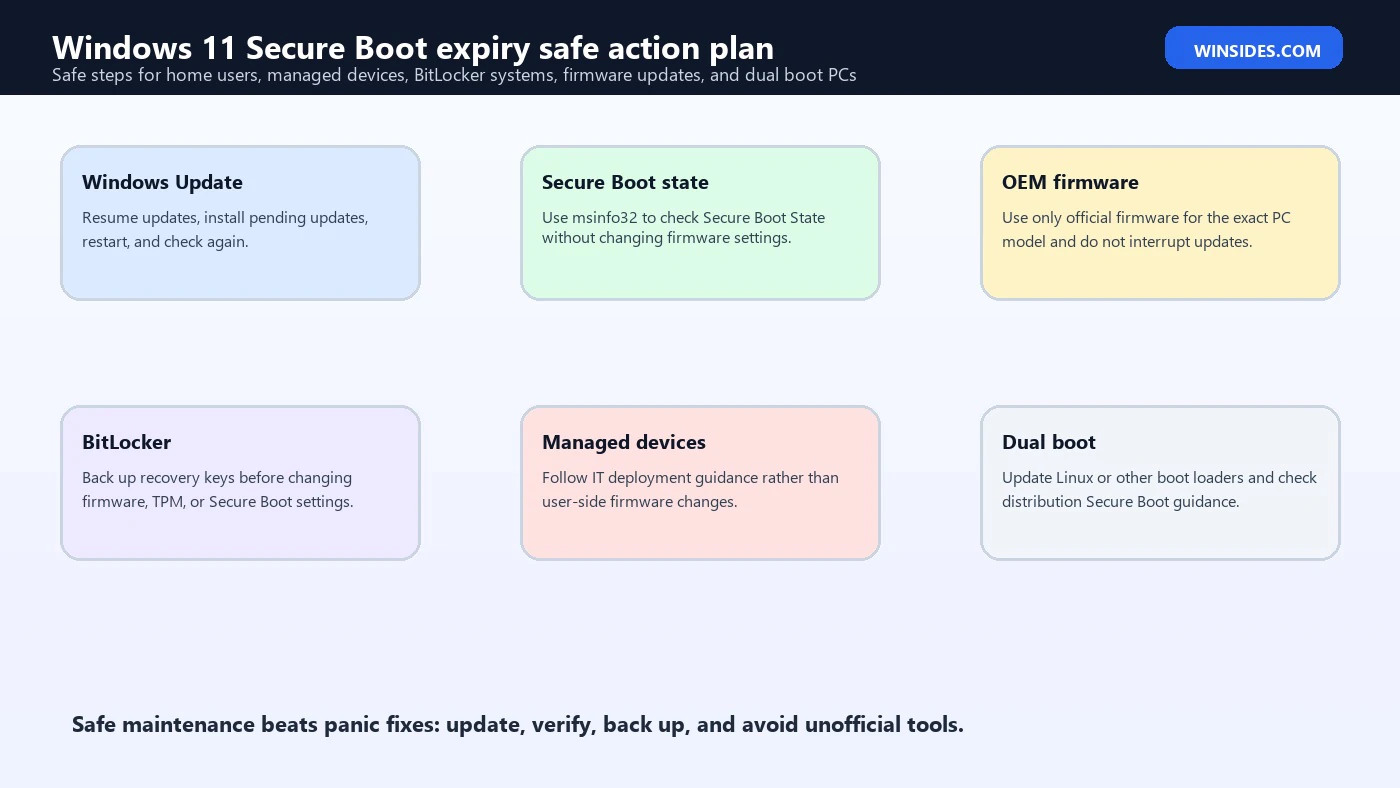
Use this practical order for a normal Windows 11 device.
- Check Settings > Windows Update.
- Resume updates if paused.
- Install available updates and restart when required.
- Check again after restart.
- Open msinfo32 and confirm Secure Boot State.
- Back up BitLocker recovery keys before firmware changes.
- Check your PC manufacturers official support page for firmware or BIOS updates.
- Install only firmware that matches your exact model.
- Keep Secure Boot enabled unless a trusted procedure says otherwise.
- Avoid random scripts, boot repair tools, registry hacks, and driver updater sites.
- For work or school devices, contact IT instead of changing firmware.
- For dual-boot systems, check the other operating systems Secure Boot guidance.
- Recheck Microsofts Secure Boot certificate support pages as the rollout progresses.
This order keeps routine maintenance first and risky firmware work last. It also keeps the user focused on official update channels rather than fear-driven fixes.
Frequently Asked Questions
What does Windows 11 Secure Boot expiry mean?
It means older Microsoft Secure Boot certificates issued in 2011 are reaching expiration and are being replaced by newer 2023 certificates. Secure Boot itself is not expiring or being removed.
Will Windows 11 stop booting after Secure Boot certificates expire?
Microsoft says devices without the newer 2023 certificates will continue to start and operate normally, and standard Windows updates will continue to install. The concern is losing future early-boot security protections, not immediate ordinary boot failure.
What are the important Secure Boot expiry dates?
Microsoft Corporation KEK CA 2011 expired on June 24, 2026. Microsoft UEFI CA 2011 expired on June 27, 2026. Microsoft Windows Production PCA 2011 expires on October 19, 2026.
Do I need to update Secure Boot certificates manually?
Most supported Windows 11 Home, Pro, and Education devices that receive automatic Microsoft-managed updates should get the new 2023 certificates through regular Windows Update channels. Manual work is mainly for managed, specialized, or advanced environments.
Should I disable Secure Boot to avoid certificate problems?
No. Disabling Secure Boot reduces protection and does not install the new certificates. Keep Secure Boot enabled unless official OEM, Microsoft, or IT guidance says otherwise for a specific scenario.
How do I check if Secure Boot is enabled?
Press Windows + R, type msinfo32, press Enter, and check Secure Boot State in System Information. It may show On, Off, or Unsupported.
Can Secure Boot expiry affect BitLocker?
The certificate transition itself should not normally require users to touch BitLocker. However, firmware, Secure Boot, TPM, or boot-path changes can trigger BitLocker recovery, so back up recovery keys before firmware changes.
What if I dual boot Windows 11 and Linux?
Keep both systems updated and check your Linux distributions Secure Boot guidance. Third-party boot loaders and shim components are part of the Secure Boot trust path, so dual-boot devices need extra care.
Conclusion: Secure Boot Needs a Trust Refresh, Not Panic
Windows 11 secure boot expiry is really about Secure Boot certificate lifecycle. The older 2011 certificates are expiring, and Microsoft is moving supported devices to newer 2023 certificates so early-boot trust can keep receiving future protections.
For most Windows 11 users, the right answer is boring but important: keep Windows Update active, keep Secure Boot enabled, restart when updates require it, and install official OEM firmware updates for your exact model when offered. Do not disable Secure Boot, clear firmware keys, or run unofficial boot repair scripts because a web page makes the 2026 dates sound catastrophic.
The PC may continue to boot normally even if certificate transition work is incomplete, but future boot-level security protections are the reason this update matters. Treat it as a trust-chain maintenance task, use official Microsoft and OEM channels, and escalate managed or dual-boot systems through the right support path.
For more interesting articles, stay tuned to Winsides.com!









Community
Comments (0)