

Windows 11 can tell an SSD which blocks no longer contain useful data by sending delete notifications, commonly called TRIM or unmap. The safest way to check the current Windows policy is to run fsutil behavior query DisableDeleteNotify. A result of 0 means delete notifications are allowed; 1 means Windows has disabled them. Because the setting name is negative, reading that number correctly matters more than the word “Disable” in the label.
This guide uses only standard-user, read-only commands. It does not enable or disable TRIM, optimize a volume, defragment a disk, or change a storage setting. The second command identifies whether the tested physical devices are reported as SSDs, which gives the policy result the right hardware context.
What the TRIM result can and cannot prove
The Microsoft documentation for fsutil behavior defines DisableDeleteNotify as the policy that disables or enables file-delete notifications. For NTFS, a displayed value of 0 allows notifications and a value of 1 disables them. Windows may also report a separate ReFS value.
This is a Windows policy check, not a complete end-to-end test of every layer between the file system and flash memory. A zero value says Windows is permitted to send the notification. It does not prove that a particular USB bridge, RAID layer, virtual disk, storage driver, or device firmware accepted a recent command. It also does not show when Windows last retrimmed the volume.
- NTFS DisableDeleteNotify = 0: Windows allows NTFS delete notifications.
- NTFS DisableDeleteNotify = 1: Windows has disabled NTFS delete notifications.
- ReFS result: Interpret it independently because NTFS and ReFS policies can differ.
- Media type: Confirm that the target device is actually reported as an SSD before treating TRIM as relevant.
Table of contents
Before you check the setting
You do not need an elevated terminal for the two checks reproduced here on the tested Windows 11 PC. Open a normal Windows Terminal or PowerShell window. If your organization blocks one of the commands, do not work around that policy or switch to an administrator account just for a screenshot. The query changes nothing, so there is no storage rollback to perform.
Save open work anyway. Storage tools have many similarly named subcommands, and the state-changing word set must not replace query. This article intentionally does not provide an enable-or-disable command because changing a storage policy needs a separate, device-specific risk review.
Check whether Windows allows TRIM notifications
Open Windows Terminal and select a normal PowerShell profile.
Type the following command, but check that it contains
querybefore pressing Enter:fsutil behavior query DisableDeleteNotify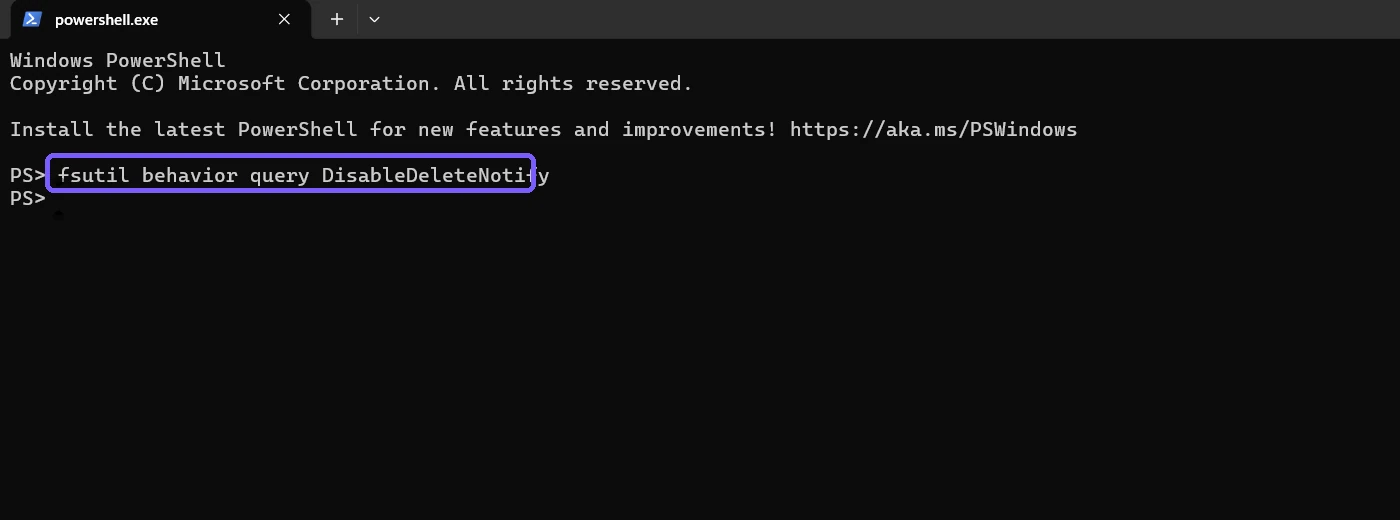
The exact command reads the policy; it does not use the state-changing set operation. Press Enter and read the number shown for each file system.
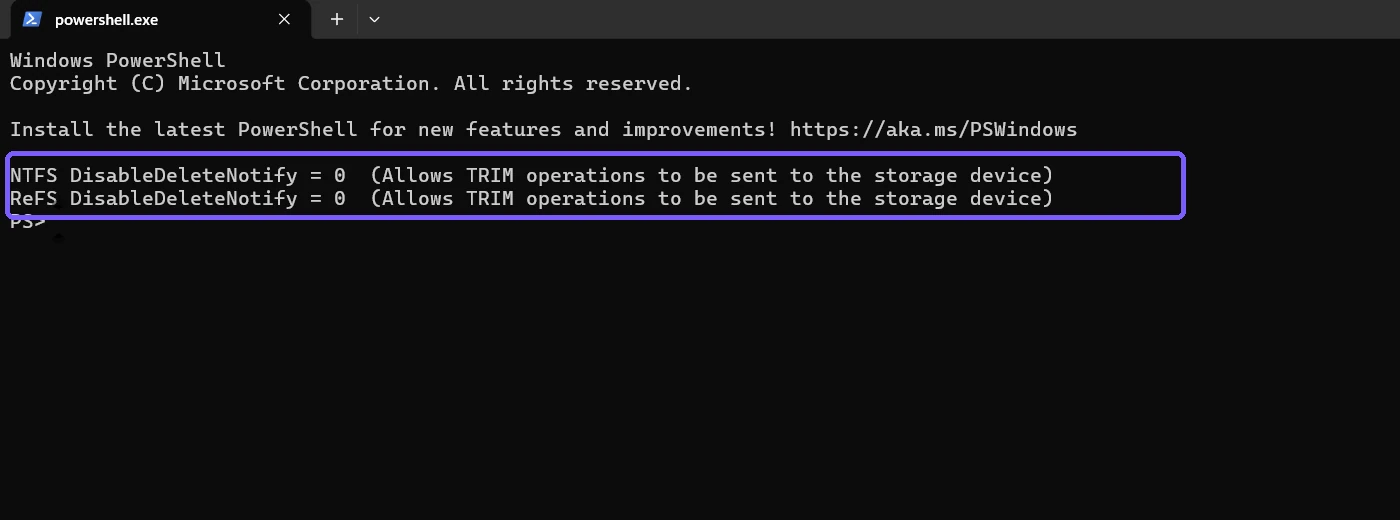
On the tested PC, both values were 0, so Windows allowed TRIM or unmap notifications for both policies.
The wording printed beside a zero value is the easiest interpretation: Windows says that TRIM operations are allowed to be sent to the storage device. If a value is 1, record it exactly and investigate the device, driver, and organizational policy before changing anything. Do not assume the value was accidental.
Confirm that Windows identifies the drive as an SSD
The policy result is most useful when the target storage is solid-state. Windows PowerShell can read the physical-disk inventory without changing the disks. The following view deliberately selects only four non-sensitive fields: friendly model name, media type, bus type, and health status.
Type this read-only inventory command:
Get-PhysicalDisk | Select-Object FriendlyName, MediaType, BusType, HealthStatus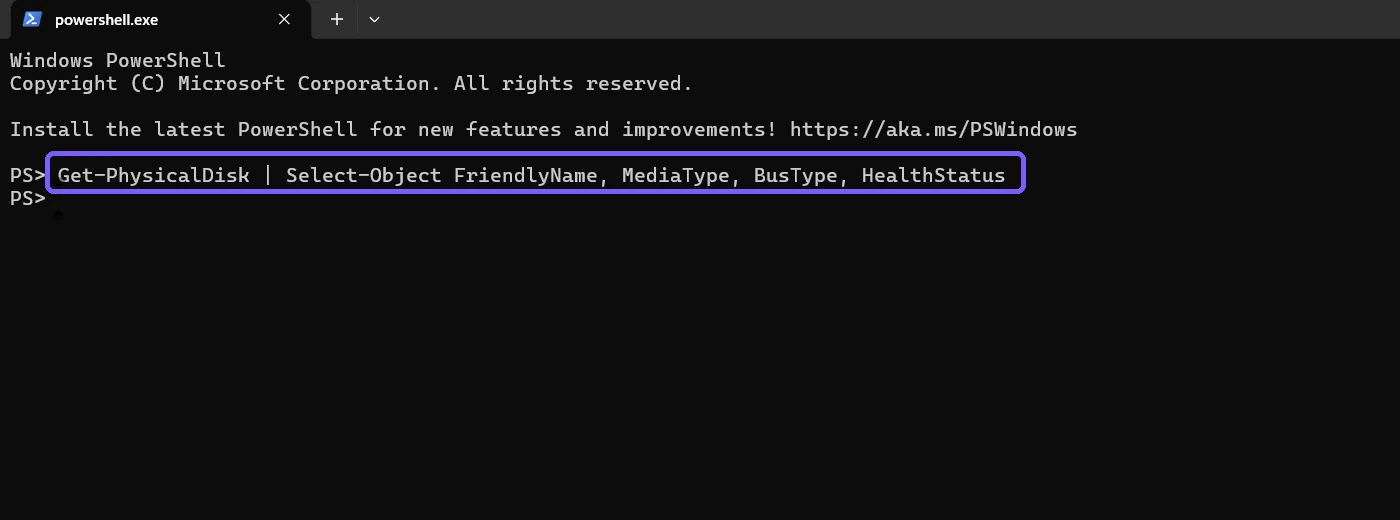
The inventory command identifies media and bus type without formatting, partitioning, or optimizing a disk. Press Enter and find the device whose MediaType is SSD.
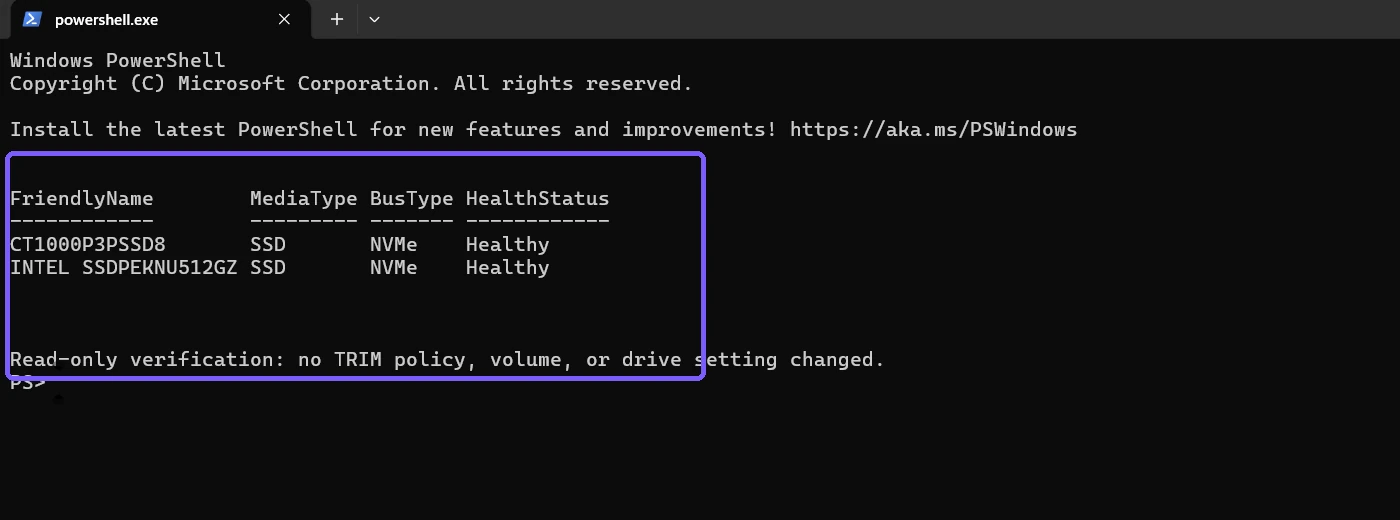
The tested devices were reported as SSDs on the NVMe bus; the final verification confirms no policy or drive setting changed.
MediaType and BusType answer different questions. SSD describes the storage medium, while NVMe describes the connection protocol. An NVMe device is normally solid-state, but you should still read the value Windows reports rather than infer it only from a product name. Some storage controllers or virtual disks can return Unspecified; that is a limitation of the inventory result, not proof that TRIM is unavailable.
How Windows uses TRIM for SSD optimization
Windows groups several maintenance actions under “Optimize Drives.” According to Microsoft Support’s drive-optimization guidance, hard disk drives are defragmented, while SSDs are trimmed so the storage device can clean unused areas efficiently. That distinction is why you should confirm media type before interpreting the policy.
Do not run Optimize merely to prove that the query works. A manual optimization is a separate operation that can create disk activity and is unnecessary for this read-only check. Windows normally manages optimization automatically. If you are troubleshooting a real maintenance failure, collect the exact error and review the drive’s health and controller support before taking a more disruptive step.
Troubleshoot an unexpected result
The command says access is denied
Confirm that you typed only the query shown above. On the tested PC it worked from a standard-user session. A managed computer can apply restrictions that differ from a personal PC. Do not bypass workplace policy; ask the administrator to perform or approve the read.
The result is 1
A value of 1 means Windows has disabled delete notifications for that file-system policy. Capture the complete output and identify the storage device and controller. Do not immediately change the value. The reason may involve an older driver, a storage abstraction, compatibility guidance, or an intentional policy.
Get-PhysicalDisk shows Unspecified
Some controllers do not expose a reliable media type through the Storage Management provider. Check the device manufacturer’s specification using the exact model name, or inspect the non-destructive Disks & volumes properties page. Do not convert, initialize, format, or repartition the disk to make the label appear.
Only NTFS appears
That can be normal when ReFS is not present or its policy is not set on the device. Interpret only the rows actually returned. The NTFS result still answers whether Windows allows delete notifications for NTFS.
Frequently Asked Questions
Does a value of 0 mean TRIM is enabled?
Yes at the Windows policy layer: 0 means delete notifications are not disabled. It does not by itself prove that every storage layer accepted a recent TRIM command.
Does this command erase or optimize data?
No. The reproduced query reads the current policy. It does not erase files, retrim a volume, defragment a disk, or change a setting.
Is NVMe the same thing as SSD?
No. SSD is the media type, while NVMe is a storage protocol. Windows can report both values for the same physical device.
Should you manually optimize an SSD after this check?
Not merely because you ran the query. Windows normally schedules drive optimization. Run a manual maintenance action only for a specific, verified need.
Conclusion
Use fsutil behavior query DisableDeleteNotify to read the current Windows policy, then use Get-PhysicalDisk to confirm that the relevant device is reported as an SSD. A zero value allows notifications, while a value of one disables them. Keep this verification separate from any policy change or manual optimization.
For more interesting articles, stay tuned to WinSides.com!







Community
Comments (0)