

Reserved storage is disk space that Windows keeps available for updates, temporary files, system caches, and other operating-system needs. Windows calculates the amount for the current device, so there is no single size that every Windows 11 PC should report.
You can read the number without running a command or changing a storage feature. Open Settings > System > Storage, expand the complete category list, select System & reserved, and read the value beside Reserved storage. This guide reproduces that read-only path and explains how to avoid confusing the number with the much larger System & reserved total.
Before you check the Reserved storage size
The procedure is observational. Do not select Temporary files, Cleanup recommendations, Storage Sense, uninstall controls, or a reserved-storage state command merely to find the number. None of those actions is required.
Storage values can refresh while Settings scans the drive. Allow the page to finish loading before you compare categories. The screenshots show values from one test PC only; your device can report a different disk capacity, free-space value, category total, and Reserved storage size.
Table of contents
How do you open Storage settings?
Press Windows + I to open Settings.
Select System in the left navigation if it is not already selected.
Select Storage.
Wait for the storage categories to finish calculating.
Microsoft's Storage settings guide documents the System > Storage page and explains that Windows groups disk usage into categories. The page also contains cleanup and management controls, but you do not need to use them for this check.
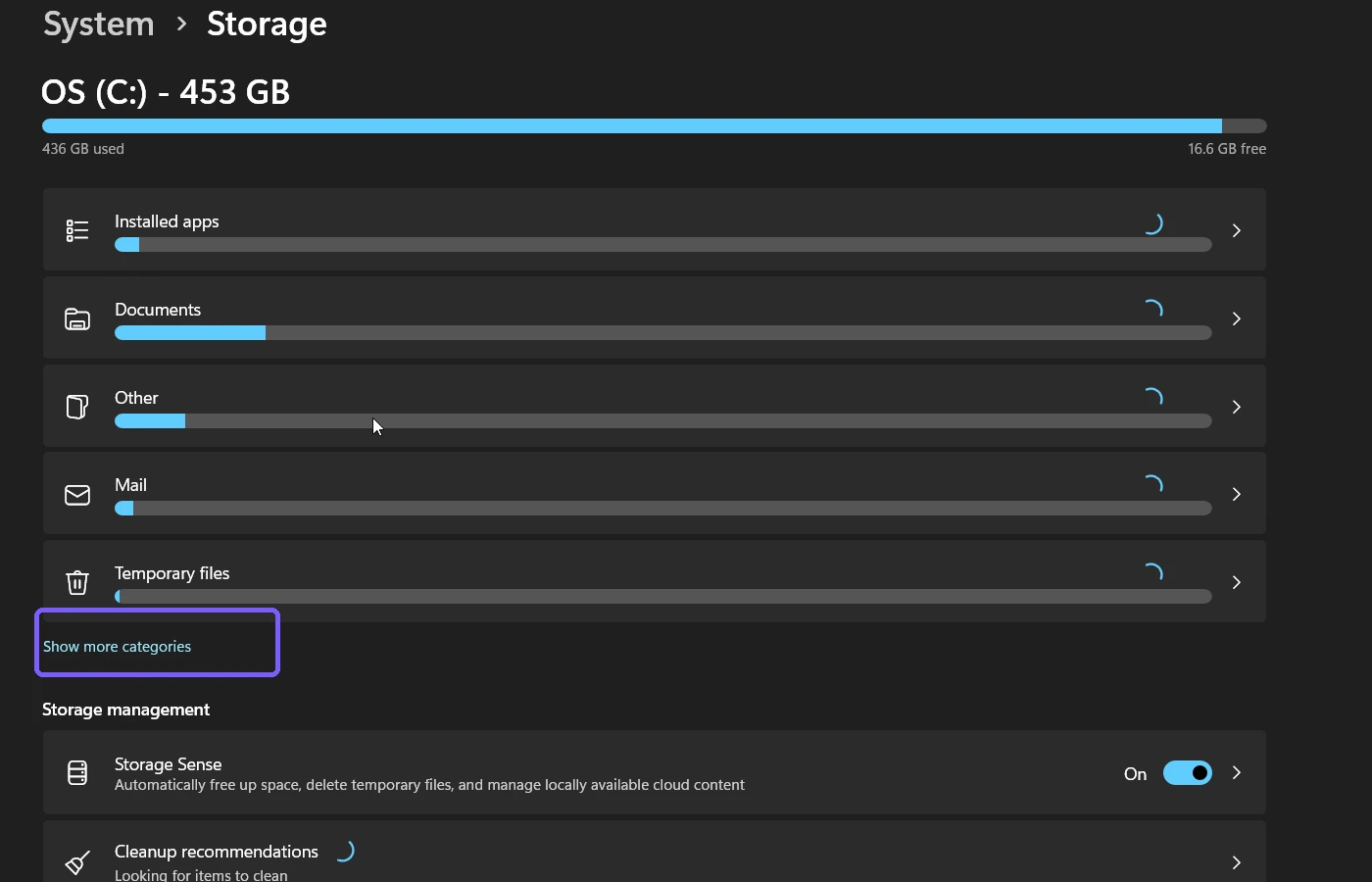
Where is System & reserved?
On the Storage page, select Show more categories.
Find System & reserved in the expanded Storage usage list.
Select System & reserved. Do not use Temporary files or another cleanup category.
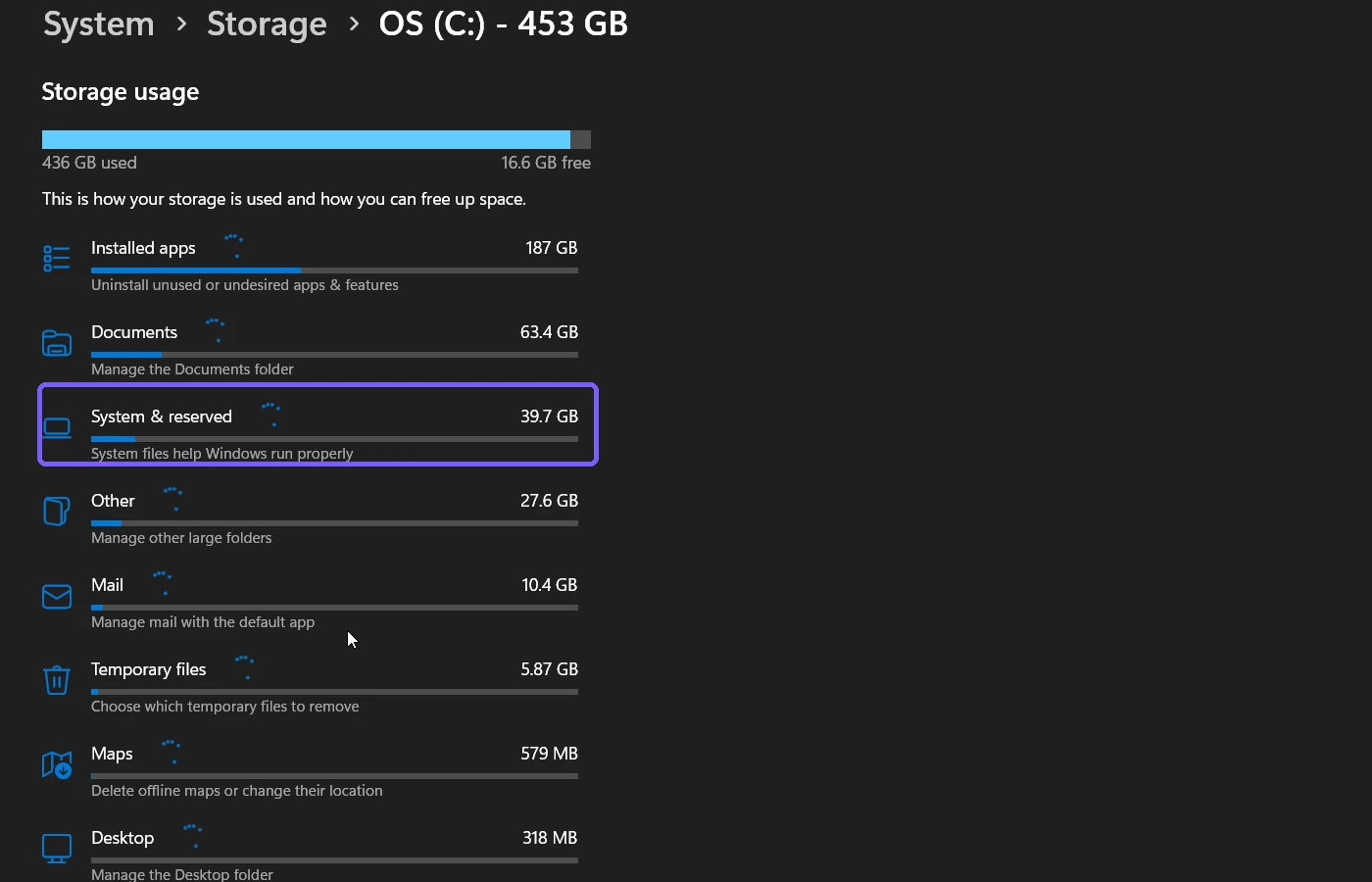
The number shown on the category row combines several kinds of system-managed space. On the reproduced PC, the row reported 39.7 GB, but that was not the target value. Opening the row revealed separate entries for System files, Reserved storage, Virtual memory, the hibernation file, and System restore.
How do you read the Reserved storage value?
On the System & reserved page, locate the heading Reserved storage. The number directly below that heading is the current device's displayed Reserved storage size. The reproduced PC reported 6.51 GB at capture time.
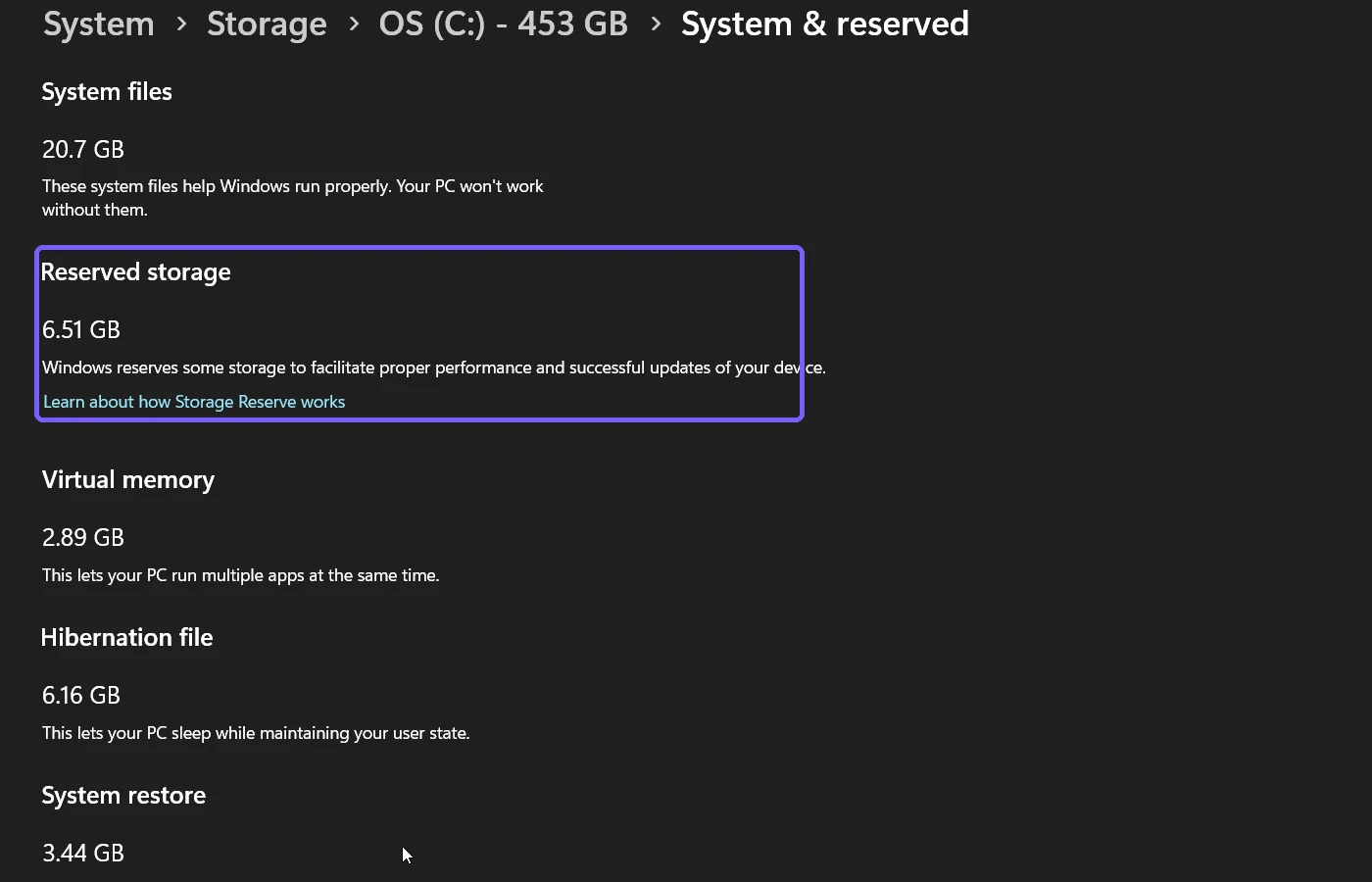
Treat the number as a current reading, not a permanent specification. Windows can adjust reserved space as optional features, languages, update requirements, and system conditions change. A later visit can therefore show a different value without indicating a fault.
How do you finish without changing storage?
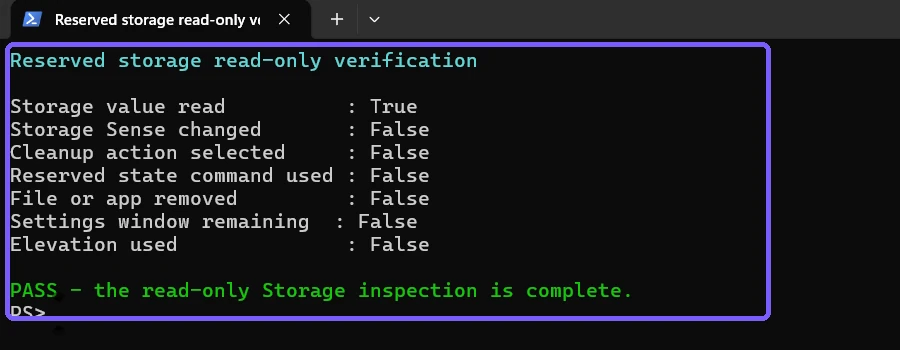
After reading the value, close Settings. There is no Save, Apply, clean, or reset step. The evidence pass closed Settings and verified that Storage Sense was not changed, no cleanup action was selected, no reserved-state command was used, no file or app was removed, and no elevation prompt appeared.
Why is System & reserved larger than Reserved storage?
System & reserved is the parent category. It can include Windows system files, virtual memory, the hibernation file, restore data, and Reserved storage. The Reserved storage entry is only one component inside that breakdown.
Do not subtract random entries from the category total to estimate the reserved value. Settings already displays the relevant number. Reading the labeled entry is clearer and avoids mixing space that serves unrelated Windows functions.
Is Reserved storage the same as Storage Sense?
No. Reserved storage is space Windows sets aside for system needs. Storage Sense is an automated cleanup feature that can remove eligible temporary content according to its configuration. If cleanup automation is your actual goal, use the separate guide to turn on Storage Sense in Windows 11.
Keep the two tasks separate. Toggling Storage Sense is unnecessary for reading Reserved storage, and a cleanup run will not make the Reserved storage label a more accurate measurement.
Can a PowerShell command show the numeric size?
Do not substitute the reserved-storage state cmdlet for this Settings reading. Microsoft's Get-WindowsReservedStorageState reference describes a command that reports whether Reserved Storage is enabled or disabled. That state is different from the numeric size shown in Settings.
The UI route is also easier to interpret because it presents the value beside the correct label and its neighboring system categories. This guide deliberately excludes command execution so a size lookup cannot turn into a servicing-state task.
Why should you avoid Set-WindowsReservedStorageState?
The word Set signals a state-changing operation. Microsoft's reserved storage servicing documentation distinguishes read-only state inspection from commands that enable or disable the feature. Those changes are outside this guide and should not be used to answer a size question.
Do not copy a command from an unrelated troubleshooting page solely because it mentions Reserved Storage. If a servicing change is genuinely required, research that separate operation, its prerequisites, support boundaries, and rollback plan first.
What if Reserved storage is not listed?
Confirm that you opened the correct category
Return to System > Storage, select Show more categories, and open System & reserved. The number is not normally displayed on the first Storage page.
Wait for the page to calculate
Category values can appear progressively. Keep Settings open briefly and allow the scan to settle instead of repeatedly navigating away.
Can the presentation differ between devices?
Windows configuration, servicing state, build, device history, and available features can affect what appears. An absent label is not permission to run an enable command without understanding the wider effect.
Avoid using cleanup as a diagnostic shortcut
Deleting temporary files or uninstalling apps changes storage usage but does not prove why the Reserved storage entry is absent. Diagnose the display path first and preserve the current device state.
Can you compare the value between two PCs?
You can compare readings if both devices use the same labeled entry, but the numbers are not expected to match. Record the Windows version, observation time, and the exact Reserved storage value for each device. Do not compare one PC's System & reserved total with another PC's Reserved storage component.
For a repeatable audit, revisit the same Settings page on each device and capture only non-sensitive storage information. Disk capacity and usage are device details, so share them only when they are relevant and appropriate.
Does a large Reserved storage value mean disk space is lost?
Reserved storage remains system-managed capacity intended to help Windows operations complete reliably. The displayed amount is not a personal-files folder that you can safely browse and empty. A number larger than expected should be investigated in context rather than treated as disposable data.
If the real problem is low free space, review storage categories and approved cleanup options separately. Do not disable a servicing feature just to make one Settings number smaller.
Frequently Asked Questions
Where is the Reserved storage size in Windows 11?
Open Settings > System > Storage > Show more categories > System & reserved, then read the number directly under Reserved storage.
Is System & reserved the same number as Reserved storage?
No. System & reserved is a combined category, while Reserved storage is one component inside it.
Do I need administrator rights to check the size?
No. The reproduced Settings path worked under a standard user account and required no elevation.
Should I run a Set command to reveal the size?
No. A Set command changes Reserved Storage state and is unrelated to the read-only numeric value shown in Settings.
Conclusion
Use the built-in Storage breakdown to find the current Reserved storage size: open System > Storage, expand the categories, open System & reserved, and read the correctly labeled component. Close Settings when finished, and keep cleanup tools and state-changing commands out of a simple size check.
For more interesting articles, stay tuned to WinSides.com!

Community
Comments (0)