

Windows 11 Settings contains pages for the system, devices, network, personalization, apps, accounts, accessibility, privacy, updates, and more. When you know what you want to change but not where Microsoft placed it, use the Find a setting box instead of opening categories one at a time.
Press Ctrl + E while Settings is active to focus the search box, type a short feature name, and open the most relevant result. I reproduced the method with the neutral query display, opened the Display page, and then closed Settings without changing a slider, toggle, list, or feedback control.
Before you search Windows Settings
Search is navigation, not permission to apply every result. Read the destination page and the label of the exact control before you select anything else. Some pages can disconnect a network, remove an account, uninstall an app, reset a feature, erase saved data, or change accessibility behavior.
The Settings Home page can also show device, network, update, Bluetooth, and cloud information. If you are sharing your screen or taking a screenshot, keep the capture around the search interface or use a page that does not expose personal identifiers. The retained evidence uses direct privacy-safe regions for that reason.
Table of contents
How do you focus Find a setting?
Open Settings.
Press Ctrl + E. The keyboard focus moves to Find a setting.
You can also select the search box with the mouse or touch.
Microsoft's Settings navigation guide documents Ctrl + E for moving focus to the search box. The shortcut applies while the Settings window is active; it is not the same as searching the Start menu or File Explorer.

How do you search for a setting?
Type a short term describing the feature. The reproduced example uses display.
Wait for the result list to appear.
Read the result labels. Use Down Arrow and Up Arrow to move through them if you prefer the keyboard.
Choose the closest destination and press Enter, or select it once.
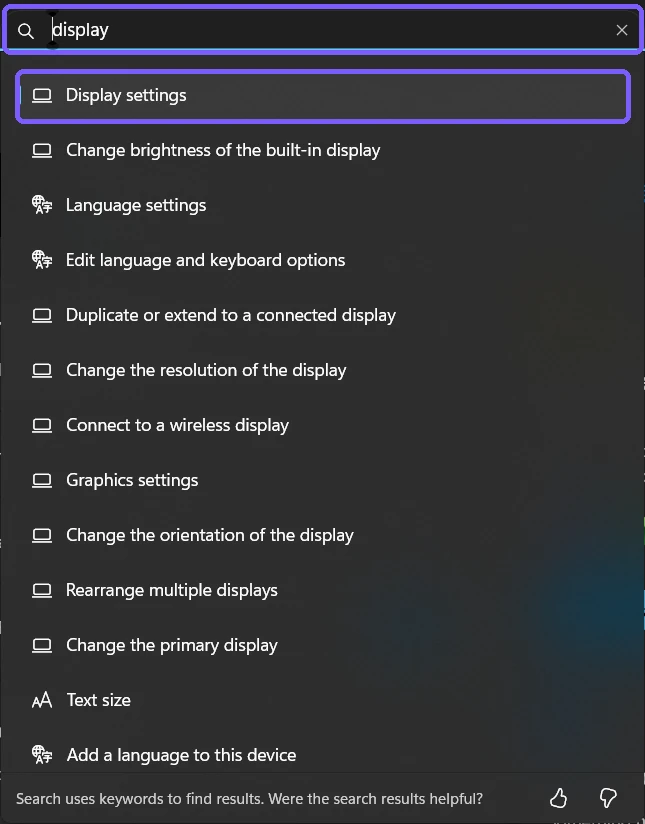
The list can include both broad pages and individual controls. In the reproduced result set, Display settings was the general destination, while entries for brightness, resolution, orientation, multiple displays, graphics, and text size were more specific.
What happens after you open a result?
Settings navigates to the corresponding page. Opening a destination does not by itself mean that a control has changed. For this test, selecting Display settings opened System > Display. The page showed its current brightness, night light, scale, resolution, orientation, and multiple-display controls, but none was selected or modified.
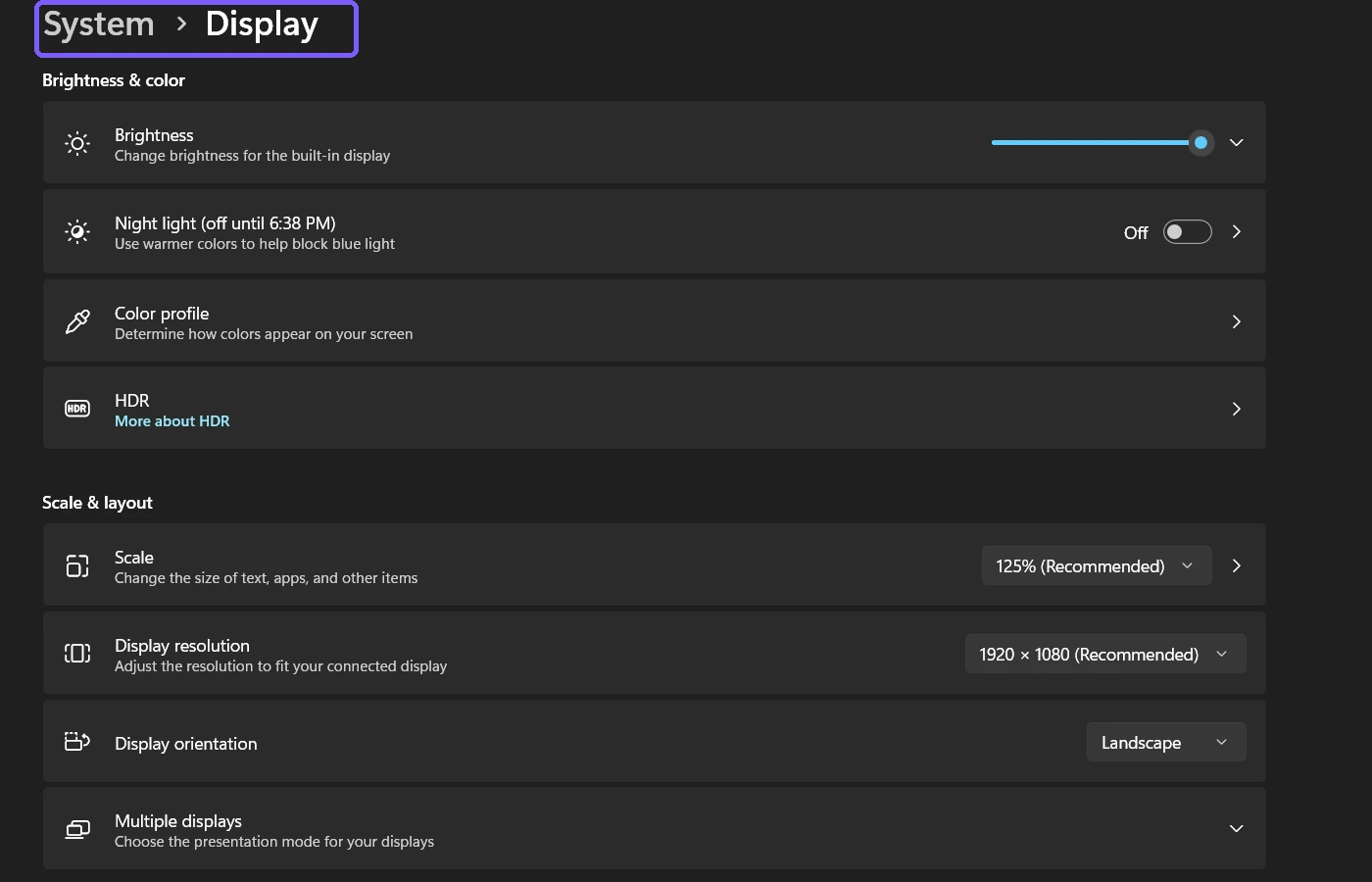
Stop and read the page before continuing. Search can take you directly to a setting whose effect is immediate. A brightness slider, display resolution list, microphone permission, sign-in option, or reset button is not a harmless next step merely because search found it.
How do you finish a search without applying anything?
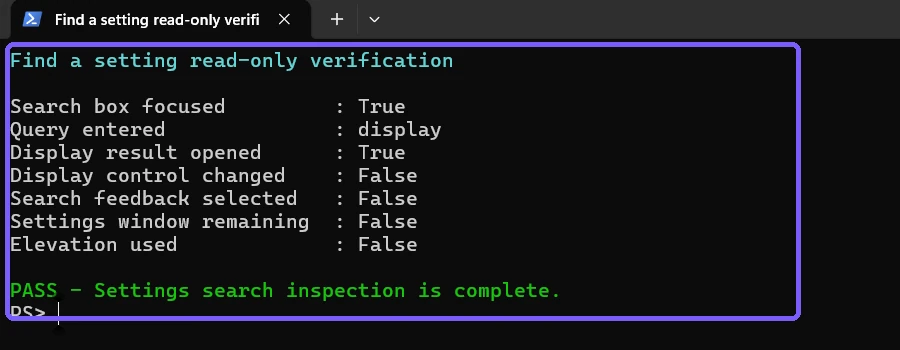
Close Settings after confirming that you reached the intended page. There is no separate action required to undo a search query. The evidence pass verified that the Display result opened, no Display control changed, no search-feedback button was selected, Settings closed, and no elevation prompt appeared.
What words should you type in Settings search?
Start with the visible feature name or a concise noun phrase: display, Bluetooth, notifications, mouse, storage, camera privacy, or Windows Update. Use the wording that appears in Windows when possible.
If the first query is too broad, add one distinguishing word. For example, display resolution is more specific than display, and text size is more specific than accessibility. Avoid a long sentence when a two- or three-word feature label will do.
How do you use the results with only a keyboard?
After pressing Ctrl + E and typing a query, use the arrow keys to review the available results and press Enter to open the selected one. Press Esc if you want to dismiss the result list and return to the current Settings page.
Focus matters. If the arrow keys move a slider or list on the destination page, the search results no longer have focus. Press Ctrl + E again before typing a new query. Do not continue pressing arrow keys when an adjustable control is selected.
Can you browse categories instead of searching?
Yes. Microsoft's overview of Windows Settings describes both keyword search and category navigation. Browsing is useful when you know the general area but want to understand neighboring controls.
Search is faster for a known label; categories provide more context. If a query produces ambiguous results, return to the relevant category and read its page rather than guessing which similarly named destination is correct.
Search results are destinations, not instructions
A result label may sound like the entire solution, but opening the page is only the navigation step. Read a focused procedure before performing a disruptive action. For example, use a dedicated guide before you reset network settings in Windows 11, because that operation can remove saved adapter configuration and interrupt connectivity.
The same principle applies to maintenance features. If your search leads to Storage, review the feature and its cleanup behavior before you turn on Storage Sense in Windows 11. Finding the page does not decide whether the setting is appropriate for your device.
Why does Find a setting show no useful result?
Is the query too broad?
Replace a general word such as system or privacy with the feature label you expect to see. Add a second word when several settings share the same topic.
Could the wording have changed?
Windows builds can rename, regroup, or move settings. Try a close synonym, then browse the likely category. Prefer current on-screen labels over instructions written for an older Windows release.
Is Settings still loading?
Wait briefly after opening Settings or entering a query. Repeatedly clearing and retyping can make it harder to tell whether results have finished populating.
Are you searching the correct app?
Ctrl + E has context-dependent behavior. Confirm that Settings is the active window and that the Find a setting box has focus before typing.
Should you use the thumbs-up or thumbs-down buttons?
The feedback controls at the bottom of the result list are optional and are not required to open a setting. The reproduction did not select either button. If you do not intend to submit feedback, keep focus on the result list and avoid those controls.
Does Settings search require administrator rights?
No. Focusing the search box, entering display, opening the Display page, and closing Settings all worked under a standard user account. A particular destination may later require elevation for a separate operation, but search itself does not grant or request administrative permission.
Frequently Asked Questions
What shortcut focuses Find a setting in Windows 11?
Press Ctrl + E while the Settings window is active.
Can Settings search change a setting automatically?
Opening a normal result navigates to its destination page. Stop and read the controls there before selecting anything that changes the device.
Why are several results shown for one word?
A broad query can match a general page and several individual controls. Add a distinguishing word or choose the broad page for more context.
How do I close the search results?
Press Esc to dismiss the result list, or close Settings when you are finished.
Conclusion
Press Ctrl + E in Settings, enter a concise feature name, review the result labels, and open the closest destination. Treat the result as navigation only, protect personal information visible on Settings Home, and stop before changing a control unless that separate action is genuinely intended.
For more interesting articles, stay tuned to WinSides.com!







Community
Comments (0)